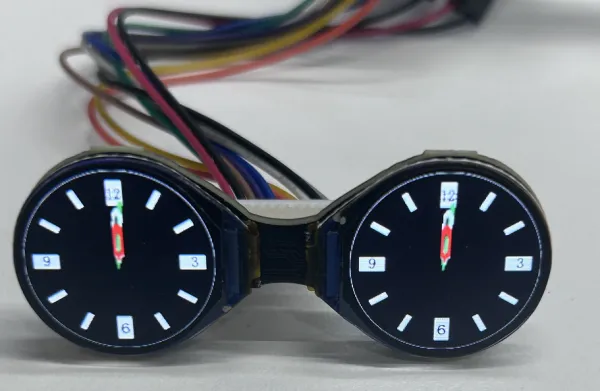
Working with ESP32
This chapter describes how to run the 0.71inch DualEye LCD Module example programs on the ESP32-C3 and ESP32-S3 using Arduino IDE. The wiring images and project configuration screenshots use the ESP32-C3-Zero as an example.
- Arduino Getting Started
- Setting Up the Development Environment
- Hardware Connection
- Example Descriptions and Running Effects
Arduino Getting Started
New to Arduino ESP32 development and looking for a quick start? We have prepared a comprehensive Getting Started Tutorial for you.
- Section 0: Getting to Know ESP32
- Section 1: Installing and Configuring Arduino IDE
- Section 2: Arduino Basics
- Section 3: Digital Output/Input
- Section 4: Analog Input
- Section 5: Pulse Width Modulation (PWM)
- Section 6: Serial Communication (UART)
- Section 7: I2C Communication
- Section 8: SPI Communication
- Section 9: Wi-Fi Basics
- Section 10: Web Server
- Section 11: Bluetooth
- Section 12: LVGL GUI Development
- Section 13: Comprehensive Project
Note: This tutorial uses the ESP32-S3-Zero as a reference example, and all hardware code is based on its pinout. Before you start, we recommend checking the pinout of your development board to ensure the pin configuration is correct.
Setting Up the Development Environment
1. Installing and Configuring the Arduino IDE
Refer to the tutorial Install and Configure Arduino IDE to download and install the Arduino IDE and add ESP32 board support.
2. Installing the Libraries
- Arduino libraries support online and offline installation.
- The libraries required by this example are located in the
ESP32/Arduino/librariesdirectory of the example package.
| Library or File Name | Description | Installation Method |
|---|---|---|
| TFT_eSPI | GC9D01 LCD driver, text and graphics rendering | Offline installation |
| Lvgl | Image and graphical interface display | Offline installation |
lv_conf.h | LVGL configuration file | Copied with the supporting libraries |
This example uses the TFT_eSPI, Lvgl, and lv_conf.h provided in the ESP32/Arduino/libraries directory. TFT_eSPI already includes the GC9D01 driver and the pin configuration required by this example. Please use the companion files to avoid compilation failures or display abnormalities caused by inconsistent library versions or configurations.
Installation Steps:
-
Download and extract the 0.71inch DualEye LCD Module Example.
-
Copy the
TFT_eSPIandLvglfolders and thelv_conf.hfile from theESP32/Arduino/librariesdirectory to the Arduino libraries folder, so that the three items are at the same level.infoThe Arduino libraries folder path is typically
C:\Users\<username>\Documents\Arduino\libraries.You can also click "File" > "Preferences" in Arduino IDE to view the "Sketchbook location". The libraries folder is the
librariesfolder inside this path. -
Restart Arduino IDE so that the library files are reloaded.
-
For other installation methods, refer to the Arduino Library Management Tutorial.
Board installation instructions required for the 0.71inch DualEye LCD Module
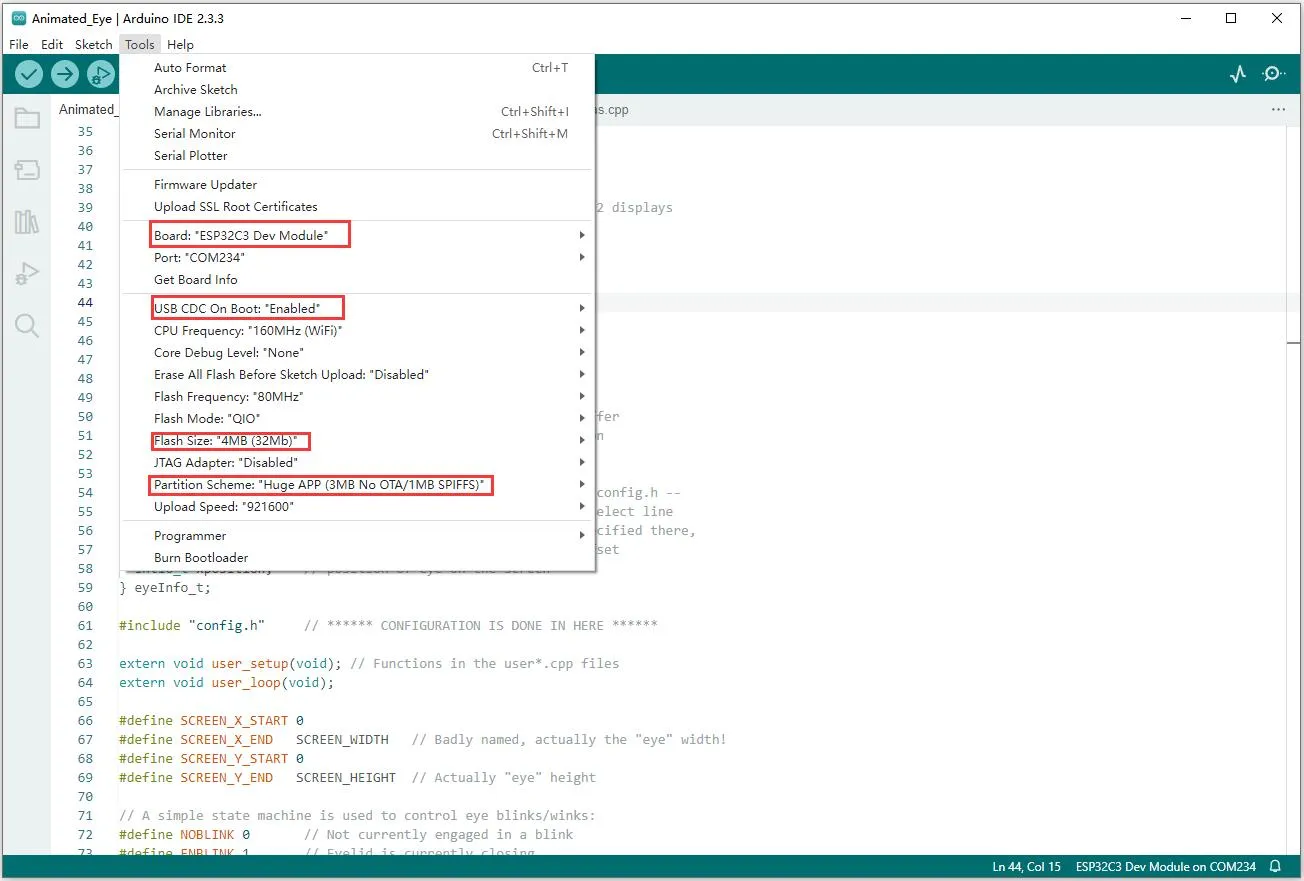
This example requires the v2.0.12 version of the ESP32 board support package. If you choose offline installation, please refer to the Install and Configure Arduino IDE to complete the installation.
| Board Support Package | Installation Method | Version Requirement |
|---|---|---|
| ESP32 by Espressif Systems | Offline installation / Online installation | v2.0.12 |
Arduino Project Configuration:
Hardware Connection
Connect the LCD module to the development board using 11PIN wires. The pin correspondence is as follows:
| LCD | ESP32-C3 / ESP32-S3 |
|---|---|
| VCC | 3V3 |
| GND | GND |
| DIN | GPIO4 |
| CLK | GPIO7 |
| CS1 | GPIO6 |
| CS2 | GPIO2 |
| DC | GPIO9 |
| RST1 | GPIO8 |
| RST2 | GPIO5 |
| BL1 | GPIO1 |
| BL2 | GPIO3 |
The ESP32-C3-Zero wiring diagram is as follows:
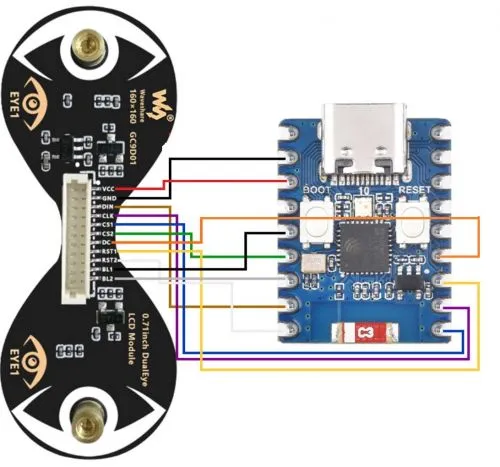
After confirming the wiring, connect the development board to the computer using a USB cable that supports data transfer.
Example Descriptions and Running Effects
| Example Folder | Function | Dependencies |
|---|---|---|
| 01_Text_and_Number_Display | Text and number display | TFT_eSPI |
| 02_Shapes_on_Circular_Display | Geometric shape drawing | TFT_eSPI |
| 03_Animated_Eye1 | Simulated eye style 1 | TFT_eSPI |
| 04_Animated_Eye2 | Simulated eye style 2 | TFT_eSPI |
| 05_Animated_Eye12 | Alternately displays two eye styles | TFT_eSPI |
| 06_Image_Display | Image display | TFT_eSPI, LVGL |
| 07_Clock | Clock interface | TFT_eSPI, LVGL |
01_Text_and_Number_Display
Program Description
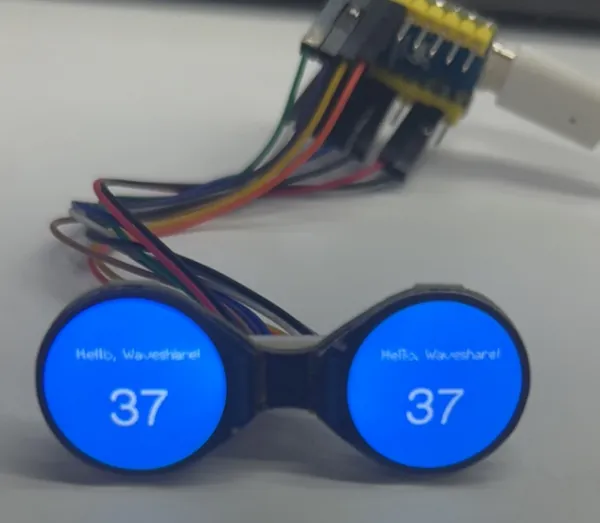
When the program starts, it displays a color transition, followed by text and a two-digit number counting up cyclically from 00 to 99, updating once per second.
Code Analysis
setup(): Sets the backlight and chip select pins, callstft.init()to initialize the screen, usestft.fillScreen()to switch background colors, and then sets the text color.loop(): Controls the chip select and display orientation of the two screens, and draws text and numbers viatft.drawString().- Converts the number to a string, pads single-digit values with a leading zero; the number resets to zero after exceeding
99, and the update interval is controlled bydelay(1000).
Running Effect
02_Shapes_on_Circular_Display
Program Description
Draws randomly colored squares, triangles, and circles in sequence at the center of the screen, switching shapes every 3 seconds.
Code Analysis
drawSquare(): Calculates the position and size of the square, and callsfillRect()to fill it with a random color.drawTriangle(): Calculates the three vertices of the triangle, and callsfillTriangle()to draw the shape.drawCircleInCenter(): CallsfillCircle()to draw a circle with a radius of 30 pixels at the center of the screen.- The current example package uses a canvas to store the image, and
updateDisplays()updates the image and its rotated version to the two screens, respectively.
Running Effect

03_Animated_Eye1
Program Description
Uses TFT_eSPI to draw simulated eye style 1, generating animation through changes in eye state and iris size.
Code Analysis
config.h: Selects eye image resources and configures animation parameters.updateEye(): Updates the iris size and eye state. WhenLIGHT_PINis not defined, random target values and smooth transitions are used to generate iris changes.- If a light sensor is separately connected and
LIGHT_PINis configured, the program can read analog values and adjust the iris based on the light sensing range, curve, and smoothing options; the default configuration does not enable this pin, and the wiring table does not include a light sensor. - The source code includes buffer branches controlled by
USE_DMA. Whether DMA is used depends on the corresponding platform and library configuration, and does not mean it is enabled on all development boards.
Running Effect

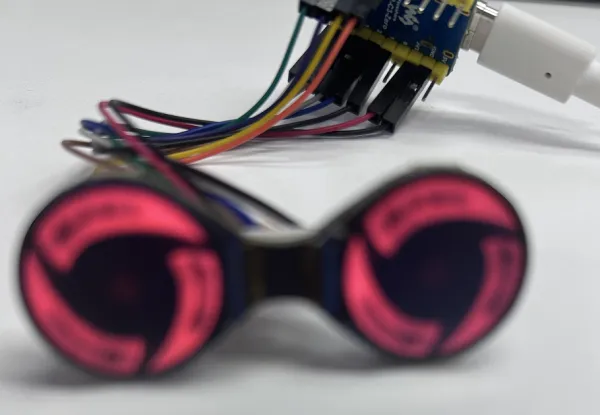
04_Animated_Eye2
Program Description
Controls the two screens to display simulated eye style 2, forming eye animation through continuous images.
Code Analysis
loop(): CallsDemo_1()multiple times in a loop to continuously update the animation.Demo_1(): Selects the screen via the chip select signal, and usespushImage()to display the image sequence.
Running Effect
05_Animated_Eye12
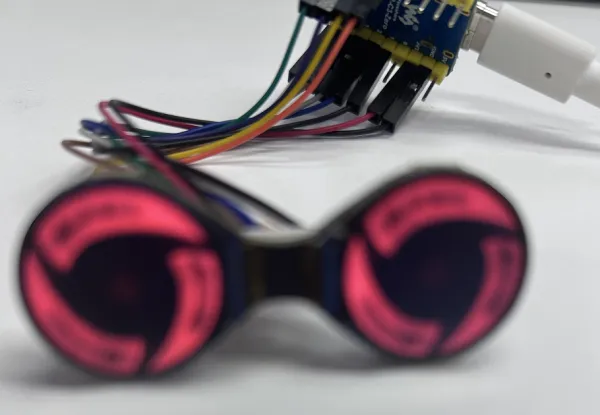
Program Description
Alternately displays simulated eye style 1 and style 2.
Code Analysis
loop(): Switches between the two animations based on the variablea.- When
a == 1, clears the screen and callsDemo_1(), then delays for 2 seconds. - When
a == 2, callsDemo_2()multiple times to display the image sequence in order.
Running Effect
06_Image_Display
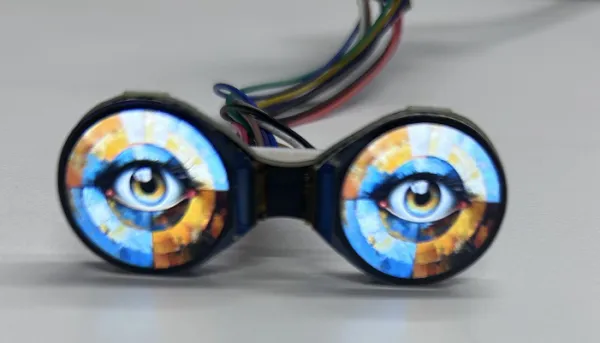
Program Description
Initializes TFT_eSPI and LVGL, creates an image object, and displays the image on the screen.
Code Analysis
setup(): Initializes serial, LVGL, and the screen, configures the display buffer, and registers the display driver and refresh callback.LV_IMG_DECLARE(A3): Declares the image resource, creates an image object vialv_img_create(), and then sets the image content and position usinglv_img_set_src().lv_disp_flush(): Sets the screen write window according to the area to be refreshed, sends pixel data viatft.pushColors(), and finally callslv_disp_flush_ready()to notify LVGL that the refresh is complete.loop(): Handles screen chip select and display orientation, and callslv_timer_handler()to process LVGL tasks.
Running Effect
07_Clock
Program Description
Uses TFT_eSPI and LVGL to initialize the screen and display a clock interface.
Code Analysis
setup(): Initializes serial, LVGL, the screen, and the display buffer, registers the display driver, and callsui_init()to create the interface.lv_disp_flush(): Sends the pixel data of the area to be refreshed to the first screen, then sends the rotated pixels to the second screen, and finally notifies LVGL that the refresh is complete.loop(): Continuously callslv_timer_handler()to process interface tasks.
Running Effect