Working with Raspberry Pi Pico
This chapter includes the following sections. Please read as needed:
Hardware Connection
Connect the LCD module to the Raspberry Pi Pico using an 11PIN ribbon cable. The pin correspondence is as follows:
| LCD | Raspberry Pi Pico |
|---|---|
| VCC | 3.3 V |
| GND | GND |
| DIN | GPIO11 |
| CLK | GPIO10 |
| CS1 | GPIO9 |
| CS2 | GPIO13 |
| DC | GPIO8 |
| RST1 | GPIO12 |
| RST2 | GPIO15 |
| BL1 | GPIO20 |
| BL2 | GPIO21 |
MicroPython Environment Setup
- Download and install the Thonny 3.3.3 installer.
- Press and hold the BOOTSEL button on the Raspberry Pi Pico, connect it to the computer via USB, and release the button after power-up.
- The computer will recognize a new disk. Download and extract the Raspberry Pi Pico MicroPython firmware, and copy the file with the
.uf2extension to that disk. After copying is complete, the Pico will automatically restart, and the disk will disappear. - Open Thonny and click
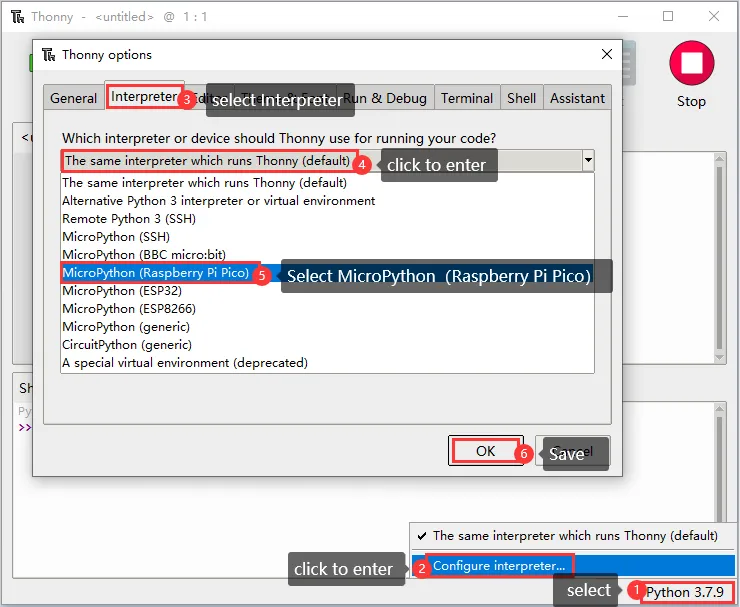
Python x.x.xin the lower-right corner, then selectConfigure interpreter. - In the pop-up window, select
Interpreter, set the interpreter toMicroPython (Raspberry Pi Pico), and selectAuto-detect portfor the port. - Click the Stop button. When the MicroPython version information and the
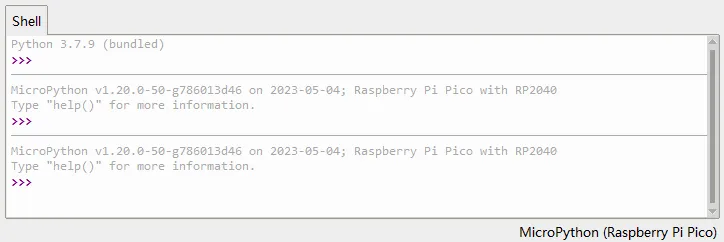
>>>prompt appear in the Shell window, the connection is successful. When using the firmware above, the version information isMicroPython v1.20.0-50-g786013d46 on 2023-05-04.
The interpreter configuration is as follows:
The Shell window after a successful connection is as follows:
Downloading Example Programs
Download and extract the package from the 0.71inch DualEye LCD Module Example.
Open the extracted 0.71inch-DualEye-LCD-Module-Demo folder, find the Raspberry Pi Pico folder, and the Eye.py inside it is the example program used in this section.
Running the Example
Before running, complete the Hardware Connection and MicroPython Environment Setup, and confirm that Thonny is connected to the Pico and the Shell window shows the >>> prompt.
-
In Thonny, click
File>Open..., or pressCtrl+O, and open theRaspberry Pi Pico/Eye.pyextracted on the computer. If a file location selection window appears, select the file on the computer.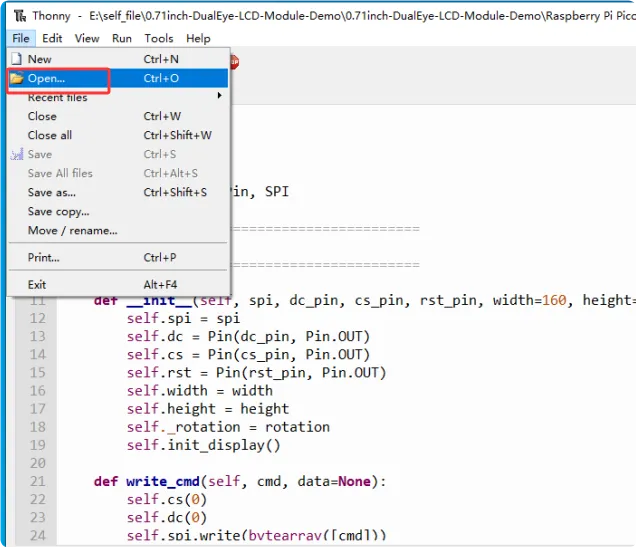
-
Confirm that the editor has opened
Eye.py, and click the green run button in the toolbar or pressF5to run the current script.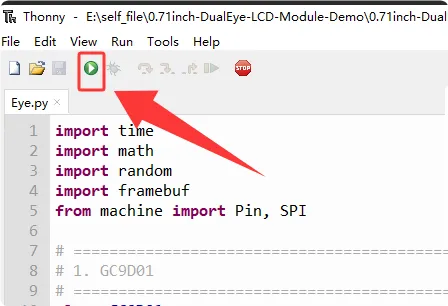
-
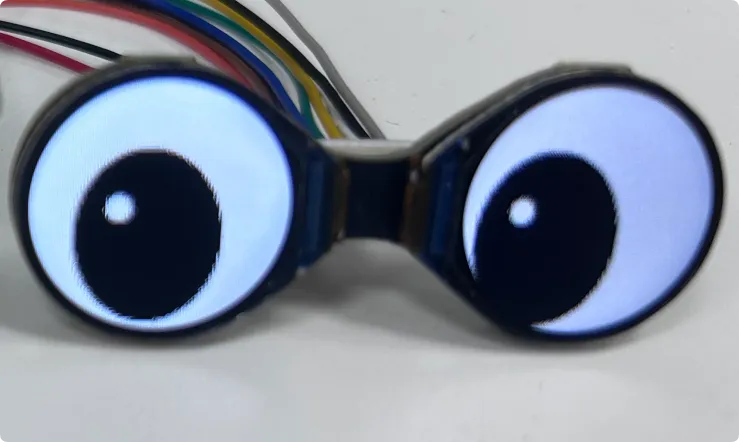
Observe the LCD module. After the program runs normally, the two screens display eye animations with a blinking effect, as shown below. To stop the program, click the stop button in the Thonny toolbar.