Working with Arduino
This chapter includes the following sections. Please read as needed:
Hardware Connection
Connect the LCD module to the Arduino UNO R4 using 8PIN wires. The pin correspondence is as follows:
| LCD | Arduino UNO R4 |
|---|---|
| VCC | 5 V / 3.3 V |
| GND | GND |
| DIN | D11 |
| CLK | D13 |
| CS | D10 |
| DC | D7 |
| RST | D8 |
| BL | D9 |
Setting Up the Development Environment
-
Refer to the tutorial Installing and Configuring the Arduino IDE to download and install the Arduino IDE.
-
Open the Boards Manager in Arduino IDE, search for and install
Arduino UNO R4 Boards. -
After connecting the development board, select the actual Arduino UNO R4 model and port in the
Toolsmenu. The figure below uses the Arduino UNO R4 WiFi as an example: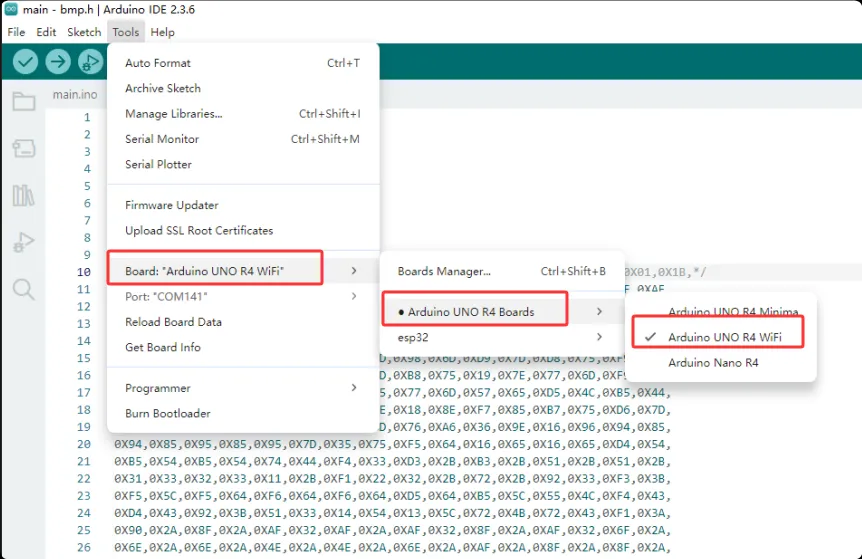
This example directly uses the Arduino SPI library; no additional third-party libraries need to be installed.
Running the Example
- Download and extract the 0.71inch LCD Module Example.
- Navigate to the
uno_r4/R7FA4_GC9D01_LCD_Testdirectory and openR7FA4_GC9D01_LCD_Test.inoin Arduino IDE. - Select the board and port corresponding to the actual UNO R4 model in use, then compile and upload the program.
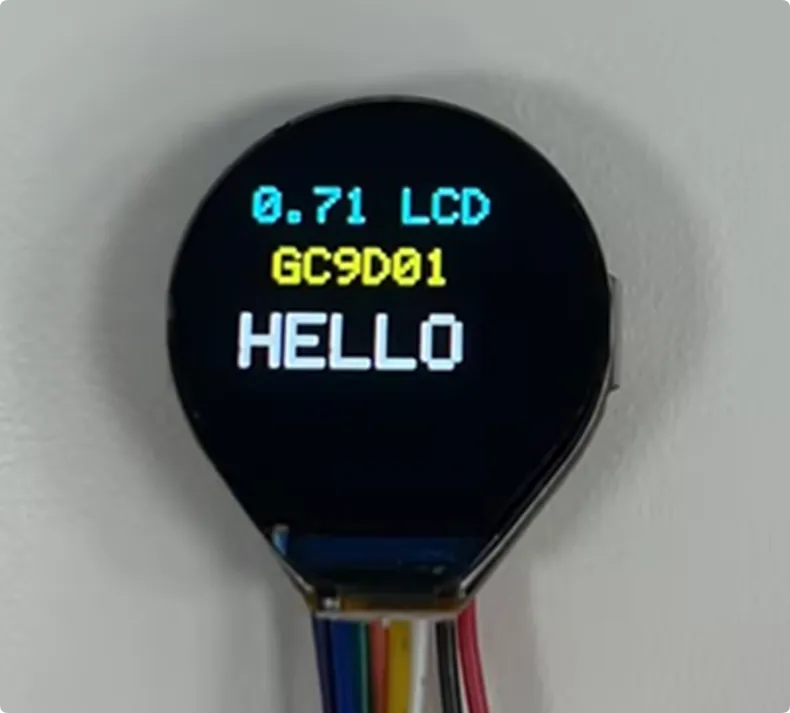
- After uploading is complete, the screen displays a text and number test image.