Working with Raspberry Pi Pico
This chapter includes the following sections. Please read as needed:
Hardware Connection
Connect the LCD module to the Raspberry Pi Pico using 8PIN wires. The pin correspondence is as follows:
| LCD | Raspberry Pi Pico |
|---|---|
| VCC | 3.3 V |
| GND | GND |
| DIN | GPIO19 |
| CLK | GPIO18 |
| CS | GPIO17 |
| DC | GPIO16 |
| RST | GPIO20 |
| BL | GPIO21 |
MicroPython Environment Setup
- Download and install the Thonny 3.3.3 installer.
- Press and hold the BOOTSEL button on the Raspberry Pi Pico, connect it to the computer via USB, and release the button after power-up.
- The computer will recognize a new disk. Download and extract the Raspberry Pi Pico MicroPython firmware, and copy the file with the
.uf2extension to that disk. After copying is complete, the Pico will automatically restart, and the disk will disappear. - Open Thonny and click
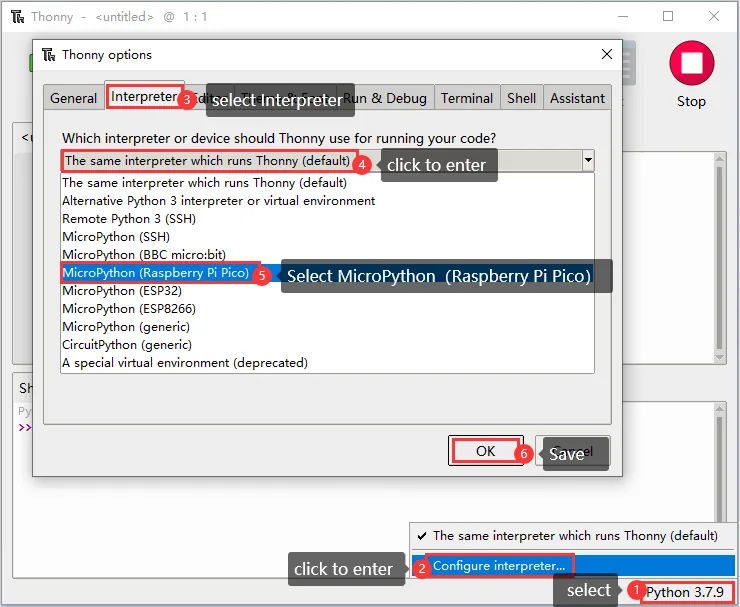
Python x.x.xin the lower-right corner, then selectConfigure interpreter. - In the pop-up window, select
Interpreter, set the interpreter toMicroPython (Raspberry Pi Pico), and selectAuto-detect portfor the port. - Click the Stop button. When the MicroPython version information and the
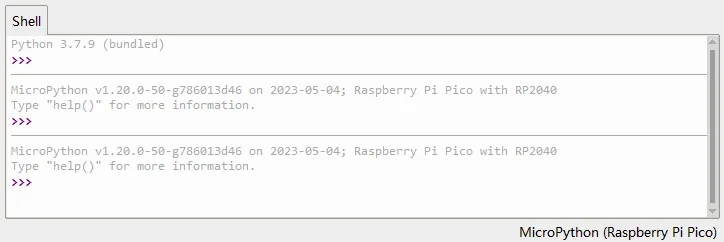
>>>prompt appear in the Shell window, the connection is successful.
The interpreter configuration is as follows:
The Shell window after a successful connection is as follows:
Downloading Example Programs
Download and extract the 0.71inch LCD Module Example Programs, and open the Raspberry Pi Pico folder inside it.
Running the Example
Before running, complete the Hardware Connection and MicroPython Environment Setup, and confirm that Thonny is connected to the Pico and the Shell window shows the >>> prompt.
-
In Thonny, click
File>Openand openRaspberry Pi Pico/gc9d01.pyfrom the computer. ClickFile>Save Asagain, selectRaspberry Pi Pico, and save it to the Pico with the original file name. -
Use the same method to save
main.pyto the root directory of the Pico. When finished, the Pico file list should contain bothgc9d01.pyandmain.py.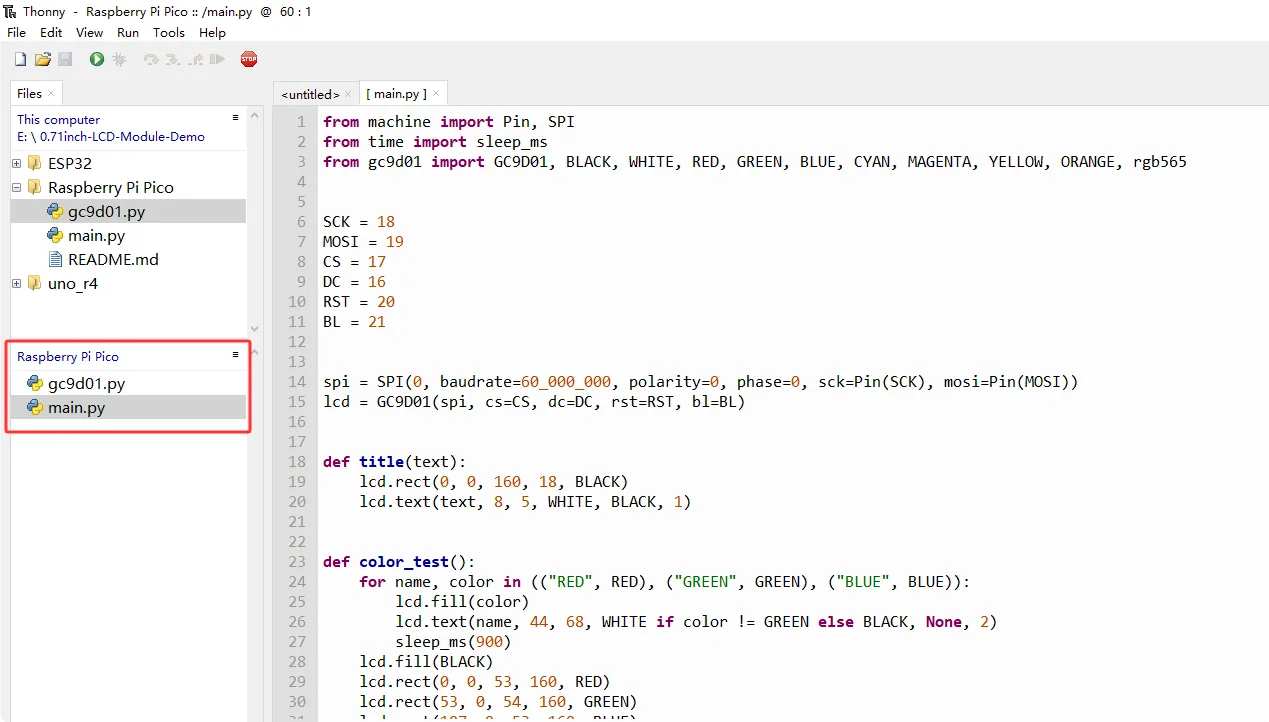
-
Open
main.pyon the Pico in Thonny, and click the green run button in the toolbar or pressF5to run the current script.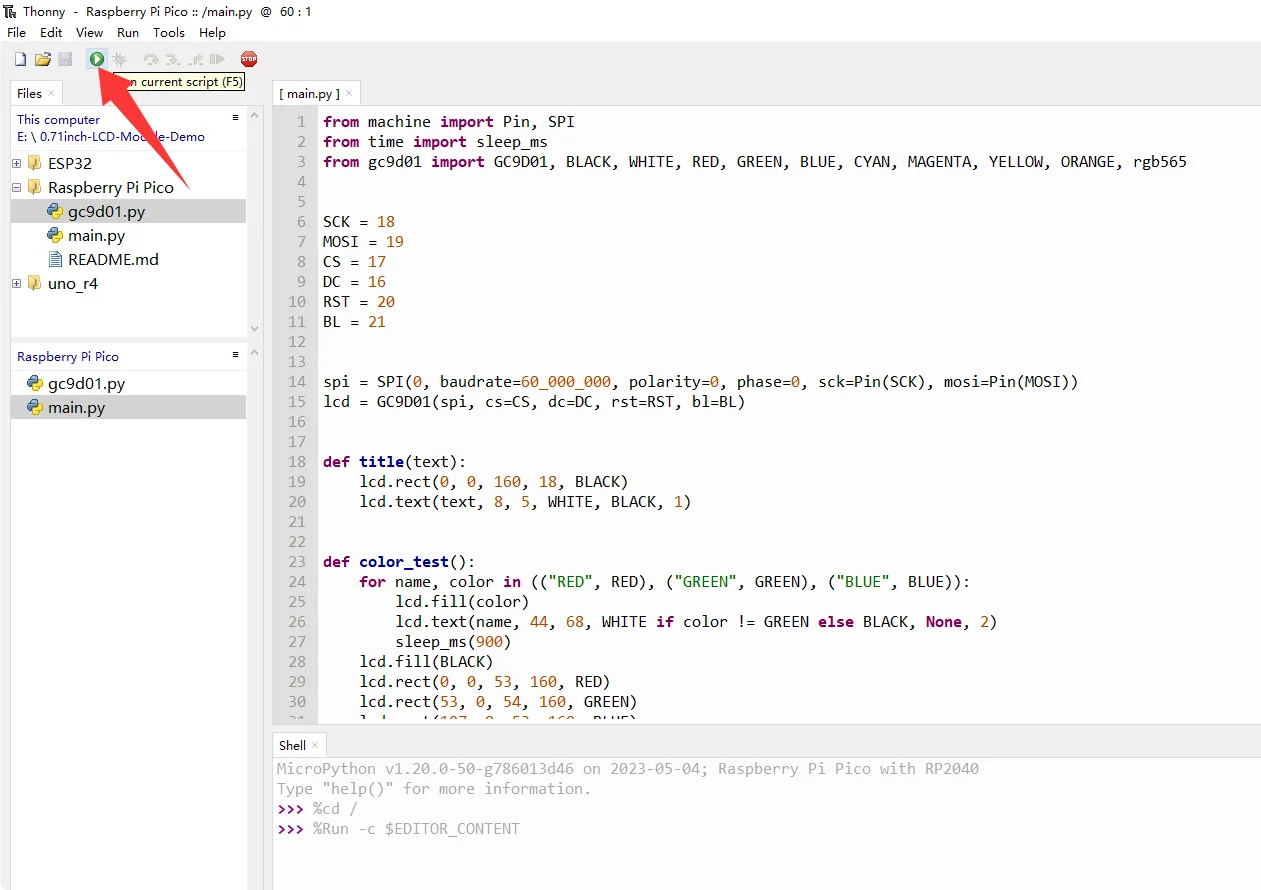
-
After the program runs, the screen displays text and color fill effects in sequence.

