ESP-IDF
This chapter includes the following sections. Please read as needed:
ESP-IDF Getting Started
New to ESP32 ESP-IDF development and looking to get started quickly? We have prepared a general Getting Started Tutorial for you.
- Section 1: Environment Setup
- Section 2: Running Examples
- Section 3: Creating a Project
- Section 4: Using Components
- Section 5: Debugging
- Section 6: FreeRTOS
- Section 7: Peripherals
- Section 8: Wi-Fi Programming
- Section 9: BLE Programming
Please Note: This tutorial uses the ESP32-S3-Zero as a teaching example, and all hardware code is based on its pinout. Before you start, it is recommended that you check the pinout of your development board to ensure the pin configuration is correct.
Setting Up the Development Environment
The following guide uses Windows as an example, demonstrating development using VS Code + the ESP-IDF extension. macOS and Linux users should refer to the official documentation.
The screenshots in this section use ESP-IDF V5.5.2 as an example. When installing, please select the ESP-IDF version that matches your board's example.
Install the ESP-IDF Development Environment
-
Download the installation manager from the ESP-IDF Installation Manager page. This is Espressif's latest cross-platform installer. The following steps demonstrate how to use its offline installation feature.
Click the Offline Installer tab on the page, then select Windows as the operating system and the ESP-IDF version you need (the version shown in the screenshot is for reference only — choose the version that fits your actual needs).
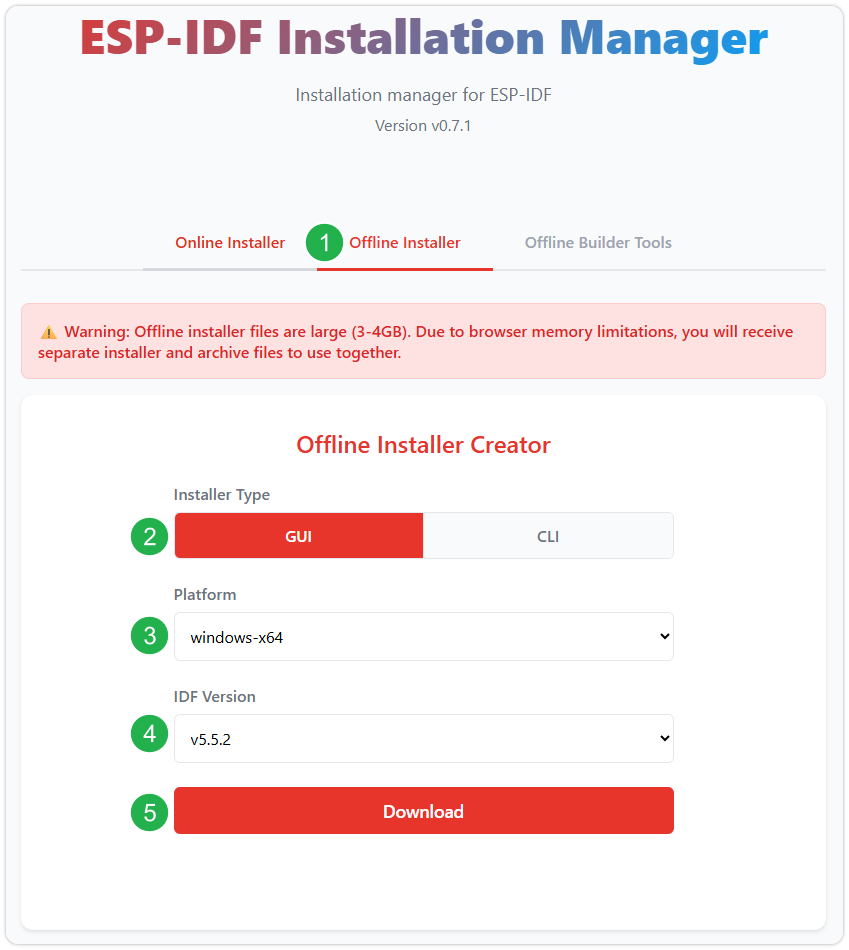
After confirming your selection, click the download button. The browser will automatically download two files: the ESP-IDF Offline Package (.zst) and the ESP-IDF Installer (.exe).
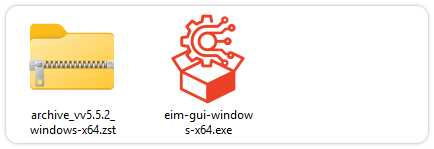
Please wait for both files to finish downloading.
-
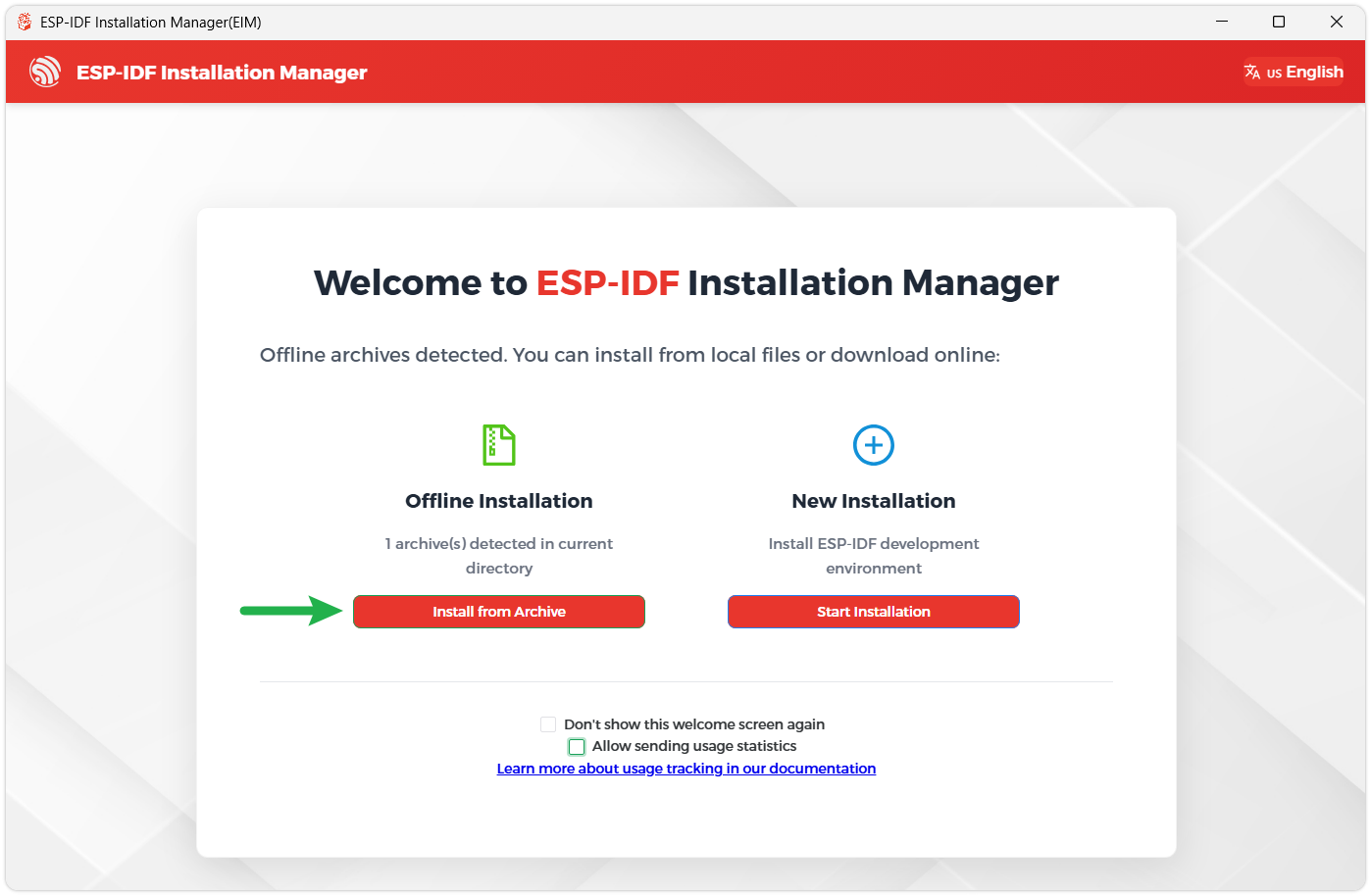
Once the download is complete, double-click to run the ESP-IDF Installer (eim-gui-windows-x64.exe).
The installer will automatically detect if the offline package exists in the same directory. Click Install from archive.
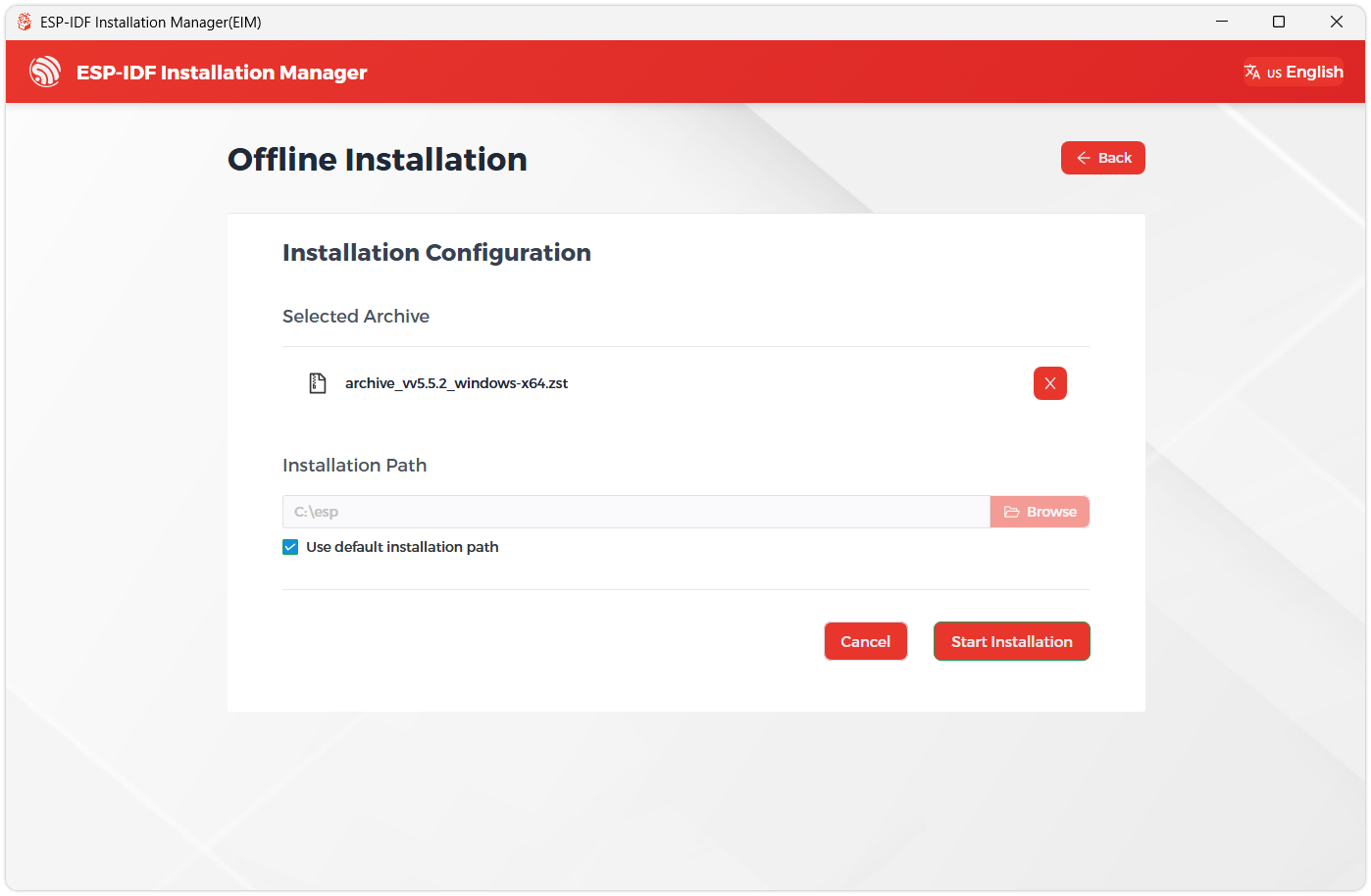
Next, select the installation path. We recommend using the default path. If you need to customize it, ensure the path does not contain Chinese characters or spaces. Click Start installation to proceed.
-
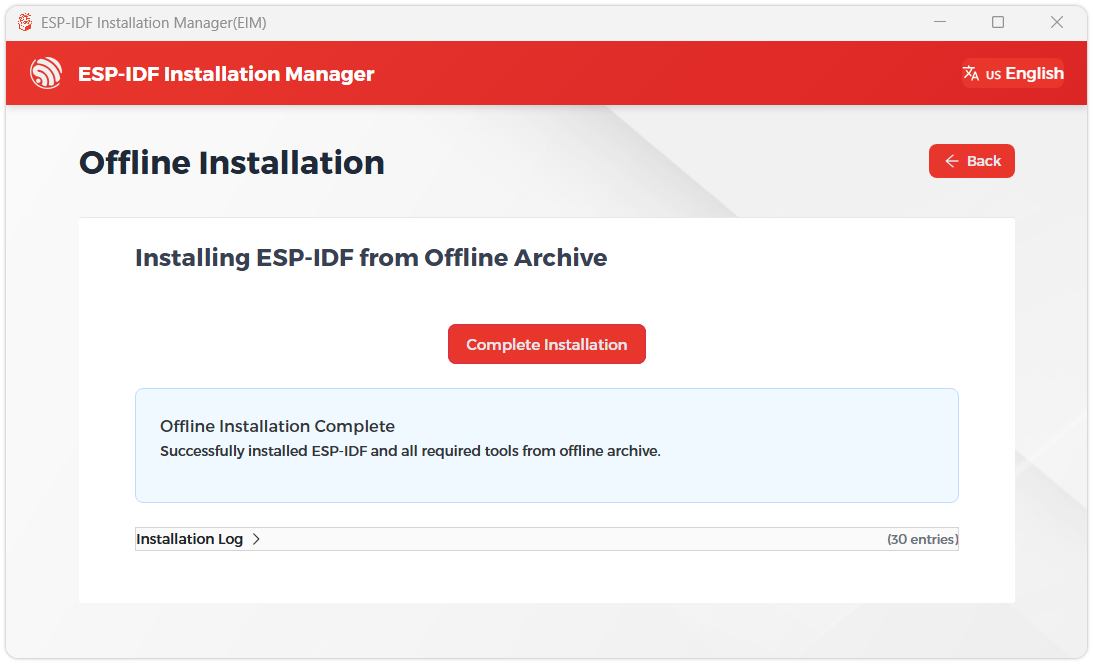
When you see the following screen, the ESP-IDF installation is successful.
-
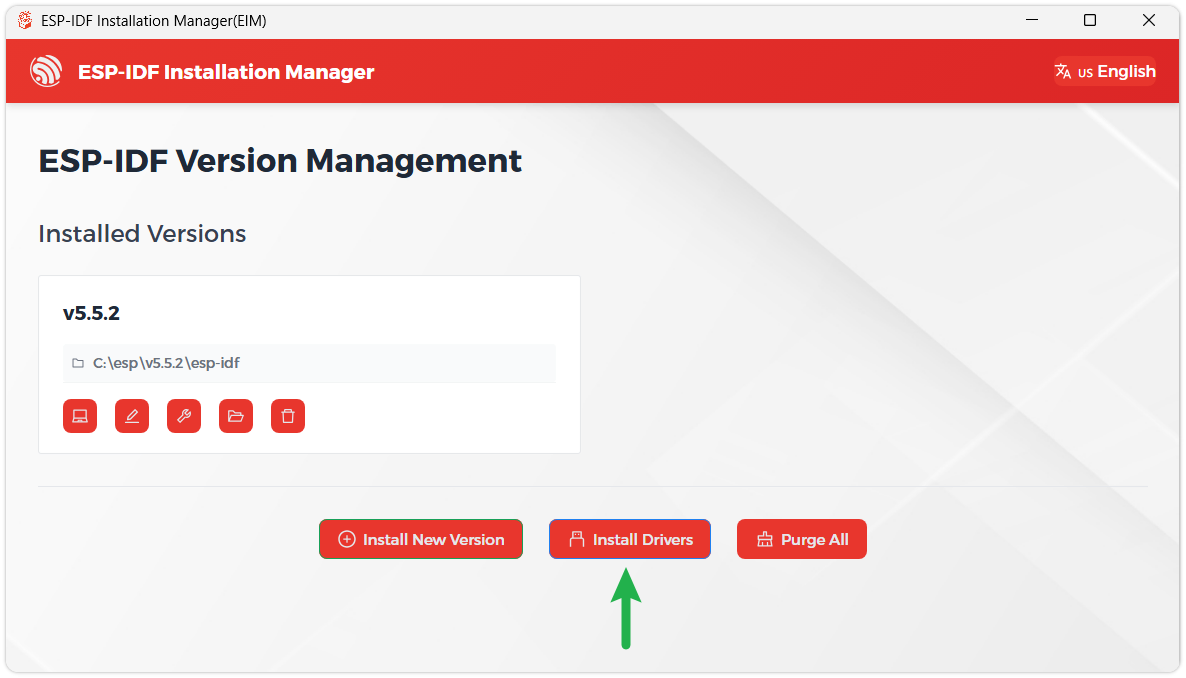
We recommend installing the drivers as well. Click Finish installation, then select Install driver.
Install Visual Studio Code and the ESP-IDF Extension
-
Download and install Visual Studio Code.
-
During installation, it is recommended to check Add "Open with Code" action to Windows Explorer file context menu to facilitate opening project folders quickly.
-
In VS Code, click the Extensions icon
 in the Activity Bar on the side (or use the shortcut Ctrl + Shift + X) to open the Extensions view.
 -
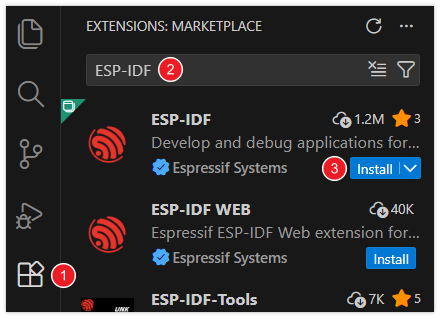
Enter ESP-IDF in the search box, locate the ESP-IDF extension, and click Install.
-
For ESP-IDF extension versions ≥ 2.0, the extension will automatically detect and recognize the ESP-IDF environment installed in the previous steps, requiring no manual configuration.
Example
Transparent_Test
Example Description
- This example uses the ESP32-C5-Pico-M to drive a 128 × 64 SSD1312 OLED via a 4-wire SPI interface. The project's current target chip is
esp32c5, and thesdkconfigis generated by ESP-IDF 6.0.2. - The driver uses SPI2, operating in SPI mode 0 with a clock frequency of 4 MHz. The screen only receives data, so MISO does not need to be connected.
- The SSD1312 driver provides display interfaces for clearing the screen, refreshing, pixels, lines, rectangles, circles, English characters, Chinese dot-matrix characters, and BMP dot-matrix images. The framebuffer is organized as 128 columns × 8 pages, with each page corresponding to 8 rows of pixels.
- By default,
oled_demo_run()runs, demonstrating in sequence an English string, Chinese dot-matrix characters, a BMP dot-matrix image, a line art scene, and a gauge dot-matrix image. The project also provides a rotating wireframe cube example, which can be switched inmain/main.c.
Hardware Connection
The OLED operating voltage is 3.3 V. Do not connect VCC to a 5 V power supply.
| 0.96inch Transparent OLED | ESP32-C5-Pico-M |
|---|---|
| VCC | 3.3 V |
| GND | GND |
| DIN | GPIO8 |
| CLK | GPIO7 |
| CS | GPIO9 |
| DC | GPIO10 |
| RST | GPIO11 |
| EN | Not connected |
The module's EN pin is enabled by default, and this example does not use it. After wiring, connect the ESP32-C5-Pico-M to the computer via a USB data cable.
This example is written for the module's default 4-wire SPI interface. If the module's solder pads have been switched to the I2C interface, you need to restore it to 4-wire SPI first, or modify the interface configuration and pin definitions in main/BSP/OLED/ssd1312.h and rebuild.
Code Analysis
app_main(): Callsoled_init()to initialize the screen. On successful initialization, it runs the currently selected example program; on failure, it outputs an error code and stops execution.oled_init(): Configures GPIO and the SPI2 bus, resets the OLED, sends SSD1312 initialization commands, clears the framebuffer, and then turns on the display.oled_refresh(): Writes the 128 × 64 frame buffer to the OLED in 8 pages. In SPI mode, each page uses one 128-byte data transfer.oled_demo_run(): Cycles through displaying the English wordWaveshare, the Chinese characters "微雪", a BMP dot-matrix image, a night scene line drawing, and a gauge dot-matrix image.cube_ui_run(): Rotates and perspective-projects the cube's 8 vertices, then draws a continuously rotating wireframe cube using 12 edges.
Both oled_demo_run() and cube_ui_run() contain internally continuous loops, so only one can be selected at a time. In main/main.c, keep the function you want to run and comment out the other:
// cube_ui_run();
oled_demo_run();
To run the rotating cube example, change it to:
cube_ui_run();
// oled_demo_run();
Build and Run
In a terminal with the ESP-IDF 6.0.2 environment initialized, navigate to the example project directory and run the following commands:
idf.py build
idf.py -p COMx flash monitor
Replace COMx with the actual serial port of the ESP32-C5-Pico-M. After flashing is complete, the serial monitor displays the following initialization success message:
SSD1312 initialization successful!
To exit the serial monitor, press Ctrl-].
Expected Behavior
After the default program starts, the OLED cycles through the following displays in order:
| Order | Display Content | Duration |
|---|---|---|
| 1 | English word Waveshare | 2 sec |
| 2 | Chinese characters "微雪" | 2 sec |
| 3 | Built-in 128 × 64 BMP dot-matrix image | 2 sec |
| 4 | Stars, crescent moon, mountain peaks, and pine tree line art | 3 sec |
| 5 | Built-in 128 × 64 gauge dot-matrix image | 5 sec |
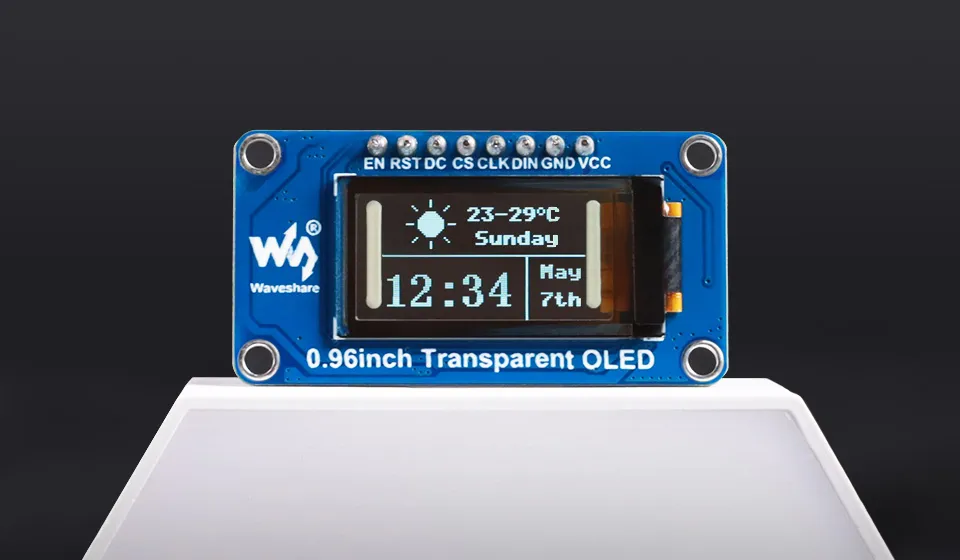
After switching to cube_ui_run(), the OLED continuously displays a wireframe cube rotating around the vertical axis, with the program drawing and refreshing a frame every 20 ms.