RP2350
This chapter includes the following sections. Please read as needed:
MicroPython Getting Started Tutorial
New to ESP32 MicroPython development and looking for a quick start? We have prepared a comprehensive ESP32 MicroPython Getting Started Tutorial for you.
- Section 1: Setup Development Environment
- Section 2: Basics
- Section 3: GPIO Digital Output/Input
- Section 4: ADC Analog Input
- Section 5: PWM Output
- Section 6: UART Communication
- Section 7: I2C Communication
- Section 8: SPI Communication
- Section 9: Wi-Fi Basic
- Section 10: Web Server
- Section 11: Bluetooth
- Section 12: Comprehensive Project
Note: This tutorial uses the ESP32-S3-Zero as a teaching example, and all hardware code is based on its pinout. Before proceeding, we recommend checking the pinout diagram of your specific development board to ensure the pin configuration is correct.
Pico Quick Start
Get MicroPython Firmware
Get the onboard MicroPython firmware for the RP2350 PLUS.

Install Thonny IDE
- Please refer to the MicroPython Development Environment Setup Guide to install Thonny IDE.
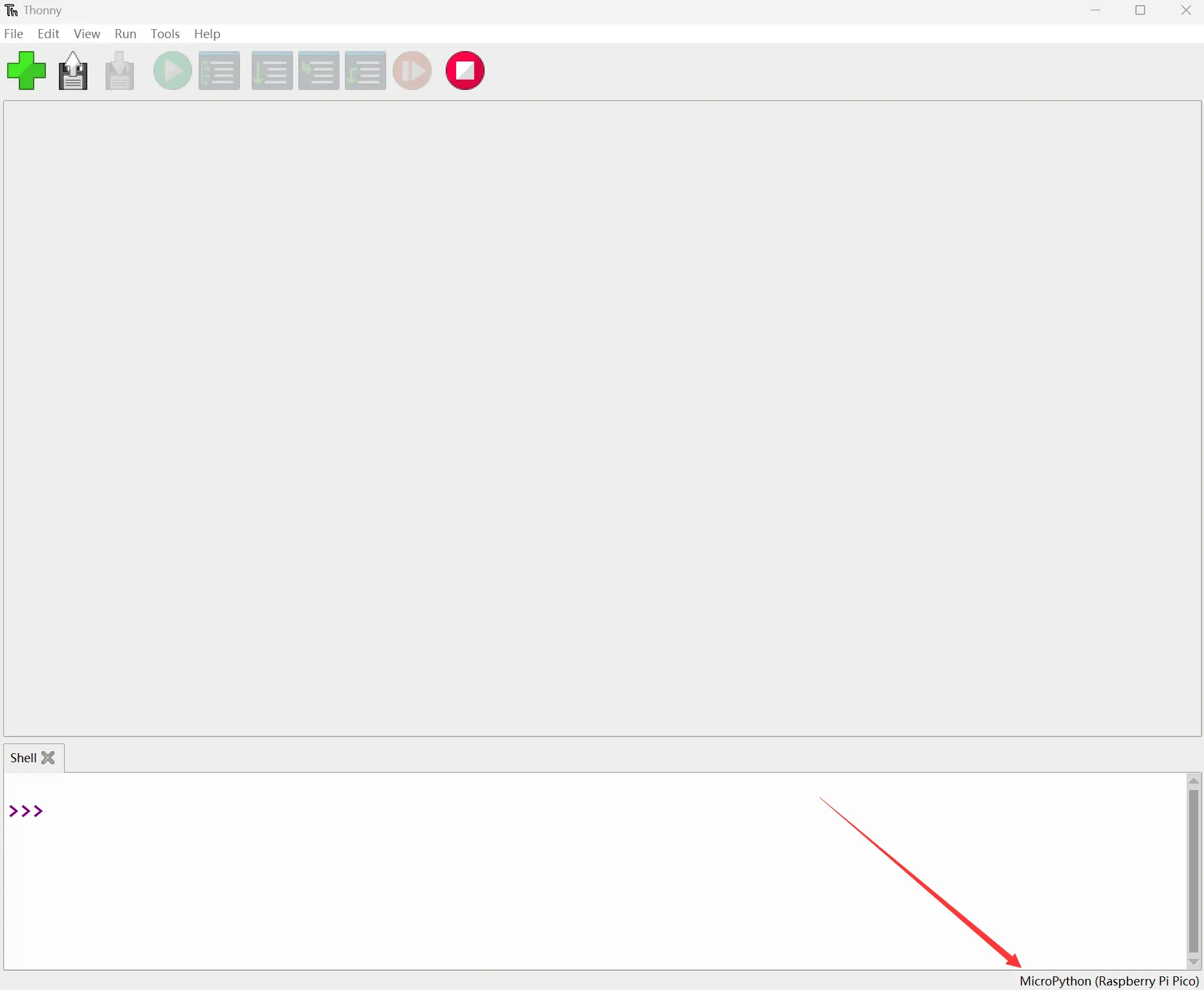
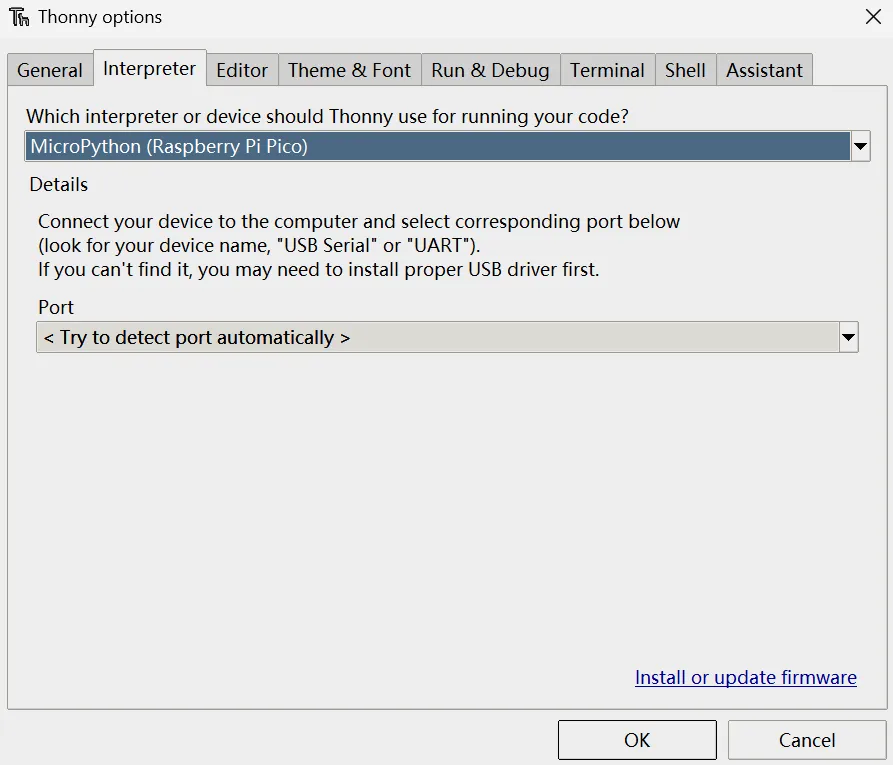
After installation, you need to configure the language and board environment for the first time. Since we are using Pico/Pico2, make sure to select the Raspberry Pi option for the board environment.
Example
Transparent_Test
Example Description
- This example uses the RP2350 PLUS and MicroPython to drive a 128 × 64 SSD1312 OLED. The project uses 4-wire SPI by default, and also supports switching the OLED module to an I2C interface.
- SPI uses SPI1 by default, operating in SPI mode 0 with a clock frequency of 4 MHz. The OLED only receives data, so MISO does not need to be connected.
- I2C uses I2C0 by default, with a clock frequency of 400 kHz and a 7-bit address of
0x3C. The hardware interface selection of the module must match theBUSconfiguration inconfig.py. - The driver class inherits MicroPython's
framebuf.FrameBuffer, uses a 1024-byte framebuffer to store a 128 × 64 monochrome image, and provides interfaces for clearing the screen, refreshing, drawing points, lines, rectangles, text, contrast, color inversion, and display on/off control. - By default, it runs the OLED comprehensive example, displaying in sequence a title page, Chinese "微雪", a product info image, a night scene line art, and a dashboard. The project also provides a continuously rotating wireframe cube example, which can be switched in
config.py.
Project File Description:
| File | Description |
|---|---|
main.py | Program entry; creates an SPI or I2C display object based on the configuration, and starts the selected example |
config.py | Communication interface, pins, speed, I2C address, and example program configuration |
ssd1312.py | SSD1312 initialization, SPI/I2C communication, framebuffer refresh, and display control |
demo.py | OLED comprehensive example, including text, graphics, and dot-matrix content |
cube.py | Rotating wireframe cube example |
glyphs.py | 32 × 41 monochrome dot-matrix data and drawing functions for Chinese "微雪" |
Hardware Connection
The OLED operating voltage is 3.3 V. Do not connect VCC to a 5 V power supply.
The project is configured for 4-wire SPI by default. Wire according to the table below:
| 0.96inch Transparent OLED | RP2350 PLUS |
|---|---|
| VCC | 3.3 V |
| GND | GND |
| DIN | GP11 / SPI1 TX |
| CLK | GP10 / SPI1 SCK |
| CS | GP9 |
| DC | GP8 |
| RST | GP12 |
| EN | Not connected |
The module's EN pin is enabled by default, and this example does not use it. After wiring, connect the RP2350 PLUS to the computer using a USB cable that supports data transfer.
To use I2C, first switch the interface selection solder pad on the back of the OLED module to I2C, then wire according to the table below:
| 0.96inch Transparent OLED | RP2350 PLUS |
|---|---|
| VCC | 3.3 V |
| GND | GND |
| DIN / SDA | GP4 / I2C0 SDA |
| CLK / SCL | GP5 / I2C0 SCL |
| RST | GP12 |
| CS | Not connected |
| DC | Not connected |
| EN | Not connected |
Also change the communication interface in config.py to:
BUS = "I2C"
The I2C SDA and SCL require pull-up resistors; if the module does not have integrated pull-up resistors, external appropriate pull-up resistors are needed.
Code Analysis
create_display(): ReadsBUSfromconfig.py, and creates anSSD1312_SPIorSSD1312_I2Cobject based on the configuration; throws an exception if the configuration value is notSPIorI2C.SSD1312._initialize(): First performs a hardware reset of the OLED via GP12, then sends SSD1312 initialization commands, clears the framebuffer, and turns on the display.SSD1312.show(): Writes the 128 × 64 framebuffer to the OLED in 8 pages, transmitting 128 bytes of display data per page.demo.run(): Cycles through drawing a title page, Chinese dot-matrix, product info image, night scene line art, and dashboard, and callsshow()to refresh the screen after each drawing.glyphs.draw_text(): Parses 32 × 41 monochrome dot-matrix data bit by bit, used to display Chinese "微雪".cube.run(): Rotates and perspective-projects the cube's 8 vertices, then connects 12 edges, drawing and refreshing a frame approximately every 20 ms.
In config.py, select the example program via DEMO:
# OLED comprehensive example
DEMO = "oled"

# Rotating wireframe cube example
# DEMO = "cube"
Both demo.run() and cube.run() are continuously running loops, so only one example can be run at a time.
Run the Example
- Install the applicable MicroPython firmware for the RP2350 PLUS, then open Thonny.
- In Thonny, select the MicroPython (Raspberry Pi Pico) interpreter, and select the serial port corresponding to the board.
- Upload
main.py,config.py,ssd1312.py,demo.py,cube.pyandglyphs.pyall to the root directory of the board's file system. - Reset the board or run
main.pyin Thonny. After successful initialization, the Shell outputs:
SSD1312 initialized using SPI
When using I2C, SPI in the output will change to I2C. When uploading files, keep the original file names. main.py will execute automatically after the board boots.
Expected Behavior
After setting DEMO to "oled" by default, the OLED cycles through the following displays in order:
| Order | Display Content | Duration |
|---|---|---|
| 1 | WAVESHARE, RP2350 and SSD1312 OLED title page | 2 sec |
| 2 | Chinese "微雪" dot-matrix | 2 sec |
| 3 | 0.96 OLED 128x64 product info image | 2 sec |
| 4 | Stars, crescent moon, mountain peaks, and pine tree line art | 3 sec |
| 5 | Dashboard composed of RP2350, interface status, battery icon, and line chart | 5 sec |
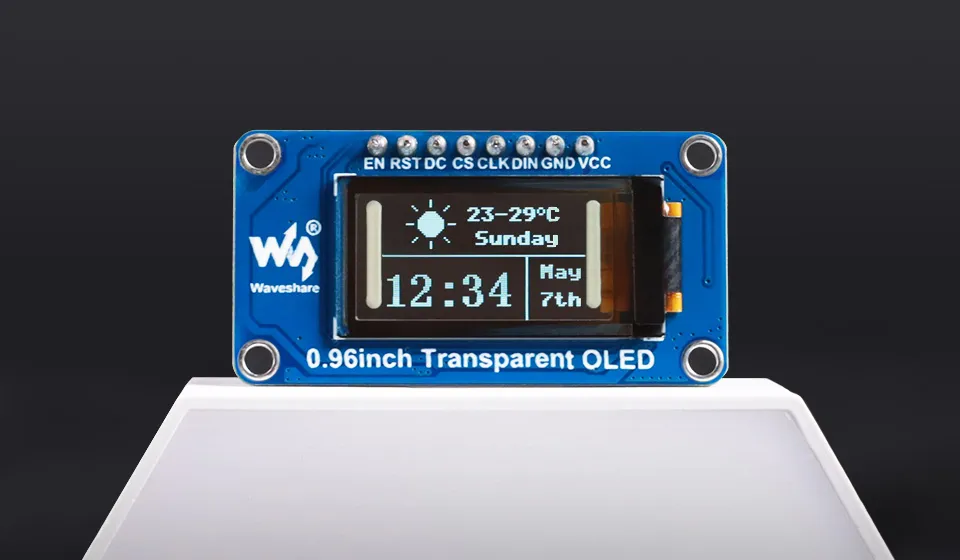
After setting DEMO to "cube", the OLED continuously displays a wireframe cube rotating around the vertical axis, with the program refreshing a frame approximately every 20 ms.