FAQ
Q: Why does my screen display correctly but touch doesn't work?
A:
- Make sure the screen's touch interface is connected to the host via a USB cable. When only the HDMI cable is connected, the screen cannot transmit touch signals.
- Verify that the USB cable supports data transfer. Some USB cables are power-only and cannot carry touch data.
- Reconnect the USB cable or try a different USB port on the host, then check again.
- If the host has multiple displays, check that the touch input is mapped to the 10.1HP-CAPQLED-B. For Windows settings, see Multi-Display Touch Setup.
- Insufficient power to the screen can also prevent touch from working properly. We recommend connecting the included power adapter to the screen's Power port to provide adequate power, then test again.
Q: How do I enable or disable the on-screen touch keyboard (Squeekboard) on my Raspberry Pi?
A: Raspberry Pi OS Bookworm and later versions include Squeekboard, an on-screen virtual keyboard, by default.
- The virtual keyboard automatically appears when you tap a text input field and hides when you leave the input area.
- You can manually show or hide the virtual keyboard using the keyboard icon in the top-right corner of the taskbar.

To change the default behavior of the virtual keyboard, adjust the settings according to your system version:
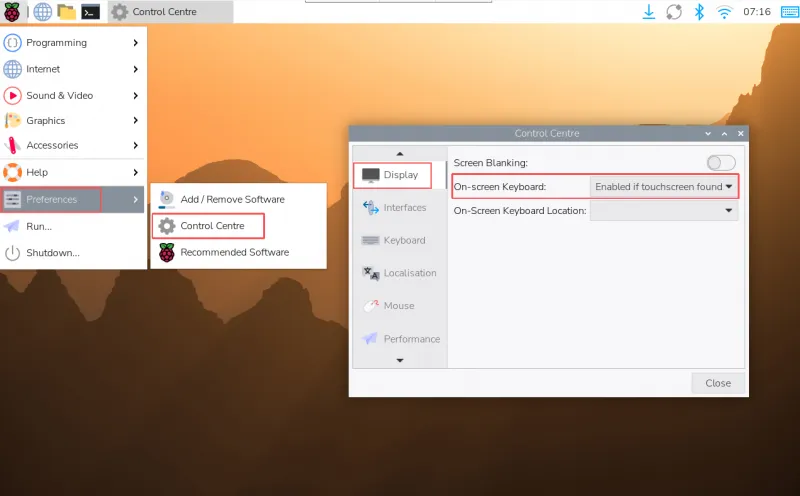
Raspberry Pi OS Trixie
Open Preferences → Control Centre → Display, and set the virtual keyboard display option under Screen Keyboard.
Raspberry Pi OS Bookworm
Open Preferences → Raspberry Pi Configuration → Display, and set the virtual keyboard display option under Screen Keyboard.
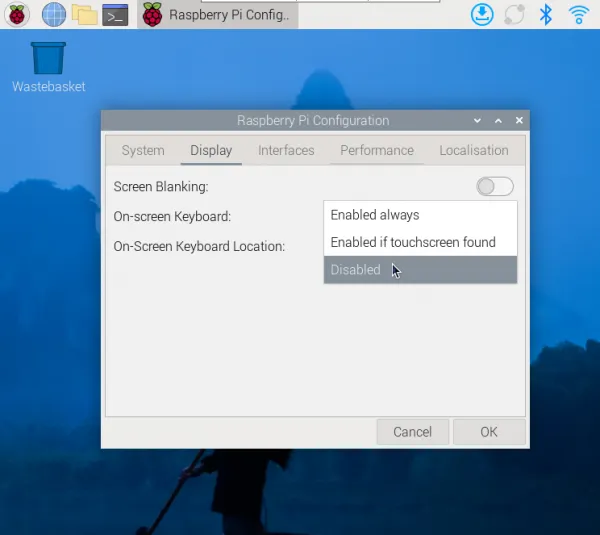
You can also run the following command in a terminal to open the Display menu and configure it:
sudo raspi-config
Notes:
- Earlier versions of Raspberry Pi OS (before Bookworm) do not include Squeekboard by default. You can install matchbox-keyboard as an alternative on-screen keyboard.
- If you are using the Wayfire desktop environment, we recommend using wvkbd.
Q: How do I change the boot logo on Raspberry Pi OS Trixie?
A:
-
Update the package list and install Plymouth, themes, and firmware packages:
sudo apt updatesudo apt install plymouth plymouth-themessudo apt install plymouth-theme-breeze kde-config-plymouthsudo apt install firmware-linux -
Rename your new boot image to
splash.pngand replace the following file:/usr/share/plymouth/themes/pix/splash.png -
Update initramfs:
sudo update-initramfs -u -
Reboot the Raspberry Pi:
sudo reboot