Working with PC
Supports Windows 11 / 10 / 8.1 / 8 / 7
Hardware Connection
-
Connect the Touch interface of the LCD to the USB interface of the PC, and Windows will automatically recognize the touch function.
-
Connect the HDMI interface of the LCD to the HDMI interface of the PC, and Windows will automatically recognize the display function.
NoteSome PCs do not support HDMI plug-and-play; a system restart usually resolves this.
If the USB port cannot supply sufficient power, it may cause screen flickering. This can be resolved by connecting an external 5V 1A power adapter to the LCD's Power interface.
Windows 11 Touch Settings
If your PC has multiple displays connected, you may need to reassign touch coordinates to the 11EP-CAPLCD.
-
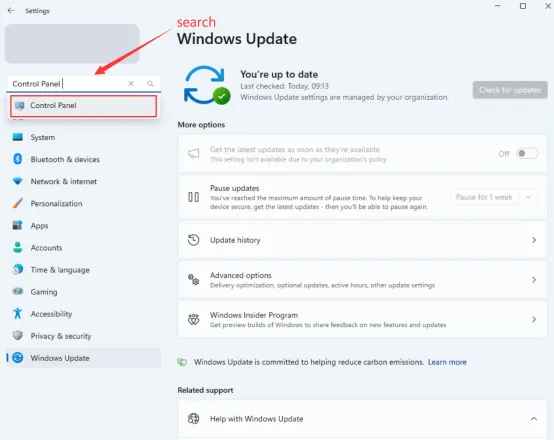
Type "Control Panel" in the Windows search box and open the Control Panel.
-
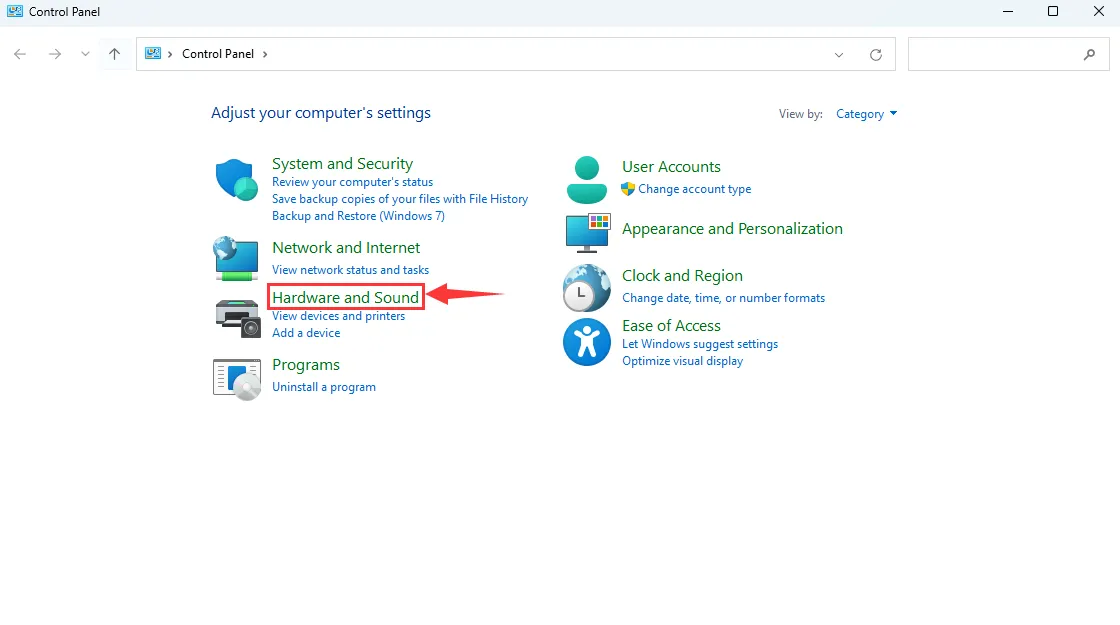
Select "Hardware and Sound" > "Tablet PC Settings".
-
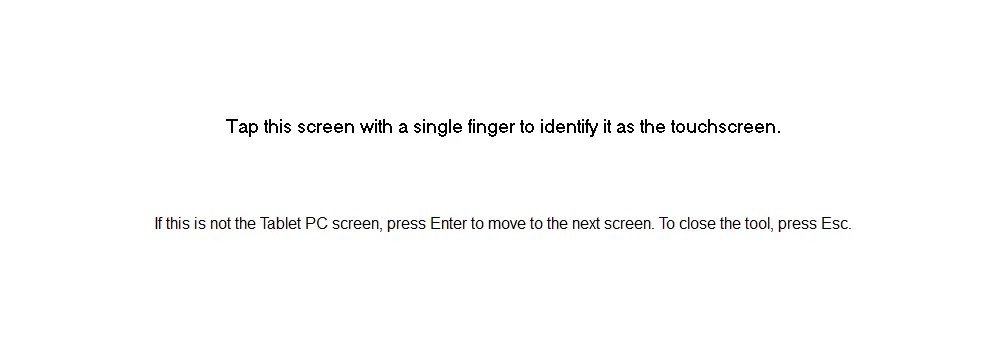
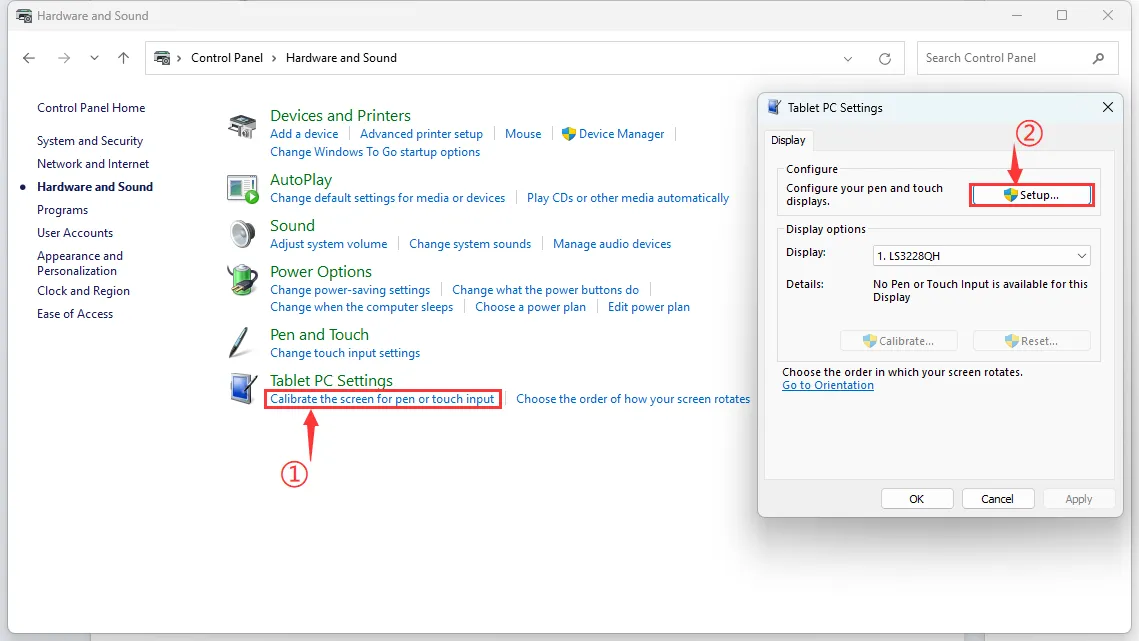
Under "Calibrate the screen for pen or touch input", click "Setup". In the pop-up Tablet PC Settings dialog, click "Setup" again. The screen will display the prompt shown below. Touch the touch panel with your finger, and the PC will identify it as the touchscreen.
 info
infoNote: If the screen is blank, press the "Enter" key; the text prompt will switch to the next screen. (The screen displaying the text prompt will be designated as the touch screen.)
Windows 10 Touch Settings
-
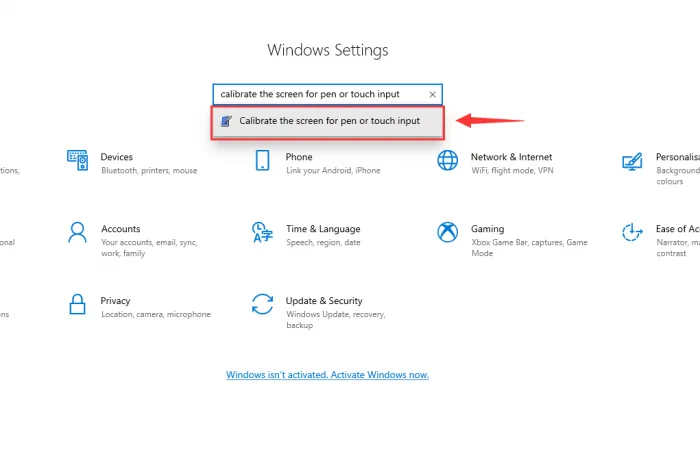
Open Windows Settings, type and click "Calibrate the screen for pen or touch input" in the search bar (as shown below).
-
In the "Tablet PC Settings" dialog, click "Setup".

-
Click "Setup", follow the on-screen instructions to touch the 11EP-CAPLCD, and complete the touchscreen assignment.