Mobile APP Usage
We provide Android and iOS apps. Users can download the version for their phone model: for Android, download the APK file and install it manually; for iOS, search for the corresponding app in the App Store and install it. The mobile app can be used to refresh images via the phone's NFC function. Before use, confirm that your phone supports NFC and that NFC is enabled.
NFC Sensing Position Reference

Android APP
Tested Phones
The table below lists the tested models. Models not listed do not necessarily mean they are unsupported.
| Phone Model | Test Status |
|---|---|
| Redmi K40pro+ | Normal |
| Xiaomi 14 Ultra | Normal |
| Huawei Mate 60 (Android) | Normal |
| Huawei Mate 60 (HarmonyOS, non-pure version) | Normal |
| OnePlus 13t | Normal |
| OPPO Reno12 | Normal |
| VIVO X200S | Normal |
APP Download
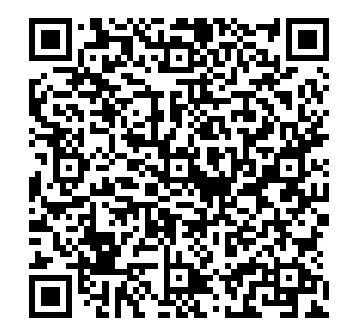
Scan the QR code below to download the APP and install it on your phone. Supports Android 4.0 (Ice Cream Sandwich) and above. Note: Do not use WeChat to scan; use the browser's scan function.
APP Usage Steps
-
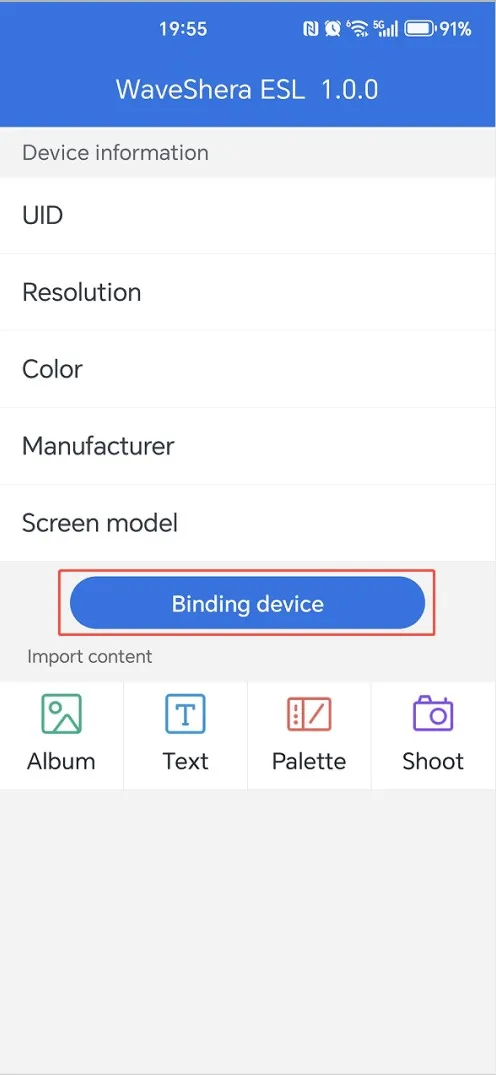
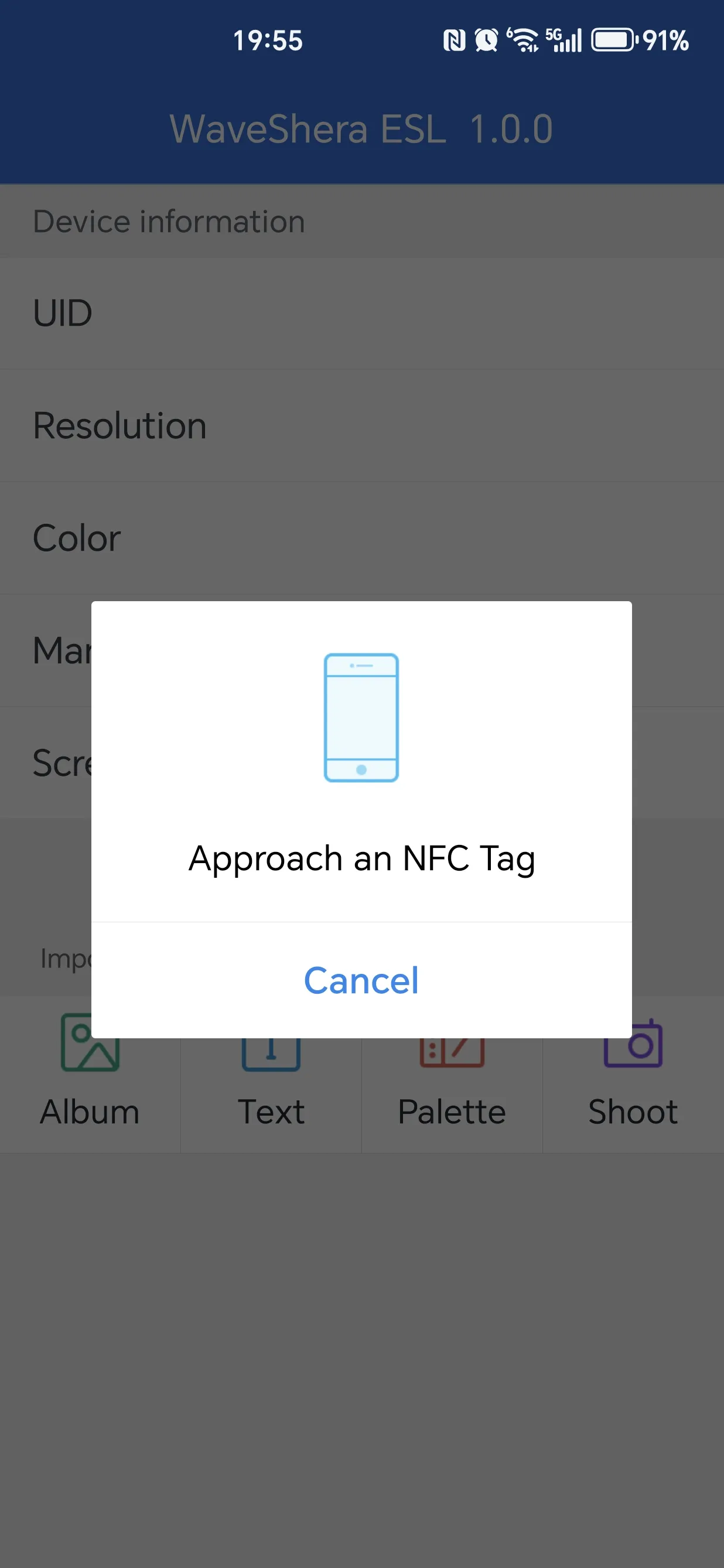
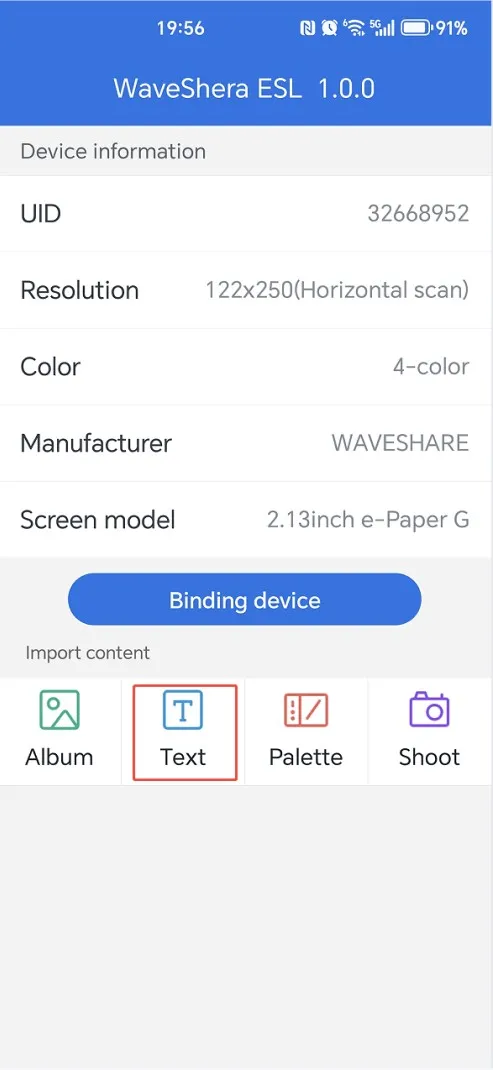
Tap the "Binding device" button to read the device information to be refreshed. After binding, the main page will display the corresponding information.
-
Tap the "Album" icon, enter the album and select the image to display. After confirming the selection, you will enter the image processing page.
-
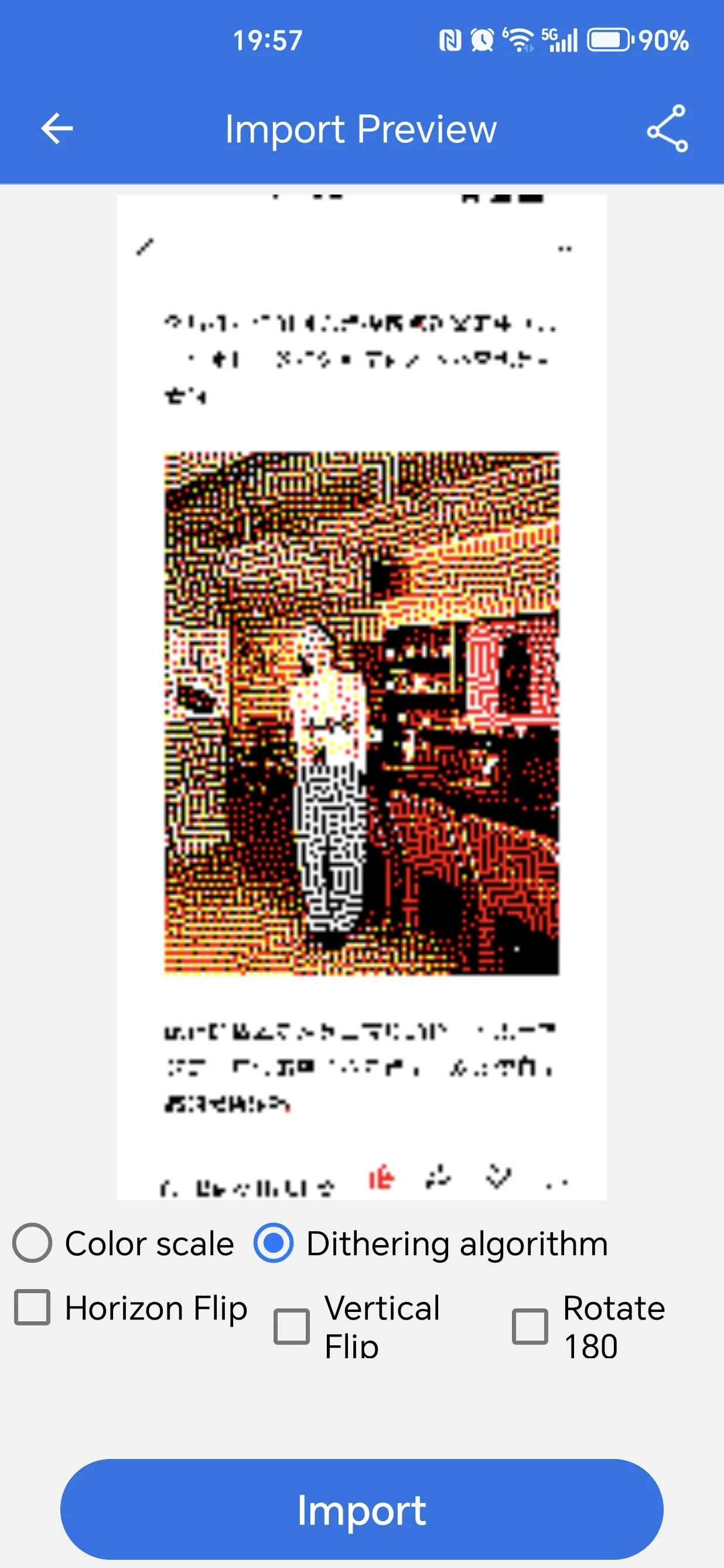
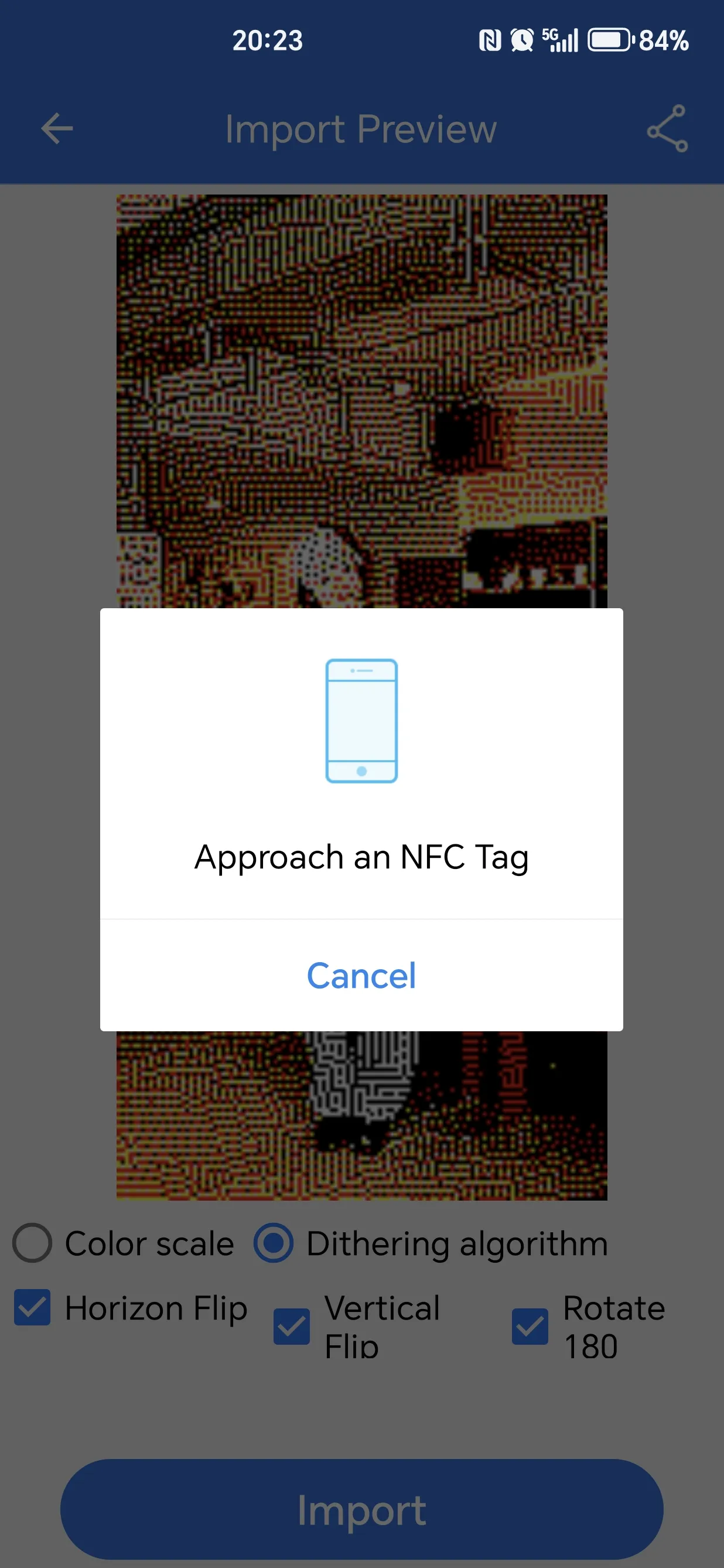
On the image processing page, select the corresponding button and tap the "Import" button to start importing the image. If the e-Paper display has not been separated from the phone after binding, first move the e-Paper away, then bring it close to the phone again.
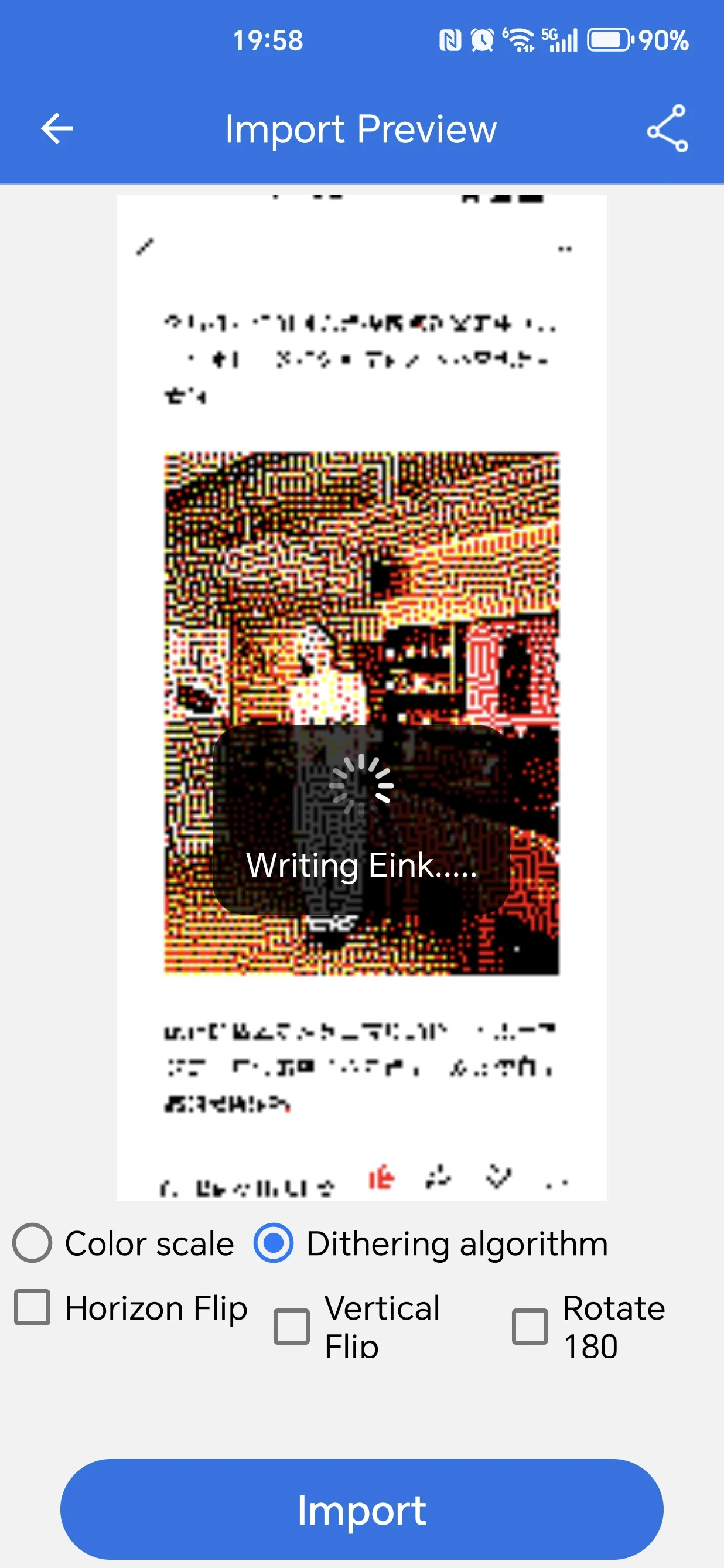
Image Processing Approach NFC Tag Transfer and Refresh Image 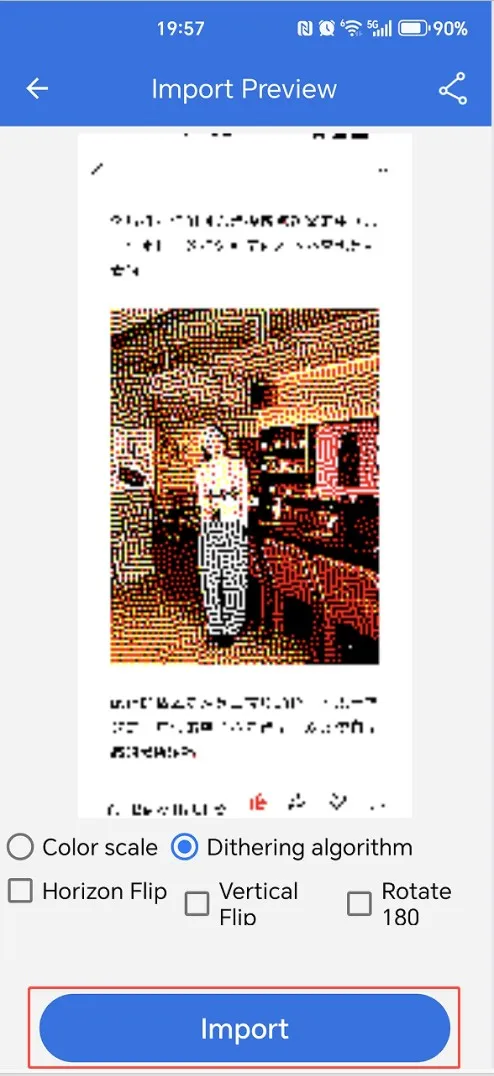
-
Wait for the refresh to complete, approximately 16 seconds.
-
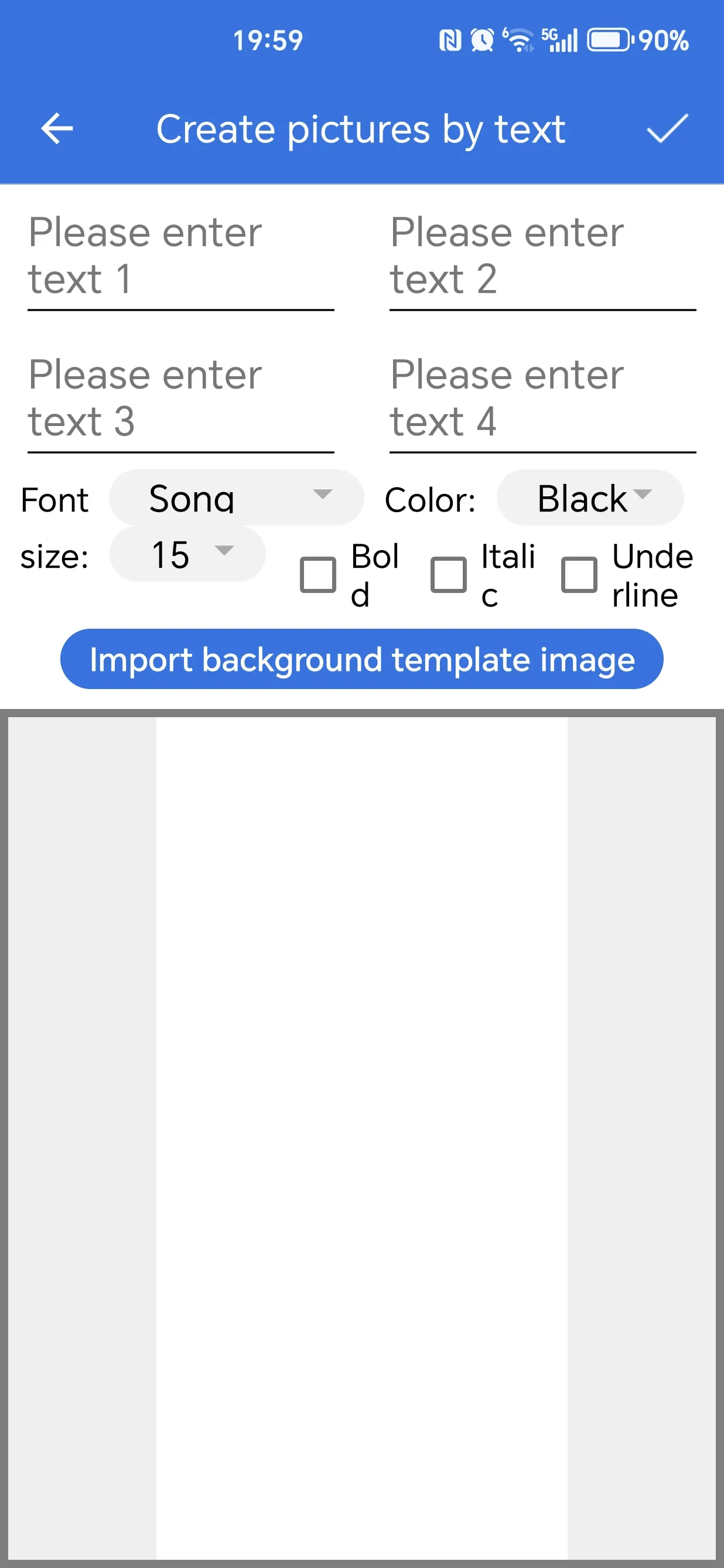
To add text, first bind the device, then select the Text icon on the main page.
-
Draw text. You can select font size, color, and font, and drag the text position in the sample image below. You can also import a "background template". The background image resolution must match the e-Paper resolution. After setting, tap the "√" in the upper right corner to save the image, and proceed to step 3 (image processing page).
-
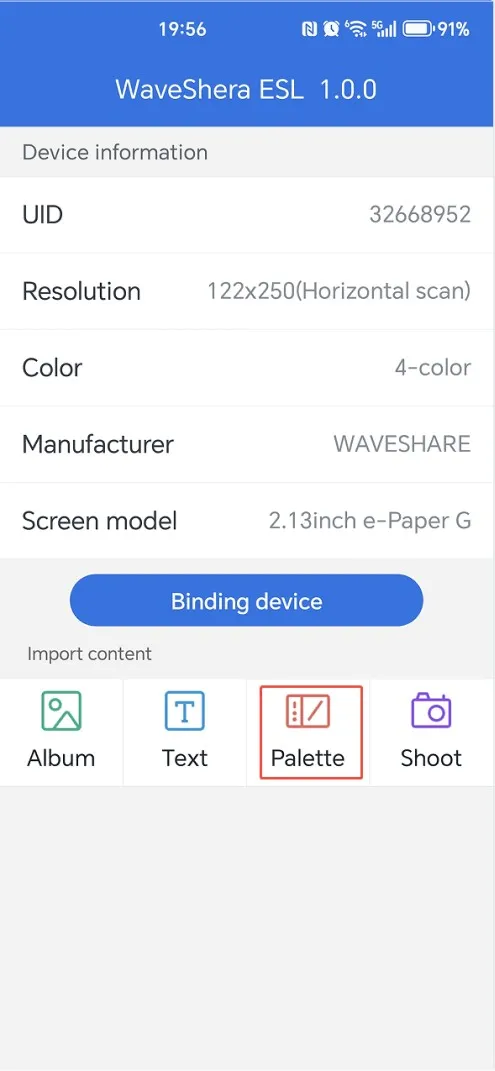
To use the palette, first bind the device, then select the Palette icon on the main page.
-
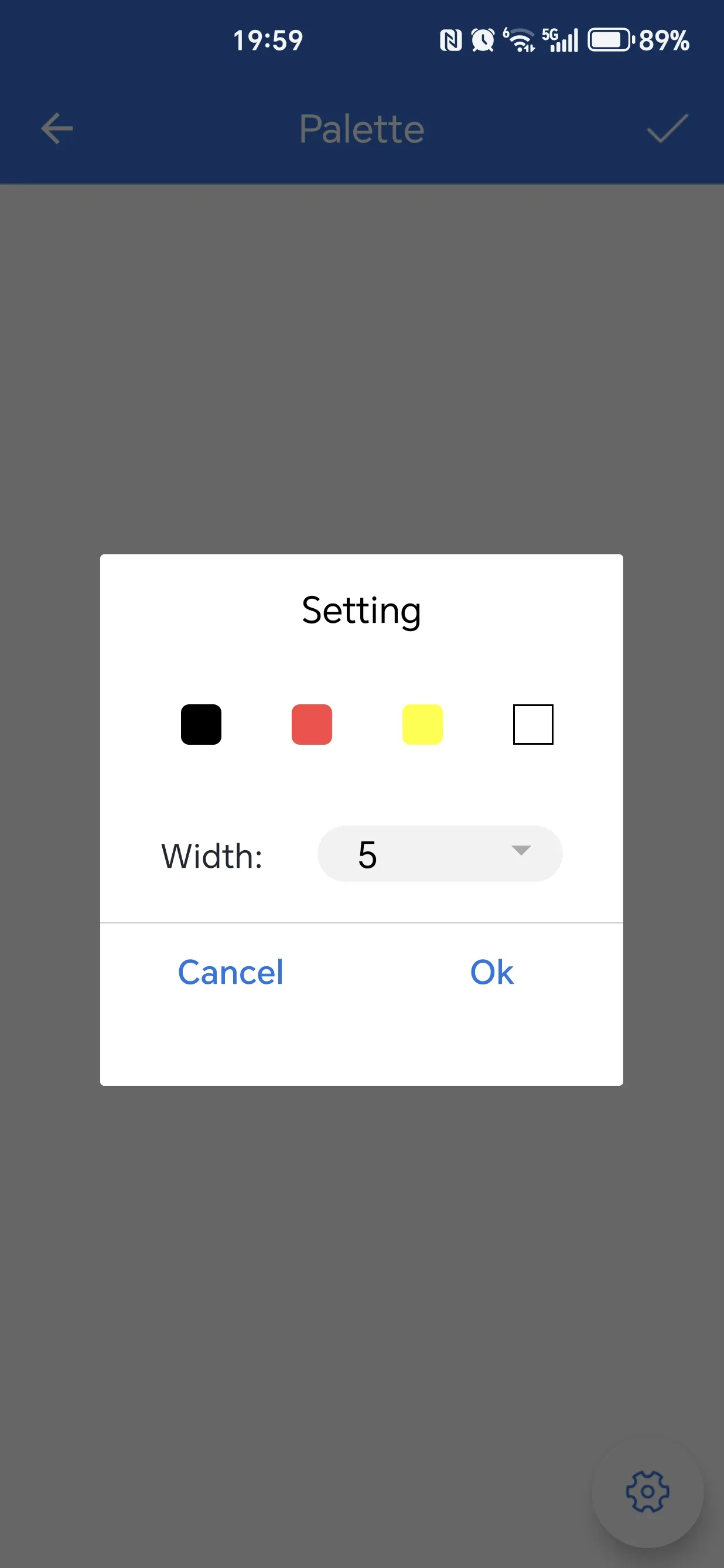
Draw on the screen with your finger. The default brush is black with a width of 5. Tap the gear icon in the lower right corner to enter brush settings. Tap the "√" in the upper right corner to save the image, and proceed to step 3 (image processing page).
Drawing Brush Settings Save Image 

-
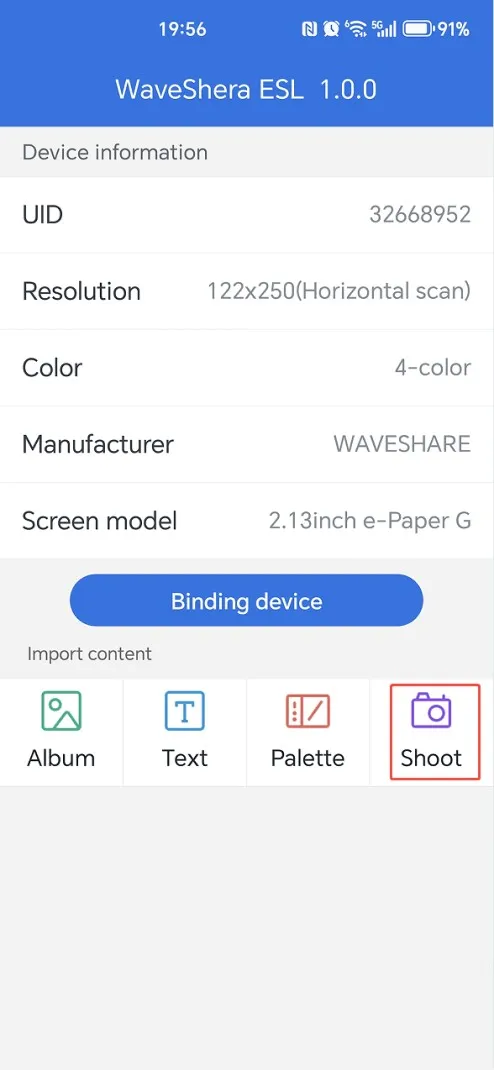
To take a photo, first bind the device, then select the Shoot icon on the main page.
-
Take and crop the image, then proceed to step 3 (image processing page).
iOS APP
APP Download
Search for "WS ETag" in the App Store, download and install the iOS app. The iOS app interface is slightly different from the Android version. The app requires iOS 15.6 or later.
Usage Steps
-
Open the app, tap "Bind Device", and bring the phone close to the ePaper to read the device information. After successful binding, the main interface will display the corresponding information with a "Operation Success" prompt.
Main Interface Approach Device to Bind Bind Successful 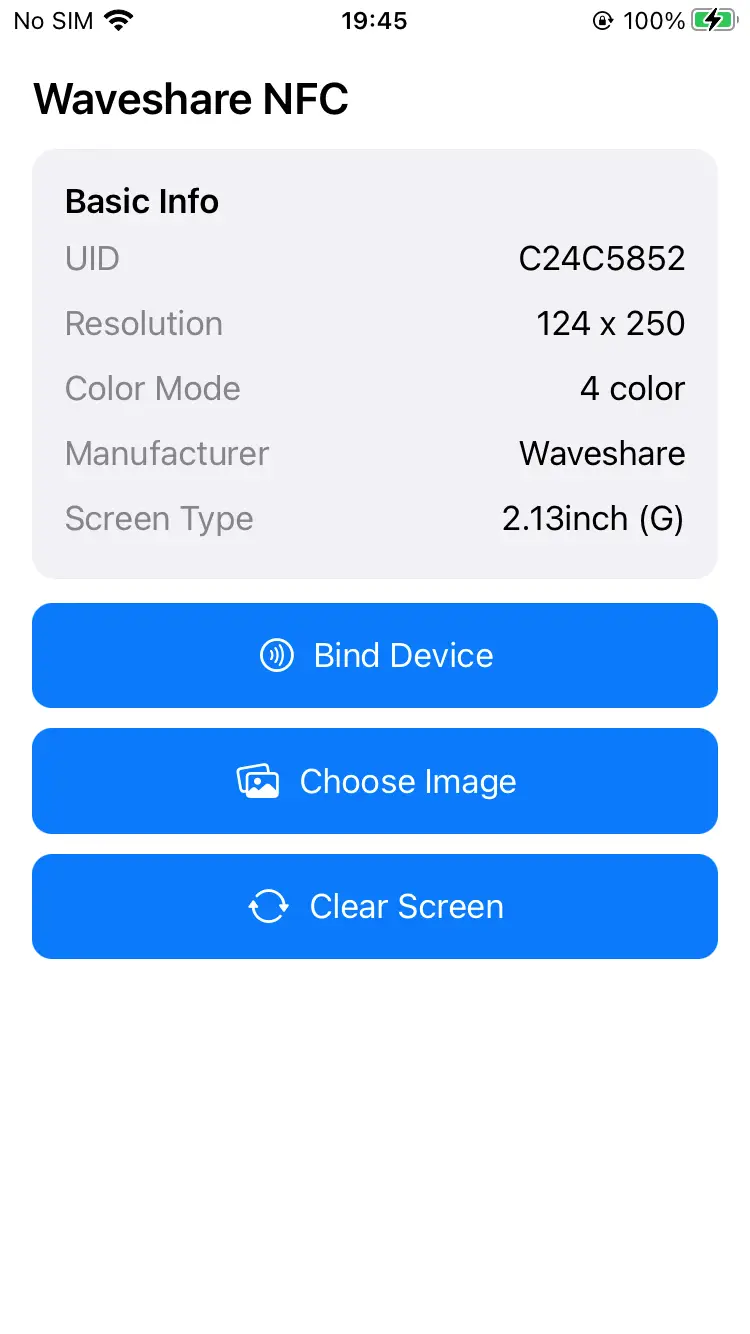
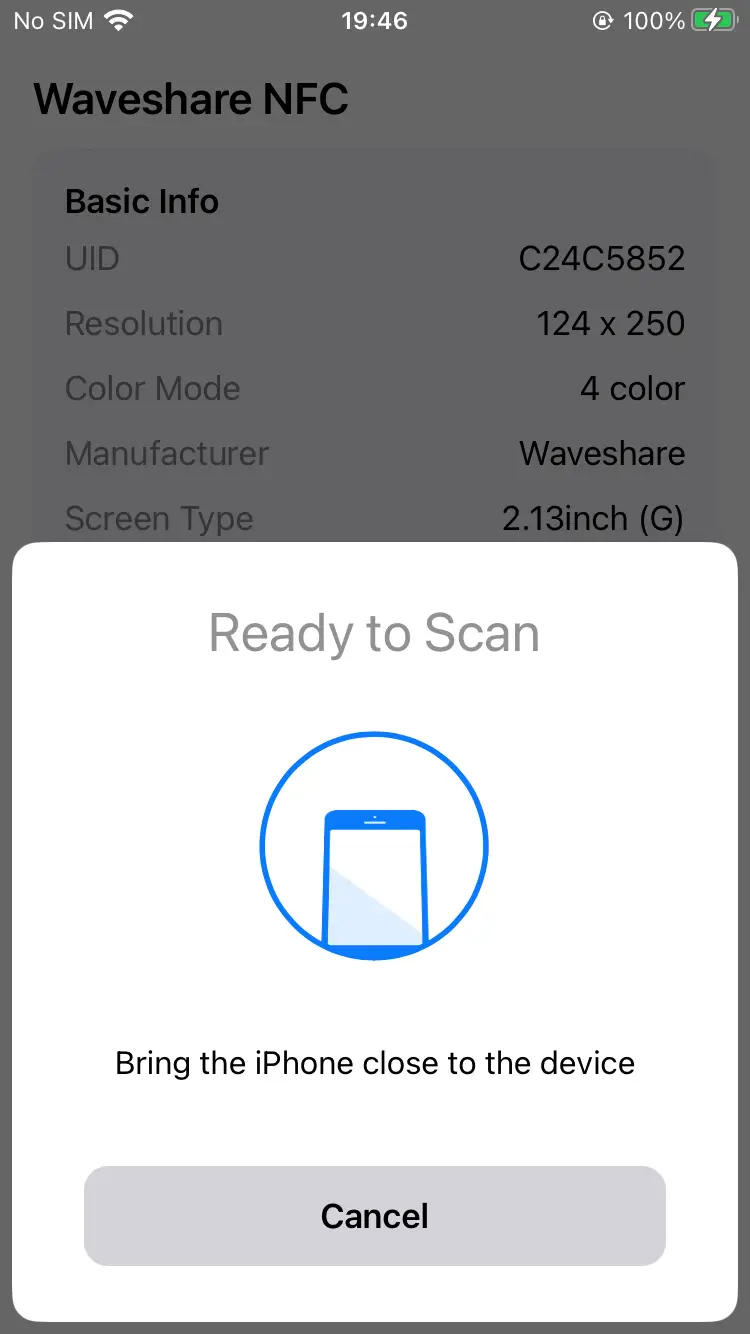
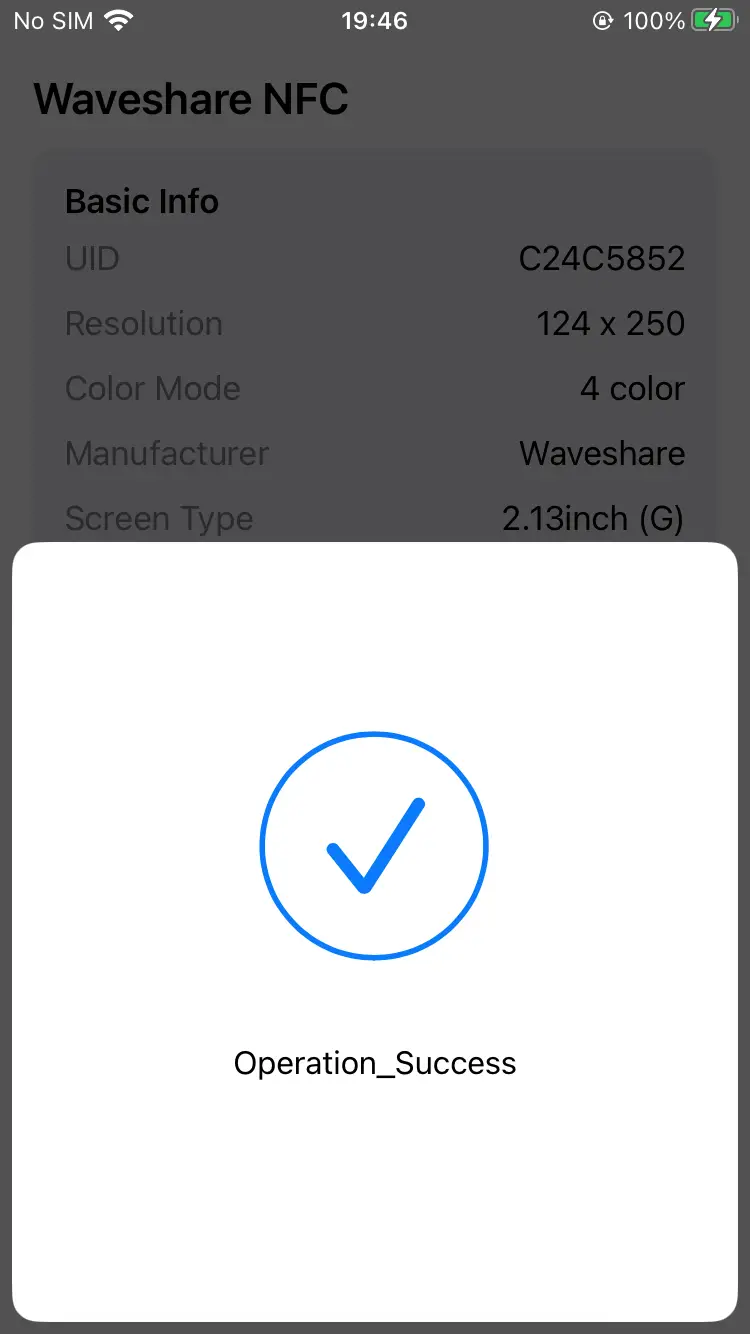
-
Tap "Choose Image" and choose the image source: Camera, Photo Library, App Album, or Template Editor.
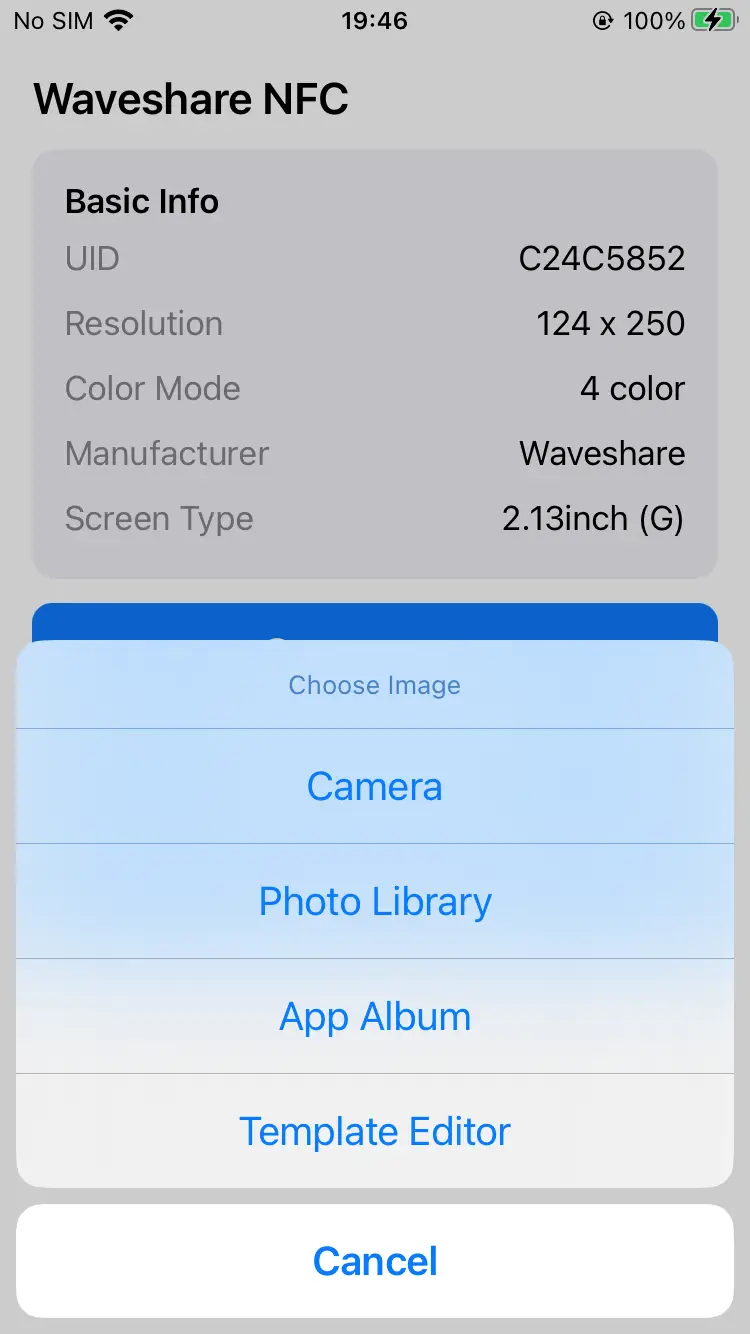
-
Choose "Camera" to take a photo, or select an image from "Photo Library". You can adjust the image in the crop interface, then tap "Done" to confirm.
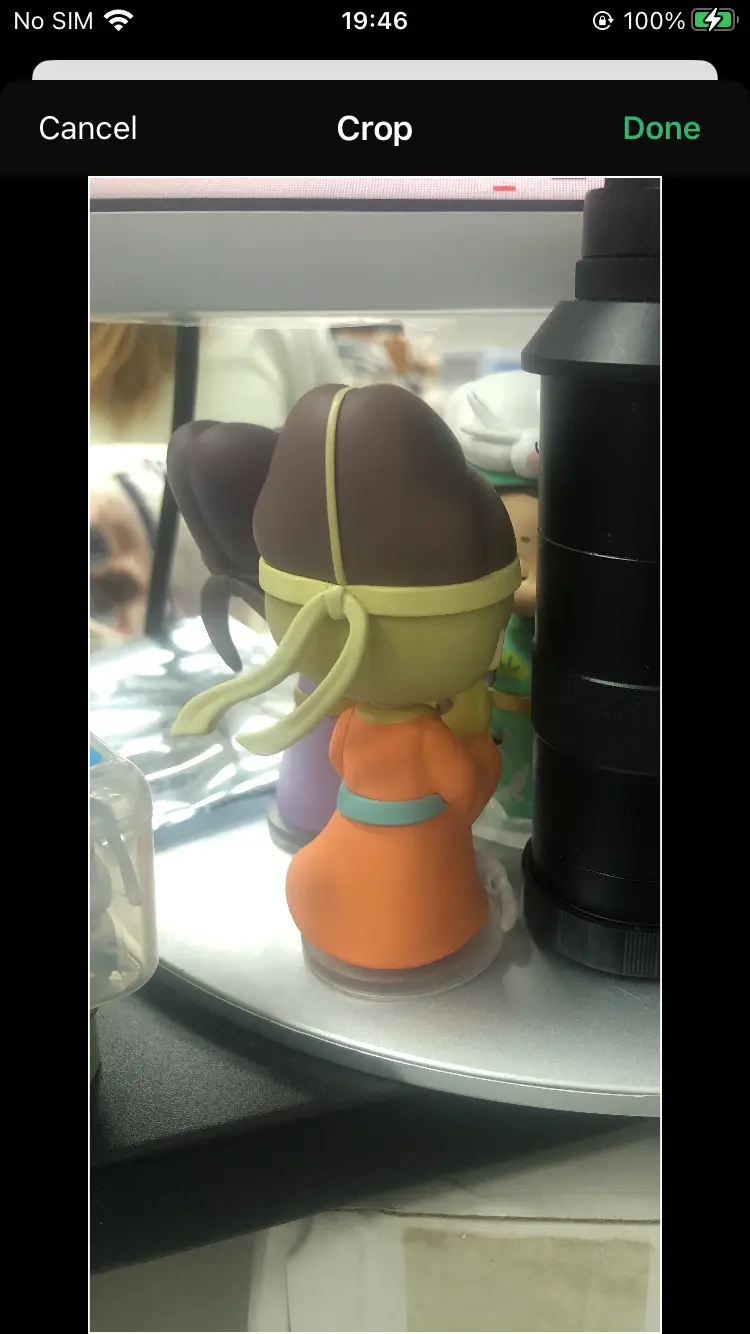
-
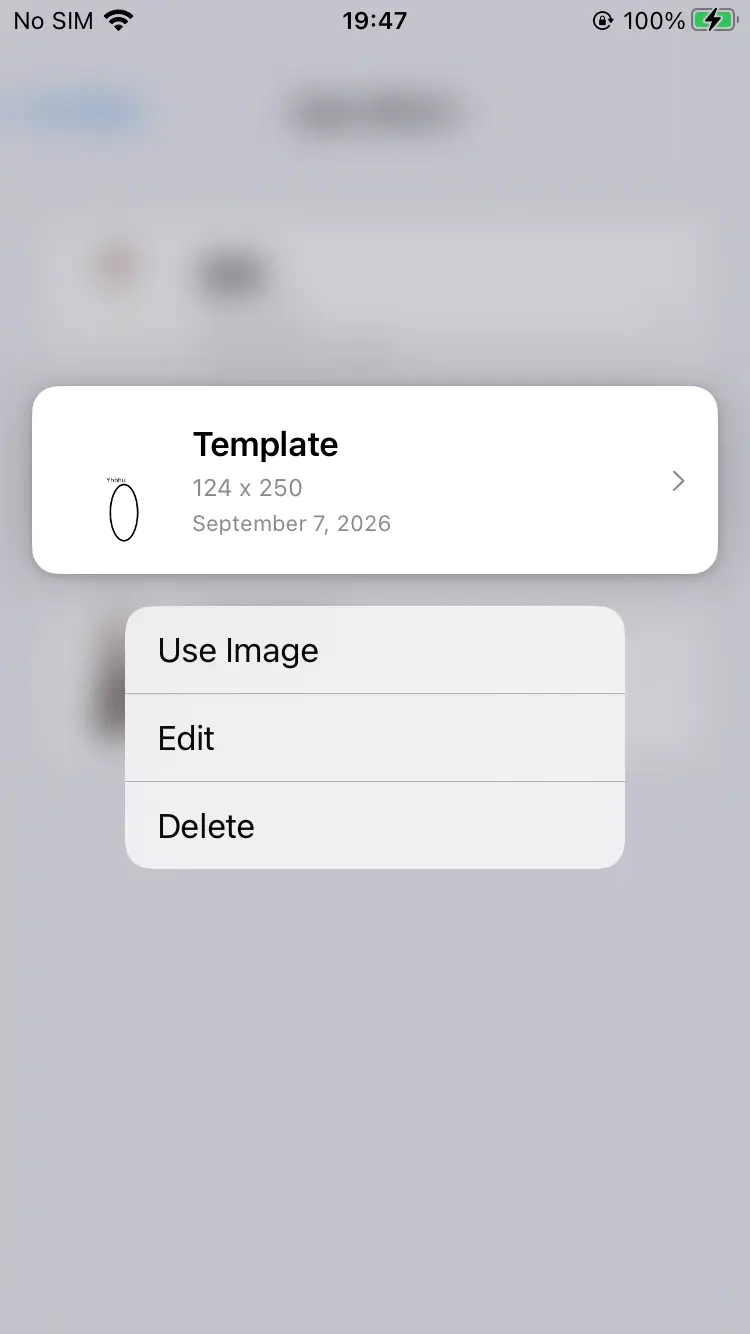
Select "App Album" to use saved templates. Long‑press a template to perform actions such as "Use Image", "Edit", or "Delete".
App Album Template Actions 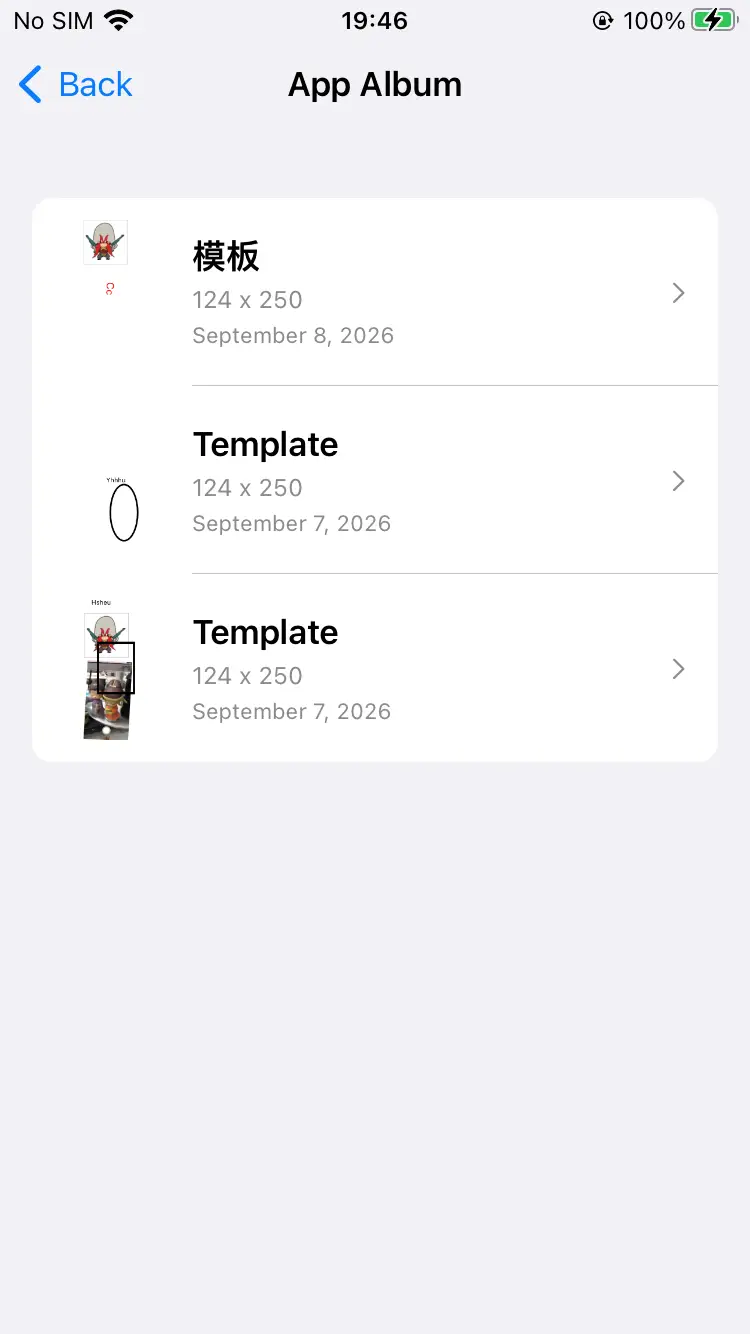
-
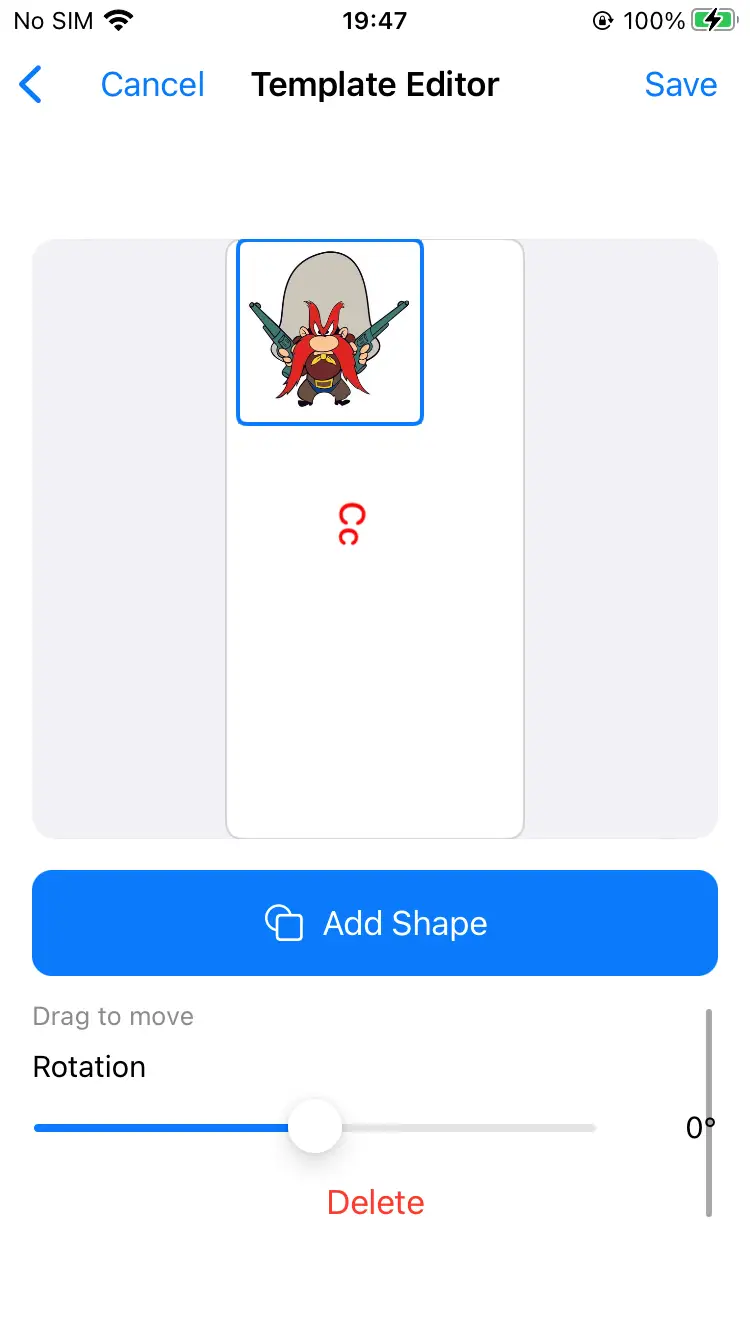
In the Template Editor, you can "Add Text", "Add Image", or "Add Shape". Drag to adjust position and rotation angle. After finishing, tap "Save"; the template will be saved to the App Album.
-
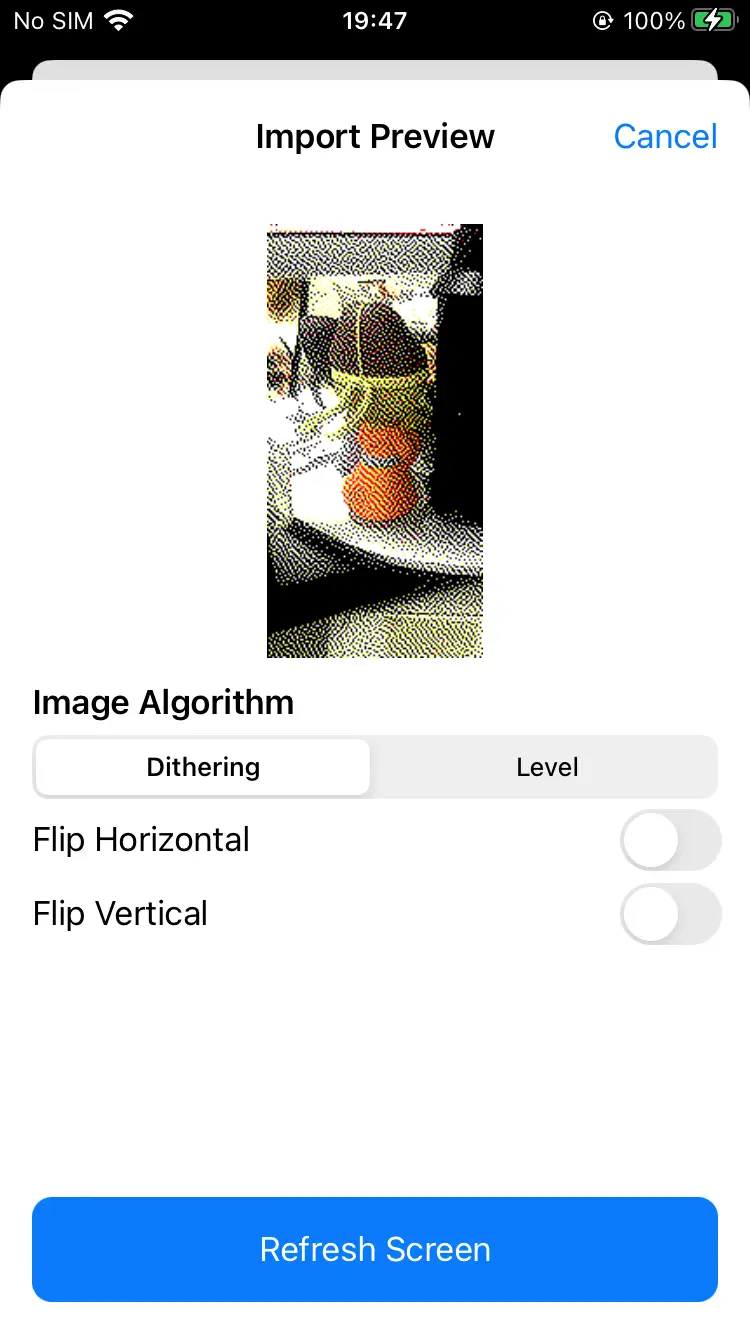
After confirming the image, you will enter the "Import Preview" page, where you can select "Dithering" or "Level", and enable "Flip Horizontal" or "Flip Vertical" to preview the effect.
-
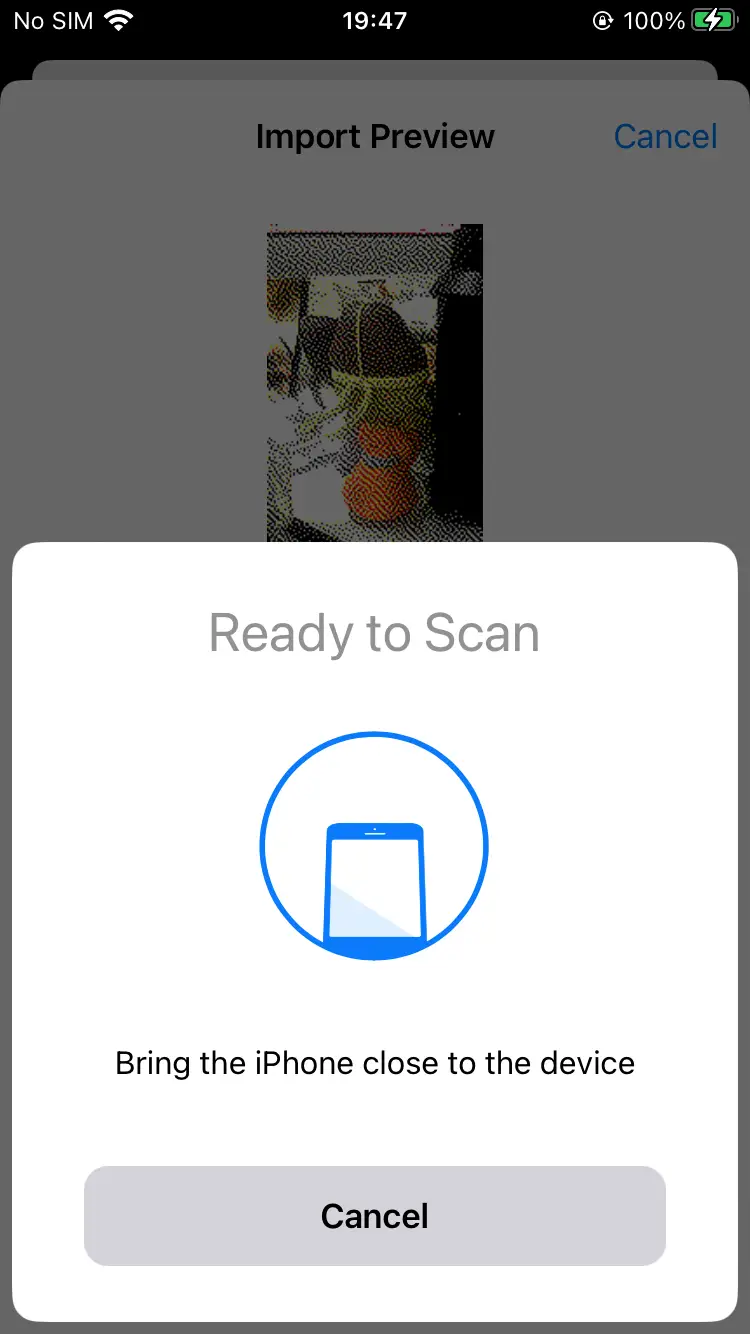
Tap "Refresh Screen", bring the phone close to the ePaper to transfer the image and refresh, and wait for the transfer to complete.
-
To clear the content displayed on the ePaper, tap "Clear Screen" on the main interface.