Android APP Usage
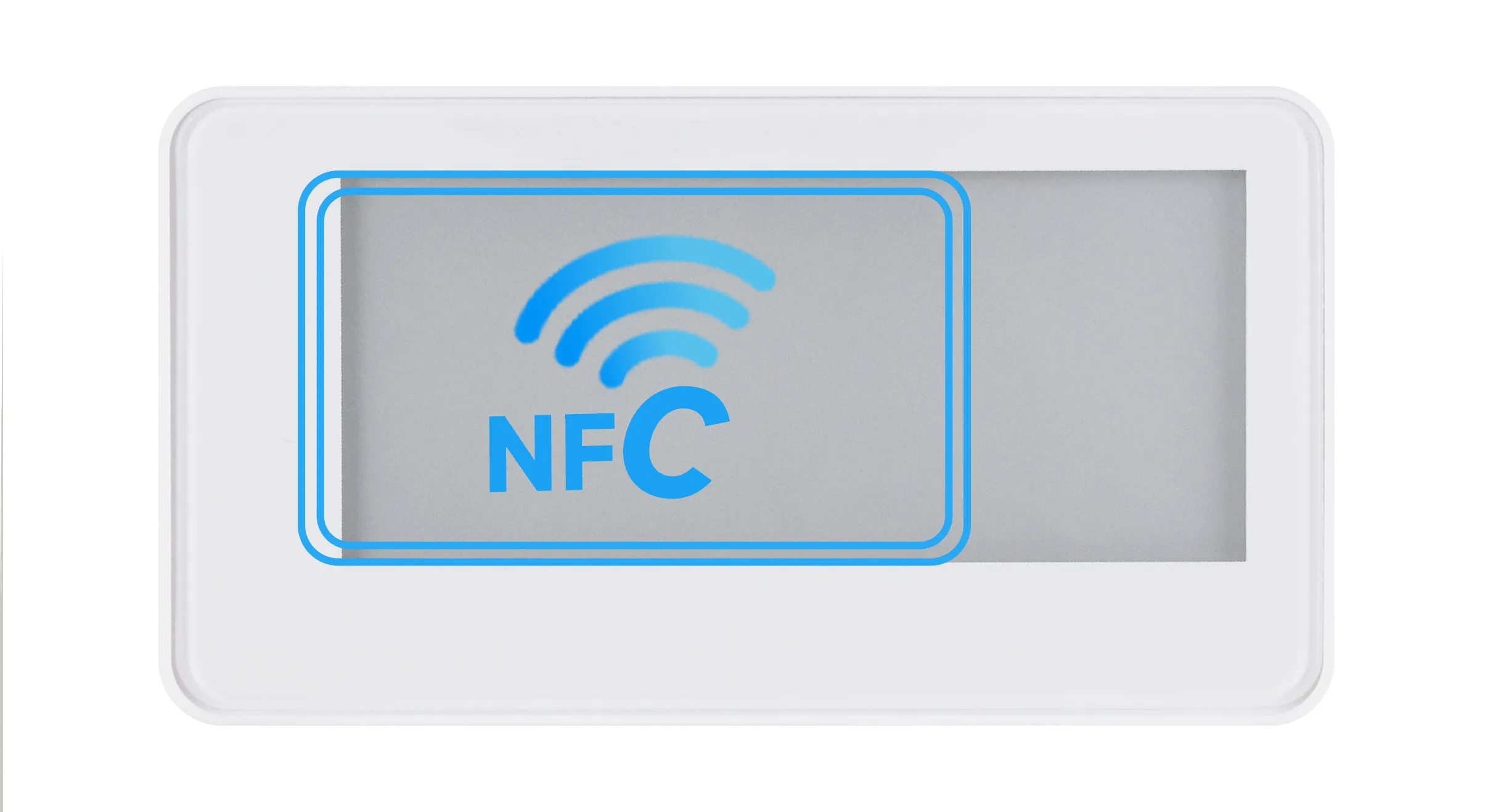
The mobile APP can be used to refresh images via the phone's NFC function. Before use, confirm that your phone supports NFC and that NFC is enabled.
APP Tested Phones
The table below lists the tested models. Models not listed do not necessarily mean they are unsupported.
| Phone Model | Test Status |
|---|---|
| Redmi K40pro+ | Normal |
| Xiaomi 14 Ultra | Normal |
| Huawei Mate 60 (Android) | Normal |
| Huawei Mate 60 (HarmonyOS, non-pure version) | Normal |
| OnePlus 13t | Normal |
| OPPO Reno12 | Normal |
| VIVO X200S | Normal |
NFC Sensing Position Reference
APP Download
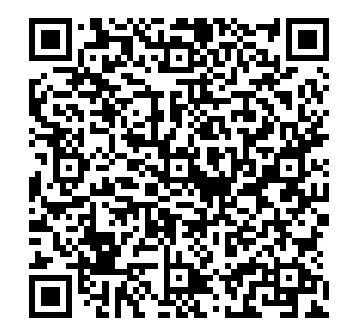
Scan the QR code below to download the APP and install it on your phone. Supports Android Android 4.0 (Ice Cream Sandwich) and above. Note: Do not use WeChat to scan; use the browser's scan function.
APP Usage Steps
-
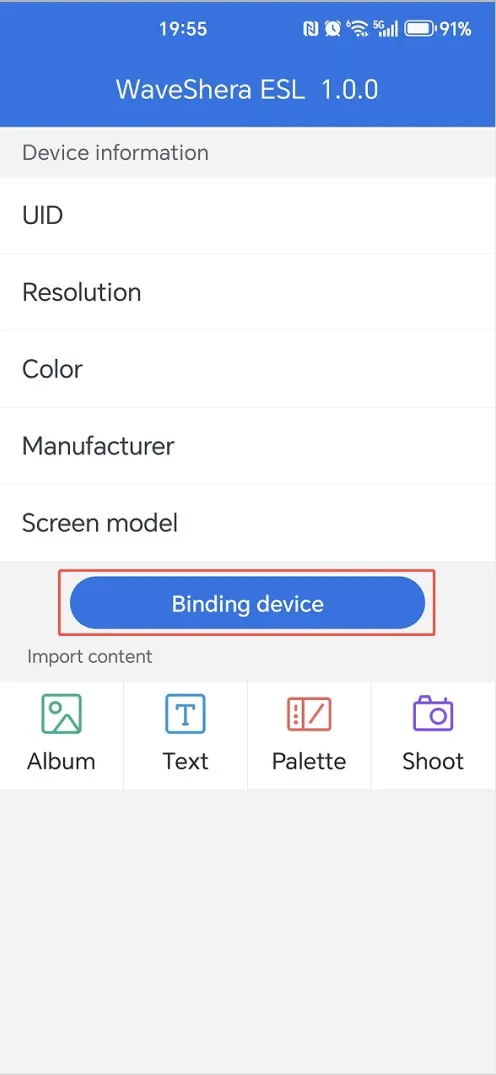
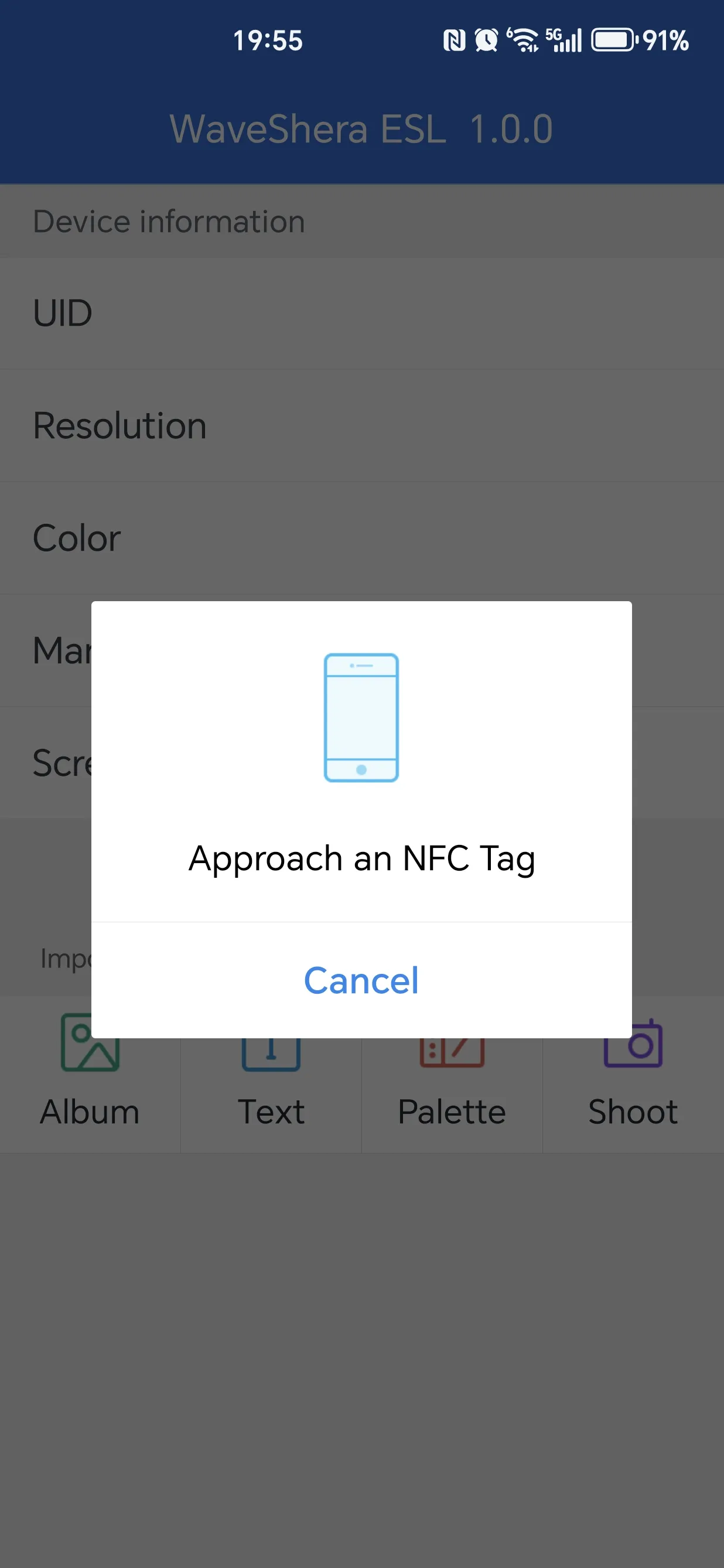
Tap the "Bind Device" button to read the device information to be refreshed. After binding, the main page will display the corresponding information (using 2.13G as an example).
-
Tap the "Album" icon, enter the album and select the image to display. After confirming the selection, you will enter the image processing page.
-
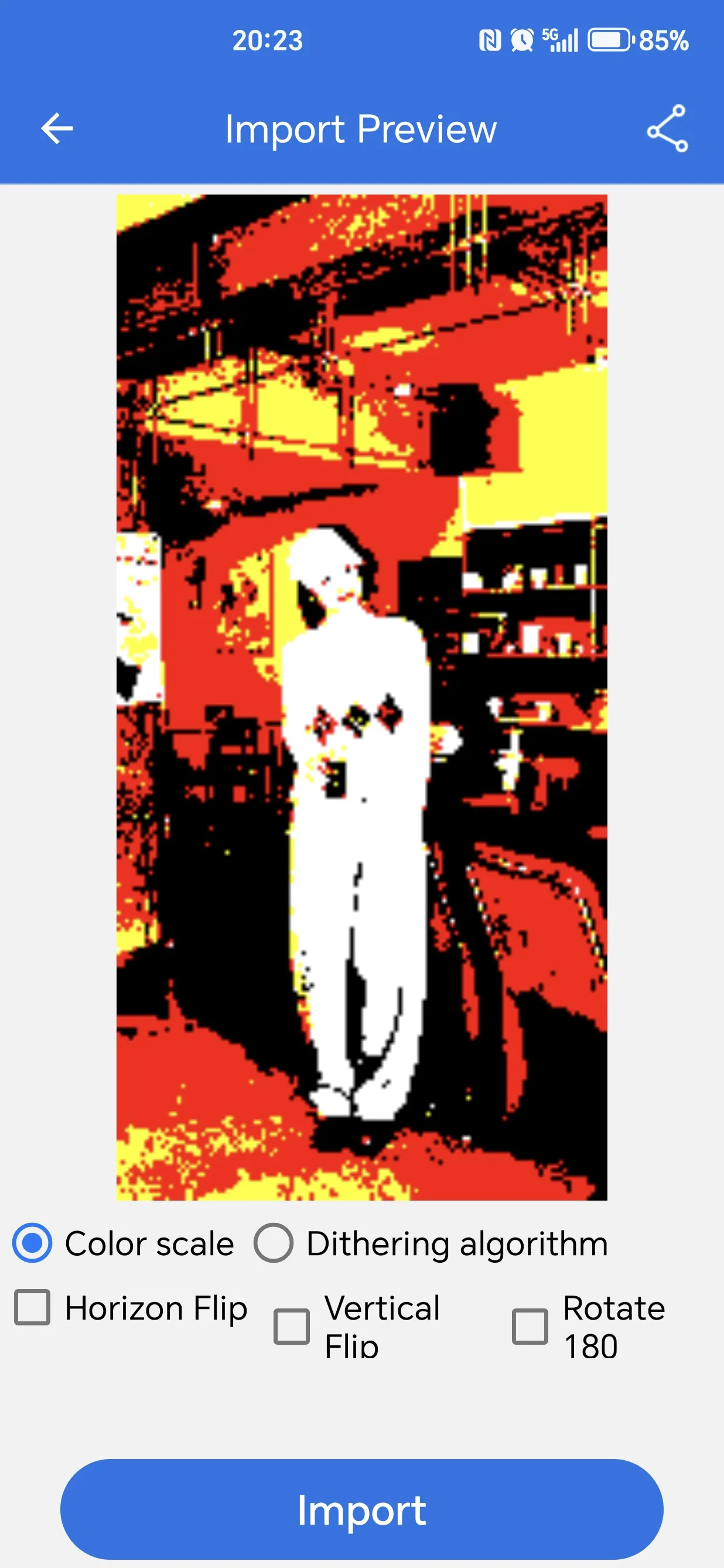
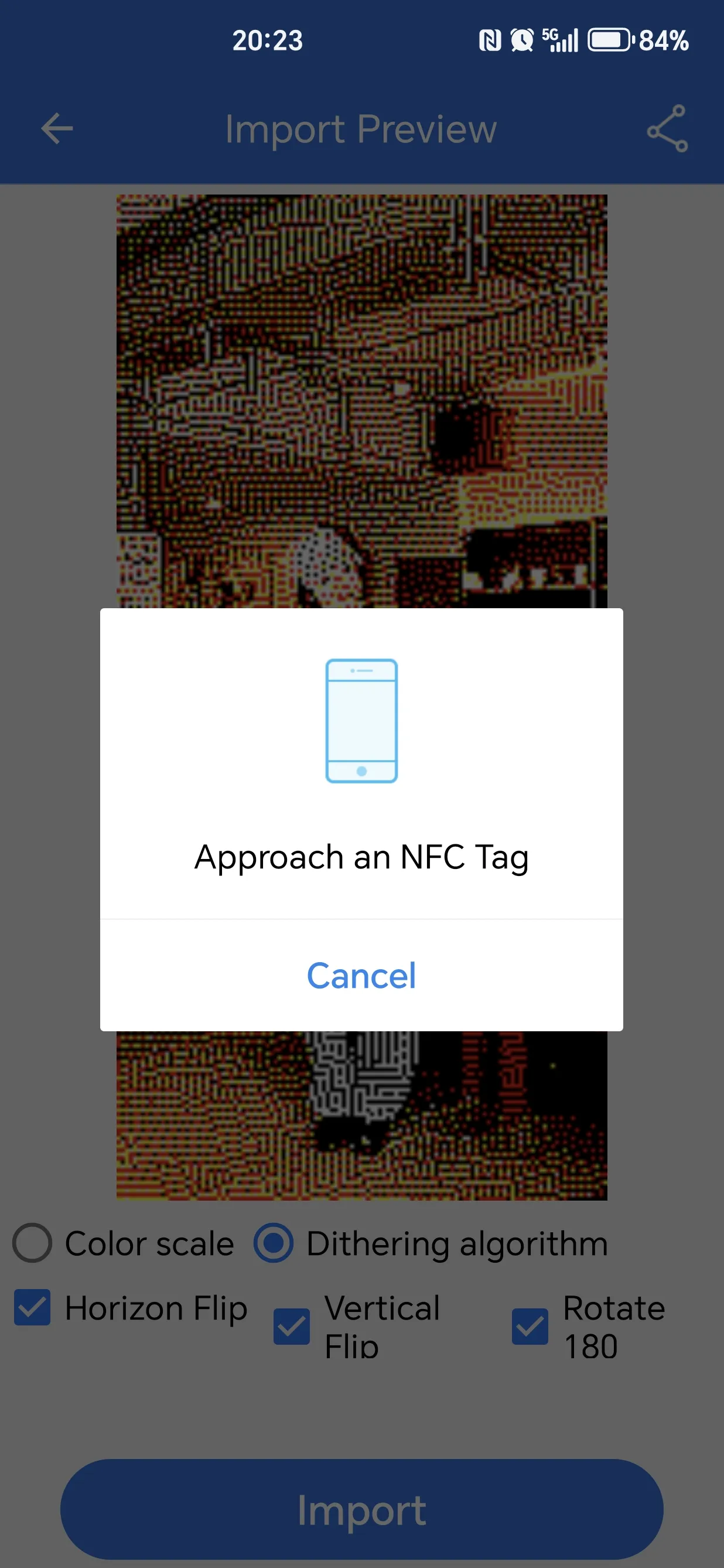
On the image processing page, select the corresponding button and tap the "Import" button to start importing the image. If the e-Paper display has not been separated from the phone after binding, first move the e-Paper away, then bring it close to the phone again.
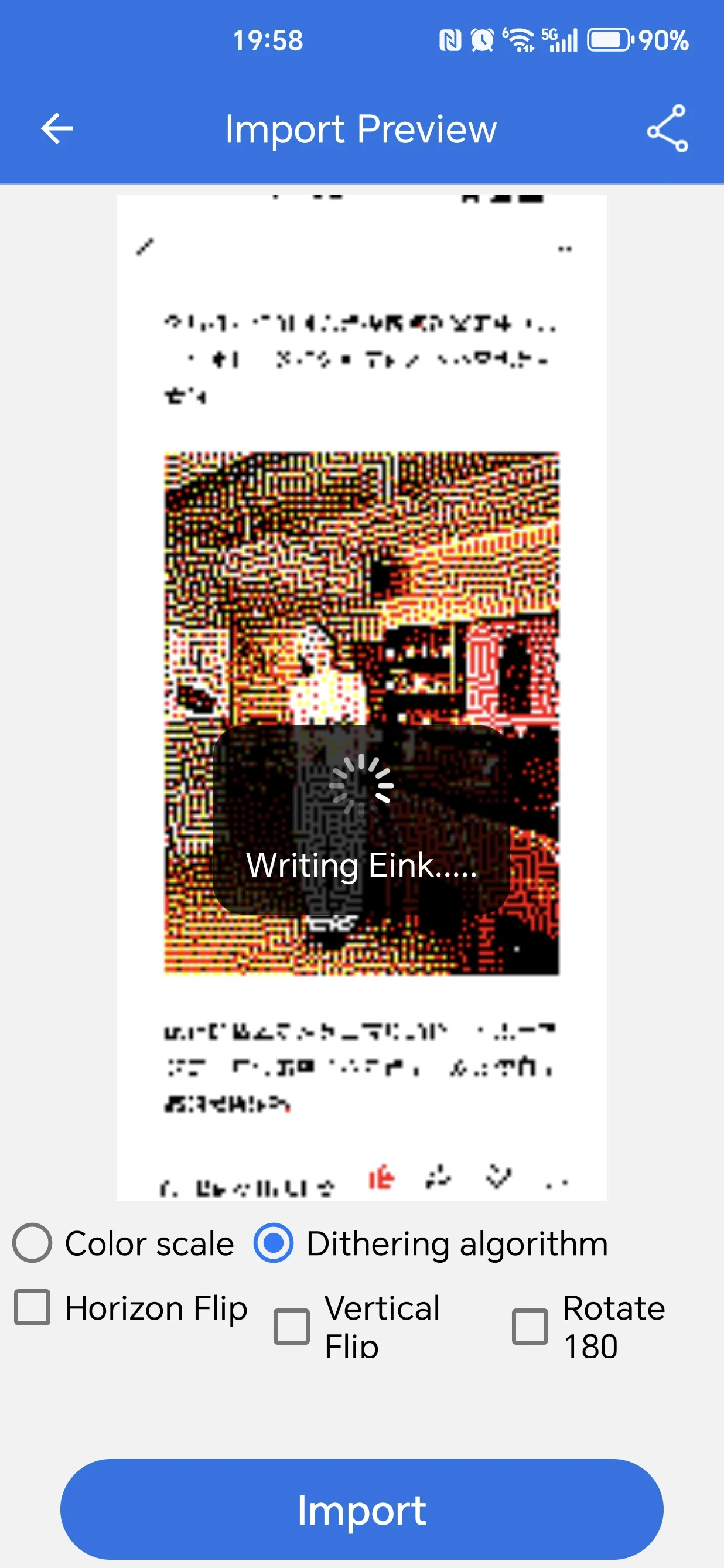
Image Processing Approach NFC Tag Transfer and Refresh Image 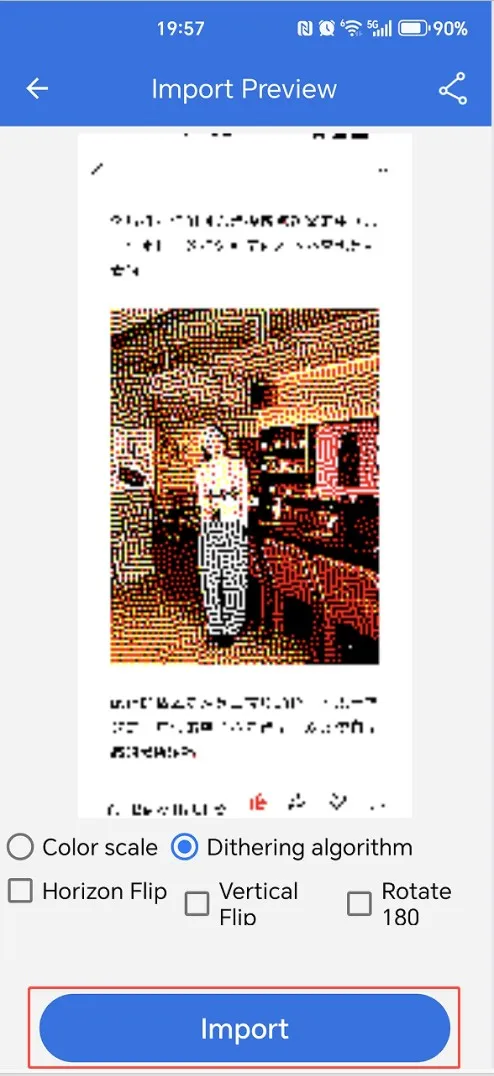
-
Wait for the refresh process to complete, which takes about 16 seconds.
-
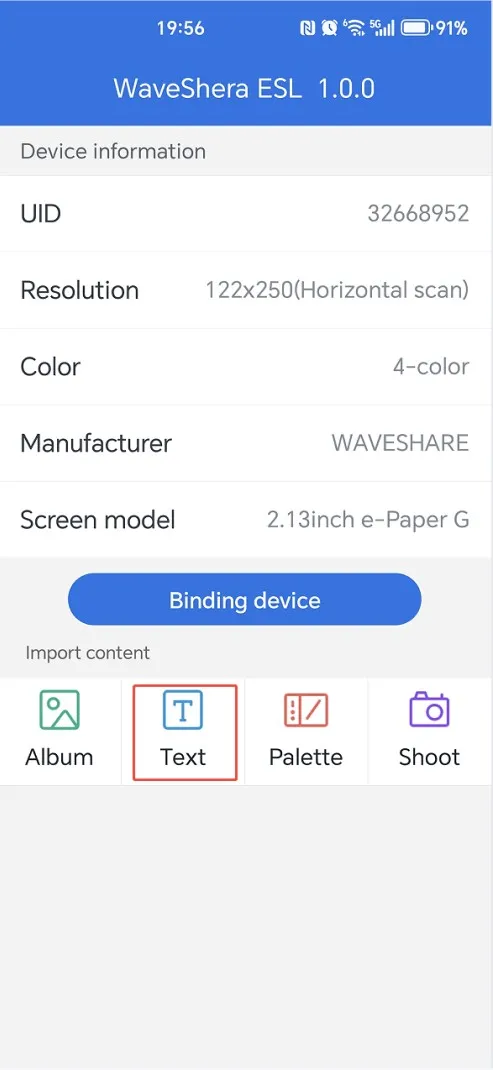
To add text, first bind the device, then select the text icon on the main page.
-
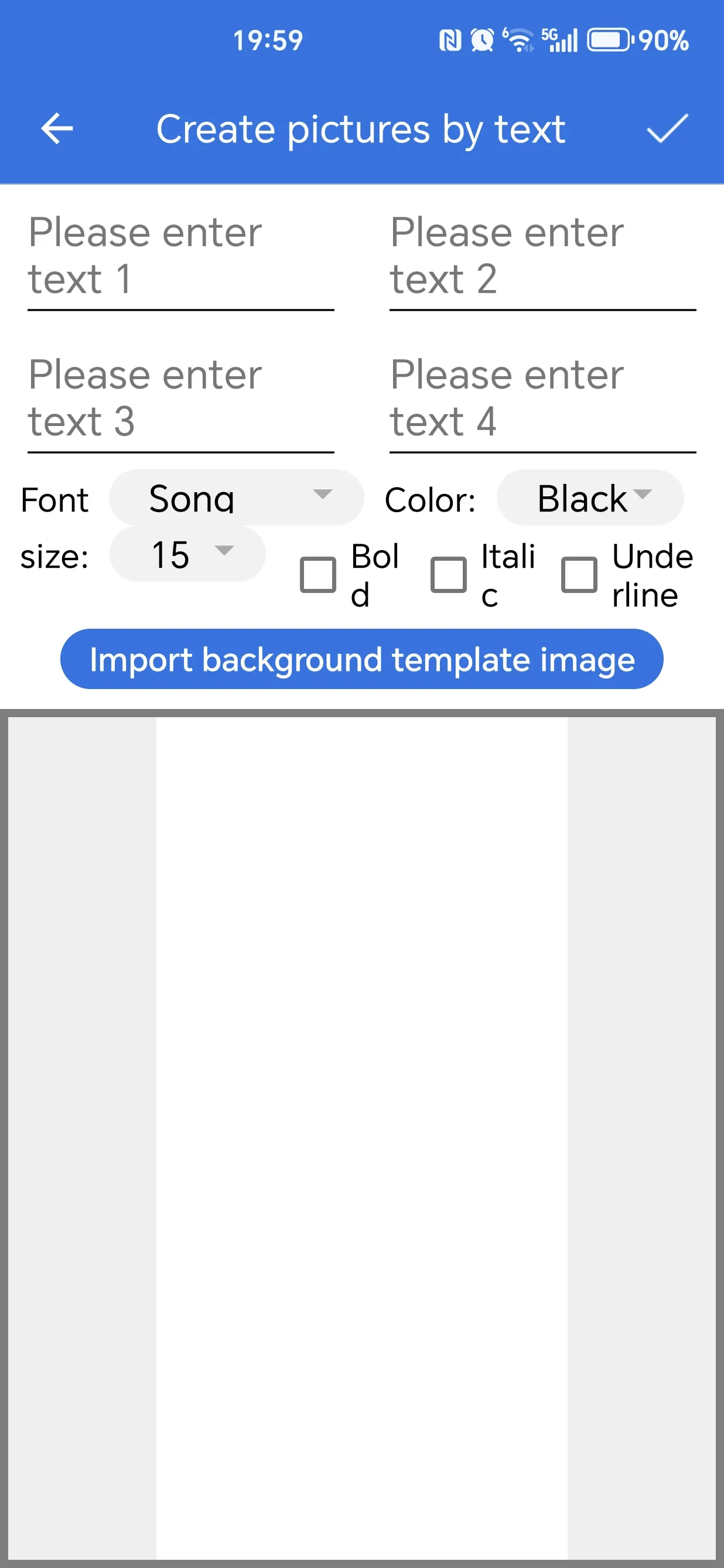
Draw text. You can select font size, color, and font, and drag the text position in the sample image below. You can also import a "background template". The background image resolution must match the e-Paper resolution. After setting, tap the "√" in the upper right corner to save the image, and proceed to step 3 (image processing page).
-
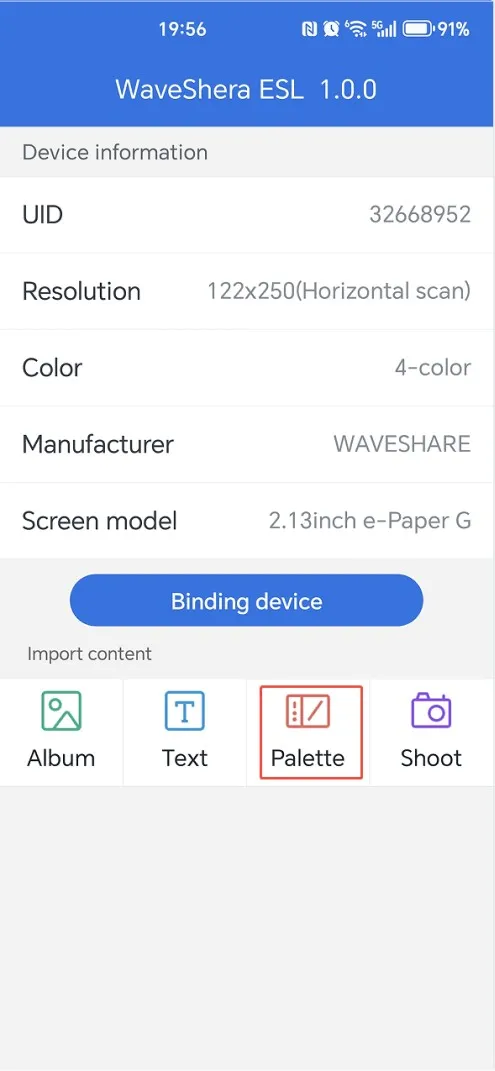
To use the drawing board, first bind the device, then select the drawing board icon on the main page.
-
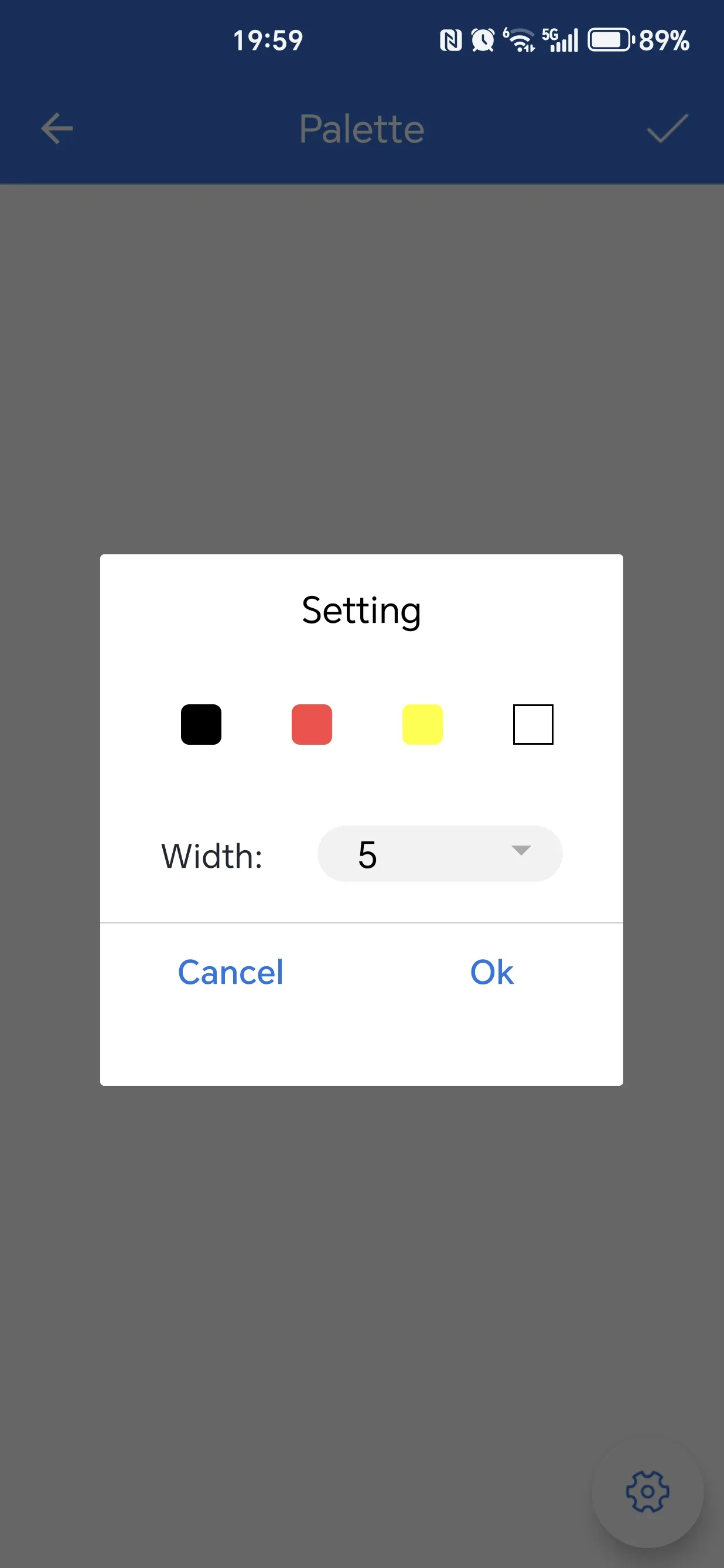
Draw on the screen with your finger. The default brush is black with a width of 5. Tap the gear icon in the lower right corner to enter brush settings. Tap the "√" in the upper right corner to save the image, and proceed to step 3 (image processing page).
Drawing Brush Settings Save Image 

-
To take a photo, first bind the device, then select the camera icon on the main page.
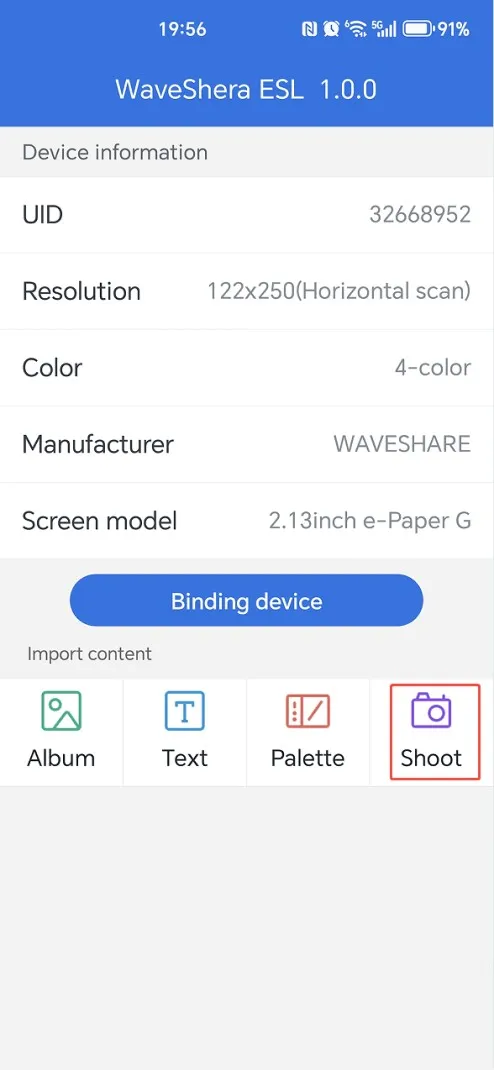
-
Take and crop the image, then proceed to step 3 (image processing page).