23.8inch_FHD_Monitor Working with PC
Supports Windows 11 / 10 / 8.1 / 8 / 7
Hardware Connection
- Connect the provided 12V 5A power supply to the screen; the backlight will turn on.
- Connect the LCD's HDMI interface to the PC's HDMI port. Windows will automatically recognize the display function.
- Connect the LCD's USB interface to the PC's USB port. Windows will automatically recognize the touch function.
Some PCs do not support HDMI plug-and-play; a system restart usually resolves this.
If the 12V power supply is insufficient, the LCD may flicker. It is recommended to use the included 12V 5A power adapter or manually reduce the brightness to restore normal operation.
Windows Specified Touch Screen
Windows11:
-
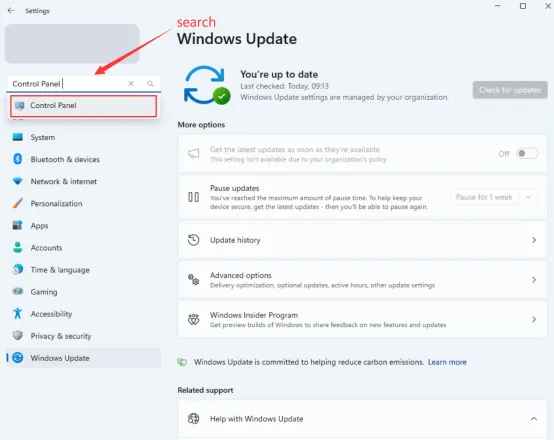
Open Windows Settings, type and click "Control Panel" in the search bar.
-
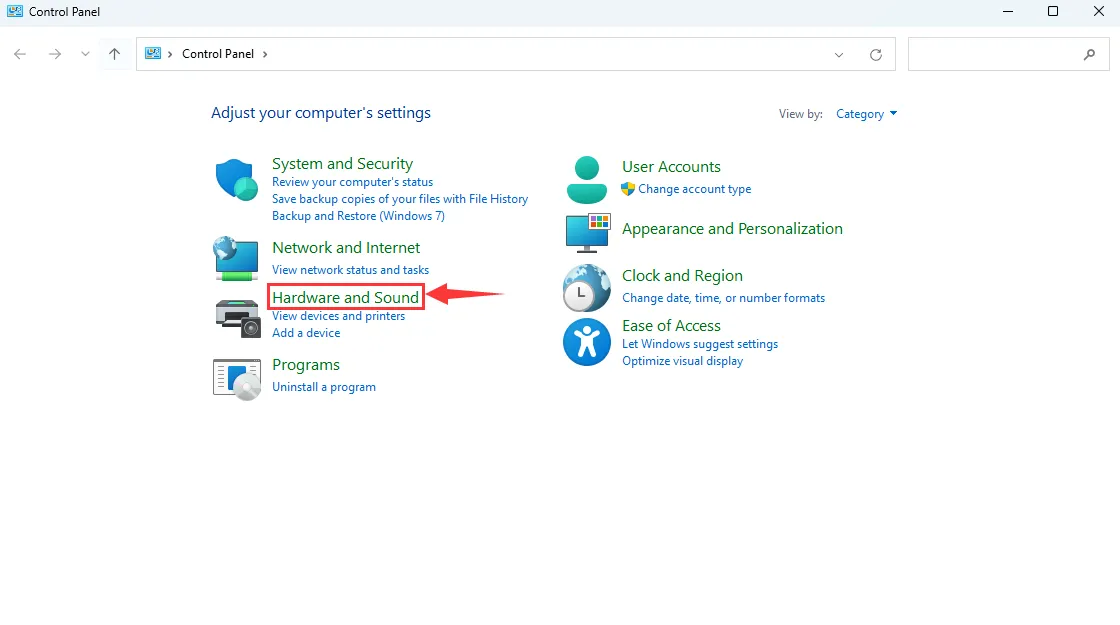
In the "Control Panel" window, select "Hardware and Sound".
-
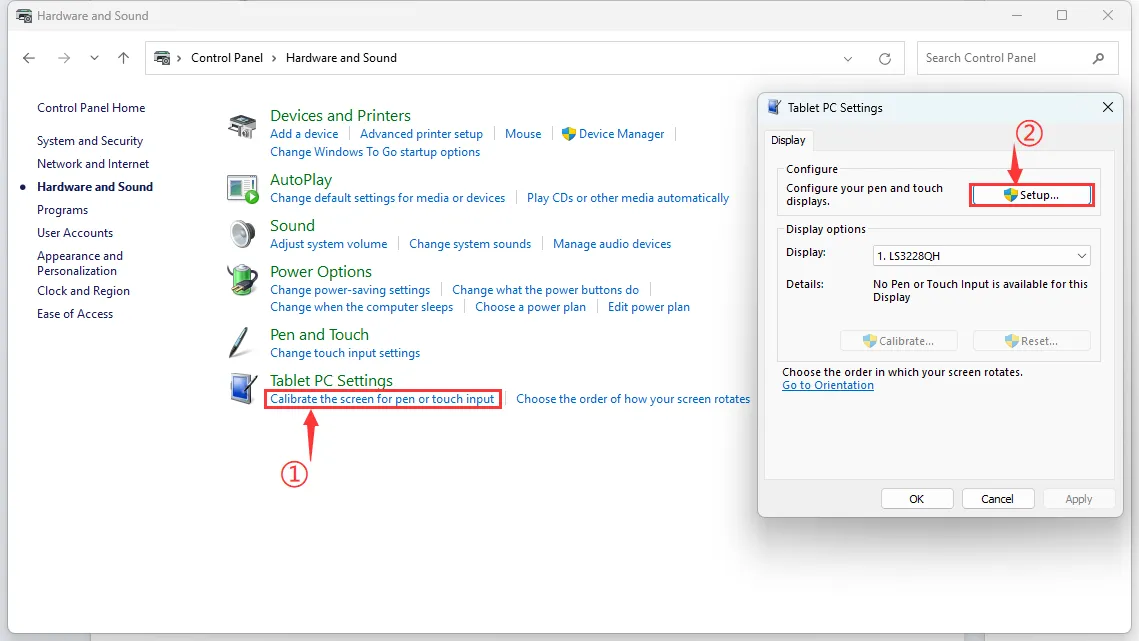
Under "Calibrate the screen for pen or touch input", in the "Tablet PC Settings" dialog, click "Setup".
-
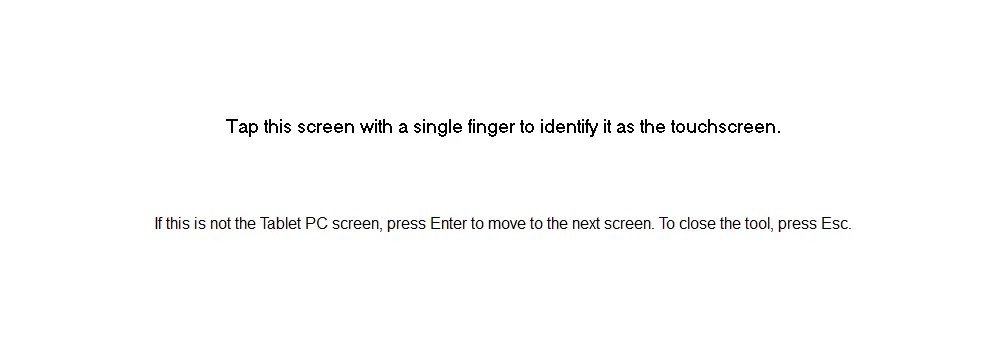
A text prompt will appear on the screen as shown below. Tap the touch screen with your finger; the computer will then recognize it as the touch screen.
 tip
tipNote: If the screen is blank, press the "Enter" key; the text prompt will switch to the next screen. (The screen displaying the text prompt will be designated as the touch screen.)
Windows10:
-
Open Windows Settings, type and click "Calibrate the screen for pen or touch input" in the search bar (as shown below).
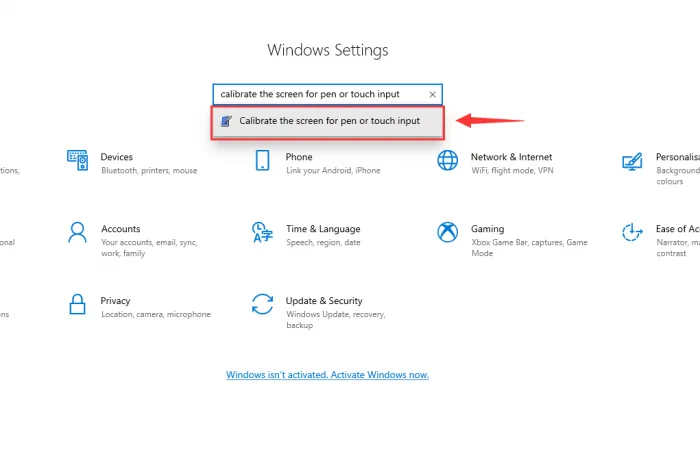
-
In the "Tablet PC Settings" dialog, click "Settings".

-
A text prompt will appear on the screen as shown below. Tap the touch screen with your finger; the computer will then recognize it as the touch screen.
tipNote: If the screen is blank, press the "Enter" key; the text prompt will switch to the next screen. (The screen displaying the text prompt will be designated as the touch screen.)