4-DSI-TOUCH-A Working with Raspberry Pi
Pi5/CM5/CM4/CM3+/CM3 Hardware Connection
- Use the "FFC Cable 22PIN 200mm (Reverse)" cable to connect the DSI interface of the display to the 22PIN DSI interface of the Raspberry Pi board.
- Use the "GPIO cable" to connect the power interface of the display to the 5V GND pin header of the Raspberry Pi board.

- Secure the Raspberry Pi to the display with M2.5 screws.
The installation is as follows:
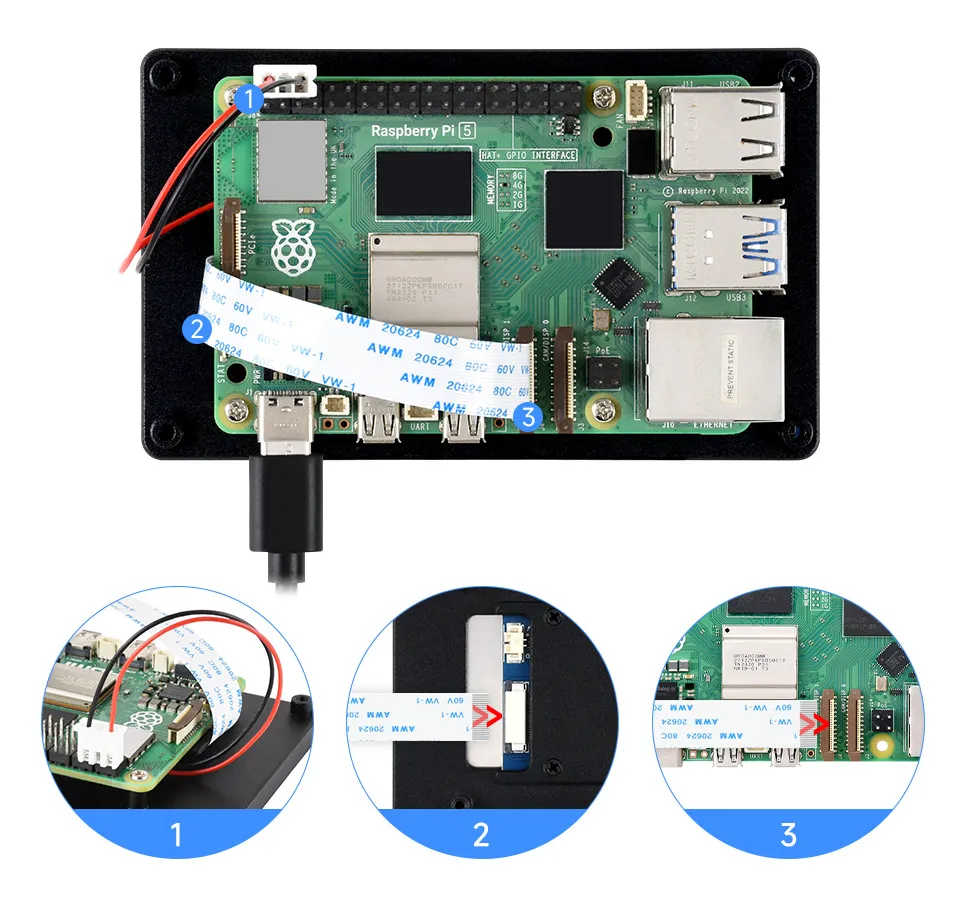
Please ensure the DSI cable is connected in the correct orientation and that 5V power is supplied via the GPIO pins.
When inserting or removing the DSI connector, handle it gently, avoiding excessive force or angled insertion/removal, to prevent damage to the connector or poor contact.
Pi4B/3B+/3B/3A+ Hardware Connection
- Use the "DSI-Cable-12cm" cable to connect the DSI interface of the display to the 15PIN DSI interface of the Raspberry Pi board.
- Use the "GPIO cable" to connect the power interface of the display to the 5V GND pin header of the Raspberry Pi board.
- Secure the Raspberry Pi to the display with M2.5 screws.
The installation is as follows:
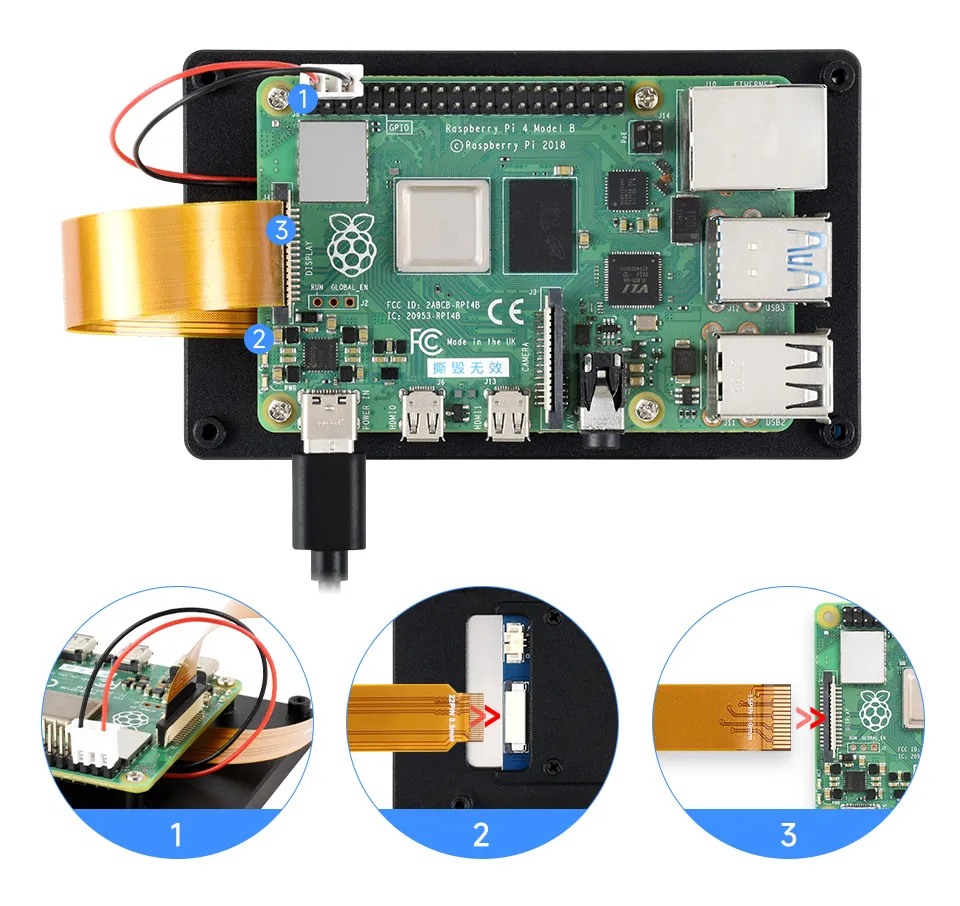
Please ensure the DSI cable is connected in the correct orientation and that 5V power is supplied via the GPIO pins.
When inserting or removing the DSI connector, handle it gently, avoiding excessive force or angled insertion/removal, to prevent damage to the connector or poor contact.
Software Setup
-
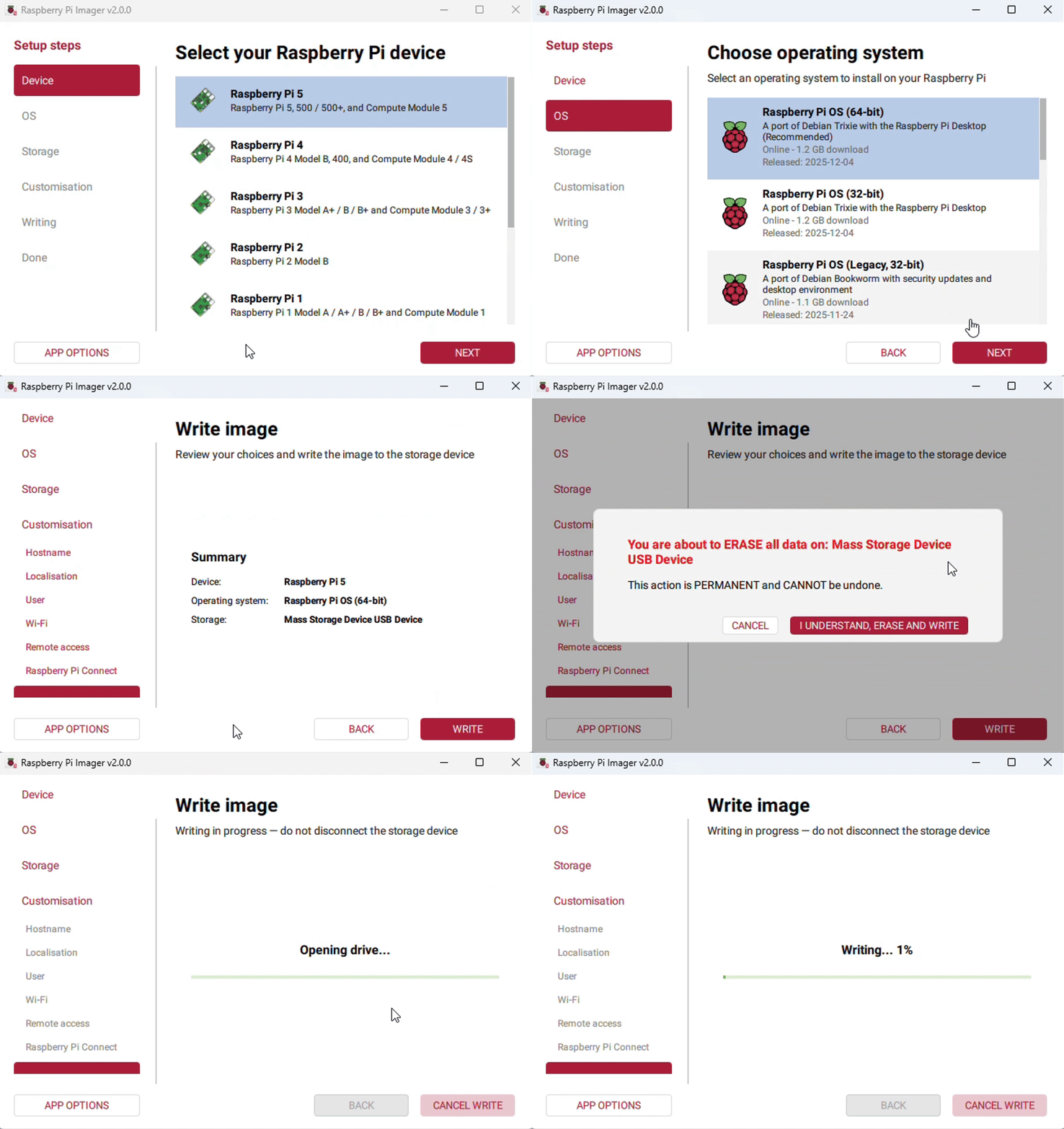
Connect the TF card to the PC, download and use Raspberry Pi Imager to flash the corresponding system image.
-
After the image flashing is completed, open the config.txt file in the root directory of the TF card, add the following code to the end of the config.txt file, save and safely eject the TF card.
tipPi 5 / CM5 / CM4 / CM3+ / CM3 have two MIPI DSI interfaces. Choose the appropriate configuration based on which DSI interface you actually connect to. DSI1 is recommended by default.
dtoverlay=vc4-kms-v3d#DSI1 Usedtoverlay=vc4-kms-dsi-waveshare-panel-v2,4_0_inch_a#DSI0 Use# dtoverlay=vc4-kms-dsi-waveshare-panel-v2,4_0_inch_a,dsi0 -
Insert the TF card into the Raspberry Pi, power on the Raspberry Pi, and generally wait for about 30 seconds to enter the display state. The touch function can be used normally after the system boots.
Adjusting Backlight Brightness
GUI Brightness Adjustment
The following steps are based on the Trixie system:
-
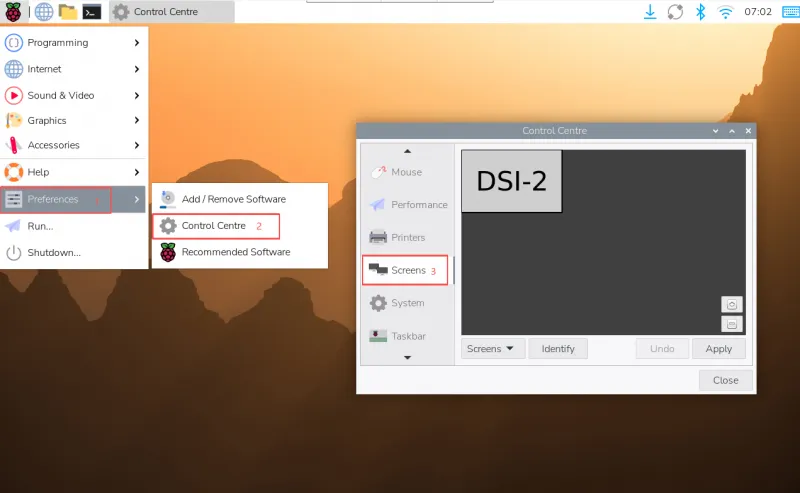
Click the top-left menu, go to Preferences → Control Center, and select Screens.
-
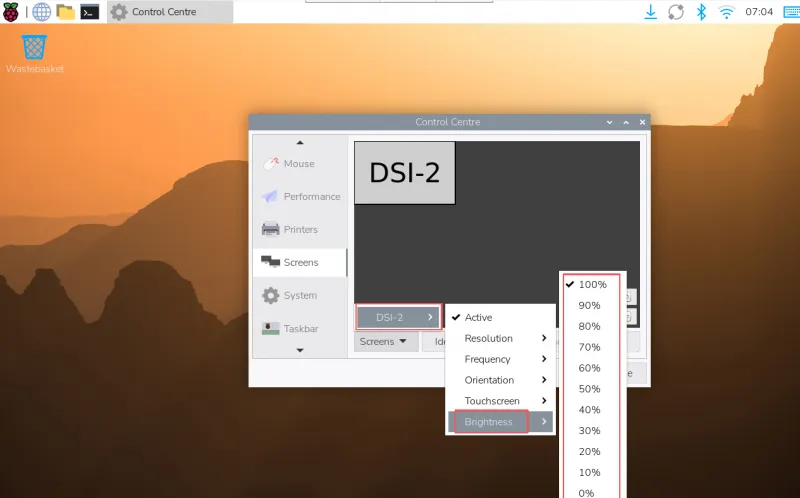
Go to "Screen" -> "DSI-2" -> "Brightness", check and adjust the desired backlight brightness, and finally click Apply to save the settings.
Using the Waveshare Backlight Adjustment Application
wget https://files.waveshare.com/wiki/common/Brightness.zip
unzip Brightness.zip
cd Brightness
sudo chmod +x install.sh
./install.sh
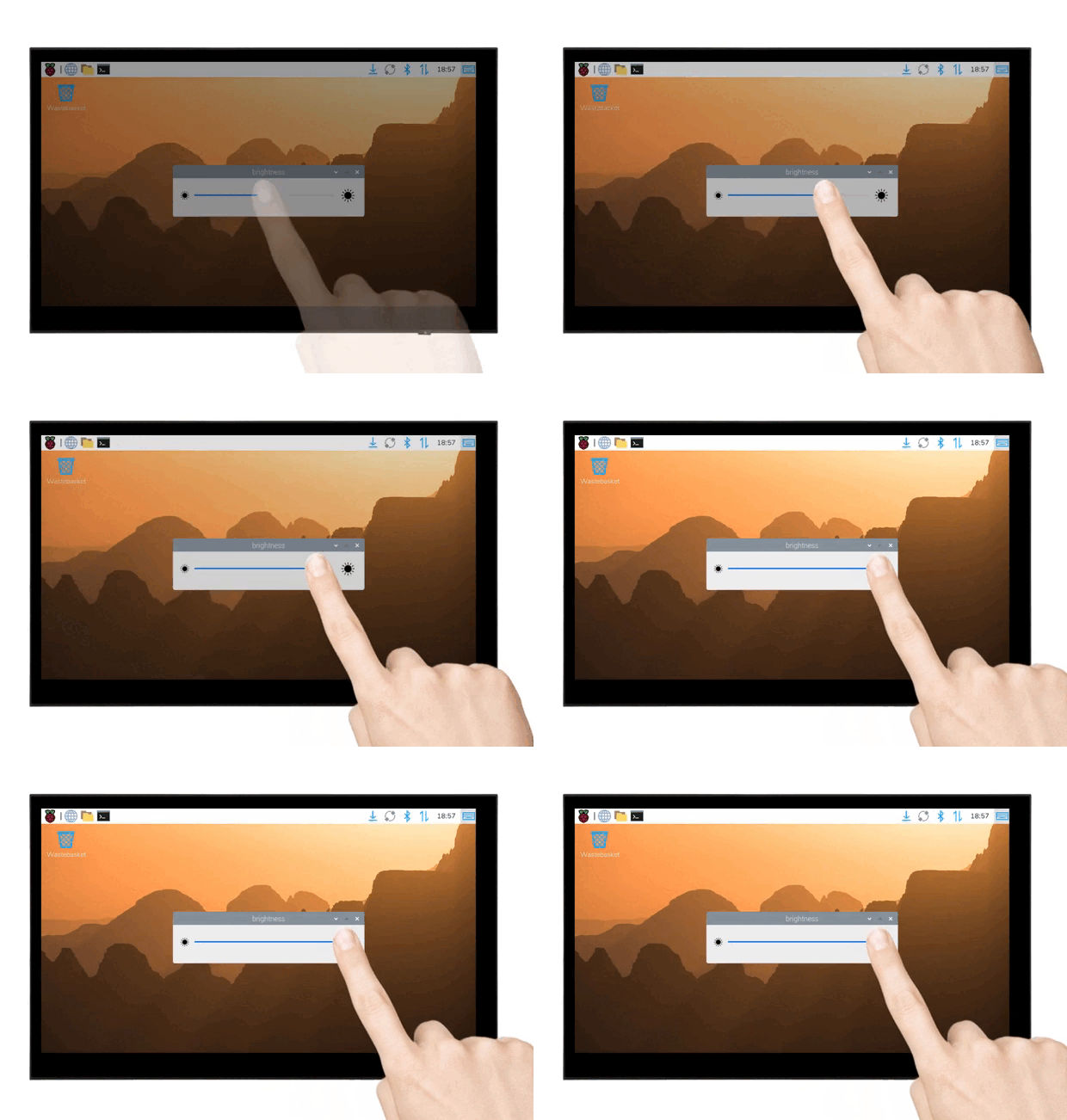
After the installation is completed, you can open the example in the Start Menu -> Accessories -> Brightness, as shown below:
Adjusting Backlight Brightness via Terminal
echo X | sudo tee /sys/class/backlight/*/brightness
Where X represents any number from 0 to 255. 0 means the darkest, and 255 means the brightest. For example:
echo 100 | sudo tee /sys/class/backlight/*/brightness
echo 0 | sudo tee /sys/class/backlight/*/brightness
echo 255 | sudo tee /sys/class/backlight/*/brightness
GUI Rotation
Display Rotation on Trixie
The following steps are based on the Trixie system:
-
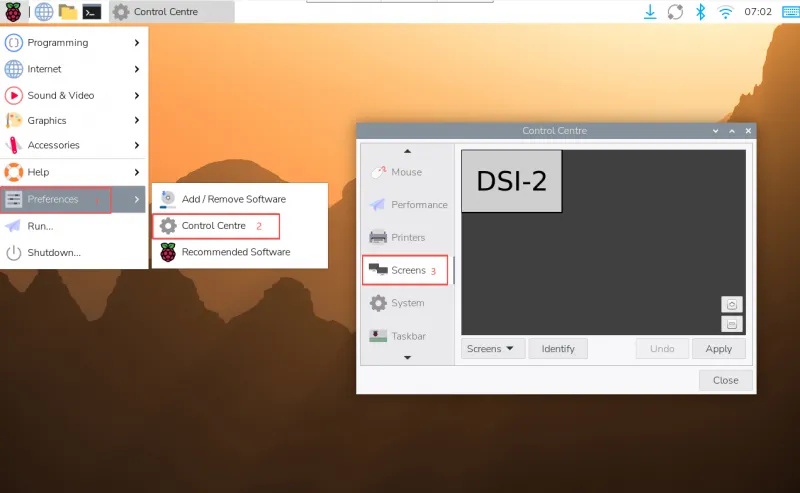
Click the top-left menu, go to Preferences → Control Center, and select Screens.
-
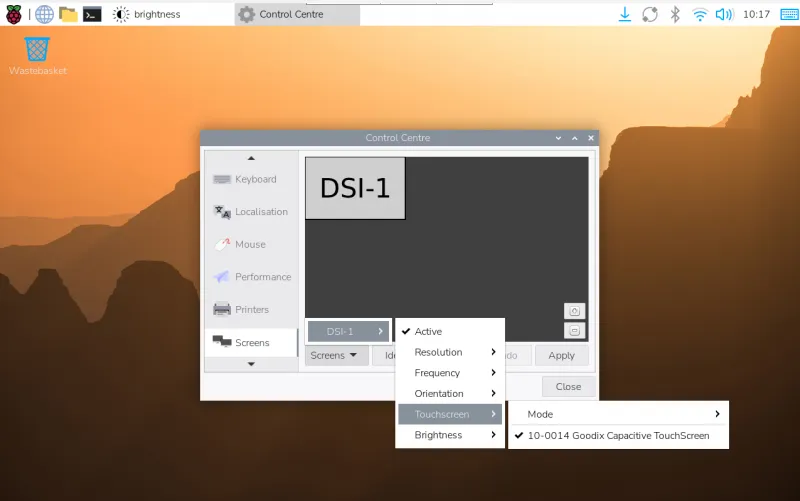
Go to "Screen" → "DSI-1" → "Touchscreen", check "10-0014 Goodix Capacitive TouchScreen".
-
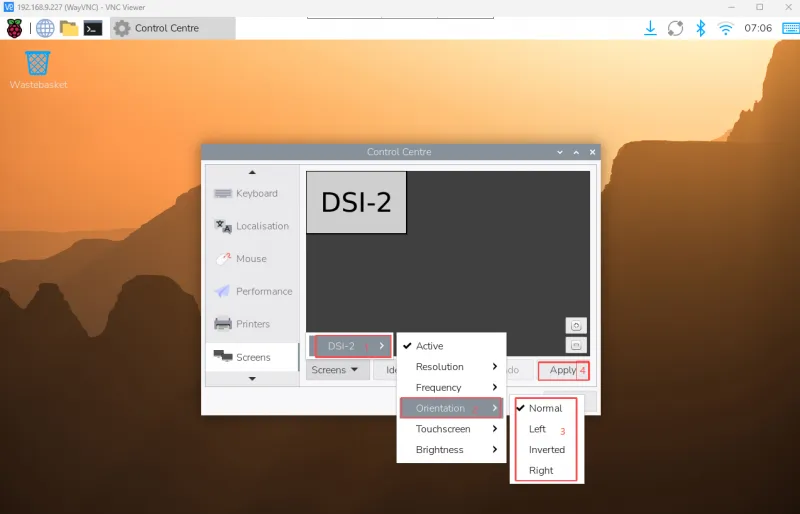
Go to "Screen" → "DSI-2" → "Orientation", select the desired rotation, and click "Apply" to complete display and touch synchronization.
Display Rotation on Lite
sudo nano /boot/firmware/cmdline.txt
Add the corresponding display rotation directive at the beginning of the cmdline.txt file, save, and reboot to take effect.
- Rotation commands
# Display rotation 90 degrees
video=DSI-1:480x800M@60,rotate=90

# Rotate display 270 degrees
video=DSI-1:480x800M@60,rotate=270

# Rotate display 180 degrees
video=DSI-1:480x800M@60,rotate=180
- If using Pi5/CM5, use the actual detected DSI display identifier, e.g., "DSI-2".
- You cannot rotate the DSI display separately from the HDMI display using
cmdline.txt. When you use both DSI and HDMI simultaneously, they share the same rotation value.
Touch Rotation
If you rotate using the GUI, you can check the "Touchscreen" option in the screen layout editor window to synchronize touch rotation. Please refer to the previous introduction for how to rotate the screen. For command-line rotation, refer to the following:
-
Create a new file named 99-waveshare-touch.rules
sudo nano /etc/udev/rules.d/99-waveshare-touch.rules -
Add the following lines as needed to set the touch rotation directive, then reboot to take effect.
# Touch rotation 90 degreesENV{ID_INPUT_TOUCHSCREEN}=="1", ENV{LIBINPUT_CALIBRATION_MATRIX}="0 -1 1 1 0 0"# Touch rotation 270 degreesENV{ID_INPUT_TOUCHSCREEN}=="1", ENV{LIBINPUT_CALIBRATION_MATRIX}="0 1 0 -1 0 1"# Touch rotation 180 degreesENV{ID_INPUT_TOUCHSCREEN}=="1", ENV{LIBINPUT_CALIBRATION_MATRIX}="-1 0 1 0 -1 1"# Save, exit, and rebootsudo reboot
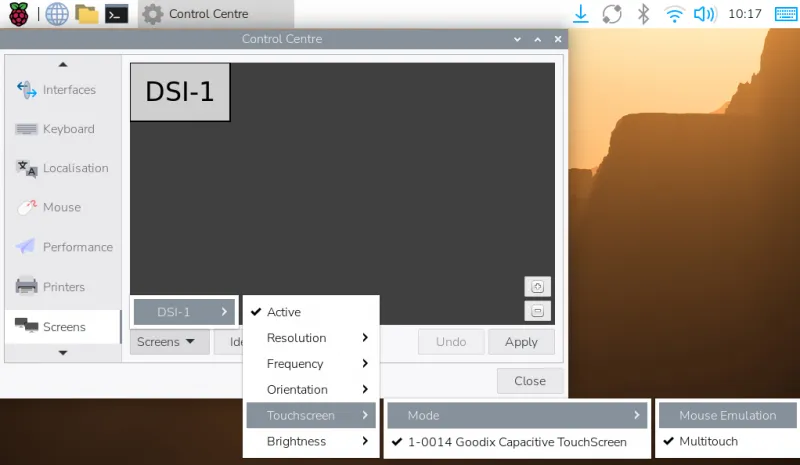
Touch Mode Selection
-
Mouse Emulation (default)
- Click = Left mouse button function
- Long press = Right mouse button function
- Supports double-click
- Does not support swiping pages or multi-touch
Note: This mode is suitable for mouse-oriented scenarios, such as double-clicking to open the file manager, or long-pressing for right-click functions.
-
Multitouch
- Supports multi-touch
- Supports page swiping
- Does not support double-click or long-press for right-click
Note: This mode is suitable for touch-optimized scenarios, such as web browsing and scrolling lists.
Using the On-Screen Virtual Keyboard
-
It automatically appears when text input is possible and hides when not.
-
You can also manually show or hide it using the keyboard icon in the top-right corner of the taskbar.

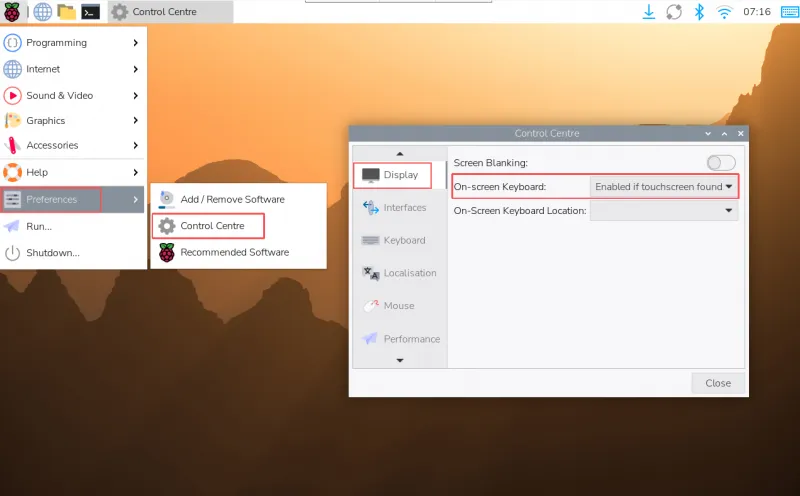
You can also permanently set the on-screen keyboard to show or hide via the top-left menu Preferences → Control Centre → Display.