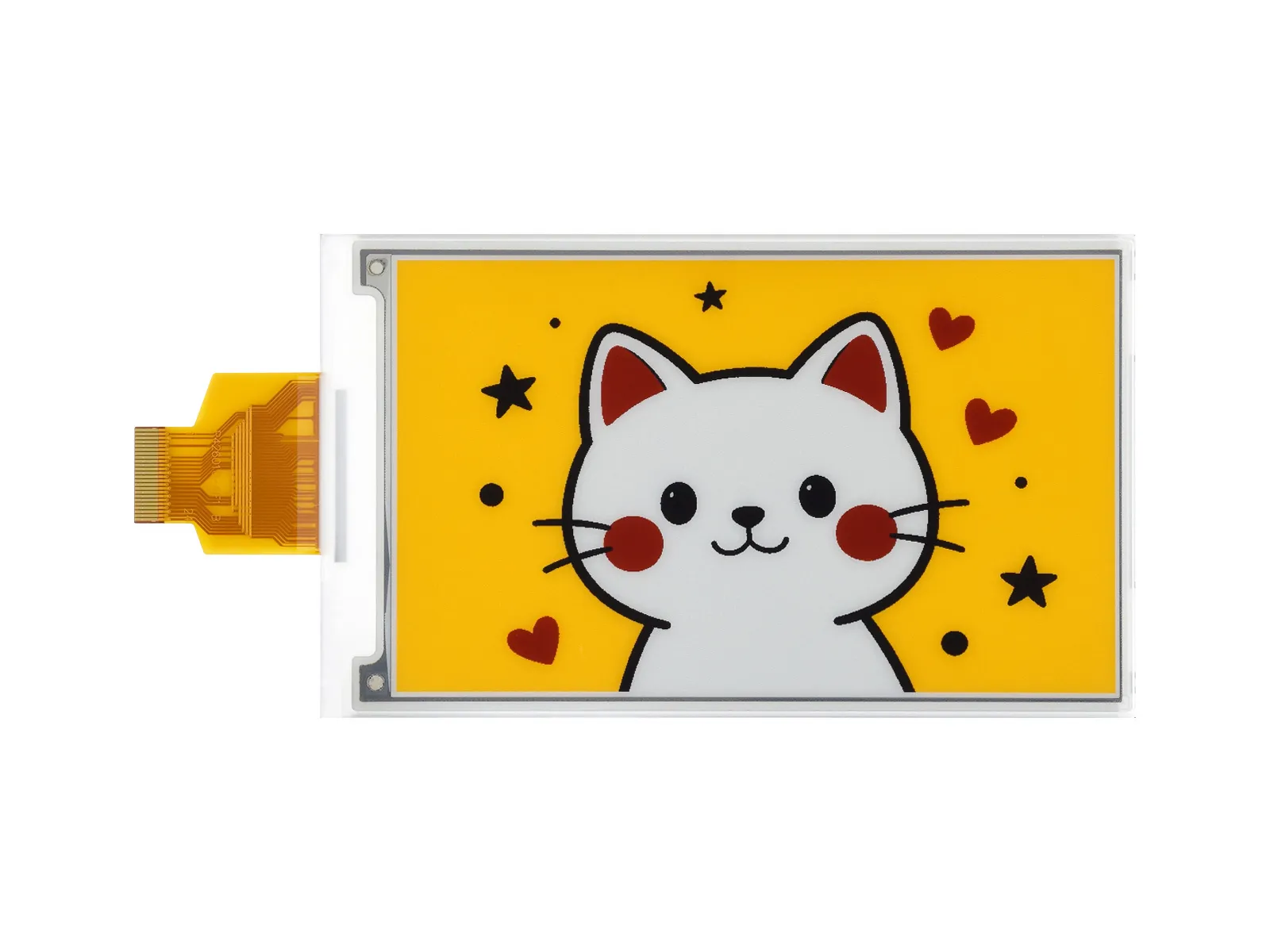
4.26inch e-Paper (G)
- 4.26inch e-Paper (G) (Raw display only)
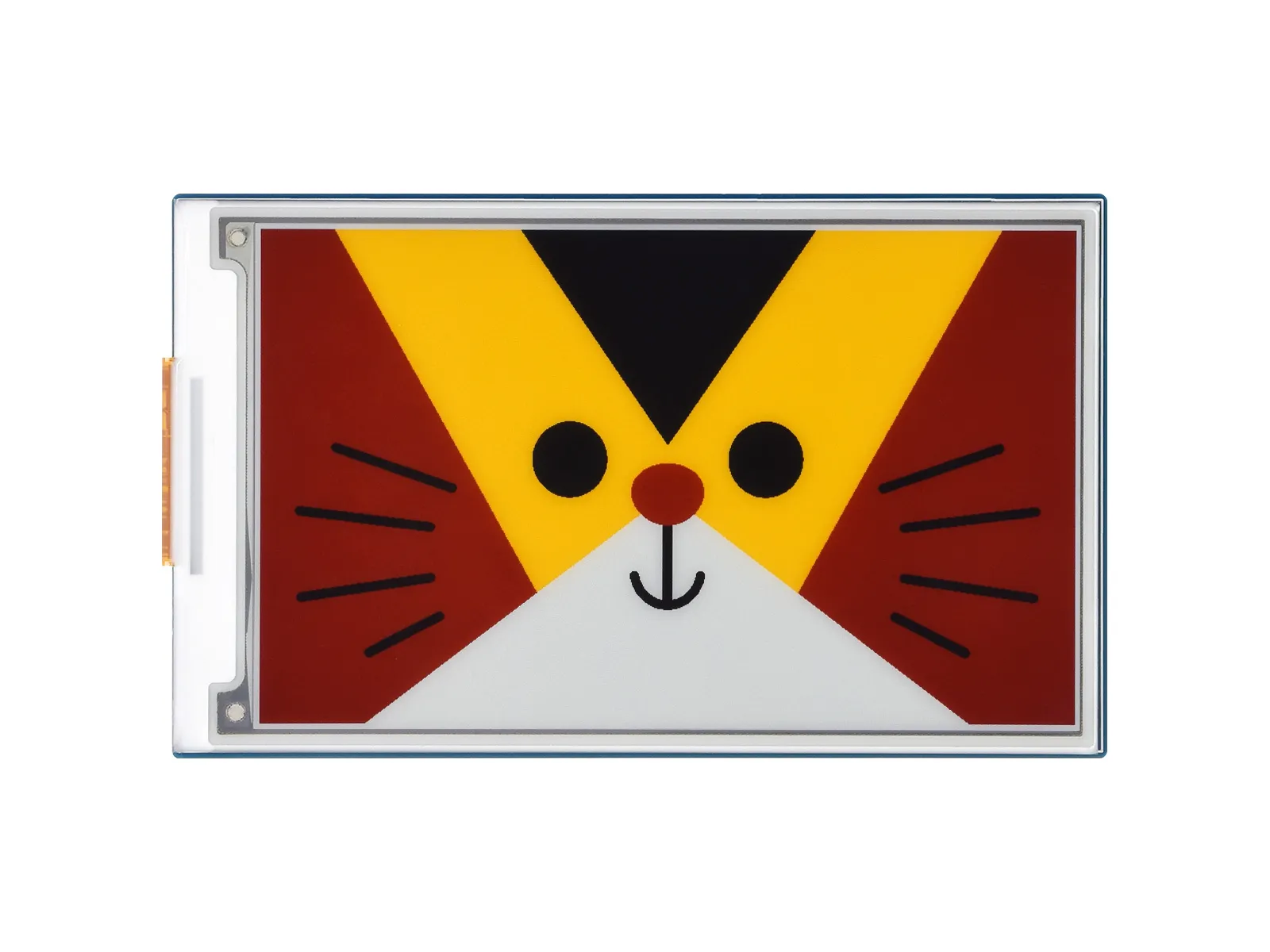
- 4.26inch e-Paper HAT+ (G) (with driver HAT)
| SKU | Product |
|---|---|
| 34060 | 4.26inch e-Paper (G) |
| 34061 | 4.26inch e-Paper HAT+ (G) |
Features
- No backlight required; can retain the last displayed content for a long time after power-off
- Very low power consumption, mainly only consumes power during refresh
- Provides comprehensive supporting documentation: driver board schematic, Raspberry Pi / Jetson Nano / Arduino / STM32 / ESP32 example programs, etc.
-
The following applies only to the module version (with driver HAT)
- Designed based on the Raspberry Pi 40PIN GPIO interface, suitable for Raspberry Pi, Jetson Nano
- Reserved SPI communication interface for easy connection to master controllers such as Raspberry Pi / Arduino / STM32 / ESP32
- Onboard level shifter chip, compatible with 3.3V and 5V logic levels
Specifications
| Parameter | Value |
|---|---|
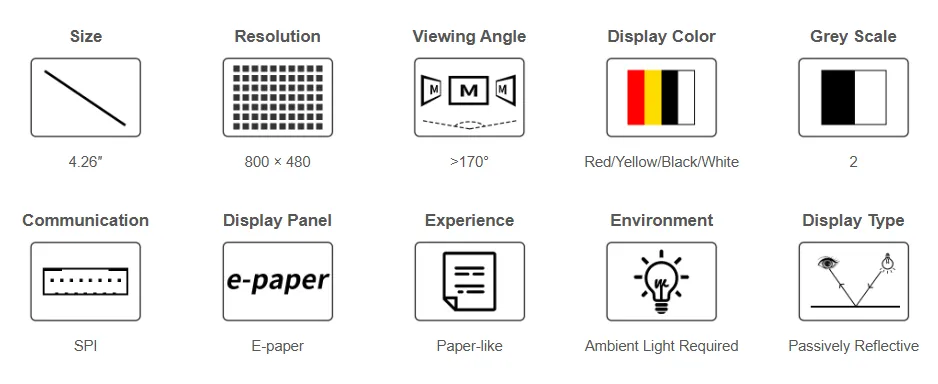
| Operating Voltage | Raw screen version: 3.3V Module version: 3.3V/5V |
| Communication Interface | 3-wire SPI, 4-wire SPI |
| Overall Dimensions | Raw screen version: 105.33 × 62.37 × 0.91 (mm) Module version: 107.00 × 64.00 (mm) |
| Display Size | 92.80 × 55.68 (mm) |
| Dot Pitch | 0.116 × 0.116 (mm) |
| Resolution | 800 × 480 pixels |
| Display Colors | Red, Yellow, Black, White |
| Gray Scale | 2 |
| Full Refresh Time | 20s |
| Refresh Power Consumption | < 90mW |
| Sleep Current | < 0.01uA (near 0) |
| Viewing Angle | > 170° |
- Refresh Time: The refresh time is based on experimental test data. The actual refresh time may vary; please refer to the actual performance. Flickering during the full refresh process is normal.
- Refresh Power Consumption: Power consumption data is based on experimental test data. Actual power consumption may vary due to the presence of the driver board and different usage conditions; please refer to the actual performance.
- Refreshing in low-temperature environments may cause color shift. The screen should be left stationary for 6 hours at 25°C before refreshing.
Communication Interface
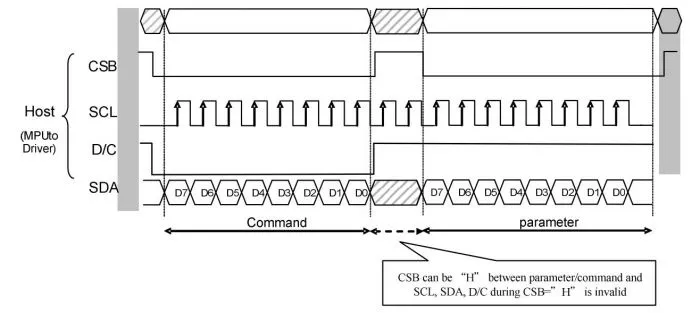
- CSB (CS): Slave chip select signal, active low. The chip is enabled when this signal is low.
- SCL (SCK/SCLK): Serial clock signal.
- D/C (DC): Data/Command control signal. A low level indicates a command is being written; a high level indicates data/parameters are being written.
- SDA (DIN): Serial data signal.
- Timing: CPOL=0, CPHA=0, i.e., SPI mode 0.
- Note: For specific information regarding SPI communication, you can search online for more details.
Working Principle
The e-Paper used in this product employs "Microencapsulated Electrophoretic Display" technology for image display. The basic principle involves charged nanoparticles suspended in a liquid migrating under the influence of an electric field. The e-Paper display relies on reflecting ambient light to show patterns and does not require a backlight. Under ambient light, the e-Paper display is clearly visible, with a viewing angle approaching 180°. Therefore, e-Paper displays are ideal for reading.
Programming Principle
For four-color e-Paper, we can understand it by analogy with a black-and-white 4-grayscale display, but there are differences. To save memory, the e-Paper compresses pixels:
- Black: 00b
- White: 01b
- Yellow: 10b
- Red: 11b
Let's take 4 pixels as an example:
Writing 0x1B into register 0x10 sets the four pixels on the e-Paper screen to black, white, yellow, and red respectively.

Precautions
- Avoid powering the screen for extended periods. When the screen is not refreshing, set it to sleep mode or power it off. Otherwise, prolonged exposure to high voltage can damage the film and is irreparable.
- When using the e-Paper, it is recommended to set a refresh interval of at least 180 seconds and perform a refresh at least once every 24 hours. If the e-Paper will not be used for a long time, store it with a white image displayed. (Refer to the datasheet for specific storage environment requirements.)
- The FPC cable of the screen is delicate. Please note: Do not bend the cable perpendicular to the screen to avoid tearing; do not repeatedly bend the cable excessively to avoid breakage; do not bend the cable towards the front of the screen to avoid disconnecting the cable from the panel. It is recommended to secure the cable during development and debugging.
- The e-Paper screen is relatively fragile. Avoid dropping, impact, or pressing forcefully.
- After the screen enters sleep mode, any image data sent will be ignored. Only re-initialization can restore normal refresh functionality.
- If the generated image data displays incorrectly on the screen, check if the image size settings are correct. Try swapping the width and height settings and test again.
- The operating voltage required for the e-Paper is 3.3V. If you purchased the raw screen and need to integrate it into a 5V environment when designing the circuit, it is recommended to implement level shifting.
We recommend that customers test the screen using the example programs we provide with the corresponding development board upon receiving it.
Image Processing
- Image preparation and conversion for multi-color e-Paper
Image Preparation
Preparation
- Required software: Adobe PhotoShop CC, Paint
Introduction
- The Floyd-Steinberg dithering algorithm is very suitable for displaying rich gradation when only a few colors are available. This allows for more color combinations and better shadow rendering of the original image. It is especially suitable for various use scenarios of e-Paper screens.
- The following describes how to convert a normal image into a Floyd-Steinberg dithered image.
- If you are interested in the actual algorithm, you can look at our porting for ESP32 and ESP8266. Here, no further elaboration will be given.
Operation steps
- Preparation: Download Color table to your PC, and extract it to get the following file, we need to use
N-color.actor4-color.act,6-color.act.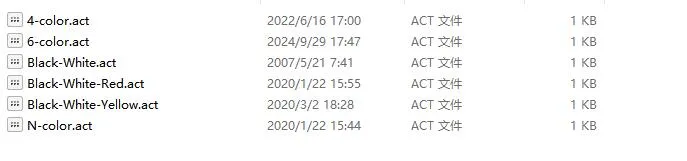
- Create a new Photoshop project, set the width and height according to the actual resolution of the e-Papre screen, and use RGB color in the color mode. If the screen resolution used is 800*480, change the width to 800 pixels and the height to 480 pixels.

- Prepare the corresponding materials, copy them into the project, and adjust parameters such as size and contrast (similar to the steps involved in general Photoshop image processing).
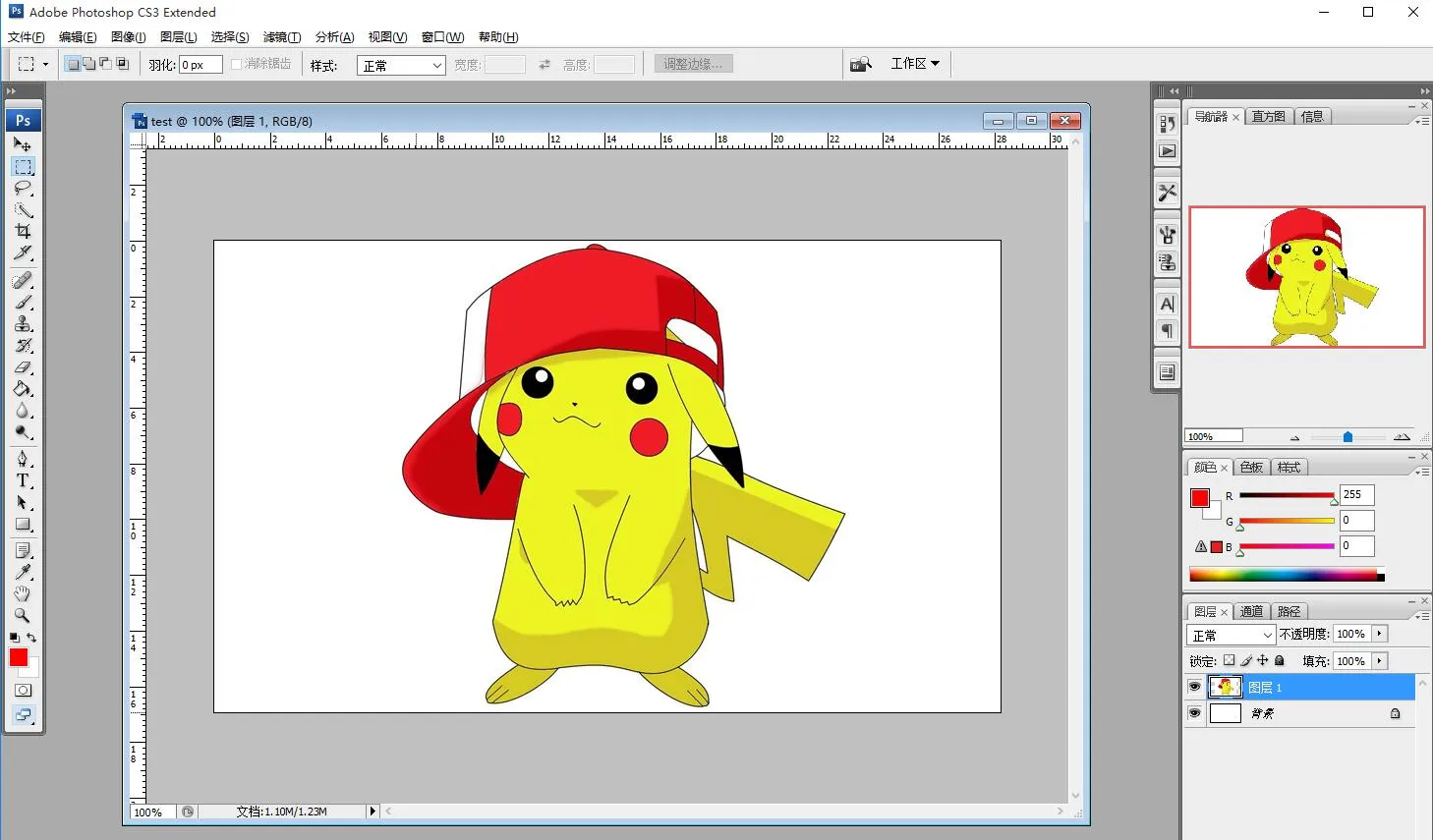
- Select File -> Save for Web in the format used for the Web and device.
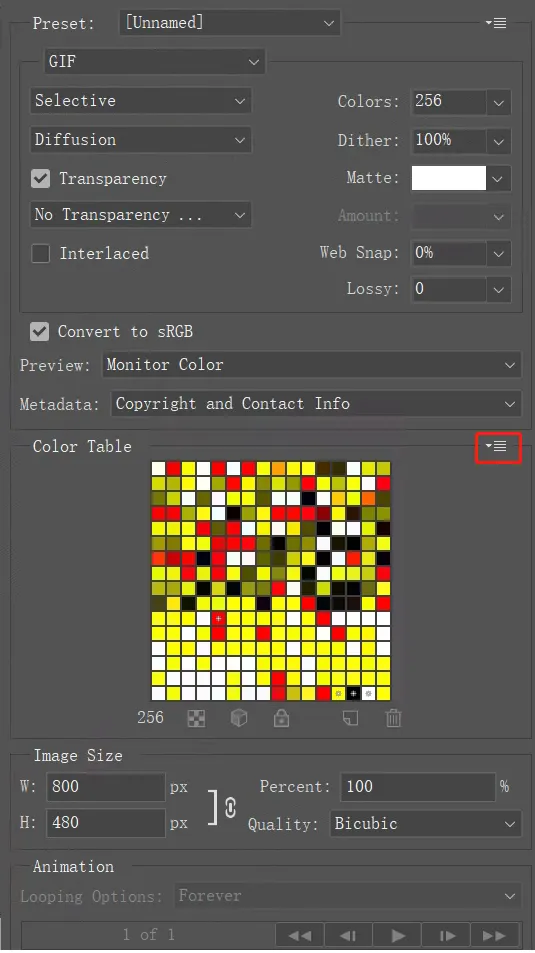
- Select Load Color Table as shown below. Load the Color Table provided in the Preparation section.
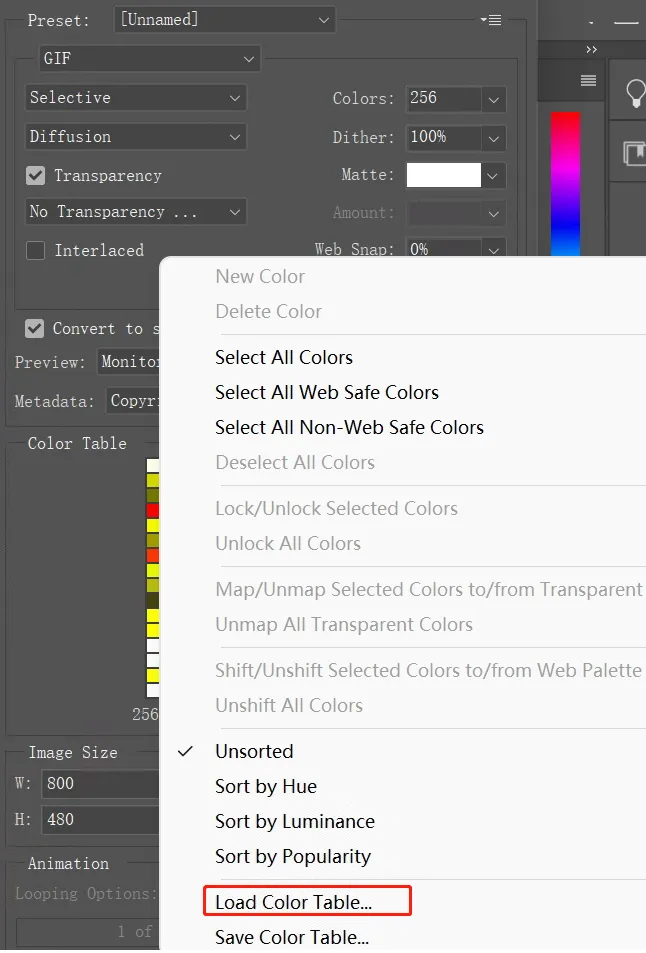
- For seven-color pictures, load N-color.act, then click Save to save as a gif file. It is then converted to BMP format for use on this module.
For four-color pictures, load 4-color.act, then click Save to save as a gif file. It is then converted to BMP format for use on this module.
For six-color pictures, load 6-color.act, then click Save to save as a gif file. It is then converted to BMP format for use on this module.
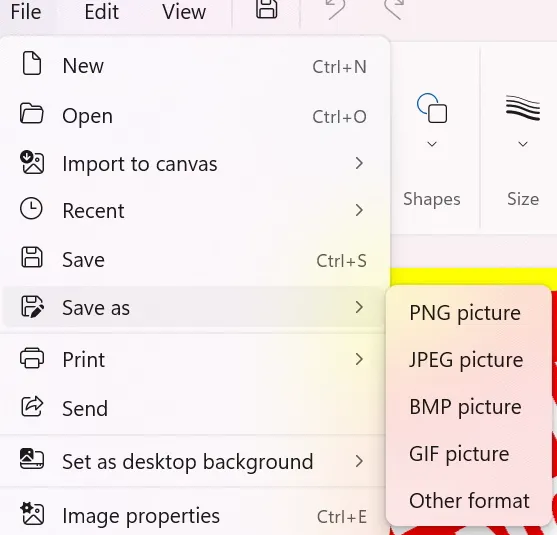
- Open the GIF file with Paint, save it as a 24-bit BMP picture.
- The image is now ready. It can be used on the Raspberry Pi or e-Paper Shield module via TF card, or converted into an array for use with other embedded devices as described in the next section.
- Create a new Photoshop project, set the width and height according to the actual resolution of the e-Papre screen, and use RGB color in the color mode. If the screen resolution used is 800*480, change the width to 800 pixels and the height to 480 pixels.
Image Data Conversion
Download Programs
- Four-color conversion application: Four-color image conversion application
- E6 full-color conversion application: [E6 full-color image conversion application](https://files.waveshare.com/wiki/common/ConverterTo6color.zip E6 full-color picture conversion app)
- Seven-color conversion application: Seven-color image conversion application
- Source code: Program source code
This application is provided for your convenience and is open source, and our company does not provide technical support for it
Bug Resolution
- If you are using Windows 10/11 and have not installed VS (Microsoft Visual Studio) or other Microsoft development tools, you may encounter the following errors when using this program:


- This indicates that your computer is missing these two components. Solutions:
-
- Install VS (Microsoft Visual Studio) or other Microsoft development tools (e.g., Visual C++ Redistributable).
-
- Use the two component files
Place these two files in the directory

C:\Windows\System32, then restart your computer.
- Use the two component files
Conversion Steps
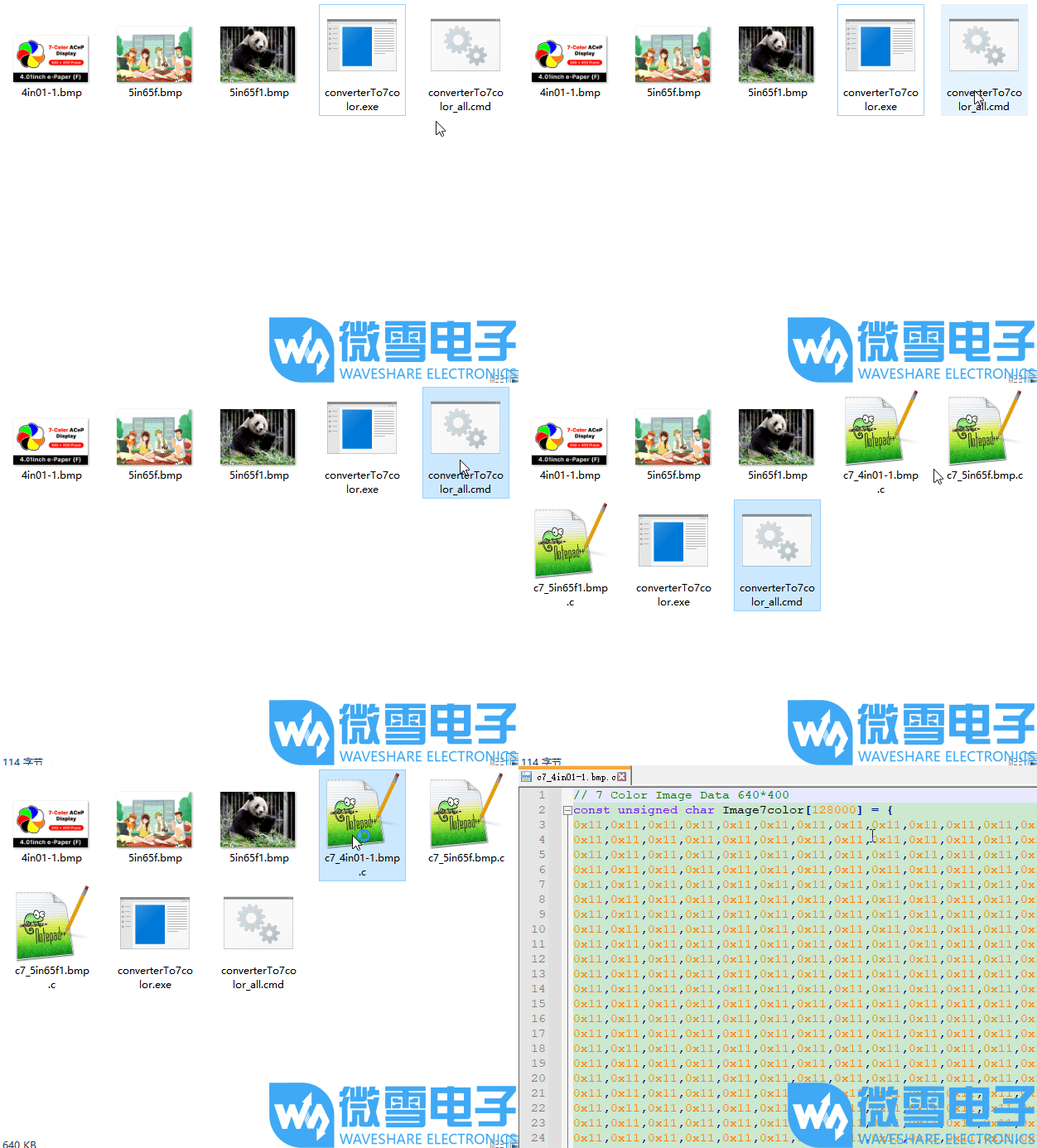
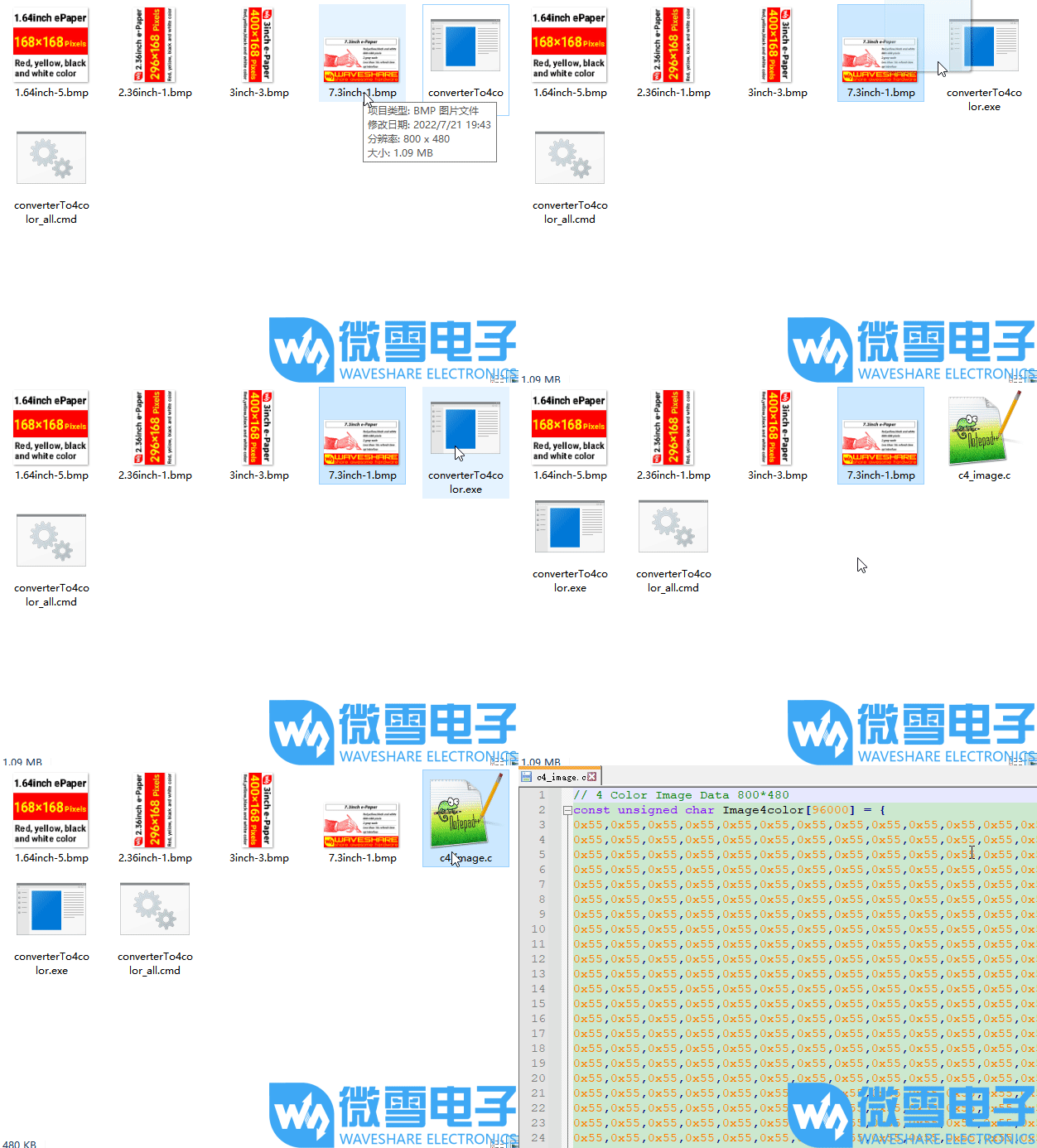
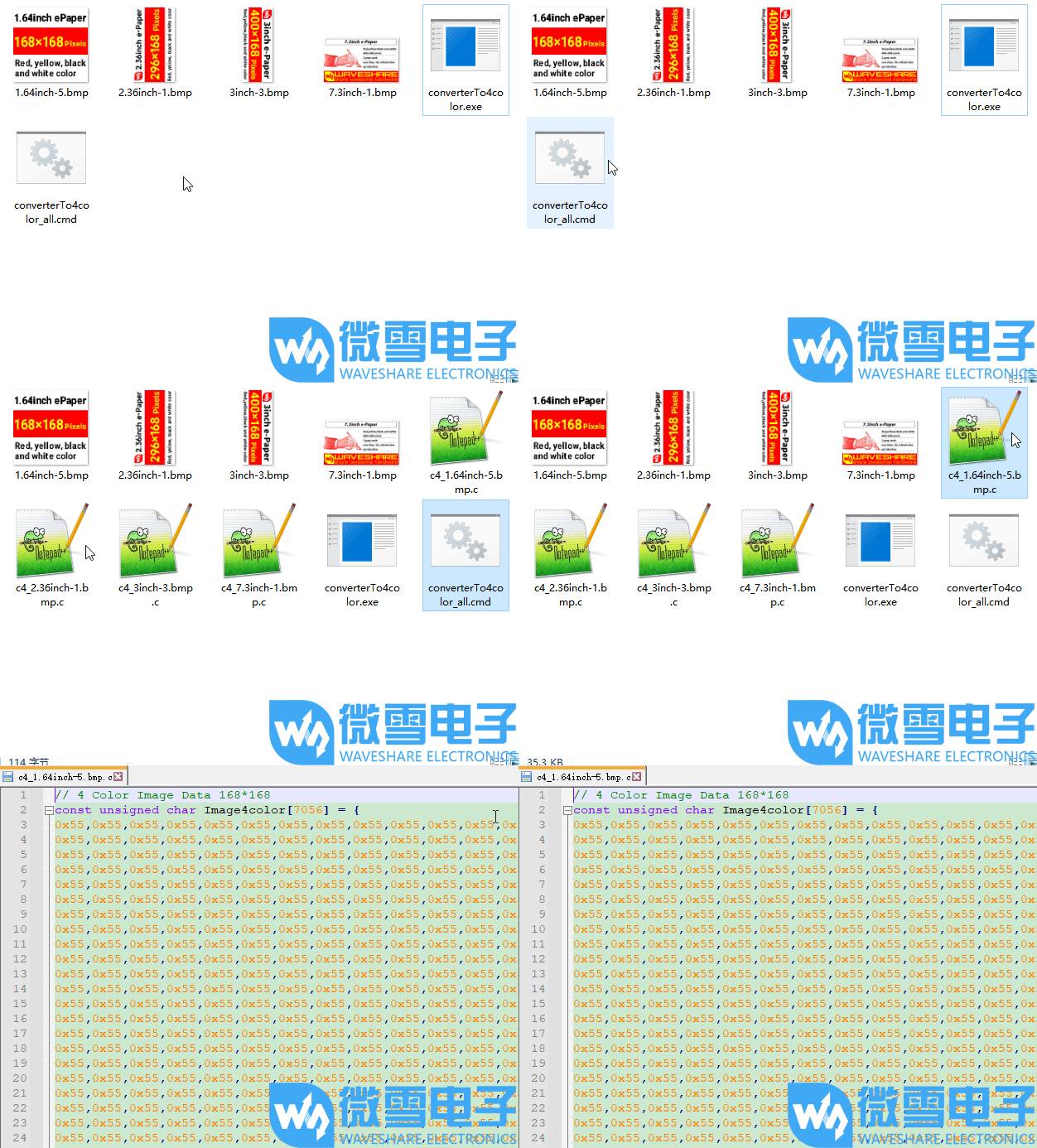
- Place the prepared image(s) and the corresponding .exe application in the same folder (multiple images can be placed).
- Drag and drop the image onto the .exe file; the program will convert the image into a .c file with a fixed name.
- Double-click the .cmd file; the program will convert all images of the correct size in the folder into .c files with corresponding names.
- Single-image conversion for four-color (click image to see demonstration):
- Multiple-image conversion for four-color (click image to see demonstration):
- Single-image conversion for seven-color (click image to see demonstration):
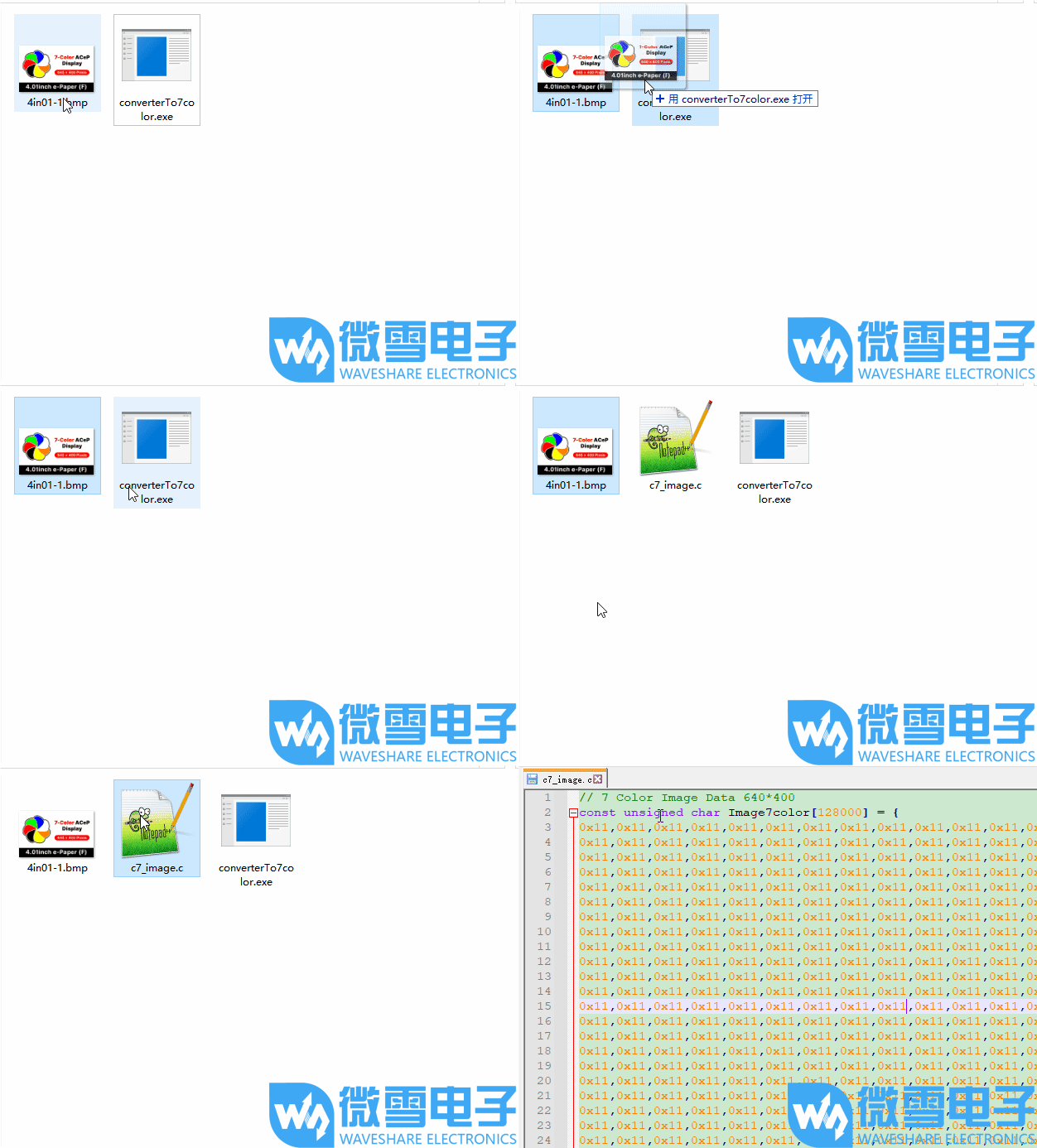
- Multiple-image conversion for seven-color (click image to see demonstration):