Working with Raspberry Pi
Hardware Connection
- When connecting to the Raspberry Pi, you can directly plug the board onto the 40PIN header, ensuring the pins are aligned correctly.
- If using a 9PIN cable, please refer to the pin mapping table below:
- Raspberry Pi pin mapping
e-Paper Raspberry Pi Pin Mapping BCM2835 Pin Board Physical Pin Number VCC 3.3V 3.3V GND GND GND DIN MOSI 19 CLK SCLK 23 CS CE0 24 DC 25 22 RST 17 11 BUSY 24 18 PWR 18 12
- Raspberry Pi pin mapping
Enabling the SPI Interface
-
Open the Raspberry Pi terminal and enter the following command to access the configuration interface:
sudo raspi-configSelect Interfacing Options -> SPI -> Yes to enable the SPI interface
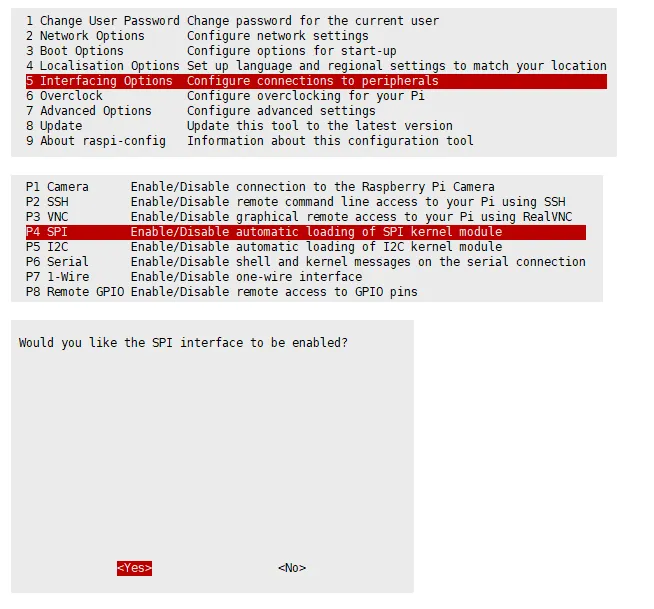
-
Reboot the Raspberry Pi:
sudo reboot -
Check
/boot/config.txt, you should see thatdtparam=spi=onhas been written
-
To ensure SPI is not occupied, it is recommended to temporarily disable other driver overlays. Use
ls /dev/spi*to check the SPI occupancy. The terminal output/dev/spidev0.0and/dev/spidev0.1indicates that SPI is functioning normally.
Running the C Example
-
Install the lg library
#Open the Raspberry Pi terminal and run the following commands:wget https://github.com/joan2937/lg/archive/master.zipunzip master.zipcd lg-mastermakesudo make install# For more information, please refer to the source code: https://github.com/gpiozero/lgInstall gpiod library (optional)
#Open the Raspberry Pi terminal and run the following commands:sudo apt-get updatesudo apt install gpiod libgpiod-devInstall BCM2835 (optional)
#Open the Raspberry Pi terminal and run the following commands:wget http://www.airspayce.com/mikem/bcm2835/bcm2835-1.71.tar.gztar zxvf bcm2835-1.71.tar.gzcd bcm2835-1.71/sudo ./configure && sudo make && sudo make check && sudo make install# For more information, please refer to the official website: http://www.airspayce.com/mikem/bcm2835/Install wiringPi (optional)
#Open the Raspberry Pi terminal and run the following commands:sudo apt-get install wiringpi#For Raspberry Pi systems after May 2019 (those earlier may not require execution), an upgrade may be necessary:wget https://files.waveshare.com/wiki/common/wiringpi-latest.debsudo dpkg -i wiringpi-latest.debgpio -v# Run gpio -v and version 2.52 will appear. If it does not appear, there is an installation error.#Bullseye branch system uses the following command:git clone https://github.com/WiringPi/WiringPicd WiringPi./buildgpio -v# Run gpio -v and version 2.60 will appear. If it does not appear, there is an installation error. -
Download the example (skip if already downloaded)
wget https://files.waveshare.com/wiki/4.26inch_e-Paper_G/4.26inch_e-Paper_G.zipunzip 4.26inch_e-Paper_G.zip -d 4.26inch_e-Paper_Gcd 4.26inch_e-Paper_G/example/RaspberryPi_JetsonNano/Alternative extraction method
git clone https://github.com/waveshareteam/4.26inch_e-Paper_G.gitcd 4.26inch_e-Paper_G/example/RaspberryPi_JetsonNanoDownload the program via GitHub (alternative method, skip if already downloaded)
- Accessing GitHub may not be very smooth at present. It is recommended to use the above method to download from our official website.
sudo apt-get install p7zip-full7z x 4.26inch_e-Paper_G.zip -O./4.26inch_e-Paper_Gcd 4.26inch_e-Paper_G/example/RaspberryPi_JetsonNano/
- Accessing GitHub may not be very smooth at present. It is recommended to use the above method to download from our official website.
-
Compile the program (Note: -j4 uses 4 threads for compilation; you can modify the number)
# It is now in 4.26inch_e-Paper_G/example/RaspberryPi_JetsonNanocd csudo make cleansudo make -j4 -
Run the program
sudo ./epd
Running the Python Example
-
Install libraries
sudo apt-get updatesudo apt-get install python3-pipsudo apt-get install python3-pilsudo apt-get install python3-numpysudo pip3 install spidevInstall libraries (python2)
sudo apt-get updatesudo apt-get install python-pipsudo apt-get install python-pilsudo apt-get install python-numpysudo pip install spidevInstall gpiozero library (pre-installed by default, if not, install using the following commands)
sudo apt-get update# python3sudo apt install python3-gpiozero# python2sudo apt install python-gpiozero -
Download the example (skip if already downloaded)
wget https://files.waveshare.com/wiki/4.26inch_e-Paper_G/4.26inch_e-Paper_G.zipunzip 4.26inch_e-Paper_G.zip -d 4.26inch_e-Paper_Gcd 4.26inch_e-Paper_G/example/RaspberryPi_JetsonNano/Alternative extraction method
sudo apt-get install p7zip-full7z x 4.26inch_e-Paper_G.zip -O./4.26inch_e-Paper_Gcd 4.26inch_e-Paper_G/example/RaspberryPi_JetsonNano/Download the program via GitHub (alternative method, skip if already downloaded)
- Accessing GitHub may not be very smooth at present. It is recommended to use the above method to download from our official website.
git clone https://github.com/waveshareteam/4.26inch_e-Paper_G.gitcd 4.26inch_e-Paper_G/example/RaspberryPi_JetsonNano
- Accessing GitHub may not be very smooth at present. It is recommended to use the above method to download from our official website.
-
Run the program
# Make sure it is in 4.26inch_e-Paper_G/example/RaspberryPi_JetsonNano/cd python/examples/python3 epd_5in0_test.py