User Guide
Hardware Connection
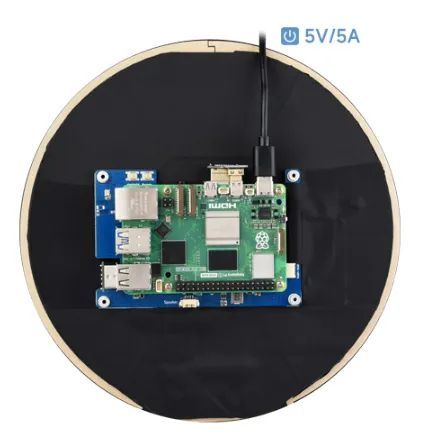
- 1: Connect the Touch interface to the USB port on the Raspberry Pi
- 2: Connect the HDMI interface to the HDMI port on the Raspberry Pi
Software Setup
warning
Supports Raspberry Pi OS / Ubuntu / Kali and RetroPie on Raspberry Pi.
When using the LCD with these Raspberry Pi systems, the resolution must be set manually; otherwise, incorrect display resolution may occur, affecting the user experience.
-
- Download the latest image from the Raspberry Pi official website
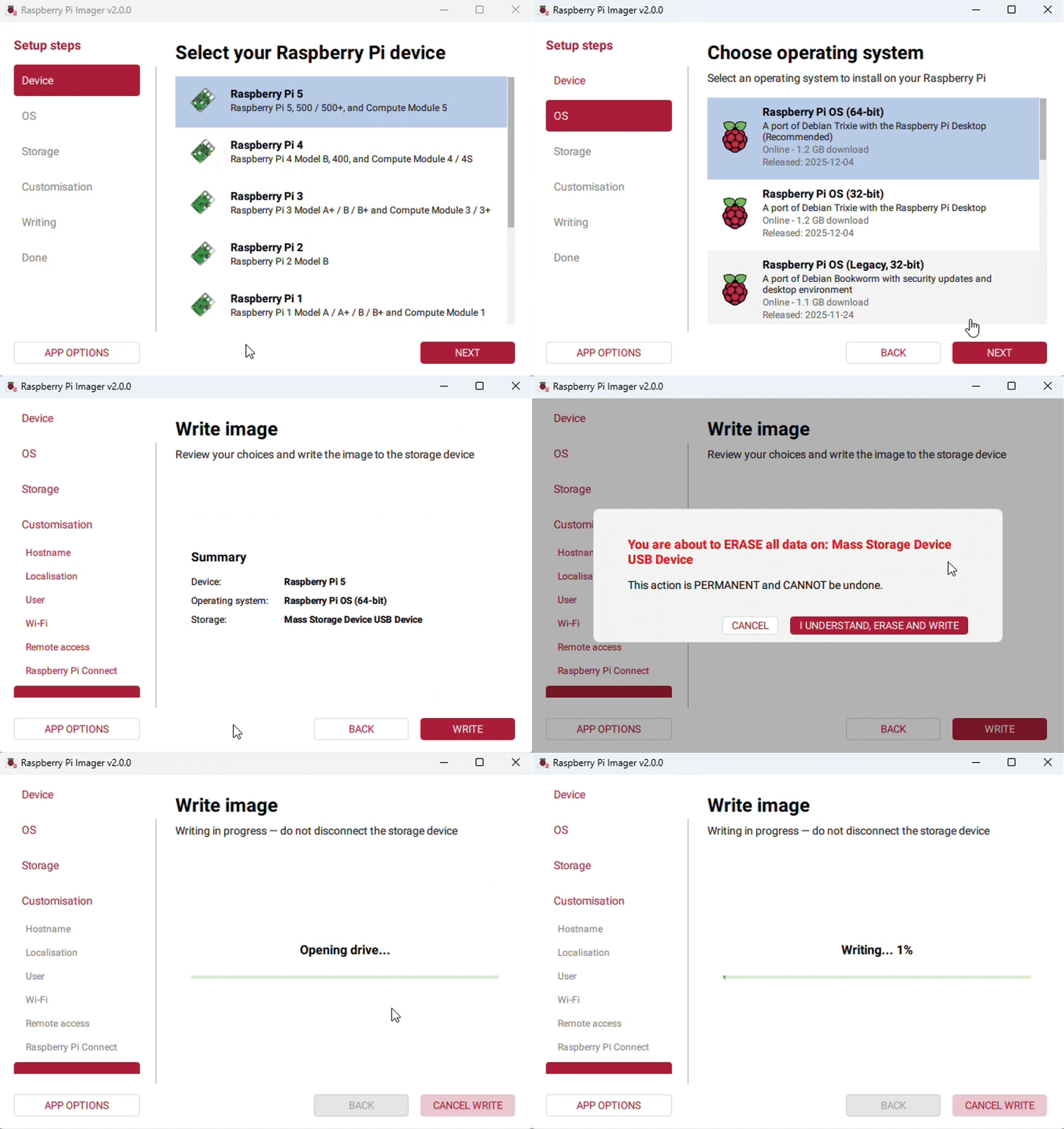
- Download the latest image from the Raspberry Pi official website
-
- Download the compressed file to your PC and extract it to get the .img file
-
- Connect the TF card to your PC and format it using SDFormatter software
-
- Open Win32DiskImager software, select the system image prepared in step 1, and click "Write" to flash the system image
-
- After flashing, open the config.txt file in the root directory of the TF card, add the following code to the end of the config.txt file, save the file, and safely eject the TF card
hdmi_force_hotplug=1hdmi_group=2hdmi_mode=87hdmi_pixel_freq_limit=200000000hdmi_timings=1080 0 80 20 80 1080 0 10 10 14 0 0 0 60 0 84210000 0 -
- Insert the TF card into the Raspberry Pi, power it on, and wait a few seconds for normal display
Due to the circular screen design, it is recommended to use the Raspberry Pi remote access tutorial for initial setup and configuration.
Backlight Adjustment
The 7inch 1080x1080 LCD supports software backlight adjustment via the USB HID interface.
-
Install dependencies:
sudo apt install python3-usb -y -
Download the backlight adjustment script:
wget https://files.waveshare.com/wiki/common/HID_brightness.py -O HID_brightness.py -
Run the script to adjust the backlight, for example, set to 80% brightness:
sudo python3 HID_brightness.py 80The parameter is the brightness percentage, ranging from
0-100; a higher value means higher brightness.