Python Execution Example
This section mainly describes the methods for setting up the Python environment and running Python examples on Windows.
Deploying Python Environment on Windows
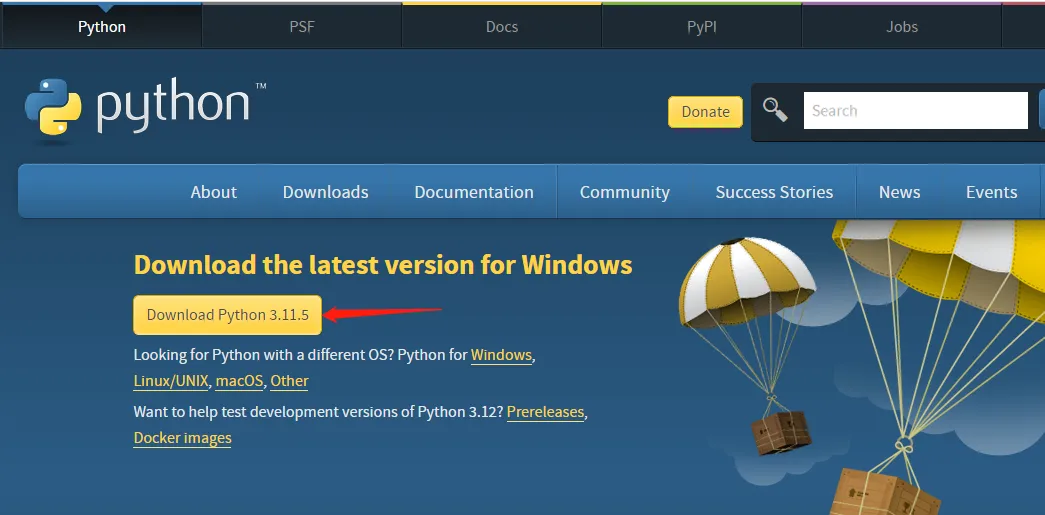
First, go to the Python official website to download the latest version of the Python installer. You can download it according to your operating system, I downloaded it here for Windows, the version is 3.11.5.
After downloading, double-click the installer python-3.11.5-amd64, click "Customize installation" to enter the "Optional Features" screen.
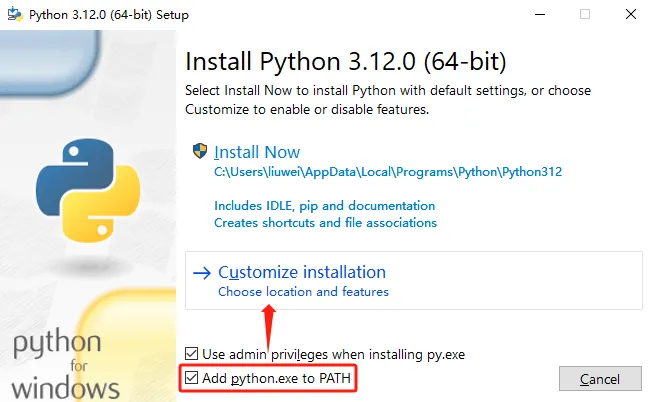
Keep the default selections, click "Next" to go to the "Advanced Options" screen. Make sure to keep "Add Python to environment variables" checked. You can change the installation path by clicking "Browse"; here the default path is used. After setting, click "Install" and wait for the installation to complete.
Once installed, we can proceed to compile and run Python examples.
ST Series Servo Python Execution Example
Download the ST Bus Servo Control Library (Python) program, unzip it, then open the Windows command prompt by typing cmd in the start menu. Use cd "folder path" to navigate to the STServo_Python project folder. A virtual environment named stservo-env has already been created. Then enter:
stservo-env\Scripts\activate.bat
This command activates the virtual environment. Note: If you do not use a virtual environment, it may cause dependency conflicts.
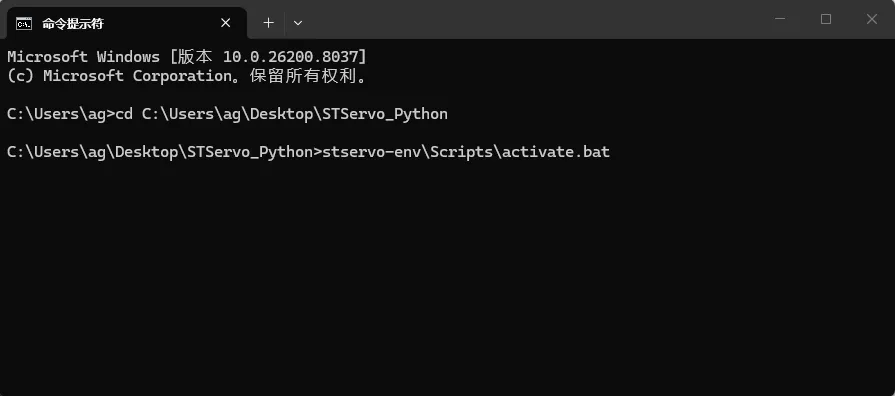
In the STServo_Python project, you can see the requirements.txt file, which lists the packages used by this project. After entering the virtual environment, input:
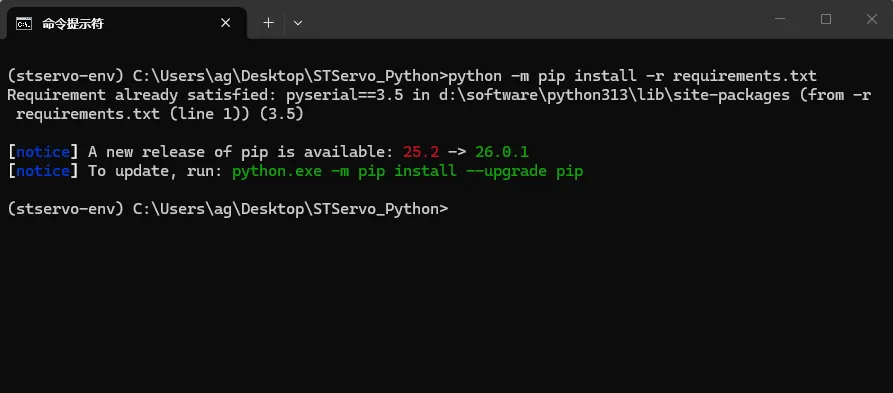
python -m pip install -r requirements.txt
This command installs the required packages for the project. You can see that the only package used here is pyserial, which is already installed.
Connect the ST series servo to the bus servo interface on the driver board, and connect a 9~12.6V power supply. Search for "Device Manager" in the start menu to check the newly connected port number.
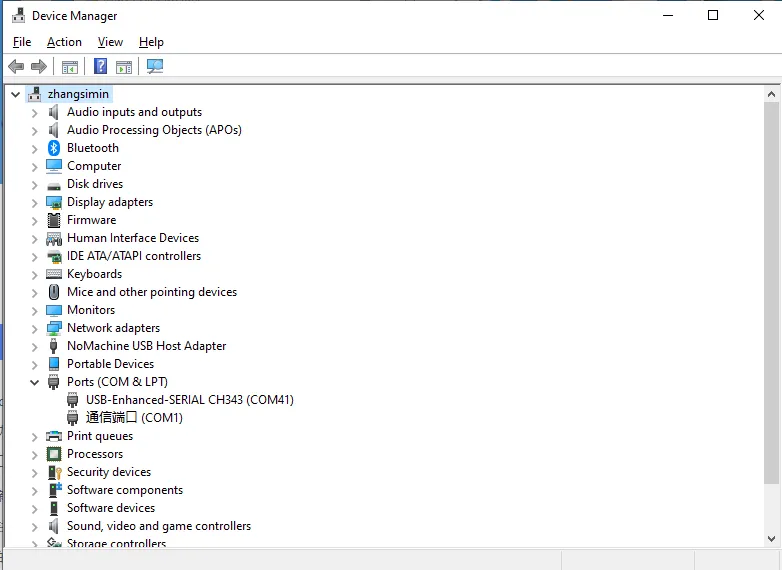
Next, modify the SCS_ID in the example you want to run to the ID of the connected servo. Our servo's factory default ID is 1. Change DEVICENAME to the connected port number; here it is COM41 (the port number may differ on different computers).

- The
sms_stsfolder underSTServo_Python\stservo-envcontains examples for ST series servos, and thescsclfolder contains examples for SC series servos. - When using the Bus Servo Adapter (A), the baud rate must match the baud rate of the servo. The default baud rate for our ST/SC series servos is 1,000,000. The configurable baud rates for ST/SC series servos are: 1,000,000, 500,000, 250,000, 128,000, 115,200, 76,800, 57,600, 38,400.
After modifying, you can run the example. Here, using ping.py file as an example, enter cd "folder path" to navigate to the folder containing the Python example. Then enter: Then enter:
python ping.py
You can see that the execution succeeded, and the servo with ID 1 is connected successfully.

The above is a simple tutorial for Python examples. The resources also include SDKs for different hardware devices and examples in various programming languages.