Working with Python
This section mainly describes the methods for setting up the Python environment and running Python examples on Windows.
Deploying Python Environment on Windows
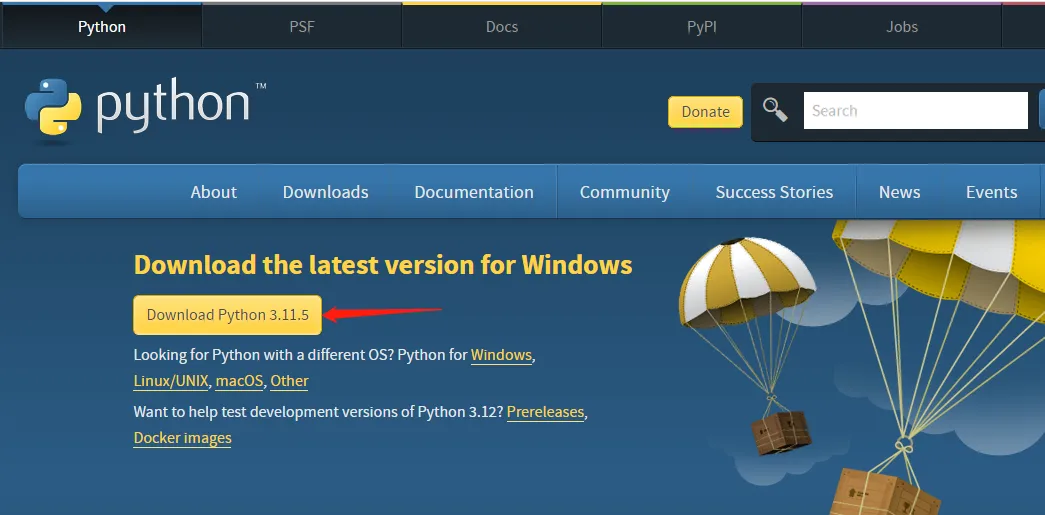
First, go to the Python official website to download the latest version of the Python installer. You can download it according to your operating system, I downloaded it here for Windows, the version is 3.11.5.
After downloading, double-click the installer python-3.11.5-amd64, click "Customize installation" to enter the "Optional Features" screen.
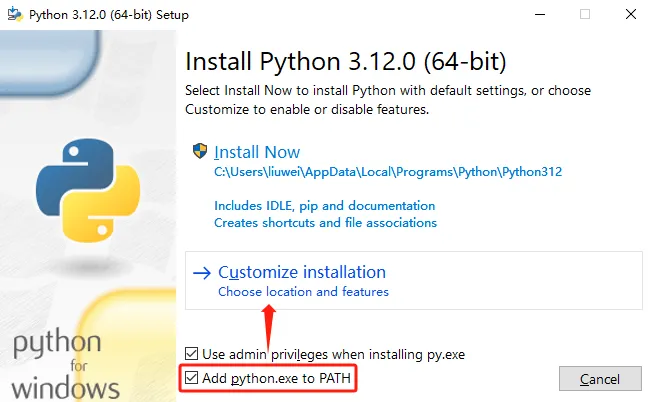
Keep the default selections, click "Next" to go to the "Advanced Options" screen. Make sure to keep "Add Python to environment variables" checked. You can change the installation path by clicking "Browse"; here the default path is used. After setting, click "Install" and wait for the installation to complete.
Once installed, we can proceed to compile and run Python examples.
CF Series Servo Python Running Example
Download the CF Bus Servo Control Library (Python) program. After extracting it, type cmd in the Start menu to open the Windows Command Prompt interface, and enter "cd folder path" to enter the CFServo_Python project folder. In this project folder, create a virtual environment for this project by entering the command: python -m venv [virtual environment name, usually project name-env].
python -m venv servopython-env
To activate the virtual environment, in the command prompt interface enter: project name-env\Scripts\activate.bat.
servopython-env\Scripts\activate.bat
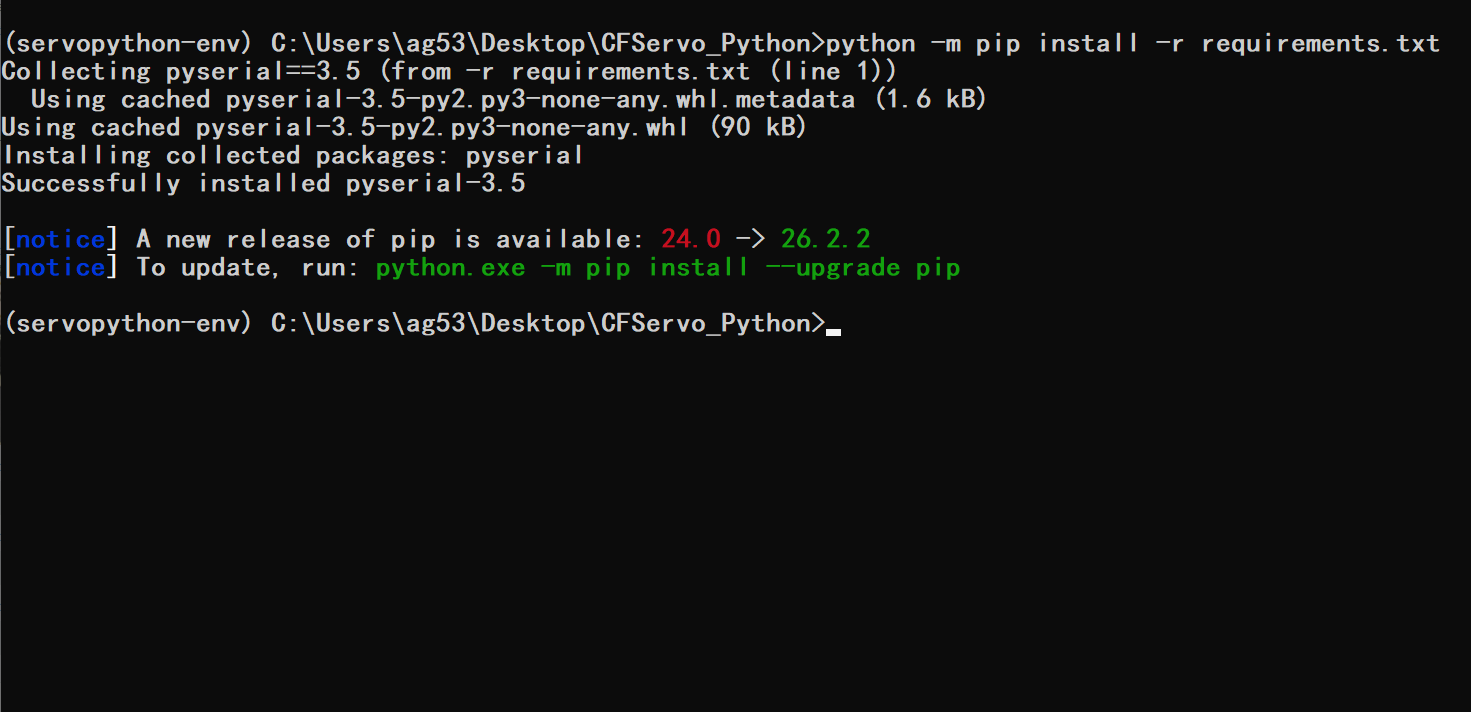
Under the CFServo_Python project, you can see a requirements.txt file. This file is used to store the list of installation packages that the project will use. After entering the virtual environment, input:
python -m pip install -r requirements.txt
This command installs the required packages for the project. You can see that the only package used here is pyserial, which is already installed.
Connect the CF series servo to the bus servo interface on the driver board, and connect a power supply that meets the servo's operating voltage. Search for Device Manager in the Start menu to view the newly connected port number.
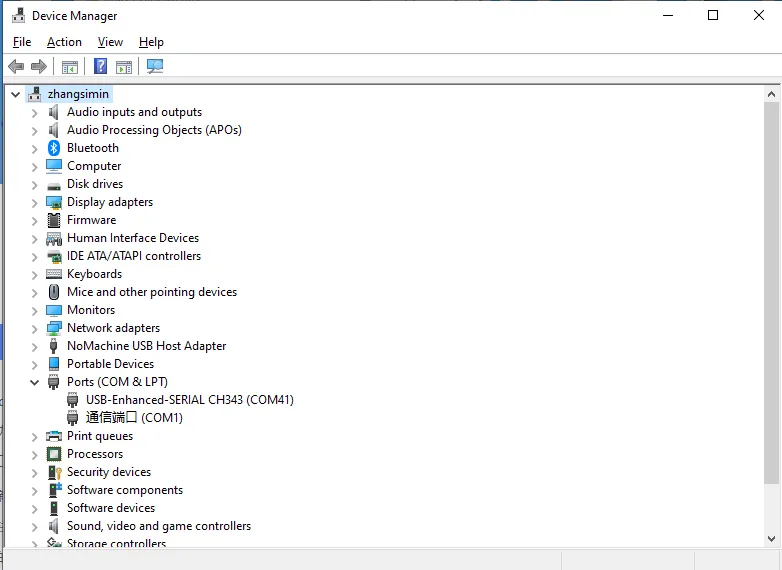
Next, modify the SCS_ID in the example you want to run to the ID of the connected servo. Our servo's factory default ID is 1. Change DEVICENAME to the connected port number; here it is COM41 (the port number may differ on different computers).

- The sms_cf folder under CFServo_Python stores the example routines suitable for CF series servos.
- For our CF series servos, the default baud rate is 1000000.
After modifying, you can run the example. Here, using ping.py file as an example, enter cd "folder path" to navigate to the folder containing the Python example. Then enter:
python ping.py
You can see that the execution succeeded, and the servo with ID 1 is connected successfully.

The above is a simple tutorial for Python examples. The resources also include SDKs for different hardware devices and examples in various programming languages.