AUDIO
This section describes how to use GPIO to drive audio functions on the Raspberry Pi, laying the foundation for subsequent project development.
AUDIO Operations
Check Audio Devices
The module must be connected before powering on to be properly recognized.
-
Check currently recognized audio playback devices
aplay -l
Audio Playback
-
Play the audio file
test.wav(using the corresponding device; here the recognized audio device is hardware sound card number 2). Ensure thetest.wavfile exists in the current directory.aplay -D plughw:2 test.wav -
The speaker or headphones will then play the audio
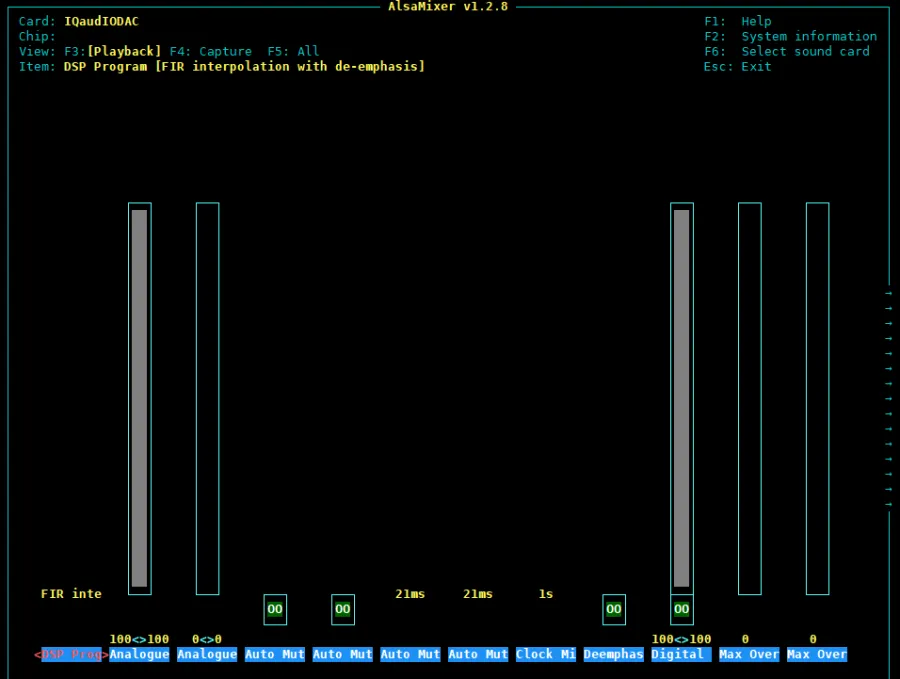
alsamixer Audio Configuration
-
Open the alsamixer audio configuration tool
sudo alsamixer -
If the sound card is not set as the default, press F6 to select the sound card device.
-
Use the left/right arrow keys to select functions and the up/down arrow keys to adjust the corresponding volume.
Play MP3
-
aplay only supports WAV audio. In practice, MP3 format audio is more common. Install the mpg123 playback tool.
sudo apt-get install mpg123 -
Play the music.mp3 audio file. Ensure the music.mp3 file exists in the current directory.
sudo mpg123 music.mp3
Graphical Configuration
-
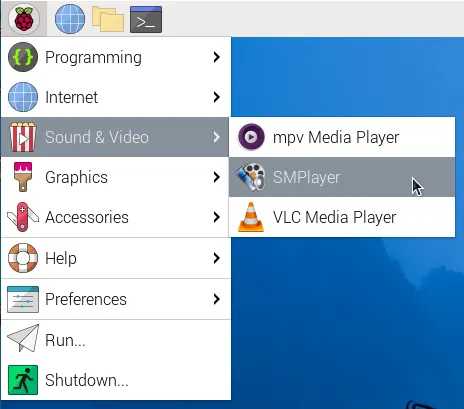
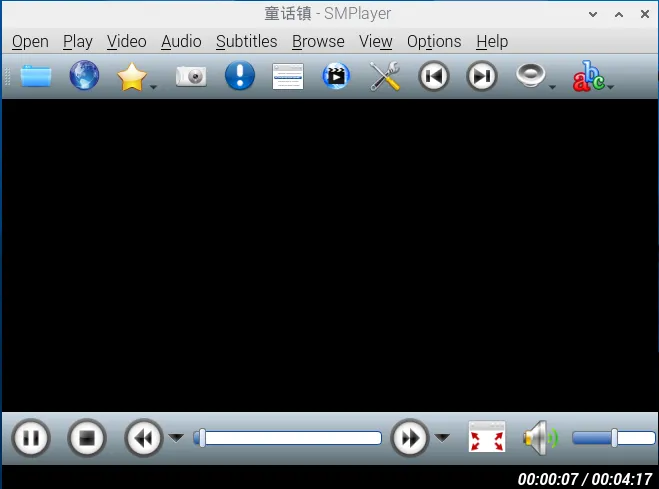
Install the graphical audio control tool smplayer
sudo apt-get install smplayer -
Right-click in the interface and select IOaudIODAC as the default.