AUDIO
This section describes how to use GPIO to drive audio functions on the Raspberry Pi, laying the foundation for subsequent project development.
AUDIO Operations
Check Audio Devices
The module must be connected before powering on to be properly recognized.
-
Check currently recognized audio playback devices
aplay -l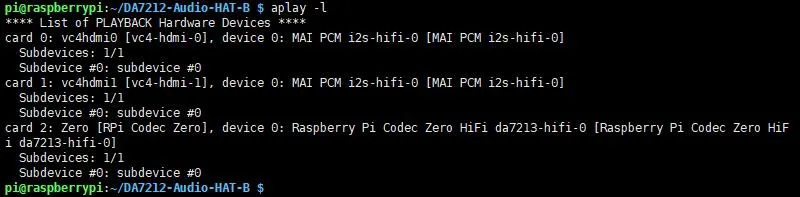
Audio Playback
-
Play the audio file
test.wav(using the corresponding device; here the recognized audio device is hardware sound card number 2). Ensure thetest.wavfile exists in the current directory.aplay -D plughw:2 test.wav -
The speaker or headphones will then play the audio.
alsamixer Audio Configuration
alsamixer Graphical Configuration
-
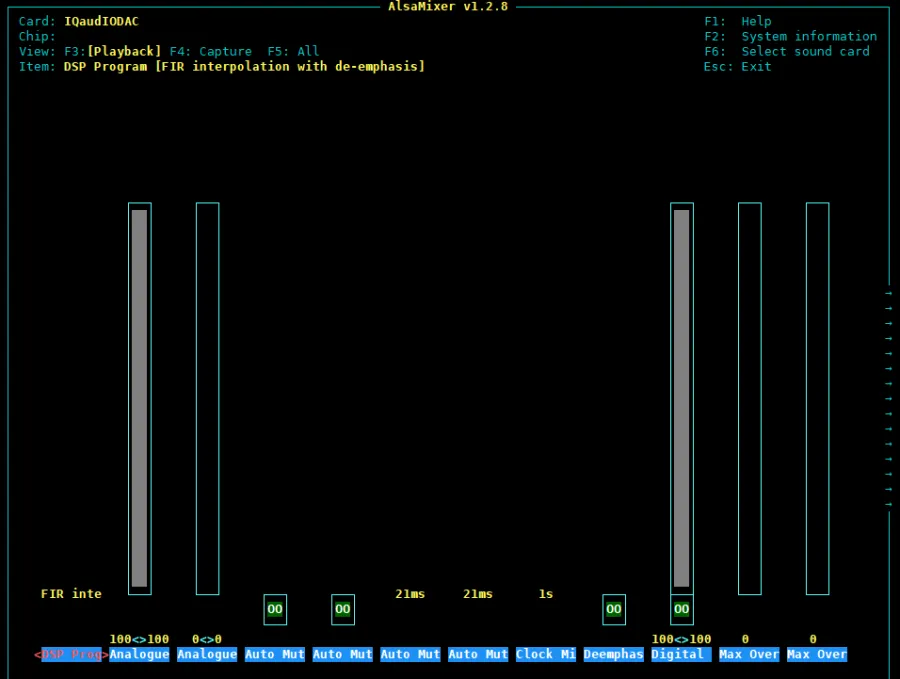
Open the alsamixer audio configuration tool
sudo alsamixer -
If the sound card is not set as the default, press F6 to select the sound card device.
-
Use the left/right arrow keys to select functions and the up/down arrow keys to adjust the corresponding volume.
-
Use shortcut commands to configure; download the relevant configuration file
-
After entering the downloaded file path in the terminal, choose and execute one of the following commands to load one of the provided
.statesnapshots:sudo alsactl restore -f ./All-input-output.state # Enable all input and output interfacessudo alsactl restore -f ./Headphone-input-output.state # Enable TRRS headphone input/output, disable other interfacessudo alsactl restore -f ./OnBoard-MIC1-input.state # Enable onboard microphone 1, disable other interfacessudo alsactl restore -f ./OnBoard-MIC2-input.state # Enable onboard microphone 2, disable other interfacessudo alsactl restore -f ./Dual-speaker-output.state # Enable dual-channel speaker output, disable other interfaces -
After executing the appropriate command, the corresponding interfaces can be used. The error log shown below is normal.
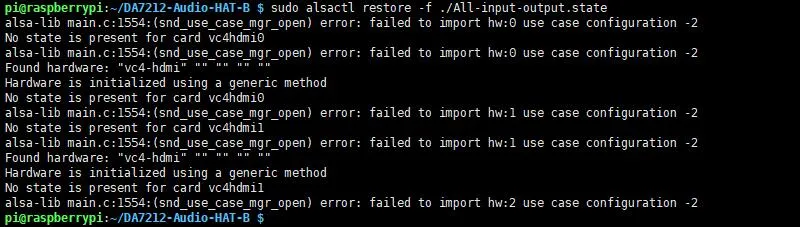
-
Open the alsamixer audio configuration tool, press F6 to select the sound card device, and verify the snapshot configuration.
sudo alsamixer
Quickly Generate Multi-Interface Snapshots Based on Provided Snapshots
The merge tool is for simple use only; some features cannot be achieved simply by merging.
-
Download the relevant configuration file. The package includes a Python program to merge multiple snapshots. You can configure which interfaces to enable as needed.
-
Generate a
.statesnapshot that enables both onboard microphone 1 and headphones:python3 merge_alsa_states.py -o merged1.state OnBoard-MIC1-input.state Headphone-input-output.state -
Generate a
.statesnapshot that enables all onboard interfaces simultaneously:python3 merge_alsa_states.py -o merged.state Headphone-input-output.state OnBoard-MIC1-input.state OnBoard-MIC2-input.state Dual-speaker-output.state -
Command breakdown:
python3 merge_alsa_states.py -o merged1.state OnBoard-MIC1-input.state Headphone-input-output.state- The filename after
-ois the name of the merged snapshot; you can choose any name, as long as it ends with.state. - After the custom merged snapshot name, list the snapshots to be merged. You are not limited to two; you can include multiple snapshots, provided they exist in the current folder.
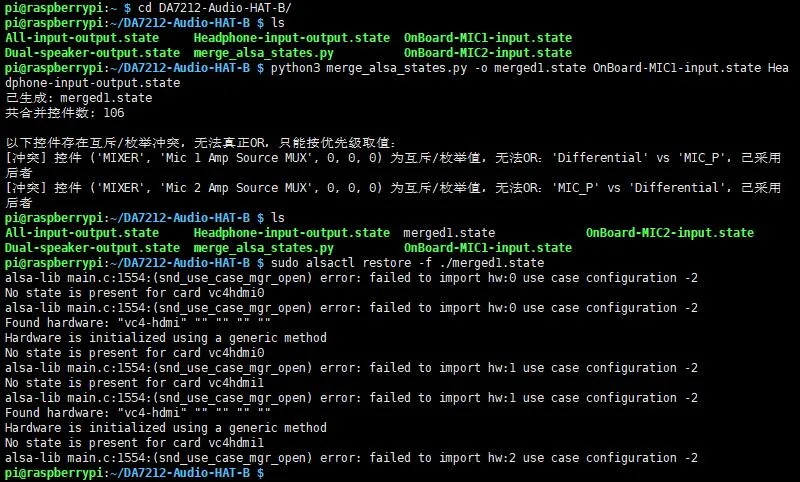
- The filename after
Play MP3
-
aplay only supports WAV audio. In practice, MP3 format audio is more common. Install the mpg123 playback tool.
sudo apt-get install mpg123 -
Play the music.mp3 audio file. Ensure the music.mp3 file exists in the current directory.
sudo mpg123 music.mp3
Graphical Configuration
-
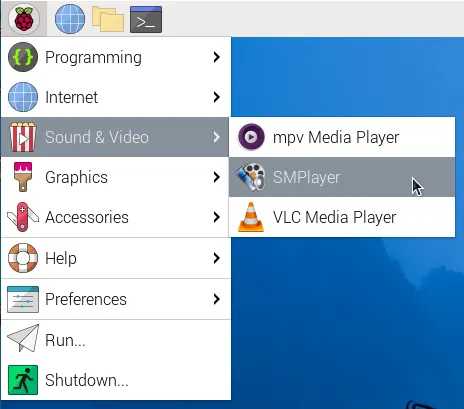
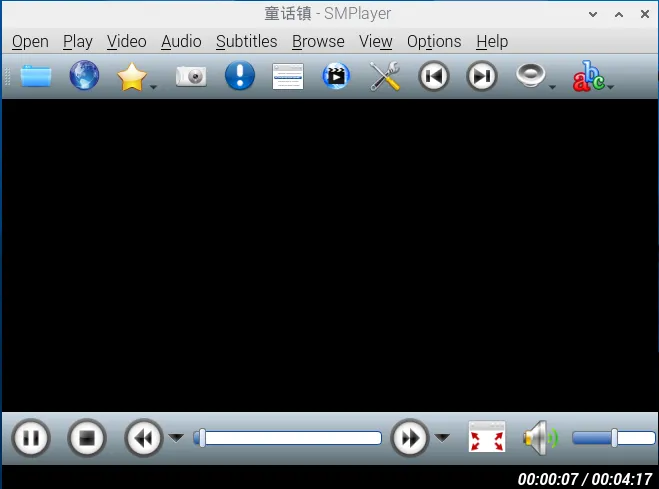
Install the graphical audio control tool smplayer
sudo apt-get install smplayer -
Right-click in the interface and select IQaudIODAC as the default.