FAQ
Q: After downloading a program to the module, sometimes it fails to connect to the serial port or fails to flash during subsequent downloads?
Press and hold the BOOT button, then press and release the RESET button while still holding BOOT, then release the BOOT button. The module will enter download mode, which can resolve most download issues.
Q: The module keeps resetting, and when checking in Device Manager, the connection appears to be blinking?
It may be due to Flash blank and the USB port is not stable, you can long-press the BOOT button, press RESET at the same time, and then release RESET, and then release the BOOT button, at this time the module can enter the download mode to flash the firmware (program) to solve the situation.
Q: What should I do if the first compilation is extremely slow?
It is normal for the first compilation to be very slow. Please be patient and wait for it to complete.
Q: How to handle the situation when the AppData folder cannot be found?
Some AppData folders are hidden by default. You can set them to be visible: File Explorer -> View -> Check "Hidden items".
Q: How can I check which COM port I am using?
Windows System:
- Through Device Manager: Press Windows + R to open the "Run" dialog box. Type
devmgmt.mscand press Enter to open Device Manager. Expand the "Ports (COM & LPT)" section. All COM ports and their current status will be listed here. - Using Command Prompt: Open the Command Prompt (CMD), type the
modecommand, which will display status information for all COM ports. - Check the hardware connection: If an external device is already connected to a COM port, the device typically occupies a port number. You can determine which port is being used by checking the connected hardware.
Linux System:
- Check using the
dmesgcommand: Open the terminal. - Check using the
lscommand: Typels /dev/ttyS*orls /dev/ttyUSB*to list all serial devices. - Use the
setserialcommand: Typesetserial -g /dev/ttyS*to view configuration information for all serial devices.
Q: Can you help me review or modify my code? Can you help me modify the code?
This product is positioned as a development board, not a finished product. This product is positioned as a development board, not a finished product. The product ecosystem is based on the ESP32 core, which is very mature and the development environment is very friendly. We do not assist in modifying code. Please let the makers and geeks use their DIY skills. If you have questions, you can ask our engineers for answers.
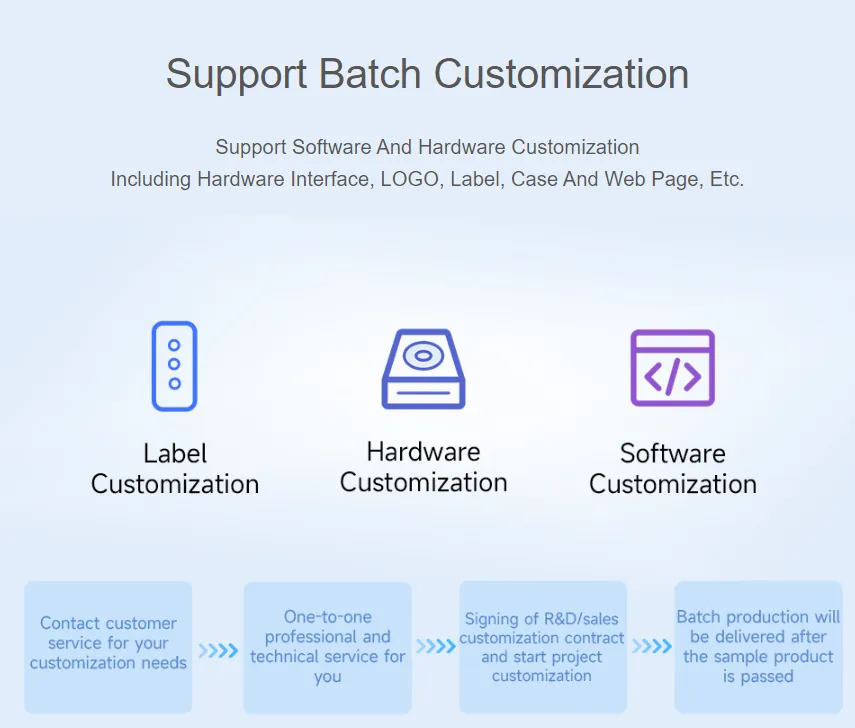
If you like our product and wish to customize hardware, casing, software, etc. in bulk, please feel free to contact our sales.
Q: Why is there no output even though the code is correct and flashed successfully?
- Check the schematic. Depending on the Type‑C interface of different boards, the code handles output differently:
- For boards with direct USB output, the
printffunction supports printing. If you want to use theSerialfunction for printing, you need to enable the USB CDC On Boot feature or declare HWCDC. - For boards with UART-to-USB, both
printfandSerialfunctions support printing without enabling USB CDC On Boot.
- For boards with direct USB output, the
Q: How to use SquareLine Studio to design interfaces?
Please refer to SquareLine Studio Tutorial.