Working with Arduino
This chapter describes how to set up the Arduino development environment and provides the product example programs.
Before running the examples, make sure the following conditions are met:
- The ESP32-C5-Touch-LCD-3.5 development board and a USB cable that supports data transfer are ready.
- Arduino IDE is installed.
- Arduino ESP32 Core v3.3.10 is installed.
- A TF card is inserted before running the TF card example.
Arduino Getting Started
New to Arduino ESP32 development and looking for a quick start? We have prepared a comprehensive Getting Started Tutorial for you.
- Section 0: Getting to Know ESP32
- Section 1: Installing and Configuring Arduino IDE
- Section 2: Arduino Basics
- Section 3: Digital Output/Input
- Section 4: Analog Input
- Section 5: Pulse Width Modulation (PWM)
- Section 6: Serial Communication (UART)
- Section 7: I2C Communication
- Section 8: SPI Communication
- Section 9: Wi-Fi Basics
- Section 10: Web Server
- Section 11: Bluetooth
- Section 12: LVGL GUI Development
- Section 13: Comprehensive Project
Note: This tutorial uses the ESP32-S3-Zero as a reference example, and all hardware code is based on its pinout. Before you start, we recommend checking the pinout of your development board to ensure the pin configuration is correct.
Setting Up the Development Environment
1. Install Arduino IDE
Refer to the tutorial Install and Configure Arduino IDE to complete the installation.
2. Installing the ESP32 Board Support Package
Install esp32 by Espressif Systems v3.3.10 in the Arduino IDE Boards Manager.
The example programs are developed and verified based on Arduino ESP32 Core v3.3.10. When using other versions, the ESP32-C5 development board may not be recognized correctly, resulting in serial download failure or inability to flash programs.
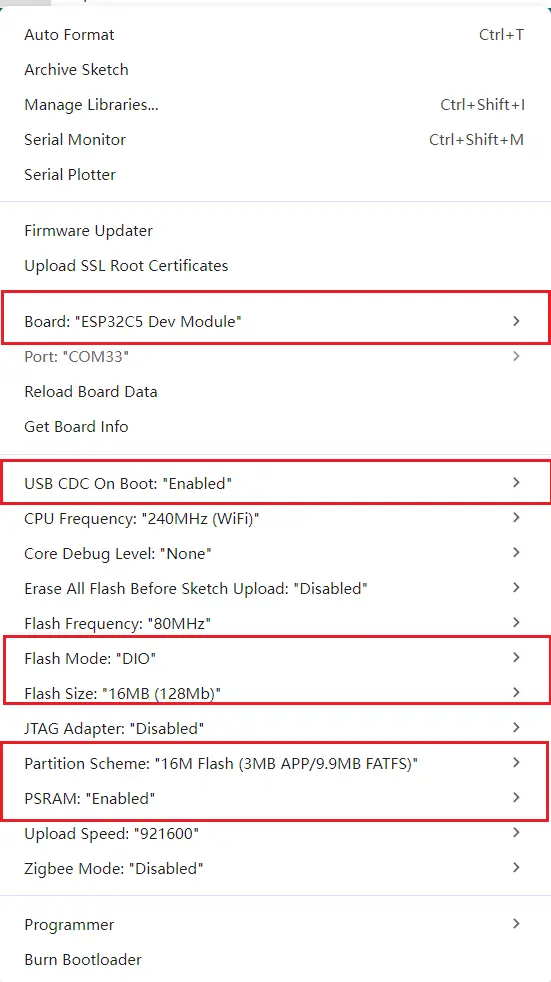
After installation, configure the following in Arduino IDE:
| Setting | Selection |
|---|---|
| Board | ESP32C5 Dev Module |
| Port | The USB serial port corresponding to the development board |
| USB CDC On Boot | Enabled |
USB CDC On Boot is used to view serial output through the ESP32-C5 native USB. If the development board cannot enter the download state, refer to the FAQ.
3. Installing Example Dependencies
The libraries directory of the Arduino example package contains the following libraries:
| Library | Version | Purpose |
|---|---|---|
SensorLib | 0.3.1 | PCF85063 RTC driver for 04_I2C_pcf85063 |
XPowersLib | Version in the example package | AXP2101 driver for 06_axp2101_example |
lvgl | 8.4.0 | Graphics library for 07_lvgl_demo |
Copy the required library directories in full to the libraries directory under the Arduino Sketchbook, then restart Arduino IDE. The default path on Windows is typically:
C:/Users/<username>/Documents/Arduino/libraries
Example
The Arduino examples are located in the example/Arduino-v3.3.10/example directory of the product example package. Each subdirectory is an independent project; open the .ino file with the same name as the directory.
Example List
| Example Directory | Function | Main Verification Content |
|---|---|---|
| 01_exio | Cyclically toggles the output level of EXIO8-EXIO15 | I/O expander chip, I2C |
| 02_I2C_qmi8658 | Reads acceleration and angular velocity | QMI8658, I2C |
| 03_SD_Card | Mounts the TF card and outputs capacity information | TF card, SDSPI |
| 04_I2C_pcf85063 | Sets and periodically reads the RTC time | PCF85063, I2C |
| 05_shtc3 | Reads ambient temperature and humidity | SHTC3, I2C, CRC check |
| 06_axp2101_example | Reads power and charging status | AXP2101, power management |
| 07_lvgl_demo | Displays the LVGL interface and tests touch and backlight adjustment | ST7796, FT6336, LVGL |
01_exio
Example Description
The example initializes the I/O expander chip via I2C, configures EXIO8-EXIO15 as outputs, and toggles between high and low levels every 1 second. EXIO0-EXIO7 remain in input mode.
Hardware Connection
- Connect the board to your computer via USB.
Operation Effect
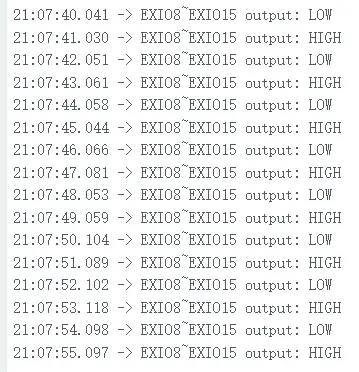
The serial port alternately outputs every 1 second:
EXIO8~EXIO15 output: LOW
EXIO8~EXIO15 output: HIGH
If IO extension not found at 0x24 is output, check the development board power supply and the I2C configuration corresponding to GPIO27/GPIO26.
02_I2C_qmi8658
Example Description
The example initializes the QMI8658 six-axis sensor, then periodically reads acceleration and angular velocity data in a FreeRTOS task.
Hardware Connection
- Connect the board to your computer via USB.
Operation Effect
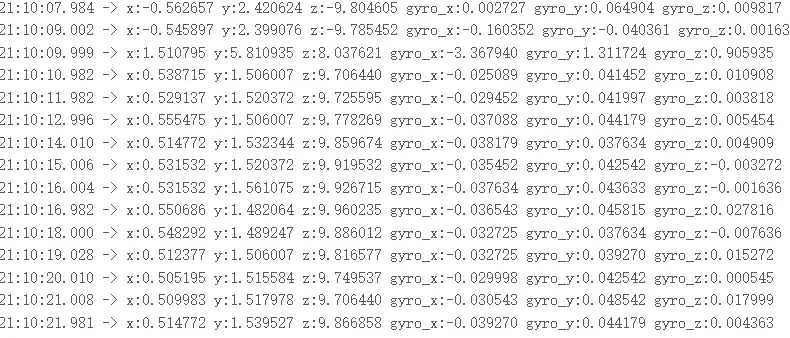
The serial port outputs the QMI8658 initialization information and sensor data. When the development board is rotated, the output values change with the attitude.
03_SD_Card
Example Description
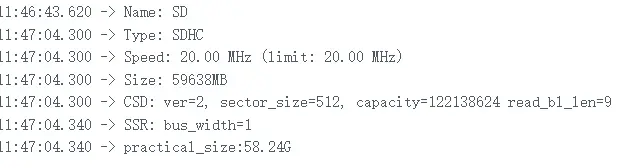
The example mounts the TF card using SDSPI with the mount point /sd_card, and outputs the card type and capacity information after a successful mount.
Hardware Connection
- Connect the board to your computer via USB.
- Insert a FAT32‑formatted TF card into the slot.
When the TF card fails to mount, the current example configuration will attempt to format the card. Please back up the data on the card before running.
Operation Effect
After a successful mount, the serial port outputs the TF card type and capacity information.
04_I2C_pcf85063
Example Description
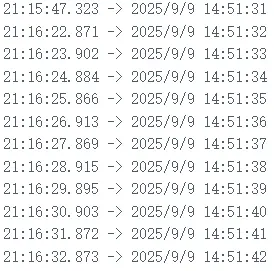
The example initializes the PCF85063 RTC and writes the time as 2025-09-09 14:51:30 on each startup. It then reads and outputs the RTC time once per second.
To verify that the RTC keeps time continuously, comment out i2c_rtc_setTime() in setup(); otherwise, the fixed time will be rewritten on each restart.
Hardware Connection
- Connect the board to your computer via USB.
Operation Effect
The serial port outputs the RTC date and time once per second.
05_shtc3
Example Description
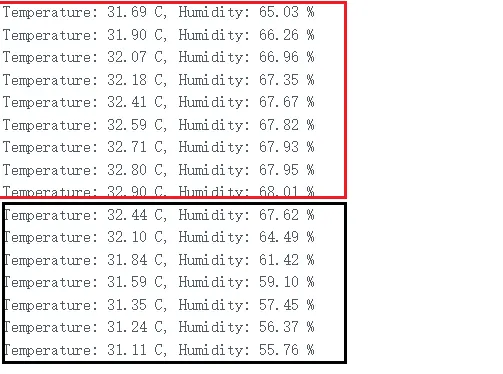
The example wakes up the SHTC3, reads the sensor ID and performs a soft reset, then reads temperature and humidity once per second. The program verifies the CRC of the data returned by the sensor.
Hardware Connection
- Connect the board to your computer via USB.
Operation Effect
SHTC3 ID: 0xXXXX
Temperature: 25.00 C, Humidity: 50.00 %
The actual values depend on the current environment. If Failed to read SHTC3 is output, check the power supply and I2C configuration, then power cycle and test again.
06_axp2101_example
Example Description
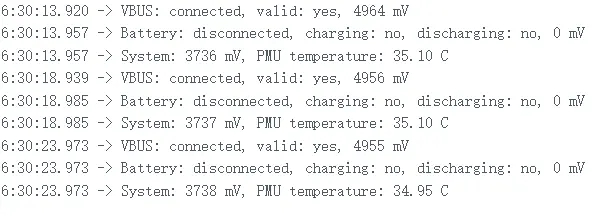
The example initializes the AXP2101 power management chip via I2C and outputs the on/off status and voltage of each DCDC and LDO rail. The program monitors VBUS, battery, system voltage, and chip temperature, and outputs the status once every 5 seconds.
The example does not modify or turn off any DCDC/LDO output. The charging parameters are set as follows:
- Precharge current: 50 mA
- Constant current charging current: 400 mA
- Termination current: 25 mA
- Charging cutoff voltage: 4.2 V
Hardware Connection
- Connect the board to your computer via USB.
- To view the battery voltage, battery percentage, or charge/discharge status, connect a 3.7 V lithium battery that meets the product requirements to the battery connector.
Before modifying the AXP2101 charging current or cutoff voltage, you must confirm that the battery specifications and hardware charging design allow that parameter.
Operation Effect
The serial port first outputs the AXP2101 chip ID and the status of each power rail, then periodically outputs VBUS, battery, system voltage, and chip temperature.
Periodic Status Output
| Field | Possible Result | Meaning |
|---|---|---|
VBUS | connected / disconnected | Whether USB or external power is connected to VBUS |
valid | yes / no | Whether the VBUS input voltage is valid |
| VBUS voltage | Value, mV | VBUS input voltage |
Battery | connected / disconnected | Whether the battery is connected |
charging | yes / no | Whether it is currently charging |
discharging | yes / no | Whether it is currently discharging |
| Battery voltage | Value, mV | Current battery voltage |
| Battery level | 0% - 100% | Estimated battery level, output only when a battery is detected |
System | Value, mV | PMU system supply voltage, usually VSYS |
PMU temperature | Value, °C | AXP2101 chip internal temperature |
Interrupt Event Output
| Output Information | Meaning |
|---|---|
Event: VBUS inserted | USB or external power connected |
Event: VBUS removed | USB or external power removed |
Event: battery inserted | Battery inserted |
Event: battery removed | Battery removed |
Event: charging started | Charging started |
Event: charging completed | Charging completed |
Event: power key short press | Short press of the PWR button |
Event: power key long press | Long press of the PWR button |
07_lvgl_demo
Example Description
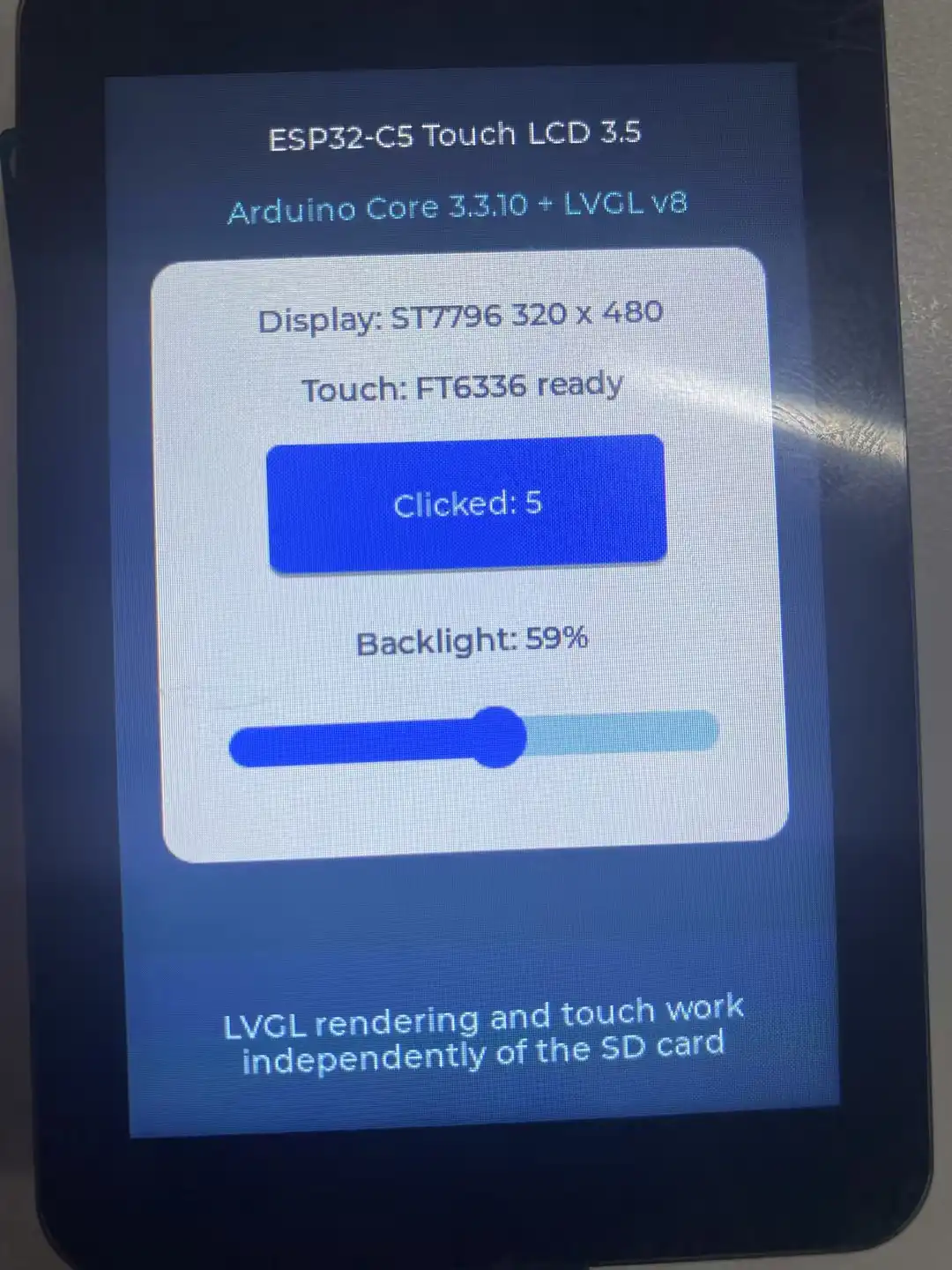
The example initializes the ST7796 LCD and FT6336 capacitive touch chip based on LVGL v8.4.0, and is used to verify screen display, touch input, and backlight adjustment functions.
The interface contains a touch test button and a backlight slider:
- After clicking the
Touch testbutton, the button text displays the cumulative number of clicks. - Drag the backlight slider to adjust the screen brightness within the range of 10% to 100%.
The LCD uses a 60 MHz SPI clock and RGB565 pixel format. LCD reset, touch reset, and backlight PWM are controlled by the I/O expander chip.
Hardware Connection
- Connect the board to your computer via USB.
- This example does not require inserting a TF card.
Please use LVGL v8.4.0 in the libraries/lvgl directory of the example package. The display and input device interfaces of LVGL v9 are not compatible with this example. lv_conf.h must remain in the 07_lvgl_demo directory.
Operation Effect
The screen displays the development board model, LCD and touch status, the touch test button, and the backlight slider. After successful serial initialization, the following is output:
Touch controller FT6336 initialized
ESP-IDF LCD IO + LVGL demo started