Working with ESP-IDF
This chapter describes how to set up the ESP-IDF development environment and provides the product example programs.
- ESP-IDF Getting Started
- Setting Up the ESP-IDF Development Environment
- Building and Flashing Examples
- Example
ESP-IDF Getting Started
New to ESP32 ESP-IDF development and looking to get started quickly? We have prepared a general Getting Started Tutorial for you.
- Section 1: Environment Setup
- Section 2: Running Examples
- Section 3: Creating a Project
- Section 4: Using Components
- Section 5: Debugging
- Section 6: FreeRTOS
- Section 7: Peripherals
- Section 8: Wi-Fi Programming
- Section 9: BLE Programming
Please Note: This tutorial uses the ESP32-S3-Zero as a teaching example, and all hardware code is based on its pinout. Before you start, it is recommended that you check the pinout of your development board to ensure the pin configuration is correct.
Setting Up the ESP-IDF Development Environment
The following guide uses Windows as an example, demonstrating development using VS Code + the ESP-IDF extension. macOS and Linux users should refer to the official documentation.
The screenshots in this section use ESP-IDF V5.5.2 as an example. When installing, please select the ESP-IDF version that matches your board's example.
Install the ESP-IDF Development Environment
-
Download the installation manager from the ESP-IDF Installation Manager page. This is Espressif's latest cross-platform installer. The following steps demonstrate how to use its offline installation feature.
Click the Offline Installer tab on the page, then select Windows as the operating system and the ESP-IDF version you need (the version shown in the screenshot is for reference only — choose the version that fits your actual needs).
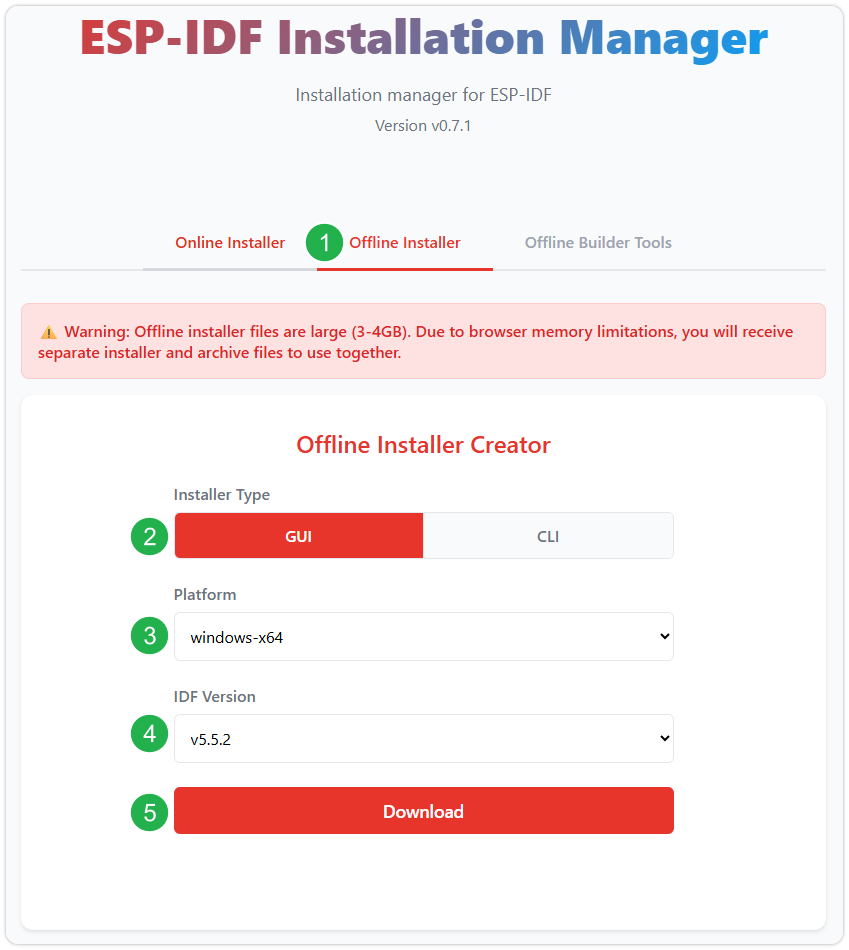
After confirming your selection, click the download button. The browser will automatically download two files: the ESP-IDF Offline Package (.zst) and the ESP-IDF Installer (.exe).
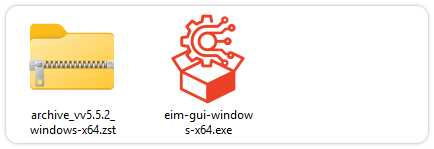
Please wait for both files to finish downloading.
-
Once the download is complete, double-click to run the ESP-IDF Installer (eim-gui-windows-x64.exe).
The installer will automatically detect if the offline package exists in the same directory. Click Install from archive.
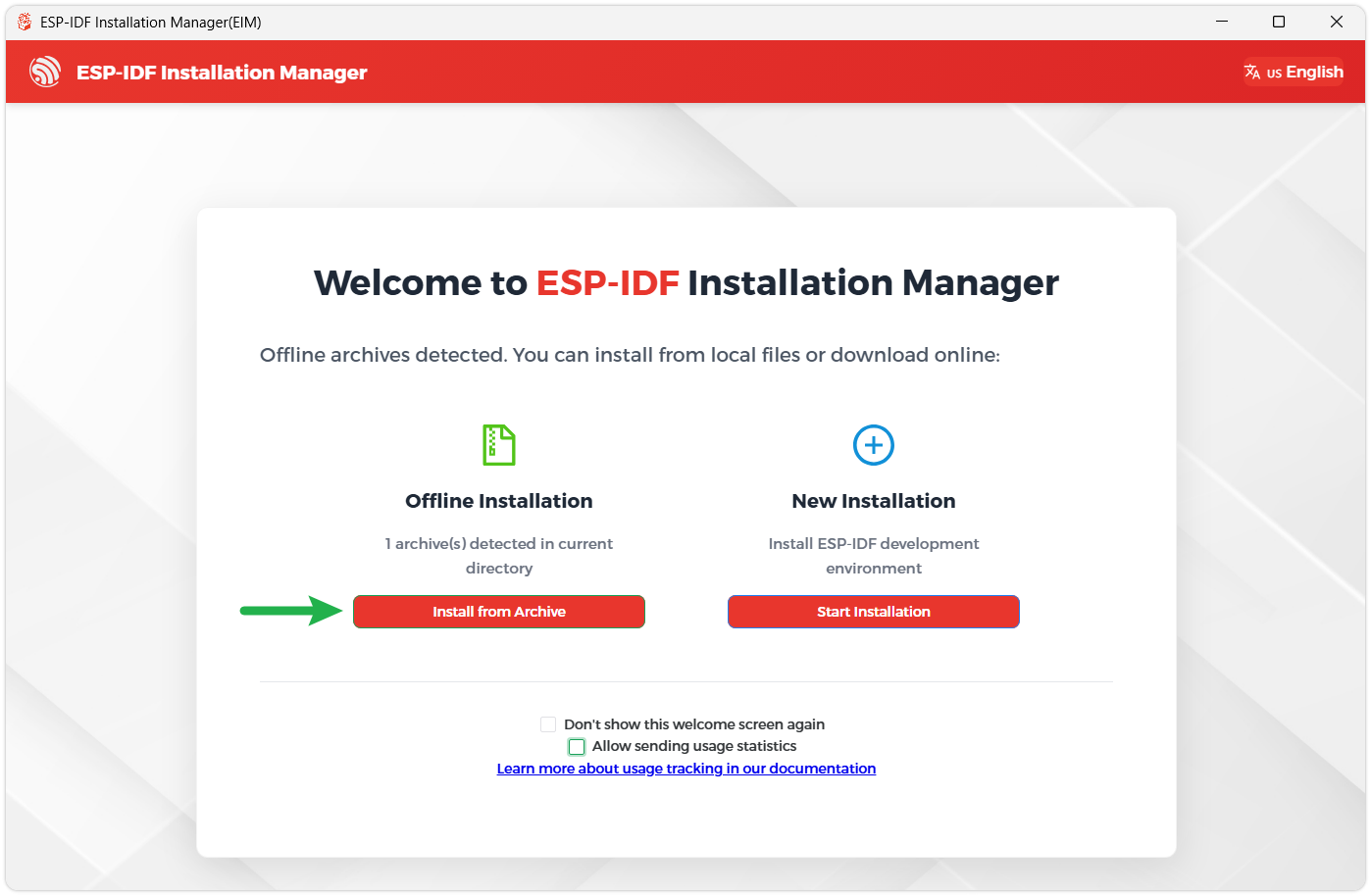
Next, select the installation path. We recommend using the default path. If you need to customize it, ensure the path does not contain Chinese characters or spaces. Click Start installation to proceed.
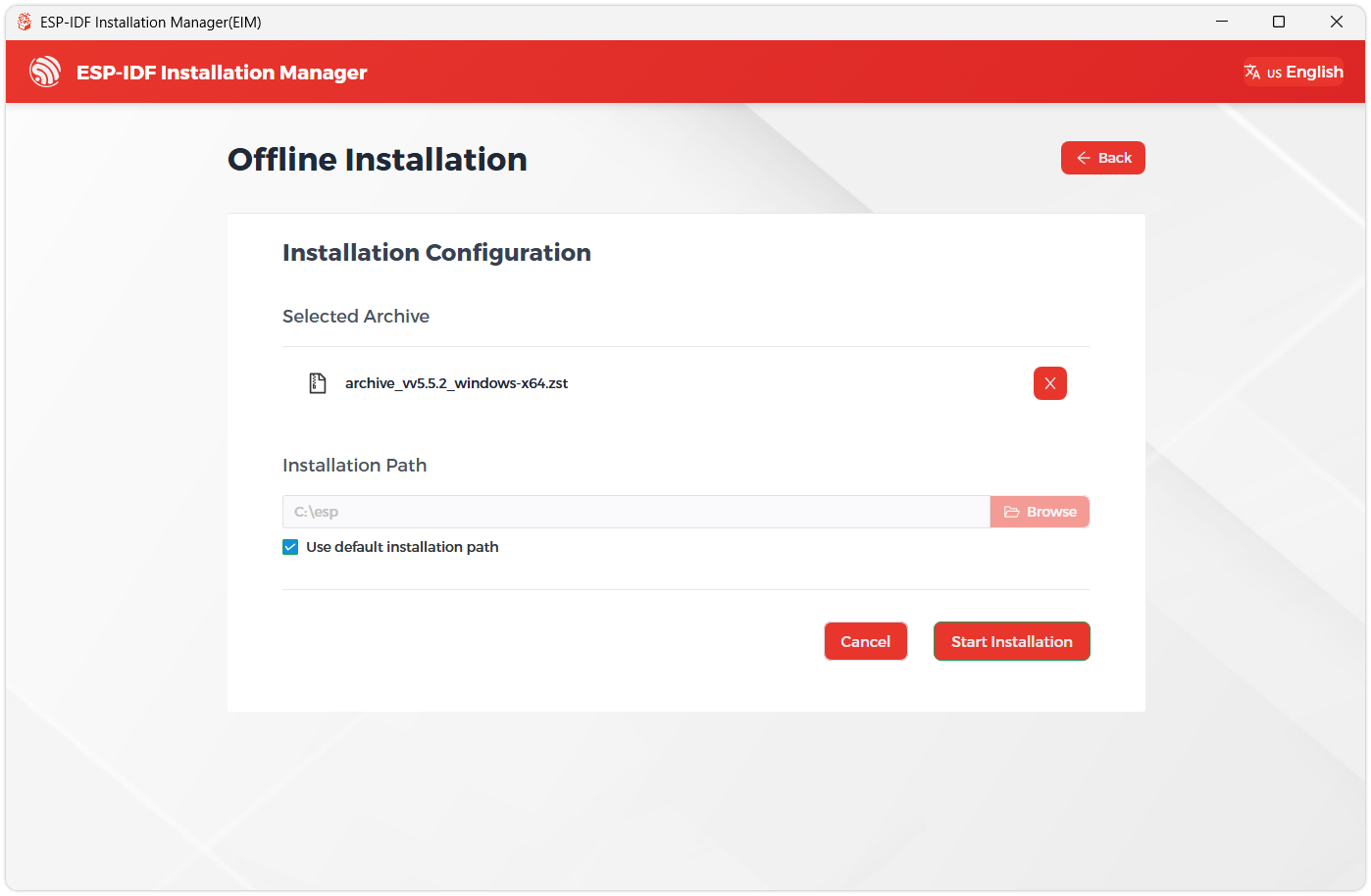
-
When you see the following screen, the ESP-IDF installation is successful.
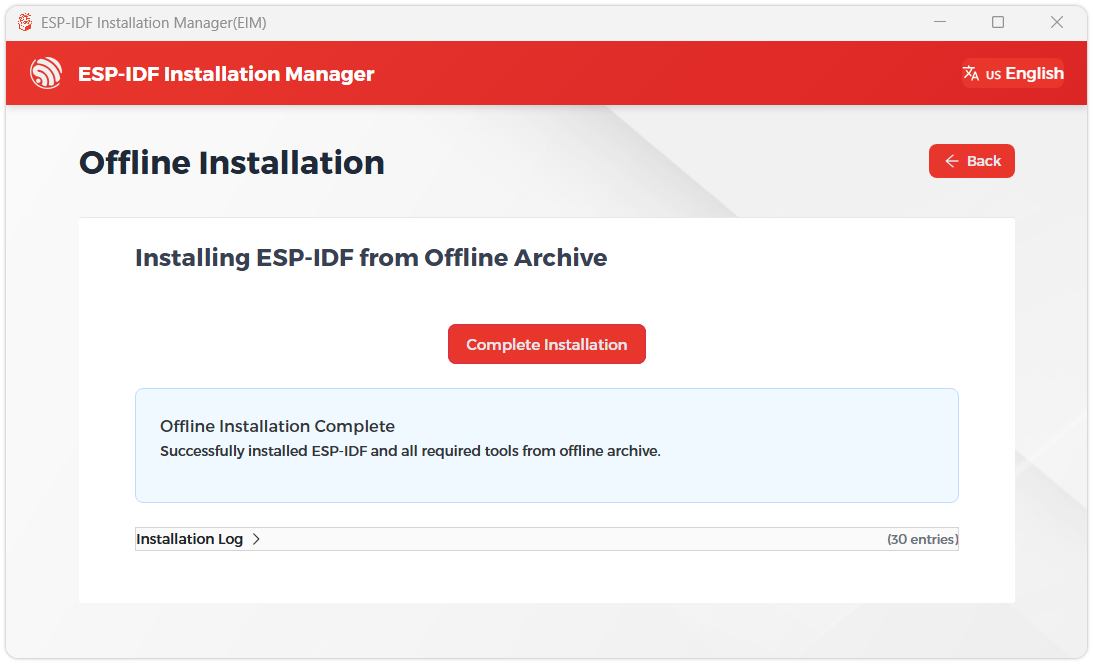
-
We recommend installing the drivers as well. Click Finish installation, then select Install driver.
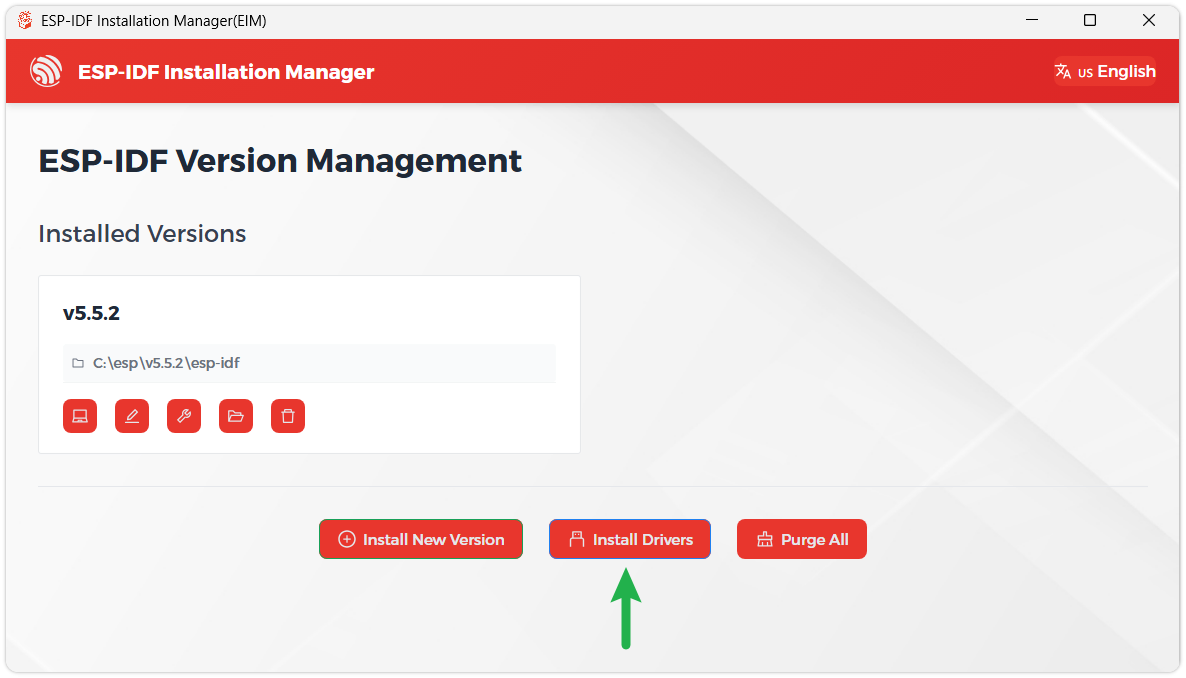
Install Visual Studio Code and the ESP-IDF Extension
-
Download and install Visual Studio Code.
-
During installation, it is recommended to check Add "Open with Code" action to Windows Explorer file context menu to facilitate opening project folders quickly.
-
In VS Code, click the Extensions icon
 in the Activity Bar on the side (or use the shortcut Ctrl + Shift + X) to open the Extensions view.
 -
Enter ESP-IDF in the search box, locate the ESP-IDF extension, and click Install.
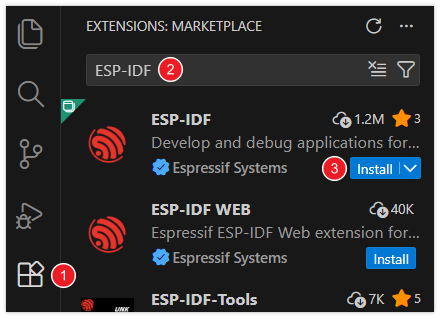
-
For ESP-IDF extension versions ≥ 2.0, the extension will automatically detect and recognize the ESP-IDF environment installed in the previous steps, requiring no manual configuration.
The example directory for this product is named ESP-IDF-V554. The examples are configured for ESP-IDF v5.5.4, and the target chip is esp32c5. When using other ESP-IDF versions, component dependencies and interfaces may be inconsistent.
Building and Flashing Examples
The ESP-IDF examples are located in the example/ESP-IDF-V554 directory of the example package. Each subdirectory is an independent project.
In an ESP-IDF v5.5.4 command-line environment, enter the project directory you want to run and execute:
idf.py set-target esp32c5
idf.py build
idf.py -p PORT flash monitor
Replace PORT with the serial port corresponding to the development board, such as COM8 on Windows. Press Ctrl+] to exit the serial monitor.
The example project already includes sdkconfig and sdkconfig.defaults. If you change the ESP-IDF version or project configuration, check the target chip, Flash, and PSRAM settings according to the build output.
Example
Example List
| Example Directory | Function | Main Verification Content |
|---|---|---|
| 01_factory | Runs the factory GUI and onboard function apps | LCD, touch, audio, camera, sensors, storage |
| 02_lvgl_demo | Runs the LVGL Benchmark | LCD, backlight, LVGL |
| 03_sd_card | Reads and writes files and verifies the content | TF card, SDSPI |
| 04_qmi8658 | Periodically reads the six-axis sensor | QMI8658, I2C |
| 05_pcf85063 | Sets and periodically reads the RTC | PCF85063, I2C |
| 06_shtc3 | Periodically reads temperature and humidity | SHTC3, I2C |
| 07_exio | Cyclically toggles EXIO8-EXIO15 | I/O expander chip, I2C |
| 08_AXP2101 | Reads power and charging status | AXP2101, power management |
01_factory
Example Description
This project is the factory firmware source code, which creates an app-style interface based on ESP-Brookesia. The project includes applications such as settings, photos, camera, music, sensors, and drawing, and calls the BSP to initialize the display, touch, audio, and storage devices.
For how to use the factory firmware, see the Factory Firmware Usage Guide.
02_lvgl_demo
Example Description
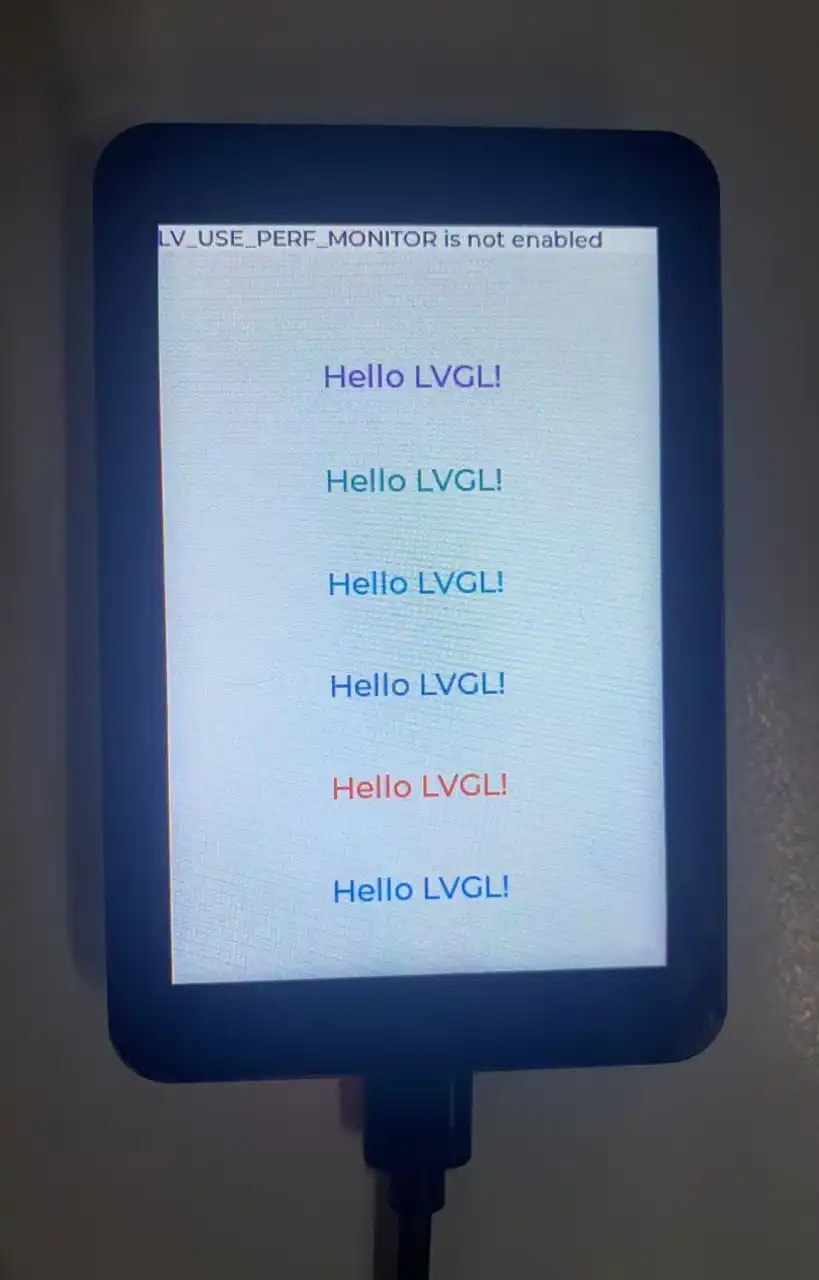
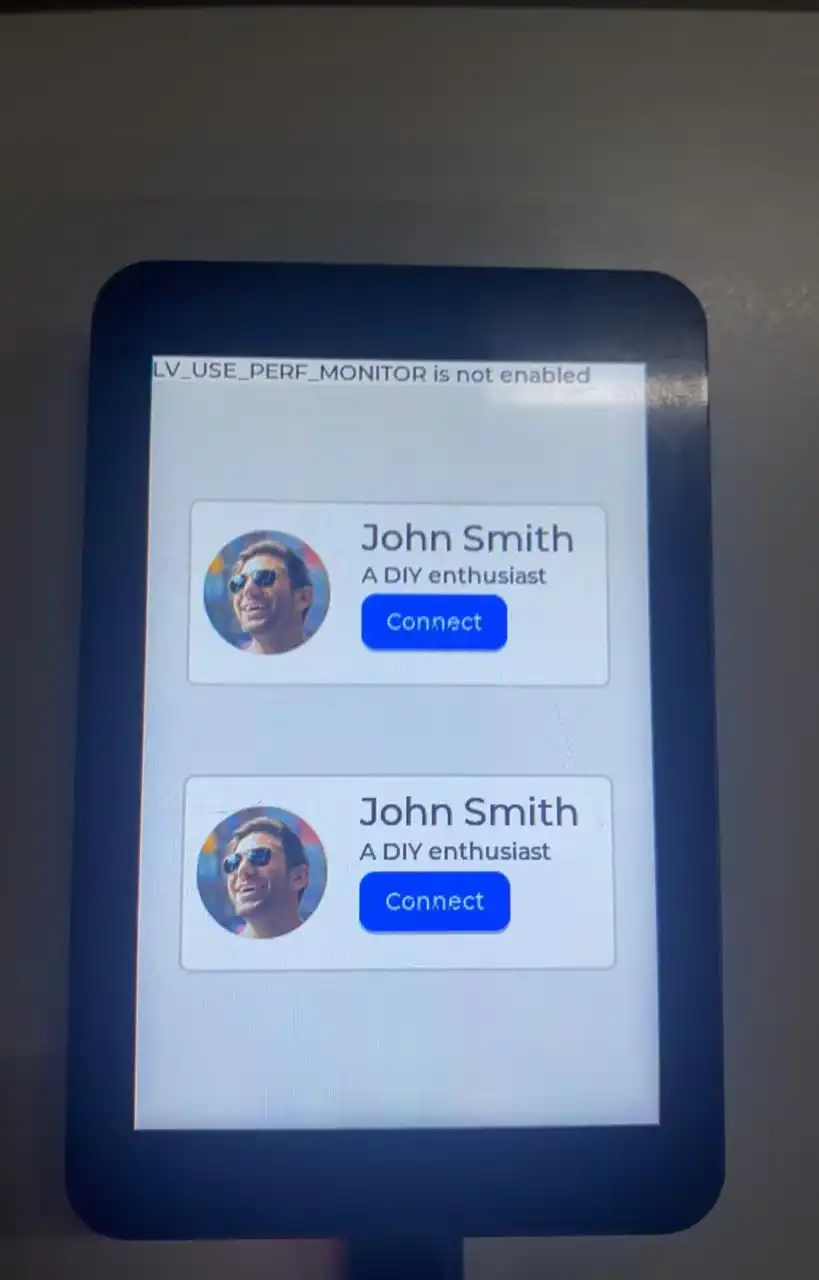
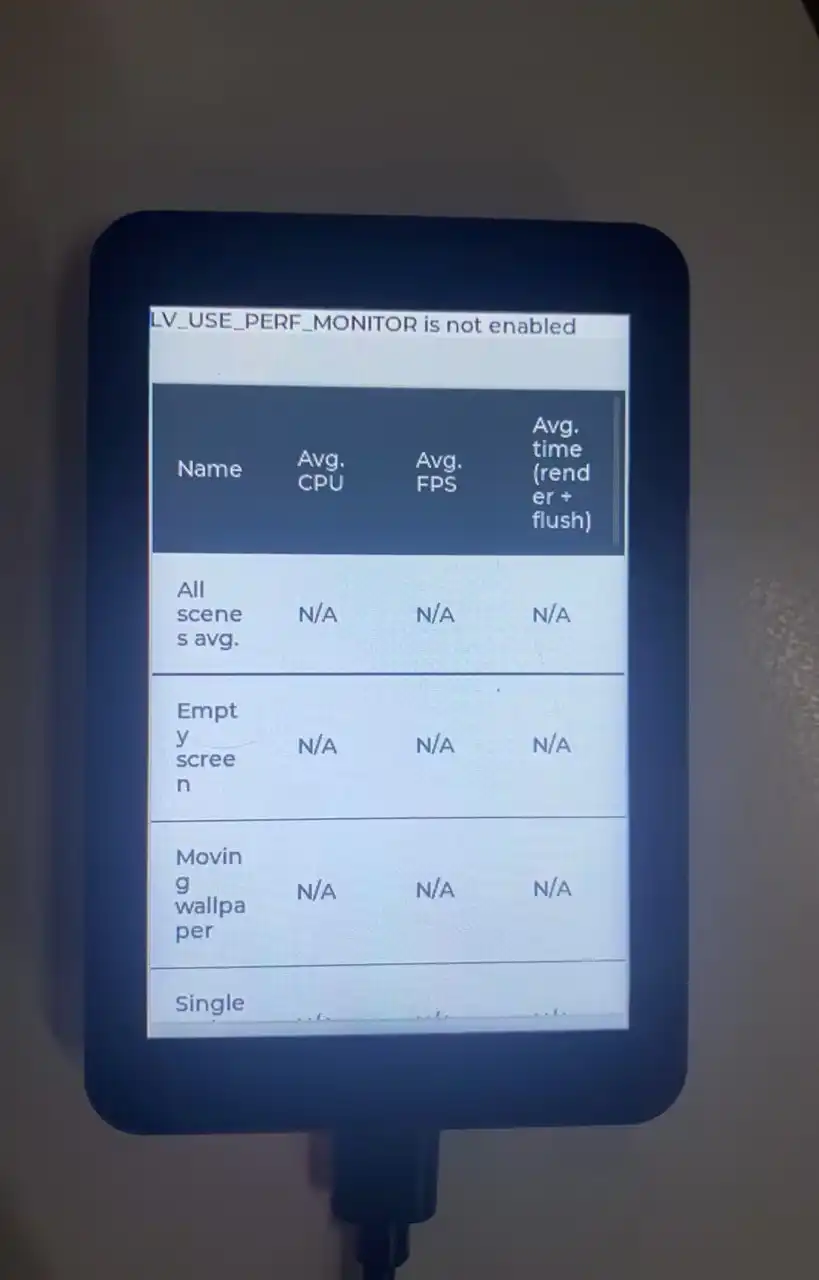
The example initializes NVS, the I/O expander chip, the LCD, and the backlight, then runs lv_demo_benchmark(). This example is used to verify the 320 × 480 LCD and LVGL graphics refresh.
Hardware Connection
- Connect the board to your computer via USB.
Operation Effect
The LCD displays the LVGL Benchmark test interface, and the interface automatically switches between different drawing scenes.
 |  |  |
|---|
03_sd_card
Example Description
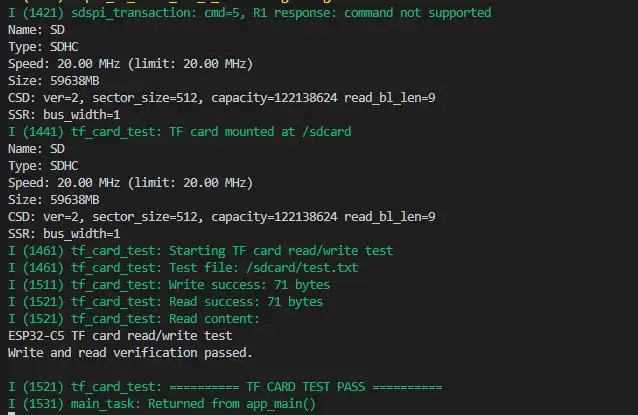
The example mounts the TF card, creates test.txt under the mount point, writes test content, reads it back, and verifies it byte by byte. When the written and read content match, the serial port outputs:
========== TF CARD TEST PASS ==========
Hardware Connection
- Connect the board to your computer via USB.
- Insert a FAT32‑formatted TF card into the slot.
Operation Effect
04_qmi8658
Example Description
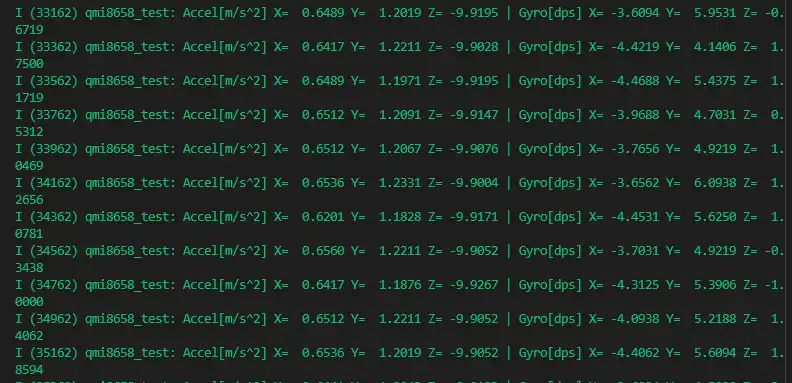
The example initializes the QMI8658 via the BSP, sets the acceleration unit to m/s² and the angular velocity unit to dps. When new data is available, the program outputs the X, Y, and Z axis data, with a polling interval of 200 ms.
Hardware Connection
- Connect the board to your computer via USB.
Operation Effect
When the development board is rotated, the acceleration and angular velocity values in the serial output change with the attitude.
05_pcf85063
Example Description
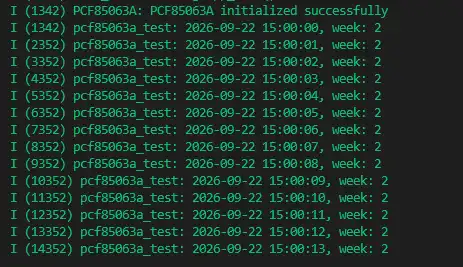
The example sets the PCF85063 RTC to 2026-09-22 15:00:00 on each startup, then reads and outputs the date, time, and day of the week once per second.
To verify that the RTC keeps time continuously, remove or comment out the pcf85063a_set_time_date() call; otherwise, the fixed time will be written on each startup.
Hardware Connection
- Connect the board to your computer via USB.
Operation Effect
The serial port outputs the RTC date, time, and day of the week once per second.
06_shtc3
Example Description
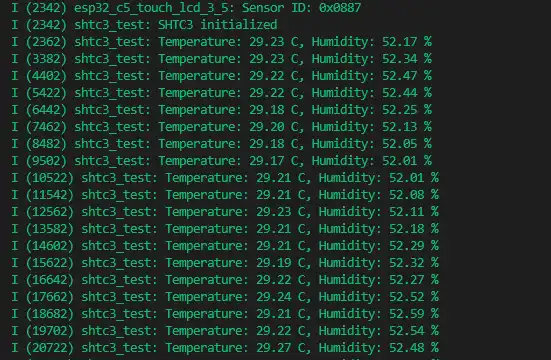
The example initializes the SHTC3 via the BSP, then reads and outputs temperature and relative humidity once per second.
Hardware Connection
- Connect the board to your computer via USB.
Operation Effect
The normal output format is as follows. The actual values depend on the current environment:
Temperature: 25.00 C, Humidity: 50.00 %
07_exio
Example Description
The example initializes I2C and the I/O expander chip, and toggles the output level of EXIO8-EXIO15 every 1 second. EXIO0-EXIO7 do not participate in this test.
Hardware Connection
- Connect the board to your computer via USB.
Operation Effect
After startup, the serial port outputs:
Toggle EXIO8-15 every 1000 ms; EXIO0-7 excluded
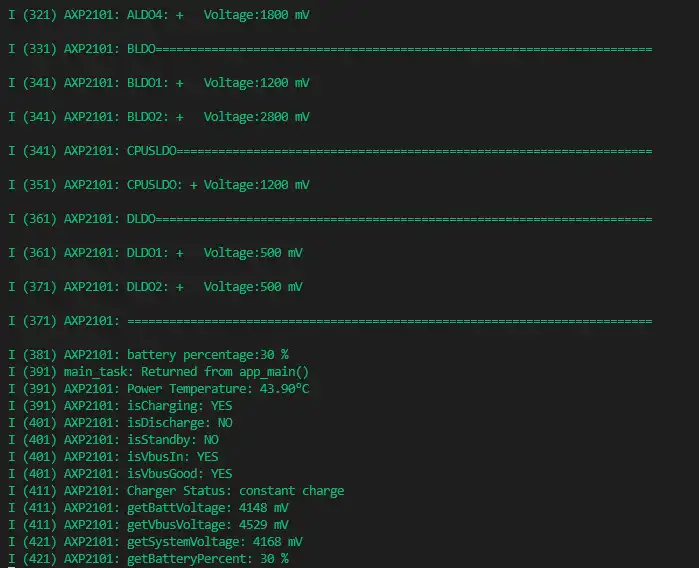
08_AXP2101
Example Description
The example initializes the AXP2101 power management chip via I2C and outputs the on/off status and voltage of each DCDC, ALDO, BLDO, CPUSLDO, and DLDO rail. The program also enables measurements for VBUS, battery, system voltage, and chip temperature, and outputs charging, discharging, VBUS, and battery information once every 20 seconds.
The charging parameters are set in the example as follows:
- Precharge current: 50 mA
- Constant current charging current: 400 mA
- Termination current: 25 mA
- Charging cutoff voltage: 4.2 V
Hardware Connection
- Connect the board to your computer via USB.
- To view the battery voltage, battery percentage, or charge/discharge status, connect a 3.7 V lithium battery that meets the product requirements to the battery connector.
Before modifying the AXP2101 charging current or cutoff voltage, you must confirm that the battery specifications and hardware charging design allow that parameter.
Operation Effect
The serial port outputs the status of each power rail, charge/discharge status, VBUS voltage, battery voltage, system voltage, and chip temperature.