ESP32-C5-Touch-LCD-3.5 Factory Firmware Instructions
This section describes the basic functions and usage of each application (APP) in the ESP32-C5-Touch-LCD-3.5 factory firmware. Before running the factory firmware, prepare the following components:
Required Components
- ESP32-C5-Touch-LCD-3.5 ×1
- USB data cable ×1
- TF card ×1 (optional; used for taking photos and recording audio; a capacity of 64 GB or less is recommended, formatted as FAT32)
- BF3901 camera module ×1 (optional; required when using the Camera APP)
First-Time Use
- If you need to use the Camera APP, connect the BF3901 camera module to the development board.
- If you need to use the photo or audio recording features, insert a FAT32-formatted TF card.
- Connect the development board to a computer using a USB data cable, or connect a 3.7 V lithium battery for power.
- After powering on, wait for system initialization to complete, then you can select the corresponding APP on the main screen.
Wi-Fi Scanning
- Go to the
WLANscreen and tap the scan button in the upper-right corner to scan for nearby Wi-Fi networks.
Precautions
USB Download Precautions
If the port cannot be recognized, enter Boot Mode:
- Press and hold the BOOT button.
- Connect the development board to a USB port on the computer.
- Release the BOOT button.
After the download is complete, power cycle the board to run the program.
TF Card Precautions
- Before using features that involve file storage, such as the camera and Mic, insert a TF card first.
- Only FAT32-formatted TF cards are supported; a capacity of 64 GB or less is recommended.
- Do not remove the TF card while it is being read from or written to, as this may corrupt files.
PWR Button
- The
PWRbutton supports custom functions. - Whether powered by Type-C alone, battery alone, or both Type-C and battery at the same time, you can press and hold the
PWRbutton for about 5 to 7 seconds to power off. - When powered off, press the
PWRbutton once briefly to power on. - In addition to being used to enter download mode, the
BOOTbutton can also be used as a regular function button.
Firmware Download
The factory firmware and its source code will be provided in Resources. For flashing instructions, see Firmware Flashing and Erasing.
Example Overview
The factory firmware uses an APP-style interface and includes APPs such as Settings, Camera, Music Player, Sensor, Drawing, and Mic. It can be used to try out and verify the development board's main onboard resources.
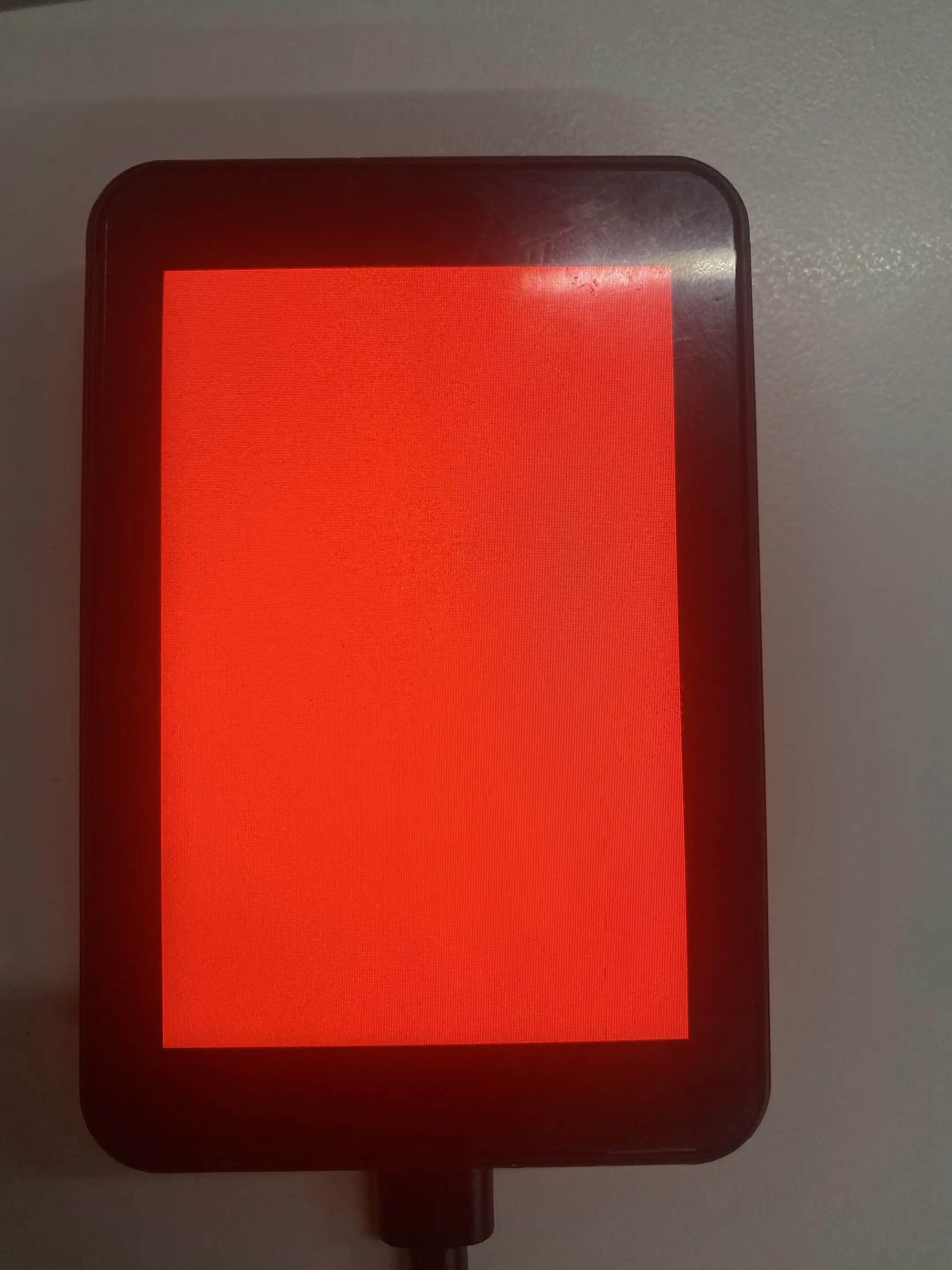
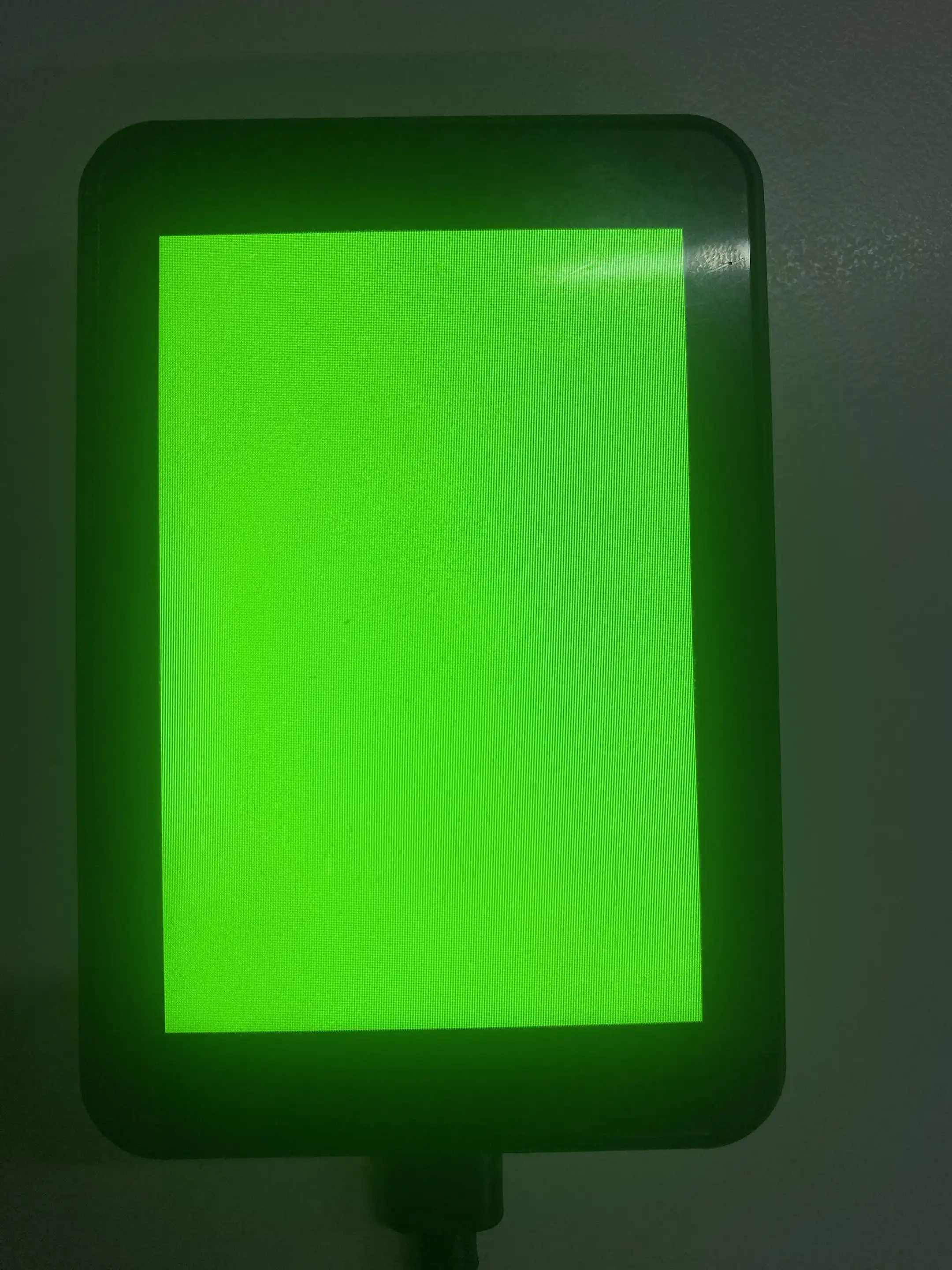
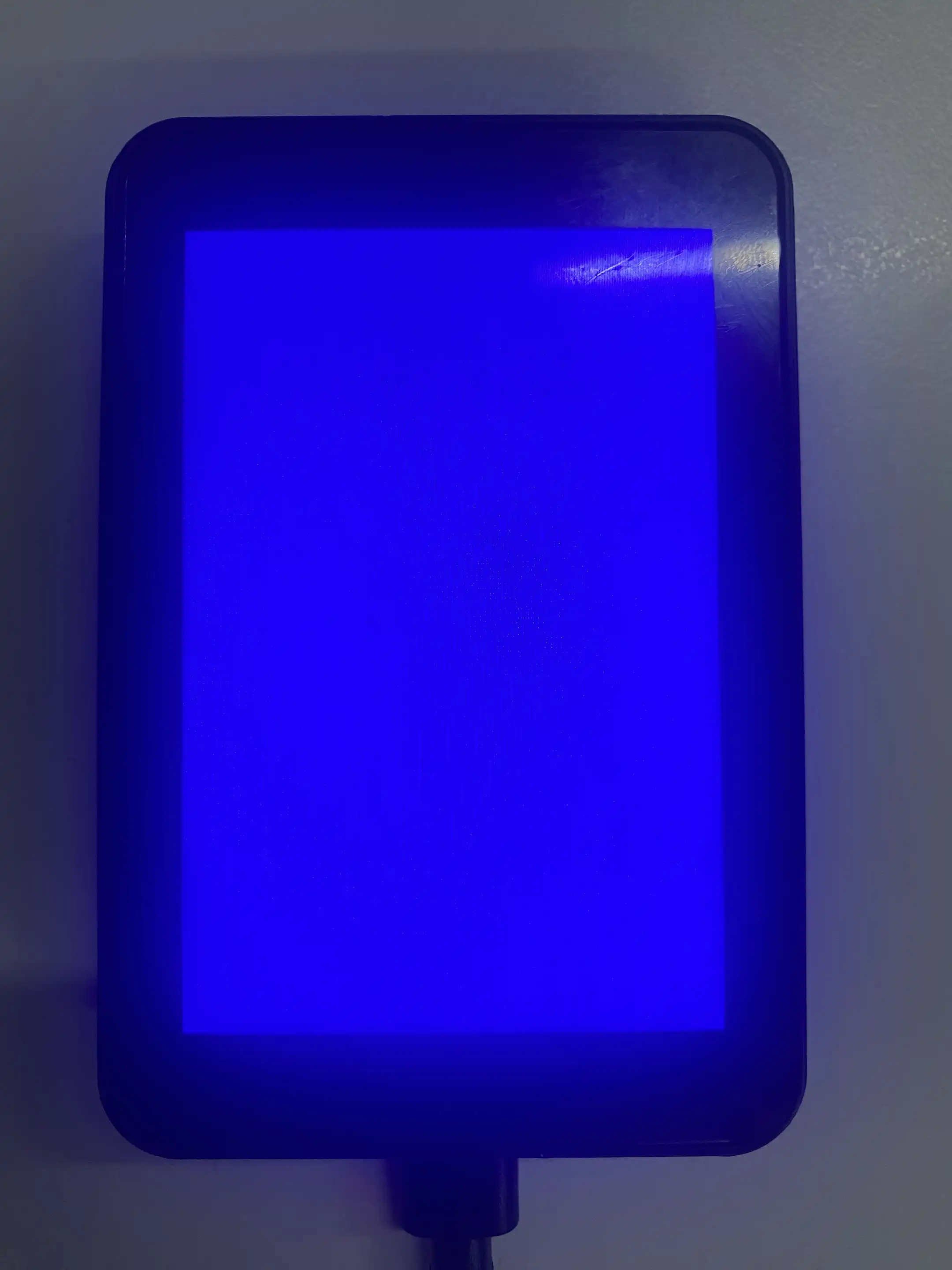
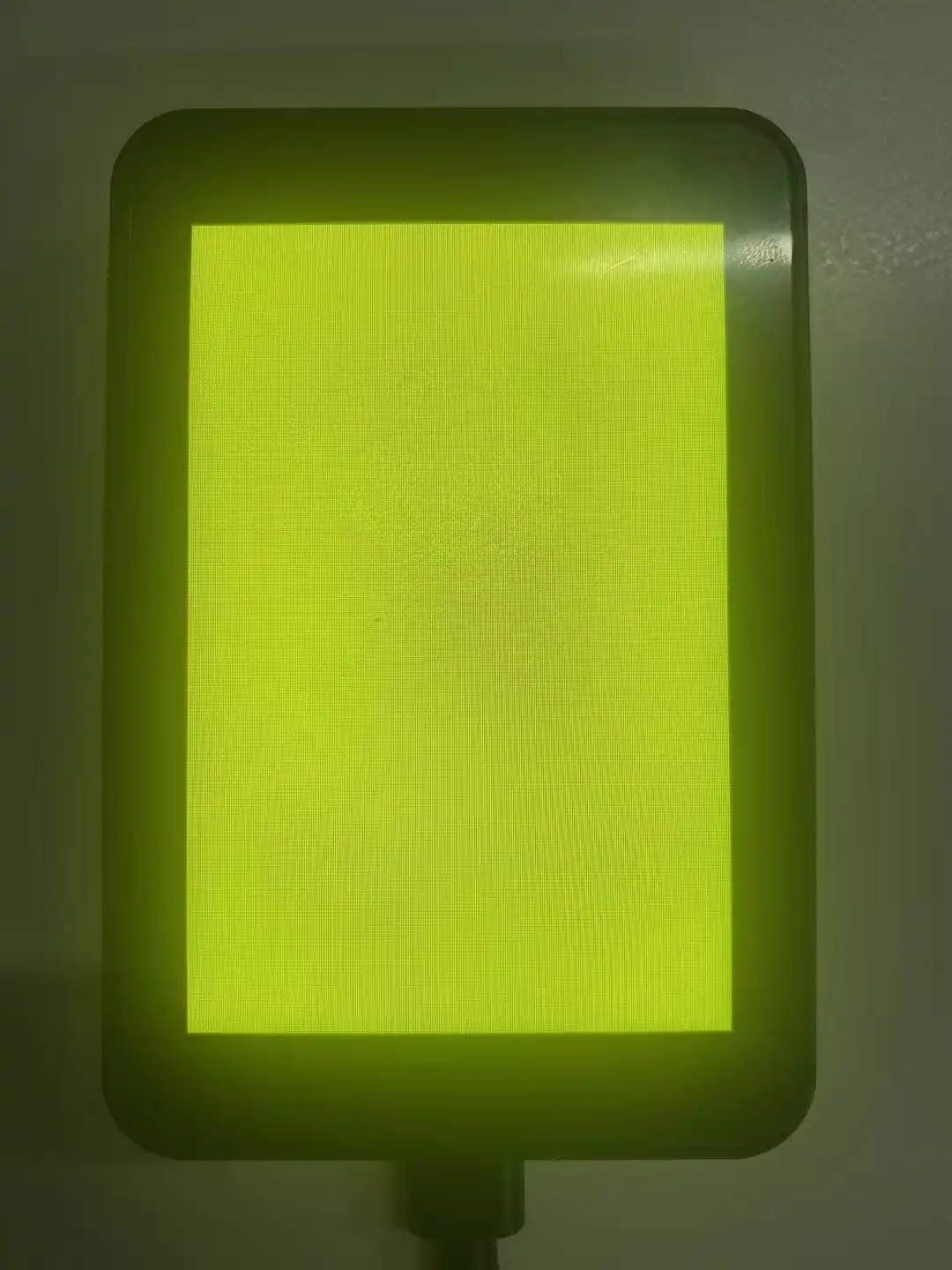
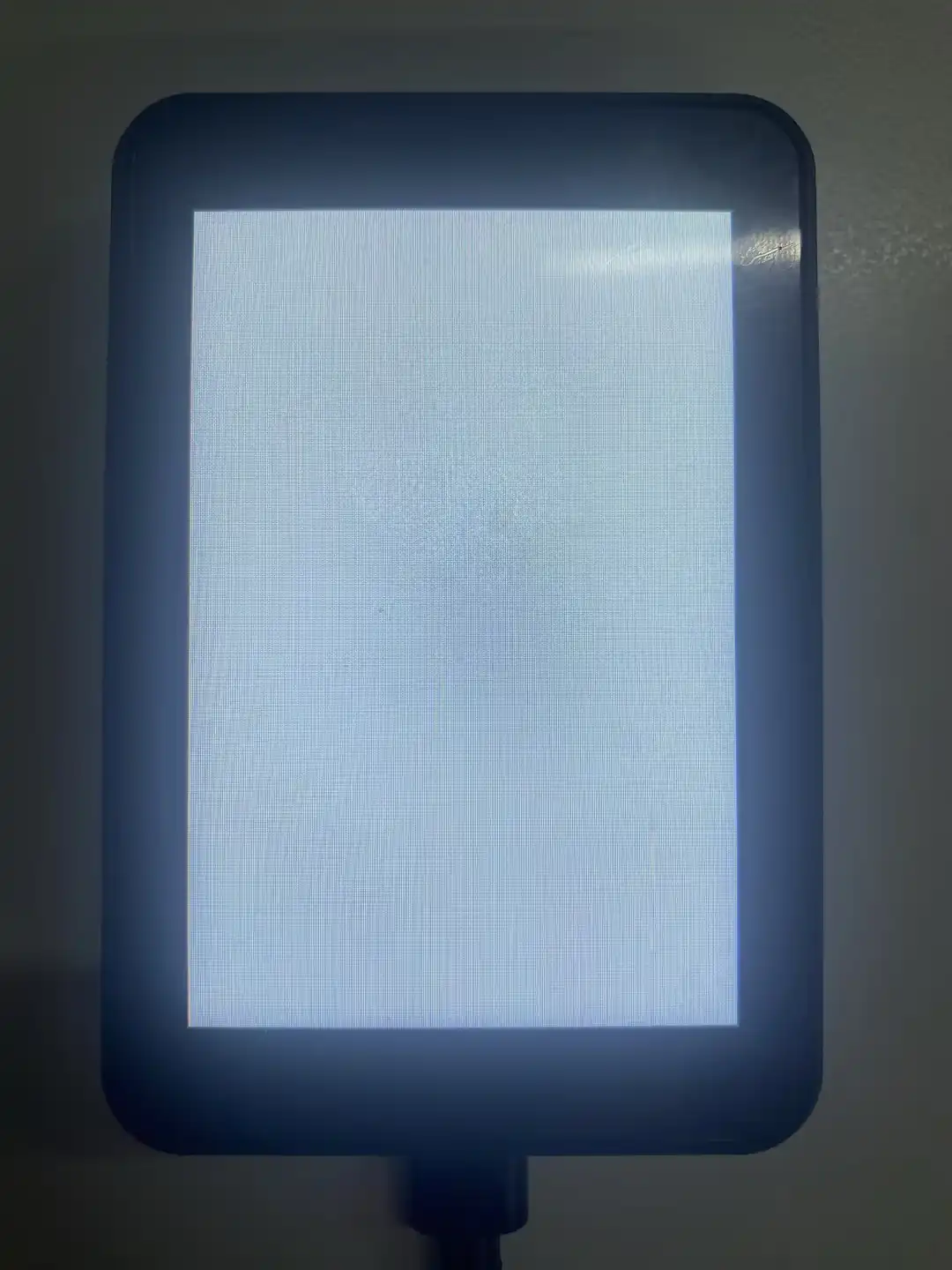
After powering on the product, it enters the color cycle test screen. Once you confirm the screen display works properly, double-tap anywhere on the screen to enter the APP main interface.
 |  |  |
|---|---|---|
 |  |
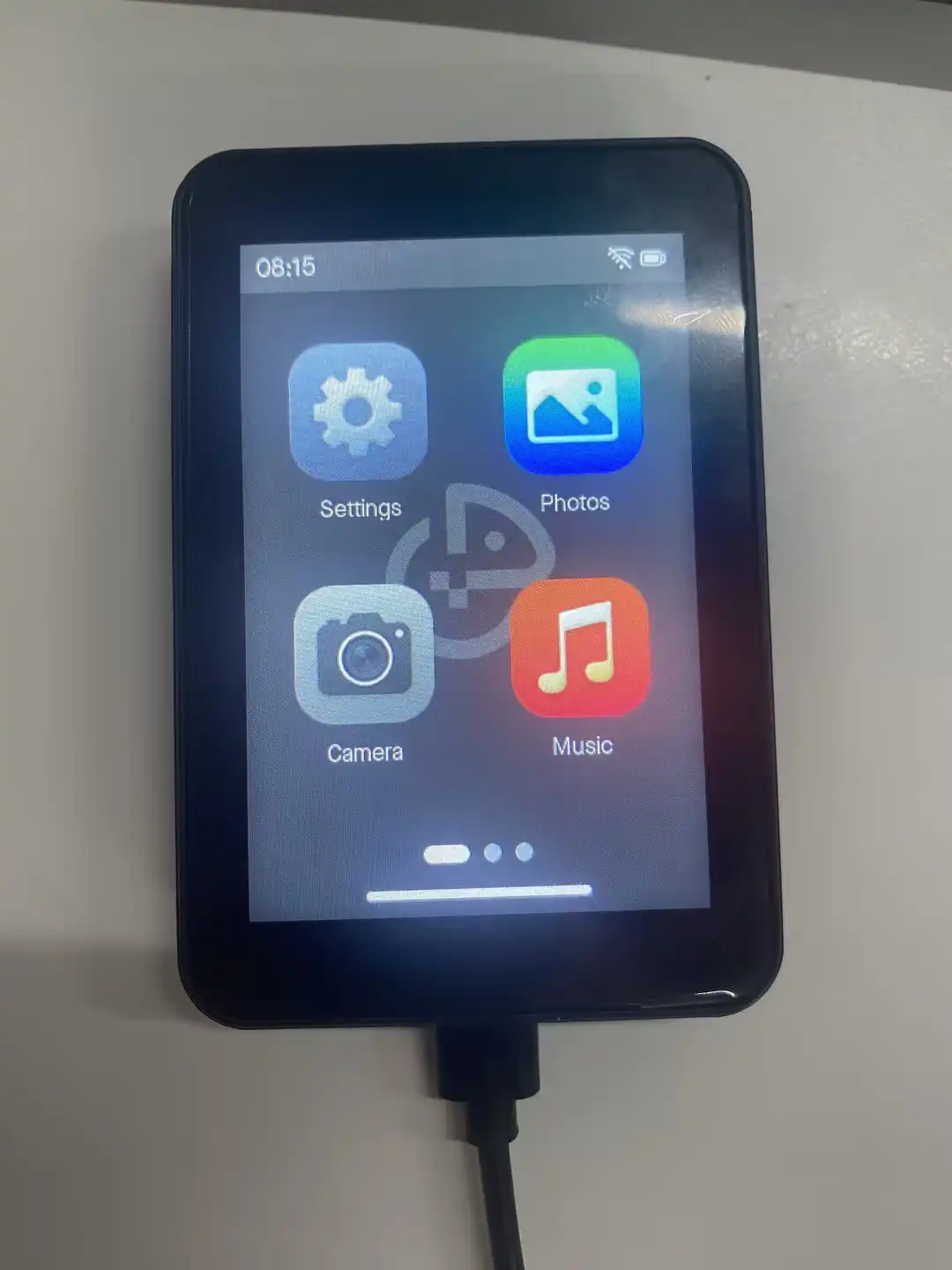
After double-tapping the screen, the APP main interface will appear:
App Example Introduction
- Tap the APP icon on the main screen to enter the corresponding app.
- To exit an APP, swipe up from the bottom of the screen to return to the main screen.
Settings APP
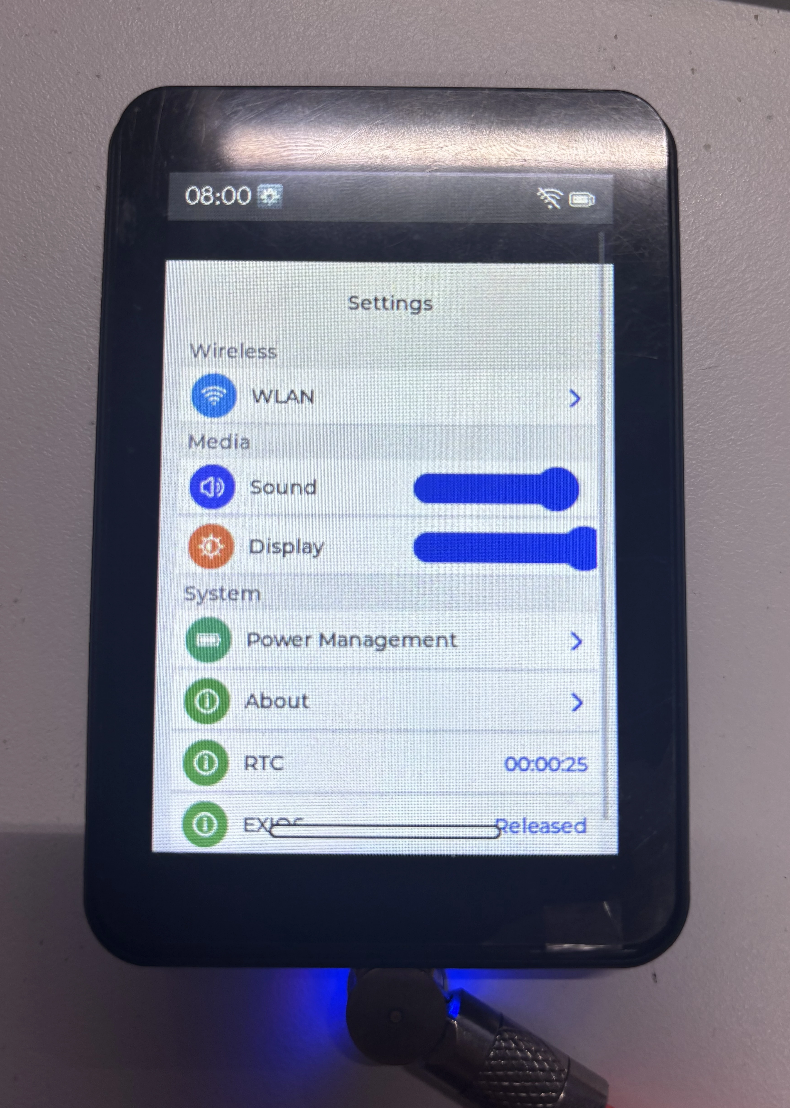
WLANis used to scan for and display nearby Wi-Fi networks.SoundandDisplayare used to adjust the volume and screen brightness, respectively.- You can also open pages such as Power Management, Product Information, RTC, and EXIO to view or configure related functions.
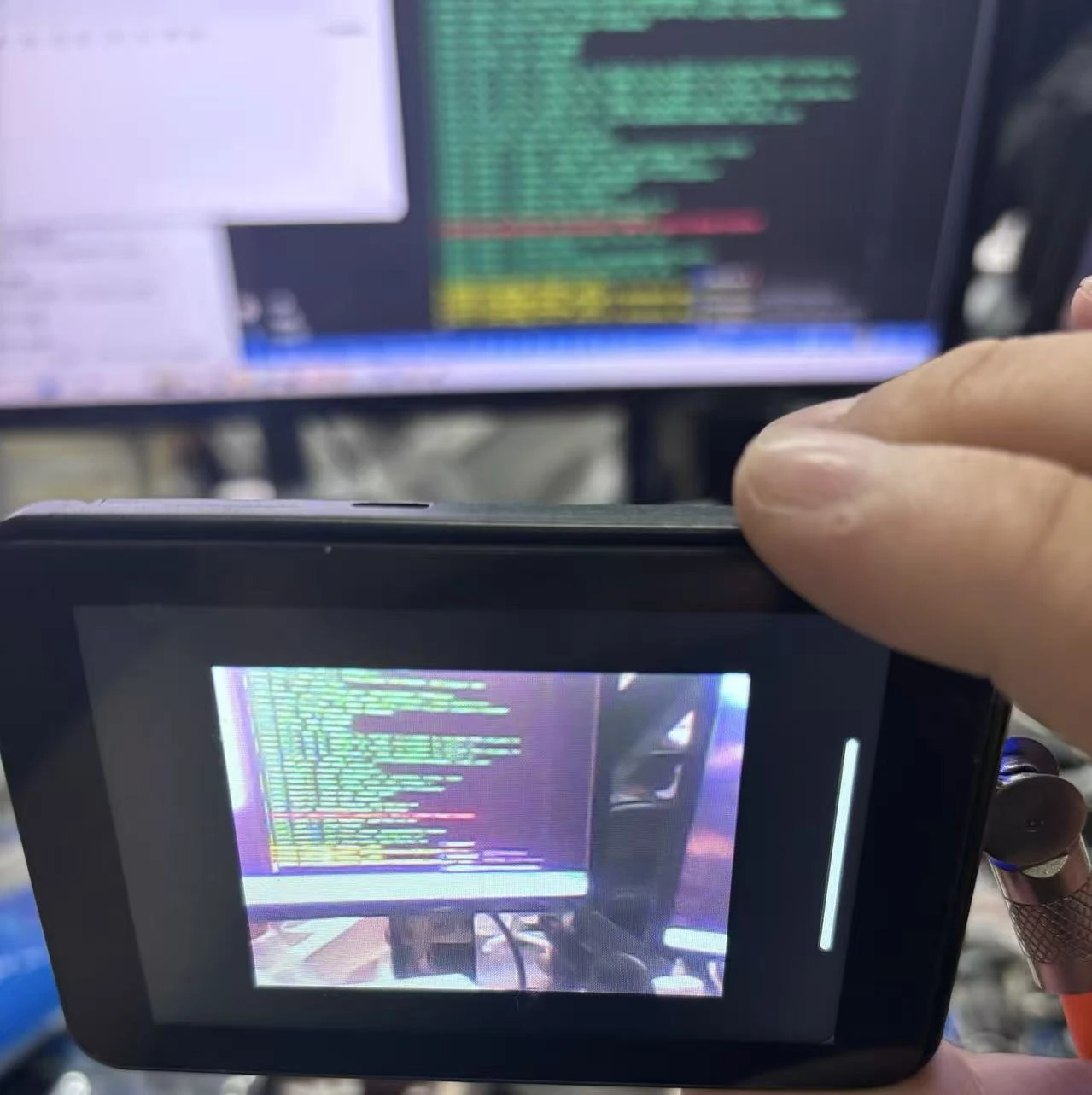
Camera APP
- Supports camera preview; press the BOOT button to take a photo.
- Captured photos are automatically saved to the TF card and can be viewed in the album.
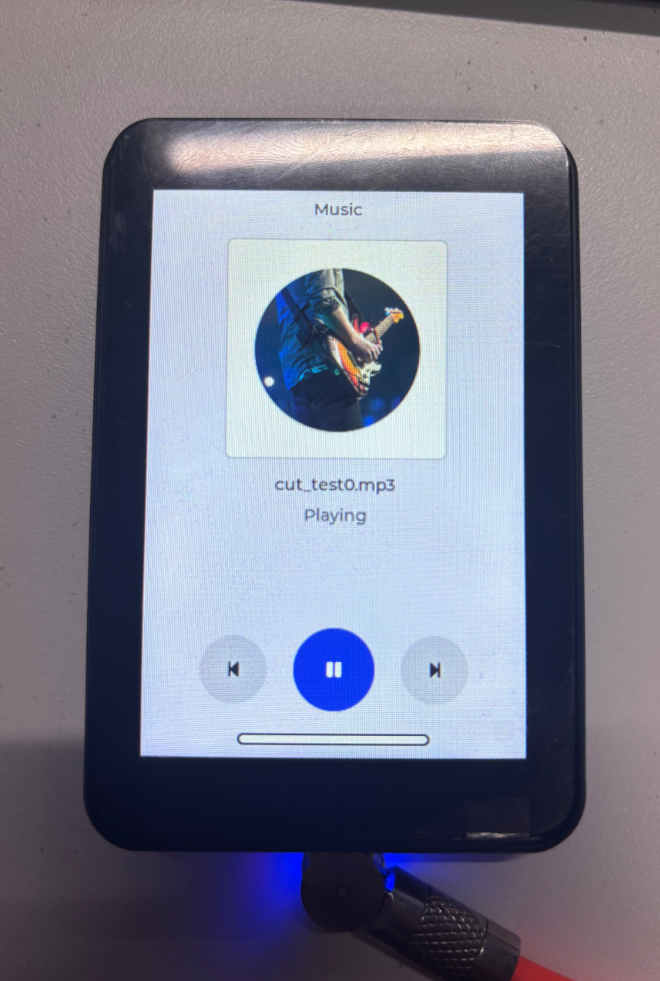
Music APP
- Supports playback of MP3 audio files stored in SPIFFS.
- Before use, make sure the speaker is connected properly, then tap the play button to play audio.
- The current example only supports play and pause; switching songs is not supported.
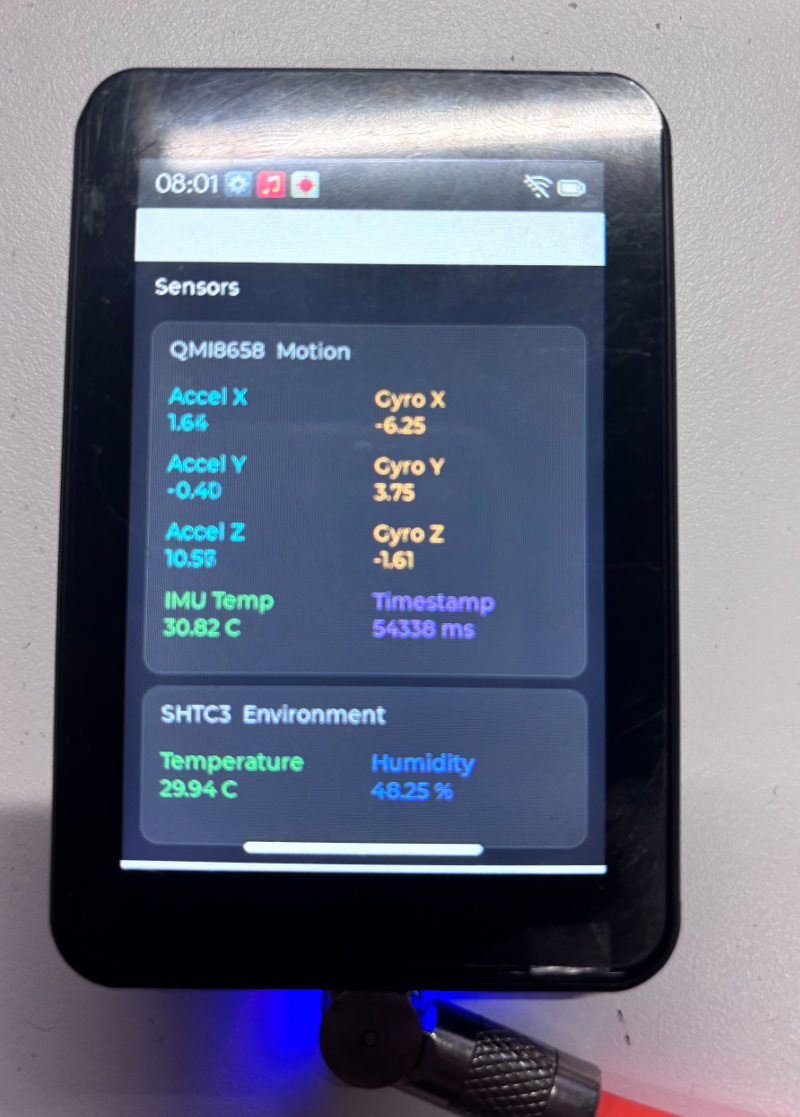
Sensor APP
- Displays real-time acceleration, angular velocity, and chip temperature data from the QMI8658 six-axis sensor.
- Also displays ambient temperature and humidity data collected by the SHTC3.
- When you rotate the development board or change the surrounding environment, the on-screen data updates accordingly.
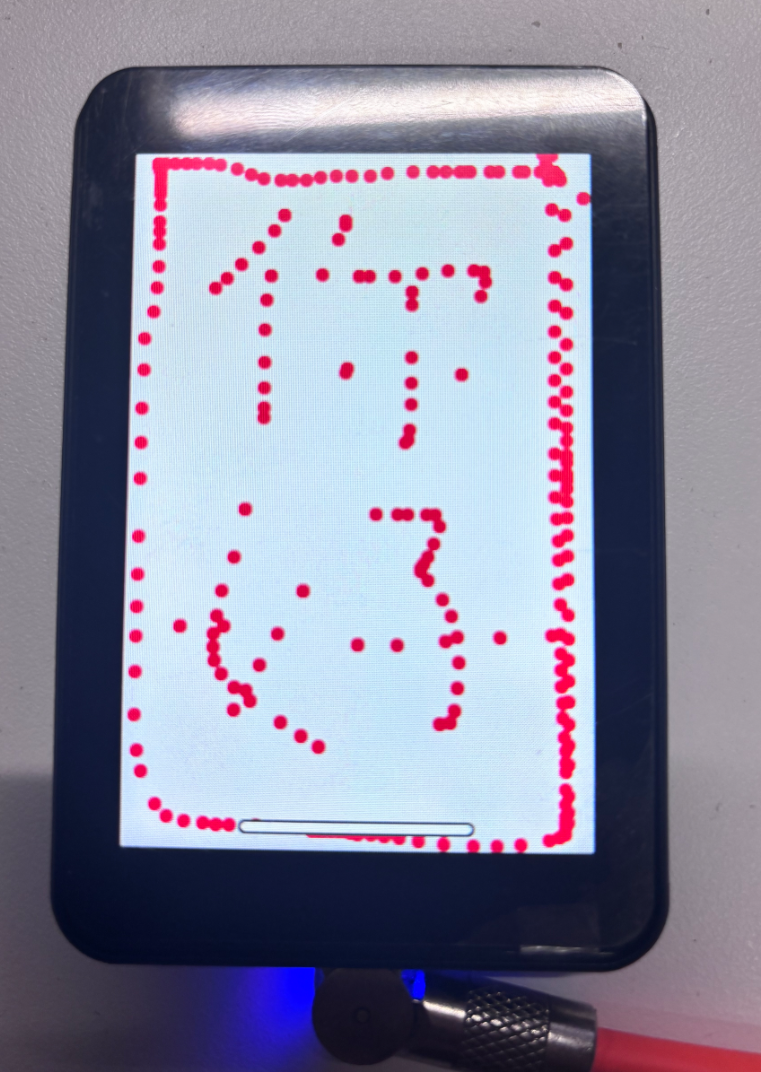
Draw APP
- Supports freehand drawing via the touchscreen.
- Can be used to try out the drawing feature or quickly check whether touch positions are working properly.
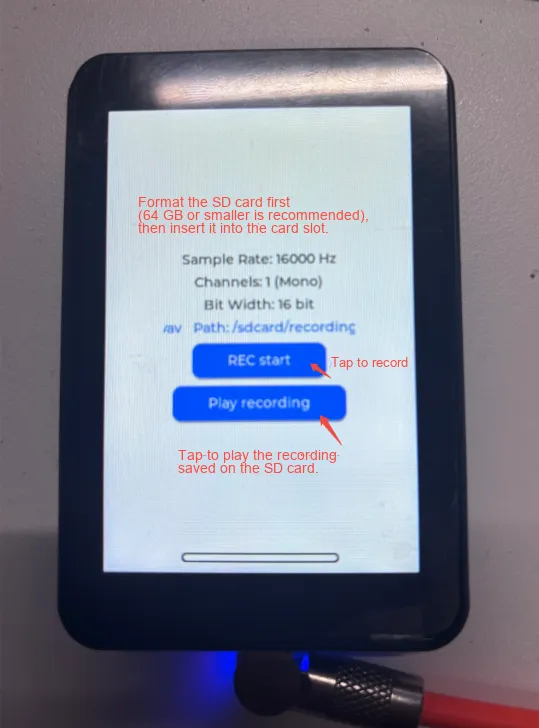
Mic APP
- Supports audio recording through the onboard microphone; recording parameters are 16 kHz, mono, 16-bit.
- Tap
REC startto start recording; recordings are saved in the/sdcard/recordingsdirectory on the TF card. - Tap
Play recordingto play saved recording files.