Working with Arduino
This chapter contains the following sections. Please read as needed:
Arduino Getting Started
New to Arduino ESP32 development and looking for a quick start? We have prepared a comprehensive Getting Started Tutorial for you.
- Section 0: Getting to Know ESP32
- Section 1: Installing and Configuring Arduino IDE
- Section 2: Arduino Basics
- Section 3: Digital Output/Input
- Section 4: Analog Input
- Section 5: Pulse Width Modulation (PWM)
- Section 6: Serial Communication (UART)
- Section 7: I2C Communication
- Section 8: SPI Communication
- Section 9: Wi-Fi Basics
- Section 10: Web Server
- Section 11: Bluetooth
- Section 12: LVGL GUI Development
- Section 13: Comprehensive Project
Note: This tutorial uses the ESP32-S3-Zero as a reference example, and all hardware code is based on its pinout. Before you start, we recommend checking the pinout of your development board to ensure the pin configuration is correct.
Setting Up Development Environment
1. Installing and Configuring the Arduino IDE
Please refer to the tutorial Installing and Configuring Arduino IDE to download and install the Arduino IDE and add ESP32 support.
For the ESP32-C6-DEV-KIT-NX development board, esp32 by Espressif Systems v3.0.0 or later is required.
2. Additional Tips
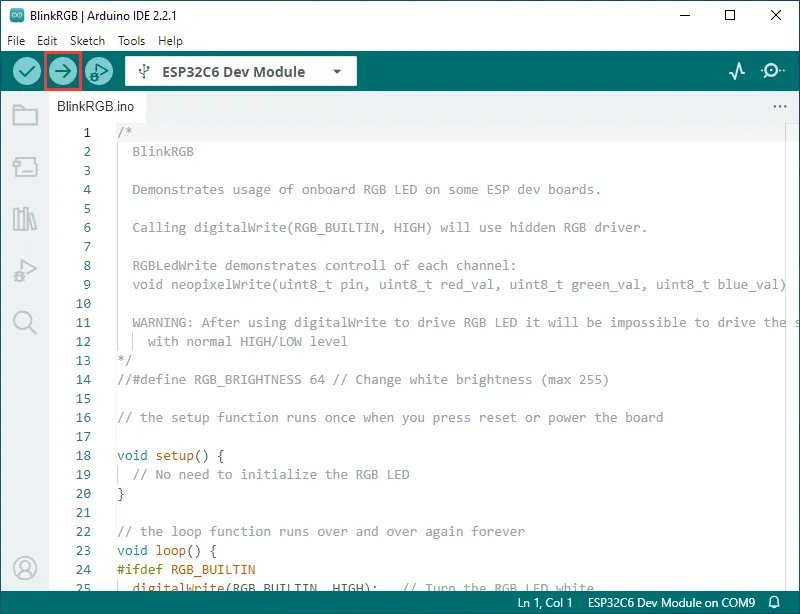
The ESP32-C6-DEV-KIT-NX can be directly selected in the Arduino IDE. Select "ESP32C6 Dev Module".
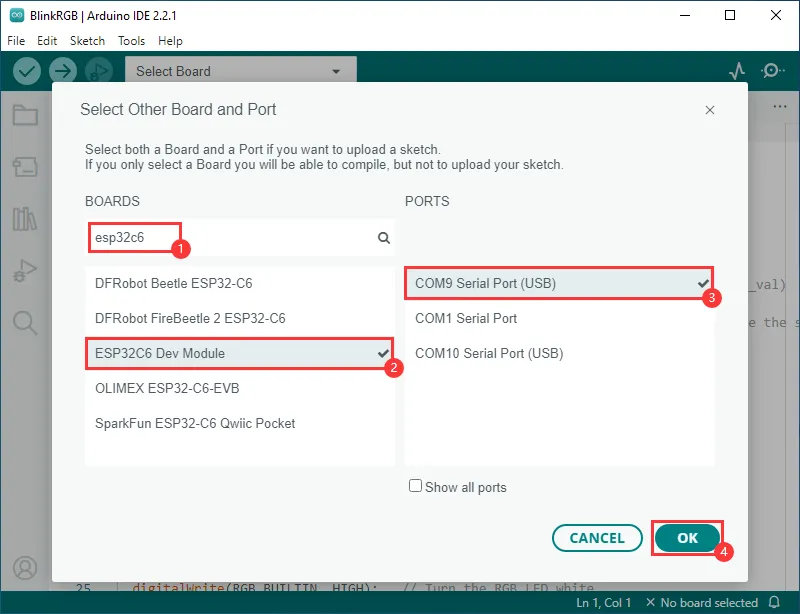
Example
Change the project folder to C:\Users\Waveshare\AppData\Local\Arduino15\packages (where Waveshare is the computer username).
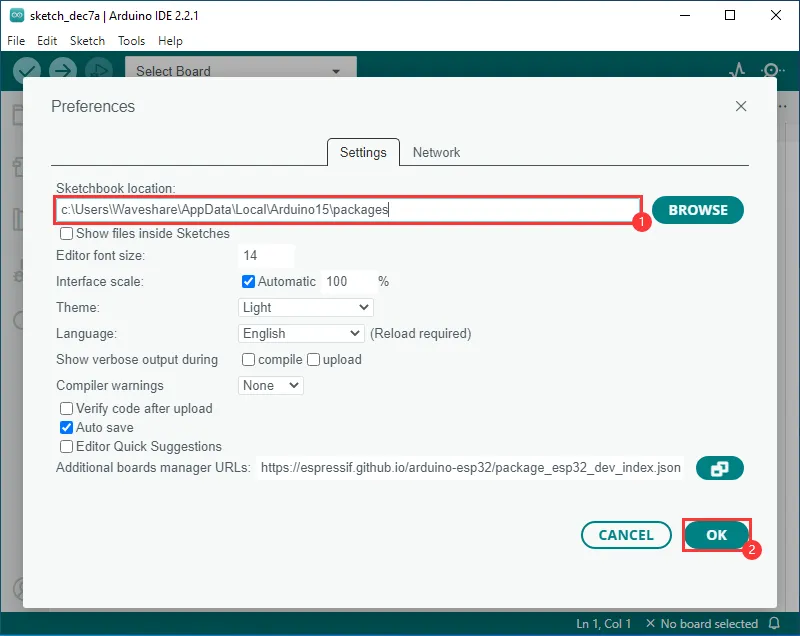
- After changing the project folder to
c:\Users\Waveshare\AppData\Local\Arduino15\packagesas shown above, - You can create examples from the examples in the project folder under File.
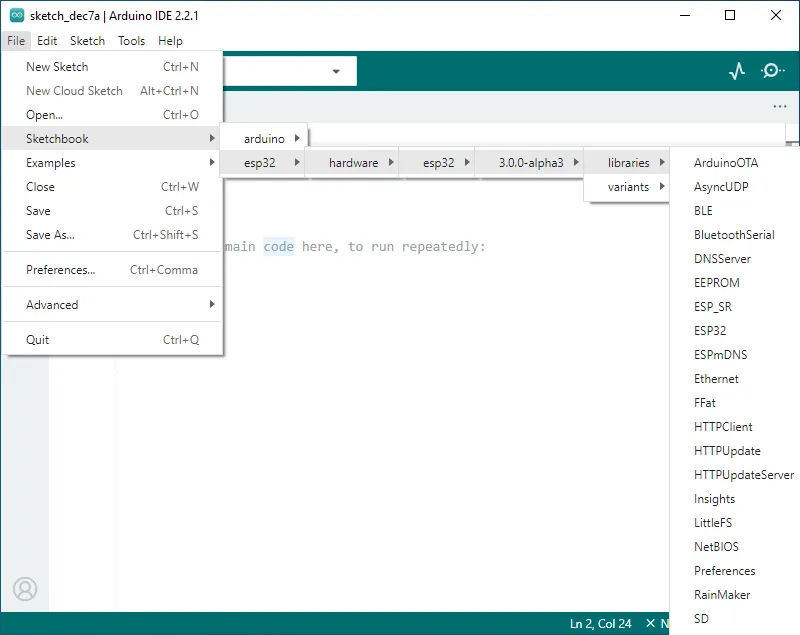
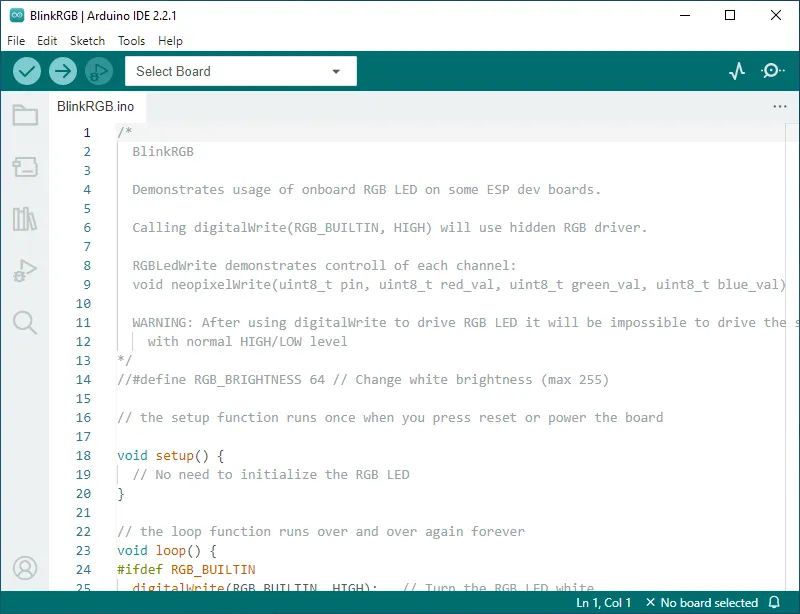
- The following demonstrates creating an RGB blink example (located under File -> Sketchbook -> esp32 -> hardware -> esp32 -> 3.0.0-alpha3 -> libraries -> ESP32 -> examples -> GPIO -> BlinkRGB).
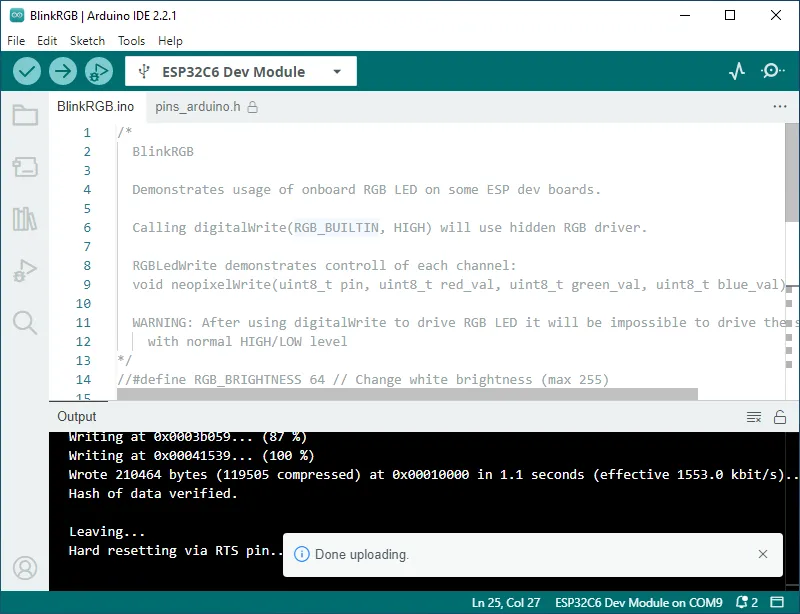
- Click Upload, and the Arduino IDE will compile and flash the program.
- After uploading, you can see the result on the development board