ESP-IDF
This chapter contains the following sections. Please read as needed:
ESP-IDF Getting Started
New to ESP32 ESP-IDF development and looking to get started quickly? We have prepared a general Getting Started Tutorial for you.
- Section 1: Environment Setup
- Section 2: Running Examples
- Section 3: Creating a Project
- Section 4: Using Components
- Section 5: Debugging
- Section 6: FreeRTOS
- Section 7: Peripherals
- Section 8: Wi-Fi Programming
- Section 9: BLE Programming
Please Note: This tutorial uses the ESP32-S3-Zero as a teaching example, and all hardware code is based on its pinout. Before you start, it is recommended that you check the pinout of your development board to ensure the pin configuration is correct.
Setting Up Development Environment
Please refer to Install ESP-IDF Development Environment.
For the ESP32-C6-DEV-KIT-NX development board, ESP-IDF version V5.1.1 or above is required.
The following guide uses Windows as an example, demonstrating development using VS Code + the ESP-IDF extension. macOS and Linux users should refer to the official documentation.
The screenshots in this section use ESP-IDF V5.5.2 as an example. When installing, please select the ESP-IDF version that matches your board's example.
Install the ESP-IDF Development Environment
-
Download the installation manager from the ESP-IDF Installation Manager page. This is Espressif's latest cross-platform installer. The following steps demonstrate how to use its offline installation feature.
Click the Offline Installer tab on the page, then select Windows as the operating system and the ESP-IDF version you need (the version shown in the screenshot is for reference only — choose the version that fits your actual needs).
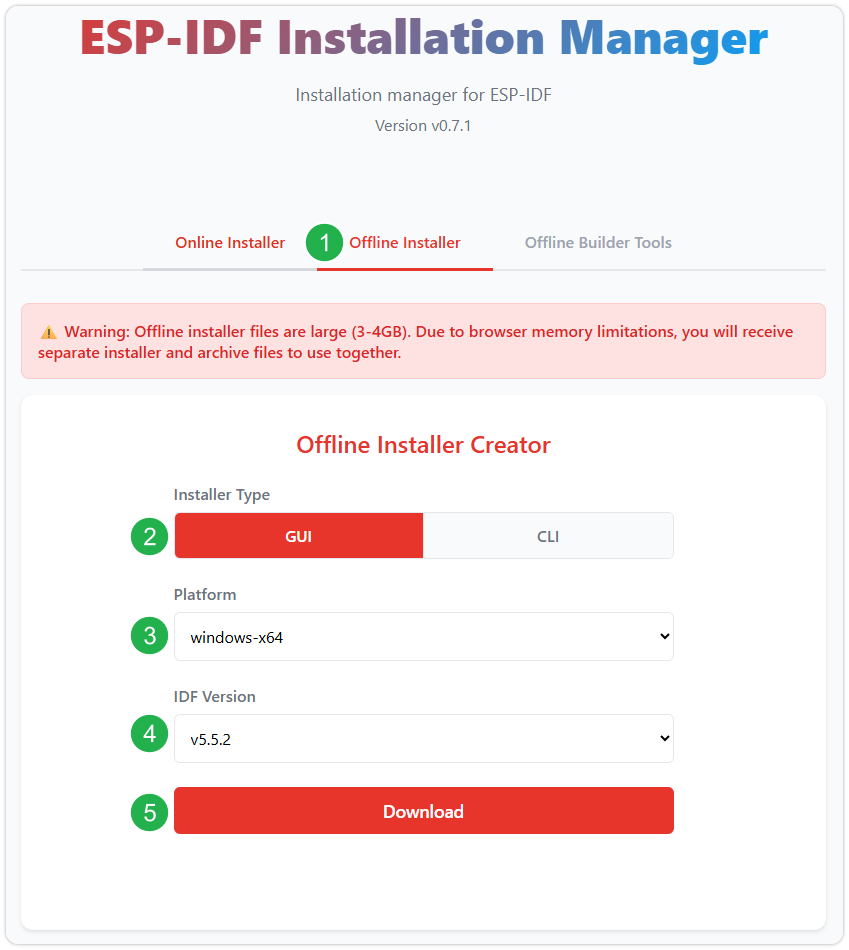
After confirming your selection, click the download button. The browser will automatically download two files: the ESP-IDF Offline Package (.zst) and the ESP-IDF Installer (.exe).
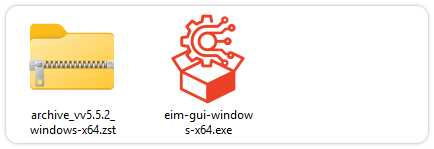
Please wait for both files to finish downloading.
-
Once the download is complete, double-click to run the ESP-IDF Installer (eim-gui-windows-x64.exe).
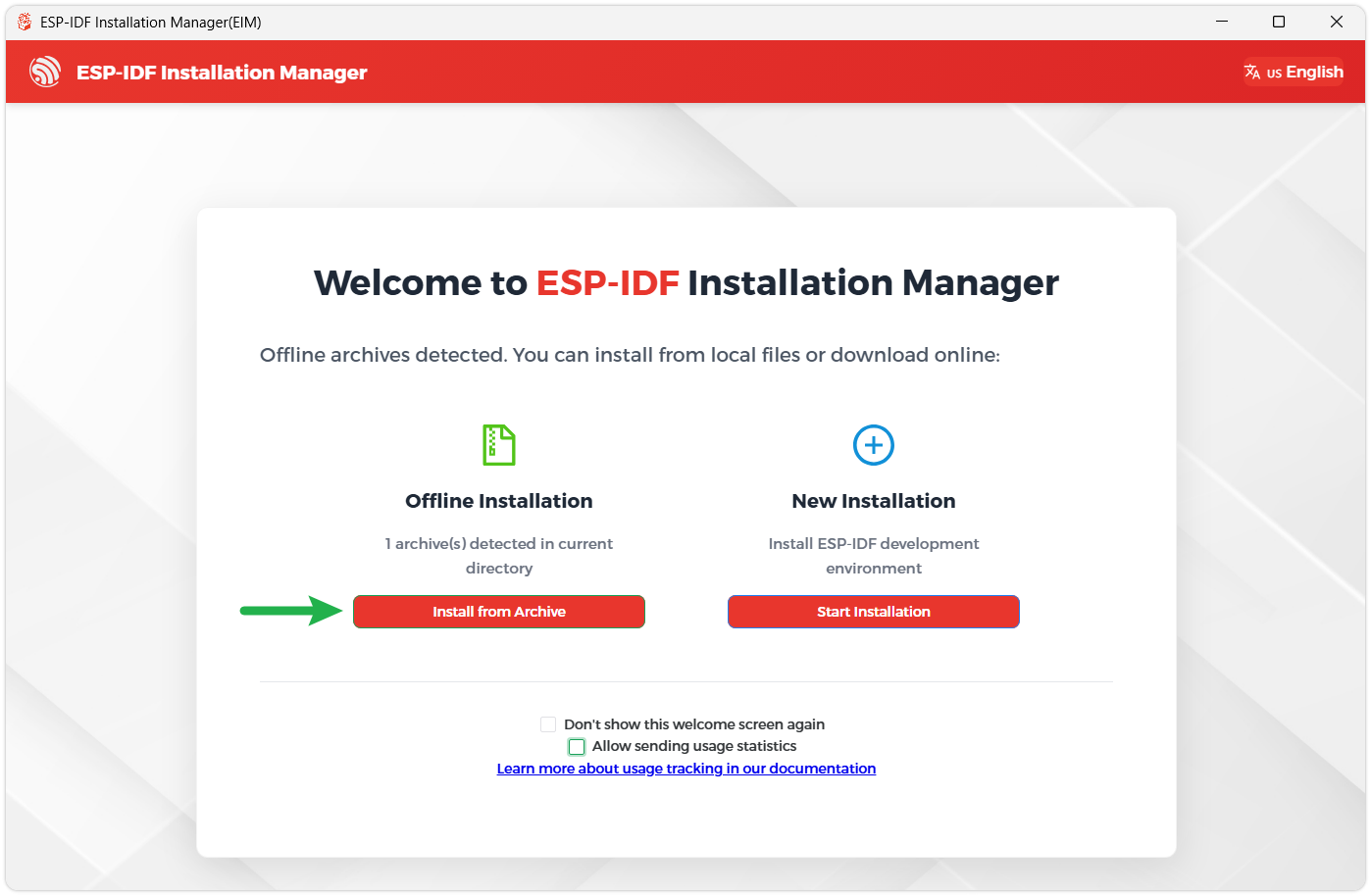
The installer will automatically detect if the offline package exists in the same directory. Click Install from archive.
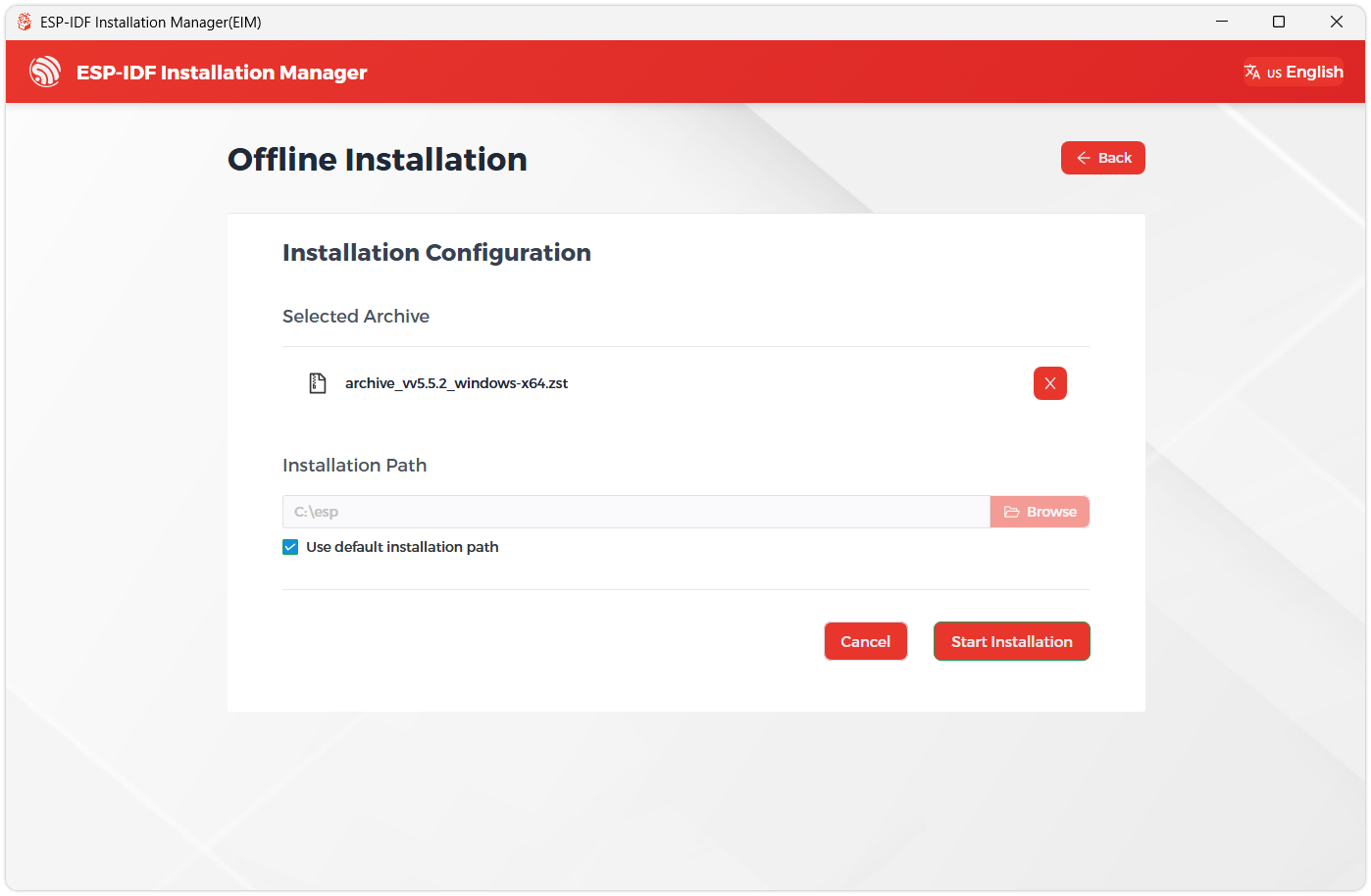
Next, select the installation path. We recommend using the default path. If you need to customize it, ensure the path does not contain Chinese characters or spaces. Click Start installation to proceed.
-
When you see the following screen, the ESP-IDF installation is successful.
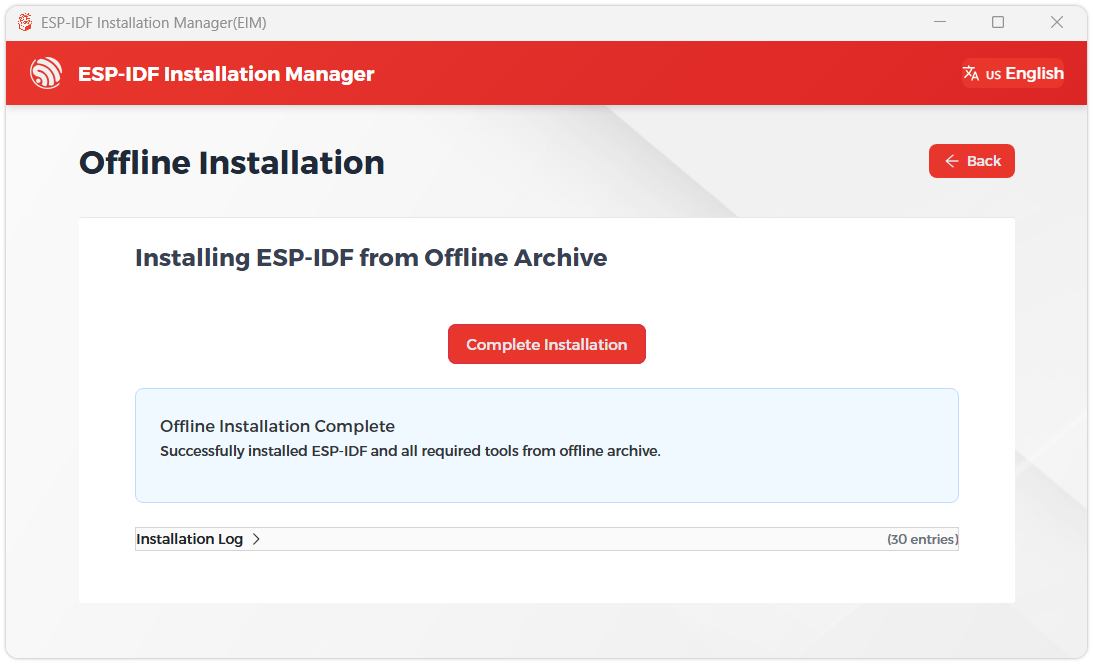
-
We recommend installing the drivers as well. Click Finish installation, then select Install driver.
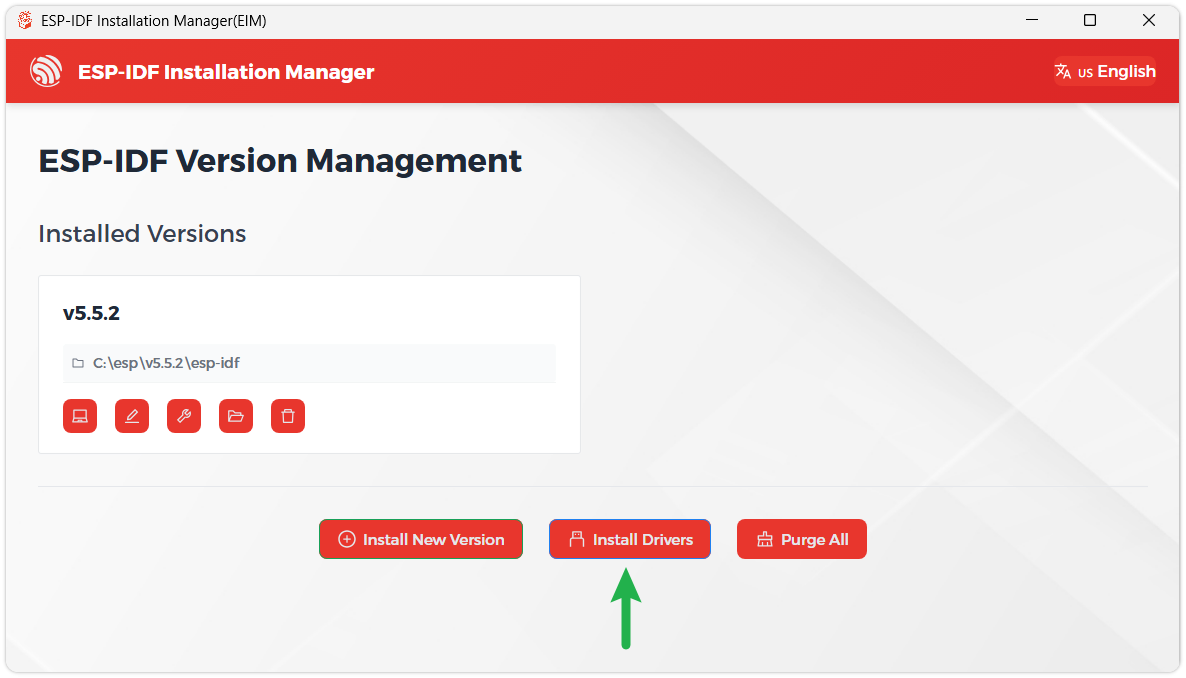
Install Visual Studio Code and the ESP-IDF Extension
-
Download and install Visual Studio Code.
-
During installation, it is recommended to check Add "Open with Code" action to Windows Explorer file context menu to facilitate opening project folders quickly.
-
In VS Code, click the Extensions icon
 in the Activity Bar on the side (or use the shortcut Ctrl + Shift + X) to open the Extensions view.
 -
Enter ESP-IDF in the search box, locate the ESP-IDF extension, and click Install.
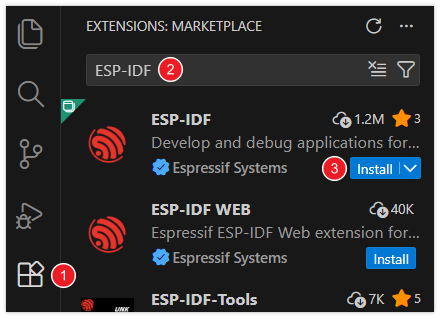
-
For ESP-IDF extension versions ≥ 2.0, the extension will automatically detect and recognize the ESP-IDF environment installed in the previous steps, requiring no manual configuration.
Example
Hello Word
Official example path: get-started -> hello_world
Example effect: Outputs "Hello world!" at 10-second intervals in the TERMINAL window.
Software Operations
-
Create the official hello_world example following the tutorial above.
-
The program is compatible with ESP32-C6 and can be used without modification.
-
Set the COM port and driver target (it is recommended to use the COM port corresponding to USB; you can check it in Device Manager), then click compile and flash to run the program.
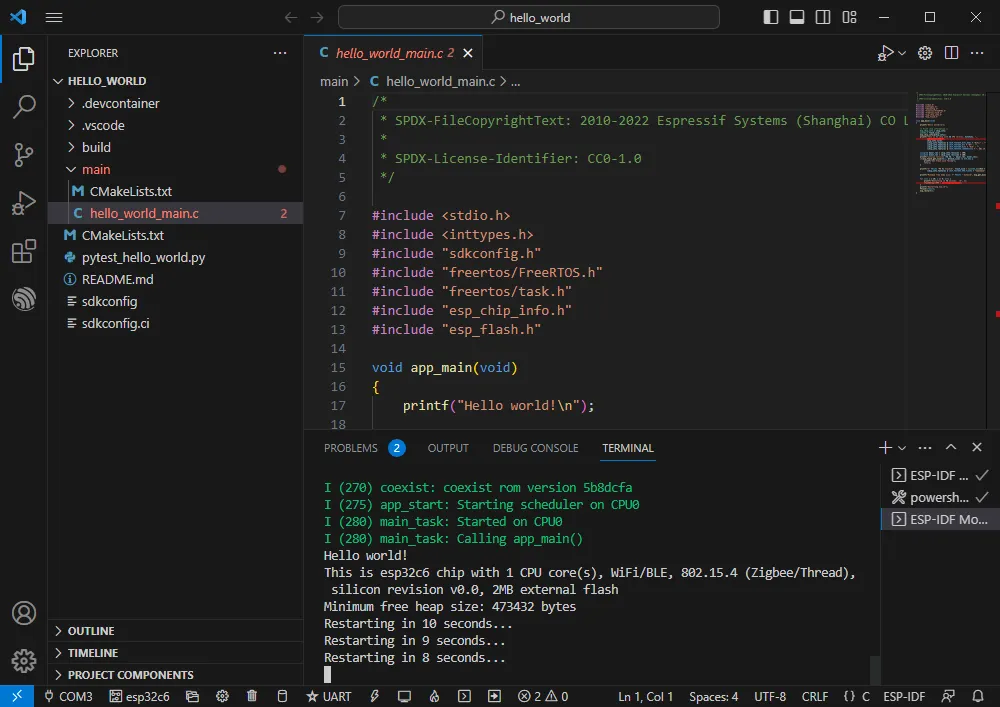
GPIO
Official example path: peripherals -> gpio -> generic_gpio
Example effect: LED blinks at 1-second intervals.
Hardware Connection
| ESP32-C6 | LED |
|---|---|
| GPIO18 (or GPIO19) | LED+ |
| GND | LED- |
Software Operations
-
Create the official generic_gpio example following the tutorial above.
-
The program is compatible with ESP32-C6 and can be used without modification.
-
Set the COM port and driver target (it is recommended to use the COM port corresponding to USB; you can check it in Device Manager), then click compile and flash to run the program.
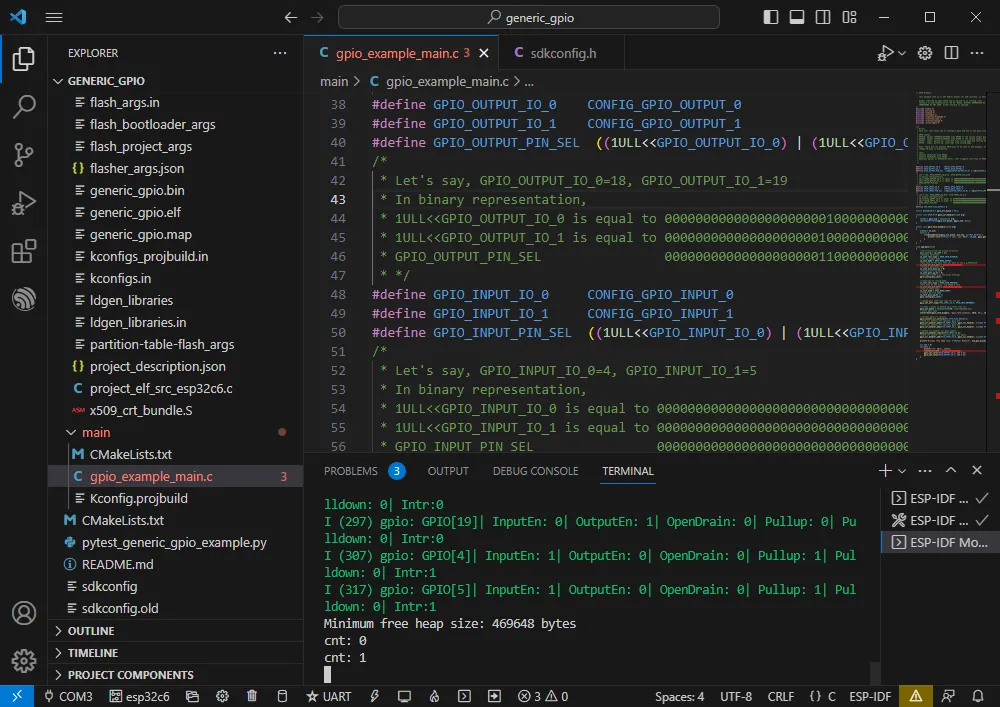
-
Go to the macro definition location in the program to see which GPIO is actually used.
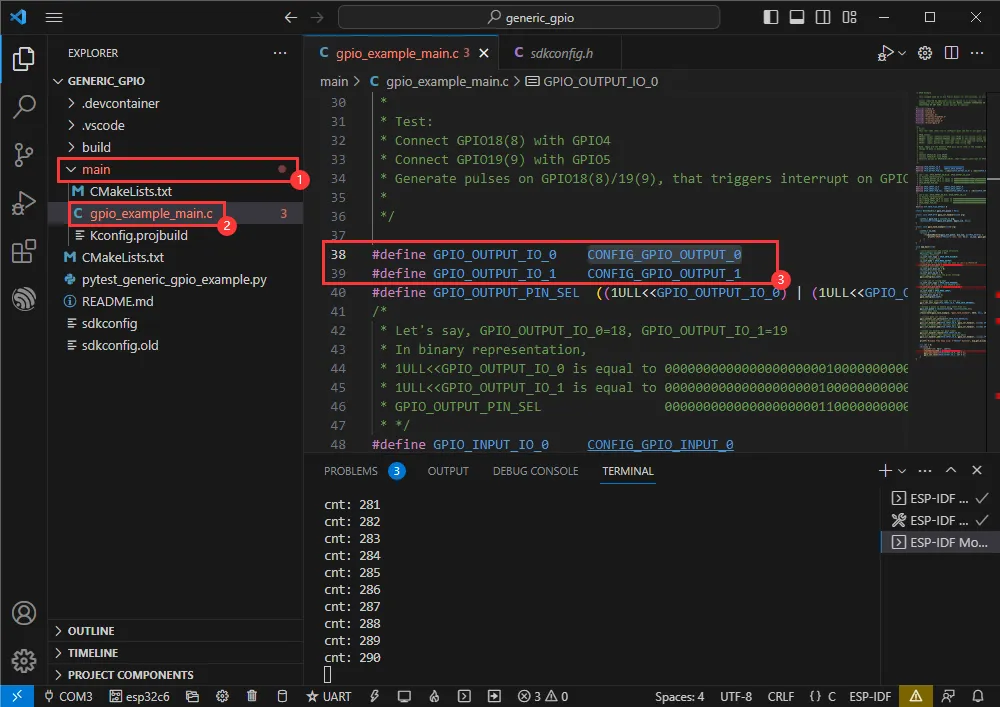
-
Right-click and go to the GPIO definition location.
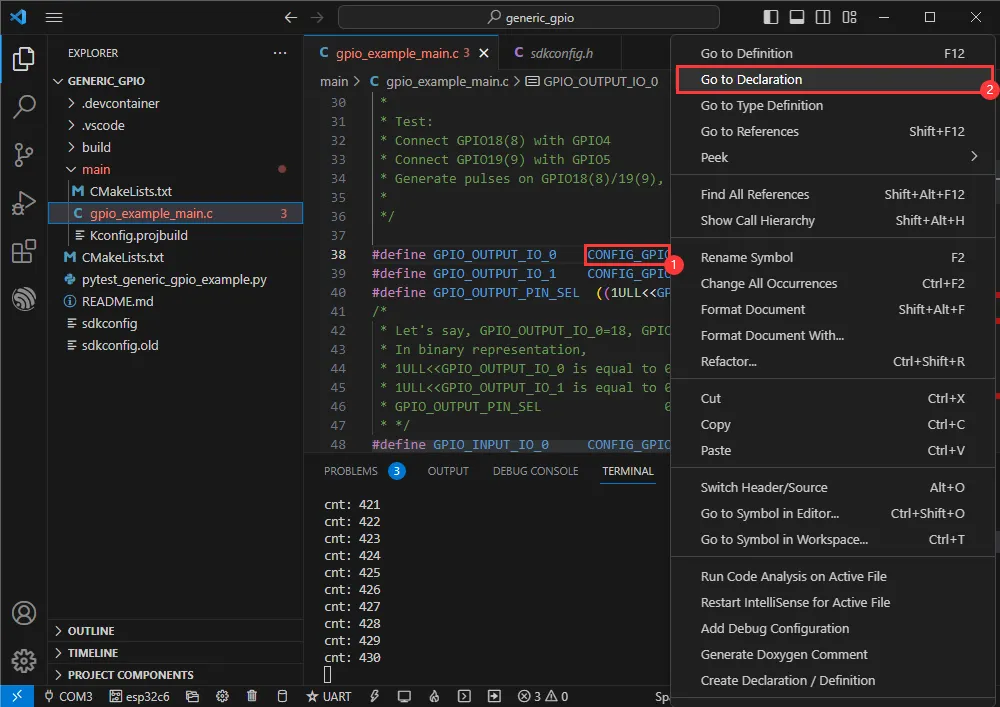
-
The actual GPIOs used are GPIO18 and GPIO19.
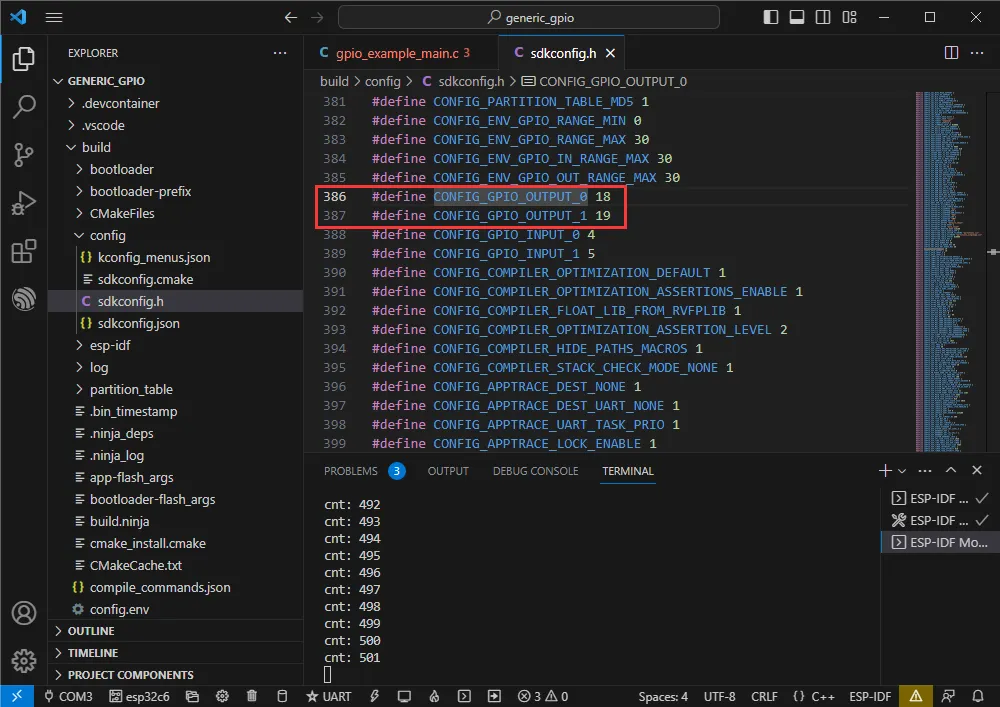
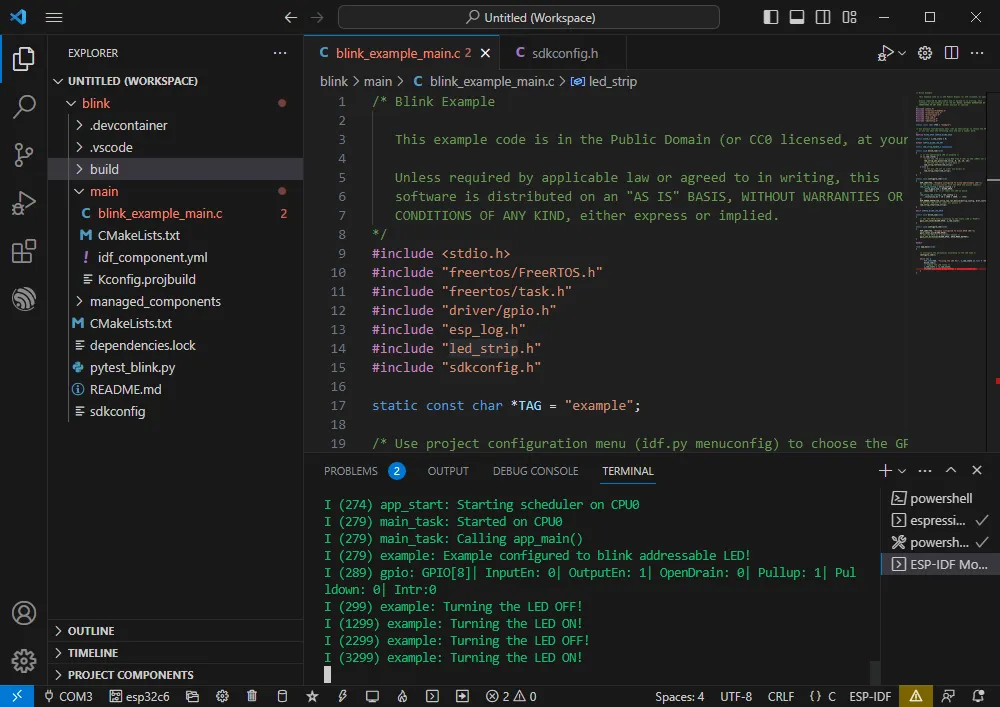
RGB
Official example path: get-started -> blink
Example effect: The onboard RGB LED blinks at 1-second intervals.
Software Operations
- Create the official blink example following the tutorial above.
- The program is compatible with ESP32-C6 and can be used without modification.
- Set the COM port and driver target (it is recommended to use the COM port corresponding to USB; you can check it in Device Manager), then click compile and flash to run the program.
UART
Official example path: peripherals -> uart -> uart_async_rxtxtasks
Example effect: Self-transmission and reception of UART data when GPIO4 and GPIO5 are shorted.
Hardware Connection
| ESP32-C6 | ESP32-C6 (Same Board) |
|---|---|
| GPIO4 | GPIO5 |
Software Operations
- Create the official uart_async_rxtxtasks example following the tutorial above.
- The program is compatible with ESP32-C6 and can be used without modification.
- Set the COM port and driver target (it is recommended to use the COM port corresponding to USB; you can check it in Device Manager), then click compile and flash to run the program.
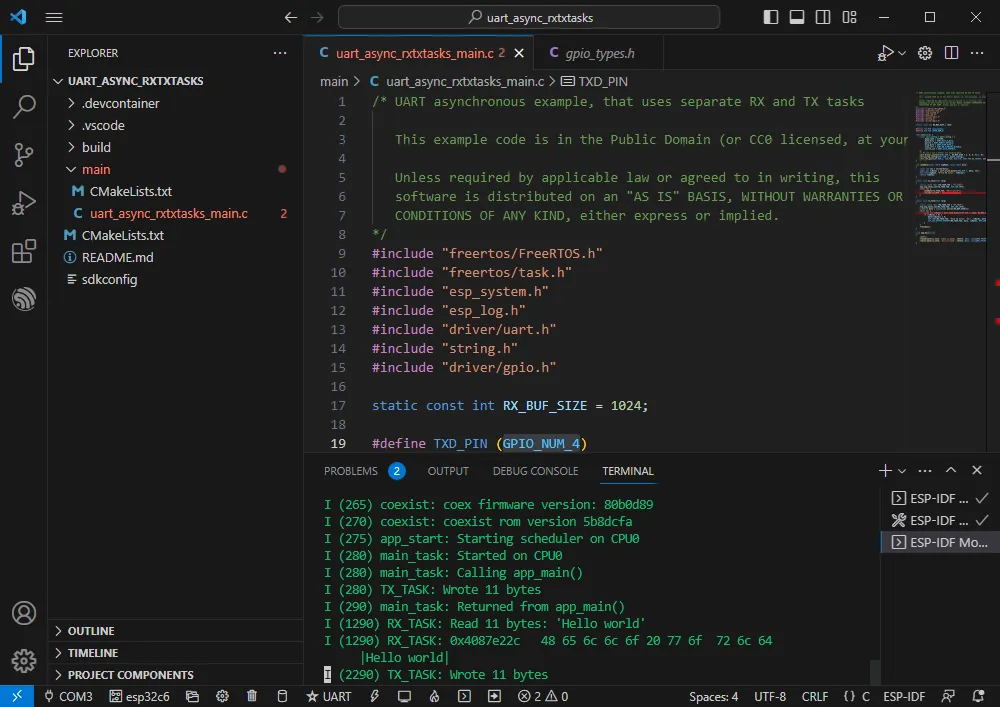
- Make the hardware connection according to the GPIOs used.
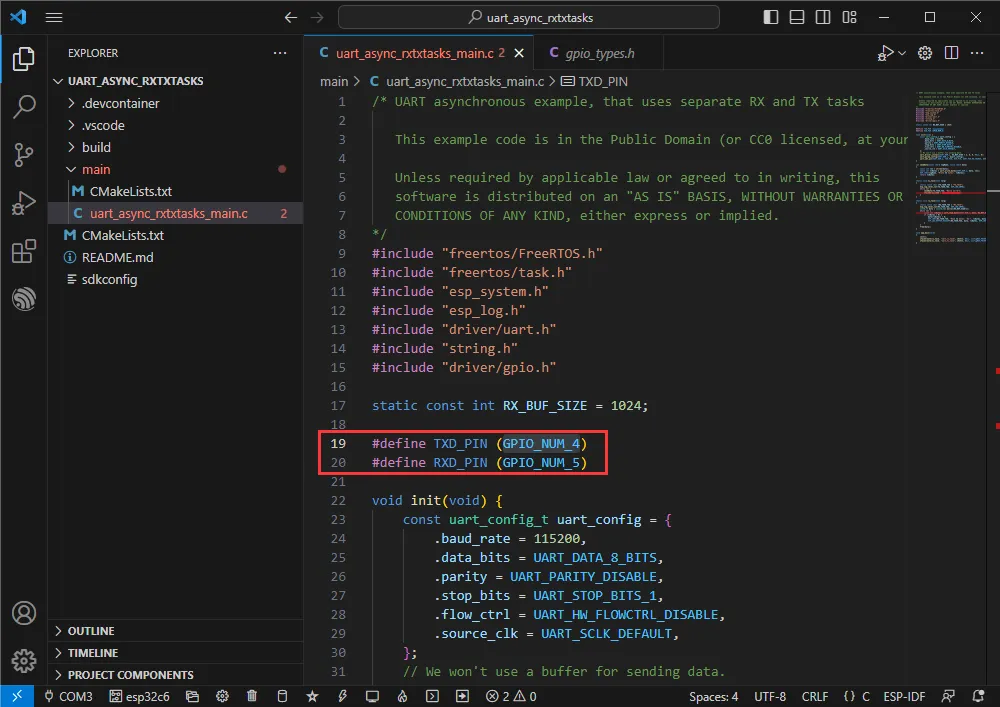
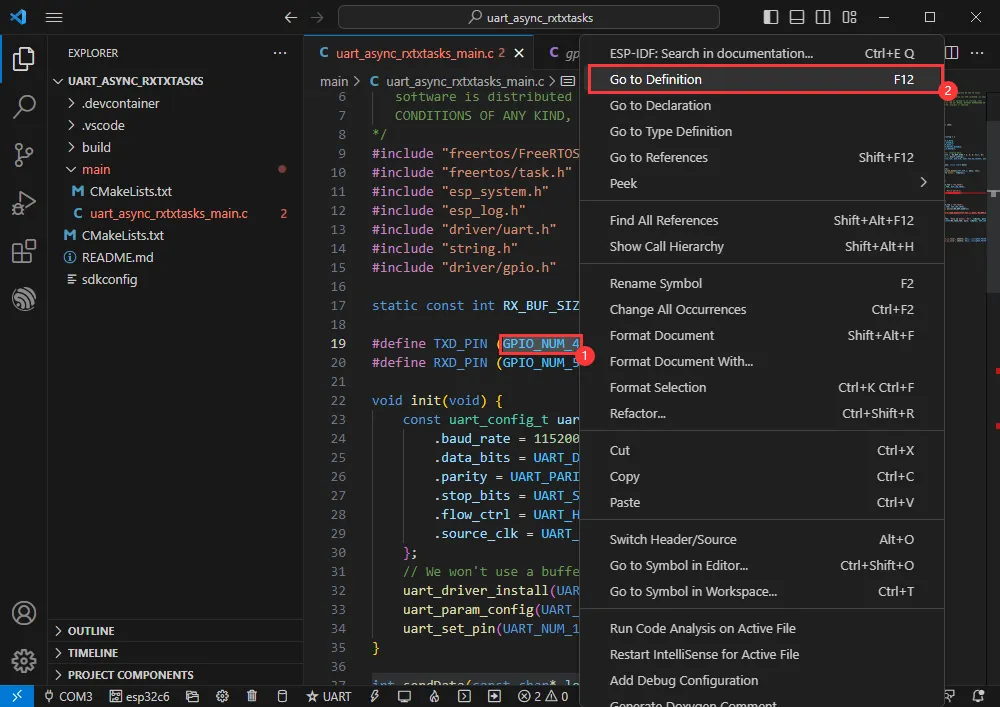
- You can go to the definition file to see the actual GPIOs used (select GPIO_NUM_4 -> right-click -> Go to Definition).
I2C
Official example path: peripherals -> lcd -> i2c_oled
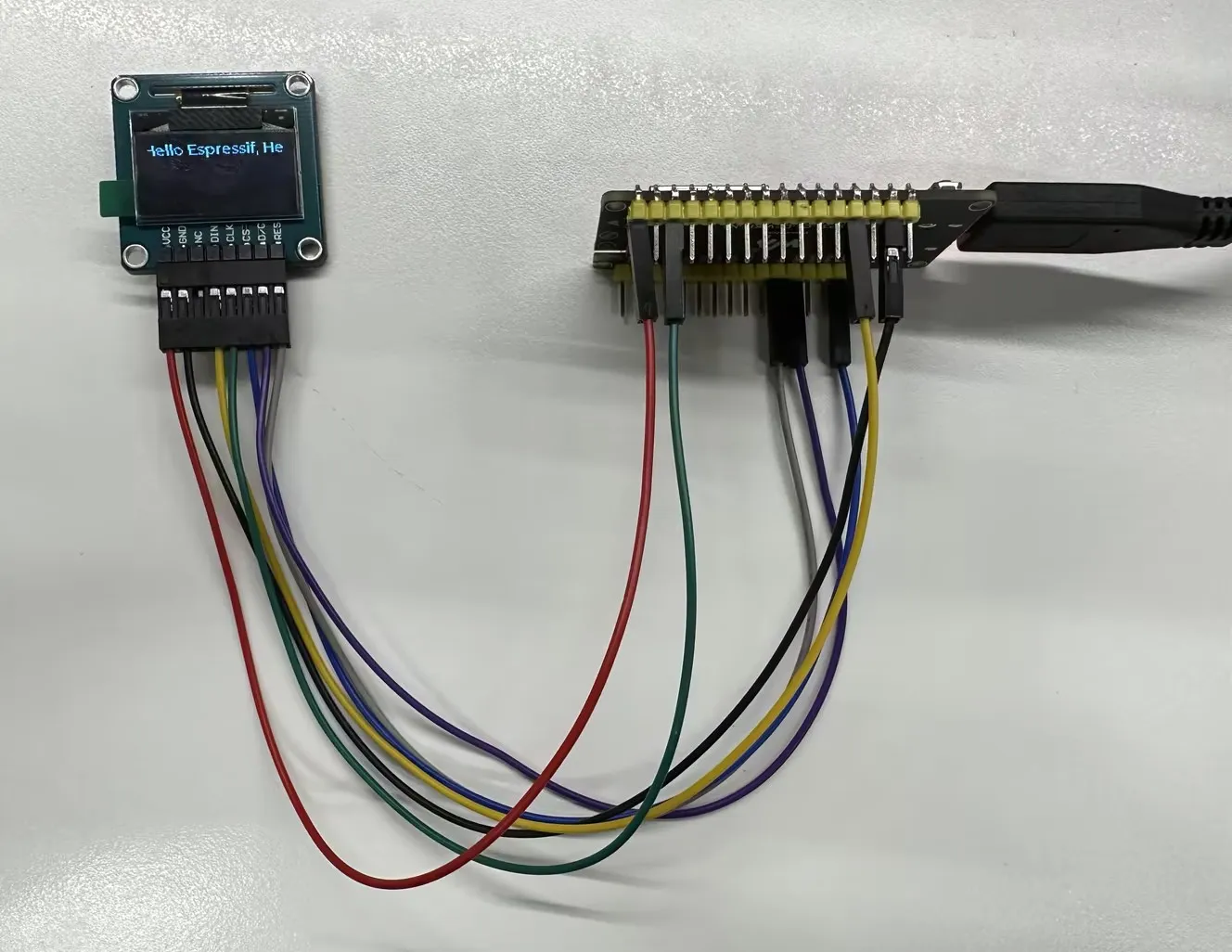
Example effect: Lights up a 0.96inch OLED (A) and displays a string of characters.
Hardware Connection
| 0.96inch OLED (A) | ESP32-C6 |
|---|---|
| VCC | 3V3 |
| GND | GND |
| DIN | GPIO3 |
| CLK | GPIO4 |
| CS | GND |
| D/C | GND |
| RES | GPIO9 |
Software Operations
- Create the official i2c_oled example following the tutorial above.
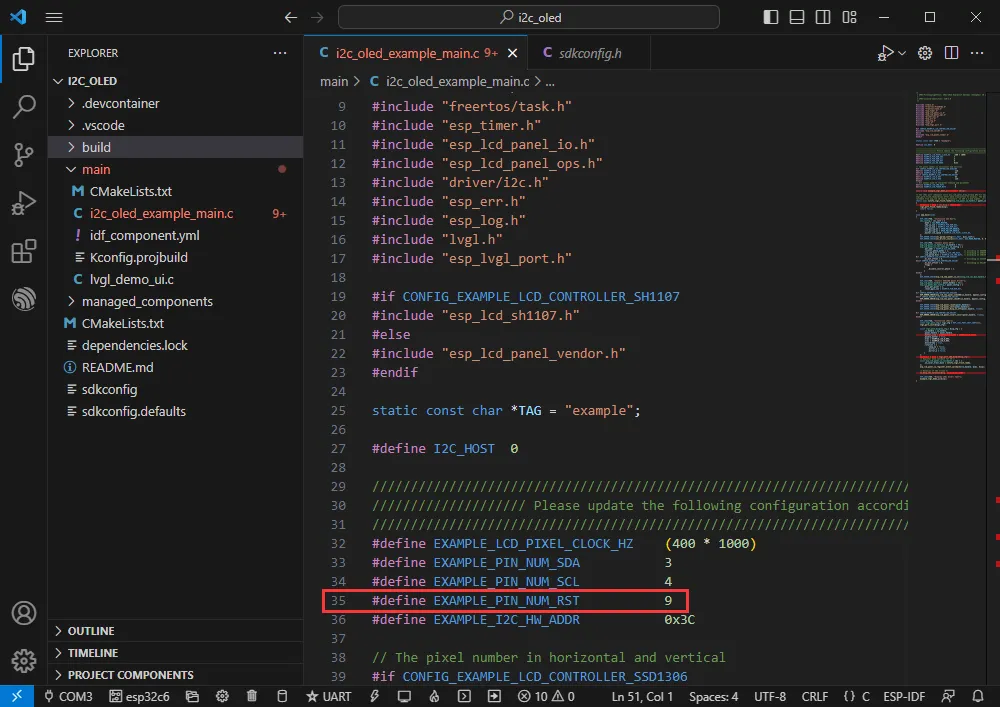
- Modify the program to make it compatible with the 0.96inch OLED (A).
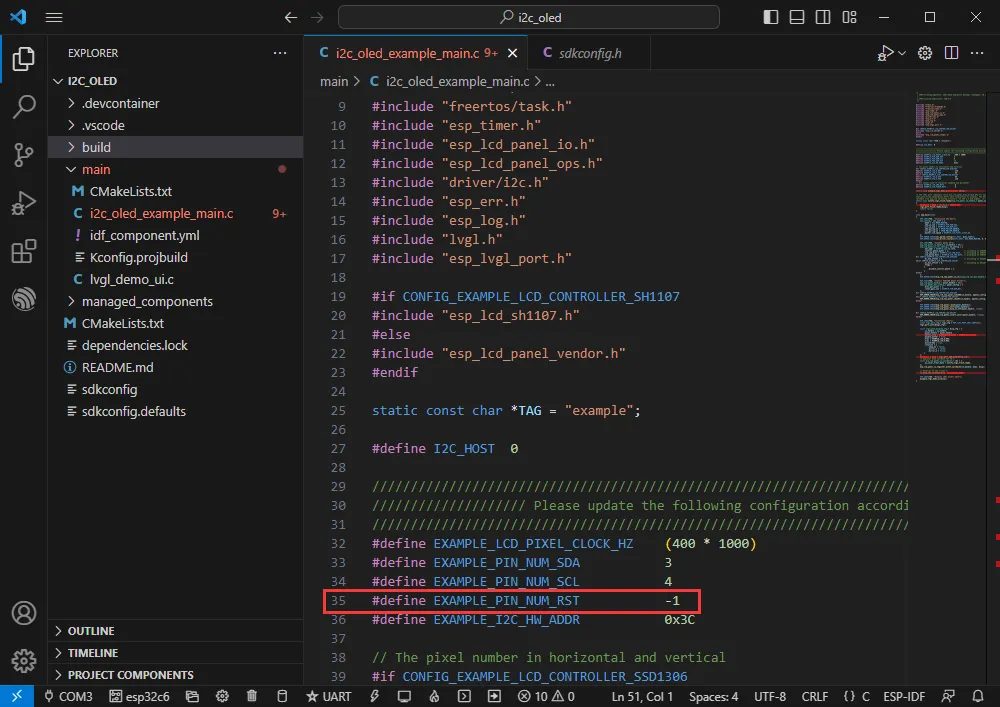
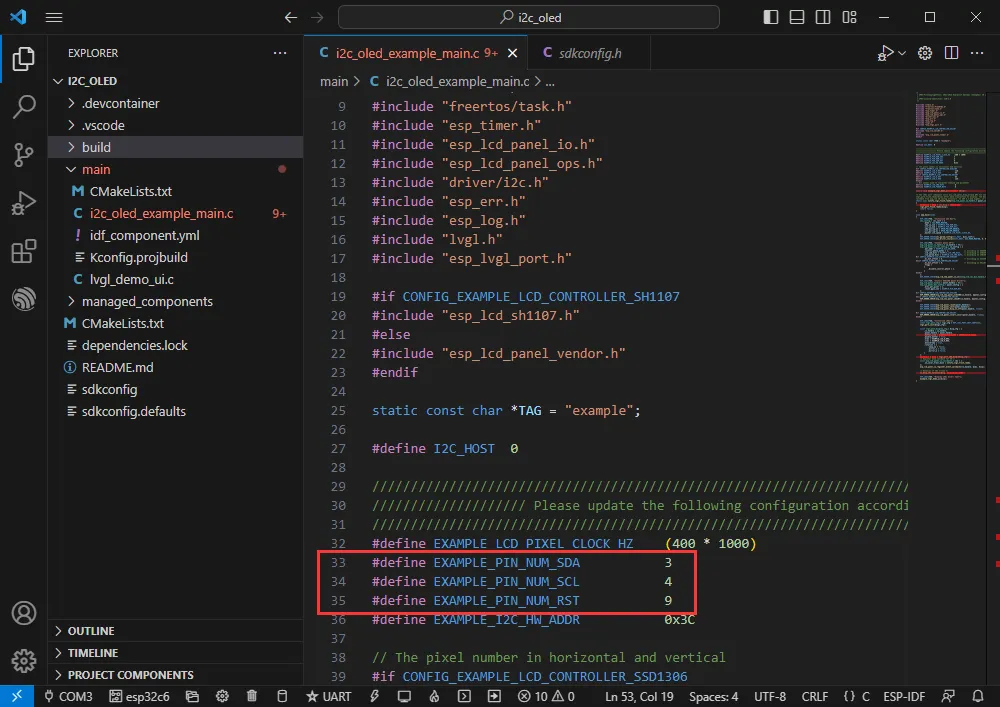
- Adapt for the 0.96inch OLED (A); define the RES pin as GPIO9.
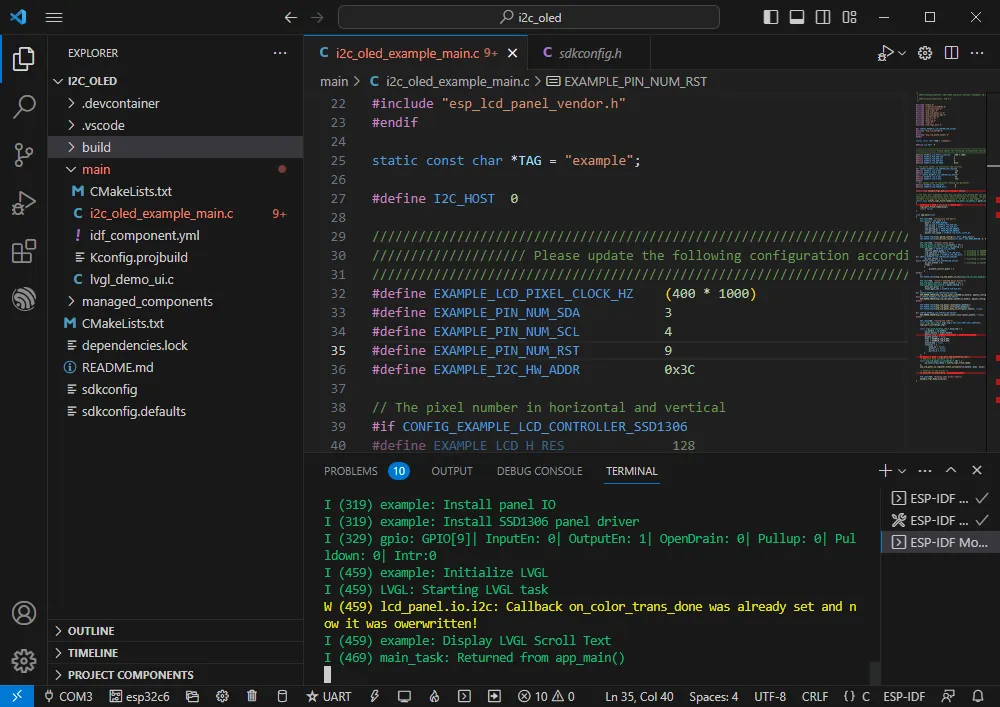
- Set the COM port and driver target (it is recommended to use the COM port corresponding to USB; you can check it in Device Manager), then click compile and flash to run the program.
- The effect is as follows:
- You can check the actual GPIOs used.
SPI
Official example path: peripherals -> spi_master -> lcd
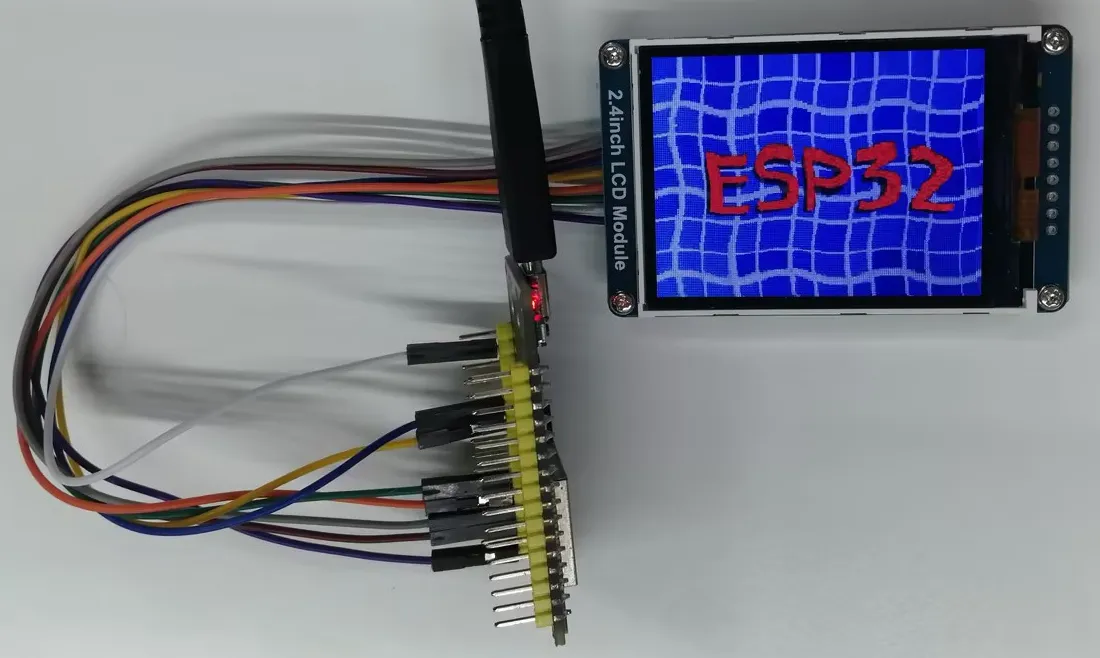
Example effect: Dynamically displays images on a 2.4inch LCD Module.
Hardware Connection
| 2.4inch LCD Module | ESP32-C6 |
|---|---|
| VCC | 3V3 |
| GND | GND |
| DIN | GPIO7 |
| CLK | GPIO6 |
| CS | GPIO10 |
| D/C | GPIO11 |
| RES | GPIO4 |
| BL | GPIO5 |
Software Operations
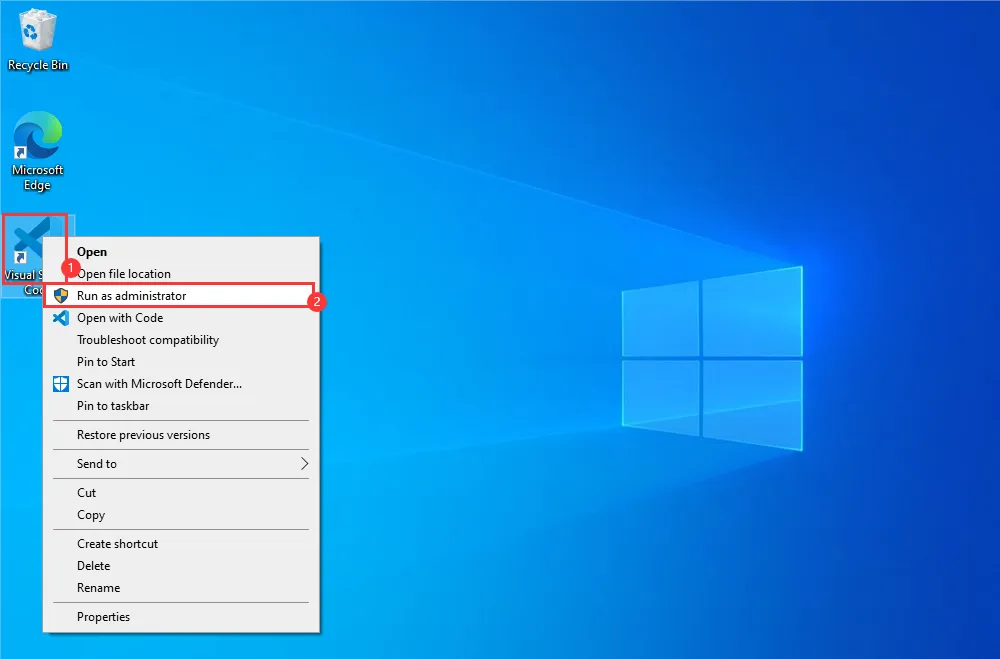
- Right-click the VS Code icon and run VS Code as administrator.
- Create the official lcd example following the tutorial above.
- Modify the program to make it compatible with the 2.4inch LCD Module.
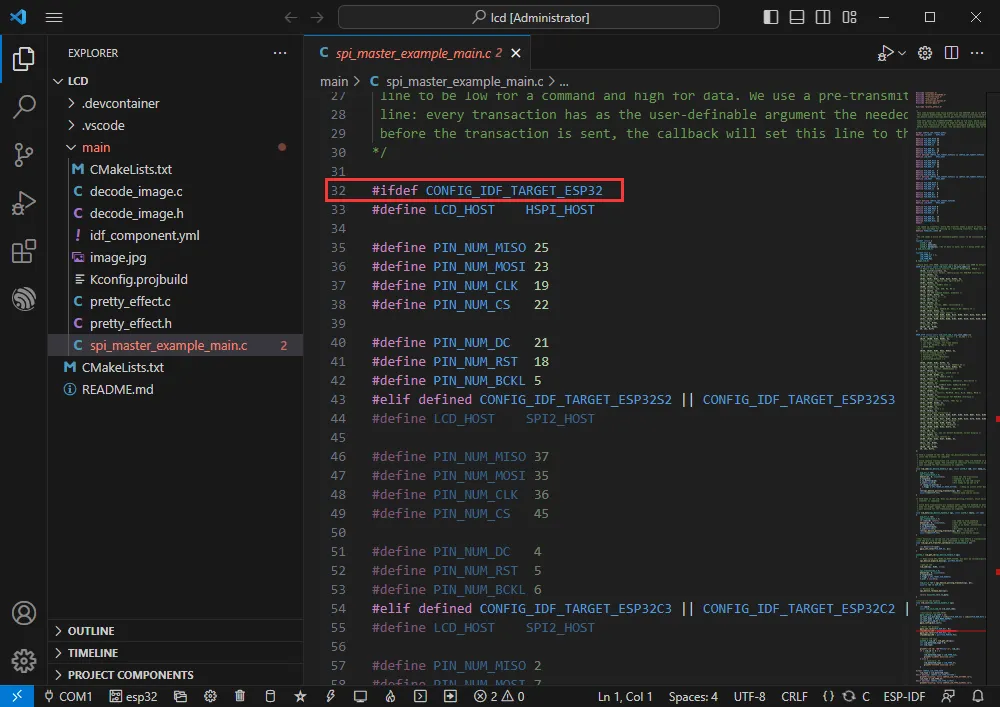
- Jump to the definition location.
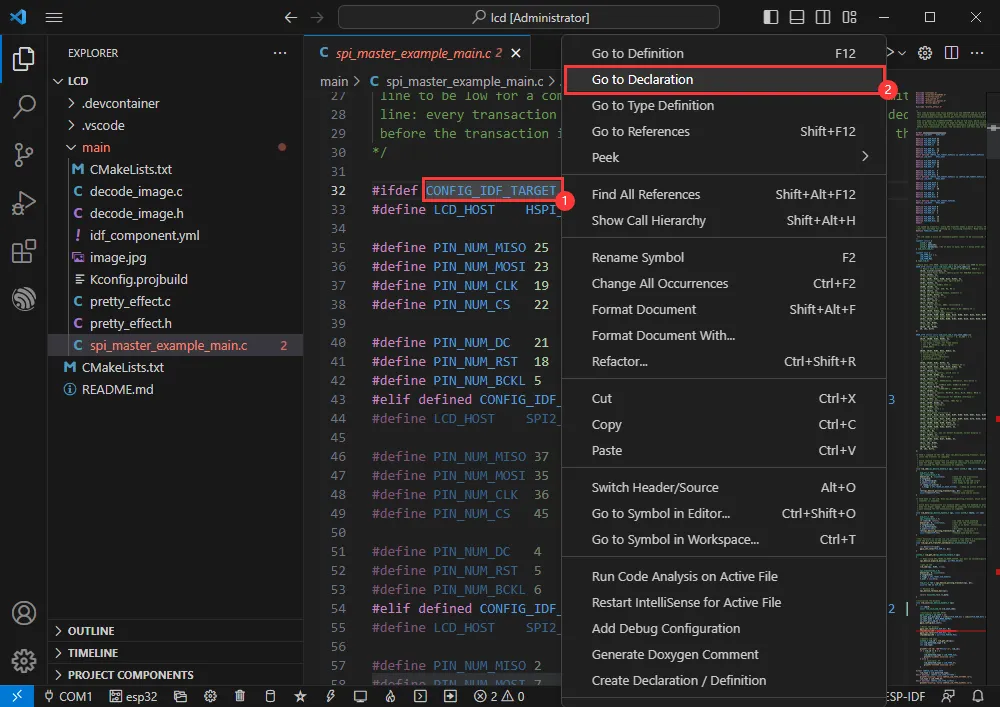
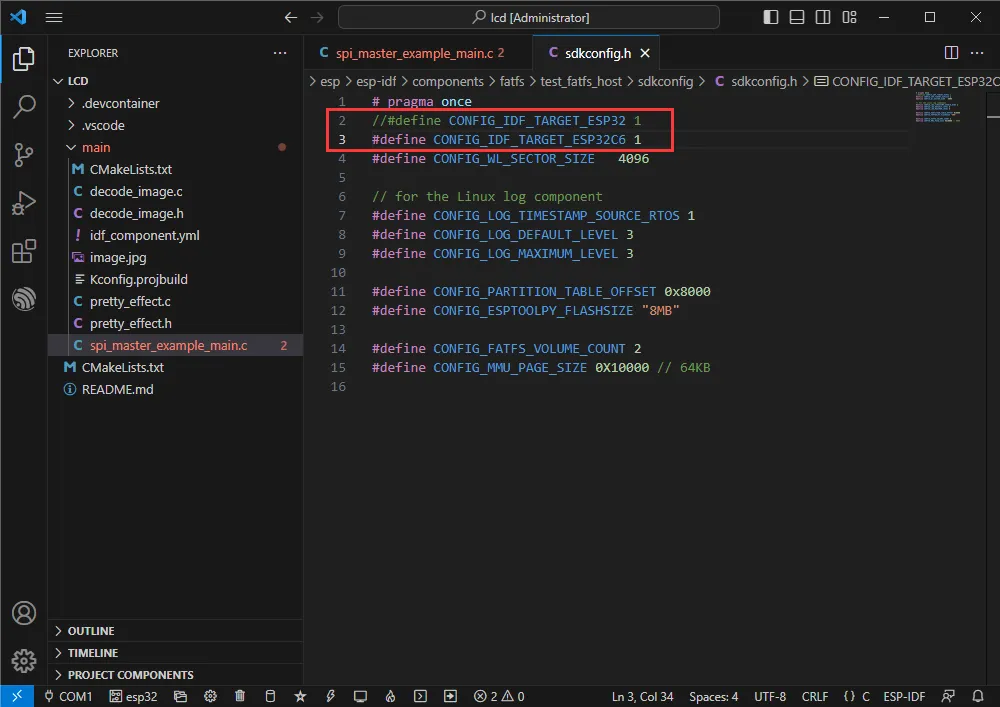
- The current target is ESP32-C6; comment out definitions for other chips.
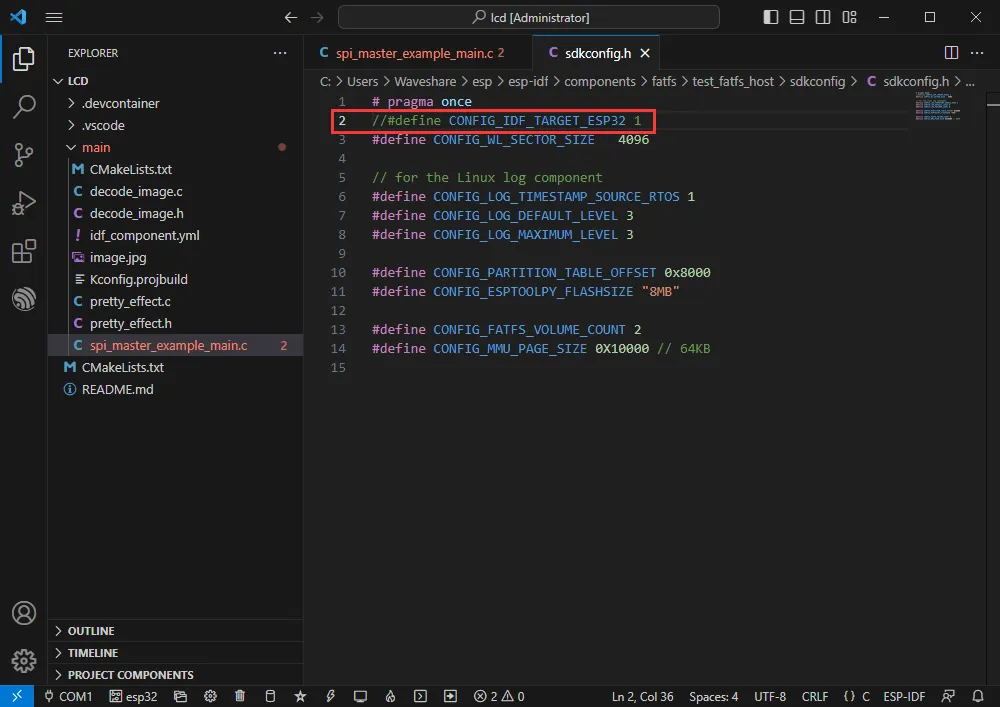
- And define CONFIG_IDF_TARGET_ESP32C6 for ESP32-C6.
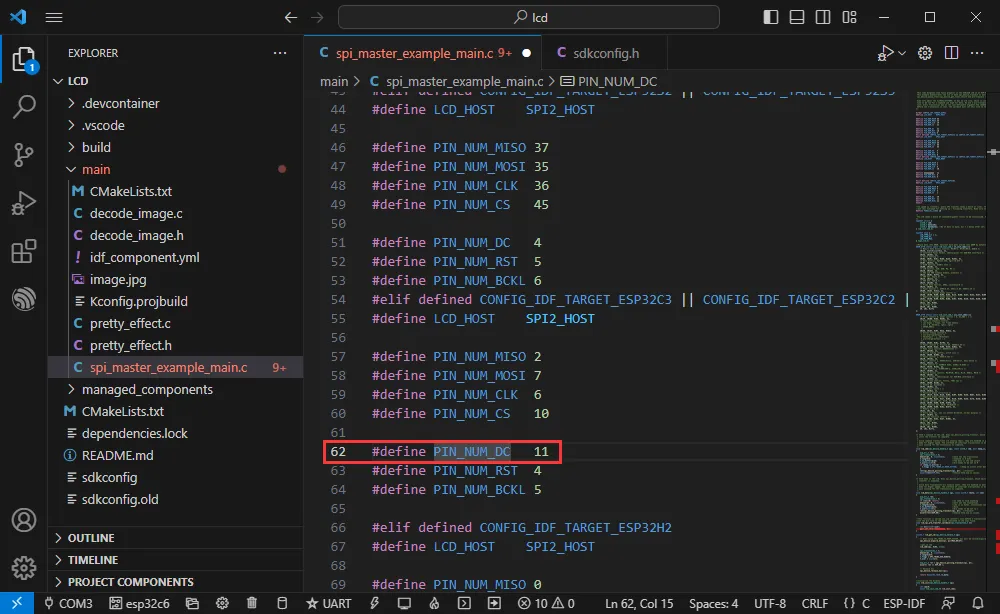
- Modify the D/C pin.
- Go to line 62 of spi_master_example_main.c.
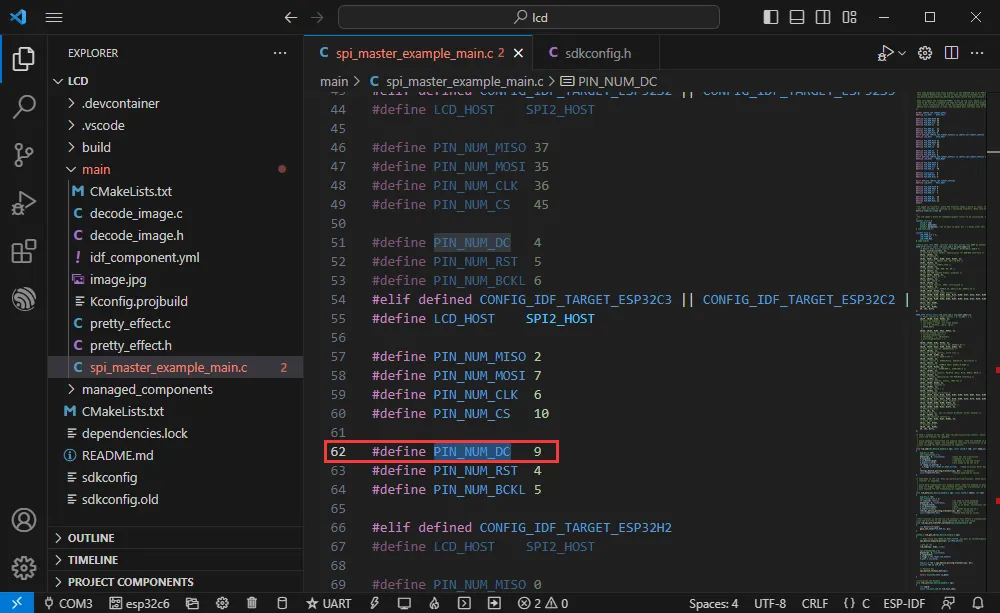
- Change the D/C pin to avoid the download circuit (change from GPIO9 to GPIO11).
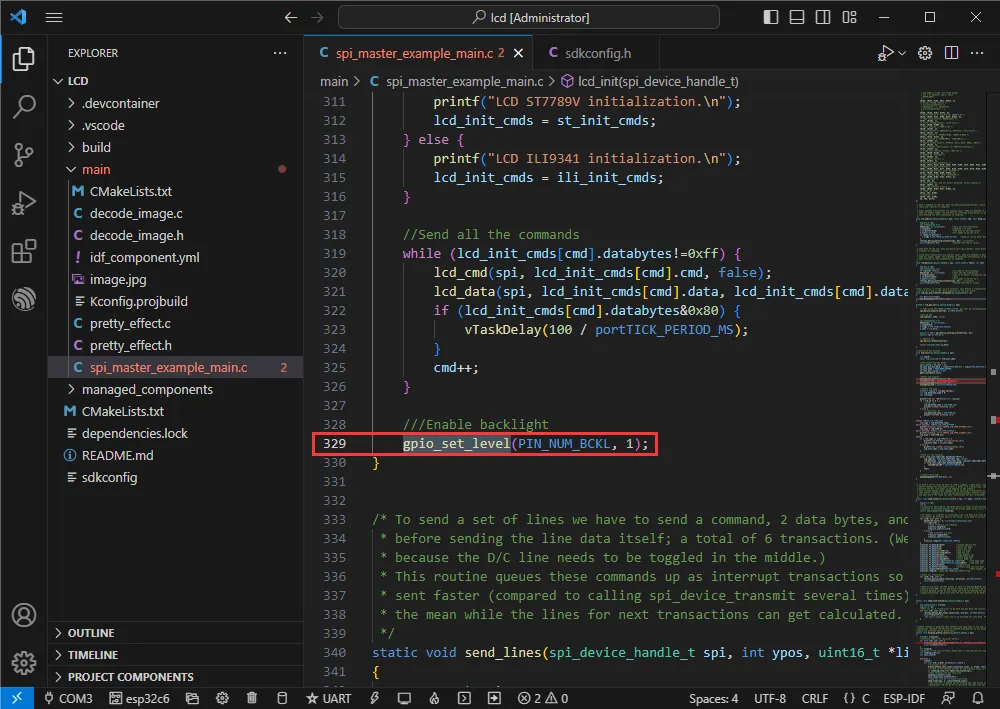
- Modify the backlight control.
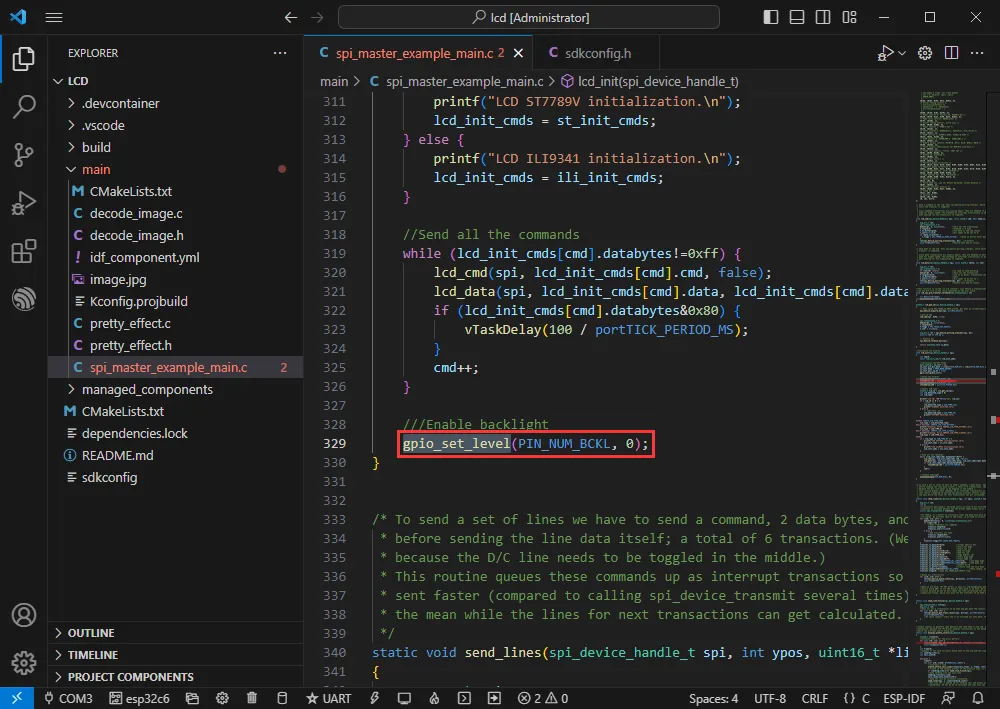
- Change to gpio_set_level(PIN_NUM_BCKL, 1);.
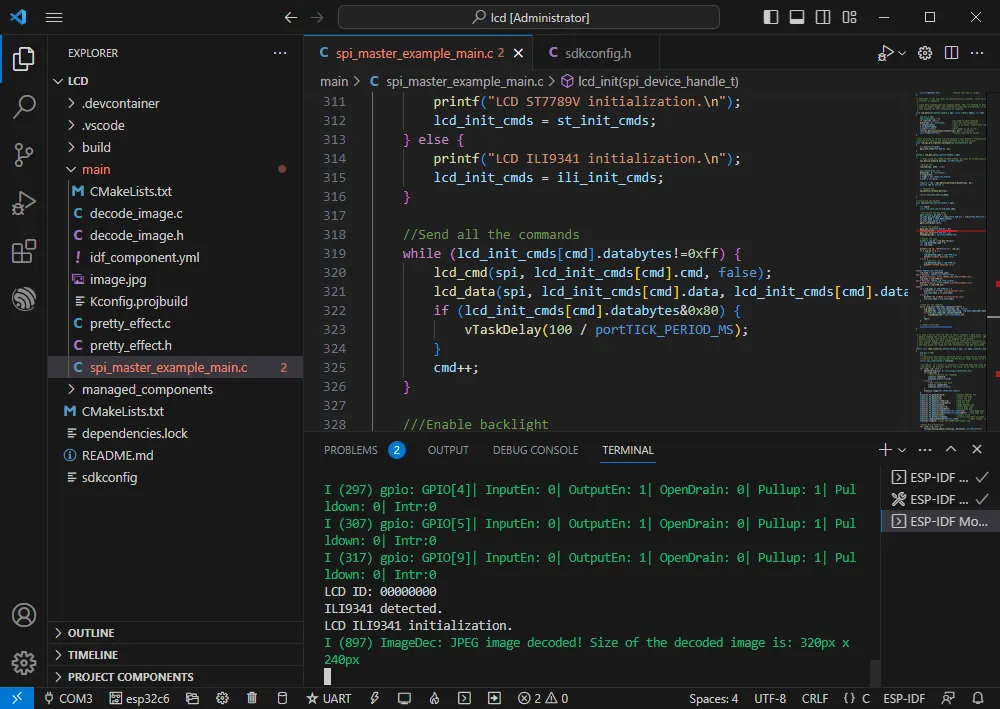
- Set the COM port and driver target (it is recommended to use the COM port corresponding to USB; you can check it in Device Manager), then click compile and flash to run the program.
- The effect is as follows:
Bluetooth
Official example path: bluetooth -> ble -> gatt_server
Example effect: Data transmission between the ESP32-C6 and a Bluetooth debugging assistant on a mobile phone.
Software Operations
- Install the Bluetooth Debug Assistant on your phone.
- Create the official gatt_server example following the tutorial above.
- The program is compatible with ESP32-C6 and can be used without modification.
- The Bluetooth name and UUID: the Bluetooth name is ESP_GATTS_DEMO.
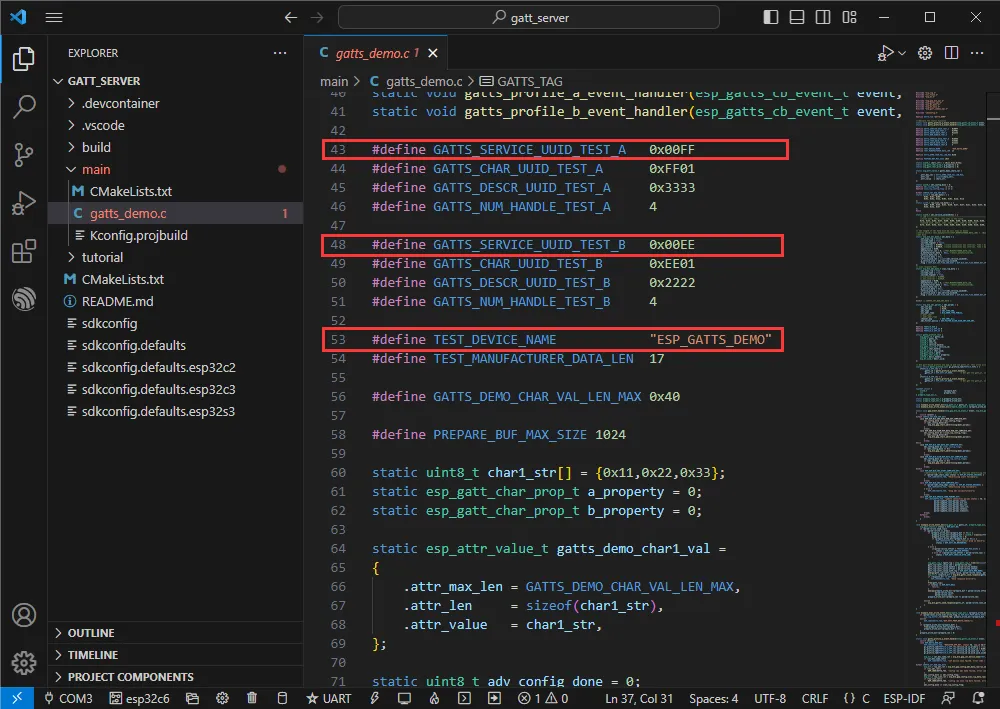
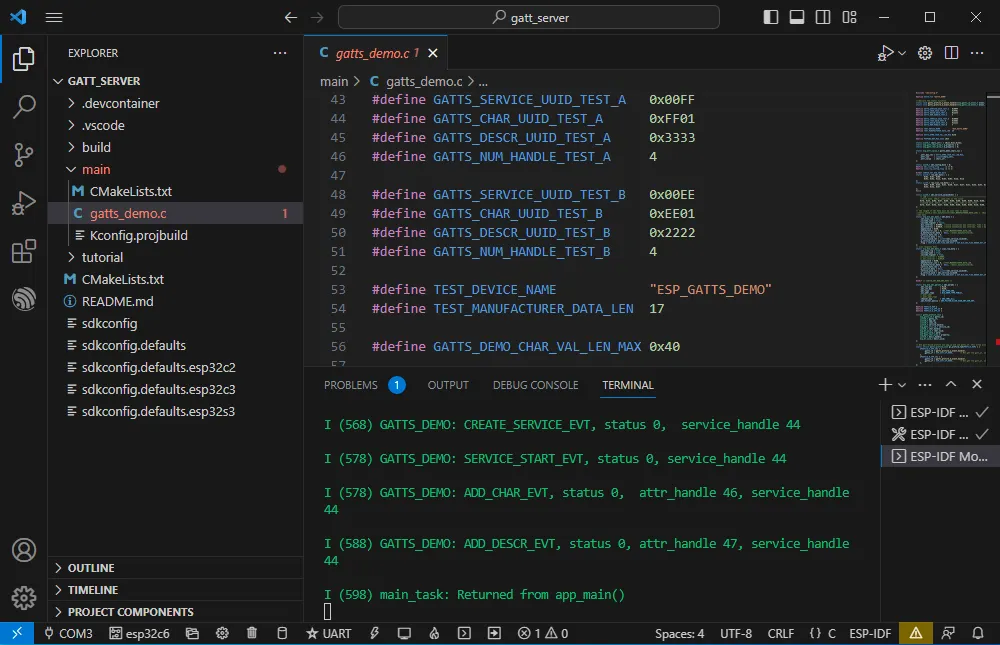
- Set the COM port and driver target (it is recommended to use the COM port corresponding to USB; you can check it in Device Manager), then click compile and flash to run the program.
- Connect to the ESP_GATTS_DEMO Bluetooth device on your phone.
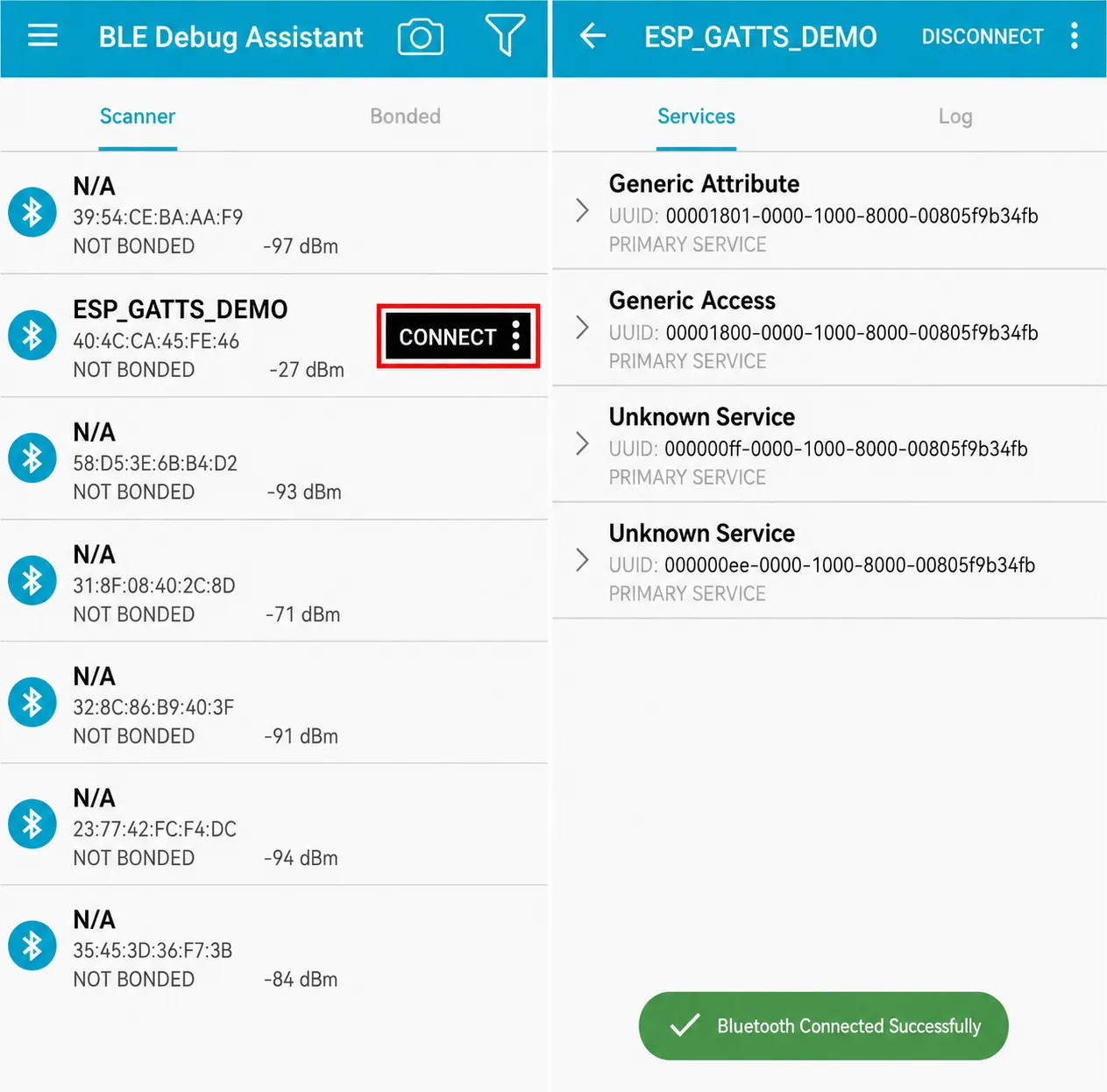
- Successful connection appears as shown below.
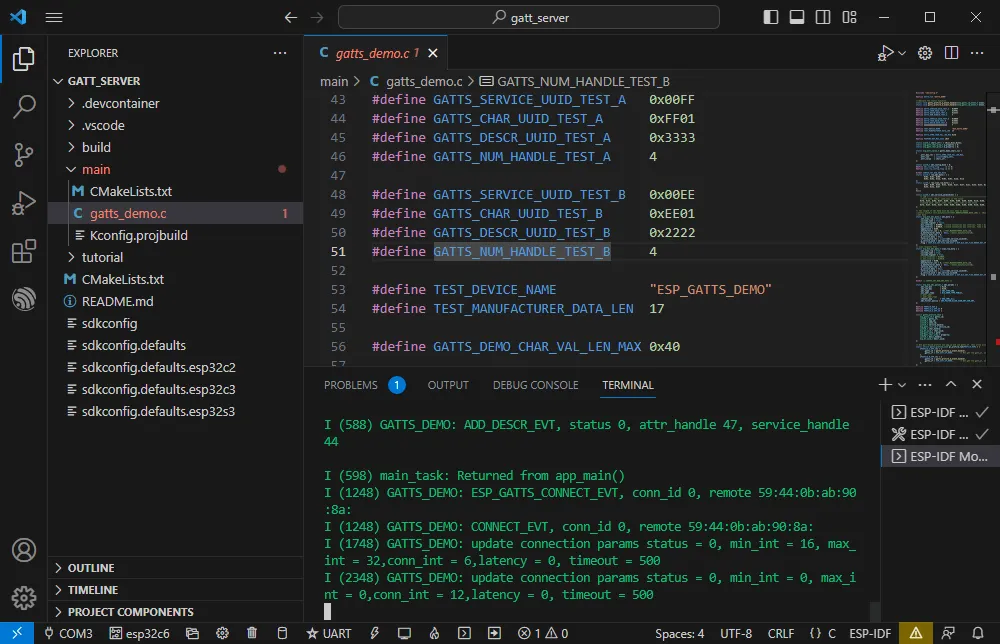
- According to the UUID values in the program, the two servers below are available; choose one for uplink transmission.
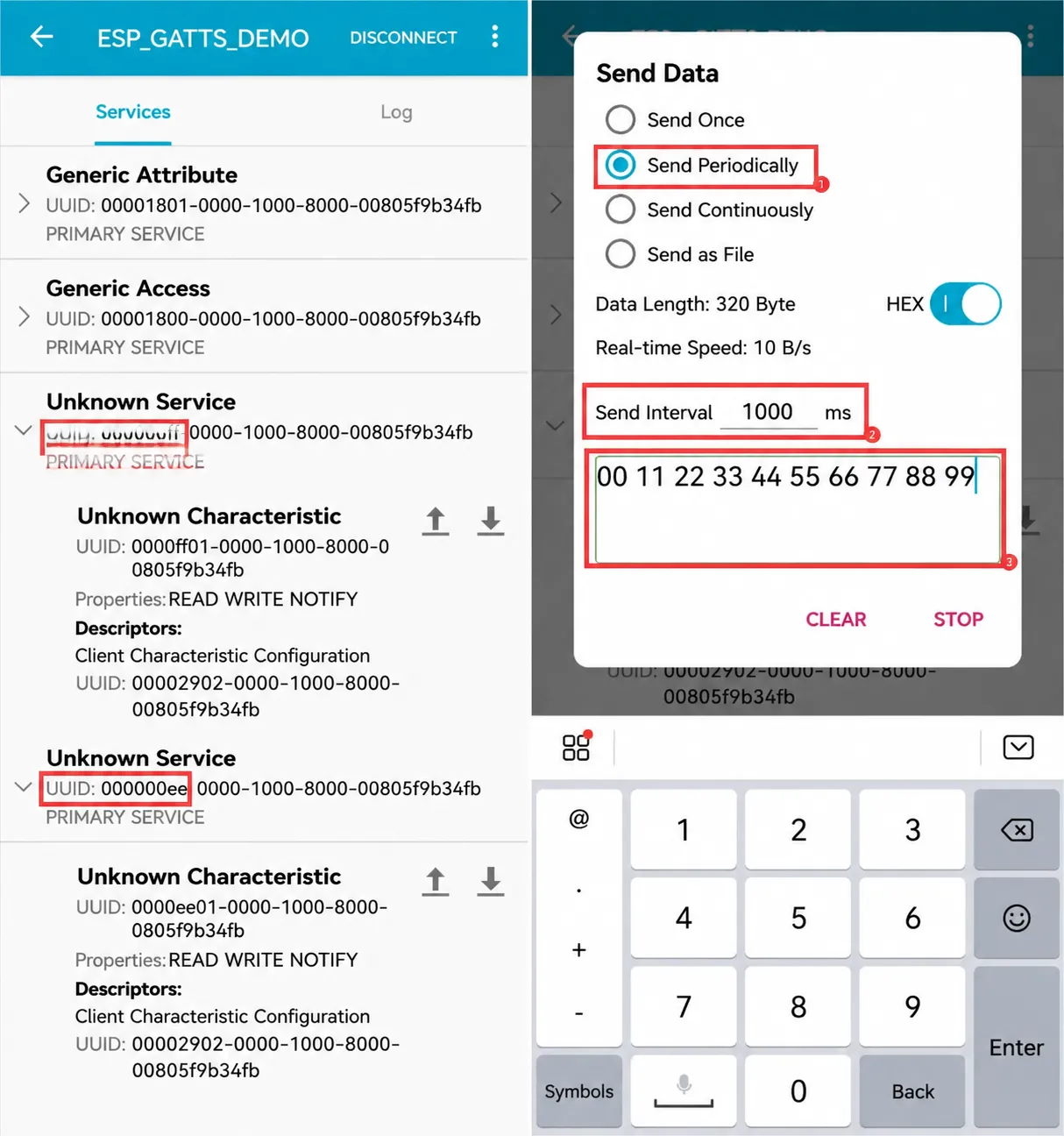
- The ESP32-C6 receives the data.
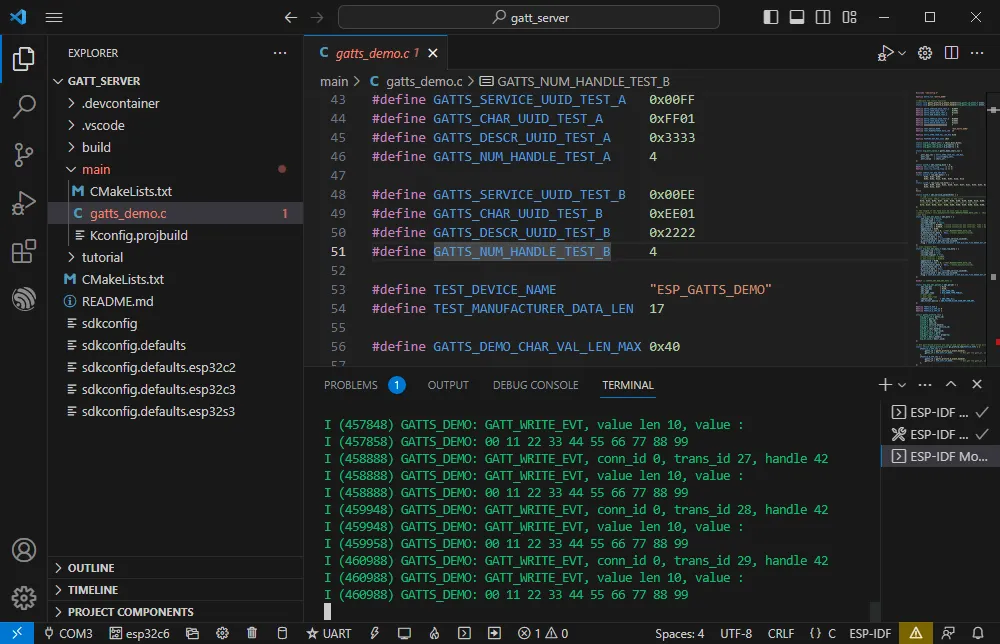
WIFI
Official example path: wifi -> getting_started -> station
Example effect: ESP32-C6 connects to a Wi-Fi network.
Software Operations
- Create the official station example following the tutorial above.
- Modify the program to connect to the desired Wi-Fi.
- Open the Kconfig.projbuild file.
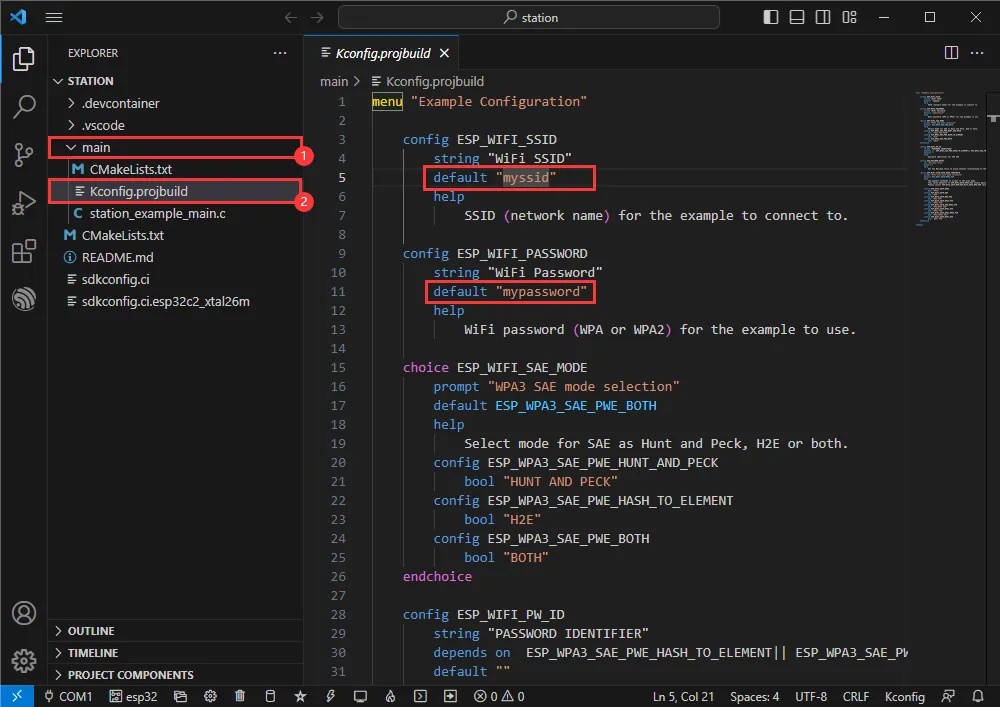
- Change the WiFi SSID and WiFi Password to the Wi-Fi credentials you want to connect to.
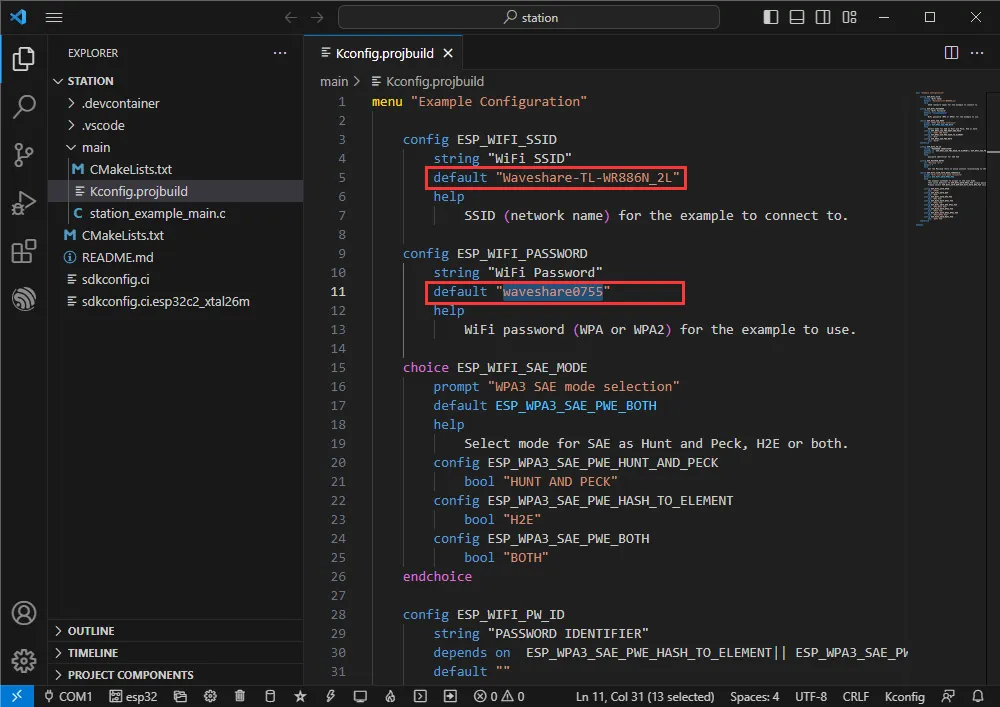
- Set the COM port and driver target (it is recommended to use the COM port corresponding to USB; you can check it in Device Manager), then click compile and flash to run the program.
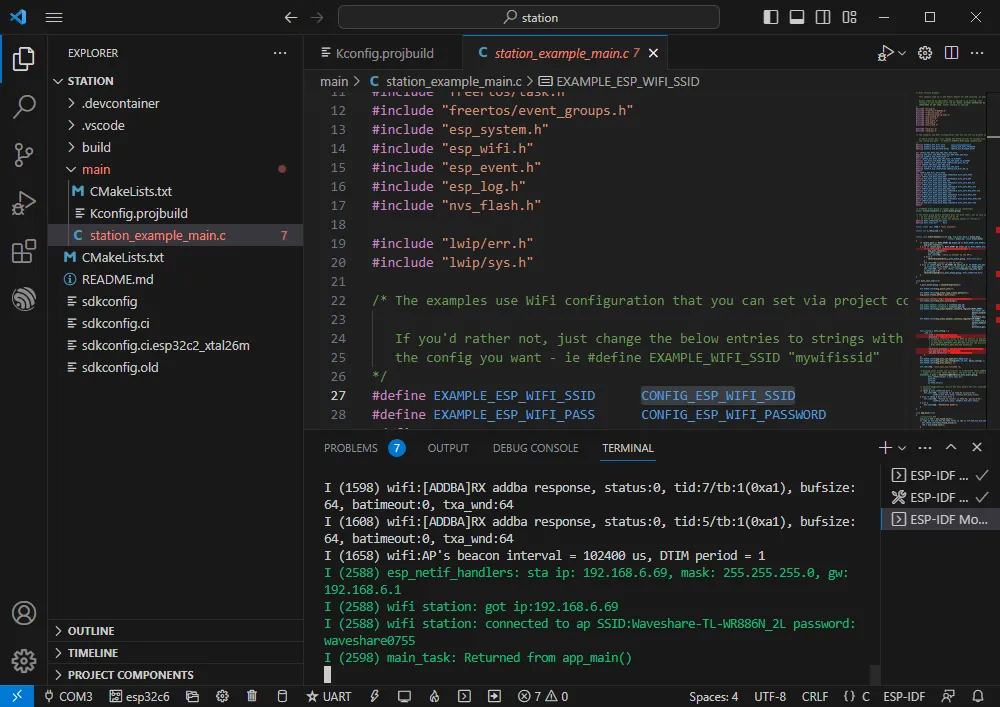
- You can check the value of CONFIG_ESP_WIFI_SSID.
- Open the station_example_main.c file.
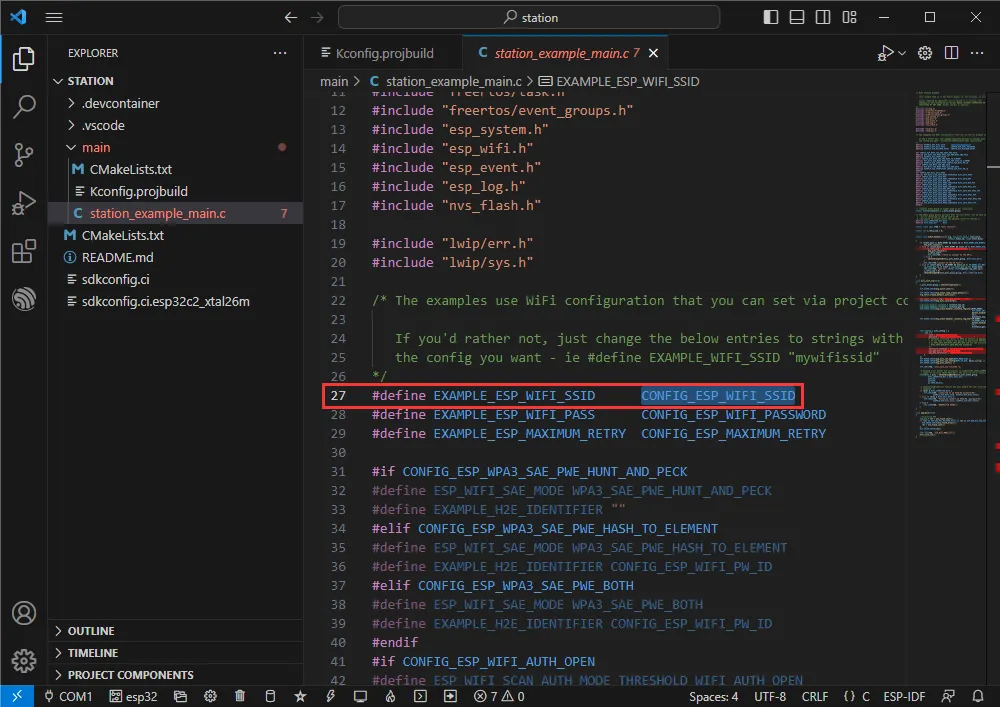
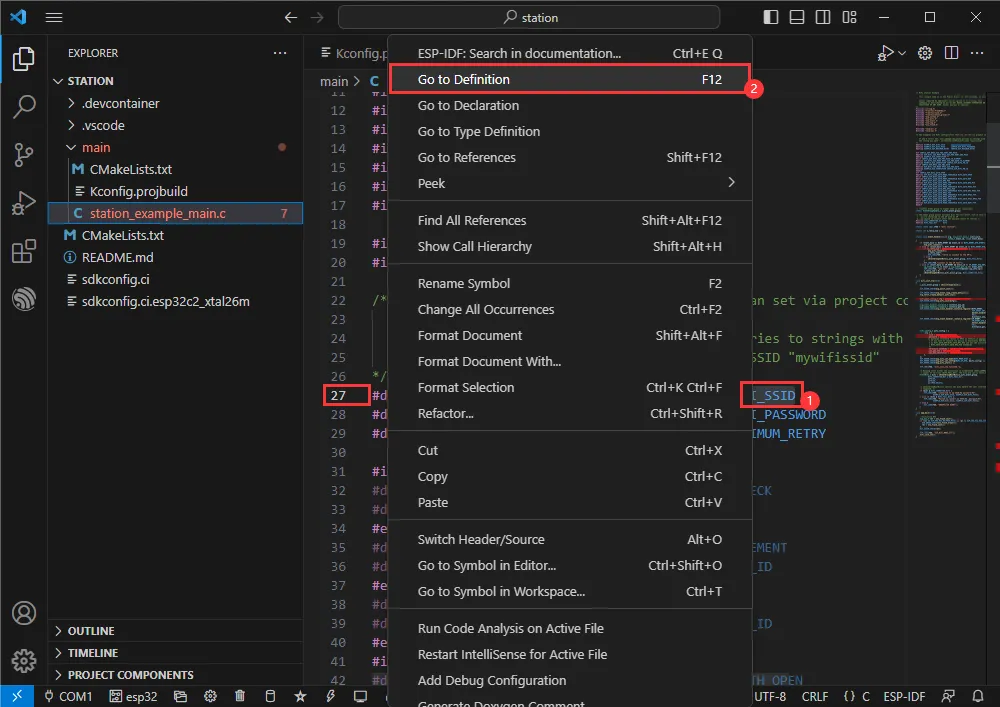
- Right-click and go to definition.
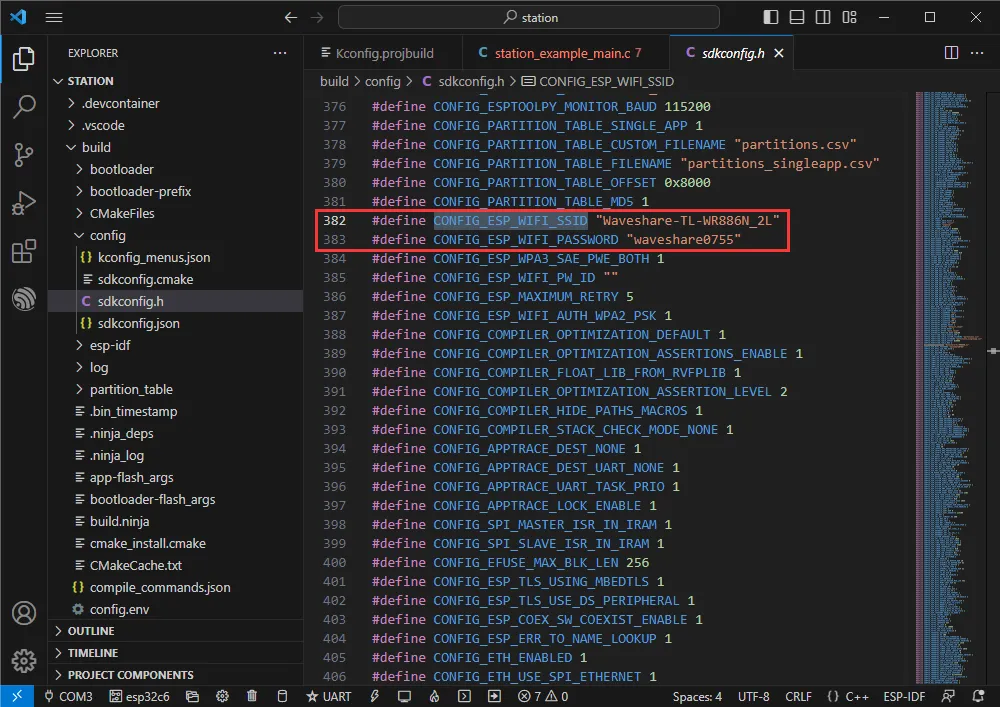
- You can see the value set earlier.
Zigbee
Official example 1 path: Zigbee -> light_sample -> HA_on_off_switch
Official example 2 path: Zigbee -> light_sample -> HA_on_off_light
Example effect: Two ESP32-C6 boards; one (flashed with the HA_on_off_switch program) uses its BOOT button to control the RGB LED on the other board.
Note: First flash the HA_on_off_switch program on one board, then flash the HA_on_off_light program on the other board.
Software Operations 1
- Create the official HA_on_off_switch example following the tutorial above.
- The program is compatible with ESP32-C6 and can be used without modification.
- Set the COM port and driver target (it is recommended to use the COM port corresponding to USB; you can check it in Device Manager), then click compile and flash to run the program.
Software Operations 2
- Create the official HA_on_off_light example following the tutorial above.
- The program is compatible with ESP32-C6 and can be used without modification.
- Set the COM port and driver target, then click compile and flash to run the program (wait a moment for the two chips to establish a connection).
- If the devices remain in the disconnected state shown below, it may be because one of the devices still has residual network information. You can erase the device information (erase tutorial and then re-form the network.