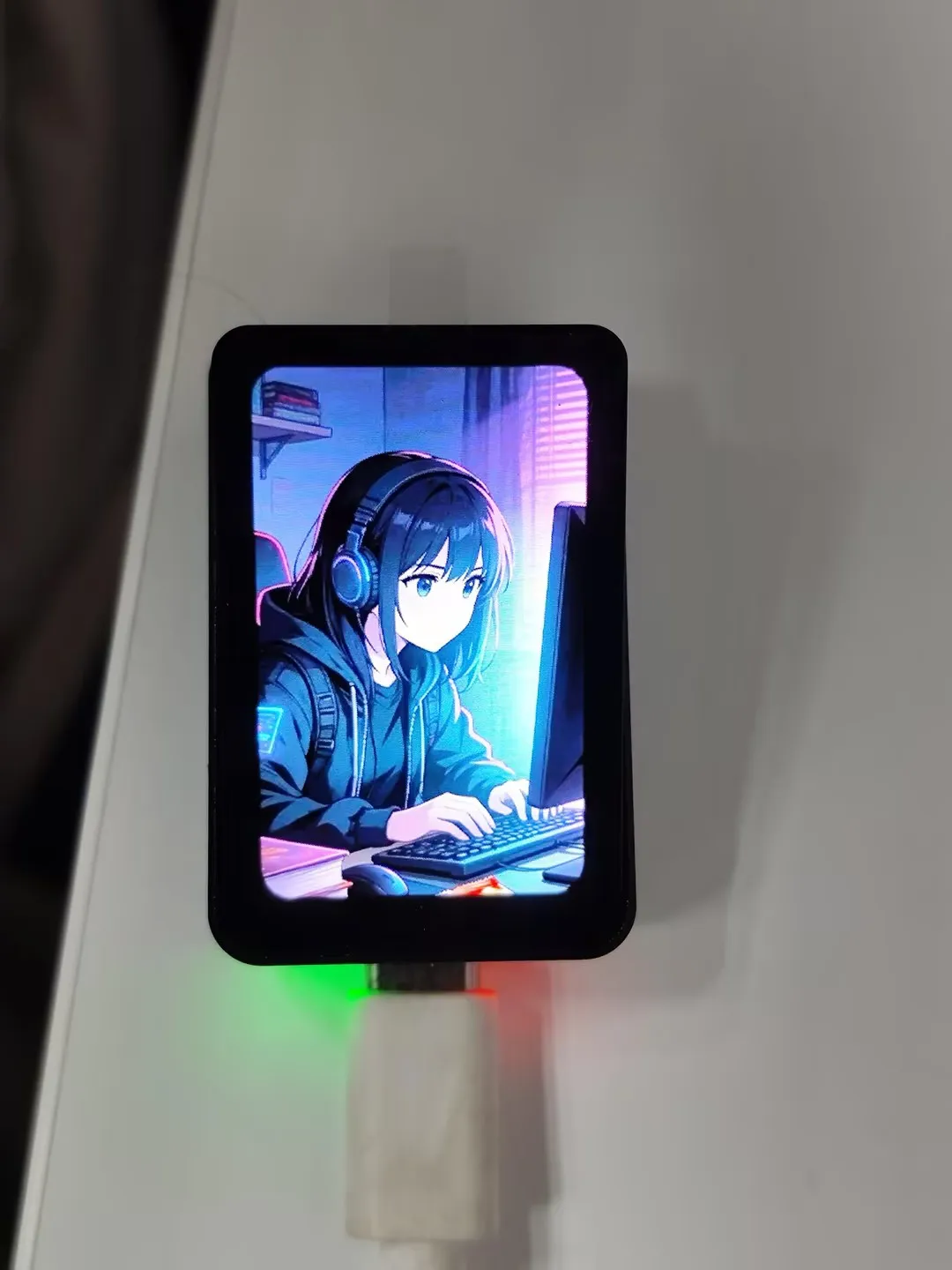
ESP32-C6-Touch-AMOLED-1.64 User Guide
To help users quickly understand the various functions of the product, we provide a factory test example to familiarize customers with the use of each interface. Besides the ESP32-C6-Touch-AMOLED-1.64 host and the included cables, the following items are required to run the example:
Component Preparation
- ESP32-C6-Touch-AMOLED-1.64 ×1
- TF card ×1 (optional)
- 3.7V Lithium Battery ×1 (optional)
Precautions
- When using, pay attention to the PCB antenna area. Avoid having other metal or plastic parts in contact with the PCB antenna.
- The GH1.25 lithium battery connector supports only a single-cell 3.7 V lithium battery. Do not connect multiple battery packs simultaneously for charging or discharging. A single-cell capacity of 2000 mAh or less is recommended.
⚠️ USB Download Precautions (Important)
If the port is not recognized, please enter Boot mode:
- Press and hold the BOOT button
- Connect the USB cable to the computer
- Release the BOOT button
After the download is complete, restart the board to run the program.
Example Introduction
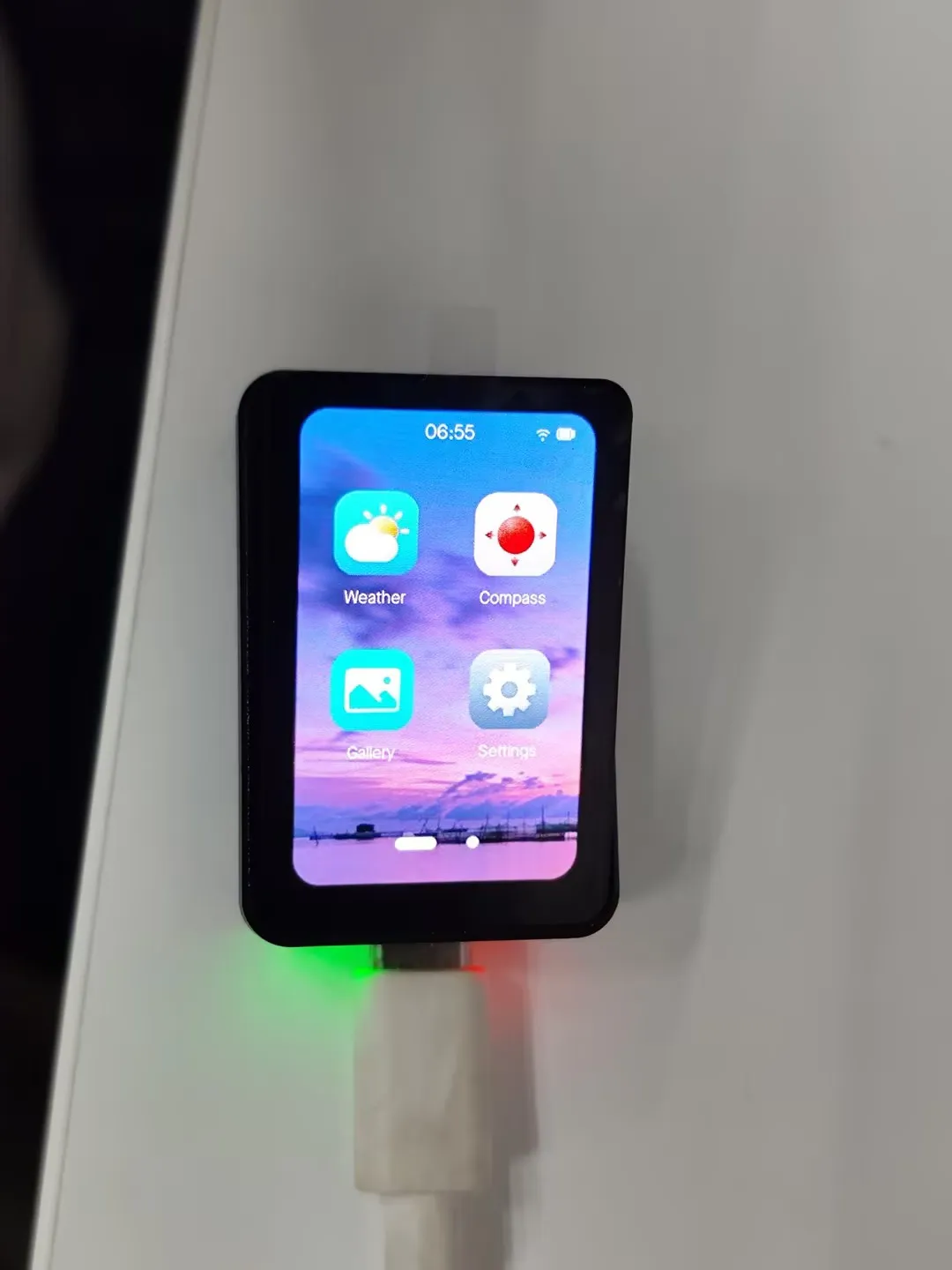
- The firmware uses the Brookesia component, showcasing various applications in an APP style, including Settings, Gallery, Weather, Gyroscope, etc.
Firmware Download
-
The example programs are located in the
Firmwaredirectory of the example package -
Select the factory firmware to flash: esp32_c6_touch_amoled_1_64_factory.bin
-
After flashing, the screen effect is as shown:
App Example Introduction
- To exit an app, swipe up from the bottom of the screen
- Swipe up from the bottom and pause in the middle of the screen to view recently used apps. Swipe up again on an app preview to close it
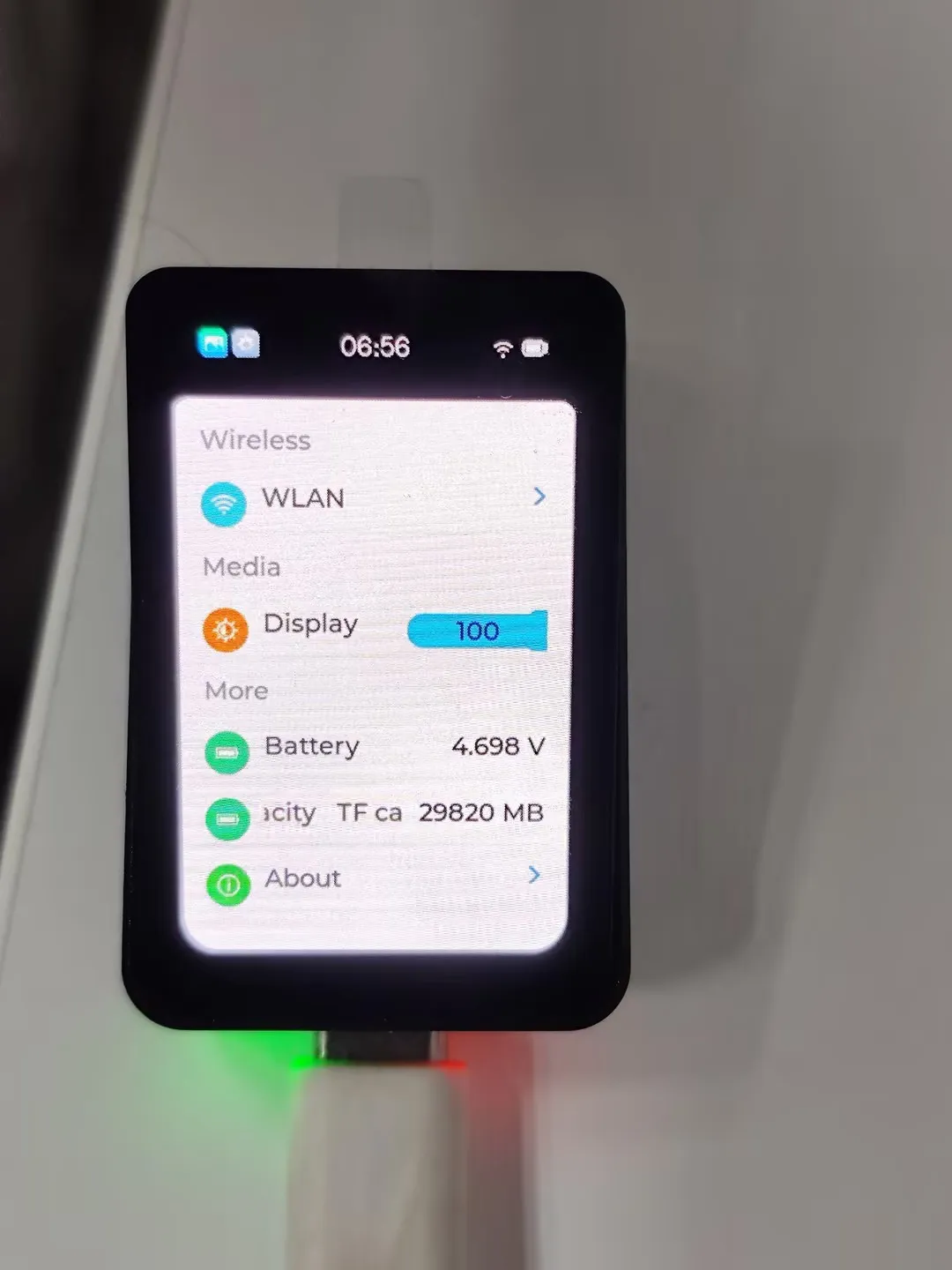
Settings App
-
Features Wi-Fi scanning and network configuration. Click
WIFIon the interface, thenwifi configto scan a QR code for network configuration -
Adjusts the backlight
-
Displays the battery ADC voltage
-
If a TF card is inserted, the TF card capacity will be displayed
-
Product about page, where you can view the MAC address
Weather APP
-
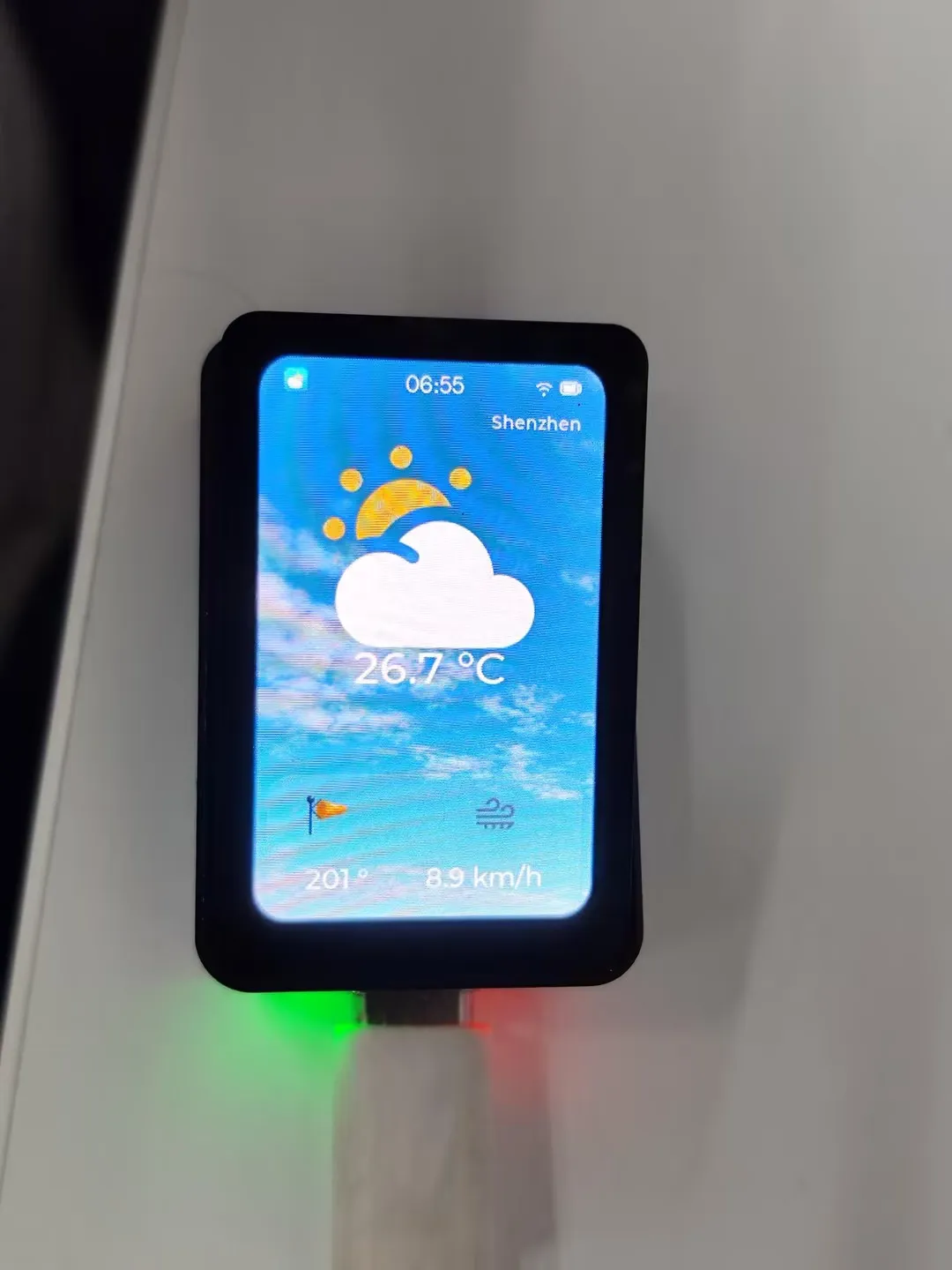
This example demonstrates obtaining local weather data online. An internet connection is required; otherwise, weather information cannot be retrieved.
-
The current program is set to fetch weather information every 5 seconds
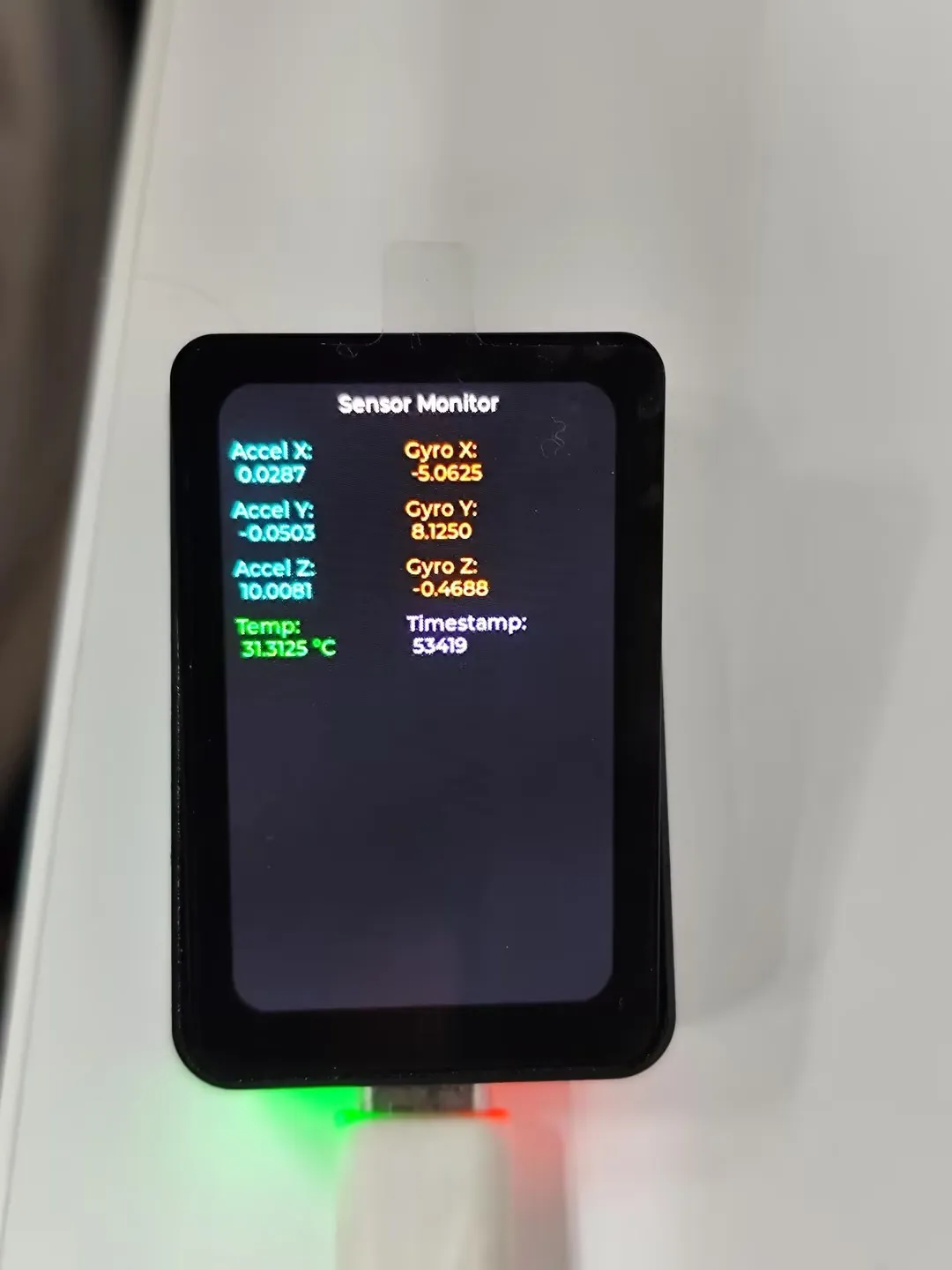
Gyroscope APP
-
This example demonstrates obtaining and displaying gyroscope data
Gallery APP
-
This example demonstrates image display functionality
-
Image resources are built into the program. Swipe left or right to switch images