ESP-IDF
This chapter contains the following sections. Please read as needed:
ESP-IDF Getting Started
New to ESP32 ESP-IDF development and looking to get started quickly? We have prepared a general Getting Started Tutorial for you.
- Section 1: Environment Setup
- Section 2: Running Examples
- Section 3: Creating a Project
- Section 4: Using Components
- Section 5: Debugging
- Section 6: FreeRTOS
- Section 7: Peripherals
- Section 8: Wi-Fi Programming
- Section 9: BLE Programming
Please Note: This tutorial uses the ESP32-S3-Zero as a teaching example, and all hardware code is based on its pinout. Before you start, it is recommended that you check the pinout of your development board to ensure the pin configuration is correct.
Setting Up Development Environment
The following guide uses Windows as an example, demonstrating development using VS Code + the ESP-IDF extension. macOS and Linux users should refer to the official documentation.
The screenshots in this section use ESP-IDF V5.5.2 as an example. When installing, please select the ESP-IDF version that matches your board's example.
Install the ESP-IDF Development Environment
-
Download the installation manager from the ESP-IDF Installation Manager page. This is Espressif's latest cross-platform installer. The following steps demonstrate how to use its offline installation feature.
Click the Offline Installer tab on the page, then select Windows as the operating system and the ESP-IDF version you need (the version shown in the screenshot is for reference only — choose the version that fits your actual needs).
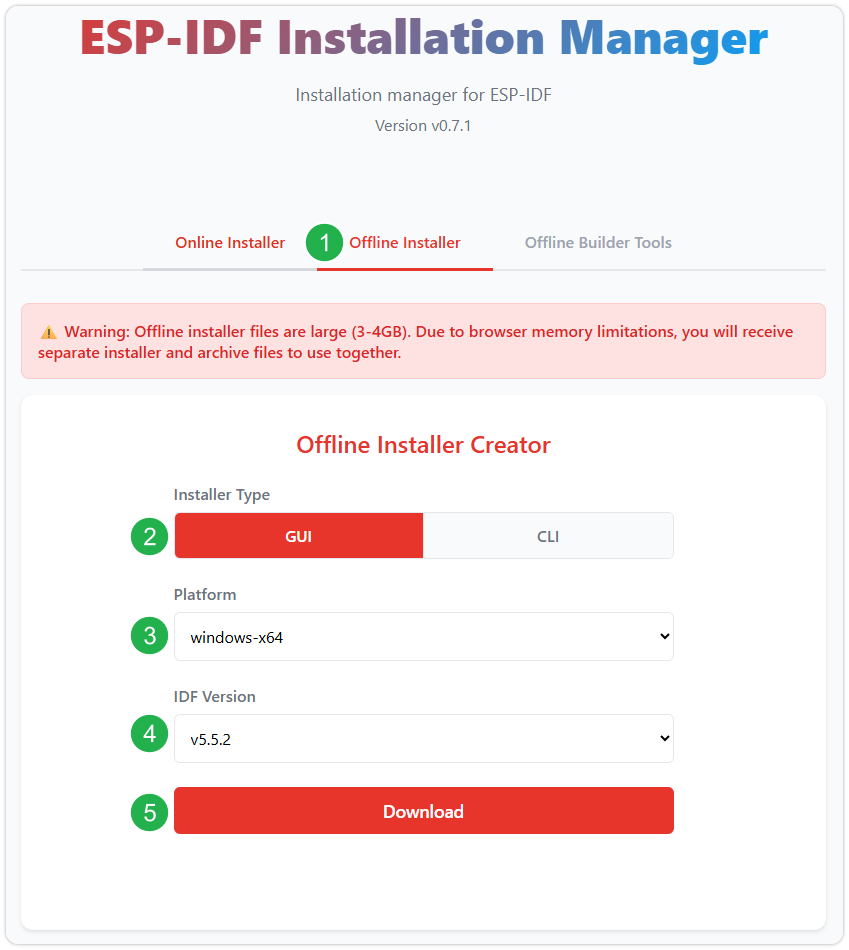
After confirming your selection, click the download button. The browser will automatically download two files: the ESP-IDF Offline Package (.zst) and the ESP-IDF Installer (.exe).
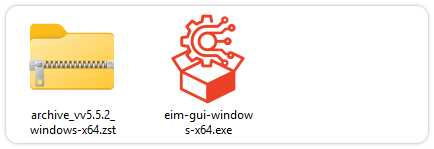
Please wait for both files to finish downloading.
-
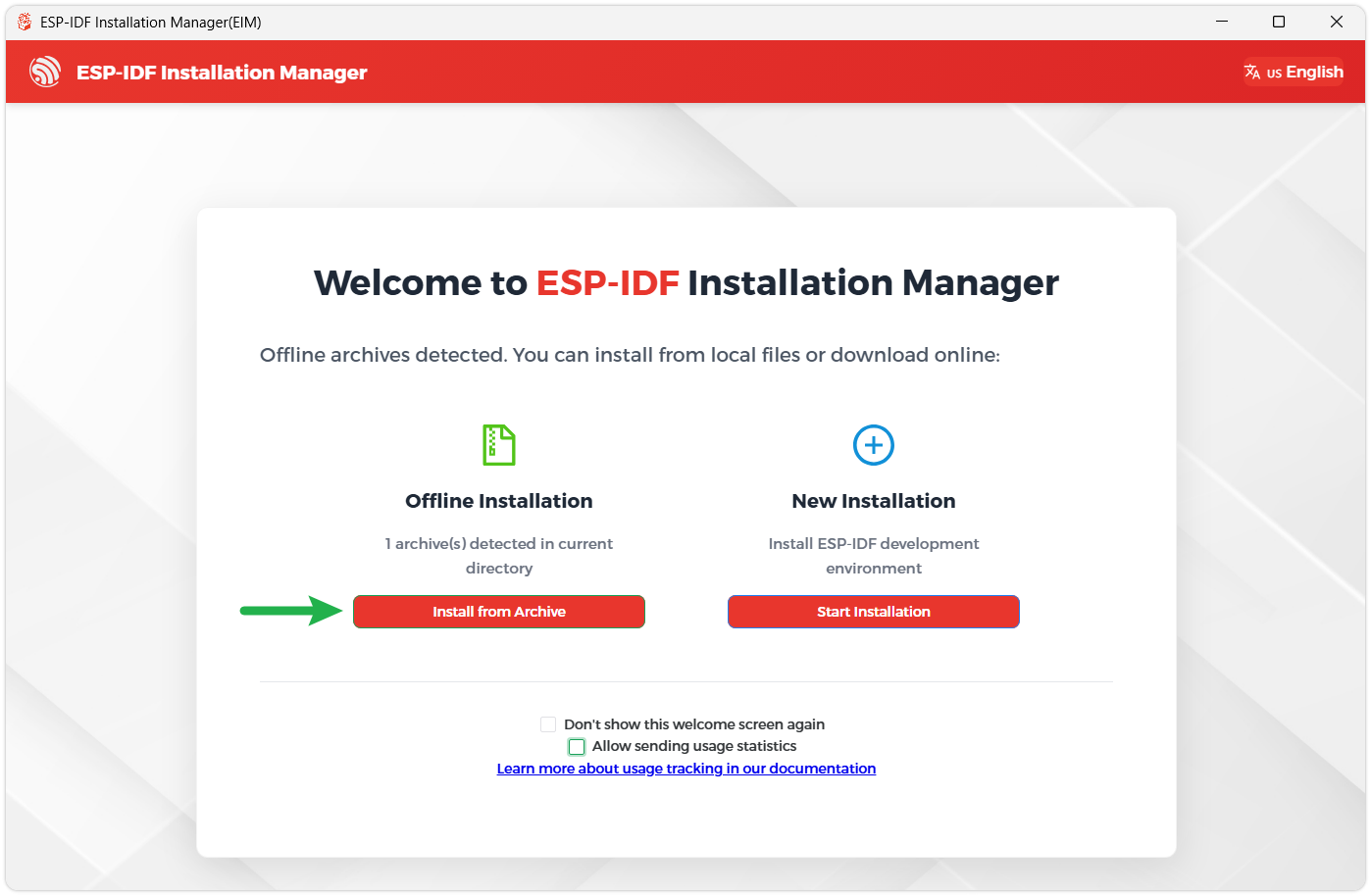
Once the download is complete, double-click to run the ESP-IDF Installer (eim-gui-windows-x64.exe).
The installer will automatically detect if the offline package exists in the same directory. Click Install from archive.
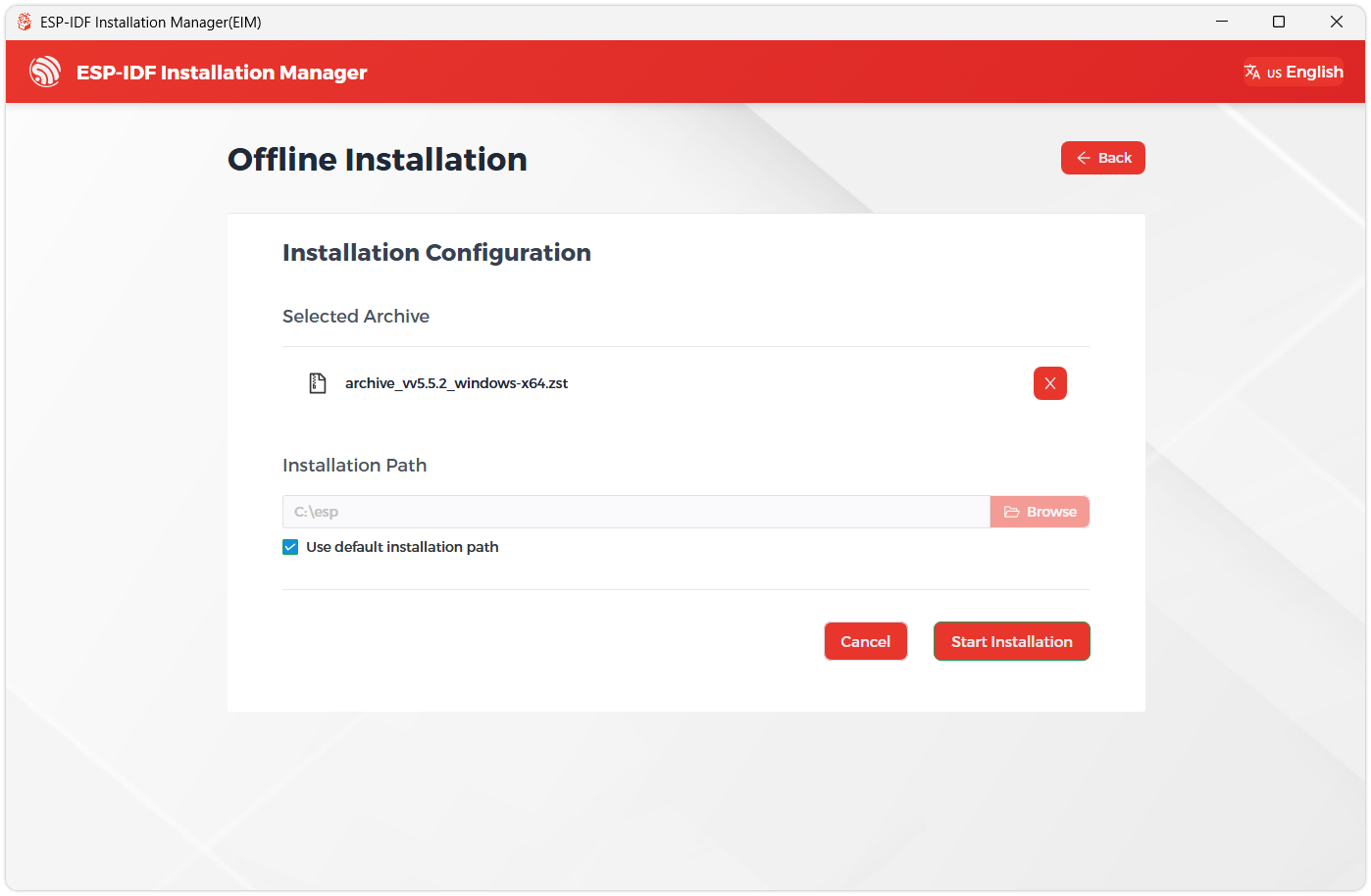
Next, select the installation path. We recommend using the default path. If you need to customize it, ensure the path does not contain Chinese characters or spaces. Click Start installation to proceed.
-
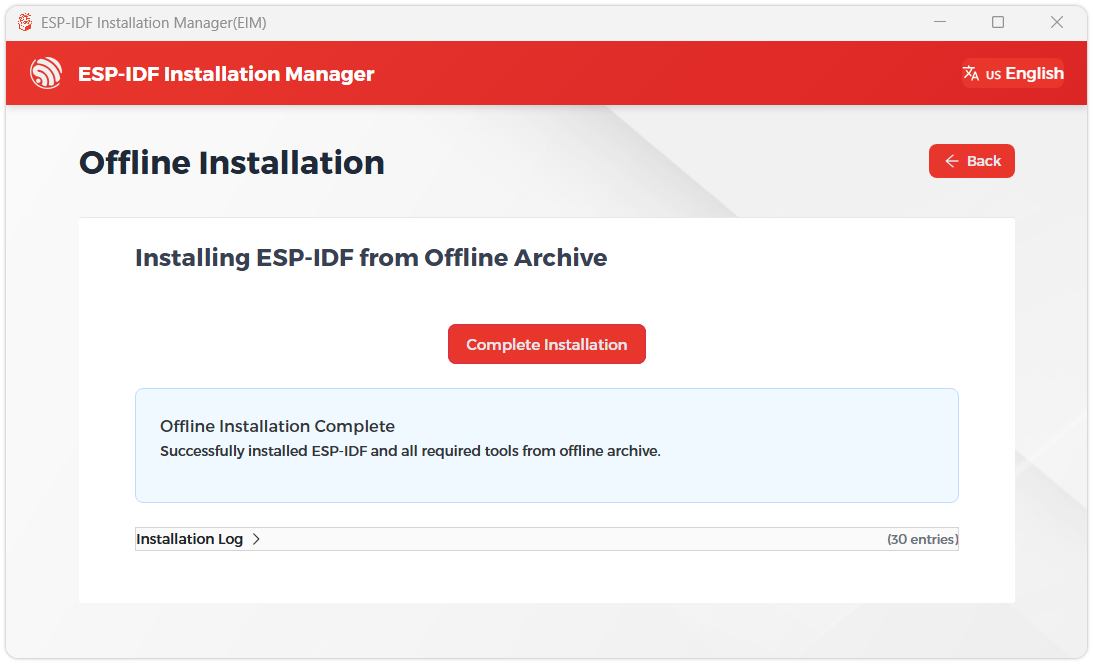
When you see the following screen, the ESP-IDF installation is successful.
-
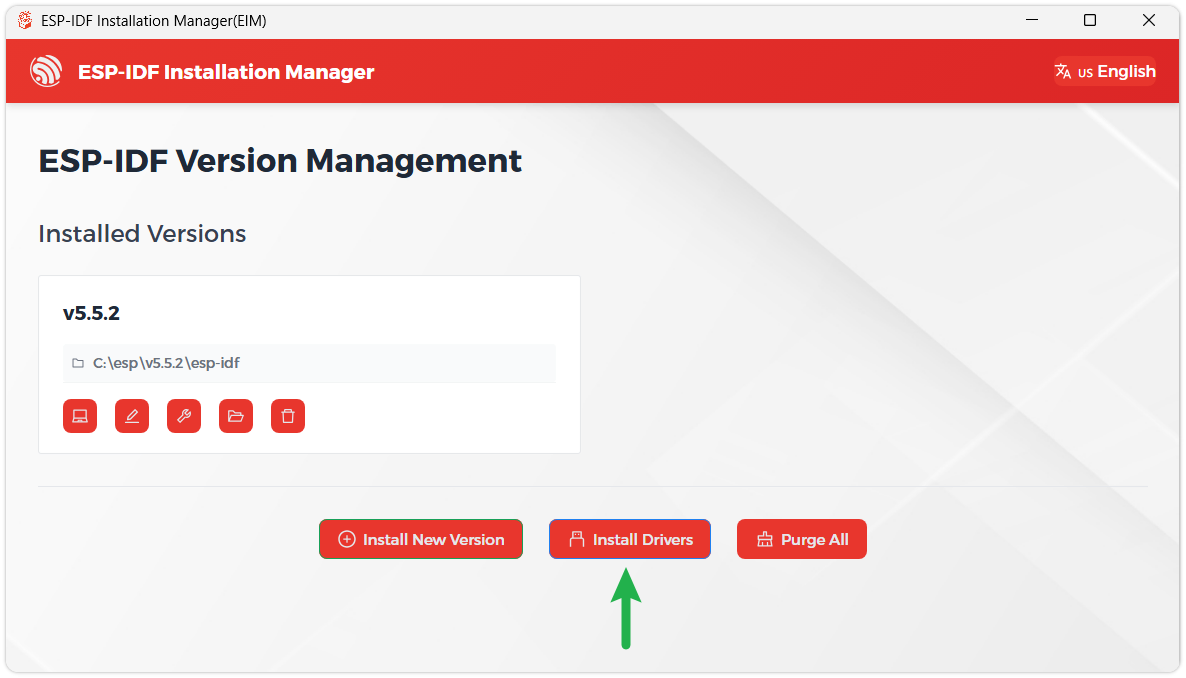
We recommend installing the drivers as well. Click Finish installation, then select Install driver.
Install Visual Studio Code and the ESP-IDF Extension
-
Download and install Visual Studio Code.
-
During installation, it is recommended to check Add "Open with Code" action to Windows Explorer file context menu to facilitate opening project folders quickly.
-
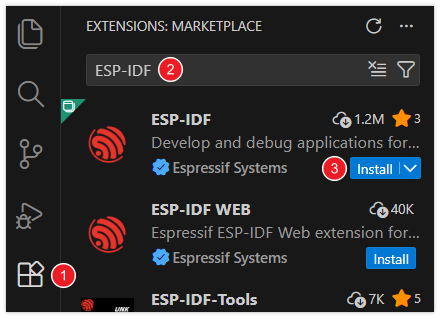
In VS Code, click the Extensions icon
 in the Activity Bar on the side (or use the shortcut Ctrl + Shift + X) to open the Extensions view.
 -
Enter ESP-IDF in the search box, locate the ESP-IDF extension, and click Install.
-
For ESP-IDF extension versions ≥ 2.0, the extension will automatically detect and recognize the ESP-IDF environment installed in the previous steps, requiring no manual configuration.
Example
-
ESP32-C6-Touch-AMOLED-2.06 Example Programs
Example Basic Description 01_AXP2101 Get power-related data by driving the AXP2101 via the ported XPowersLib 02_lvgl_demo_v9 Run the LVGL V9 example 03_esp-brookesia Run the esp-brookesia example (depends on v0.4.2) 04_qmi8658 Display the 3-axis gravitational acceleration from the qmi8658 05_Spec_Analyzer Implement a simple audio spectrum analyzer using LVGL
01_AXP2101
Example Description
- This example demonstrates porting XPowersLib in ESP-IDF, and driving AXP2101 to obtain power-related data through the ported XPowersLib
Hardware Connection
- Connect the development board to the computer.
Code Analysis
i2c_init: Initializes the I2C master device, preparing it for communication with other devices (e.g., the PMU)- Configures I2C parameters, including setting the master device mode, specifying the SDA and SCL pins, enabling the pull-up resistor, and determining the clock frequency
- Installs the I2C driver to apply the configuration to the actual hardware
pmu_register_read: Reads a series of byte data from a specific register of the PMU- Performs parameter checks to ensure the incoming parameters are valid and avoid invalid read operations
- Performs I2C operations in two steps, first sends the register address to read, then reads the data During the reading process, different processing is carried out according to the length of bytes to be read to ensure accurate reading of the data. At the same time, handles error cases in the I2C communication process and returns the corresponding status code so that the upper-layer code can determine if the read operation is successful
Operation Result
- This example will not light up the screen
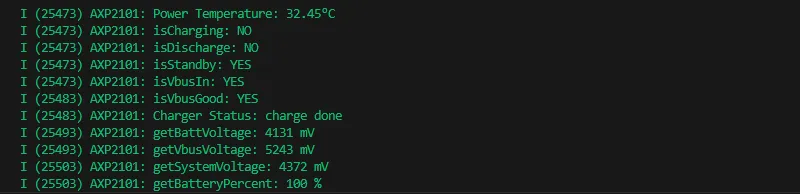
- The serial port monitor displays the parameters: chip temperature, charging state, discharging state, standby state, Vbus connection, Vbus condition, charger status, battery voltage, Vbus voltage, system voltage, battery percentage
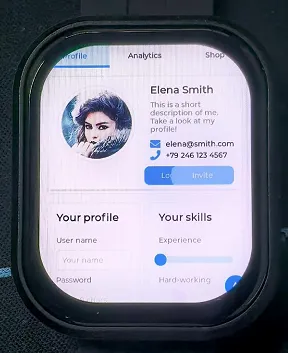
02_lvgl_demo_v9
Example Description
- This example runs the LVGL V9 example program
Hardware Connection
- Connect the development board to the computer.
Operation Result
03_esp-brookesia
Example Description
- This example demonstrates the UI interface running with the esp-brookesia framework.
Hardware Connection
- Connect the development board to the computer.
Operation Result

04_qmi8658
Example Description
- This example demonstrates the qmi8658 driver.
Hardware Connection
- Connect the development board to the computer.
Operation Result

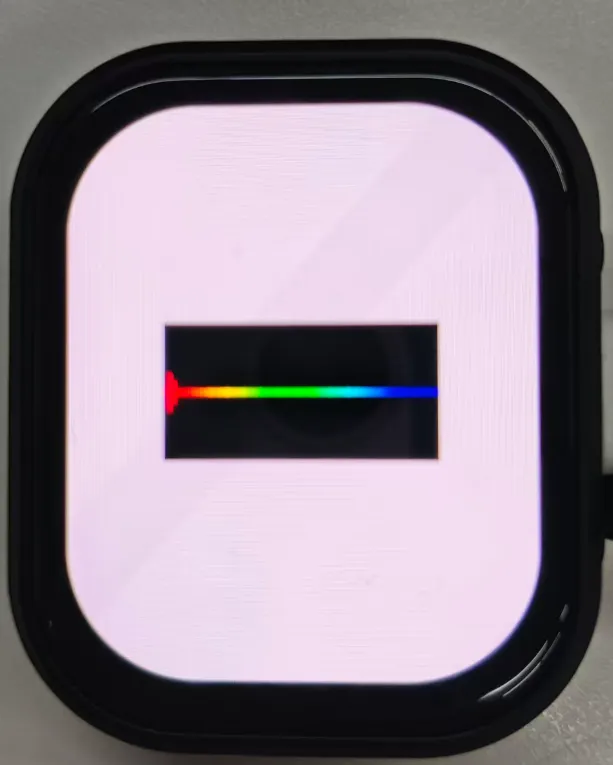
05_Spec_Analyzer
Example Description
- This example implements microphone audio capture, uses FFT to analyze the audio, and displays the results on the screen.
Hardware Connection
- Connect the development board to the computer.
Operation Result
FactoryFirmWare
This example is continuously updated. Some applications depend on specific ESP-IDF versions and require testing time before updates. Please be patient.
Example Description
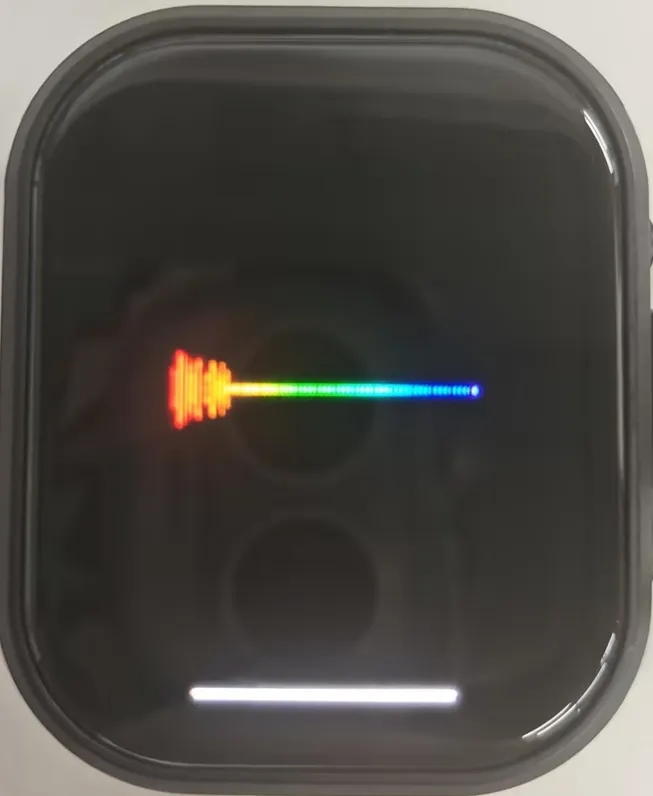
- This example demonstrates an application created using the esp-brookesia master version, including but not limited to touch, display, audio capture, and audio playback.
Hardware Connection
- Connect the development board to the computer.
- Flash the firmware using a firmware flashing tool (online, local, etc.).
Operation Result
 |  |
|---|---|
 |  |
AIChats
AIChats uses XiaoZhi AI by default. When the user clicks to enter, it automatically switches to run XiaoZhi AI. To return to the esp-brookesia UI, press PWR.