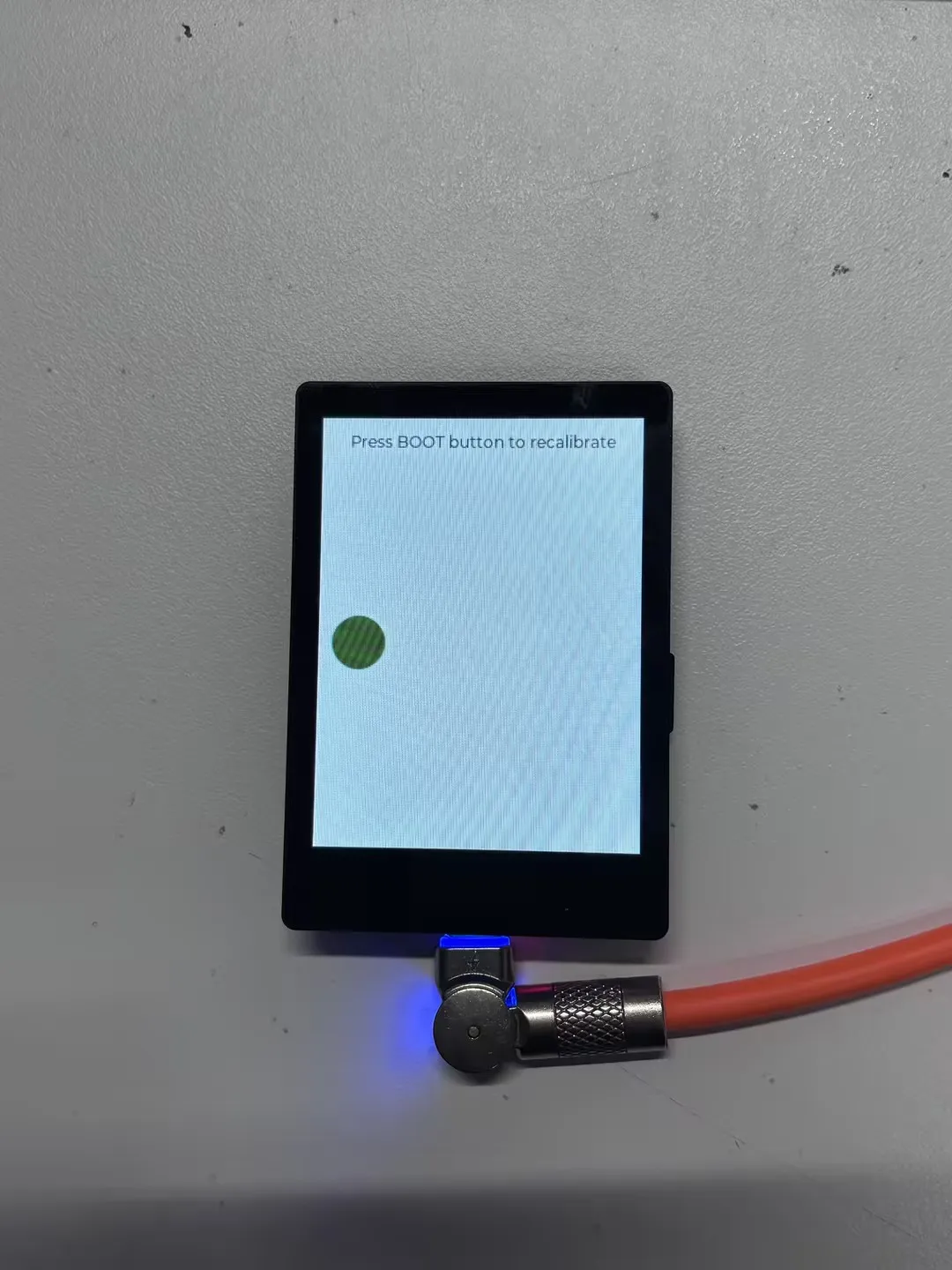
ESP32-C6-Touch-LCD-2.8 Factory Firmware Instructions
This section provides usage instructions for each functional example in the factory firmware, helping users understand the onboard resources and interface usage of the ESP32-C6-Touch-LCD-2.8. Before running the examples, please prepare the following components:
Required Components
- ESP32-C6-Touch-LCD-2.8 ×1
- TF Card ×1
- Speaker ×1
- Battery ×1
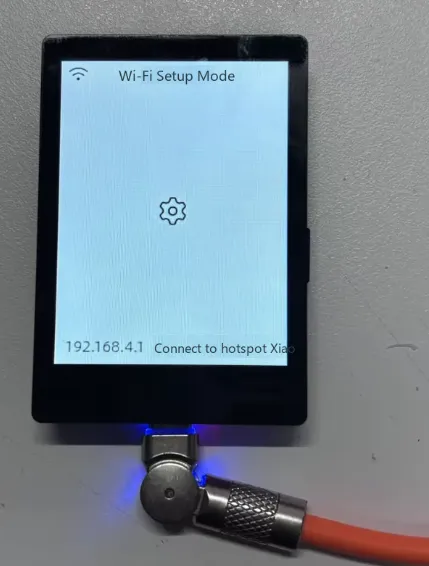
Wi-Fi Configuration
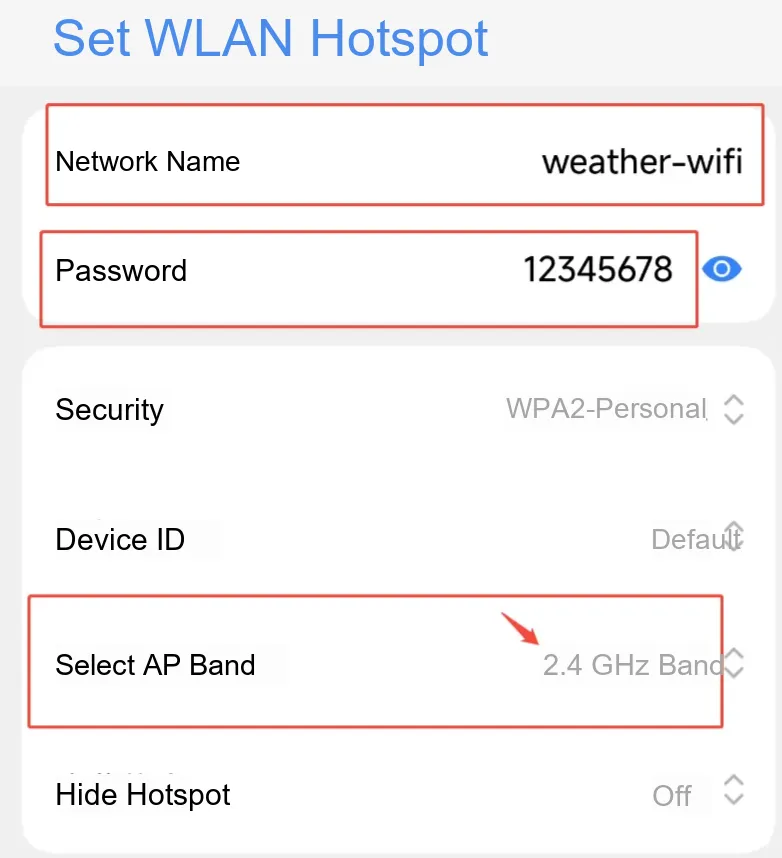
- Before use, turn on a 2.4GHz Wi-Fi hotspot. The ESP32-C6 supports only 2.4GHz Wi-Fi 6 and does not support 5GHz Wi-Fi.
- Wi-Fi SSID:
weather-wifi - Wi-Fi Password:
12345678 - Band: 2.4GHz
- The Wi-Fi SSID and password in the factory firmware are fixed. The hotspot you use must match the above configuration; otherwise, the device will not be able to connect.
Precautions
⚠️ USB Download Precautions (Important)
The development board uses USB for programming
If the port is not recognized, please enter Boot mode:
- Press and hold the BOOT button.
- Connect the USB cable to the computer
- Release the BOOT button.
After the download is complete, power cycle the board to run the program.
BAT_PWR Button Test
- After connecting the battery, the device can be powered directly by the battery and will turn on the screen (controlled by hardware circuitry, not software).
- Long-press the
BAT_PWRbutton for about 2 seconds to power off. After power-off, press theBAT_PWRbutton again to power on.
Firmware Download
- The factory firmware is located in the
Firmwaredirectory of the example package.
Example Overview
- The firmware uses the ESP-Brookesia component to implement an APP-style interface, including Settings, 2048 Game, Weather, Drawing Board, XiaoZhi AI, Gravity Ball, Sensor, and other apps.
App Example Introduction
tip
- To exit an app, swipe up from the bottom of the screen.
- Swipe up from the bottom and pause in the middle of the screen to view recently running apps; swipe up again to close and terminate the APP process.
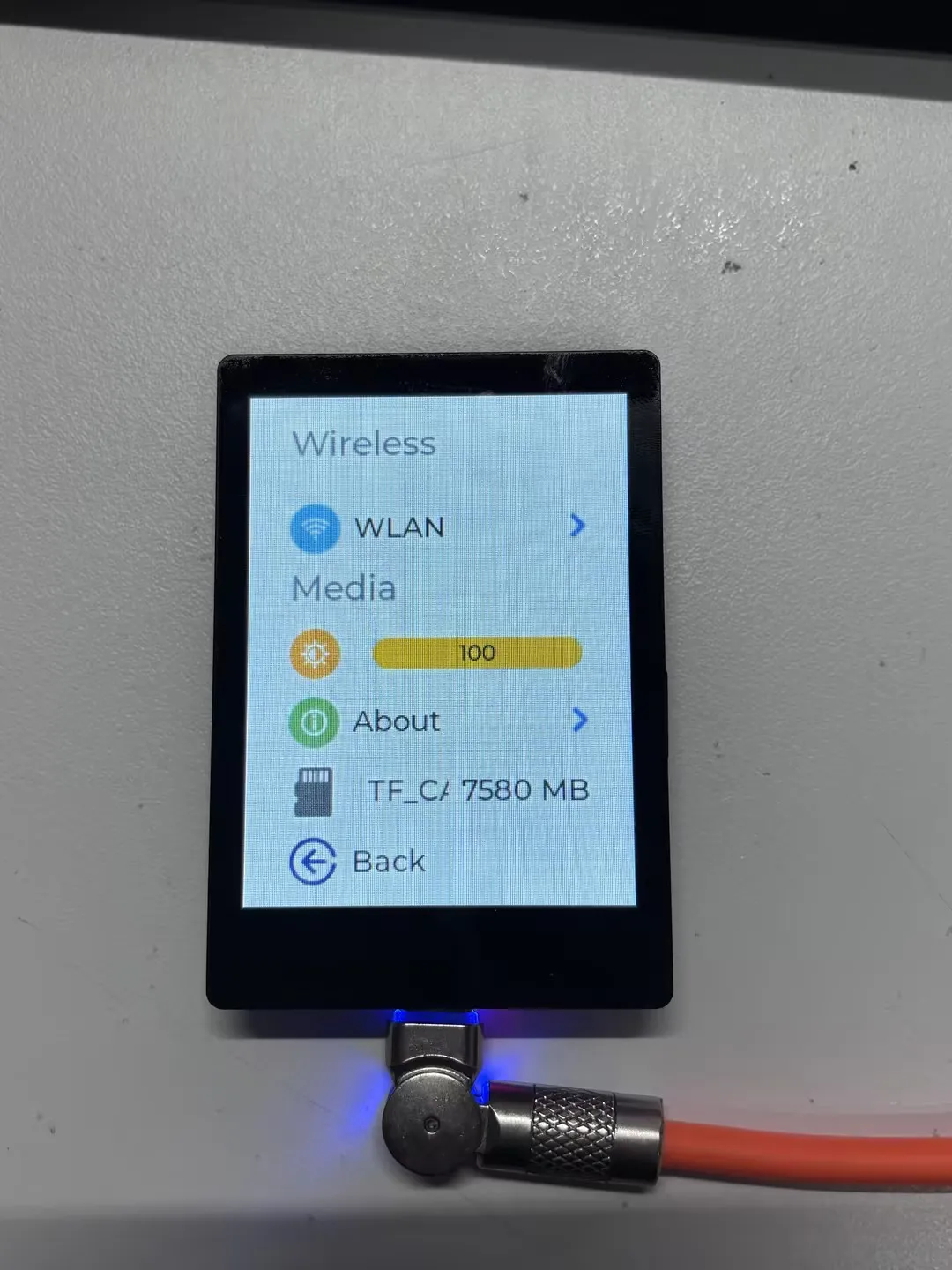
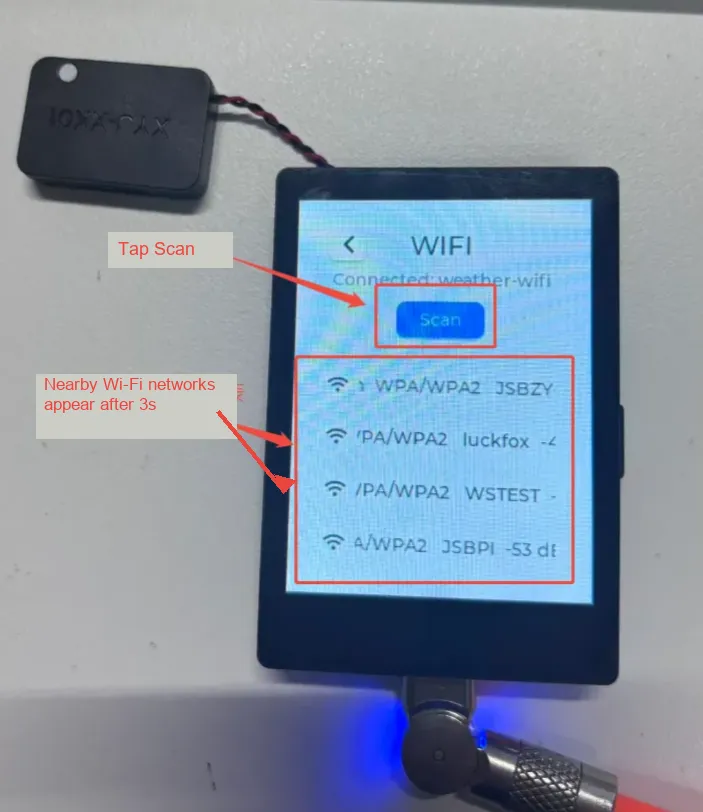
Settings APP
-
Supports Wi-Fi scanning.
-
Allows adjusting display brightness, viewing TF card size, and checking the MAC address in the product info section.
 |  |
|---|
XiaoZhi AI APP
- Tap the APP to launch the Xiaozhi AI application, which is consistent with the version adapted for the Xiaozhi official website and operates in the same way.
- Long-press the BOOT button to return to the brookesia interface.
Sensor APP
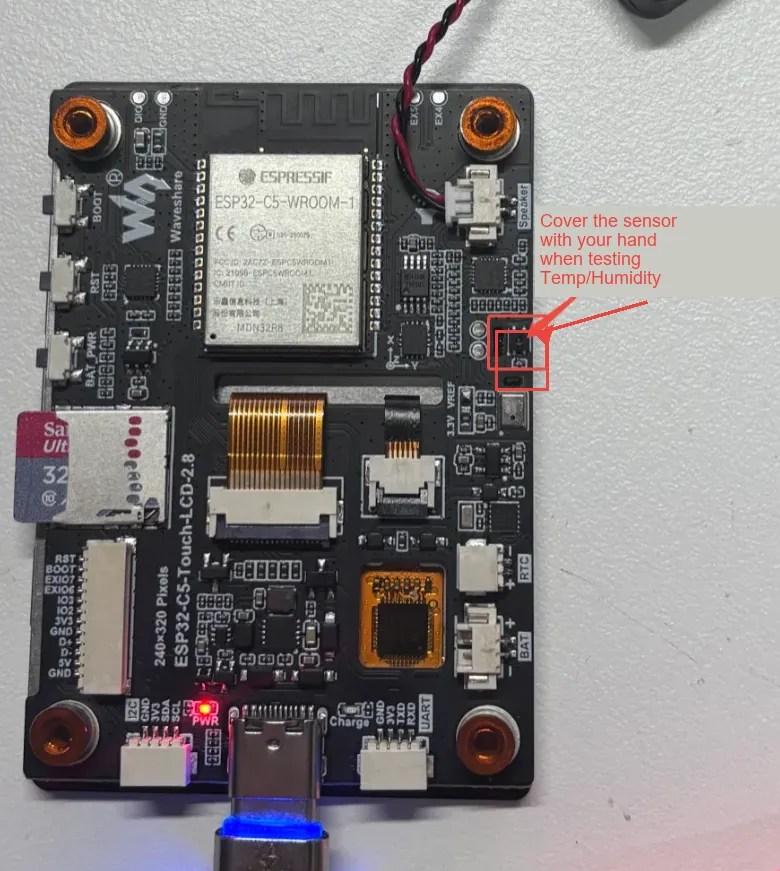
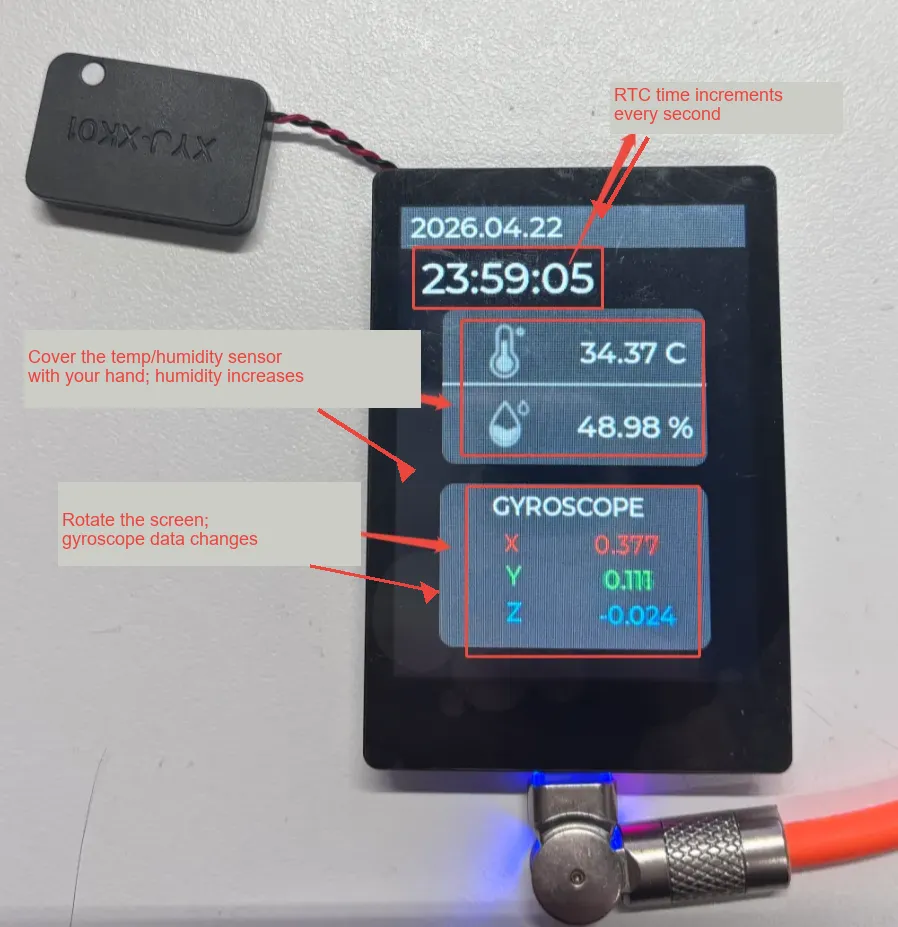
- Displays real-time data from various sensors.
- When you rotate the board, the gyroscope data changes accordingly; the RTC clock increments by the second.
- When you cover the temperature/humidity sensor with your hand, the humidity value will gradually rise, while the temperature value usually changes little or remains stable.
 |  |
|---|
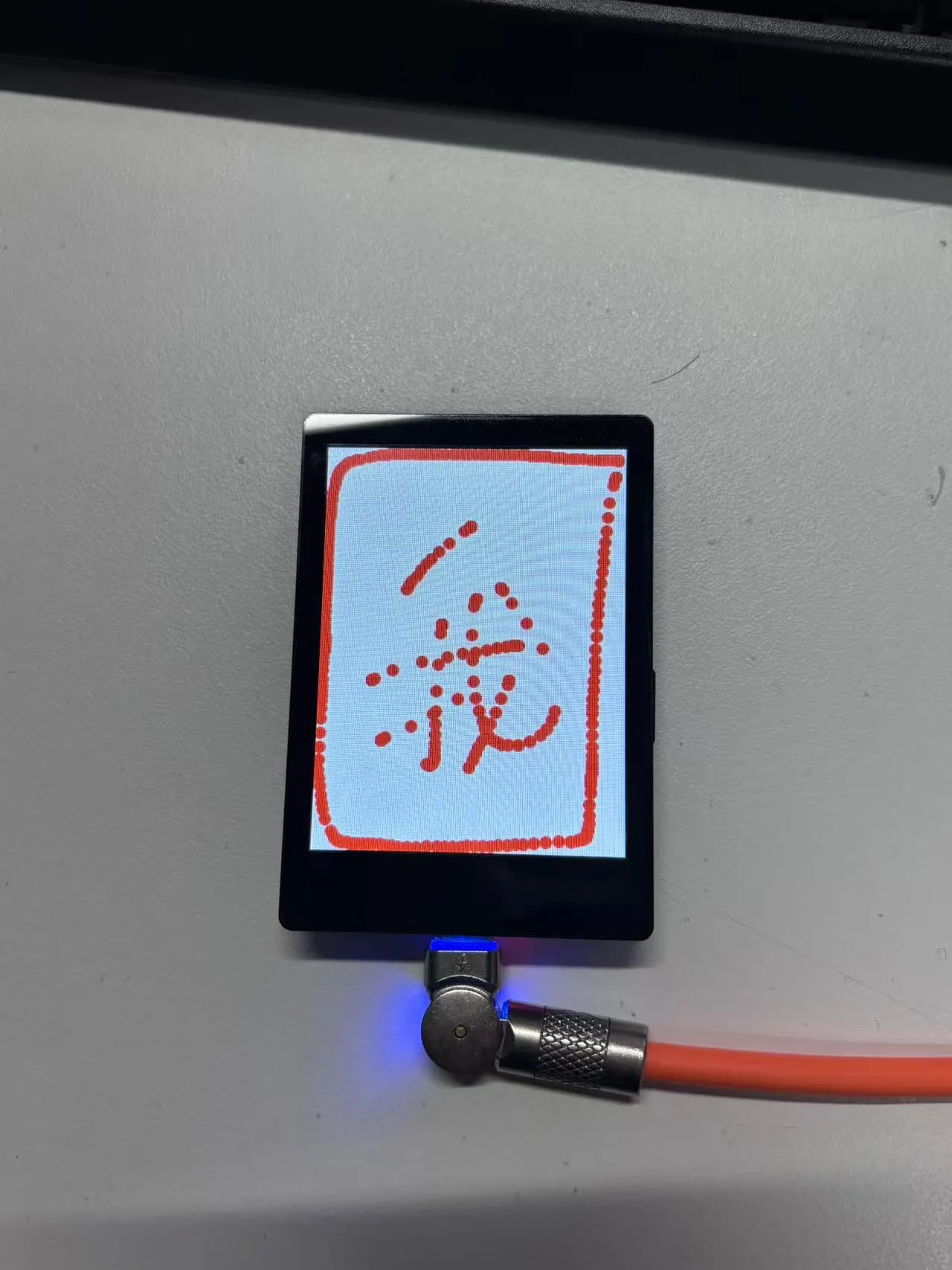
Drawing Board APP
- Allows freehand drawing.
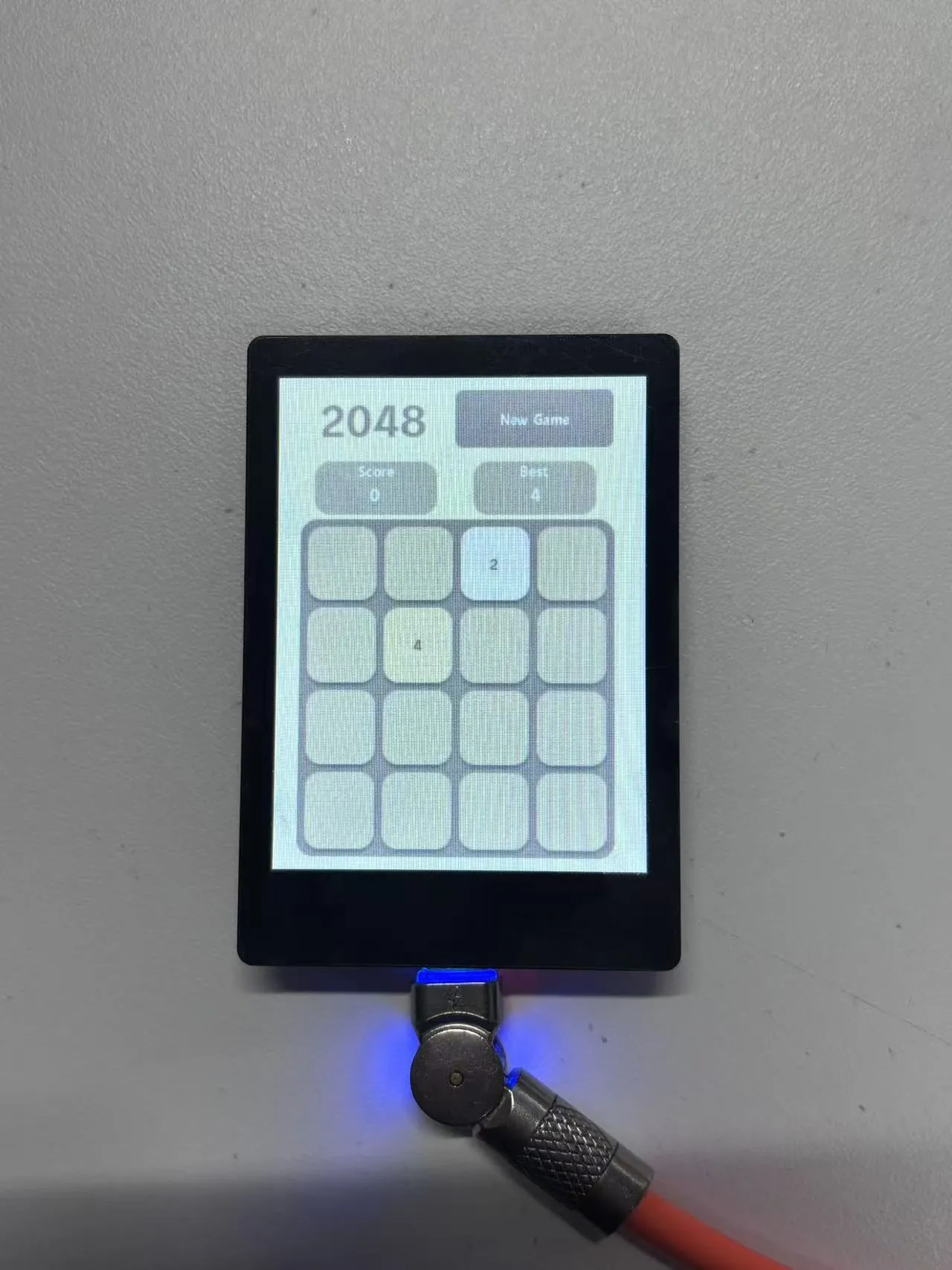
2048 APP
- Displays the current score and the best score in real time, and supports restarting the game with one tap.
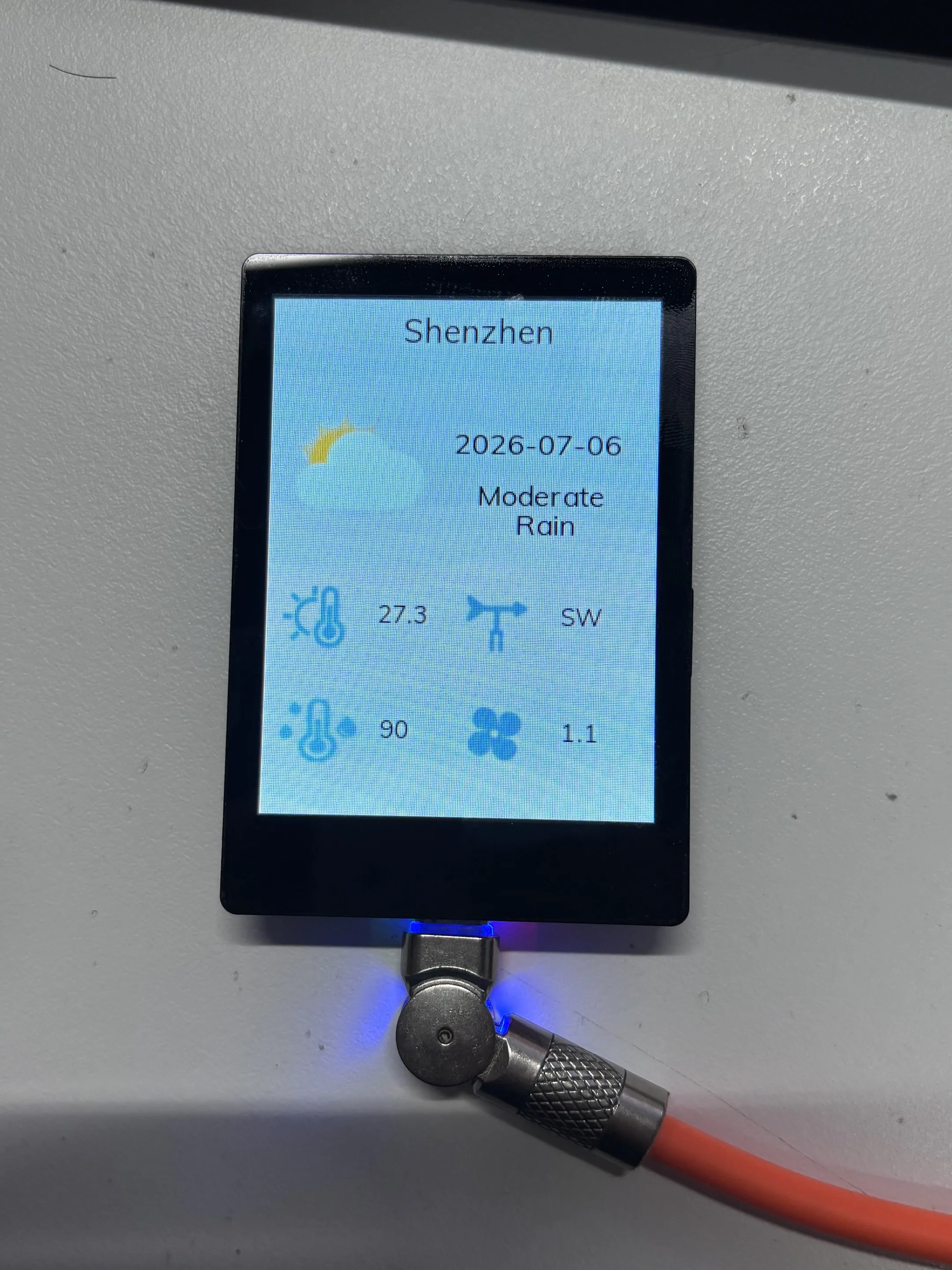
Weather APP
- After the device connects to the network, it will automatically fetch and parse the current day's weather information for Shenzhen within a few seconds.
- For secondary development, modify the ESP-IDF example
06_wifi_weatheras needed.
Gravity Ball
- This example demonstrates a gravity ball app based on the six-axis IMU. The ball moves in real time according to the board's tilt angle and orientation changes.
- Before use, place the board flat on a table and wait for the ball to finish loading before picking it up.
- Tap the
BOOTbutton to reset the ball's position.