Working with Arduino
This chapter introduces the Arduino development environment for the ESP32-DEV-KIT-XX and the example programs provided in examples/Arduino/examples.
Setting Up the Development Environment
1. Install Arduino IDE and ESP32 Board Support Package
Please refer to the tutorial Install and Configure Arduino IDE to download and install the Arduino IDE and add ESP32 support.
After installing Arduino IDE, add the Espressif Arduino-ESP32 board index in "Preferences -> Additional Boards Manager URLs", and install the Arduino-ESP32 via the "Boards Manager". Once installed, select ESP32 Dev Module under "Tools -> Board".
Connect the board via USB and select the corresponding serial port under "Tools -> Port". Unless otherwise noted, all examples in this directory use the serial monitor with a baud rate of 115200 bps.
2. Open an Example
Each example directory contains a .ino main file with the same name as the directory. Open the file in Arduino IDE, then compile and upload it.
Installing the Libraries
01_Board_Info, 02_WS2812_RGB, 03_WiFi, 04_UART_Loopback, and 05_SerialToSerialBT only use components provided by the Arduino-ESP32 board package.
Example
The example programs are located in the examples/Arduino/examples directory of the example package. Examples involving peripherals such as LCD or UART require wiring according to the corresponding sections before running.
| Example | Description |
|---|---|
| 01_Board_Info | Prints chip, Flash, program, and memory information via serial |
| 02_WS2812_RGB | Controls the WS2812 RGB LED to display red, green, blue, white, and off in sequence |
| 03_WiFi | Scans for 2.4 GHz Wi-Fi networks and connects to a specified network |
| 04_UART_Loopback | Uses UART1 to send and receive data, verifying serial loopback |
| 05_SerialToSerialBT | Bidirectionally forwards data between the USB serial port and classic Bluetooth SPP |
01_Board_Info
After startup, the program prints the chip model, chip revision, CPU frequency, Flash size, program size, remaining heap memory, and base MAC address. This example does not require additional hardware and can be used to verify program upload and serial output.

02_WS2812_RGB
The data pin of the WS2812 RGB LED is GPIO27. The program uses the Arduino-ESP32 rgbLedWriteOrdered() interface to set brightness to 32 and cycles through red, green, blue, white, and off every second. The serial output simultaneously prints the current RGB values.
This example does not rely on third‑party libraries. If the LED color does not match expectations, check whether COLOR_ORDER needs to match the actual color order of the LED.

03_WiFi
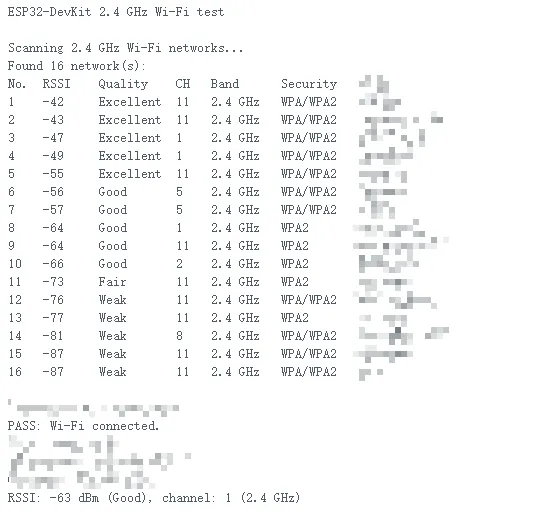
This example sets the chip to STA mode, scans for 2.4 GHz Wi-Fi networks, and lists SSID, RSSI, signal quality, channel, and security type over serial. The classic ESP32 chip used on the ESP32-DEV-KIT-XX does not support 5 GHz Wi-Fi.
To test network connectivity, first modify the configuration at the top of the source code:
constexpr char WIFI_SSID[] = "your_ssid";
constexpr char WIFI_PASSWORD[] = "your_password";
After uploading, the program waits up to 20 seconds to connect to the specified Wi-Fi. On successful connection, the serial output shows the IP address, gateway, RSSI, and channel. If connection fails, it retries every 15 seconds; while disconnected, it rescans networks every 60 seconds.
04_UART_Loopback
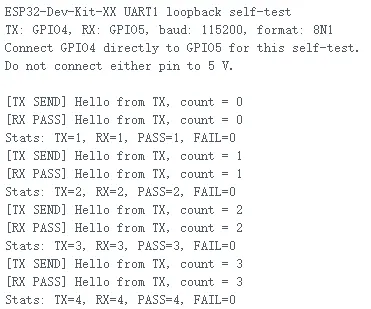
This example uses UART1 for a self‑loopback test with the following initialization:
| Signal | GPIO | Parameters |
|---|---|---|
| UART1 TX | GPIO4 | 115200 bps, 8N1 |
| UART1 RX | GPIO5 | 115200 bps, 8N1 |
Connect GPIO4 and GPIO5 with a wire, then upload the program. GPIO4 and GPIO5 must not be connected to 5 V. The program sends an incrementing counter message every 2 seconds via TX, and outputs [RX PASS] or [RX FAIL] based on whether the same content is received on RX within 500 ms, while also printing transmit/receive statistics.
05_SerialToSerialBT
This example creates a classic Bluetooth SPP serial port with the device name ESP32-BT-Slave. The program bidirectionally forwards data byte‑by‑byte between the USB serial port and the Bluetooth serial port, with the USB serial baud rate set to 115200 bps.
After uploading, search for and pair with ESP32-BT-Slave on a computer or mobile device that supports classic Bluetooth SPP. Data sent via the Bluetooth serial port appears in the Arduino serial monitor; data sent from the Arduino serial monitor is forwarded to the Bluetooth client.
This example uses classic Bluetooth SPP, not BLE. The SPP functionality of BluetoothSerial is only available on classic ESP32 chips; select ESP32 Dev Module when compiling.
Troubleshooting
ESP32 Dev Module Not Found
Make sure the Espressif Arduino-ESP32 board package has been installed via the "Boards Manager", then reopen the "Tools" > "Board" menu.
Wi-Fi Example Cannot Connect
Verify that WIFI_SSID and WIFI_PASSWORD have been changed to your actual network credentials, and confirm that the target network is 2.4 GHz. The scan results from the serial can be used to confirm whether the target network is visible.
UART Loopback Test Fails
Confirm that GPIO4 and GPIO5 are directly connected with no other peripherals attached. The [RX FAIL] output distinguishes between receive timeout, content mismatch, and receive buffer overflow.
Cannot Connect to Bluetooth Serial Port
Make sure the client supports classic Bluetooth SPP and search for the device name ESP32-BT-Slave. BLE debug tools cannot connect to the SPP serial port provided by this example.