Section 2: Setting Up Home Assistant
This section covers how to complete the Home Assistant initial setup (creating an admin account, setting location, etc.) and installing the ESPHome app in HA.
1. Complete the Home Assistant Initial Setup
-
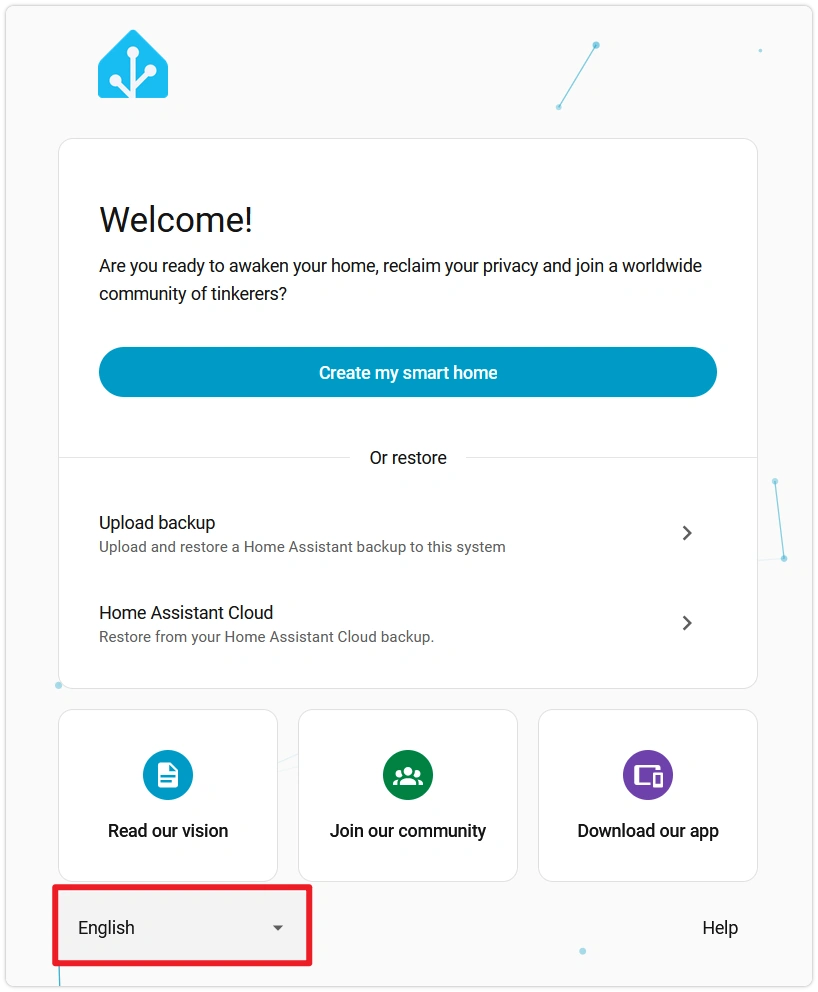
On the welcome page, click the language dropdown in the bottom-right corner and select your preferred language.
-
Follow the guided steps to complete:
-
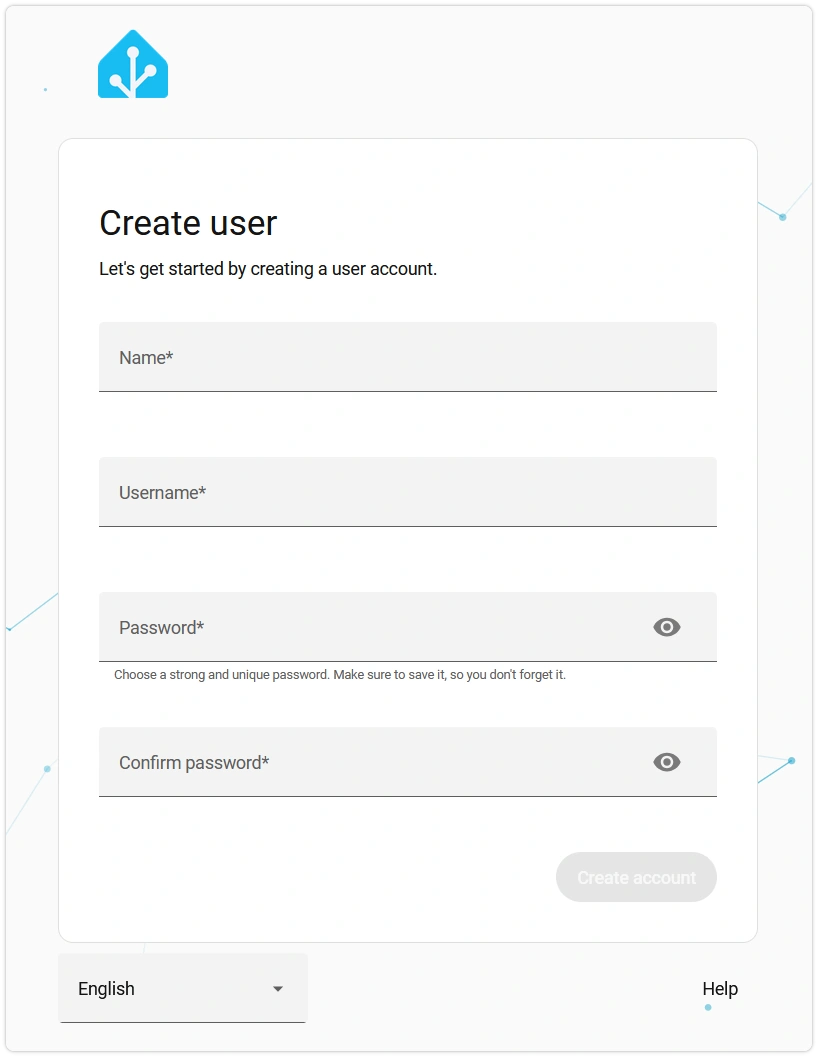
Create admin account: Set up a username and password.
-
Set location and time zone: Affects sunrise/sunset, weather, automations, and other location-based features.
-
Data sharing: Whether to send anonymous usage statistics to the Home Assistant project. Optional — can be changed at any time in settings.
-
Device discovery: HA will scan the local network for supported devices (routers, smart home brands, etc.). Simply click Finish to complete the initial setup — this tutorial does not depend on this step.
-
-
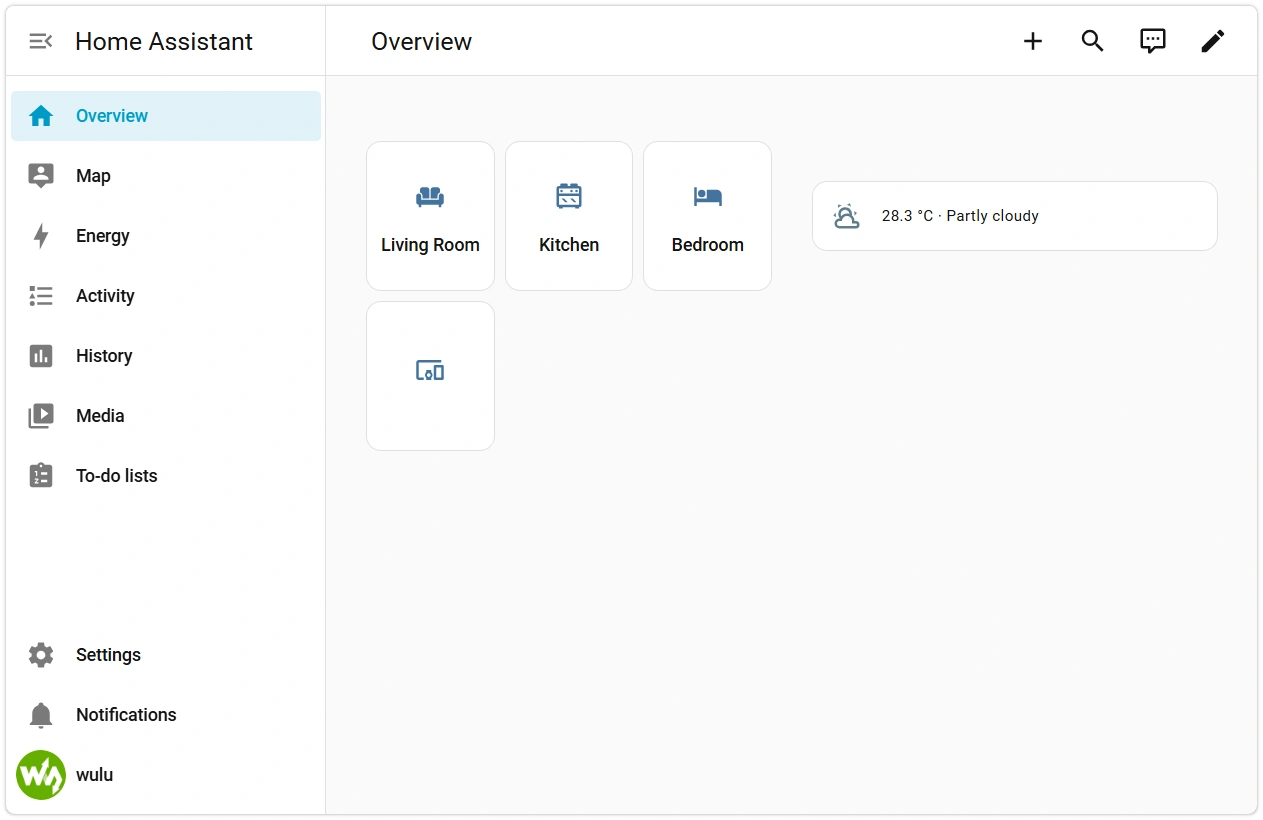
After clicking "Finish," you will be automatically redirected to the default dashboard. Home Assistant initial setup is now complete.
2. Install the ESPHome App
ESPHome runs as a Home Assistant app.
-
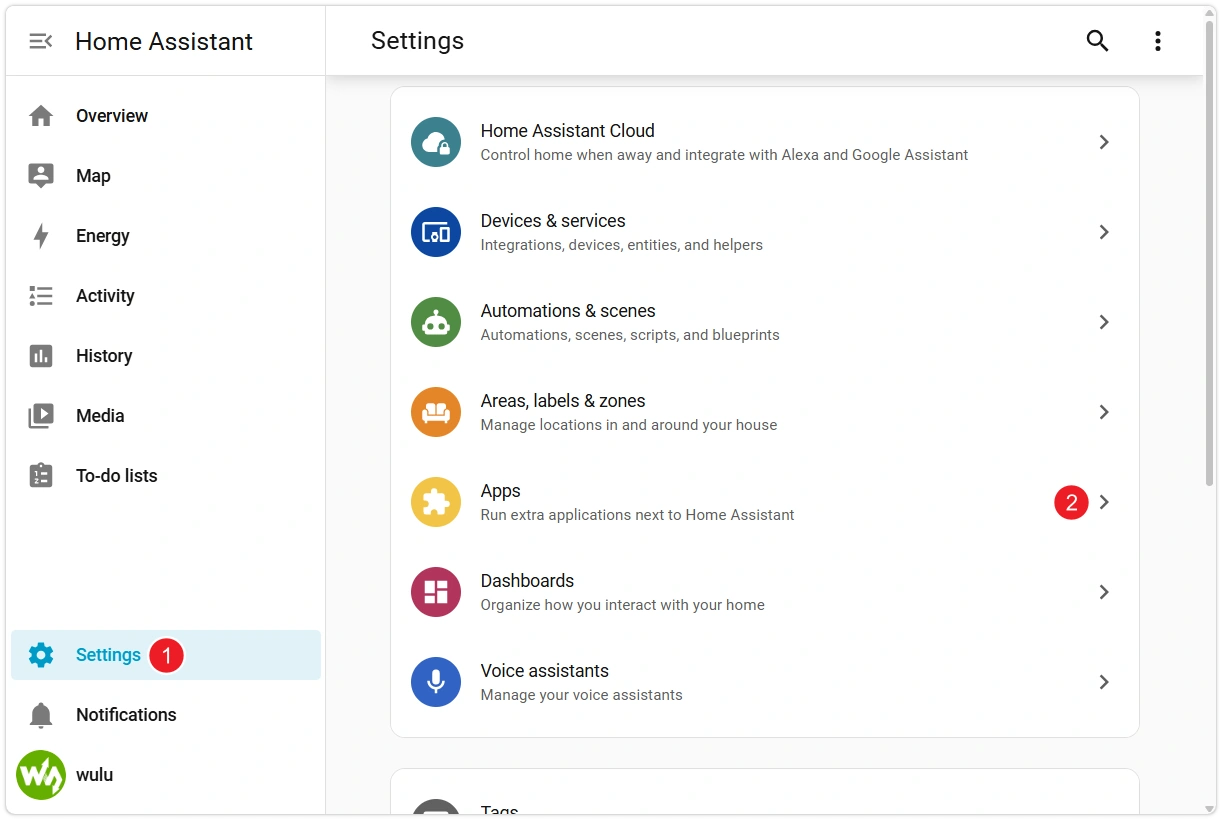
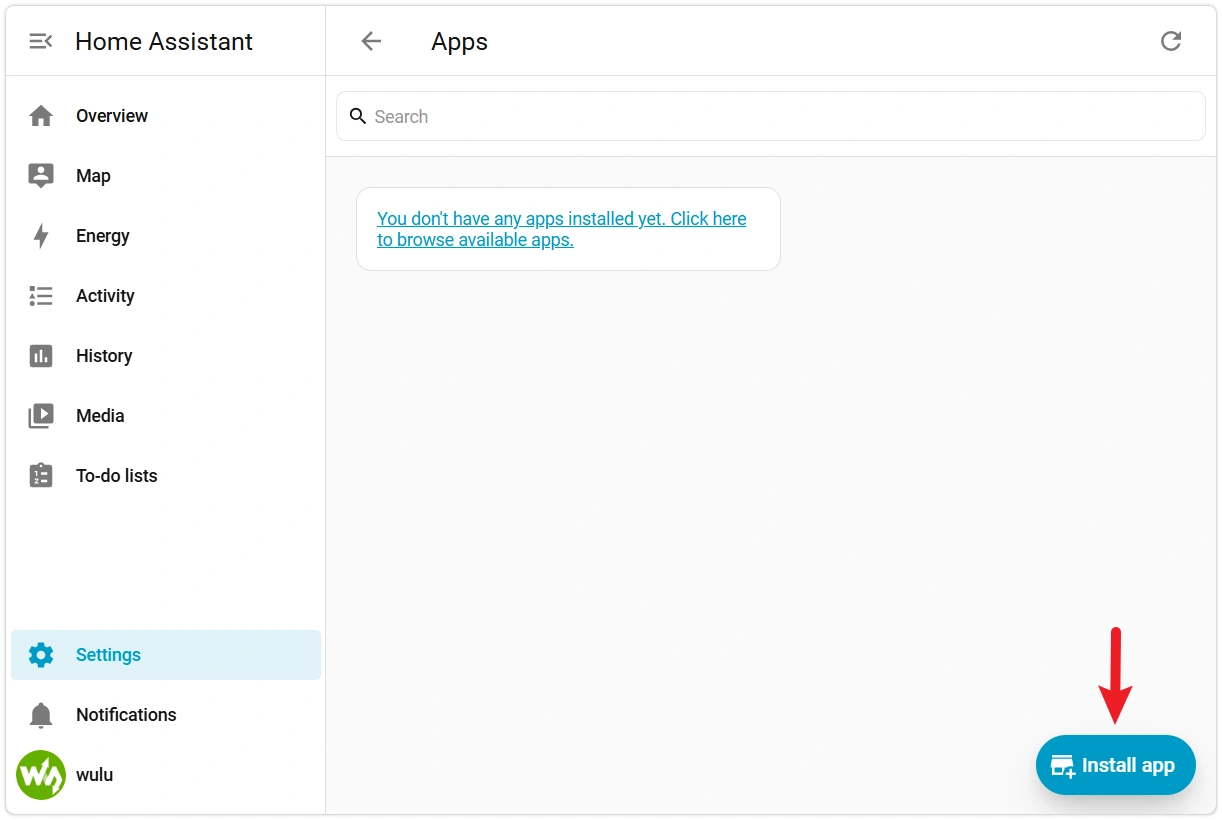
In the HA main interface, click Settings → Apps in the bottom-left corner.
-
Click the Install App button in the bottom-right corner.
Type
ESPHomein the search box, find ESPHome Device Builder, and click to open it.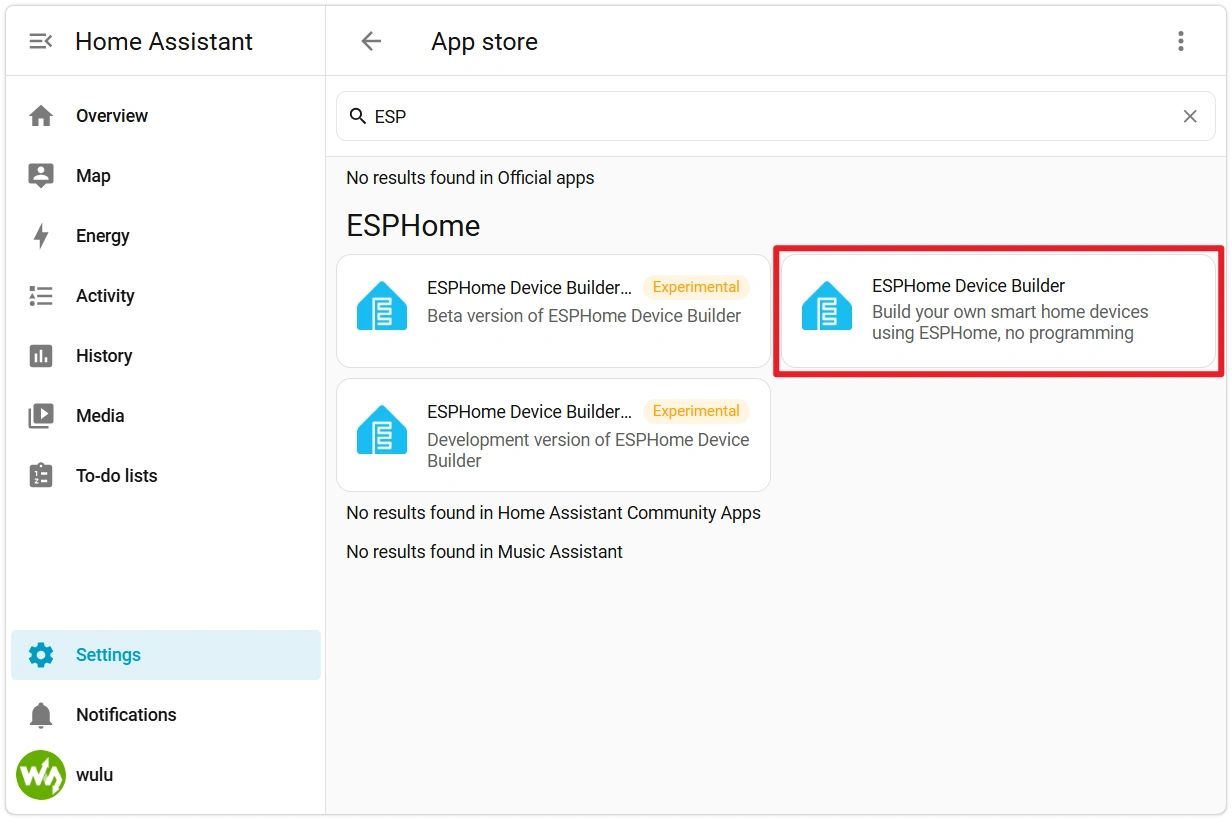
-
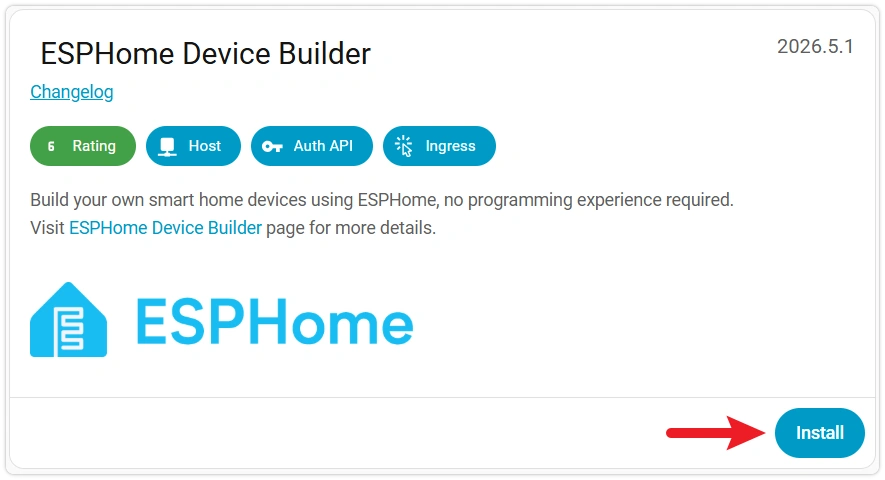
Click Install.
First Installation Requires WaitingThe first installation pulls the ESPHome image from GitHub Container Registry and extracts it, which may take more than 10 minutes. You can click "Log" to view the installation progress.
-
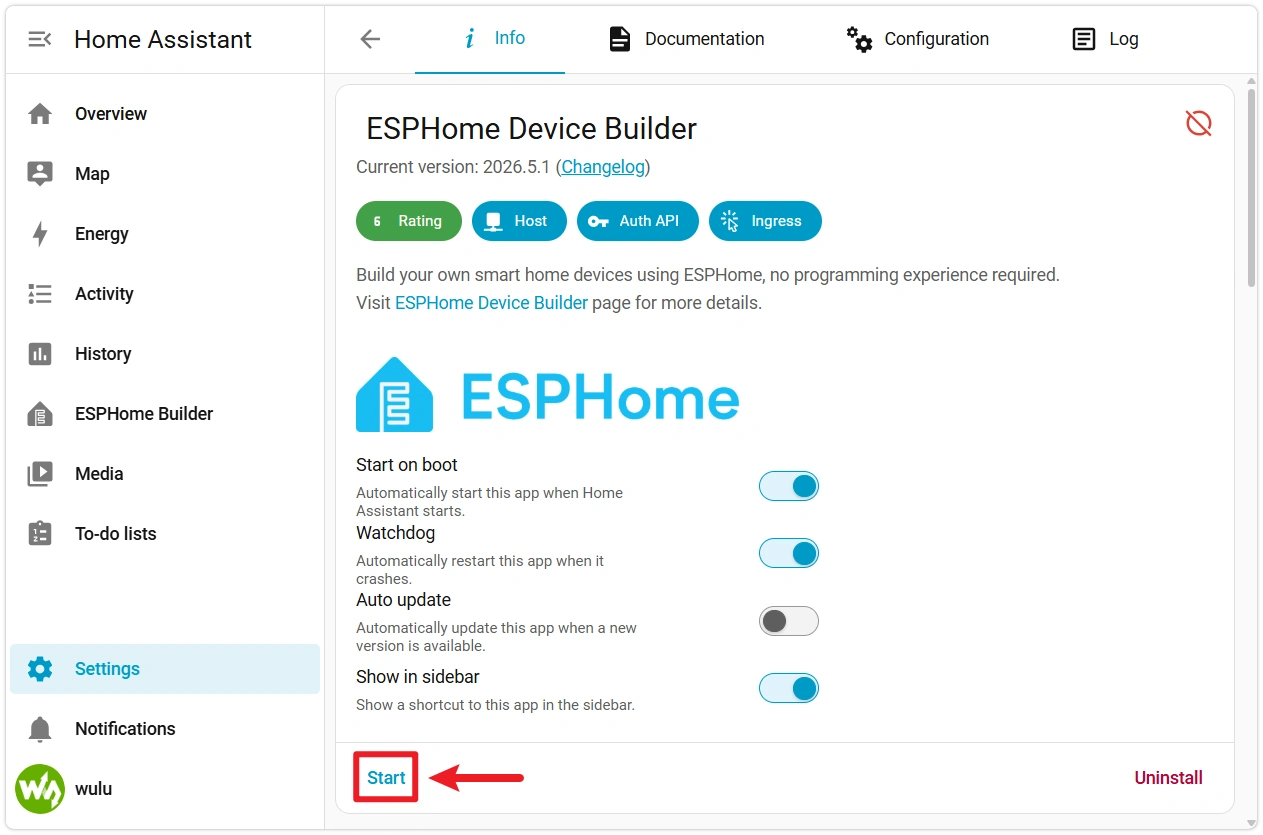
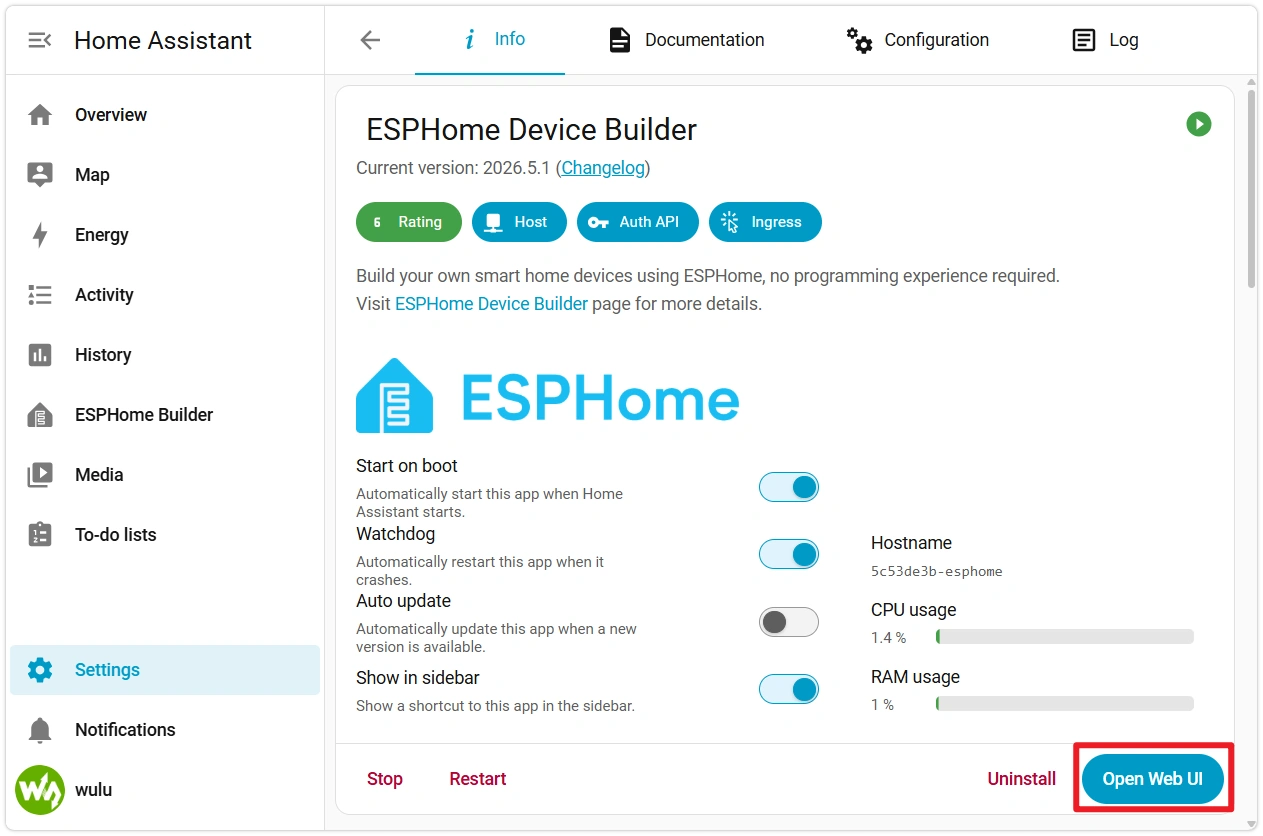
After installation completes, it is recommended to enable the following options, then click Start to start the ESPHome app:
- Start on boot: Automatically start the ESPHome app when HA starts.
- Auto restart: Automatically restart the app if it unexpectedly exits.
- Show in sidebar: Add a permanent ESPHome entry to the HA left sidebar.
-
After starting, click ESPHome Builder in the sidebar (or click Open Web UI on the app page). Seeing the ESPHome welcome page confirms the app is running properly.
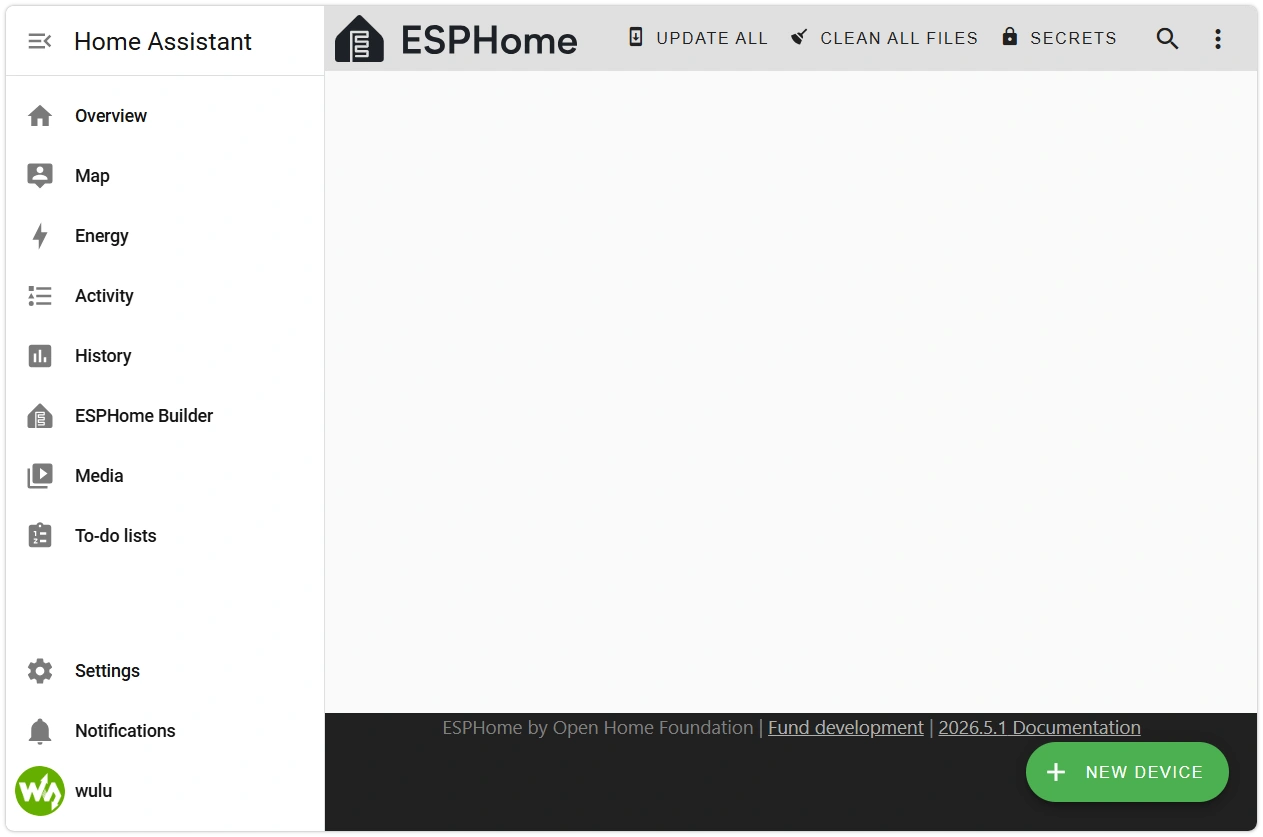
ESPHome is now ready. The next section will use the ESP32-S3-Zero as an example to create and flash your first device in ESPHome.
3. Common Issues in This Section
- App store list is empty / won't load: HA may be unable to communicate with GitHub. Check if HA can access the internet.
- ESPHome app installation stuck at a certain progress: The
ghcr.ioimage download may have failed. Check the specific error in the app page → Log. - ESPHome entry not visible in the sidebar: The "Show in sidebar" option was not enabled. Go back to the app page to enable it, then refresh the browser.
- Clicking "Open Web UI" has no response or shows an error: The app may not be started. Click Start on the app page and wait for
Dashboard is running on port 6052to appear in the "Log."