Working with ESP-IDF
This chapter includes the following sections:
ESP-IDF Getting Started
New to ESP32 ESP-IDF development and looking to get started quickly? We have prepared a general Getting Started Tutorial for you.
- Section 1: Environment Setup
- Section 2: Running Examples
- Section 3: Creating a Project
- Section 4: Using Components
- Section 5: Debugging
- Section 6: FreeRTOS
- Section 7: Peripherals
- Section 8: Wi-Fi Programming
- Section 9: BLE Programming
Please Note: This tutorial uses the ESP32-S3-Zero as a teaching example, and all hardware code is based on its pinout. Before you start, it is recommended that you check the pinout of your development board to ensure the pin configuration is correct.
Setting Up the ESP-IDF Development Environment
The component manifests for the ESP-IDF BSP and firmware/brookesia in the ESP32-P4-WIFI6-DB repository require ESP-IDF >=5.5. This is the version constraint declared by the component manifests; it does not mean that all examples have been verified on all newer versions, and dependent components may impose additional requirements. For component and configuration requirements of specific examples, please refer to the README in the corresponding example directory.
The following guide uses Windows as an example, demonstrating development using VS Code + the ESP-IDF extension. macOS and Linux users should refer to the official documentation.
The screenshots in this section use ESP-IDF V5.5.2 as an example. When installing, please select the ESP-IDF version that matches your board's example.
Install the ESP-IDF Development Environment
-
Download the installation manager from the ESP-IDF Installation Manager page. This is Espressif's latest cross-platform installer. The following steps demonstrate how to use its offline installation feature.
Click the Offline Installer tab on the page, then select Windows as the operating system and the ESP-IDF version you need (the version shown in the screenshot is for reference only — choose the version that fits your actual needs).
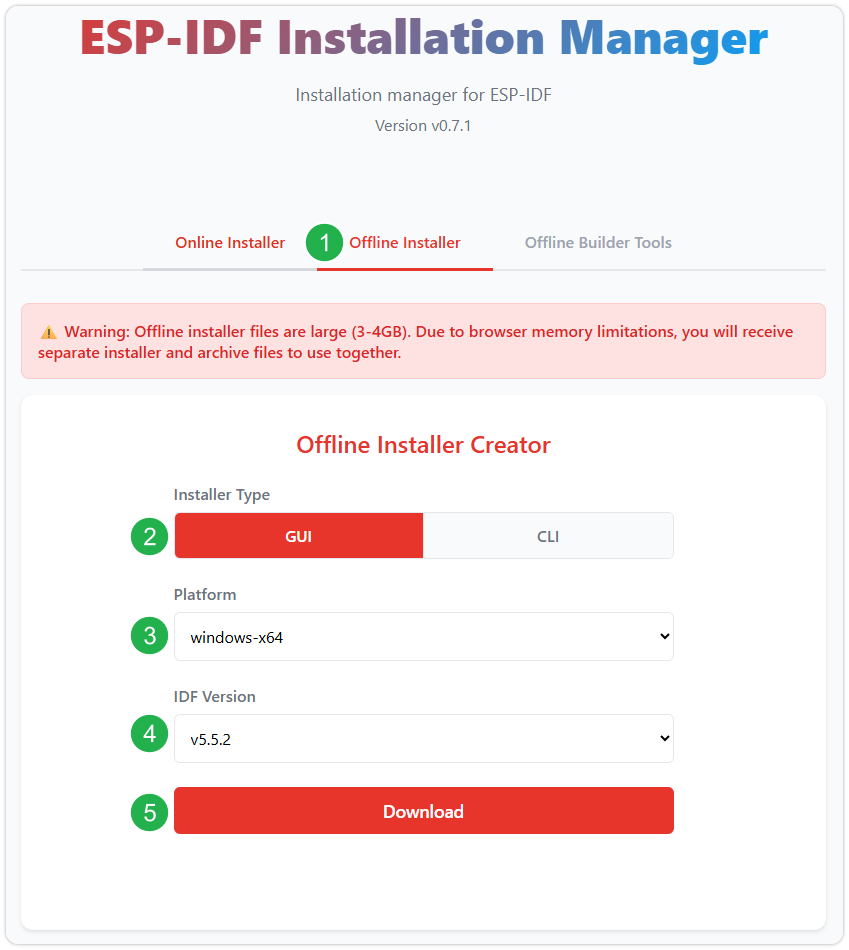
After confirming your selection, click the download button. The browser will automatically download two files: the ESP-IDF Offline Package (.zst) and the ESP-IDF Installer (.exe).
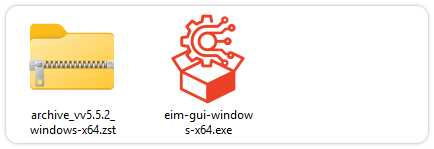
Please wait for both files to finish downloading.
-
Once the download is complete, double-click to run the ESP-IDF Installer (eim-gui-windows-x64.exe).
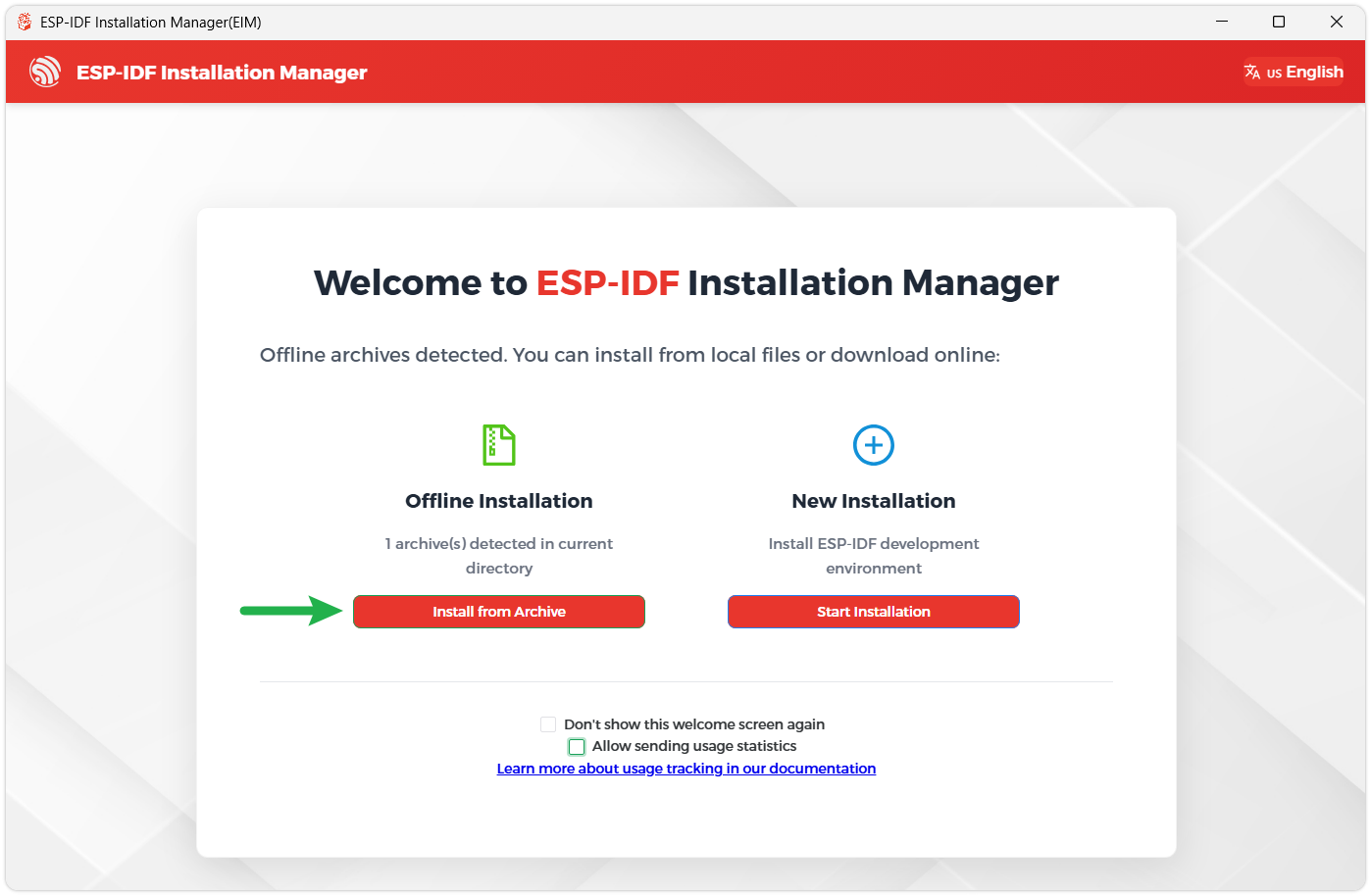
The installer will automatically detect if the offline package exists in the same directory. Click Install from archive.
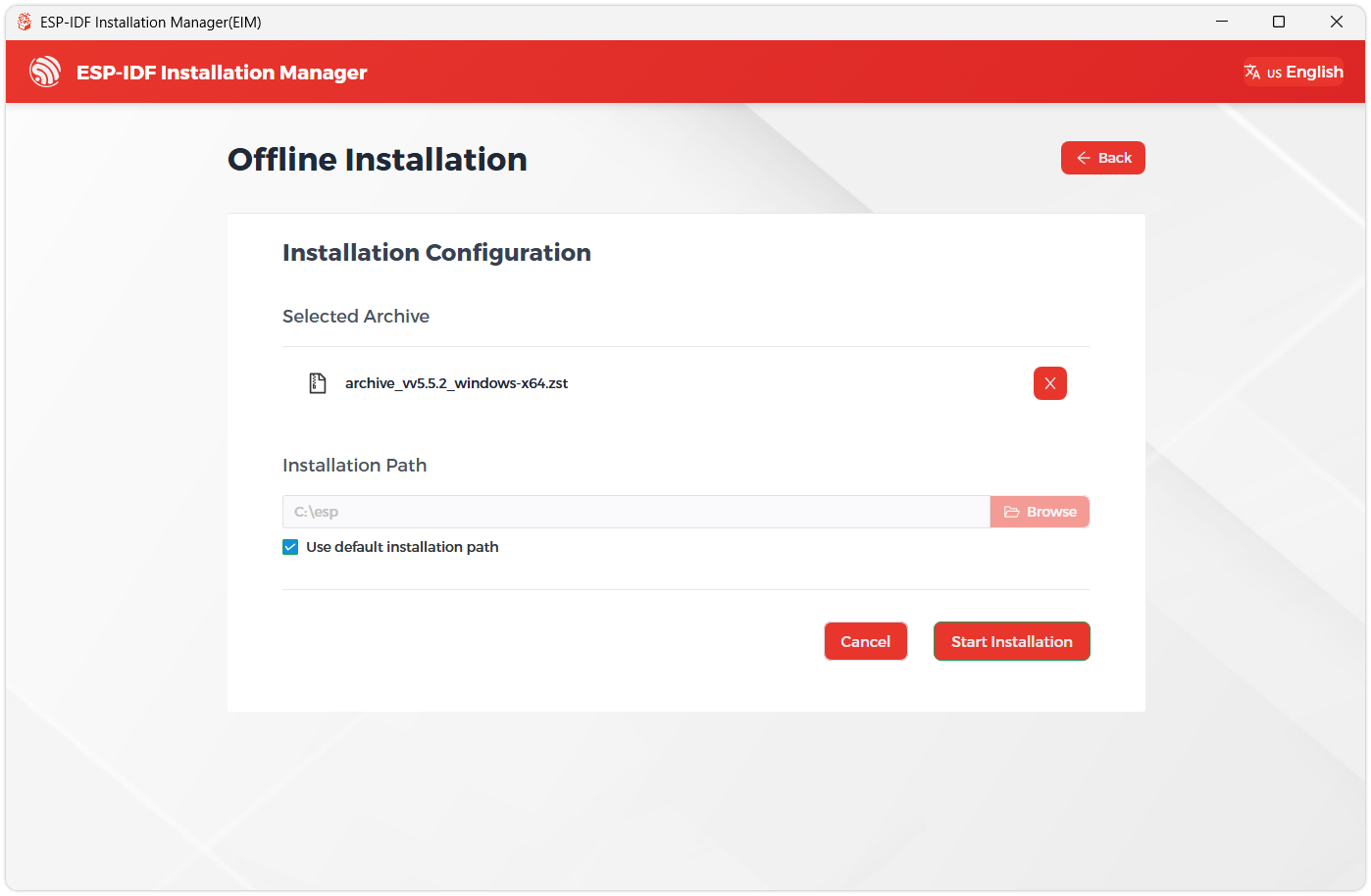
Next, select the installation path. We recommend using the default path. If you need to customize it, ensure the path does not contain Chinese characters or spaces. Click Start installation to proceed.
-
When you see the following screen, the ESP-IDF installation is successful.
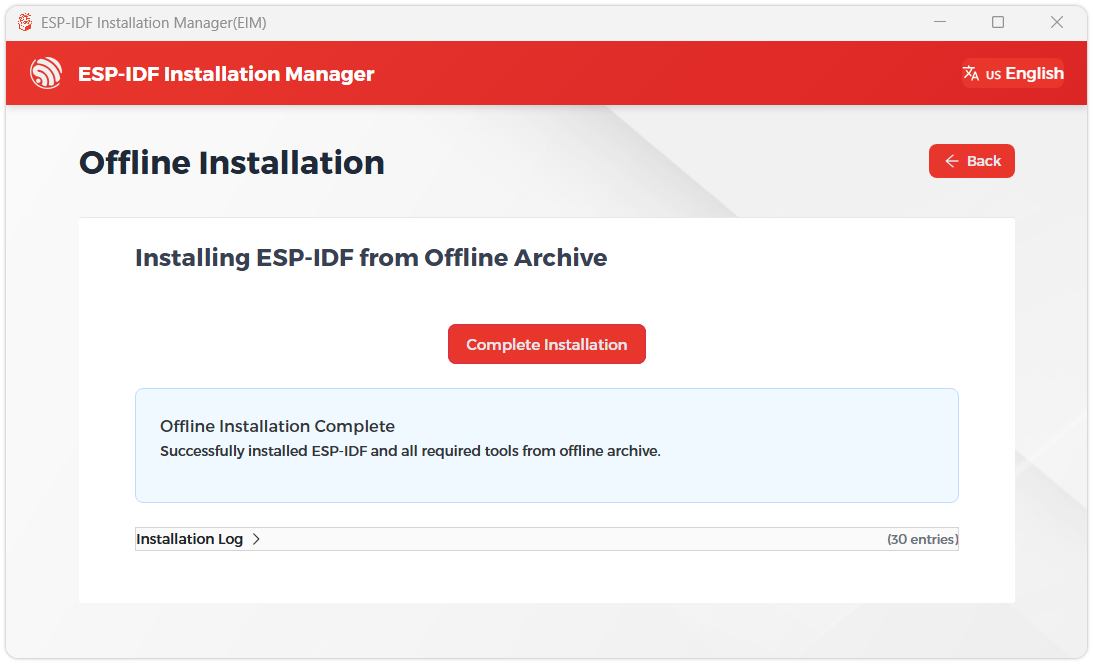
-
We recommend installing the drivers as well. Click Finish installation, then select Install driver.
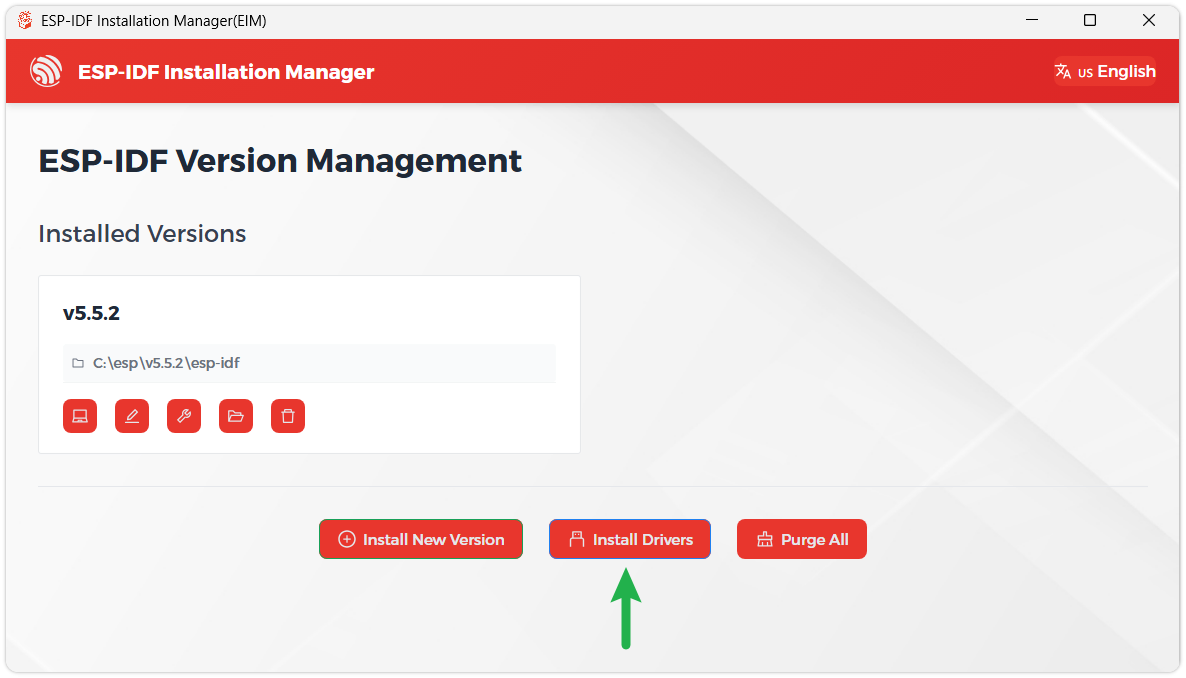
Install Visual Studio Code and the ESP-IDF Extension
-
Download and install Visual Studio Code.
-
During installation, it is recommended to check Add "Open with Code" action to Windows Explorer file context menu to facilitate opening project folders quickly.
-
In VS Code, click the Extensions icon
 in the Activity Bar on the side (or use the shortcut Ctrl + Shift + X) to open the Extensions view.
 -
Enter ESP-IDF in the search box, locate the ESP-IDF extension, and click Install.
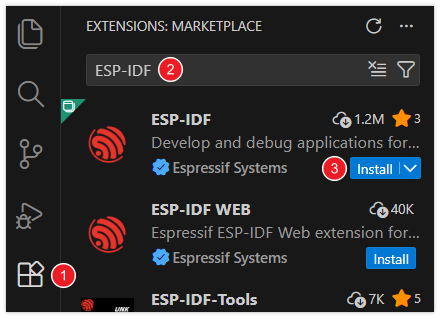
-
For ESP-IDF extension versions ≥ 2.0, the extension will automatically detect and recognize the ESP-IDF environment installed in the previous steps, requiring no manual configuration.
ESP32-P4-WIFI6-DB Example
The board-level code and example programs for the ESP32-P4-WIFI6-DB can be obtained from the following repositories:
The relevant directories in the repository are:
components/waveshare_bsp/esp32_p4_wifi6_db/: ESP-IDF BSP, header files, Kconfig, and component manifest.components/waveshare_bmgr/: ESP Board Manager board definitions and screen amend configurations.examples/esp_idf/: Peripheral examples and Board Manager test applications.firmware/brookesia/: ESP-Brookesia board-level comprehensive application source code.firmware/factory-firmware/: ESP32-P4 firmware for 5, 7, 8, and 10.1inch panels, as well as ESP32-C5 slave firmware.- ESP32-P4-WIFI6-DB Schematic.
The target chip for the example projects is esp32p4.
Quick Run
The following commands use the 00_board_check example. Change the command-line current directory to the example directory before running, and replace COMx with the actual serial port of the ESP32-P4:
cd examples/esp_idf/00_board_check
idf.py set-target esp32p4
idf.py build
idf.py -p COMx flash monitor
The display and camera examples require selecting the actually connected LCD panel via idf.py menuconfig before building. 06_wifi runs in Station mode by default; set the Wi-Fi SSID and password in Example Configuration; after enabling Run in SoftAP mode, it can switch to SoftAP mode. The component manager resolves dependencies during the configuration phase.
LCD Panel Selection
The BSP selects the LCD panel via the following options:
| BSP Option | Panel Controller | Resolution |
|---|---|---|
CONFIG_BSP_LCD_TYPE_720_1280_5_INCH_A | HX8394, 5inch | 720 × 1280 |
CONFIG_BSP_LCD_TYPE_720_1280_7_INCH_A | ILI9881C, 7inch | 720 × 1280 |
CONFIG_BSP_LCD_TYPE_800_1280_8_INCH_A | JD9365, 8inch | 800 × 1280 |
CONFIG_BSP_LCD_TYPE_800_1280_10_1_INCH_A | JD9365, 10.1inch | 800 × 1280 |
The BSP Kconfig and firmware/brookesia/sdkconfig.defaults both select the 10.1inch JD9365 by default. Before building, select the panel that is actually connected. The default configuration does not override an existing sdkconfig; to confirm the options actually in effect, check the project configuration and the generated build/config/sdkconfig.h.
Recommended Validation Order
It is recommended to run the examples in the following order: first confirm the board‑level peripherals, then verify the display, networking, and other functions:
00_board_check: Board‑level peripheral check.02_i2c_console: I2C bus check.03_sdmmc: SDMMC check.04_mipi_dsi: Display test.06_wifi: Wi-Fi Station test.
ESP-IDF Example Index
| Example Directory | Example Content |
|---|---|
00_board_check | Outputs chip, Flash, PSRAM, heap memory information, and periodic heartbeat |
01_gpio_input | Displays GPIO input status on the LCD |
02_i2c_console | Interactive I2C scan and register read/write console |
03_sdmmc | TF file write, read, and rename test |
04_mipi_dsi | LCD output test |
05_mipi_csi | Processes with PPA and previews the camera feed on the LCD |
06_wifi | Runs Wi-Fi Station networking and gateway ping by default; can also be configured as SoftAP |
07_i2s_codec | ES8311 built-in audio playback or microphone loopback |
08_usb_host_msc | USB mass storage file operations and sequential read/write speed test |
09_board_manager | ESP Board Manager initialization console and test cases for LCD, touch, audio, camera, TF card, GPIO, etc. |
The above directories are all located in examples/esp_idf/. You can browse the ESP32-P4-WIFI6-DB ESP-IDF Example Directory (GitHub). For wiring and operation methods, refer to the README and configuration in each example directory.
Board Manager Example Preparation
09_board_manager uses the board definitions in components/waveshare_bmgr/. Before compiling, you need to install esp-bmgr-assist in the ESP-IDF Python environment and generate the board configuration:
cd examples/esp_idf/09_board_manager
pip install esp-bmgr-assist
idf.py set-target esp32p4
idf.py bmgr -b esp32_p4_wifi6_db -c ../../../components/waveshare_bmgr
The default screen is a 10.1inch DSI screen. When using another screen, select the corresponding amend directory via -a according to that example's README; this configuration method is independent of the BSP's LCD Kconfig options described above. After generating the configuration, compile and flash. After startup, enter help, bmgr init, and case list to view commands, initialize the board, and list available cases.
Brookesia Comprehensive Application
The Brookesia source code is located in firmware/brookesia/and includes applications such as Calculator, Drawing Board, Audio, Camera, Video, Settings, Xiaozhi, and GPIO. After entering that directory, configure, compile, and flash according to the README therein. The default screen is a 10.1inch JD9365 with a resolution of 800 × 1280.
Pre‑Run Checks
- The board implements wireless functionality via the ESP32-C5 wireless co-processor and ESP-Hosted/SDIO. The ESP32-C5 requires compatible ESP-Hosted slave firmware; flashing an ESP32-P4 example will not update the ESP32-C5.
- The I2C bus uses GPIO7 (SDA) and GPIO8 (SCL), connecting the ES8311, the external screen touch controller, the LCD backlight controller, and the camera SCCB bus.
- The ES8311 I2S signals use GPIO13, GPIO12, GPIO10, GPIO9, and GPIO11, and amplifier enable uses GPIO53.
- The TF uses 4-bit SDMMC, card power enable is GPIO45 (active low), and SDMMC IO power uses LDO channel 4.
- The LCD backlight is controlled through the
0x45device on the shared I2C bus, with brightness register0x96; touch uses polling, and the BSP initializes using theesp_lcd_touch_gt911driver. - ESP-Hosted/SDIO uses GPIO18, GPIO19, GPIO14, GPIO15, GPIO16, GPIO17, and GPIO54.
- For component versions, configuration requirements, and hardware connection details of specific examples, please refer to the README in the corresponding example directory and the board hardware documentation. Build, flash, and run results must be confirmed separately for the selected example, ESP-IDF version, and actual panel.