Working with Windows
Hardware Connection
Before using the module, in addition to the Type-C USB cable, GNSS antenna, and LTE antenna, you will also need the following items:
- One 4G SIM card (active account with 4G/GPRS data service enabled)
- One headset cable with a microphone (optional)
Connection Steps
-
With the power off
- Insert an activated 4G SIM card
- Connect the headset cable with a microphone (optional)
- Connect the USB cable to your computer
-
Use the Type-C USB cable
- Connect one end to a USB port on your PC
- Connect the other end to the USB port of the ESP32-S3-A7670E-4G
-
LED status after power-up
- The PWR LED lights up
- Wait approximately 3 to 5 seconds for the module to start
- The NET LED stays on: Module startup is complete
- The module automatically searches for the network; subsequently, the NET LED starts blinking
Driver Installation
The first time you use the module on Windows, you need to install the driver:
Driver Download
Installation Steps
- Open Device Manager
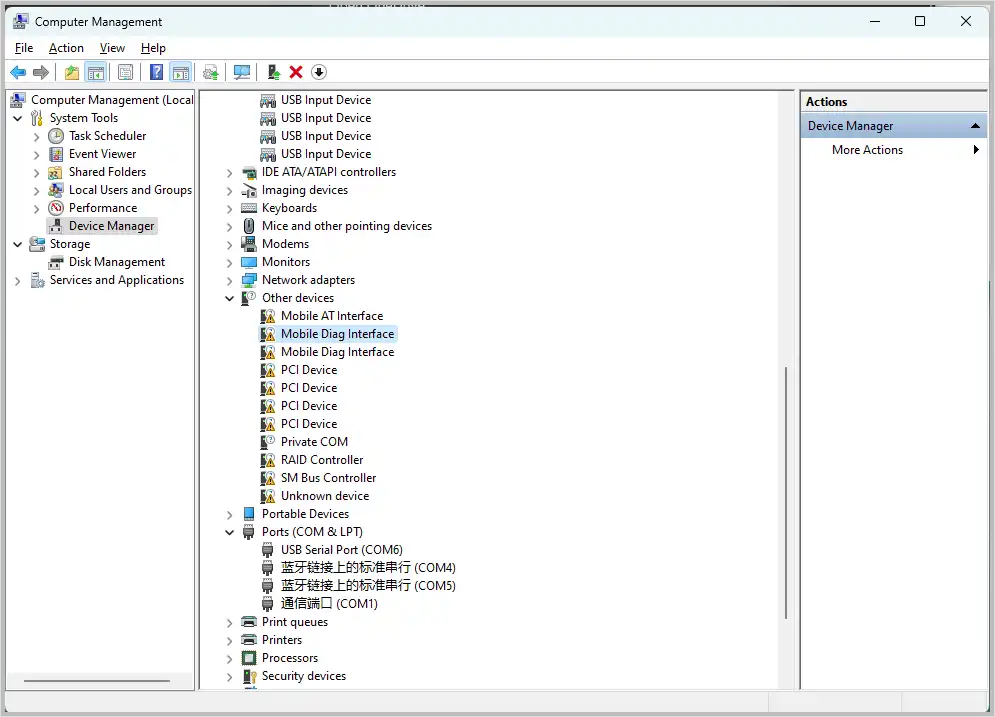
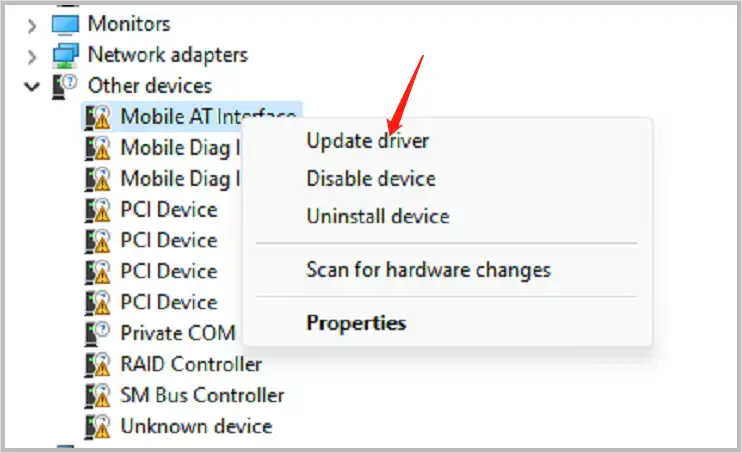
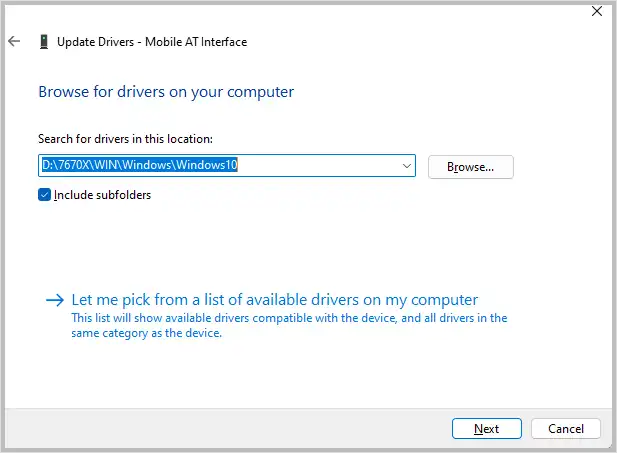
- Locate "Mobile AT Interface", then click "Update driver" on the right
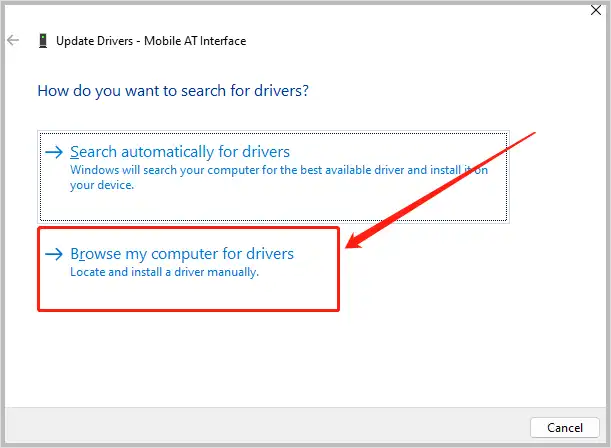
- Click "Browse" and select the folder containing the downloaded driver
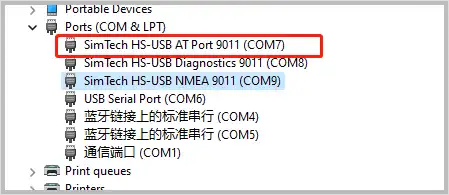
- After successful installation, Device Manager will show something like "SimTech HS-USB AT Port 9011"
Device Recognition
After the driver is installed, several new COM ports will appear in Device Manager.
Common AT Command Functions for Cat-1 Module
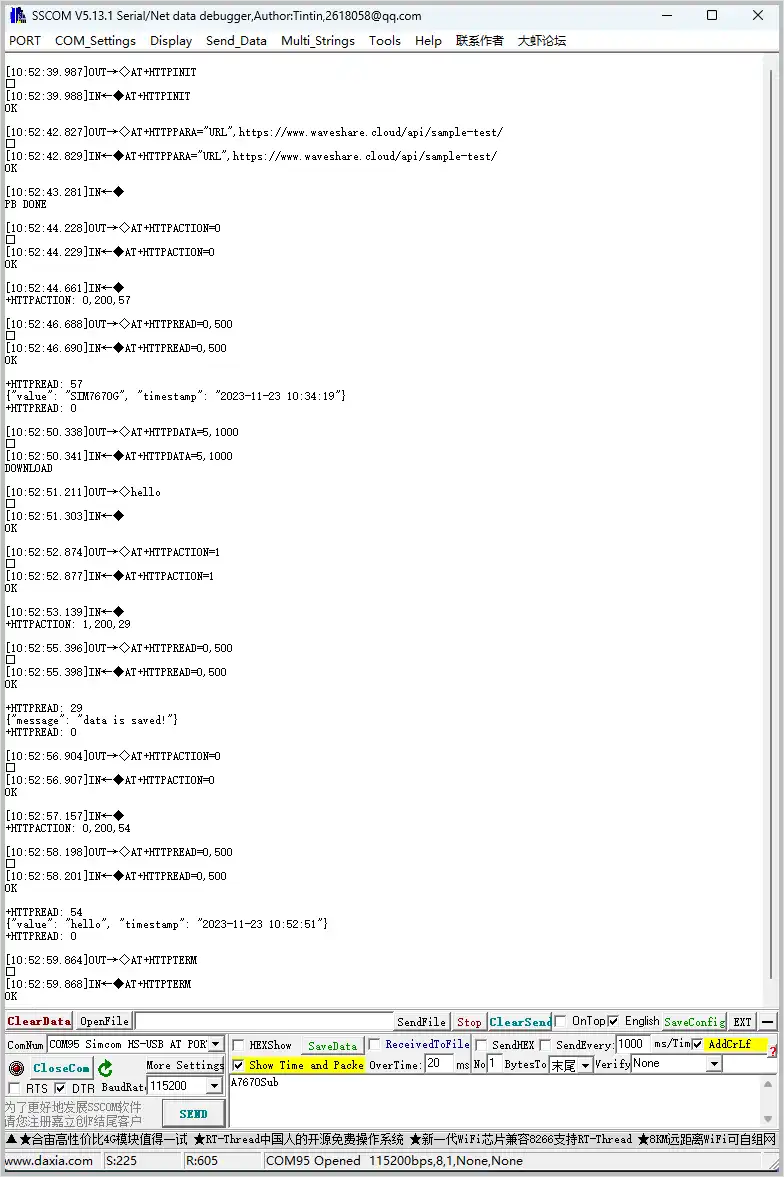
HTTP
| AT Command | Description | Response |
|---|---|---|
| AT+HTTPINIT | Initialize HTTP service | OK |
| AT+HTTPPARA="URL",https://www.waveshare.cloud/api/sample-test/ | Connect to remote server | OK |
| AT+HTTPDATA=5,1000 | Input data | DOWNLOAD Type helloOK |
| AT+HTTPACTION=0 | Start HTTP request 0:GET; 1:POST; 2:HEAD; 3:DELETE; 4:PUT | OK +HTTPACTION: 0,200,54 |
| AT+HTTPTERM | Terminate HTTP service | OK |
| AT+HTTPPARA | Set HTTP parameters | OK |
| AT+HTTPHEAD | Read HTTP response header | OK |
| AT+HTTPREAD | Read HTTP response data | OK |
MQTT
| AT Command | Description | Response |
|---|---|---|
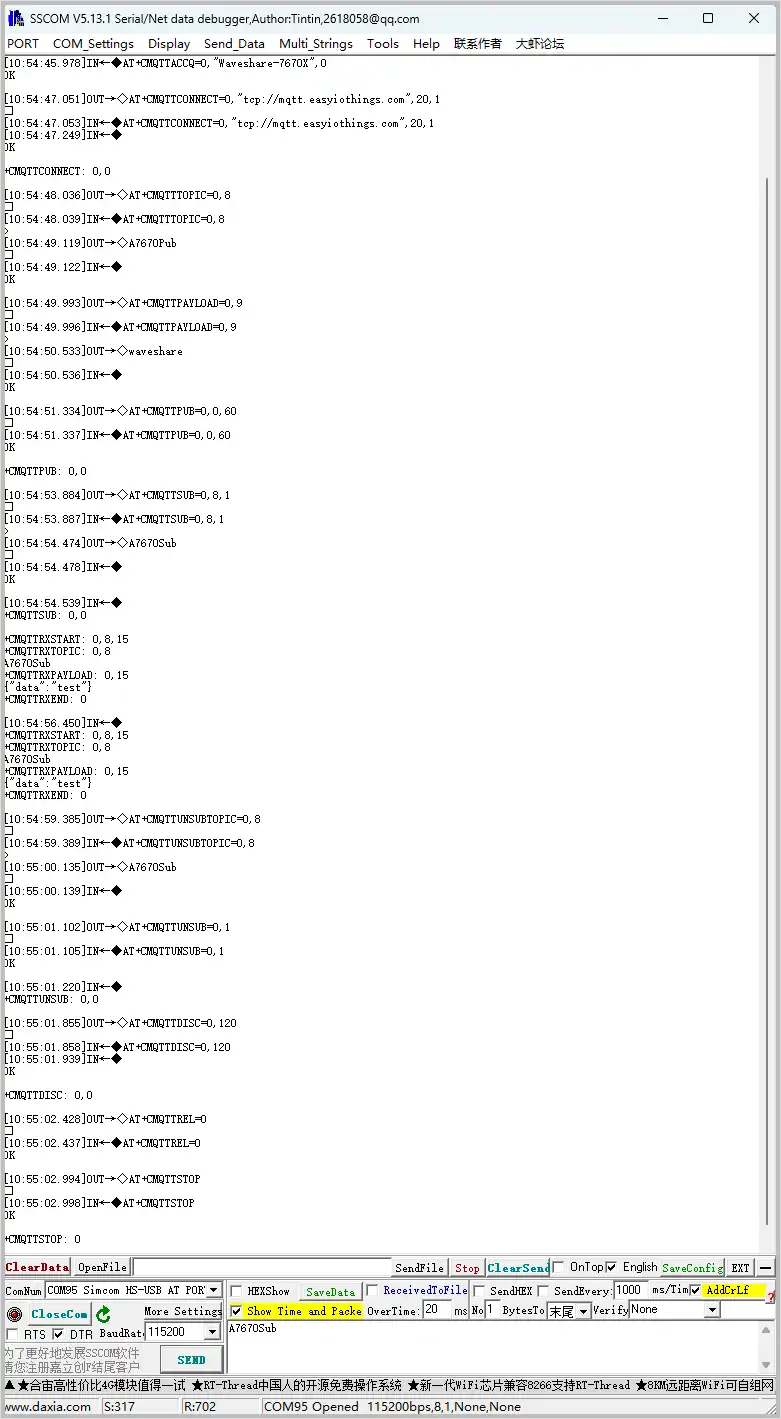
| AT+CMQTTSTART | Start MQTT service | OK |
| AT+CMQTTACCQ=0,"Waveshare-7670X",0 | Request an MQTT client | OK |
| AT+CMQTTCONNECT=0,"tcp://mqtt.easyiothings.com",20,1 | Send MQTT connection request, connect to private MQTT server (MQTTS) | OK |
| AT+CMQTTTOPIC=0,8 | Set the topic for publishing | >A7670Pub OK |
| AT+CMQTTPAYLOAD=0,9 | Set the payload for publishing | OK >waveshare |
| AT+CMQTTPUB=0,0,60 | Publish message | OK +CMQTTPUB: 0,0 |
| AT+CMQTTSUB=0,8,1 | Subscribe to a topic | >A7670Sub OK +CMQTTSUBTOPIC: 0,0 [10:03:39.665] Received←◆ +CMQTTRXSTART: 0,8,15 +CMQTTRXTOPIC: 0,8 A7670Sub +CMQTTRXPAYLOAD: 0,15 {"data":"test"}+CMQTTRXEND: 0 |
| AT+CMQTTSTOP | Stop MQTT service | OK |
| AT+CMQTTREL | Release MQTT client | OK |
| AT+CMQTTUNSUBTOPIC | Release subscribed topic | OK |
| AT+CMQTTUNSUB | Unsubscribe | OK |
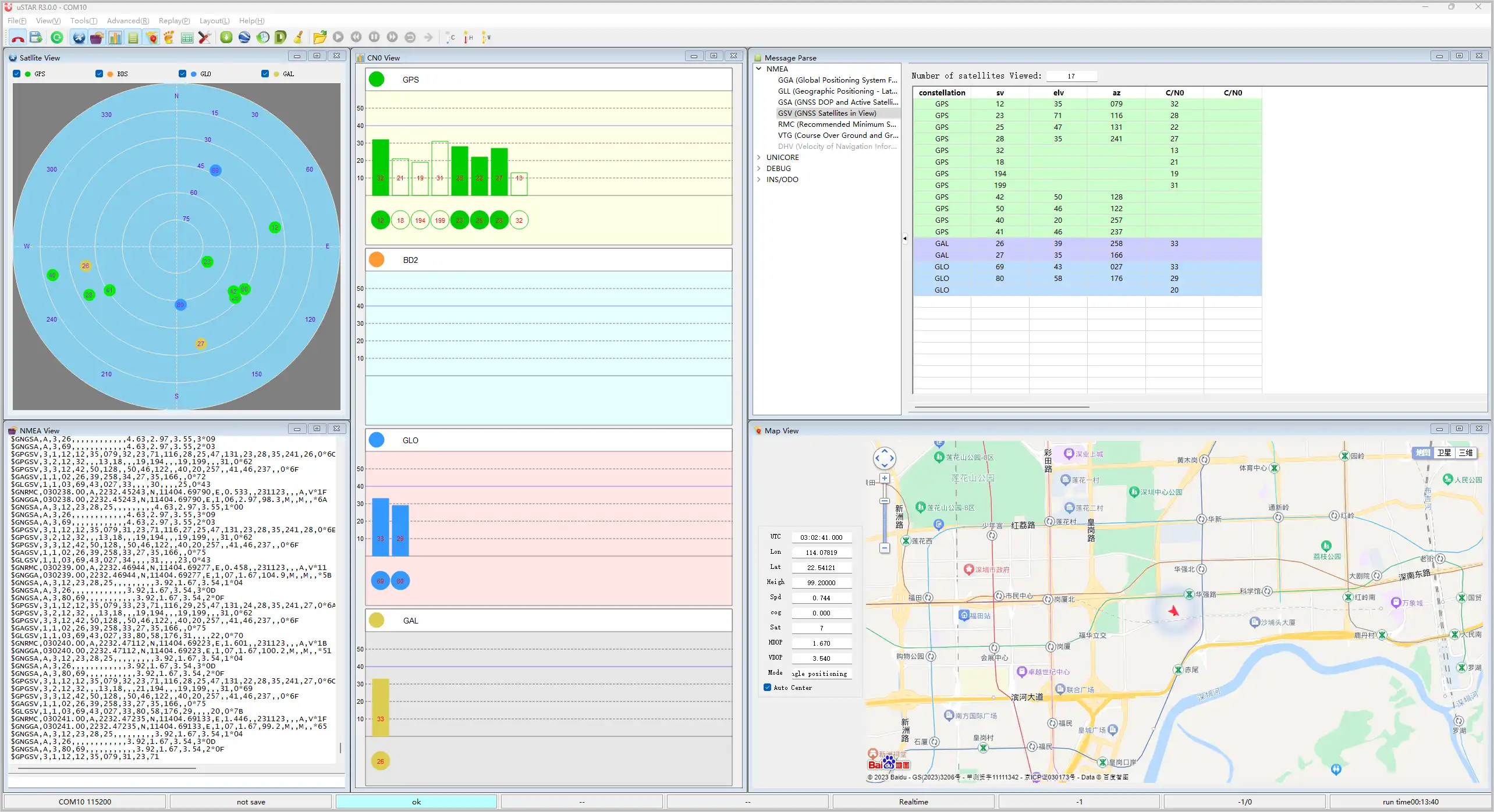
GNSS
| AT Command | Description | Response |
|---|---|---|
| AT+CGNSSPWR=1 | Power on GNSS | +CGNSSPWR: READY! |
| AT+CGNSSTST=1 | Enable GNSS data output | OK |
| AT+CGNSSPORTSWITCH=1,0 | Switch NMEA data to USB NMEA output | OK |
| AT+CGNSSPORTSWITCH=0,1 | Switch NMEA data to UART output | OK |
| AT+CGPSINFO | Get current GNSS data | Position information |
Voice Call
-
Connect a configured speaker or headset to the development board
AT Command Description Response ATD10086; Make a call OK
VOICE CALL: BEGINATA Answer a call OK
VOICE CALL: BEGINATH Hang up a call OK
VOICE CALL: END: 000017
SMS (Send and Receive)
Sending an English SMS
- Set the local SMS center number:
ExecuteAT+CSCA="+8613800755500"and press Enter. A response ofOKindicates success.
Note: The format for China Mobile SMS center numbers is+861380xxxx500, wherexxxxis the area code of your location. The center number may vary by region; you can find it online or check with your carrier. This example uses the Shenzhen area code (0755). - Set SMS mode to text mode:
ExecuteAT+CMGF=1to set the message format to TEXT mode. The response isOK. - Send an SMS:
ExecuteAT+CMGS="phone number"and press Enter to set the recipient's phone number. After the module returns the>prompt, enter the message content (e.g.,Send message test!).
Do not press Enter after the message content. When finished editing, send the hexadecimal value1A(which isCTRL+Z) to execute the send operation. You can also send1B(ESC) to cancel.
Upon successful sending, the module returns+CMGS: 15, indicating the SMS was sent successfully. As shown in the figure below: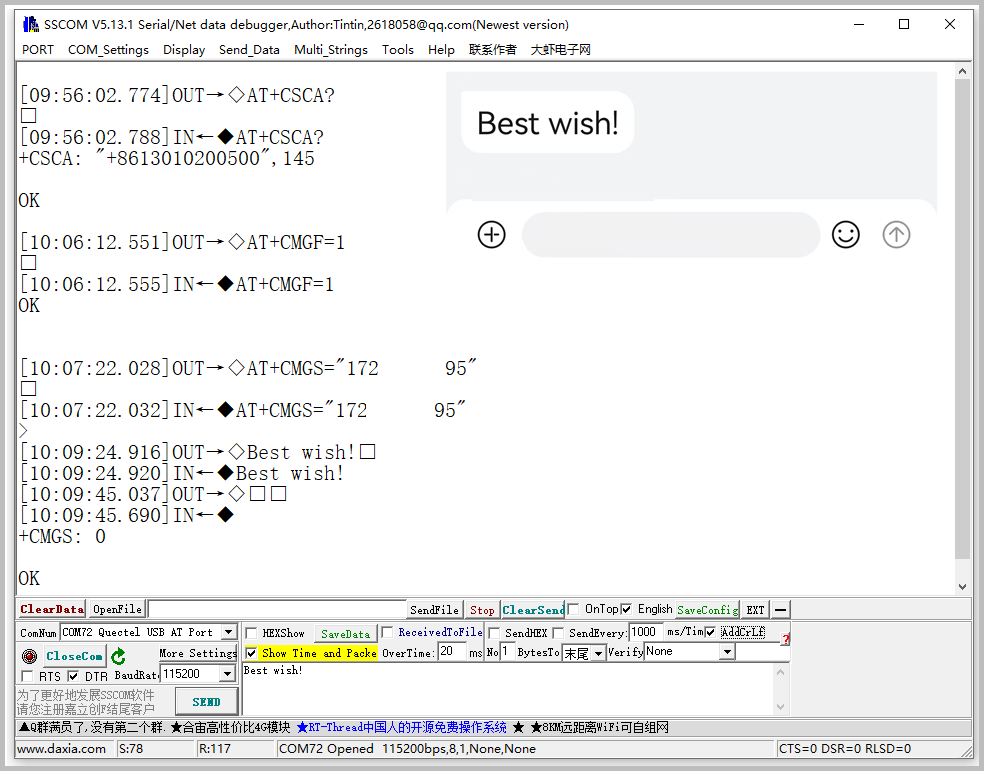
Receiving an English SMS
- Send an SMS from your phone to the module, for example:
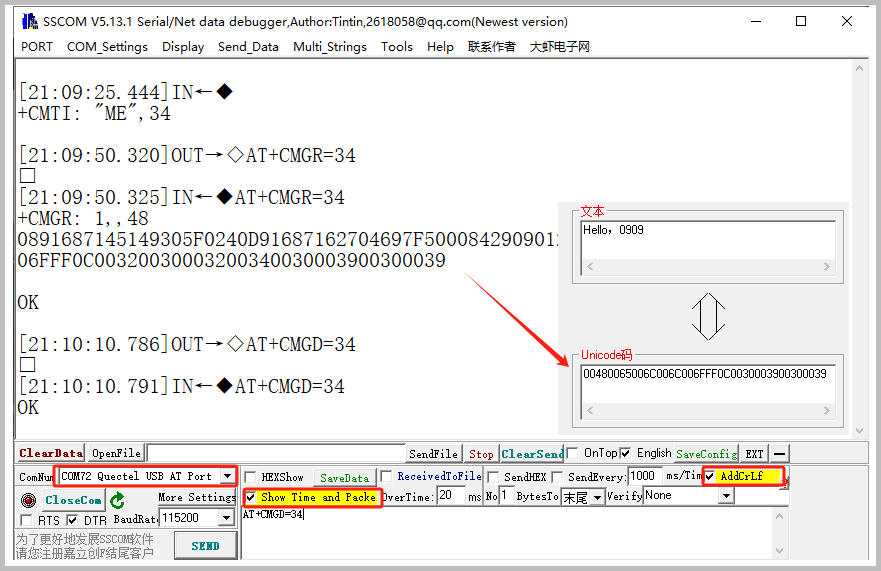
Hello,0909 - When the module receives an SMS, the serial port will automatically report a notification containing "SM", where "20" indicates that there are currently 20 SMS messages stored in the SIM card, and the sequence number of the latest received SMS is 20
- Read the SMS content:
ExecuteAT+CMGR=20to read the 20th SMS (AT+CMGL="ALL"reads all SMS messages from the SIM card) - Delete an SMS:
ExecuteAT+CMGD=20 - Convert the returned SMS content into readable text using an encoding conversion tool
Sending a Chinese SMS
-
Set SMS sending parameters
AT+CMGF=1 //Set as text modeAT+CSCS="UCS2" // Set the character set to UCS2AT+CSMP=17,167,2,25 // Set text mode parametersAT+CMGS="00310037003200360030003700360034003700390035" // Set the recipient's phone number in UCS2 encoding -
Wait for the module to return the ">" prompt, then send the message content that has been converted by software (e.g.,
6700597D7684795D798FFF0). Do not press Enter after the message content. When finished editing, send the hexadecimal value1A(CTRL+Z) to execute the send operation. As shown in the figure below: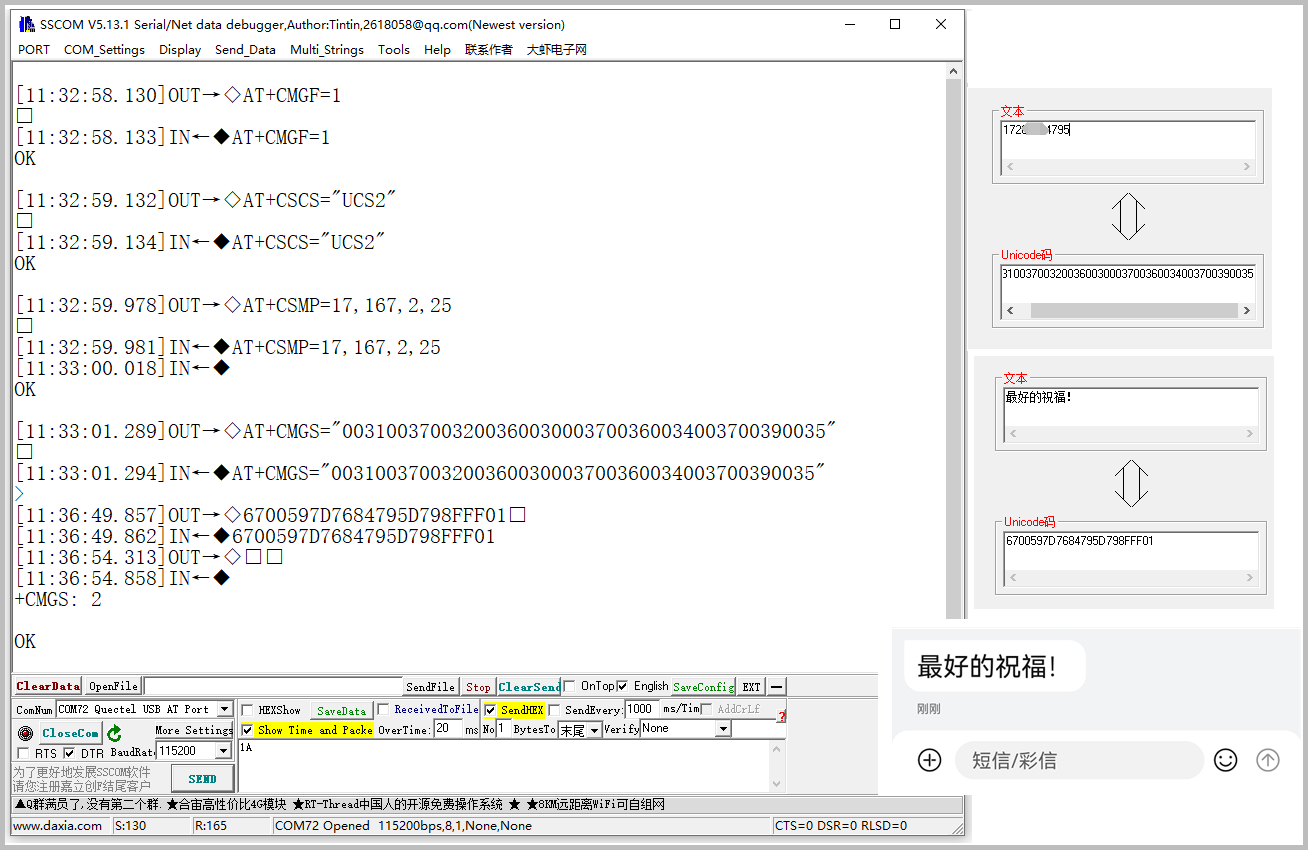
Receiving a Chinese SMS
-
Set SMS reception parameters
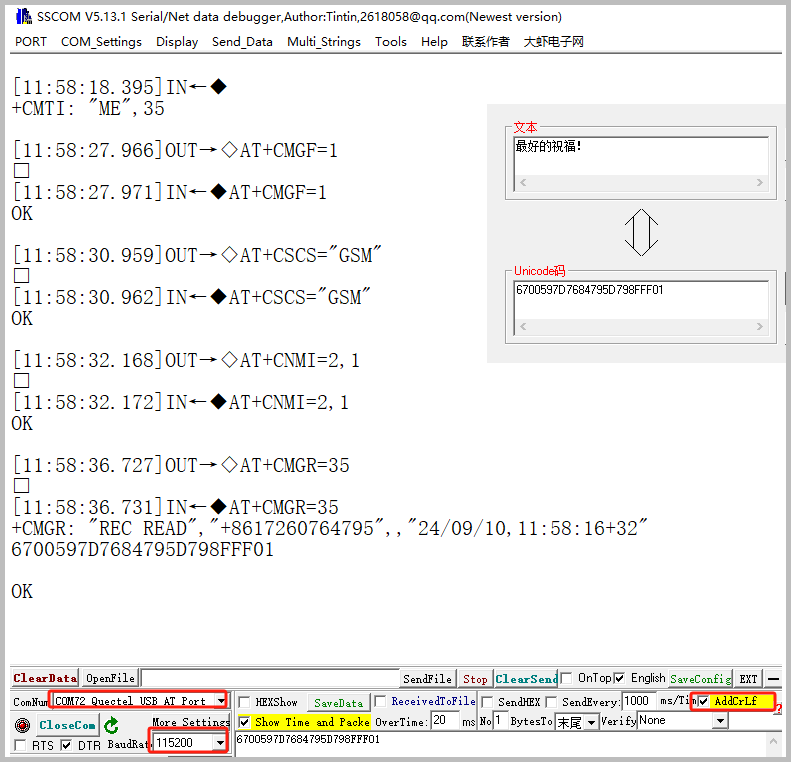
AT+CMGF=1 // Set to text modeAT+CSCS="GSM" // Set the character set to GSMAT+CNMI=2,1 // Configure new SMS indication -
When a new SMS is received, the serial port will automatically report a notification. Read the SMS content based on the notification, for example:
AT+CMGR=21 // Read the SMS with sequence number 21 -
Convert the returned SMS content into Chinese text using terminal software. As shown in the figure below:
TTS (Text To Speech)
-
Common AT commands for TTS are as follows:
AT+CTTSPARAM=? // View the range of adjustable parametersAT+CTTSPARAM=1,3,0,1,1 // Set parametersAT+CTTSPARAM? // Read current TTS parametersAT+CTTS=1,"6B228FCE4F7F75288BED97F3540862107CFB7EDF" // Synthesize and play UCS2 textAT+CTTS=2,"1234567890" // Synthesize and play plain text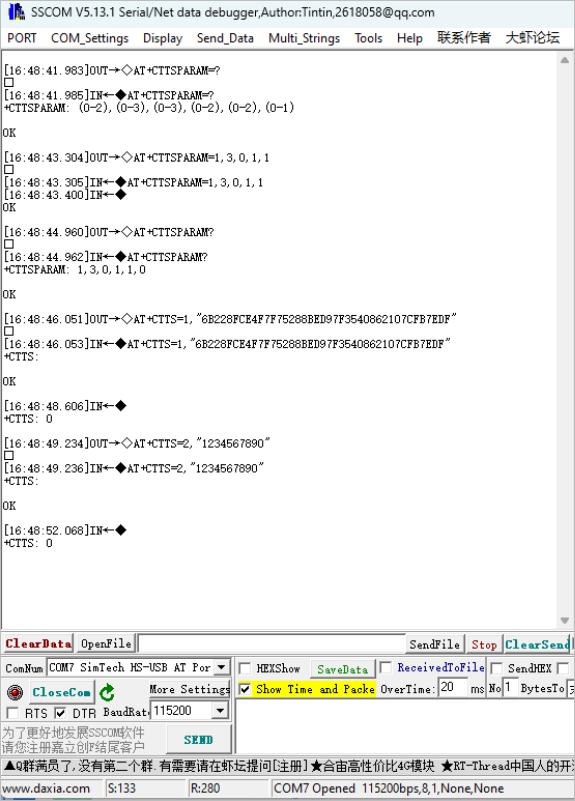
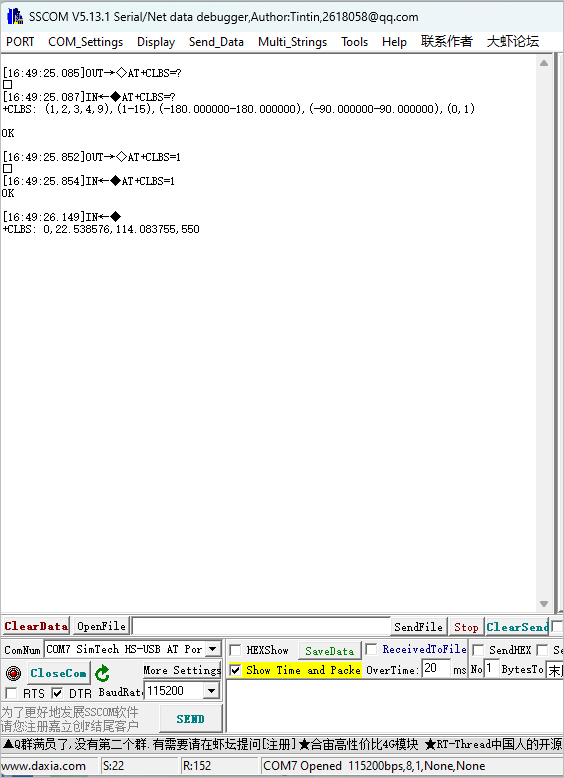
LBS (Base Station Positioning)
-
Common commands for LBS base station positioning are as follows:
AT+CLBS=? // View the range of configurable parametersAT+SIMEI=xxxxx // If there is no IMEI, set the IMEI first. xxxxx must match the IMEI code on the module's stickerAT+CLBS=2 // Get the detailed addressAT+CLBS=1 // Get the current latitude and longitude