FAQ
Q: Which version of ESP-IDF is required to compile the corresponding Xiaozhi source code?
- 5.5.2
Q: After downloading a program to the module, sometimes it fails to connect to the serial port or fails to flash during subsequent downloads?
- Press and hold the Reset button for more than 1 second, wait for the PC to re-recognize the device, then download again
- Press and hold the BOOT button, press RESET, release RESET, then release BOOT. The module will enter download mode, which solves most download issues.
- Press and hold the BOOT button, reconnect the USB cable, and after the USB cable is connected, release the BOOT button. The module will enter download mode, which solves most download issues.
Q: The module keeps resetting, and when checking in Device Manager, the connection appears to be blinking?
- This may be caused by a blank Flash that makes the USB port unstable. Press and hold the BOOT button, press RESET, release RESET, then release the BOOT button. The module will enter download mode, allowing you to flash the firmware (program) and resolve the issue.
Q: What to do when an Arduino program compiles extremely slowly for the first time?
- It is normal for the first compilation in Arduino IDE to be slow. Please wait patiently.
Q: How to handle the situation when the AppData folder cannot be found?
- Some AppData folders are hidden by default. You can set your system to show them.
- File Explorer -> View -> Check "Hidden items”
Q: How to check which COM port I am using?
-
Windows System:
- ①Check via Device Manager: Press Windows + R to open the "Run" dialog box. Type
devmgmt.mscand press Enter to open Device Manager. Expand the "Ports (COM & LPT)" section. All COM ports and their current status will be listed here. - ②Check using Command Prompt: Open the Command Prompt (CMD), type the
modecommand, which will display status information for all COM ports. - ③Check Hardware Connection: If an external device is already connected to a COM port, the device typically occupies a port number. You can determine which port is being used by checking the connected hardware.
- ①Check via Device Manager: Press Windows + R to open the "Run" dialog box. Type
-
Linux System:
- ①Check using the
dmesgcommand: Open the terminal. - ②Check using the
lscommand: Typels /dev/ttyS*orls /dev/ttyUSB*to list all serial devices. - ③Check using the
setserialcommand: Typesetserial -g /dev/ttyS*to view configuration information for all serial devices.
- ①Check using the
Q: Why does ESP-IDF report this error?
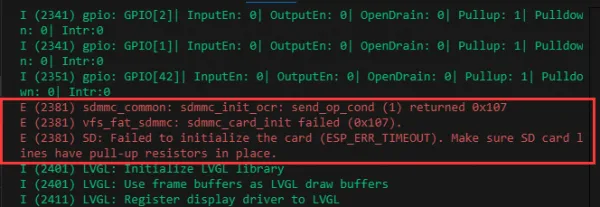
- This occurs when no TF card is inserted or the TF card cannot be recognized. If this happens, wait for a moment and then reset the device. If the issue persists, format the TF card to FAT32. If it still fails, try using a different TF card
Q: Program fails to flash when using a MAC device?
Install the MAC driver and then flash again.
Q: What is the screen refresh rate? (Frame rate)
- This depends on the running example; different programs have different refresh rates.
Q: When running a program that uses the serial port (Serial.println()), the serial monitor in my Arduino IDE does not show any data?
- Are you using a USB to UART tool to connect to the UART pins, or have you enabled USB CDC in Tools?
Q: Can Wi-Fi and Bluetooth work simultaneously?
- Yes, they can be used simultaneously. However, because audio consumes a significant amount of memory, they cannot be used together when audio functions are active
Q: Which battery can be used?
- MX1.25 interface 3.7V lithium battery
Q: What capacity lithium battery is recommended?
- Using one with the corresponding interface and output voltage is acceptable; capacity depends on customer needs
Q: Why is there no output after running even though the code is correct and flashed successfully?
- Check the schematic. Depending on the Type-C interface of different boards, the code handles output differently:
- For boards with direct USB output,
printfworks. To useSerialoutput, enable the "USB CDC On Boot" feature or declareHWCDC. - For boards with UART-to-USB, both
printfandSerialwork without enabling USB CDC On Boot.
Q: Q: How to use SquareLine Studio to design interfaces?
- Refer to the SquareLine Studio Tutorial.
Q: How to restore factory mode?
- Flash the factory bin file
Q: Q: Can the product be used without a TF card?
- Yes, it can. Only the functions related to the TF card will be unavailable; other functions are unaffected
Q: Screen issues
- The screen and backplate of this type of product are designed with an integrated adhesive bonding. To ensure normal use, it is recommended to avoid disassembling or prying open the adhesive layer. If the screen is damaged due to disassembly, repairs cannot be performed.