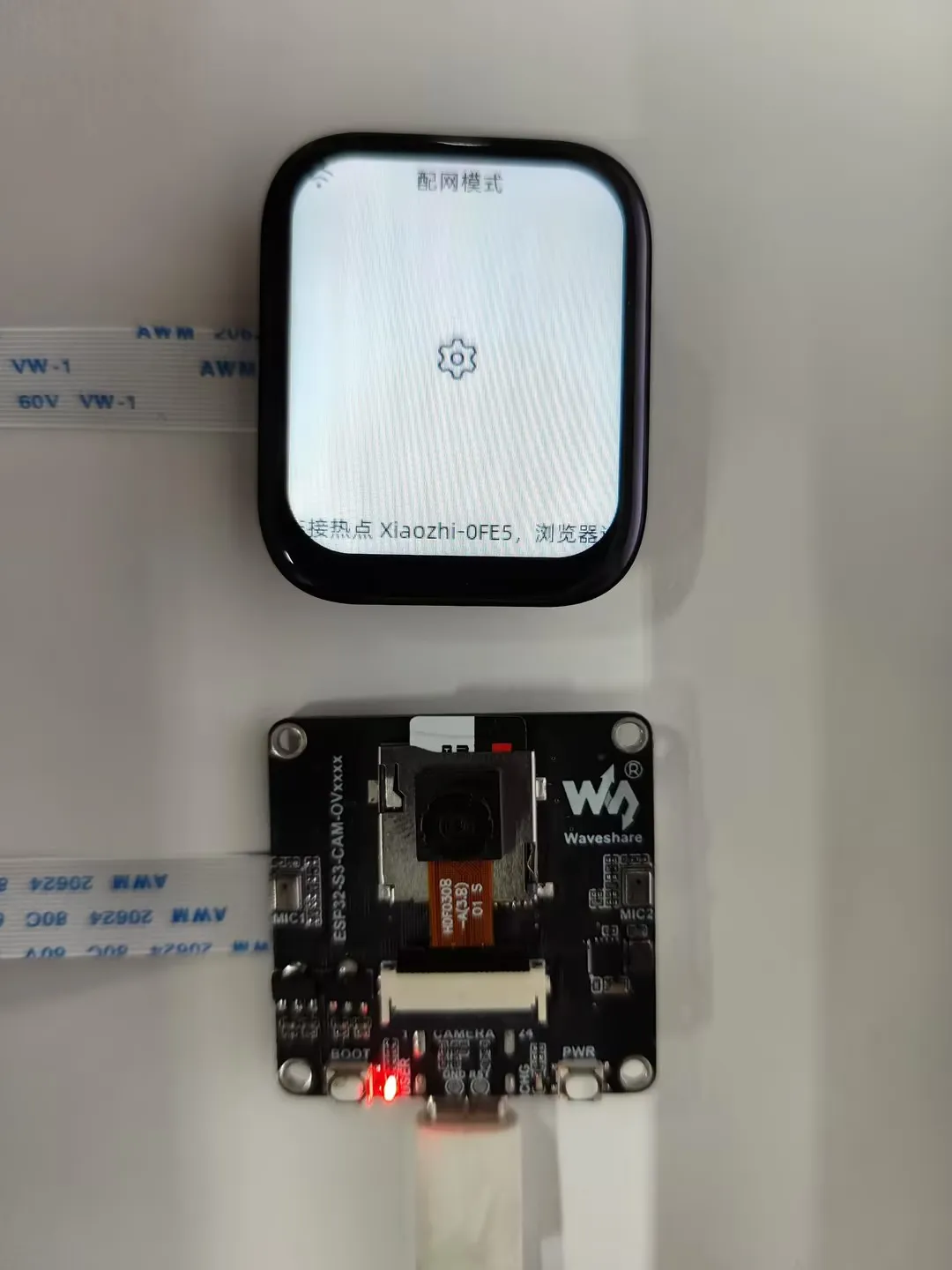
ESP32-S3-CAM-OVxxxx User Guide
To help users quickly understand the various functions of the product, we provide a series of test routines for customers to learn how to use each interface. In addition to the ESP32-S3-CAM-OVxxxx main unit and its included cables, the following components are required to run the examples:
Component Preparation
- ESP32-S3-CAM-OVxxxx ×1
- TF card ×1 (not required, needed only for TF card examples)
- Screen, supports 1.83, 2inch, 2.8inch, 3.5inch ×1
Precautions
- When using, pay attention to the PCB antenna area. Avoid having other metal or plastic parts in contact with the PCB antenna.
- The screen and camera occupy most of the GPIOs. The development board uses the
CH32V003chip as an I/O expander for control functions such as reset and backlight on/off. - The GH1.25 lithium battery connector supports only a single-cell 3.7 V lithium battery. Do not connect multiple battery packs simultaneously for charging or discharging. A single-cell capacity of 2000 mAh or less is recommended.
⚠️ USB Download Precautions (Important)
If the port is not recognized, please enter Boot mode:
- Press and hold the BOOT button
- Connect the USB cable to the computer
- Release the BOOT button
After the download is complete, restart the board to run the program.
Example Introduction
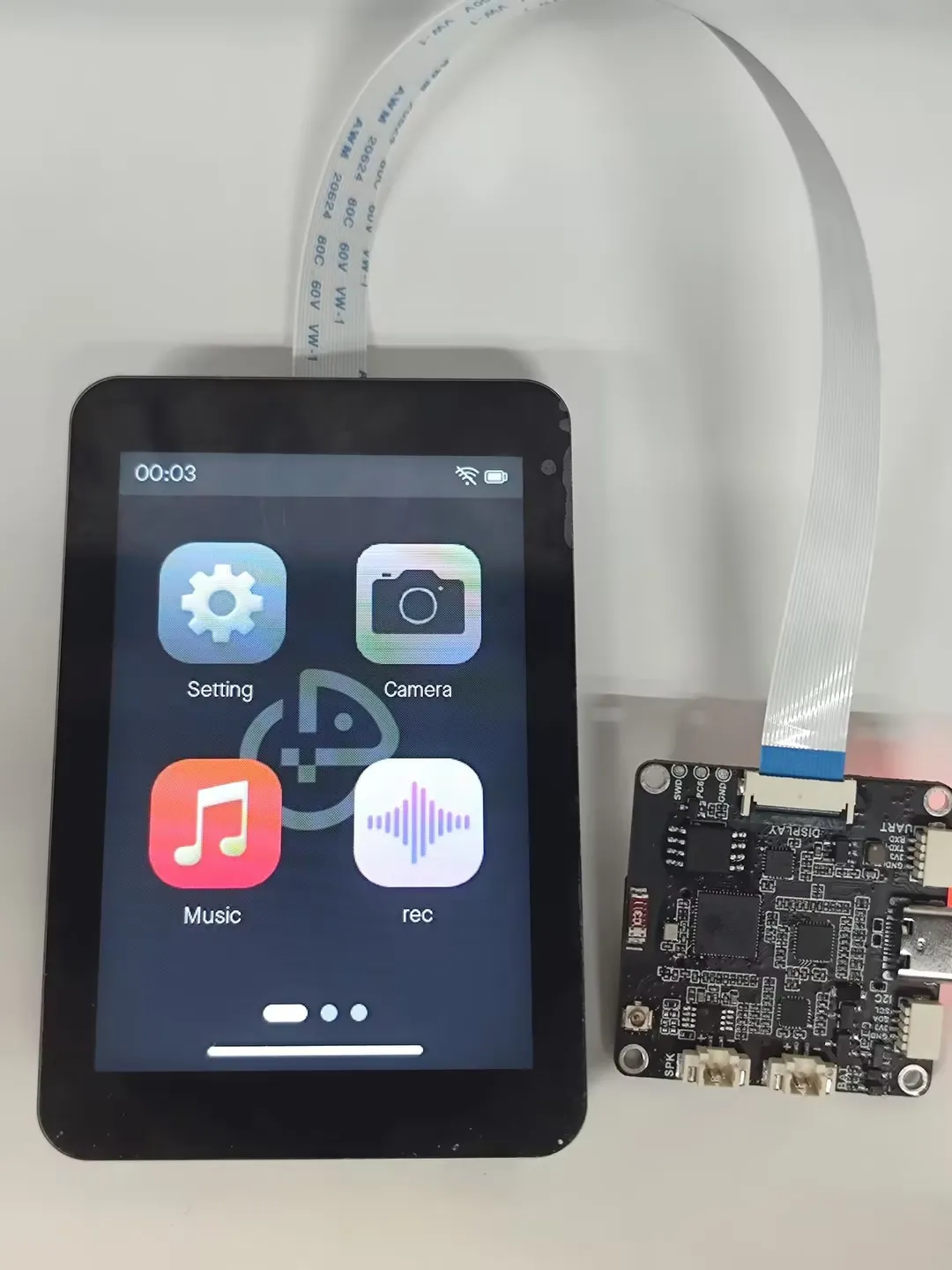
- The firmware uses the Brookesia component, showcasing various app-style applications, including Settings, Camera, Music Player, Recorder, SquareLine, XiaoZhi AI, etc.
Firmware Download
-
The example programs are located in the
Firmwaredirectory of the example package. -
Select the firmware corresponding to your screen for flashing. For example, ESP32-S3-CAM-OVxxxx-Factory-LCD_1_83.bin supports the 1.83 screen
-
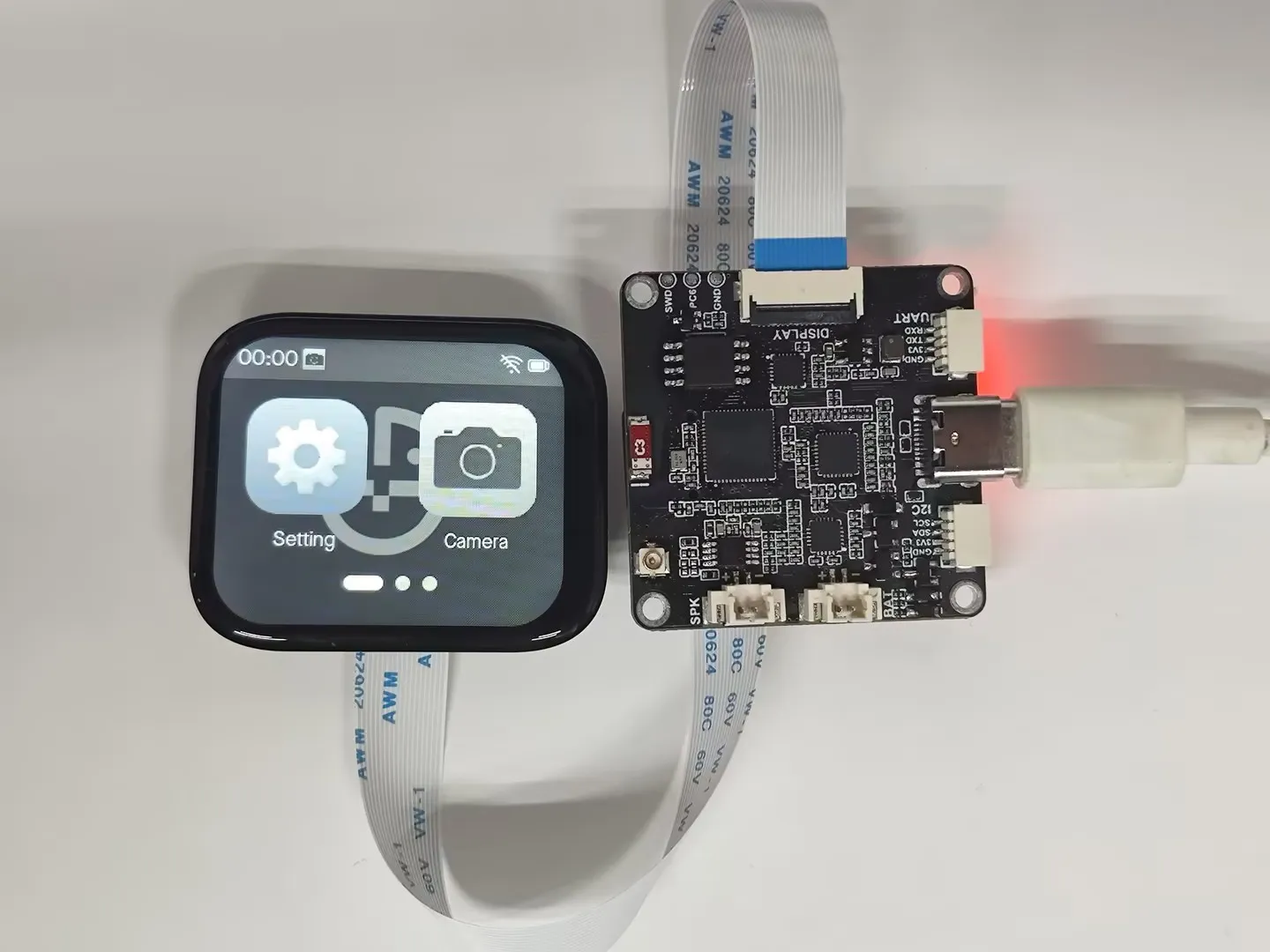
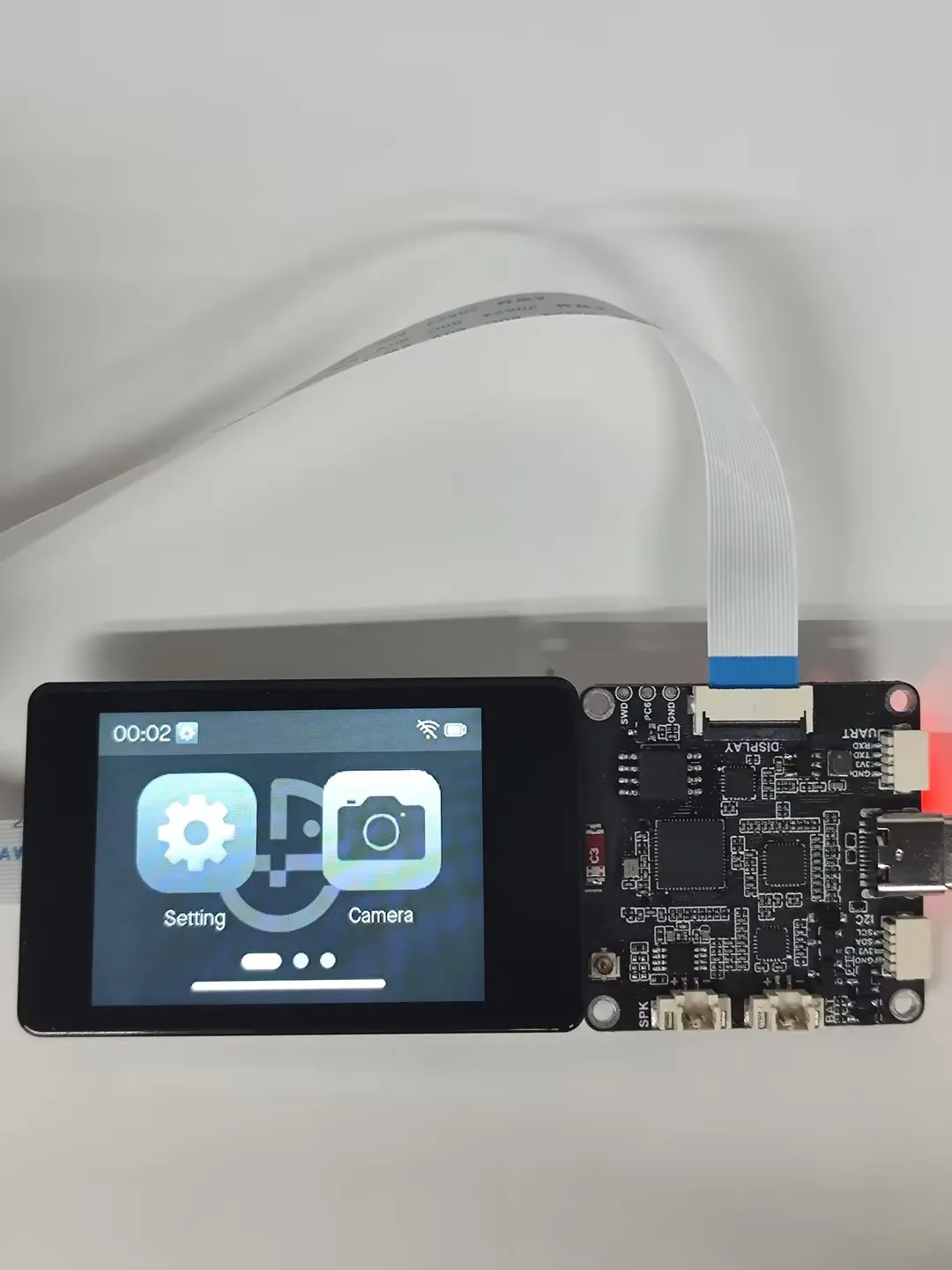
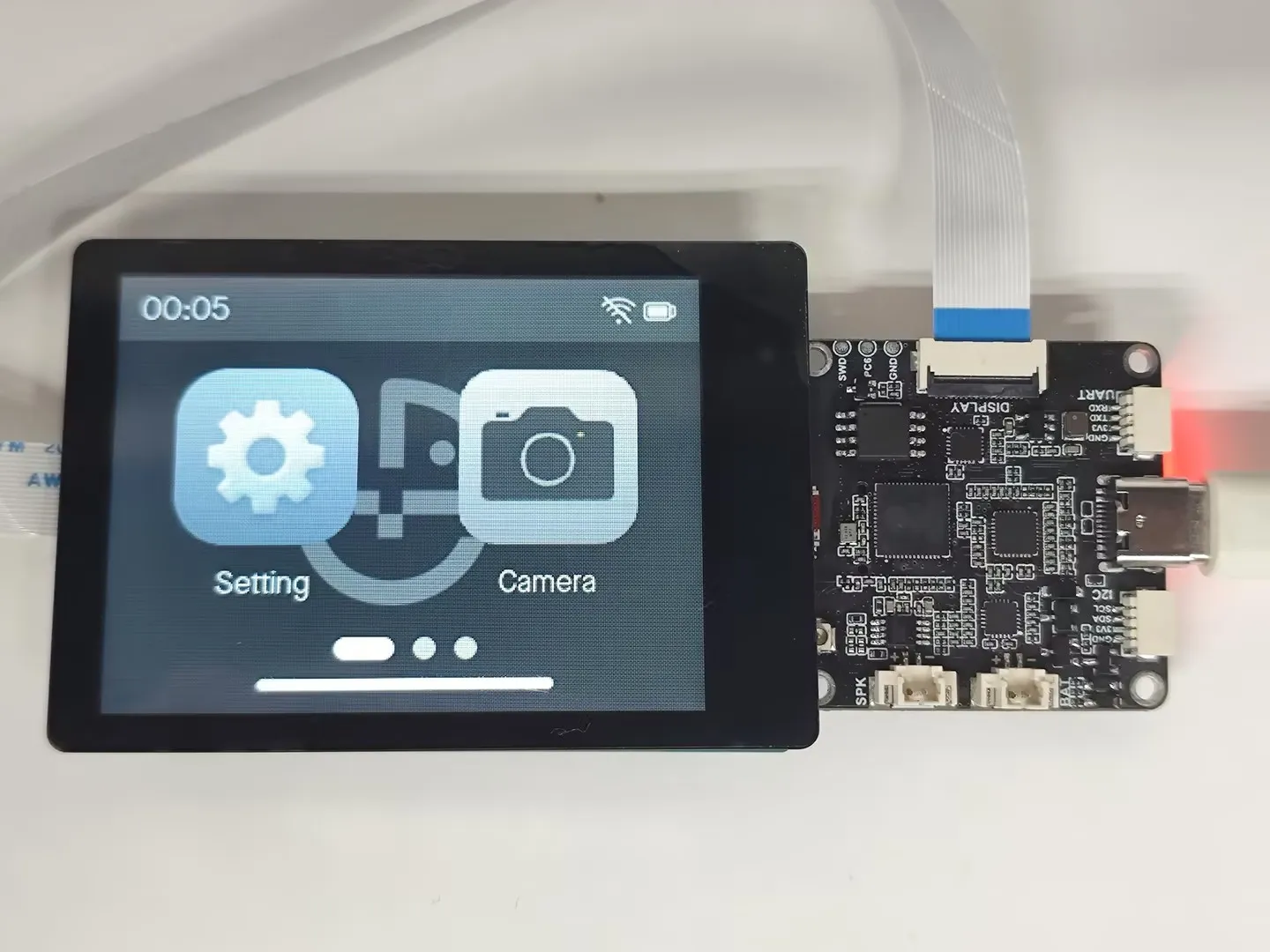
The images below show the effect after flashing the firmware on 1.83, 2inch, 2.8inch, 3.5inch
App Example Introduction
- To exit an app, swipe up from the bottom of the screen
- Swipe up from the bottom and pause in the middle of the screen to view recently used apps. Swipe up again on an app preview to close it
Settings App
-
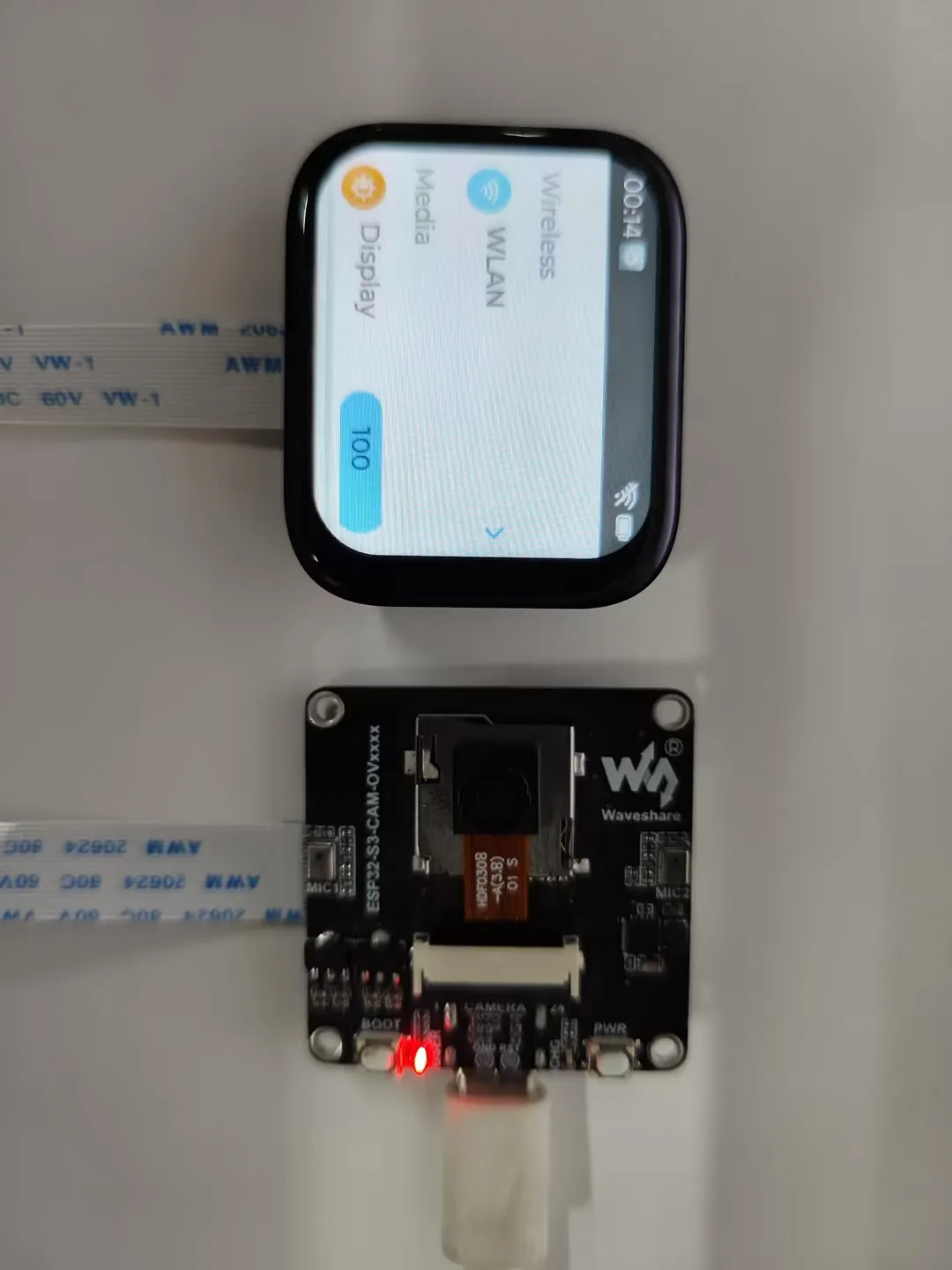
Features Wi-Fi scanning and network configuration. Click
WIFIon the interface, thenwifi configto scan a QR code for network configuration -
Allows adjustment of display brightness and volume
-
Displays the battery ADC voltage
-
Product information screen where you can view the MAC address
Camera App
-
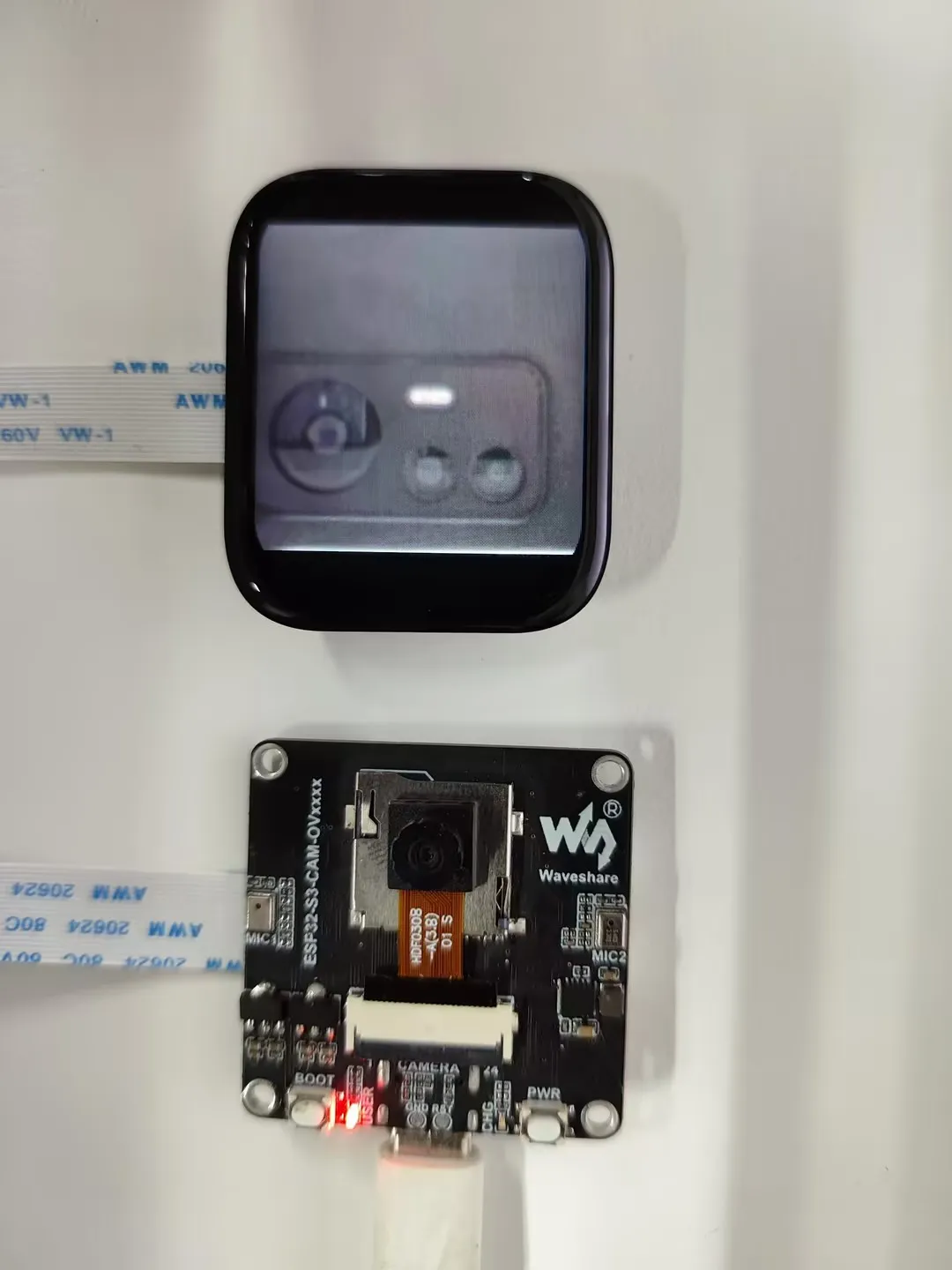
Supports (OV5640, OV3660, GC2145, GC0308). More cameras are being adapted
-
Tap the app icon to start streaming the image to the screen immediately. Tap anywhere on the screen to exit image display. You can also view camera information, as well as perform horizontal mirror and vertical flip operations
Music APP
-
Simulates a music player interface. This app requires an inserted memory card with MP3 files placed in the
musicdirectory to function correctly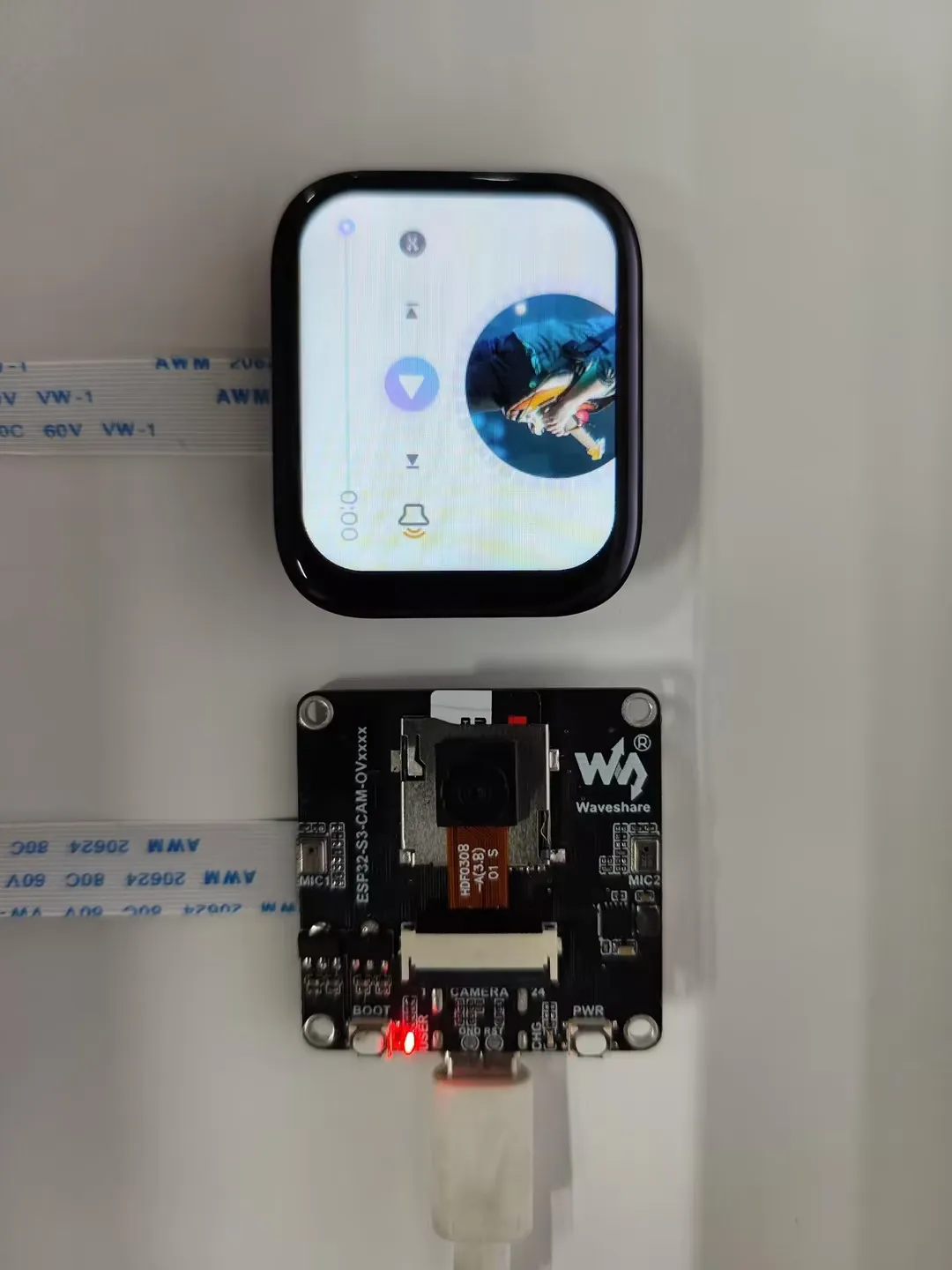
Recorder APP
-
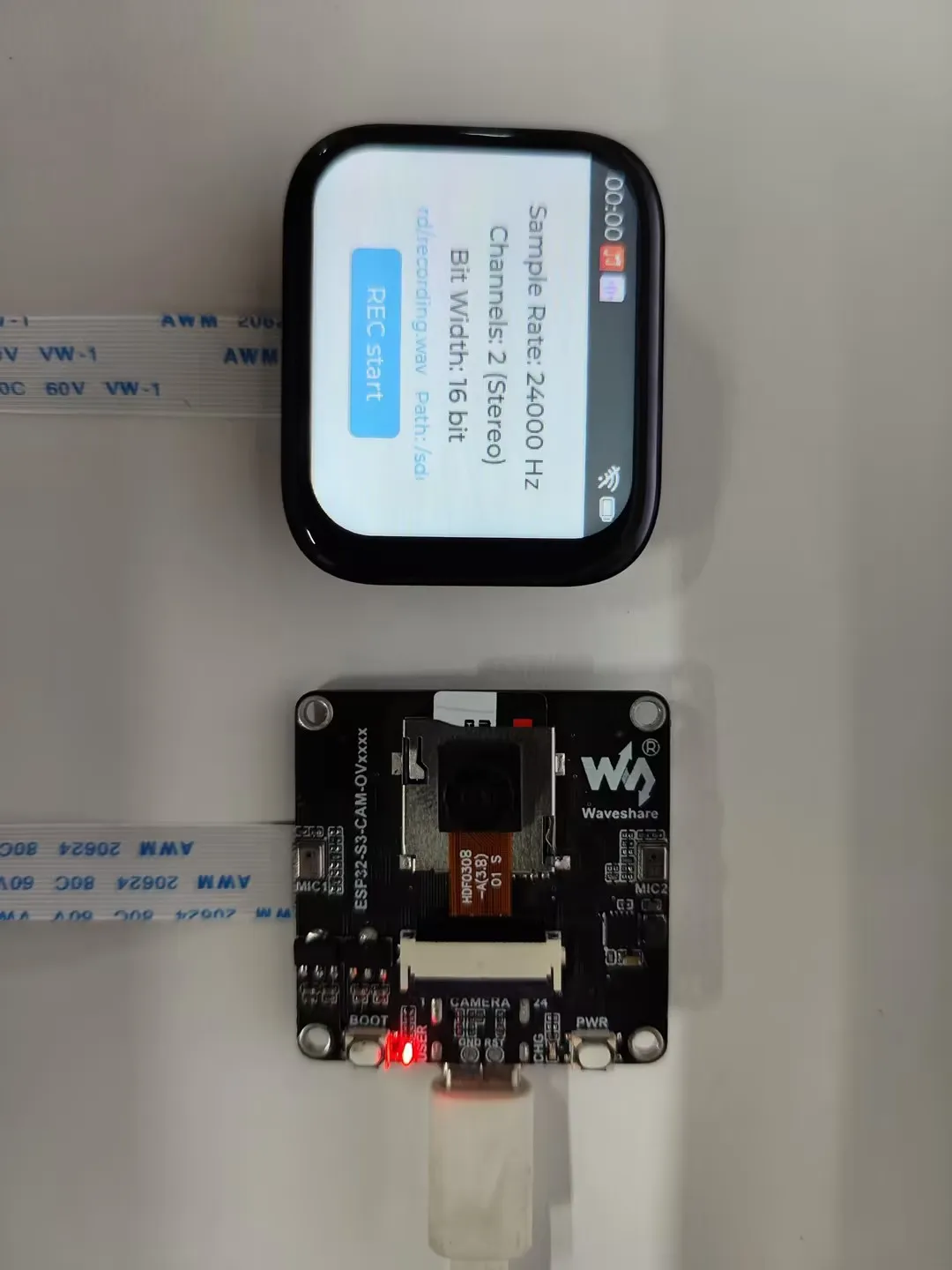
This demo allows testing dual-microphone recording. Click the start button to begin recording, click again to stop recording. The app will then automatically play back the recorded audio
-
The recorded audio file is saved in the root directory of the memory card
Squareline
-
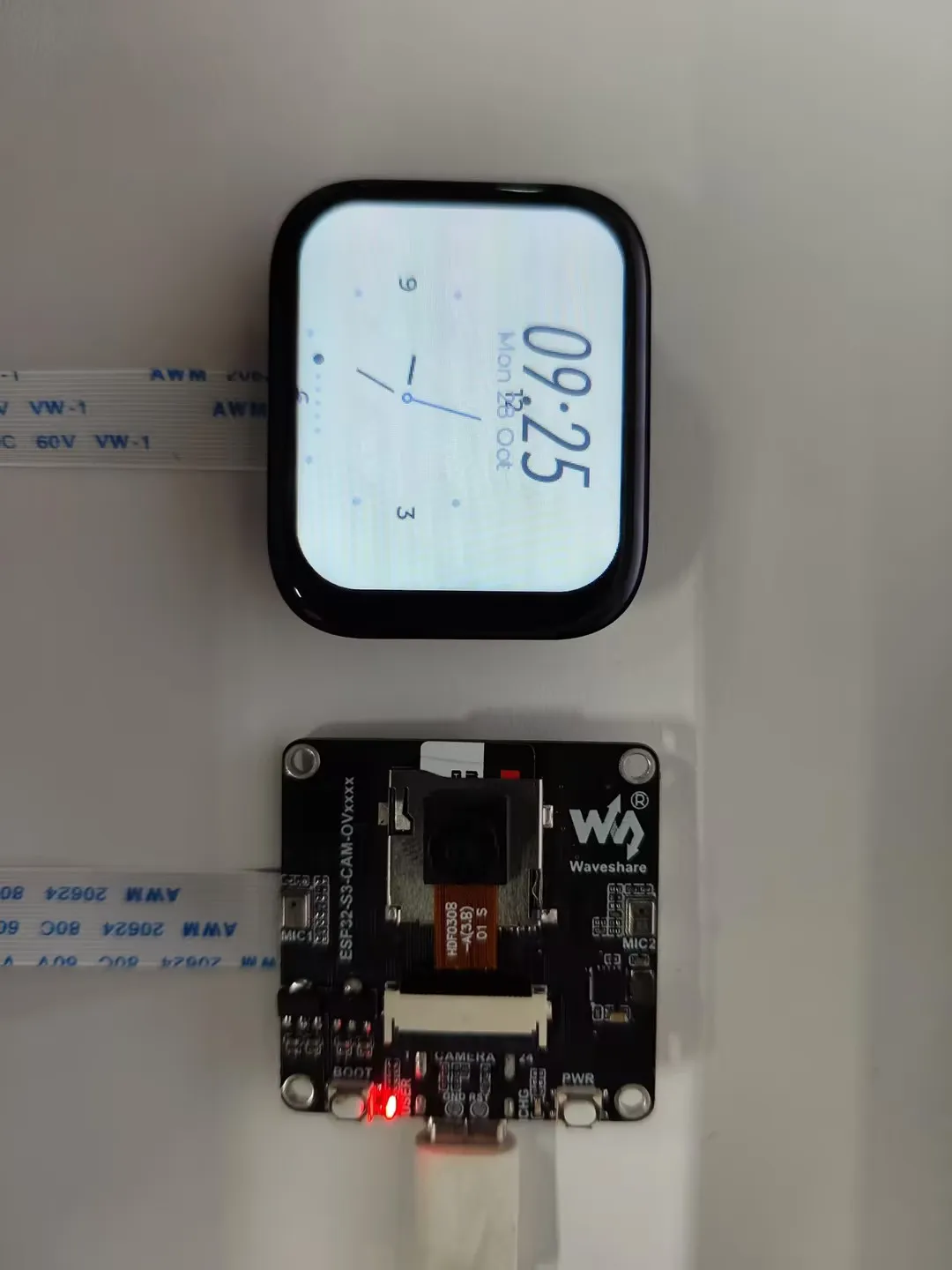
This example demonstrates an LVGL demo created with SquareLine Studio
XiaoZhi AI APP
-
Tap the app icon to enter the XiaoZhi AI application. It is consistent with the version adapted for the XiaoZhi official website and operates in the same way. Press and hold the Boot button to return to the Brookesia interface