Working with Arduino
This chapter includes the following sections. Please read as needed:
Arduino Getting Started
New to Arduino ESP32 development and looking for a quick start? We have prepared a comprehensive Getting Started Tutorial for you.
- Section 0: Getting to Know ESP32
- Section 1: Installing and Configuring Arduino IDE
- Section 2: Arduino Basics
- Section 3: Digital Output/Input
- Section 4: Analog Input
- Section 5: Pulse Width Modulation (PWM)
- Section 6: Serial Communication (UART)
- Section 7: I2C Communication
- Section 8: SPI Communication
- Section 9: Wi-Fi Basics
- Section 10: Web Server
- Section 11: Bluetooth
- Section 12: LVGL GUI Development
- Section 13: Comprehensive Project
Note: This tutorial uses the ESP32-S3-Zero as a reference example, and all hardware code is based on its pinout. Before you start, we recommend checking the pinout of your development board to ensure the pin configuration is correct.
Setting Up the Development Environment
1. Install and Configure Arduino IDE
Install the ESP32 Board
- To use ESP32-related boards in Arduino IDE, you must first install the "esp32 by Espressif Systems" board package.
- Follow the board installation requirements for installation. "Online installation" is generally recommended. If online installation fails, use "offline installation".
- For a detailed installation tutorial, see: Arduino Board Management Tutorial
ESP32-S3-CAN-2CH required development board installation description
| Board Name | Board Installation Requirement | Version Requirement |
|---|---|---|
| esp32 by Espressif Systems | "Offline Installation" / "Online Installation" | 3.2.1 |
2. Installing Libraries
- There are usually two ways to install Arduino libraries: online installation and offline installation. If the library installation requires offline installation, you must use the provided library files. For most libraries, you can easily search for and install them through the Arduino online Library Manager. However, some open-source or custom libraries are not synchronized to the Arduino Library Manager, so they cannot be found through online search. In this case, you can only install these libraries manually offline.
- For a detailed library installation tutorial, see: Arduino Library Manager Tutorial
- The ESP32-S3-CAN-2CH library files are stored in the example program. Click here to go to: ESP32-S3-CAN-2CH Example
Library installation instructions for ESP32-S3-CAN-2CH
| Library Name | Description | Version | Library Installation Requirement |
|---|---|---|---|
| ArduinoJson | Lightweight JSON library | v6.21.4 | Online or offline installation |
| PubSubClient | MQTT message publish/subscribe library | v2.8.0 | Online or offline installation |
| NTPClient | Network time synchronization client library | v3.2.1 | Online or offline installation |
Example

Arduino Project Settings
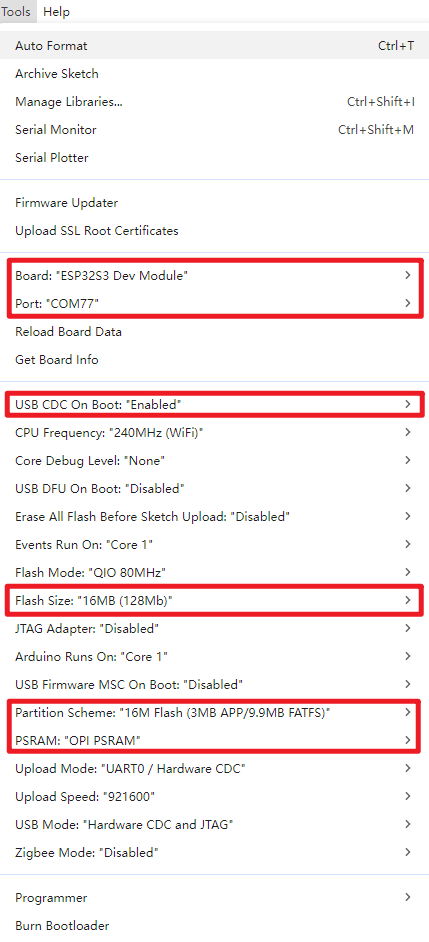
ESP32-S3-CAN-2CH Example
| Example | Description | Notes |
|---|---|---|
| 01_WIFI_AP | CAN interface control, Bluetooth control, Bluetooth IP transmission, Web page control (short range) | Can be flashed directly; the Web page is only available after connecting to the device's Wi-Fi |
| 02_WIFI_STA | CAN interface control, Bluetooth control, Bluetooth IP transmission, Web page control (short range) | Requires modifying the Wi-Fi to connect to; the Web page is only available on the local network |
01_WIFI_AP
Example Description
- This example implements CAN interface control over Wi-Fi. This example enables the Wi-Fi AP mode.
Notes
- Can be flashed directly
- The Web page can only be used when connected to the device's Wi-Fi
Web Page Control
Use a mobile Bluetooth debug assistant to connect to the ESP32-S3-CAN-2CH device, obtain the IP after connecting to Wi-Fi, and open the Web page via the IP.
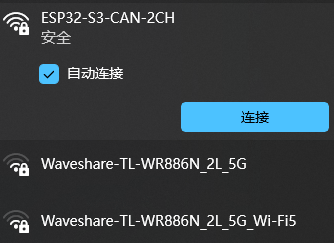
- Connect to the Wi-Fi of the ESP32-S3-CAN-2CH device. The Wi-Fi name is ESP32-S3-CAN-2CH, and the password is waveshare.
- Check the serial port or use a Bluetooth debug assistant to get the current IP
- Open the Web page to control the CAN interface (after the device is powered on, it takes a short time to configure. The first time the Web page is opened after each power-on may be slow.)

02_WIFI_STA
Example Description
- This example implements CAN interface control over Wi-Fi. This example enables the Wi-Fi STA mode.
Notes
- Requires modifying the Wi-Fi to connect to
- The Web page only supports controlling the device when it is on the same network as this product. If using a mobile phone for control, mobile data must be turned off.
Web Page Control
Use a mobile Bluetooth debug assistant to connect to the ESP32-S3-CAN-2CH device, obtain the IP after connecting to Wi-Fi, and open the Web page via the IP.
- Before flashing the program, open
MAIN_WIFI_STA/WS_Information.hand changeSTASSIDandSTAPSKto the Wi-Fi name and password you want to connect to, respectively. After the device is powered on, it will automatically connect to the configured Wi-Fi. - Check the serial port or use a Bluetooth debug assistant to get the current IP
- Open the Web page to control the CAN interface (after the device is powered on, it takes a short time to configure. The first time the Web page is opened after each power-on may be slow.)