ESP-IDF
This chapter includes the following sections. Please read as needed:
ESP-IDF Getting Started
New to ESP32 ESP-IDF development and looking to get started quickly? We have prepared a general Getting Started Tutorial for you.
- Section 1: Environment Setup
- Section 2: Running Examples
- Section 3: Creating a Project
- Section 4: Using Components
- Section 5: Debugging
- Section 6: FreeRTOS
- Section 7: Peripherals
- Section 8: Wi-Fi Programming
- Section 9: BLE Programming
Please Note: This tutorial uses the ESP32-S3-Zero as a teaching example, and all hardware code is based on its pinout. Before you start, it is recommended that you check the pinout of your development board to ensure the pin configuration is correct.
Setting Up the Development Environment
For the ESP32-S3-CAN-2CH development board, ESP-IDF version V5.5.2 or above is required.
The following guide uses Windows as an example, demonstrating development using VS Code + the ESP-IDF extension. macOS and Linux users should refer to the official documentation.
The screenshots in this section use ESP-IDF V5.5.2 as an example. When installing, please select the ESP-IDF version that matches your board's example.
Install the ESP-IDF Development Environment
-
Download the installation manager from the ESP-IDF Installation Manager page. This is Espressif's latest cross-platform installer. The following steps demonstrate how to use its offline installation feature.
Click the Offline Installer tab on the page, then select Windows as the operating system and the ESP-IDF version you need (the version shown in the screenshot is for reference only — choose the version that fits your actual needs).
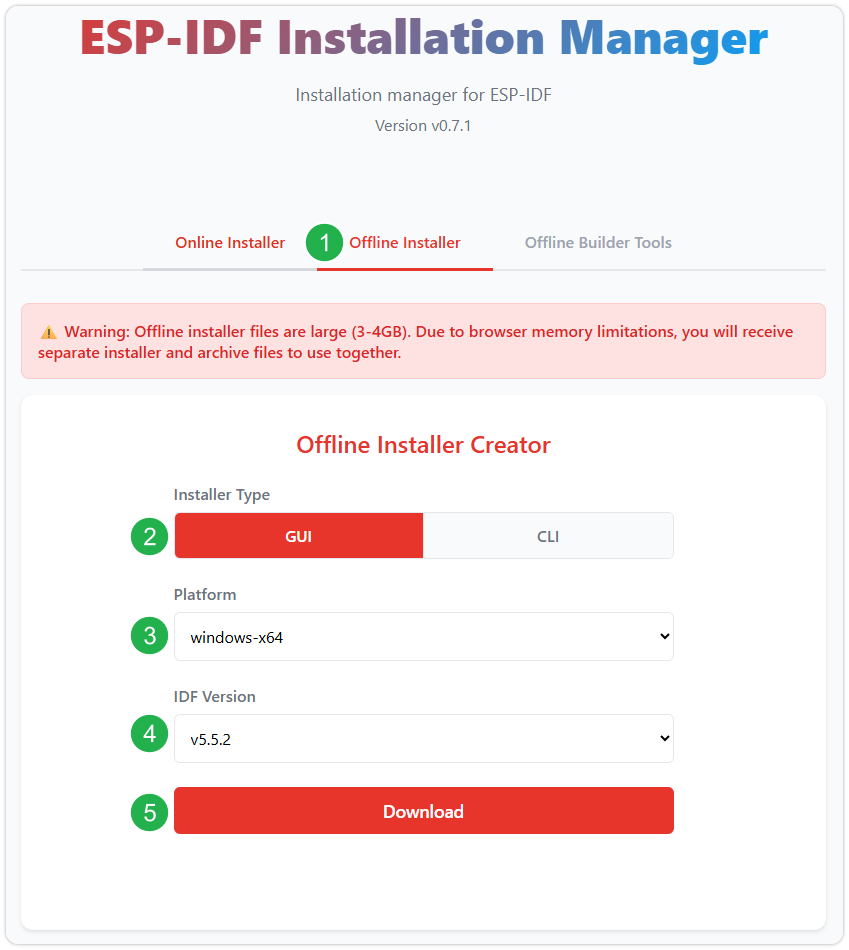
After confirming your selection, click the download button. The browser will automatically download two files: the ESP-IDF Offline Package (.zst) and the ESP-IDF Installer (.exe).
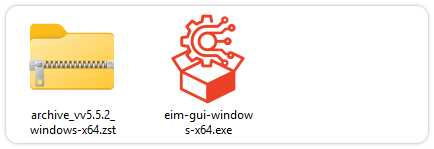
Please wait for both files to finish downloading.
-
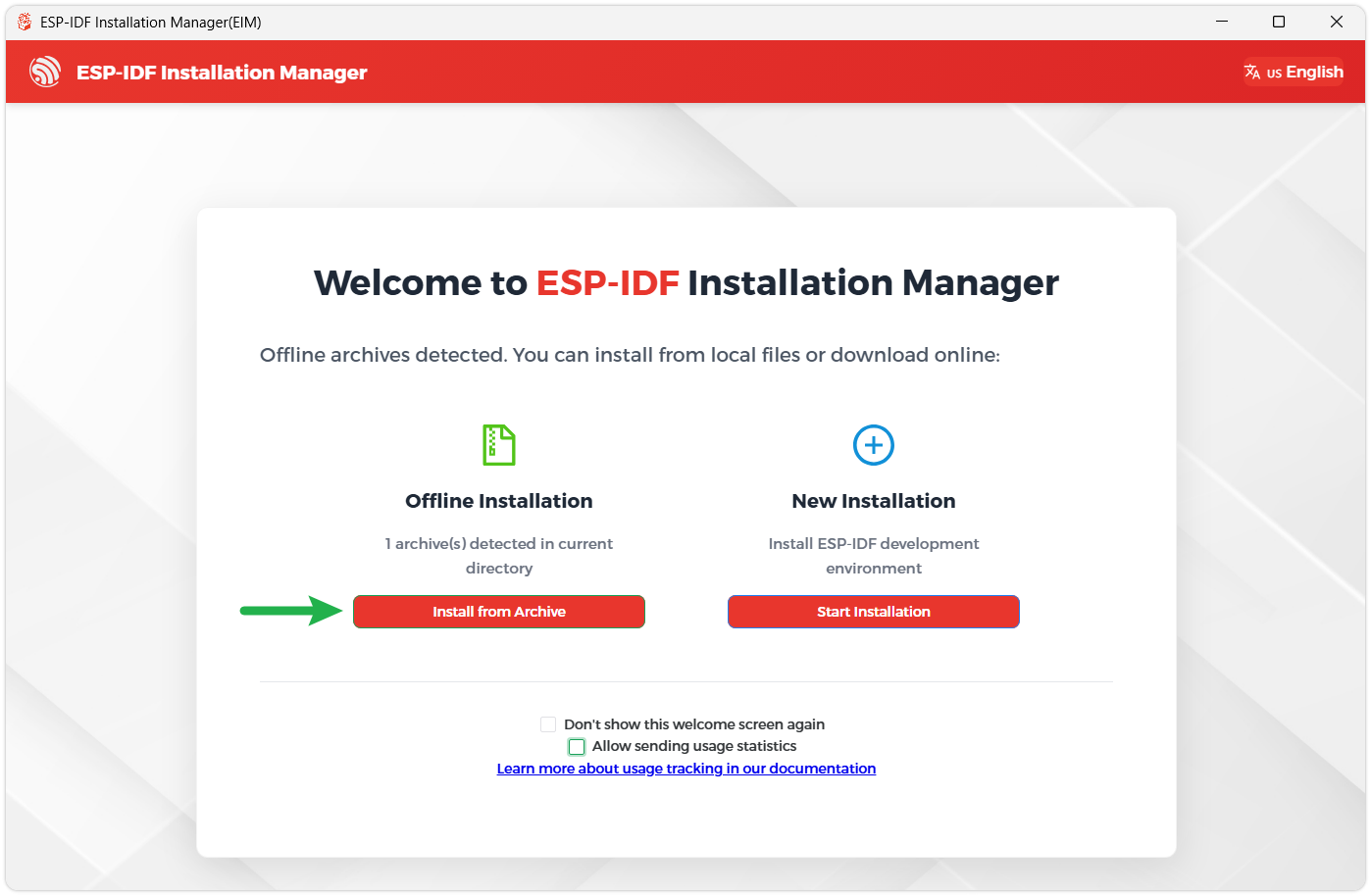
Once the download is complete, double-click to run the ESP-IDF Installer (eim-gui-windows-x64.exe).
The installer will automatically detect if the offline package exists in the same directory. Click Install from archive.
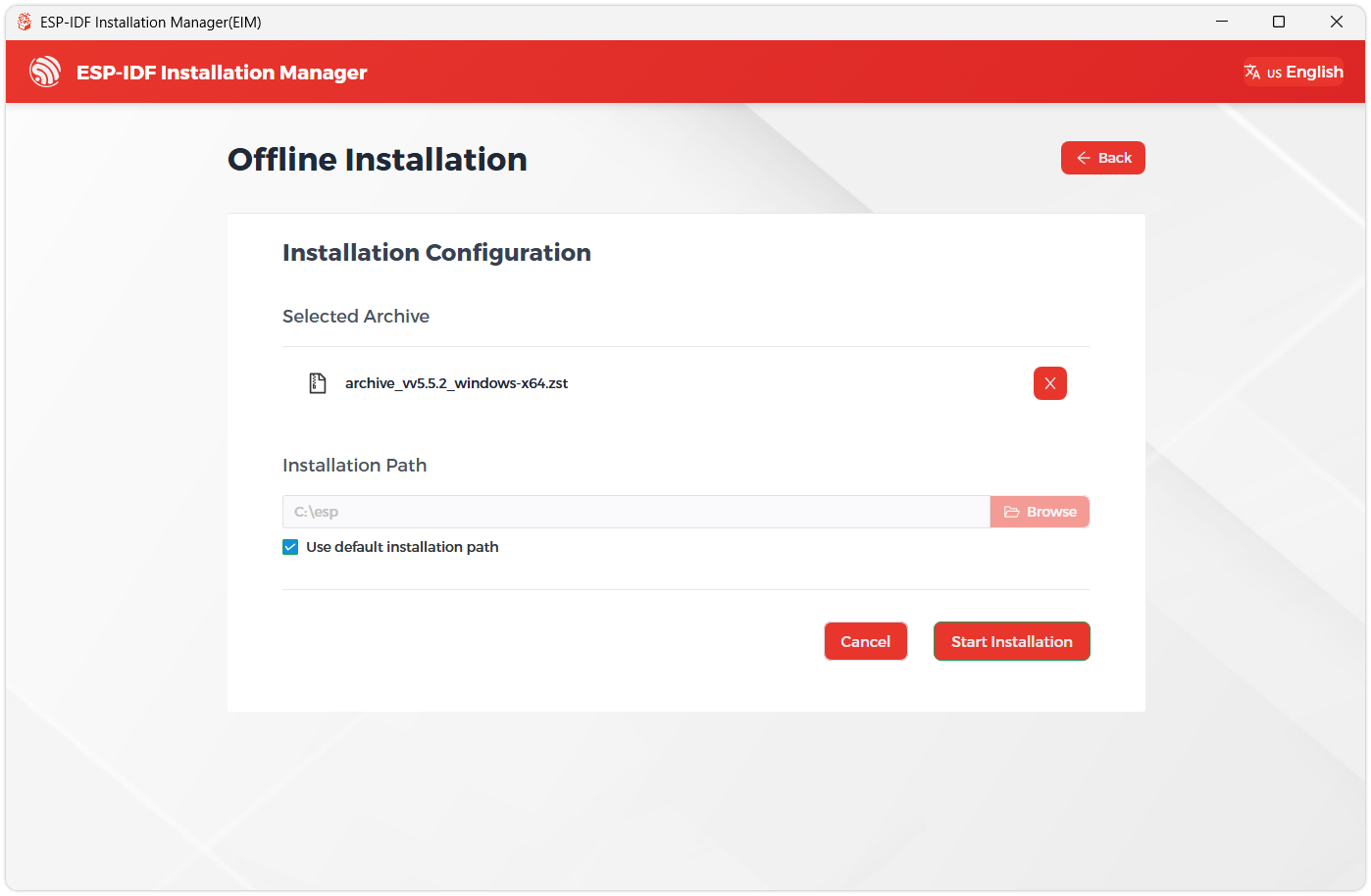
Next, select the installation path. We recommend using the default path. If you need to customize it, ensure the path does not contain Chinese characters or spaces. Click Start installation to proceed.
-
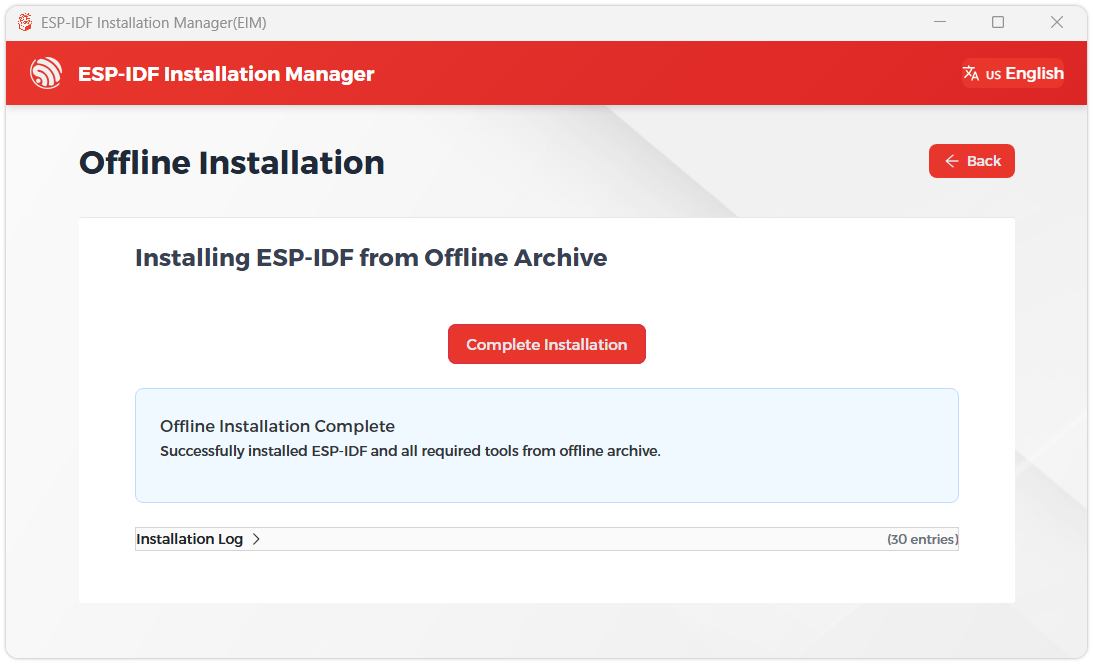
When you see the following screen, the ESP-IDF installation is successful.
-
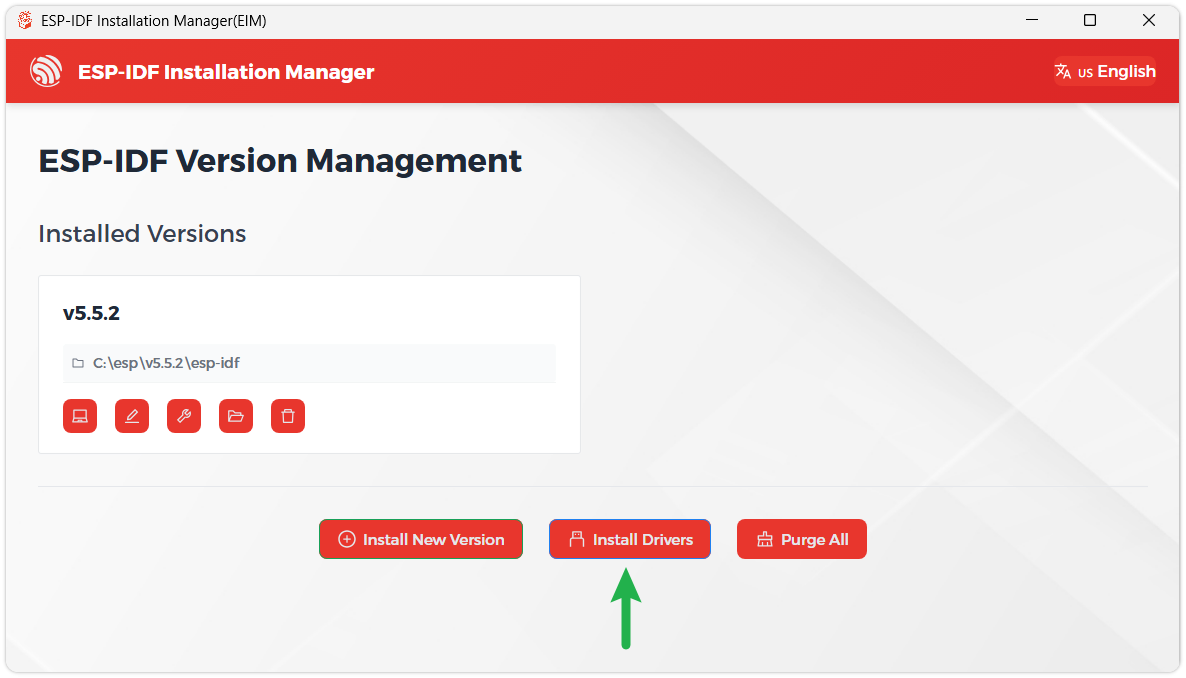
We recommend installing the drivers as well. Click Finish installation, then select Install driver.
Install Visual Studio Code and the ESP-IDF Extension
-
Download and install Visual Studio Code.
-
During installation, it is recommended to check Add "Open with Code" action to Windows Explorer file context menu to facilitate opening project folders quickly.
-
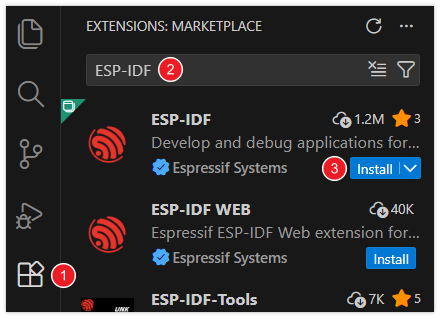
In VS Code, click the Extensions icon
 in the Activity Bar on the side (or use the shortcut Ctrl + Shift + X) to open the Extensions view.
 -
Enter ESP-IDF in the search box, locate the ESP-IDF extension, and click Install.
-
For ESP-IDF extension versions ≥ 2.0, the extension will automatically detect and recognize the ESP-IDF environment installed in the previous steps, requiring no manual configuration.
Example
| Example | Description | Notes |
|---|---|---|
| 01_WIFI_AP | CAN interface control, Bluetooth control, Bluetooth IP transmission, Web page control (short range) | Can be flashed directly; the Web page is only available after connecting to the device's Wi-Fi |
| 02_WIFI_STA | CAN interface control, Bluetooth control, Bluetooth IP transmission, Web page control (short range) | Requires modifying the Wi-Fi to connect to; the Web page is only available on the local network |
01_WIFI_AP
Example Description
- This example implements CAN interface control over Wi-Fi. This example enables the Wi-Fi AP mode.
Notes
- Can be flashed directly
- The Web page can only be used when connected to the device's Wi-Fi
Web Page Control
Use a mobile Bluetooth debug assistant to connect to the ESP32-S3-CAN-2CH device, obtain the IP after connecting to Wi-Fi, and open the Web page via the IP.
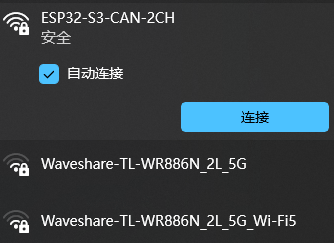
- Connect to the Wi-Fi of the ESP32-S3-CAN-2CH device. The Wi-Fi name is ESP32-S3-CAN-2CH, and the password is waveshare.
- Check the serial port or use a Bluetooth debug assistant to get the current IP
- Open the Web page to control the CAN interface (after the device is powered on, it takes a short time to configure. The first time the Web page is opened after each power-on may be slow.)

02_WIFI_STA
Example Description
- This example implements CAN interface control over Wi-Fi. This example enables the Wi-Fi STA mode.
Notes
- Requires modifying the Wi-Fi to connect to
- The Web page only supports controlling the device when it is on the same network as this product. If using a mobile phone for control, mobile data must be turned off.
Web Page Control
Use a mobile Bluetooth debug assistant to connect to the ESP32-S3-CAN-2CH device, obtain the IP after connecting to Wi-Fi, and open the Web page via the IP.
- Before flashing the program, open
components/esp_bsp/bsp_common.hand changeWS_STA_SSIDandWS_STA_PASSto the Wi-Fi name and password you want to connect to, respectively. The device will automatically connect to the configured Wi-Fi after power-on. - Check the serial port or use a Bluetooth debug assistant to get the current IP
- Open the Web page to control the CAN interface (after the device is powered on, it takes a short time to configure. The first time the Web page is opened after each power-on may be slow.)