Working with Arduino
This chapter contains the following sections. Please read as needed:
Arduino Getting Started
New to Arduino ESP32 development and looking for a quick start? We have prepared a comprehensive Getting Started Tutorial for you.
- Section 0: Getting to Know ESP32
- Section 1: Installing and Configuring Arduino IDE
- Section 2: Arduino Basics
- Section 3: Digital Output/Input
- Section 4: Analog Input
- Section 5: Pulse Width Modulation (PWM)
- Section 6: Serial Communication (UART)
- Section 7: I2C Communication
- Section 8: SPI Communication
- Section 9: Wi-Fi Basics
- Section 10: Web Server
- Section 11: Bluetooth
- Section 12: LVGL GUI Development
- Section 13: Comprehensive Project
Note: This tutorial uses the ESP32-S3-Zero as a reference example, and all hardware code is based on its pinout. Before you start, we recommend checking the pinout of your development board to ensure the pin configuration is correct.
Setting Up the Development Environment
1. Installing and Configuring the Arduino IDE
Please refer to the tutorial Installing and Configuring Arduino IDE to download and install the Arduino IDE and add ESP32 support.
| Board Name | Board Installation Requirement | Version Requirement |
|---|---|---|
| esp32 by Espressif Systems | "Offline Installation" / "Online Installation" | 3.2.0 |
2. Installing Libraries
- When installing Arduino libraries, there are typically two methods: online installation and offline installation. If the library installation requires offline installation, you must use the provided library files.
- For most libraries, users can easily search for and install them via the Arduino IDE's online Library Manager. However, some open-source or custom libraries are not synchronized to the Arduino Library Manager and therefore cannot be found through online search. In this case, users can only install these libraries manually via offline methods.
- The sample program package for the ESP32-S3-DualEye-LCD-1.28 development board can be downloaded from here. The
Arduino\librariesdirectory within the package already contains all the library files required for this tutorial.
| Library/File Name | Description | Version | Installation Method |
|---|---|---|---|
| LVGL | Graphics Library | v8.3.10 | "Offline Installation" |
| ESP32-audioI2S-master | Audio Decoding Library | v2.0.0 | "Offline Installation" |
| es7210 | Audio Decoding Library | xxx | "Offline Installation" |
| es8311 | Audio Decoding Library | xxx | "Offline Installation" |
There are strong dependencies between versions of LVGL and its driver libraries. For example, a driver written for LVGL v8 may not be compatible with LVGL v9. To ensure that the examples can be reproduced reliably, it is recommended to use the specific versions listed in the table above. Mixing different versions of libraries may lead to compilation failures or runtime errors.
3. Arduino Project Parameter Settings
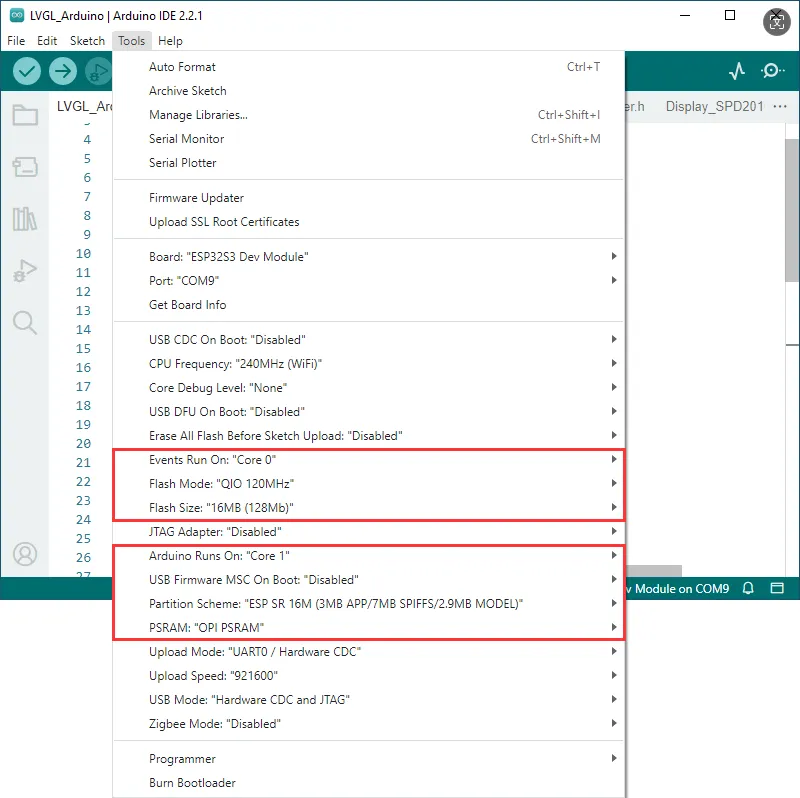
- If the example being flashed contains a speech recognition model, select "ESP SR 16M (3MB APP/7MB SPIFFS/2.9MB MODEL)" for the Partition Scheme.
- If the example being flashed does not contain a speech recognition model, select "16M Flash (3MB APP/9.9MB FATFS)" or another appropriate scheme.
Example
The Arduino examples are located in the Arduino/examples directory of the example package.
| Example | Basic Program Description | Dependency Library |
|---|---|---|
| 01_LCD_Driver | Display driver example | LVGL |
| 02_Mic_test | Microphone capture and audio playback example | es8311, es7210 |
| 03_SD_test | Read BMP images from TF card and display on screen | LVGL |
| 04_LVGL_Arduino | Comprehensive example | es7210,es8311, ESP32-audioI2S-master, LVGL |
01_LCD_Driver
Example Description
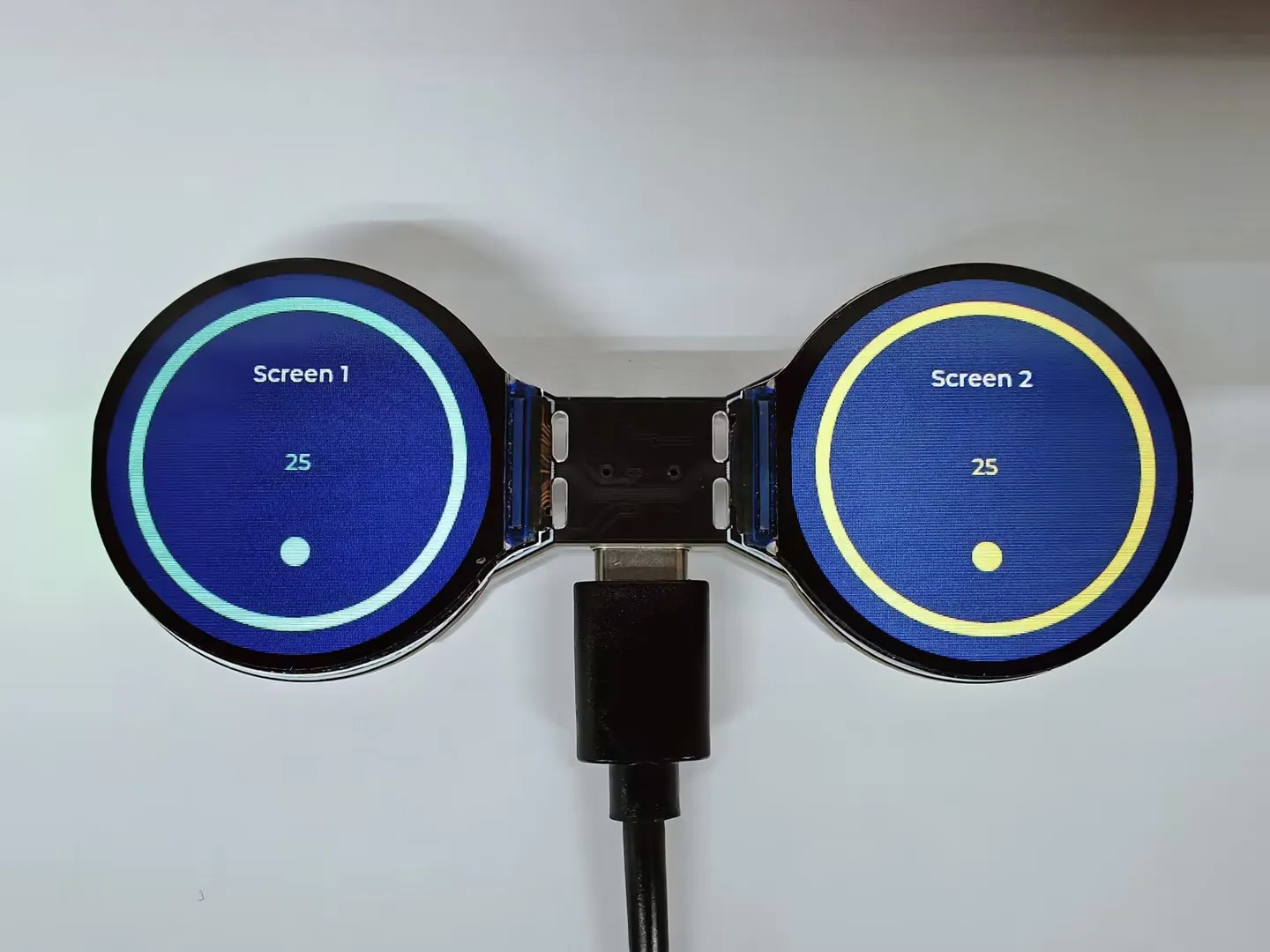
- This example demonstrates display driver, LVGL graphics library initialization, and basic graphics and number display functionality.
Hardware Connection
- Connect the development board to the computer.
Code Analysis
setup(): Display initialization, peripheral configuration, etc.- Display initialization:
LCD_INIT() - GUI Initialization: Calls
Lvgl_Init()to initialize LVGL (Light and Versatile Graphics Library), a widely used graphics library for embedded systems.Lvgl_Example1()is an example program used to demonstrate how to render a graphical interface on the display.
- Display initialization:
Operation Result
- Displays graphics and cycles through two-digit numbers from 00 to 99.
02_Mic_test
Example Description
- This example demonstrates microphone audio capture and audio playback functionality.
Hardware Connection
- Connect the development board to the computer.
Code Analysis
Audio_Test_Init(): Audio example function.Audio_Init: Initialization function for the ES8311 audio codec.MIC_Init: Initialization function for the ES7210.
Operation Result
- The screen has no display.
- Single press the
BOOTbutton to play/pause the built-in audio data. - Long press the
BOOTbutton to capture microphone audio; after 5 seconds or when the button is released, the captured audio will be played back.
03_SD_test
Example Description
- This example demonstrates reading BMP images from the root directory of a TF card and displaying them on the screen.
Hardware Connection
- Copy the BMP images from the
BMPfolder in the example directory to the root directory of the TF card. - Insert the TF card into the development board.
- Connect the development board to the computer.
Code Analysis
-
setup(): Display initialization, peripheral configuration, etc.- Display initialization:
LCD_INIT() - GUI Initialization: Calls
Lvgl_Init()to initialize LVGL (Light and Versatile Graphics Library), a widely used graphics library for embedded systems.Lvgl_BMP_Example()is an example program that shows how to display BMP images on the screen. - You can modify the BMP image paths in
LVGL_Example.cppto display different BMP images on the dual screens.
static const char * BMP_FILE_PATH_LEFT = "/test1.bmp"; // Left LCDstatic const char * BMP_FILE_PATH_RIGHT = "/test2.bmp"; // Right LCD - Display initialization:
Operation Result
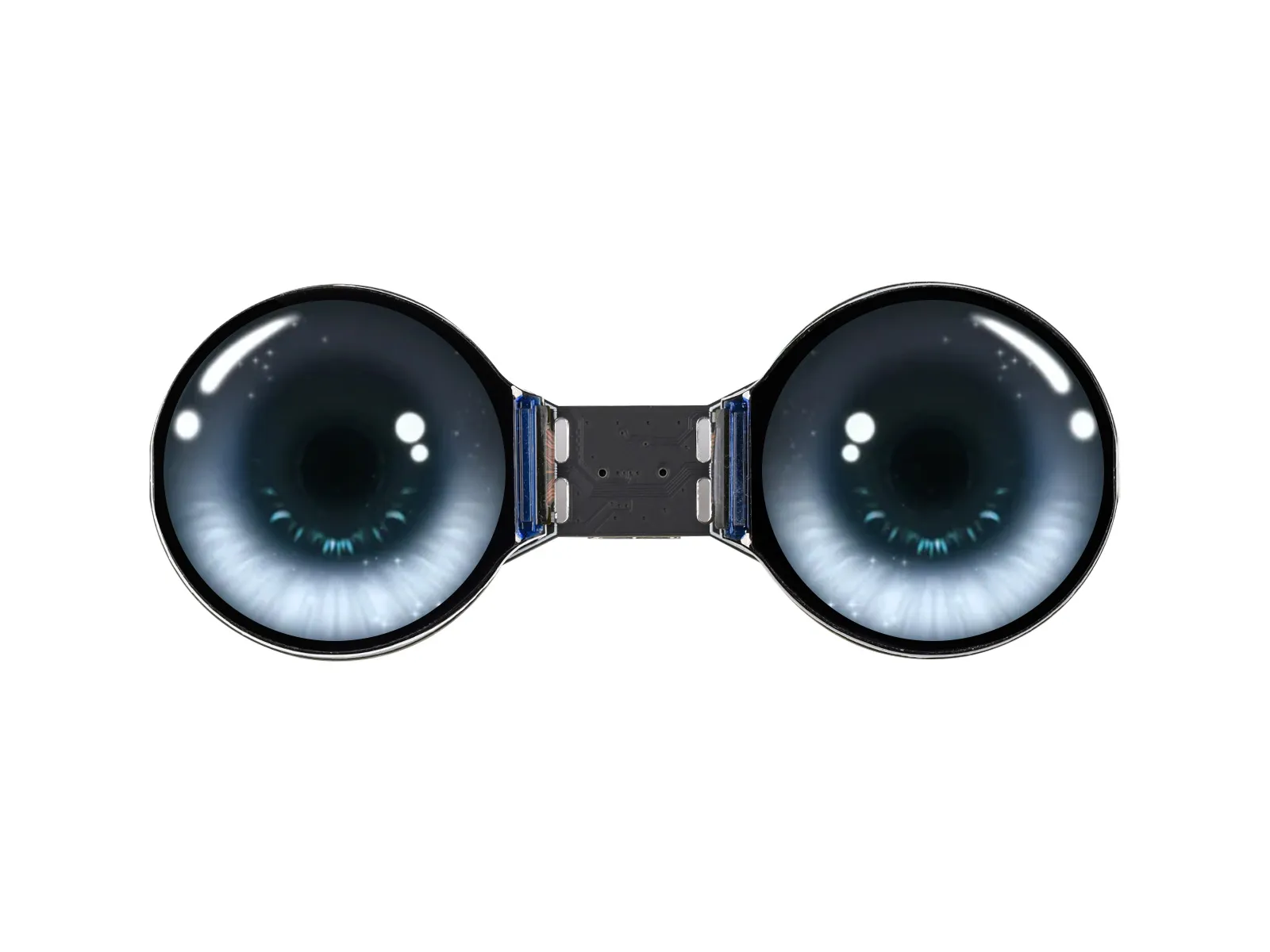
- The screen displays images:
04_LVGL_Arduino
Example Description
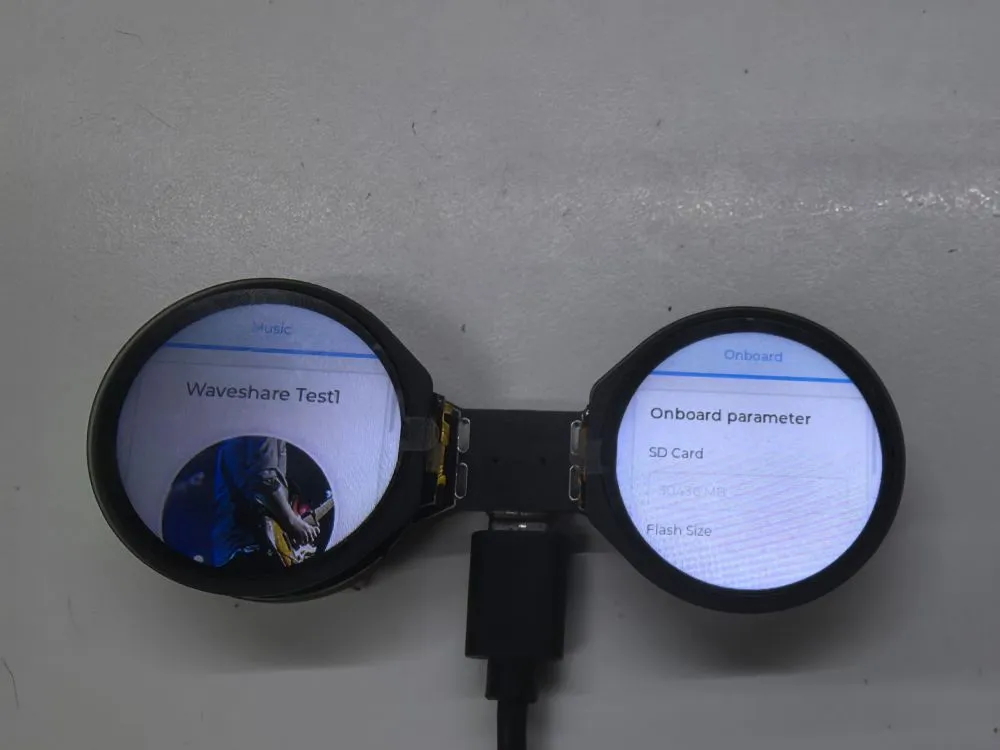
- This example demonstrates the functionality of the onboard devices. Screen 2 displays parameters such as TF Card and Flash Size, while Screen 1 is the music playback interface. Additionally, this example adds speech recognition functionality.
Hardware Connection
- Insert the TF card into the development board.
- Connect the development board to the computer.
Code Analysis
-
setup(): Hardware initialization, peripheral configuration, etc.- Hardware initialization: Inside
setup(), multiple initialization functions are executed to configure and initialize hardware components connected to the Arduino, such as the LCD display, TF card, audio module, and microphone. These initializations ensure the hardware operates correctly. - GUI Initialization: Calls
Lvgl_Init()to initialize LVGL (Light and Versatile Graphics Library), a widely used graphics library for embedded systems.Lvgl_Example1()is an example program used to demonstrate how to render a graphical interface on the display.
- Hardware initialization: Inside
-
loop(): Adds a delay to prevent triggering the watchdog timer.
Operation Result
-
LCD Screen Display
-
LCD Screen Display Parameter Description
Parameter Function Description SD Card Displays the TF card size Connect a TF card. If recognition fails, please format the TF card to FAT32 (if initial recognition fails, wait a moment and then reset to check again) Flash Size Displays the Flash size Onboard 16MB Flash Battery Voltage Battery voltage Battery voltage can be detected when a battery is connected -
Screen 1 is the UI page for playing MP3 audio files stored in the root directory of the TF card.
-
The BOOT button controls the UI: short press to switch the selected item, double-press to confirm, long press to switch screen focus.
-
This program enables voice recognition by default. The wake word is "hi esp". After waking up, the backlight dims, and you can speak the command (if the backlight does not dim, it means it was not woken up; recognition requires standard pronunciation and a slower speaking pace)
-
Several MIC test audio formats are provided below (Note: if the "hi esp" wake-up fails, please reposition the audio to the point where the wake word is played and try again)
-
Please do not perform voice recognition while audio is being played through the speaker
-
The reason the test audio plays the wake word twice is that the current firmware version requires a focus step for the first wake-up (metaphorically), and the current firmware does not allow disabling this feature.
// CommandsTurn on the backlightTurn off the backlightBacklight is brightestBacklight is darkest -
Note: In this example, speech recognition is only available before playing audio.
Switching Between Chinese/English Recognition Models
The initial state of the environment defaults to the English recognition environment. Follow the steps below to switch to the Chinese recognition model or revert to the English recognition model.
Switching to Chinese Recognition Model
Setting Up the Chinese Recognition Environment
- Download the provided program file Program using the Chinese model
- Navigate to the path
C:\Users\Waveshare\AppData\Local\Arduino15\packages\esp32\hardware\esp32\3.0.2\libraries\ESP_SR\src(where Waveshare is the computer username) - Replace the
esp32-hal-sr.cfile in this path with the downloaded file - Download the Chinese model Chinese Model - Wake Word 'hi lexin'
- Navigate to the path
C:\Users\Waveshare\AppData\Local\Arduino15\packages\esp32\tools\esp32-arduino-libs\idf-release_v5.1-bd2b9390ef\esp32s3\esp_sr(where Waveshare is the computer username) - Replace the
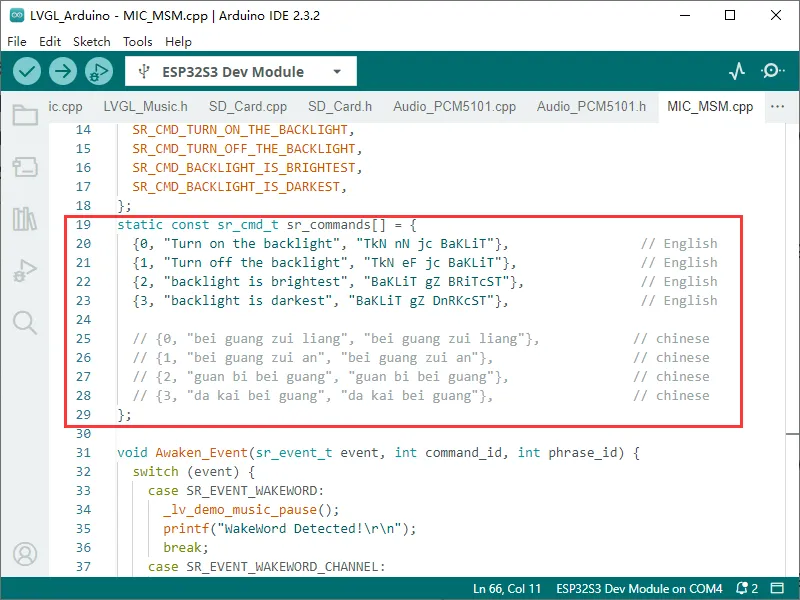
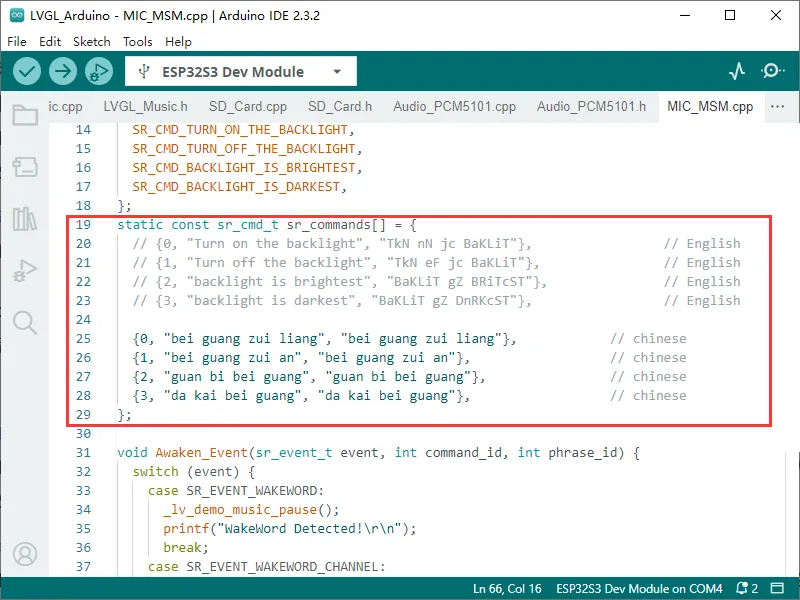
srmodels.binfile in this path with the downloaded file - Modify the recognition commands in the program to Chinese commands (using Pinyin)
Switching to English Recognition Model
Switching to English Recognition Model
- The initial state of the environment defaults to the English recognition environment. If it has not been switched to Chinese, do not perform the following modifications
- If it was previously modified for Chinese recognition, download the provided program file Program Using English Model
- Navigate to the path
C:\Users\Waveshare\AppData\Local\Arduino15\packages\esp32\hardware\esp32\3.0.2\libraries\ESP_SR\src(where Waveshare is the computer username) - Replace the
esp32-hal-sr.cfile in this path with the downloaded file - Download the English model English Model - Wake Word 'hi esp'
- Navigate to the path
C:\Users\Waveshare\AppData\Local\Arduino15\packages\esp32\tools\esp32-arduino-libs\idf-release_v5.1-bd2b9390ef\esp32s3\esp_sr(where Waveshare is the computer username) - Replace the
srmodels.binfile in this path with the downloaded file - Modify the recognition commands in the program to English commands (using phonemes)