Q: The ESP-IDF program keeps resetting after flashing?
Try downgrading the ESP-IDF version to v5.4.1.
Q: After downloading the program, sometimes I cannot connect to the serial port or flashing fails on subsequent attempts?
Try pressing and holding the reset button (RESET) for more than 1 second, then download again after the computer re-identifies the device.
Enter download mode (Method 1): Press and hold the BOOT button, click the RESET button once, then release the BOOT button. The module will enter download mode, which resolves most flashing failures.
Enter download mode (Method 2): Hold down the BOOT button and reconnect the USB cable. After successful connection, release the BOOT button to put the module into download mode.
Q: The module keeps resetting and appears unstable (blinking) in Device Manager?
This is usually caused by an empty Flash leading to unstable USB communication. Manually enter download mode: press and hold BOOT, briefly press RESET and release, then release BOOT. After entering download mode, re-flash the firmware to resolve the issue.
Q: The program compiles very slowly the first time. How to handle it?
The first compilation involves building a large number of dependent libraries, so it is normal for it to take a long time. Please wait patiently for the compilation to complete.
Q: What if I cannot find the AppData folder?
The AppData folder is hidden by default. You need to manually enable showing hidden items:
Windows: File Explorer -> View -> Show -> Check "Hidden items".
Q: How to check the currently used COM port?
Windows:
① Device Manager: Press Windows + R and type devmgmt.msc, then press Enter. Expand "Ports (COM & LPT)" to view.
② Command Prompt: Open CMD and type mode to list the status of all available ports.
③ Hardware observation: A new port number usually appears when the device is connected. Plug and unplug the device to see which port appears/disappears to determine it.
Linux:
① Use the dmesg command to view system log output.
② Use ls /dev/ttyS* or ls /dev/ttyUSB* to list all serial devices.
③ Use setserial -g /dev/ttyS* to view detailed serial configurations.
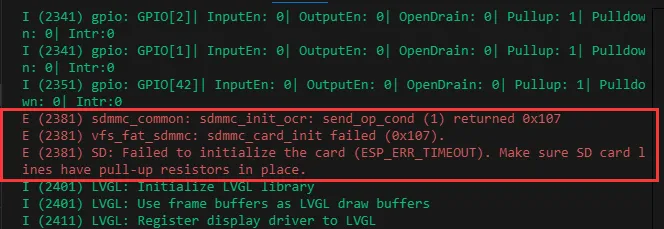
Q: How to handle the ESP-IDF error (as shown in the image below)?
This error is usually caused by no TF card inserted or the TF card not being recognized. If a TF card is already inserted, try resetting the device. If the error persists, format the TF card as FAT32 or try a different TF card.
Q: Flashing fails on macOS?
Make sure the appropriate driver is installed, then try flashing again.
Q: What is the screen refresh rate (frame rate)?
The refresh rate depends on the specific example program being run and its code optimization; frame rates vary for different application scenarios.
Q: When running a program that prints to the serial port (e.g., Serial.println()), the Arduino IDE Serial Monitor shows no output?
Ensure the UART pins are correctly connected (if using an external adapter), or that USB CDC On Boot is enabled in the Tools menu of the Arduino IDE.
Q: Can Wi-Fi and Bluetooth be used simultaneously?
The hardware supports simultaneous use. However, because audio-related functions consume a large amount of RAM, it is recommended not to enable both Wi-Fi and Bluetooth when running audio functions.
Q: What battery specifications are supported?
Connector: MX1.25, voltage: 3.7V lithium battery.
Q: What capacity lithium battery is recommended?
As long as the connector and voltage (3.7V) match, you can choose the battery capacity according to your runtime requirements.
Q: The code compiles and flashes successfully, but there is no serial output after running. Why?
This is related to the Type-C interface connection method of the development board. Check the code configuration:
USB direct pass-through: Supports printf output. To use Serial functions, USB CDC On Boot must be enabled in the development environment.
UART to USB: Supports both printf and Serial output without special enabling settings.
Yes. Except for functions involving TF card read/write, all other features (such as display, wireless communication, etc.) work normally.
Q: Screen precautions (preventing damage)
The screen and backplate of this product use an integrated fully laminated design. To ensure normal operation, do not attempt to disassemble the screen or pry off the adhesive layer. Damage to the screen or flex cable caused by disassembly will void the warranty.