FAQ
Q: The ESP-IDF program keeps resetting after being flashed?
- Try downgrading the ESP-IDF version to v5.4.1.
Q: After downloading a program to the module, sometimes the serial port cannot be connected or flashing fails when downloading again?
- Press and hold the RESET button for more than 1 second, wait for the computer to re‑recognize the device, then try downloading again.
- Try entering manual download mode: press and hold the BOOT button, then press the RESET button, release RESET first, then release BOOT. The module will enter download mode, which resolves most flashing failures.
- Alternatively: hold down the BOOT button while connecting the USB cable, then release BOOT after the connection is successful, so the module enters download mode.
Q: The module keeps resetting and the port in Device Manager is unstable (flashing)?
- This is usually caused by an unstable USB connection due to no valid program in Flash. Press and hold BOOT, press RESET, then release RESET first and then BOOT to enter download mode. After re‑flashing the program, the issue should be resolved.
Q: The first compilation of the program is very slow. How should I handle it?
- The first compilation requires environment initialization and cache building, which takes a long time – this is normal. Please wait patiently for the compilation to complete.
Q: What if I cannot find the AppData folder?
- The AppData folder is hidden by default. You need to manually show hidden items:
- Windows: Open File Explorer → Click "View" → Check "Hidden items".
Q: How can I check the COM port number I am currently using?
Windows:
- Method ①: Via Device Manager
- Press Win + R, type
devmgmt.mscand press Enter to open Device Manager. - Expand the "Ports (COM & LPT)" section to see all recognized COM ports and their status.
- Press Win + R, type
- Method ②: Using Command Prompt
- Open Command Prompt (CMD), type
modeand press Enter. The system will list information about all active COM ports.
- Open Command Prompt (CMD), type
- Method ③: By plugging/unplugging the hardware
- Observe the Device Manager port list before and after connecting the device; the newly appeared port is the one occupied by your device.
Linux:
- Method ①: Using dmesg
- In a terminal, type
dmesg | grep ttyto view serial connection logs.
- In a terminal, type
- Method ②: Using ls
- Type
ls /dev/ttyS*orls /dev/ttyUSB*to list all connected serial devices.
- Type
- Method ③: Using setserial
- Type
setserial -g /dev/ttyS*to view detailed configuration information of serial devices.
- Type
Q: ESP-IDF compilation/runtime error (as shown in the figure below)?
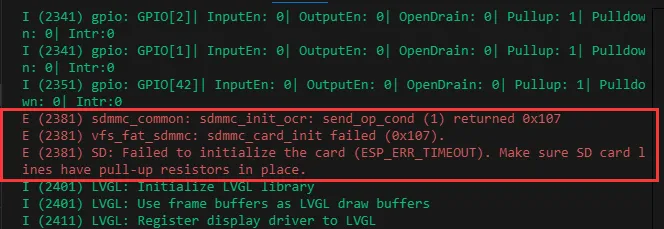
- This error usually indicates that no TF card is inserted or the TF card cannot be recognized.
- Check whether the TF card is fully inserted. If the issue persists, try resetting the device.
- If the error remains, format the TF card as FAT32 or try another TF card.
Q: Flashing fails on a macOS device?
- Ensure that the drivers for macOS have been installed, then try flashing again.
Q: What is the screen refresh rate (frame rate)?
- The refresh frame rate depends on the specific example being run and the complexity of the program. Different display content and algorithmic logic result in different actual frame rates.
Q: When running a Serial.println sketch, the Arduino IDE Serial Monitor has no output?
- Verify the hardware connections: if using an external USB‑to‑UART tool, check the wiring.
- If using the onboard USB interface, confirm in the Arduino IDE "Tools" menu that "USB CDC On Boot" is enabled.
Q: Can Wi-Fi and Bluetooth be used simultaneously?
- The hardware supports simultaneous use. However, since features such as audio playback consume a lot of memory, it is recommended not to enable both Wi‑Fi and Bluetooth at the same time when processing audio, to avoid memory overflow or interference.
Q: What type of battery can be used?
- A 3.7V Li‑battery with an MX1.25 connector is supported.
Q: What battery capacity is recommended?
- As long as the battery has the correct connector and output voltage (3.7V), it can be used. The capacity can be chosen according to your own runtime requirements.
Q: Why is there no serial output after a successful compile and flash?
- Check the schematic of the product to determine how the Type‑C interface is wired; different designs handle code output differently:
- Native USB: Supports
printfoutput. To supportSerialoutput, you must enable "USB CDC On Boot" or configure HWCDC in the code. - Onboard UART‑to‑USB: Supports both
printfandSerialoutput without extra settings.
- Native USB: Supports
Q: How do I design interfaces using SquareLine Studio?
- Please refer to the detailed tutorial: SquareLine Studio Tutorial.
Q: How to restore factory settings?
- Re‑flash the factory firmware bin file. For instructions, refer to: Flash Firmware Flashing and Erasing Tutorial.
Q: Can I use this product without a TF card installed?
- Yes. Functions that do not involve TF card read/write (such as screen display, touch, sensors, etc.) will work normally. Only TF‑card‑related features will be unavailable.
Q: Precautions for screen maintenance and disassembly
- The screen and back plate of this product are integrated using an adhesive bonding process. To ensure proper operation, do not attempt to disassemble or pry off the adhesive layer. If the screen is damaged due to unauthorized disassembly, repair services will not be available.