Working with Arduino
This chapter includes the following sections. Please read as needed:
Arduino Getting Started
New to Arduino ESP32 development and looking for a quick start? We have prepared a comprehensive Getting Started Tutorial for you.
- Section 0: Getting to Know ESP32
- Section 1: Installing and Configuring Arduino IDE
- Section 2: Arduino Basics
- Section 3: Digital Output/Input
- Section 4: Analog Input
- Section 5: Pulse Width Modulation (PWM)
- Section 6: Serial Communication (UART)
- Section 7: I2C Communication
- Section 8: SPI Communication
- Section 9: Wi-Fi Basics
- Section 10: Web Server
- Section 11: Bluetooth
- Section 12: LVGL GUI Development
- Section 13: Comprehensive Project
Note: This tutorial uses the ESP32-S3-Zero as a reference example, and all hardware code is based on its pinout. Before you start, we recommend checking the pinout of your development board to ensure the pin configuration is correct.
Setting Up the Development Environment
1. Install and Configure Arduino IDE
Please refer to the tutorial Install and Configure Arduino IDE to download and install the Arduino IDE and add ESP32 support.
The ESP32-S3-ETH requires Arduino ESP32 board support package version 2.0.12 or later. Select "ESP32S3 Dev Module" in the Boards Manager.
2. Install Dependency Libraries
The Arduino/libraries directory of the example package contains the required offline libraries. Libraries that are already indexed can also be installed via the Arduino IDE Library Manager.
| Library Name | Purpose | Installation Method |
|---|---|---|
| Adafruit_NeoPixel | Controls the WS2812 RGB LED | Online or offline installation |
| ESP32-BLE-Keyboard | Bluetooth keyboard functionality | Online or offline installation |
| Ethernet | W5500 DHCP and static IP examples | Offline installation |
| Ethernet_Generic | Uses static IP after W5500 DHCP fails | Offline installation |
| ETHClass2 | Ethernet camera example under Arduino ESP32 2.x | Offline installation |
3. Arduino Project Settings
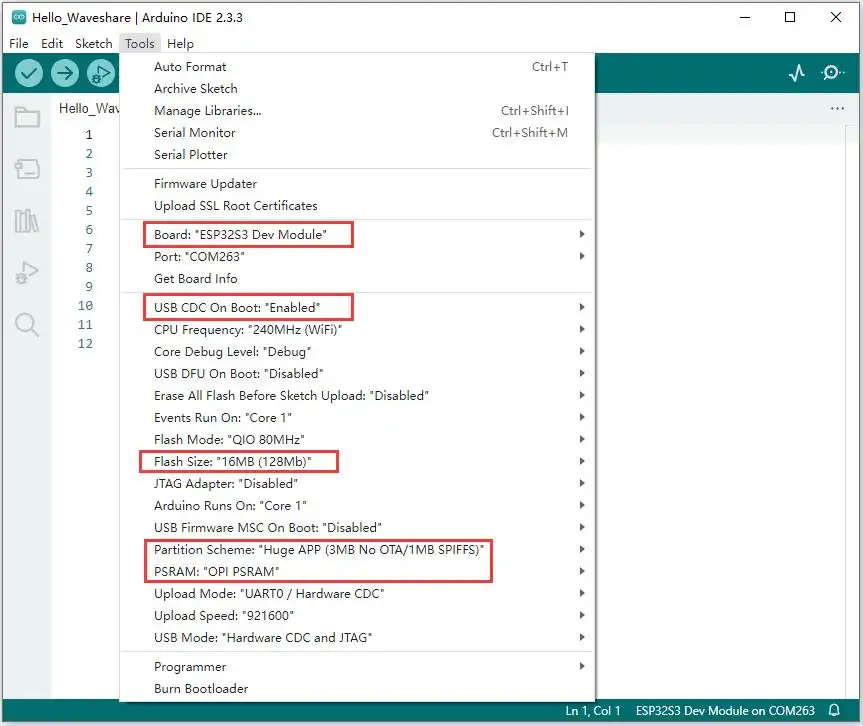
Select the following parameters in the "Tools" menu:
- Board:
ESP32S3 Dev Module - USB CDC On Boot:
Enabled - CPU Frequency:
240MHz (WiFi) - Flash Size:
16MB (128Mb) - Partition Scheme:
Huge APP (3MB No OTA/1MB SPIFFS) - PSRAM:
OPI PSRAM - Upload Mode:
UART0 / Hardware CDC - Upload Speed:
921600 - USB Mode:
Hardware CDC and JTAG
Example
The Arduino examples are located in the Arduino/examples directory of the example package.
| Example | Basic Description | Dependency Library |
|---|---|---|
| 01_IO_Test | GPIO pin high/low level control | - |
| 02_RGB_LED | GPIO pin controls WS2812 RGB LED | Adafruit NeoPixel |
| 03_SD_Card | TF card mounting and file read/write | - |
| 04_BLE_Keyboard | Bluetooth keyboard functionality demonstration | ESP32-BLE-Keyboard |
| 05_WiFi_AP | Sets up an AP hotspot and displays connected device information | - |
| 06_WiFi_STA | Connects to a Wi-Fi network and controls GPIO18 via a web page | - |
| 07_WiFi_DHCP | Obtains an IP address via DHCP over Wi-Fi | - |
| 08_WIFI_StaticIP | Uses a static IP address over Wi-Fi | - |
| 09_WIFI_Web_CAM | Streams camera images over Wi-Fi | - |
| 10_ETH_DHCP | Obtains an IP address via DHCP over Ethernet | Ethernet |
| 11_ETH_StaticIP | Uses a static IP address over Ethernet | Ethernet |
| 12_ETH_MAC_DHCP_StaticIP | Custom MAC address, uses a static IP address after DHCP fails | Ethernet_Generic |
| 13_ETH_Web_CAM | Streams camera images over Ethernet | ETHClass2 (Arduino ESP32 2.x) |
01_IO_Test
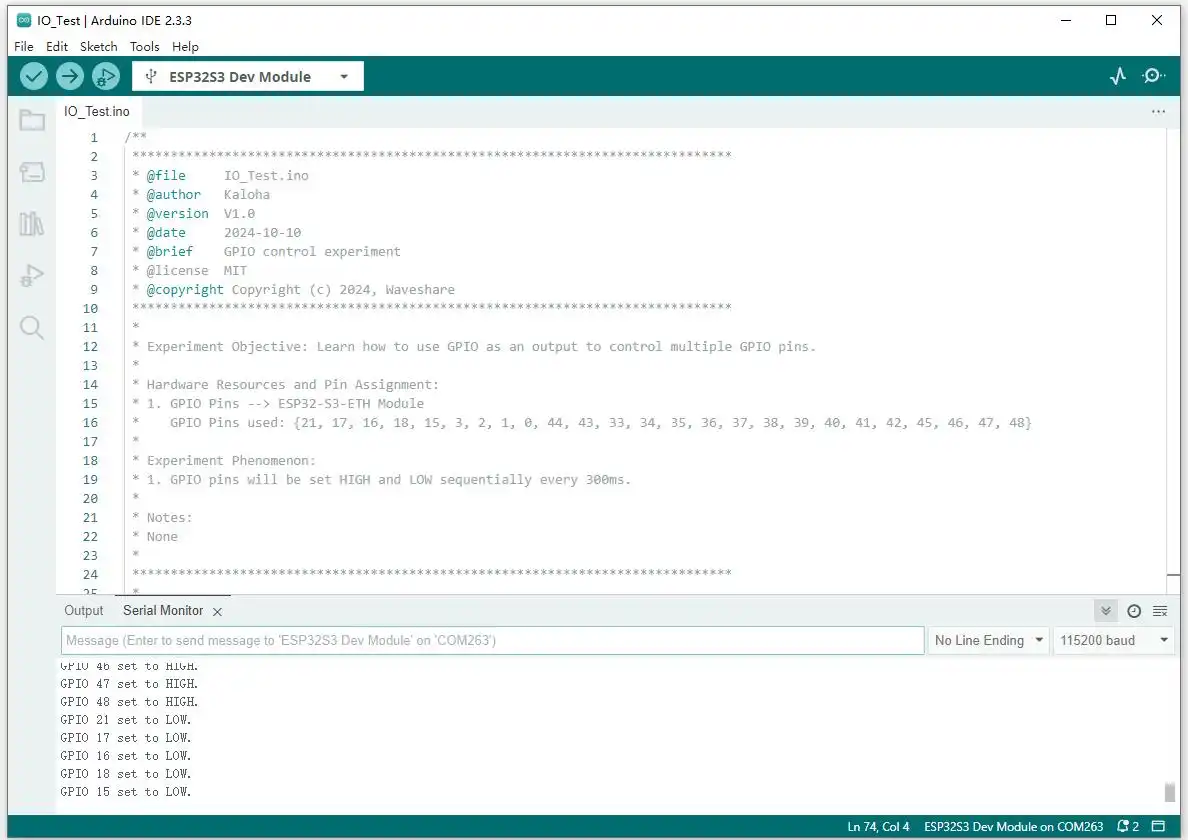
This example sets 19 GPIOs that can be used as outputs to high and low levels in sequence, with a 300 ms interval between each state change. The serial monitor displays the current GPIO number and level state synchronously.
Hardware Connection
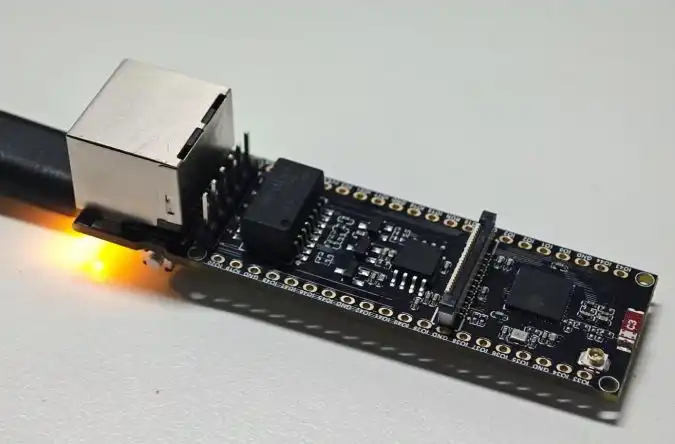
Connect the development board to the computer using a USB cable. You can use a multimeter to measure the pin voltage, or connect an LED in series with a current-limiting resistor to observe level changes.
Key Configuration
The example controls the following GPIOs in sequence:
const int gpio_pin[] = {
  21, 17, 16, 18, 15, 3, 2, 1, 0, 44,
  43, 38, 39, 40, 41, 42, 45, 47, 48
};
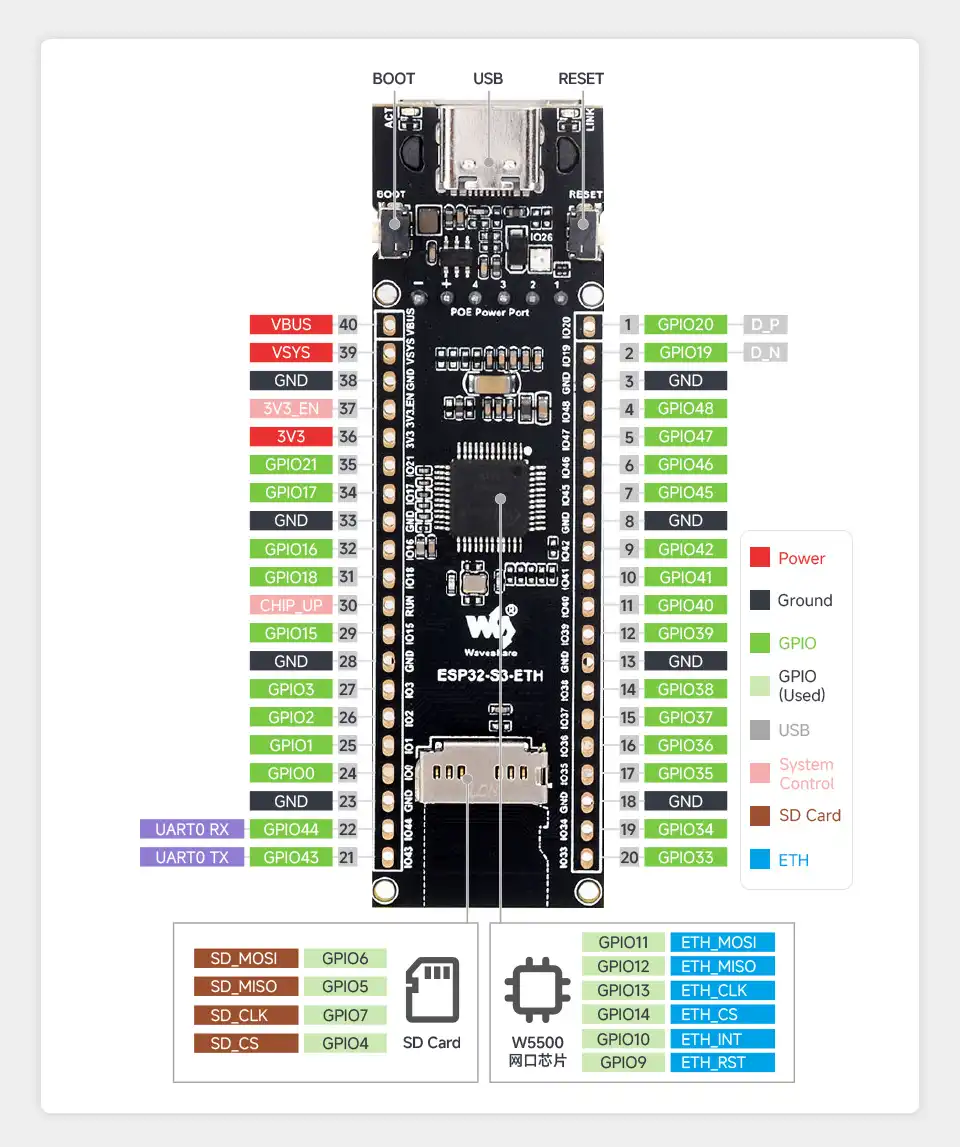
GPIO33 to GPIO37 are occupied by onboard functions, and GPIO46 only supports input, so they are not included in the output test sequence. Some of the remaining GPIOs are multiplexed with onboard peripherals. Before testing GPIO outputs, disconnect the relevant peripherals to avoid bus conflicts.
Expected Behavior
The serial monitor displays the HIGH and LOW states of each GPIO in sequence. The high level of the ESP32-S3 is approximately 3.3 V, and the low level is approximately 0 V.
02_RGB_LED
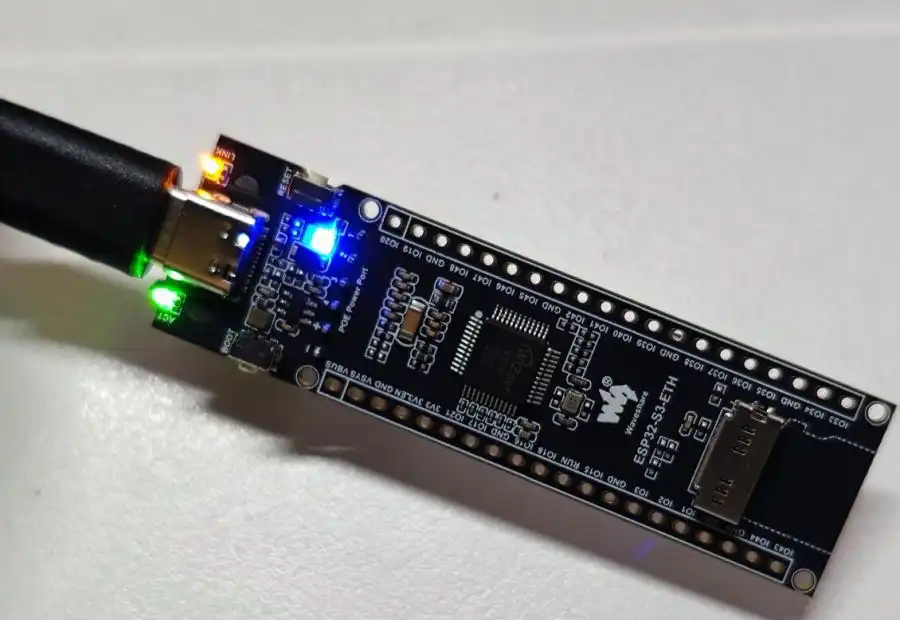
This example controls the WS2812 RGB LED via GPIO21, demonstrating solid color fill, rainbow gradient, and theater chase effects in sequence.
Hardware Connection
Connect the development board to the computer using a USB cable. The RGB LED is already connected to GPIO21; no external wiring is required.
Expected Behavior
- Solid color fill: displays red, green, and blue in sequence.
- Theater chase: displays a dynamic chase effect in white, red, and blue.
03_SD_Card
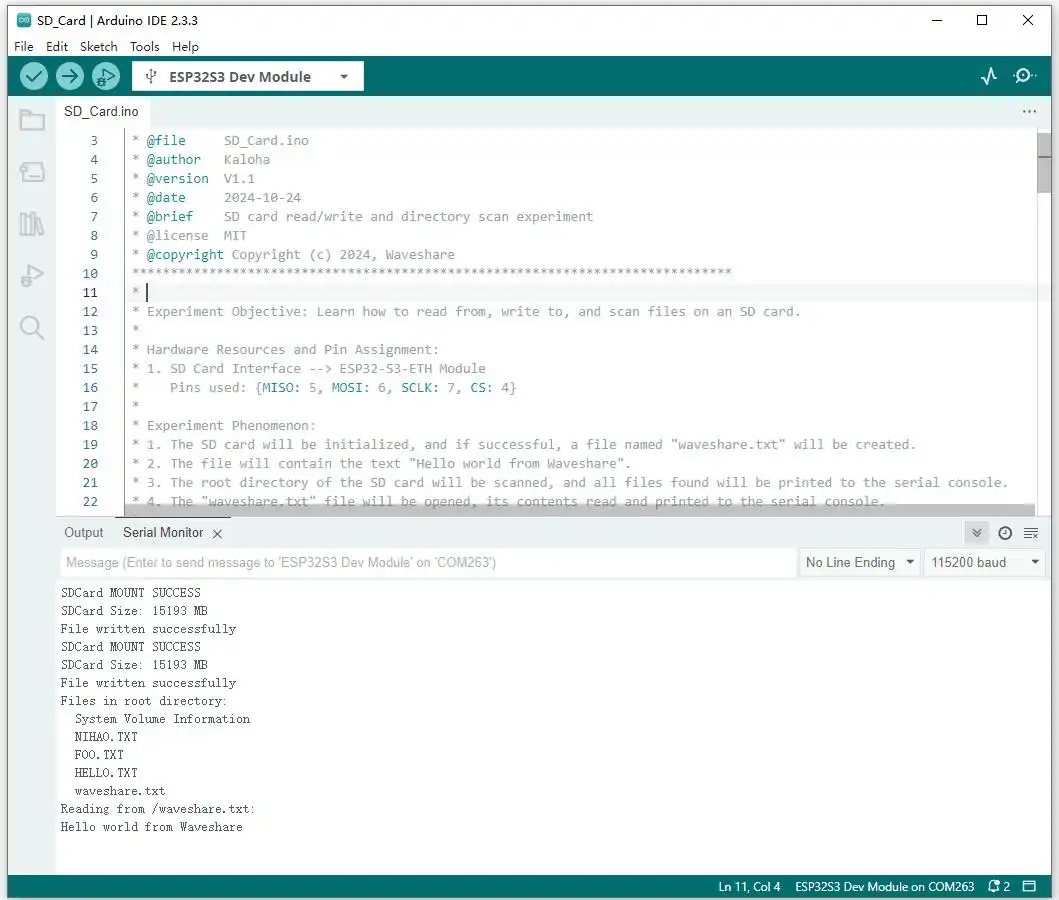
This example mounts a TF card, creates waveshare.txt in the root directory, writes Hello world from Waveshare, lists the root directory files, and reads the file content.
This example only supports the FAT32 file system by default; exFAT and NTFS are not supported. SDXC cards of 64 GB and above usually use the exFAT format by default, and must be backed up and reformatted to FAT32 before use. Formatting will erase all data on the card.
Hardware Connection
| SPI Signal | ESP32-S3-ETH |
|---|---|
| CS (SS) | GPIO4 |
| DI (MOSI) | GPIO6 |
| DO (MISO) | GPIO5 |
| SCK (SCLK) | GPIO7 |
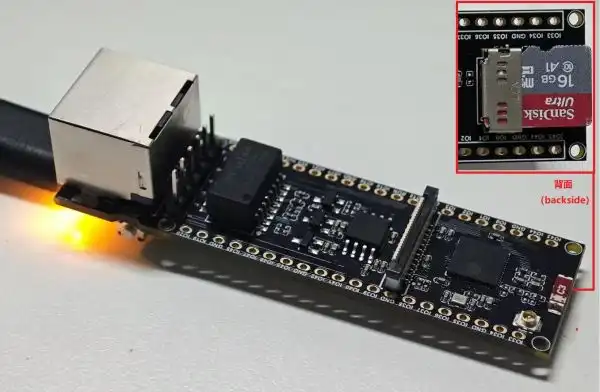
Insert the TF card into the onboard card slot, then connect the development board to the computer using a USB cable.
Expected Behavior
The serial monitor displays the TF card mounting result, file write result, root directory file list, and the contents of waveshare.txt in sequence.
04_BLE_Keyboard
This example emulates the ESP32-S3-ETH as a BLE keyboard. The program is based on the ESP32-BLE-Keyboard open-source library.
Expected Behavior
After flashing the program, search for and connect to the development board in the Bluetooth settings of a computer or mobile device. Once connected, the development board can send example keystrokes or text.
05_WiFi_AP
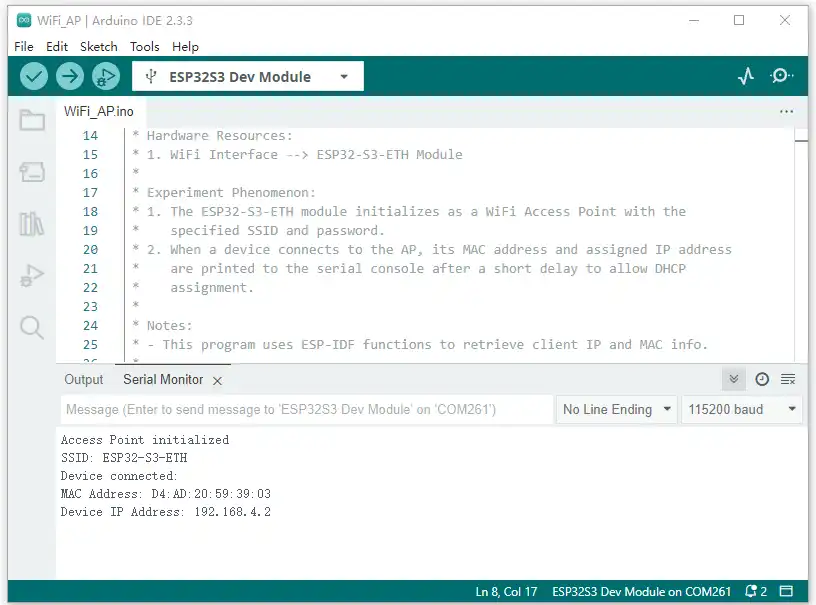
This example configures the ESP32-S3-ETH as a Wi-Fi access point. The access point name is ESP32-S3-ETH, and the password is 88888888. When a device connects or disconnects, the serial monitor displays the device's MAC address and the DHCP-assigned IP address.
Expected Behavior
- Flash the program and open the serial monitor.
- Use a computer or mobile device to connect to the
ESP32-S3-ETHhotspot. - Check the device MAC address and IP address output by the serial monitor.

06_WiFi_STA
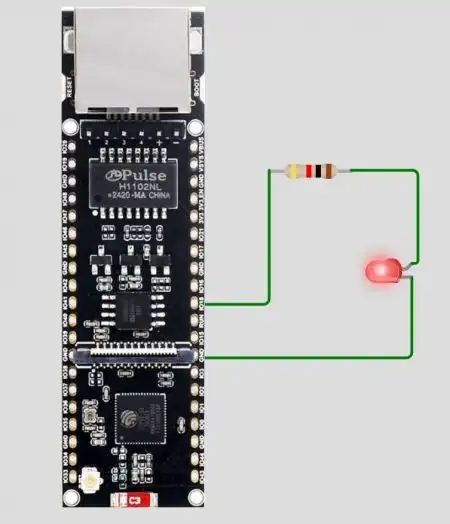
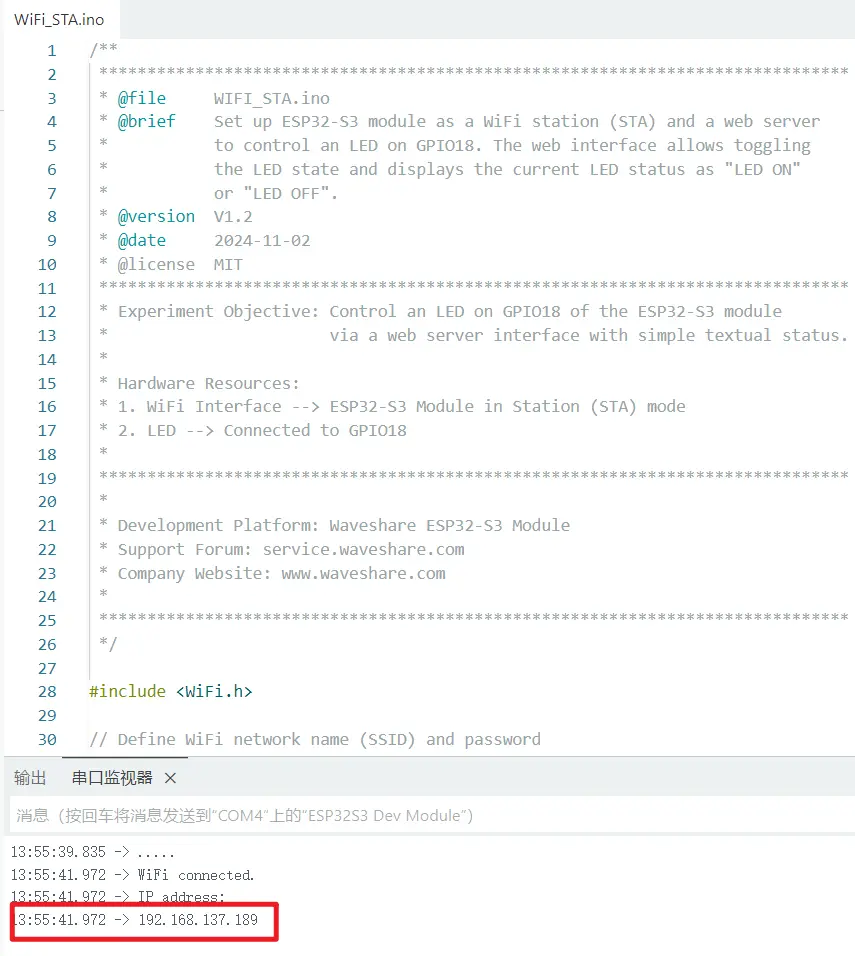
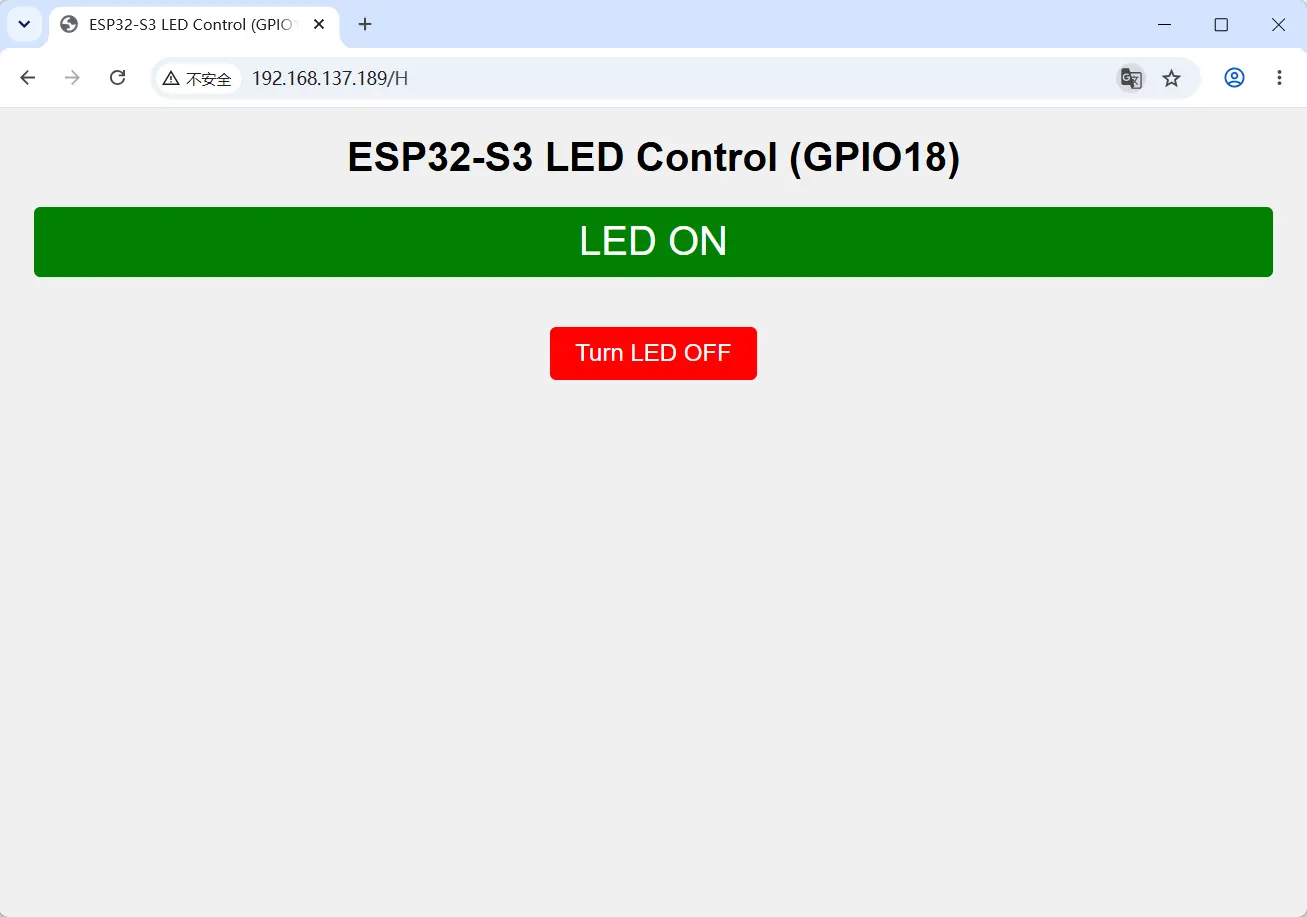
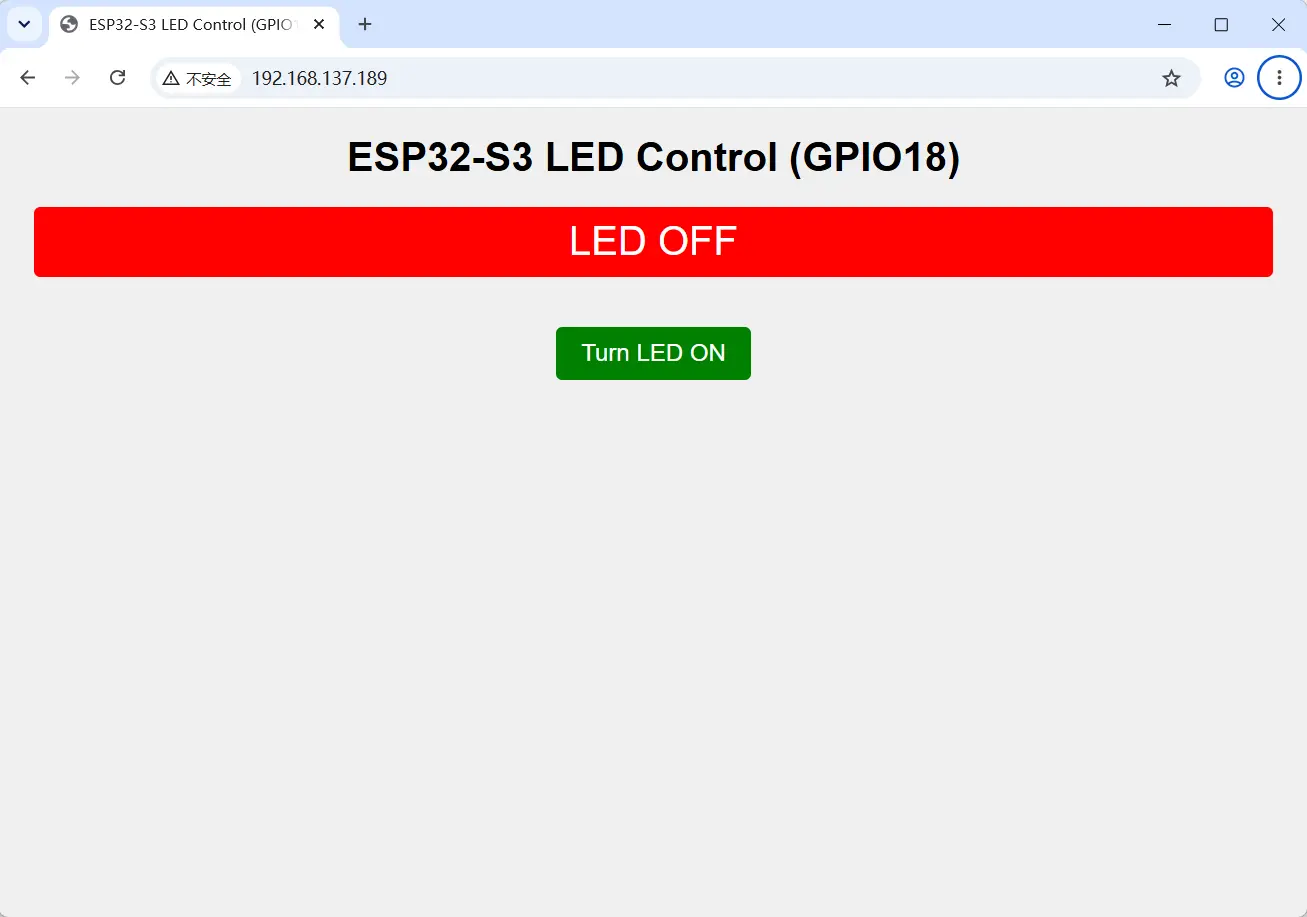
This example configures the development board as a Wi-Fi station and starts an HTTP server. The browser page can view and toggle the output state of GPIO18.
Key Configuration
Before flashing, change the SSID and password in the program to match your current network parameters.
Expected Behavior
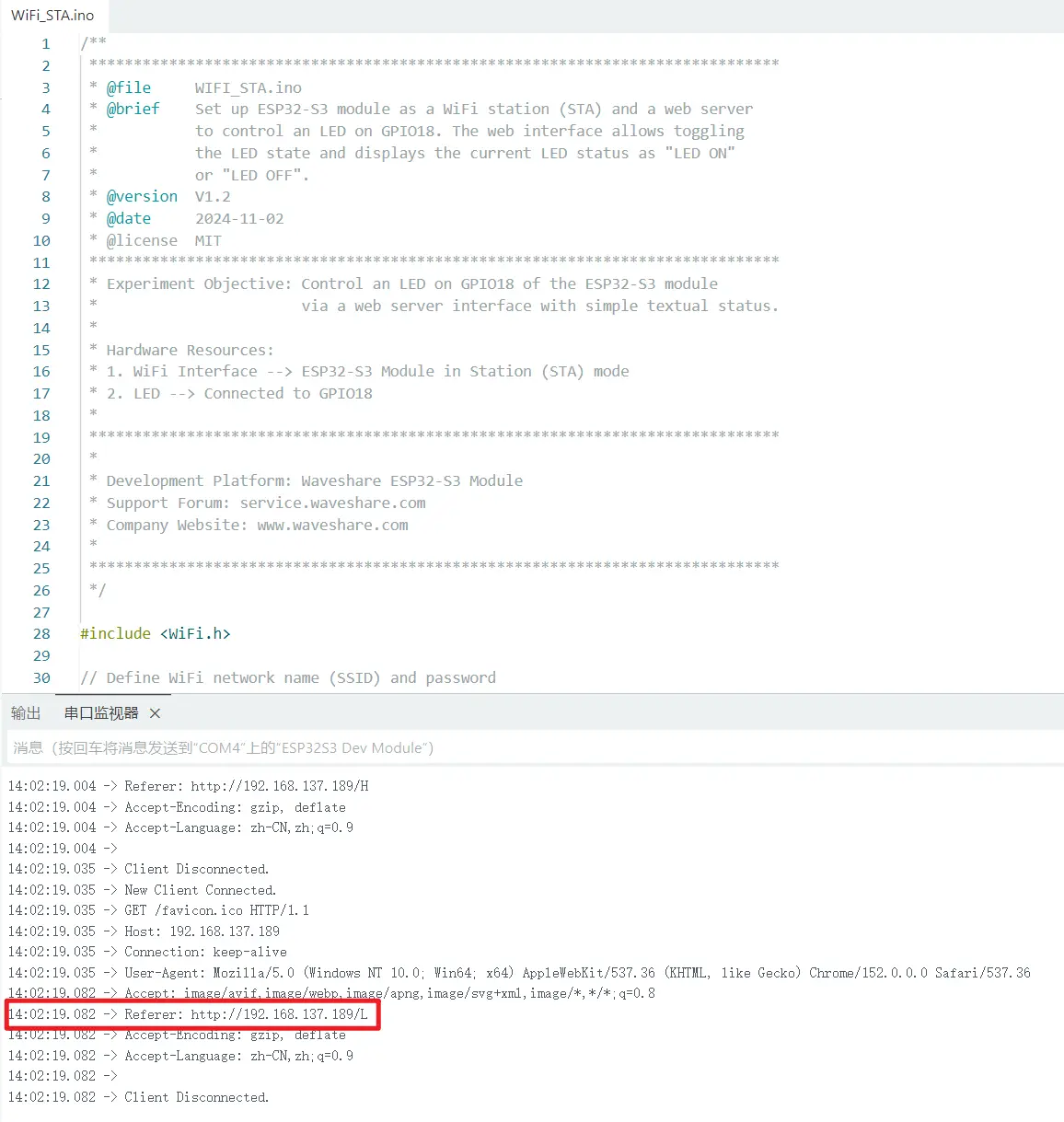
- After the development board connects to Wi-Fi, the serial monitor displays the IP address.
- Access that IP address in a browser.
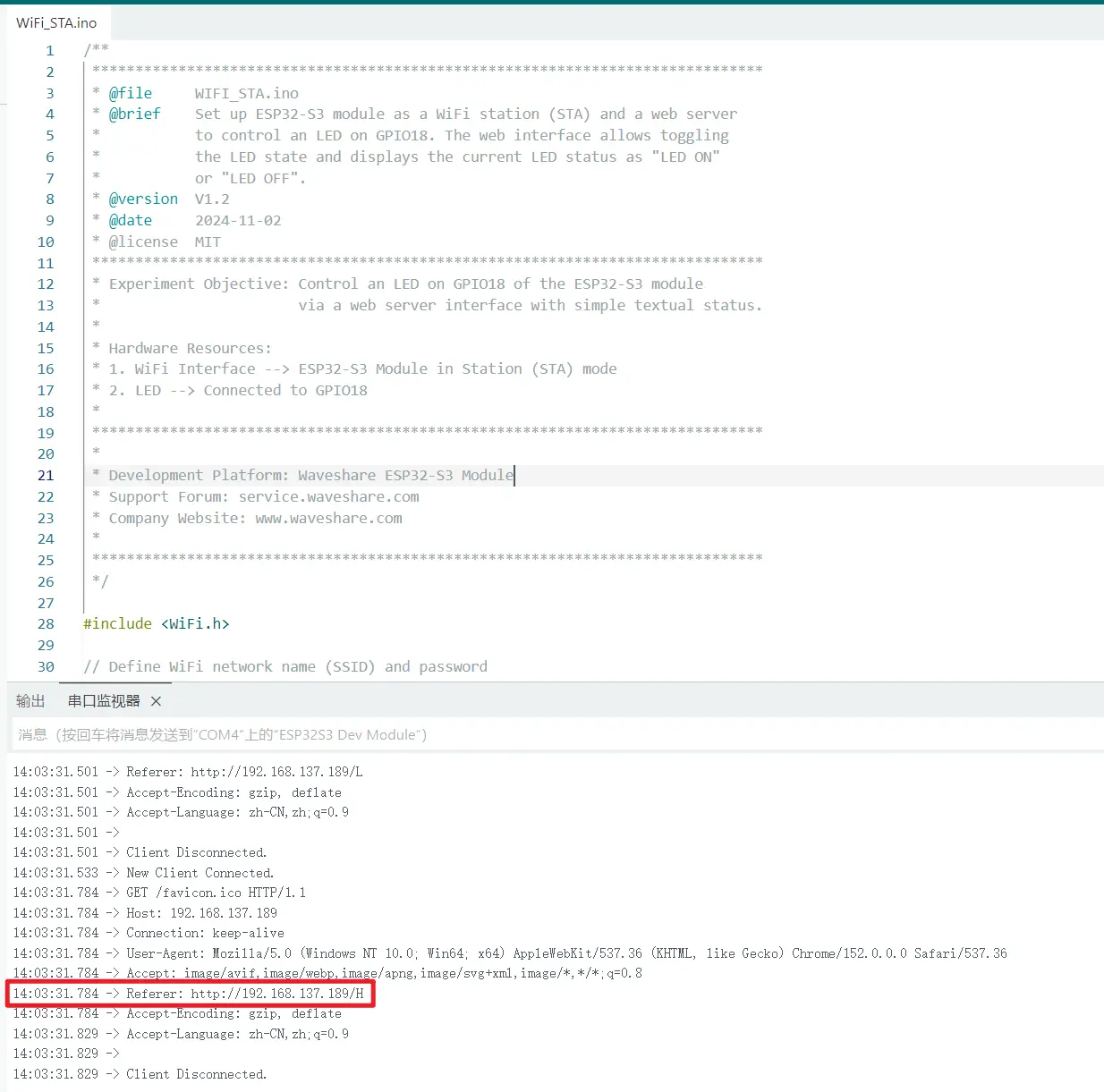
- Use the links on the page to toggle GPIO18 between high and low levels; the serial monitor synchronously displays
/Hor/L.
If possible, refer to the figure below to connect an LED in series to visually check the GPIO18 level state, or measure it with a multimeter.
07_WiFi_DHCP
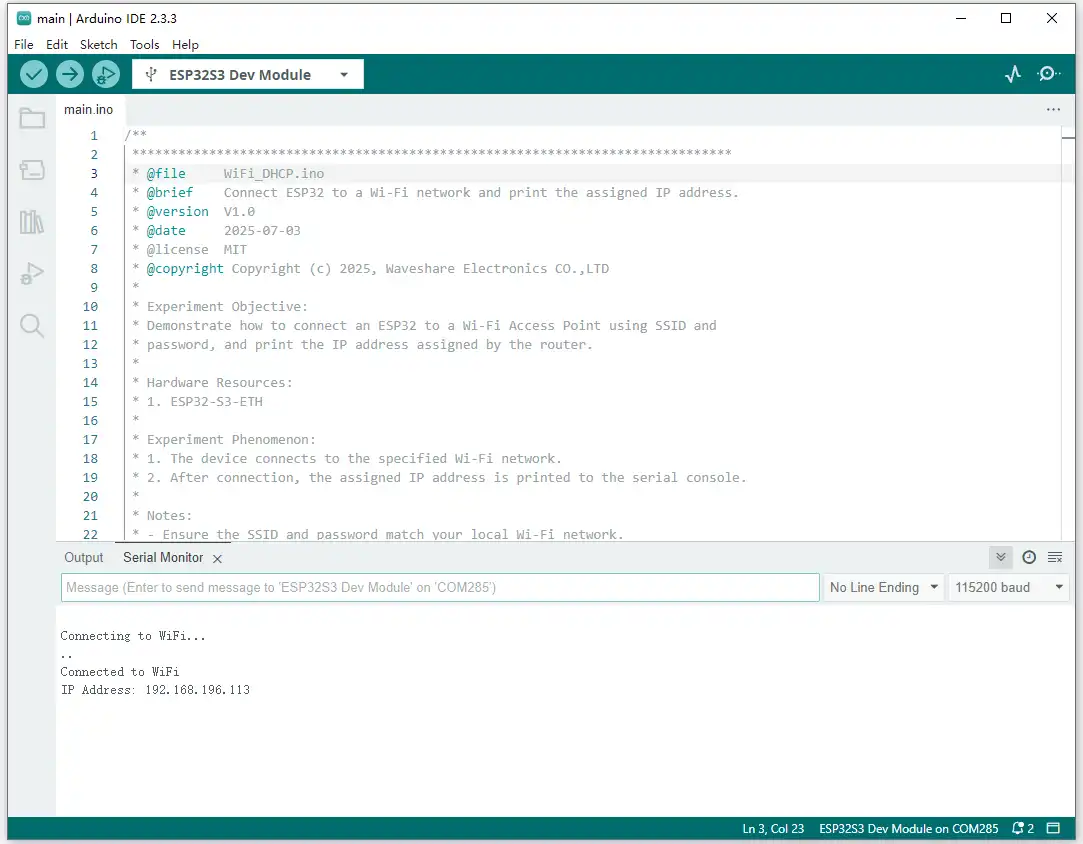
This example connects to the specified Wi-Fi network and automatically obtains an IP address via DHCP.
Key Configuration
Change the following parameters to the SSID and password of your current network:
const char *ssid = "Waveshare-AP";
const char *password = "88888888";
Expected Behavior
The serial monitor displays the Wi-Fi connection status and the DHCP-assigned IP address.
08_WIFI_StaticIP
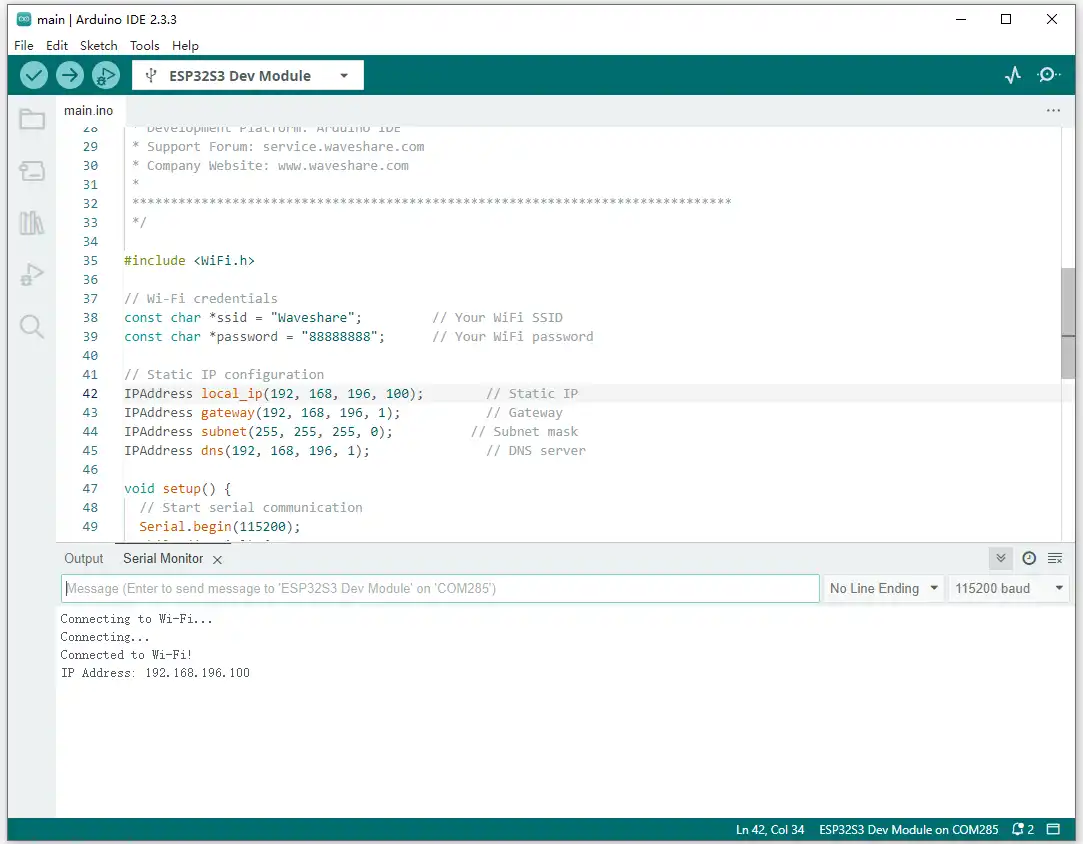
This example connects to the specified Wi-Fi network using a static IP address.
Key Configuration
Modify the SSID, password, IP address, gateway, subnet mask, and DNS according to your current network:
IPAddress local_ip(192, 168, 196, 100);
IPAddress gateway(192, 168, 196, 1);
IPAddress subnet(255, 255, 255, 0);
IPAddress dns(192, 168, 196, 1);
Expected Behavior
The serial monitor displays the Wi-Fi connection status and the configured static IP address.
09_WIFI_Web_CAM
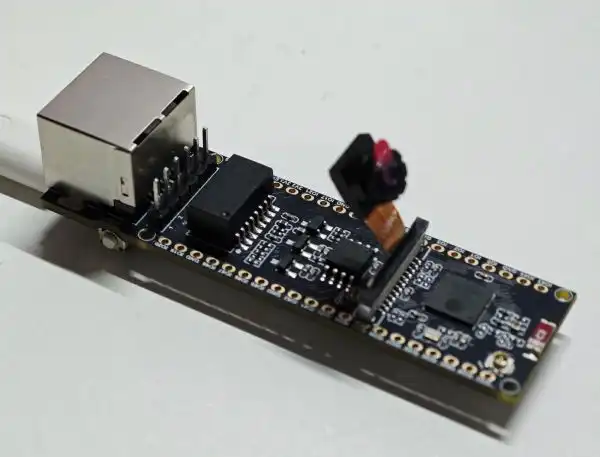
This example sets up a camera server over Wi-Fi to provide real-time images on the local network.
Camera Interface
| Camera Signal | ESP32-S3-ETH |
|---|---|
| ENABLE | GPIO8 |
| VSYNC | GPIO1 |
| HREF | GPIO2 |
| XCLK | GPIO3 |
| PCLK | GPIO39 |
| SIOD (SDA) | GPIO48 |
| SIOC (SCL) | GPIO47 |
| D7 | GPIO18 |
| D6 | GPIO15 |
| D5 | GPIO38 |
| D4 | GPIO40 |
| D3 | GPIO42 |
| D2 | GPIO46 |
| D1 | GPIO45 |
| D0 | GPIO41 |
Key Configuration
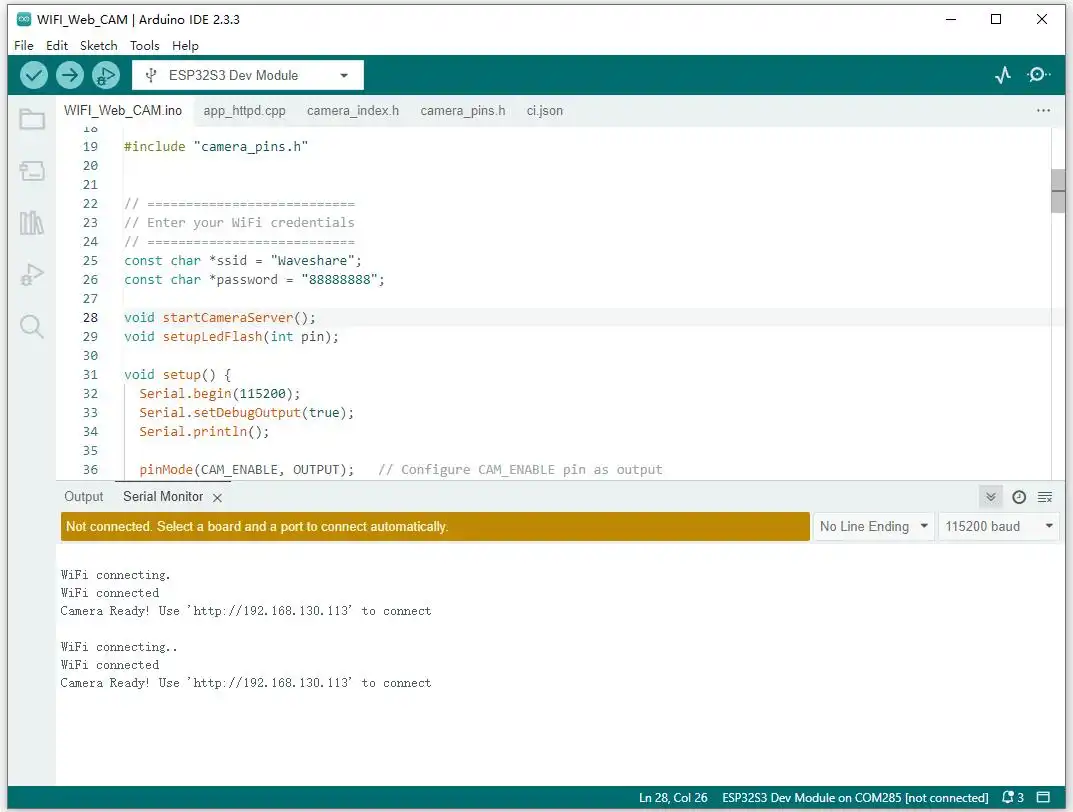
Change the SSID and password in the program to match your current network parameters. After the camera initializes successfully, the program starts an HTTP video streaming server.
Expected Behavior
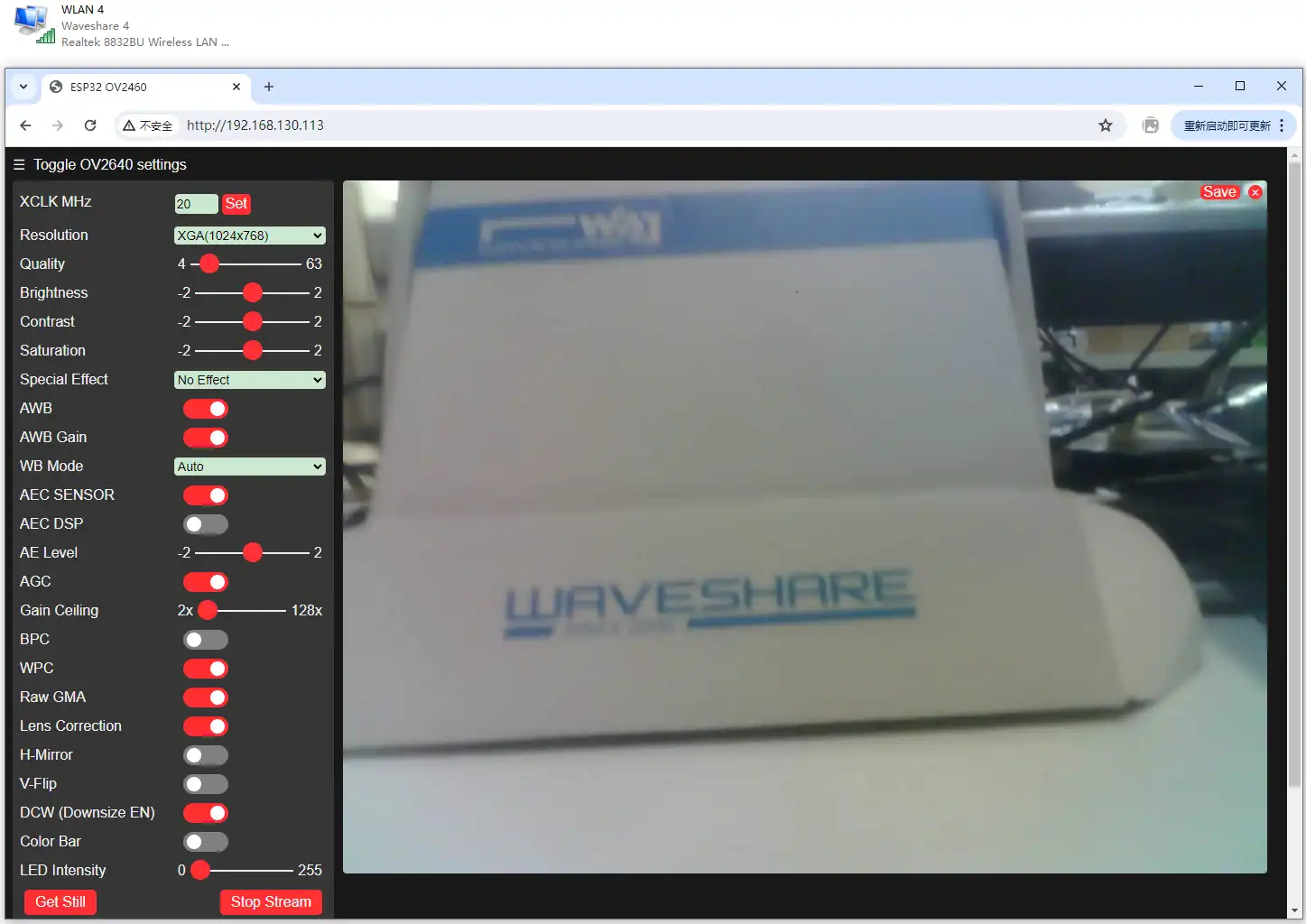
The serial monitor displays the camera server address. Access that address in a browser on the same local network to view the real-time image.
10_ETH_DHCP
This example initializes the onboard W5500 and obtains an IP address via DHCP after the Ethernet connection is established.
Ethernet Interface
| W5500 Signal | ESP32-S3-ETH |
|---|---|
| MISO | GPIO12 |
| MOSI | GPIO11 |
| SCLK | GPIO13 |
| CS | GPIO14 |
| RST | GPIO9 |
| INT | GPIO10 |
Expected Behavior
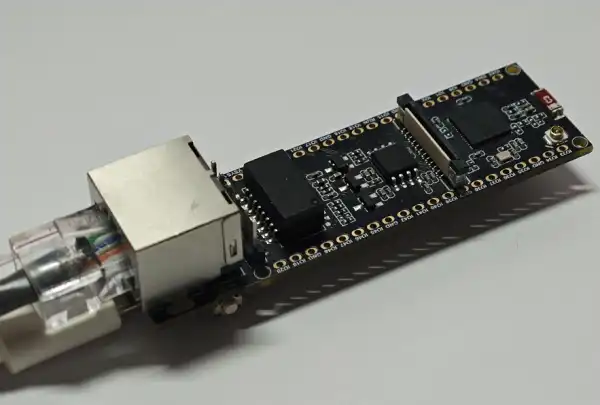
Connect the network cable and flash the program. The serial monitor displays the Ethernet initialization status and the DHCP-assigned IP address.

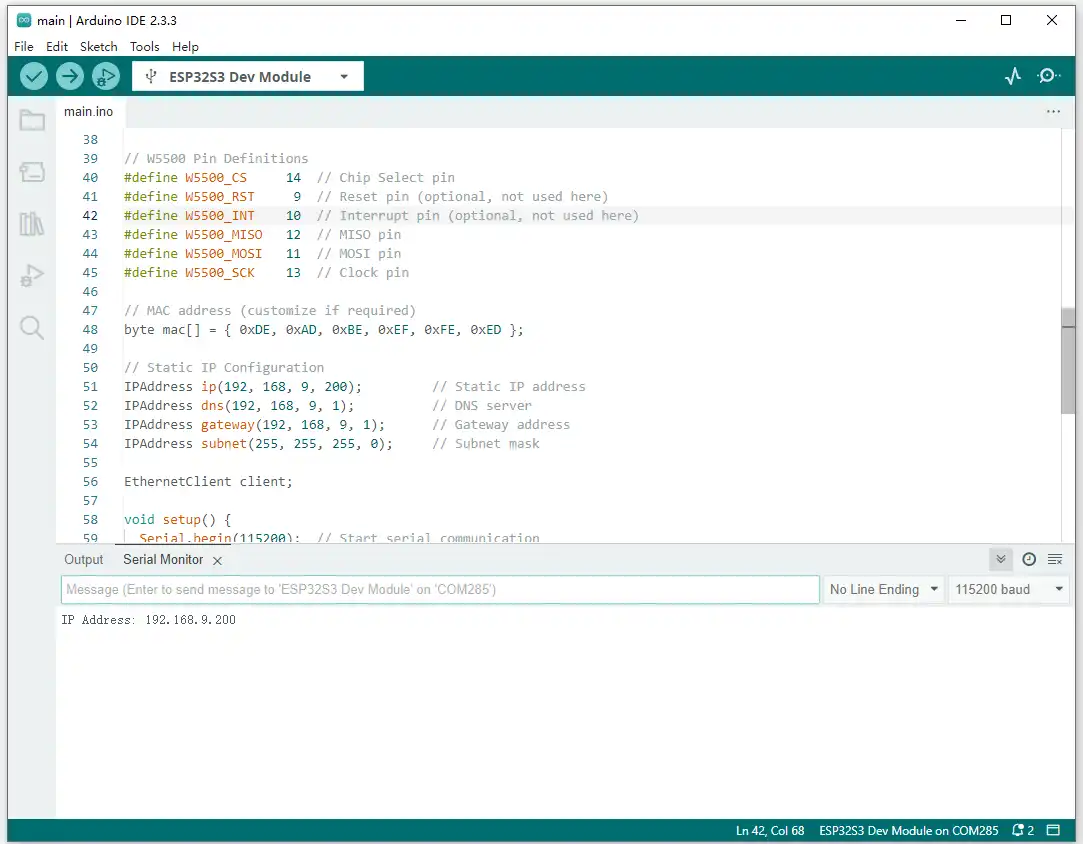
11_ETH_StaticIP
This example initializes the onboard W5500 and connects to Ethernet using the static IP address configured in the program.
Expected Behavior
Connect the network cable and flash the program. The serial monitor displays the Ethernet initialization status and the static IP address.
12_ETH_MAC_DHCP_StaticIP
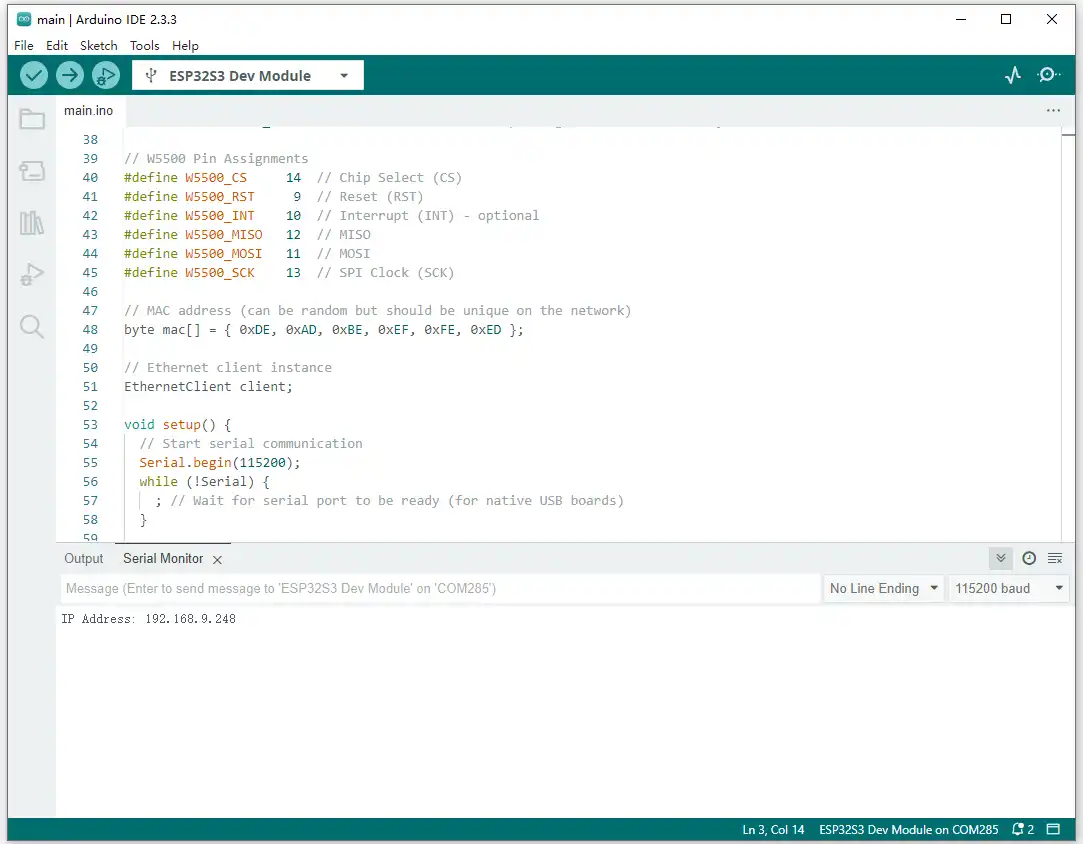
This example allows you to customize the MAC address of the W5500. The program first attempts to obtain an IP address via DHCP; if DHCP fails, it uses a preset static IP address, such as 192.168.1.177.
Expected Behavior
Connect the network cable and flash the program. The serial monitor displays the IP address that is ultimately used.
13_ETH_Web_CAM
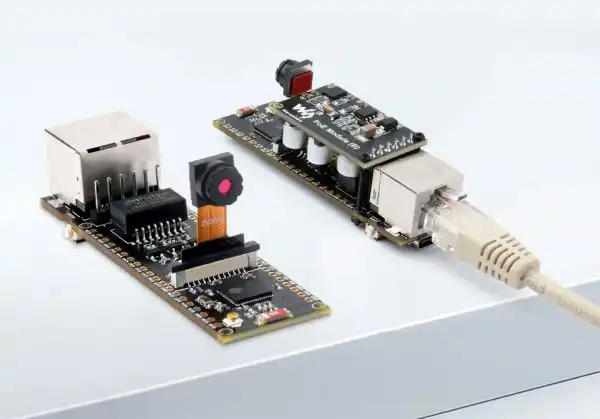
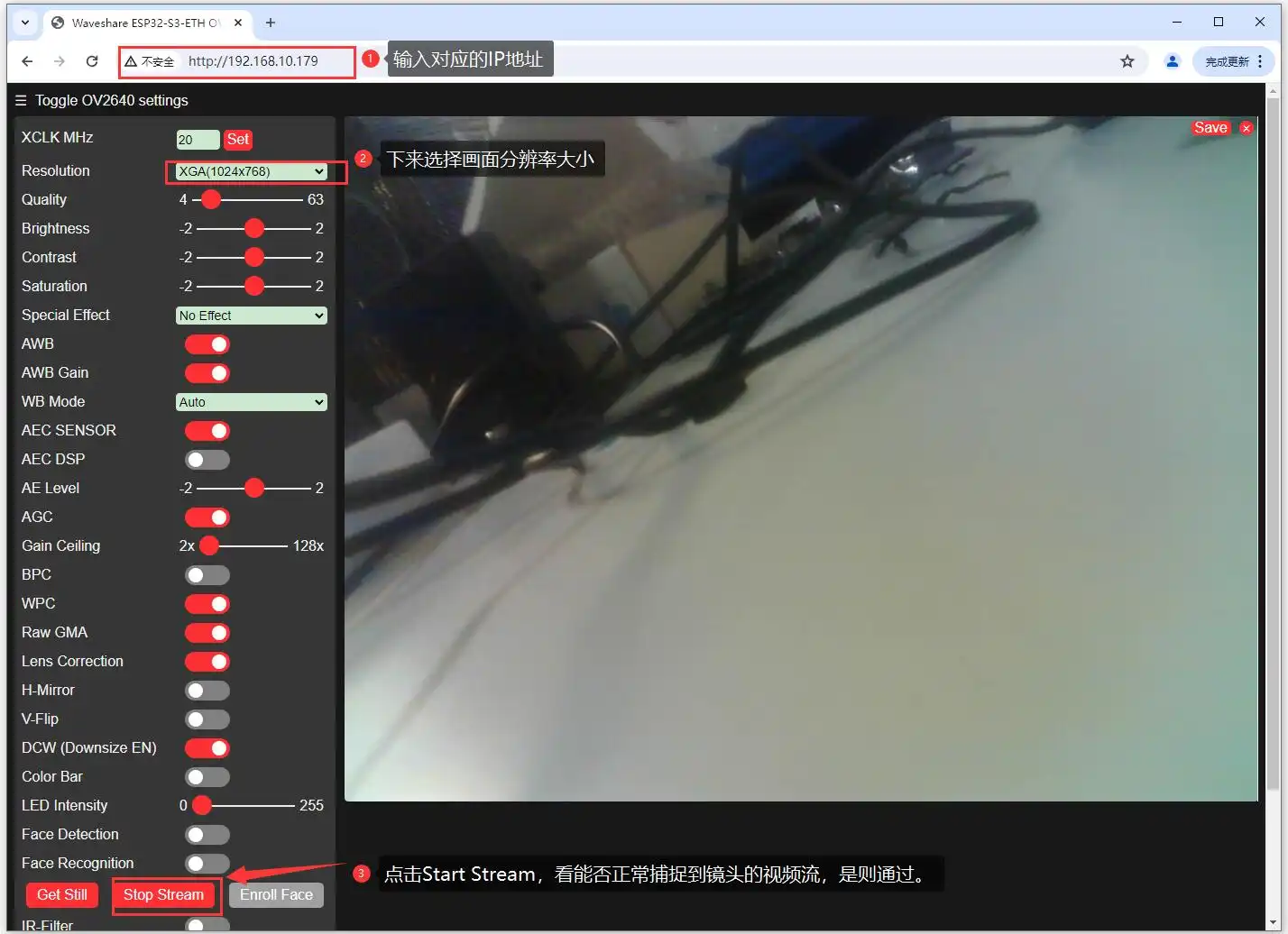
This example sets up a camera server over the onboard W5500 to provide real-time images on Ethernet. For the camera and W5500 interface definitions, refer to 09_WIFI_Web_CAM and 10_ETH_DHCP, respectively.
If not using PoE power, there is no need to connect an external PoE module; you can power the board via the USB Type-C interface.
Expected Behavior
The serial monitor displays the Ethernet connection status, MAC address, IP address, link speed, and camera server address. Access the server address in a browser on the same network to view the real-time image.
Documentation Feedback
If you encounter any issues during use, feel free to leave a comment.