Flash Firmware Flashing and Erasing
The ESP32-S3-ETH example package provides test firmware. You can verify the onboard functions by directly flashing the firmware.
- Example package: see Resources and Documents
- Firmware directory:
ESP32-S3-ETH-Demo/Arduino/bin Factory_Testing.bin: Onboard function test firmwareETH_Web_CAM.bin: Ethernet camera test firmware- Flash address:
0x00
Erasing Flash or flashing other firmware will overwrite the existing firmware and configuration on the device. Confirm that you do not need to retain existing data before proceeding.
- Flash Firmware Flashing
- Flash Firmware Erasing
-
Download and extract the official Espressif flashing tool Flash Download Tool.
-
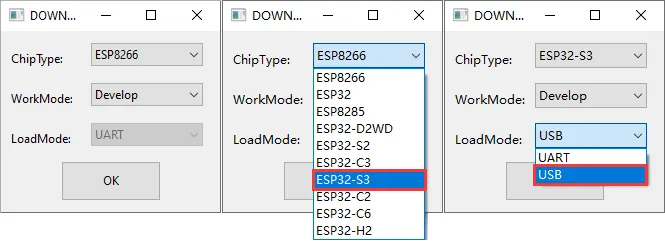
Run the Flash Download Tool in the extracted directory. Select
ESP32-S3as the chip type andUSBas the download interface.
-
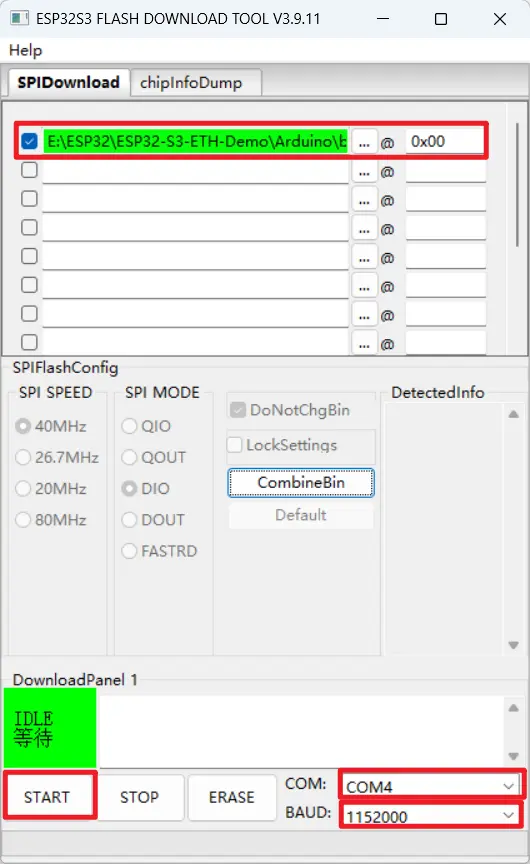
Set the parameters in the flashing interface:
- Select the COM port corresponding to the development board.
- Set
BAUDto1152000. - Click the file selection button and select
Factory_Testing.binorETH_Web_CAM.bin. - Enter
0x00in the address field to the right of the firmware. - Check the checkbox to the left of the firmware row.
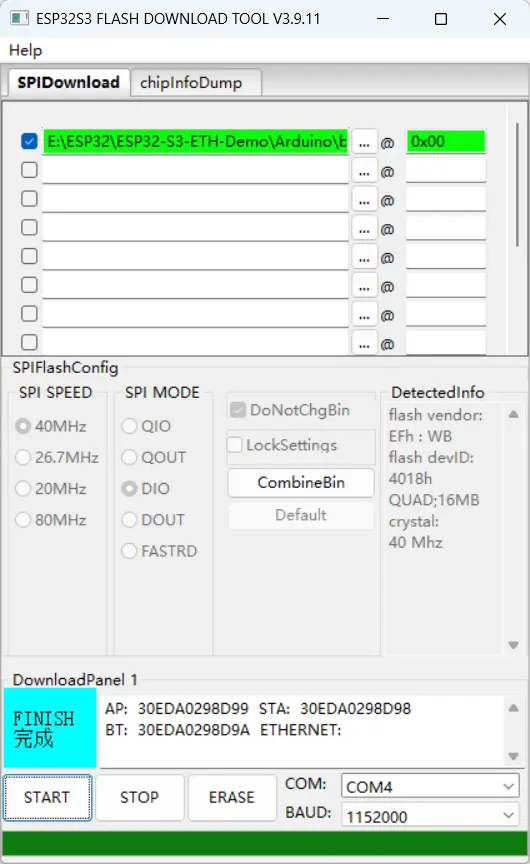
- Click START to begin flashing and wait for the progress to complete.
- Press the RESET button on the development board to restart the firmware.
If the tool shows "waiting for sync" for a long time or cannot connect, press and hold BOOT, press and release RESET, then release BOOT. After the development board enters download mode, start flashing again.
Clicking ERASE will erase the entire Flash, and the firmware and configuration on it will no longer be usable.
-
Download and extract the official Espressif flashing tool Flash Download Tool.
-
Run the Flash Download Tool in the extracted directory. Select
ESP32-S3as the chip type andUSBas the download interface.
- Select the COM port corresponding to the development board, do not select any bin file, then click START.
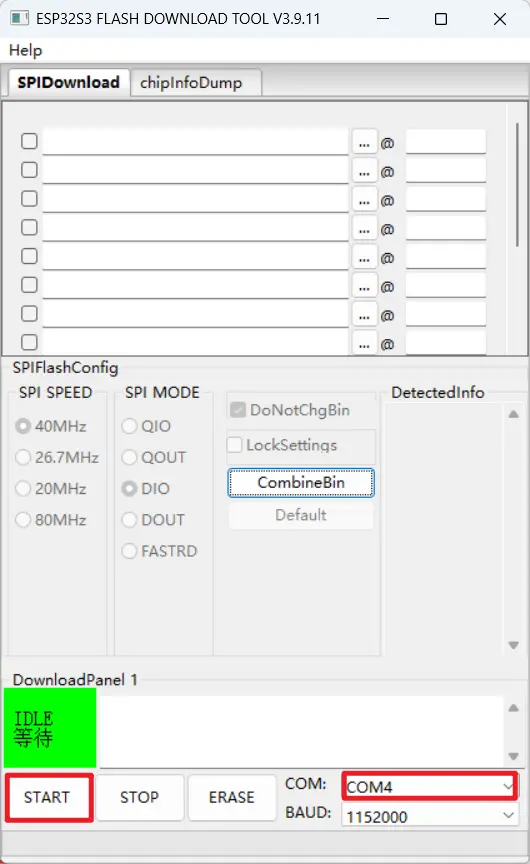
- Wait for the connection operation to complete, then click ERASE to erase the Flash.
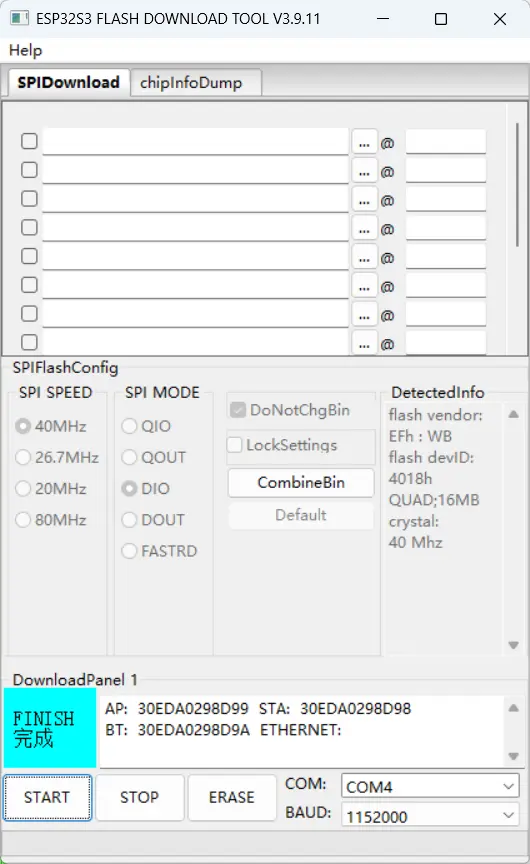
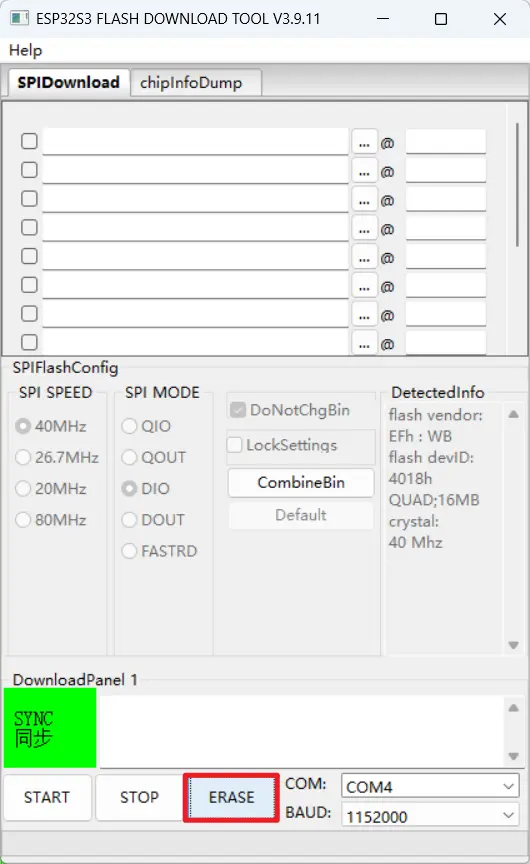
- Wait for the tool to show that erasing is complete.
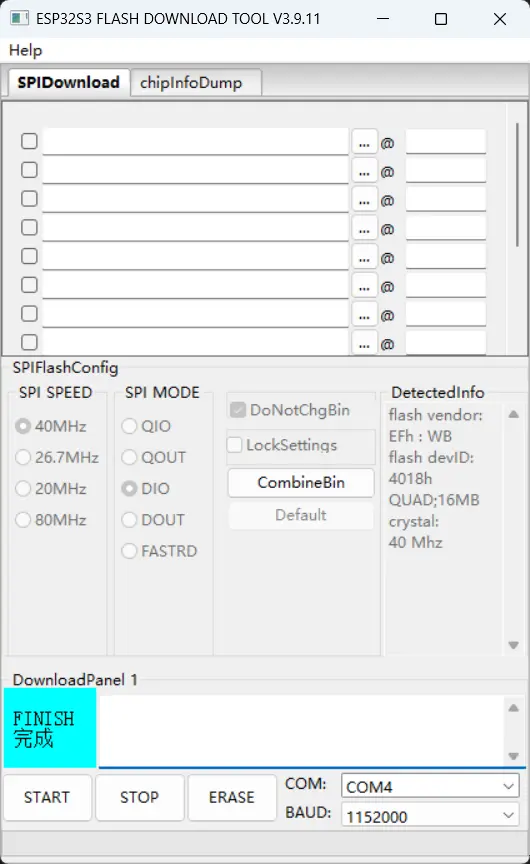
If erasing fails or the device does not respond, press and hold BOOT, press and release RESET, then release BOOT. After the development board enters download mode, perform the erase operation again.