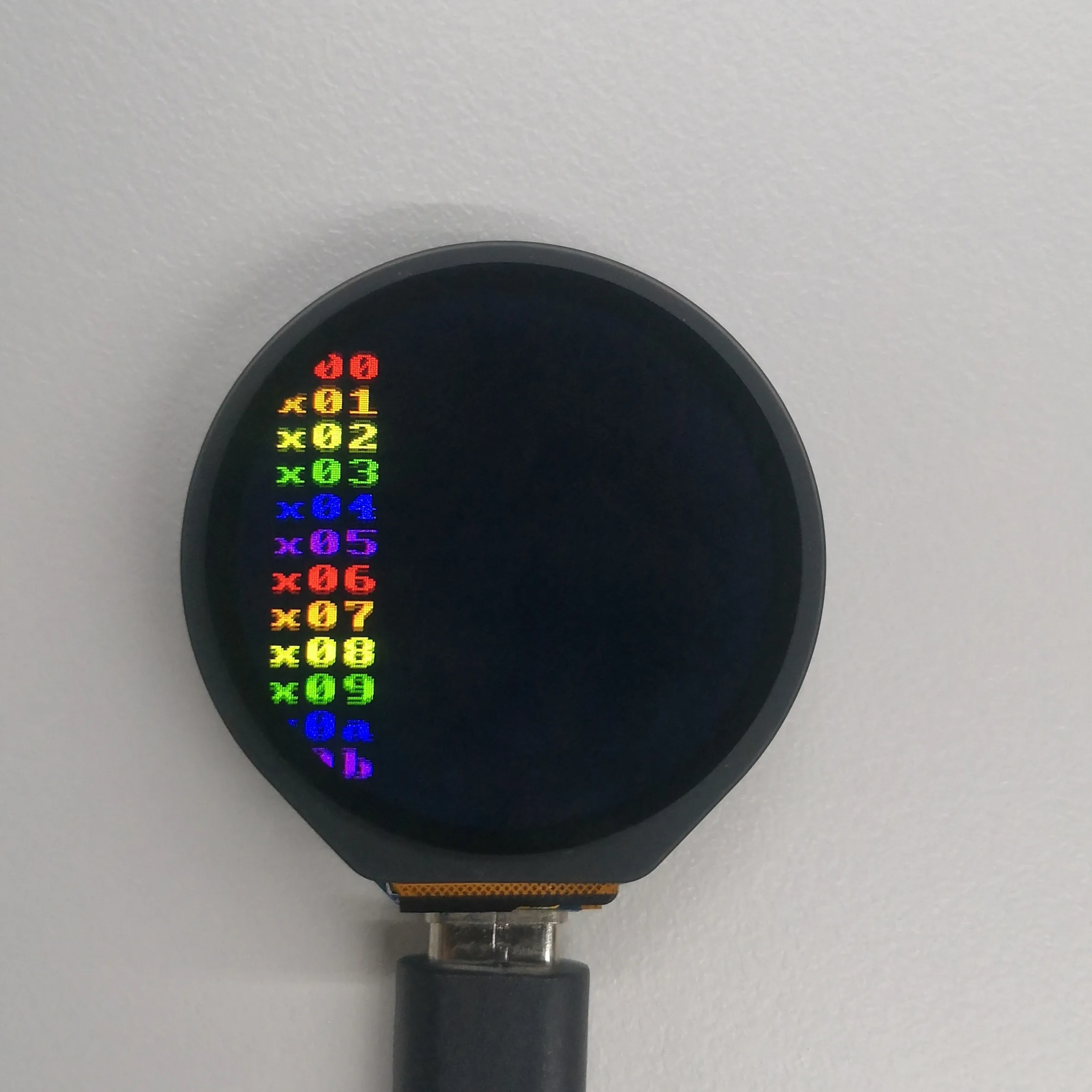
ESP32-S3-LCD-1.28 Working with MicroPython
MicroPython Getting Started
New to ESP32 MicroPython development and looking for a quick start? We have prepared a comprehensive ESP32 MicroPython Getting Started Tutorial for you.
- Section 1: Setup Development Environment
- Section 2: Basics
- Section 3: GPIO Digital Output/Input
- Section 4: ADC Analog Input
- Section 5: PWM Output
- Section 6: UART Communication
- Section 7: I2C Communication
- Section 8: SPI Communication
- Section 9: Wi-Fi Basic
- Section 10: Web Server
- Section 11: Bluetooth
- Section 12: Comprehensive Project
Note: This tutorial uses the ESP32-S3-Zero as a teaching example, and all hardware code is based on its pinout. Before proceeding, we recommend checking the pinout diagram of your specific development board to ensure the pin configuration is correct.
Setting Up the Development Environment
1. Configure Thonny and Flash MicroPython Firmware
- Please refer to the Setting up the Development Environment to flash the MicroPython firmware.
2. Additional Tips
-
The development board currently uses custom firmware for development. The firmware is available in the ESP32-S3-LCD-1.28 Example. The firmware is merged into a single file. Note that the download address is the 0x00 position.
-
Firmware path:
...\ESP32-S3-LCD-1.28-Demo\Firmware\MicroPython-bin -
If flashing the MicroPython firmware using the Espressif Flash Download Tool, the flashing address is
0x0. -
The bin file in the factory-bin folder is for testing onboard functions and does not need to be flashed here.
-
The MicroPython firmware is produced from this link. For more learning resources on MicroPython firmware compilation.
Thonny Usage Instructions
If you are just getting started with ESP32 and Thonny and don't yet know how to use Thonny, expand this section. Hope it can help you!
Selecting the Development Board and Model
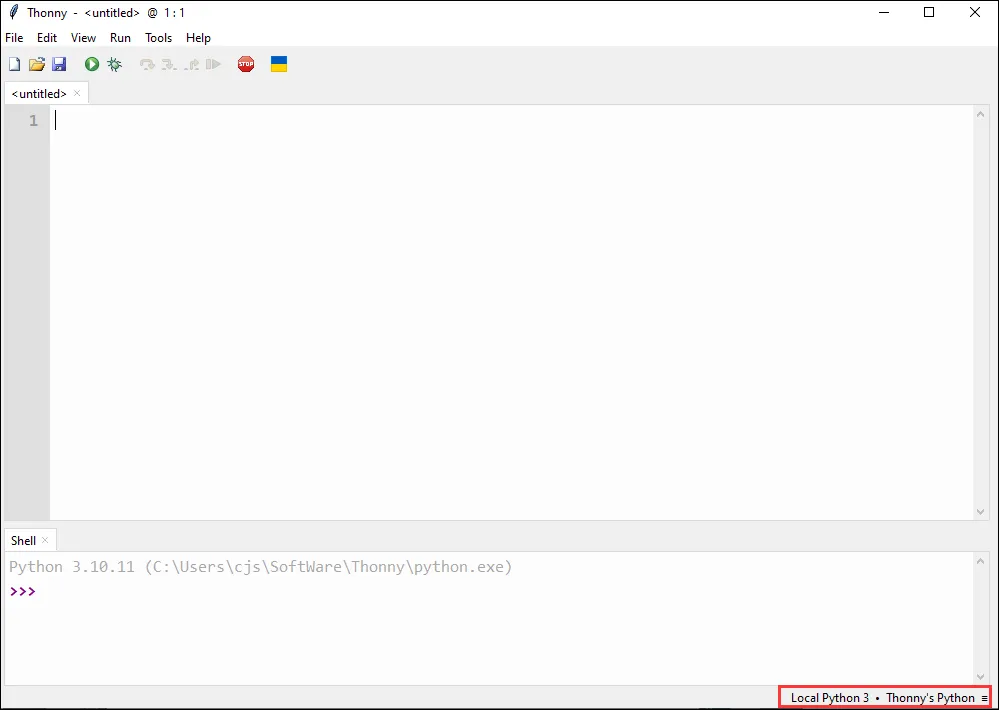
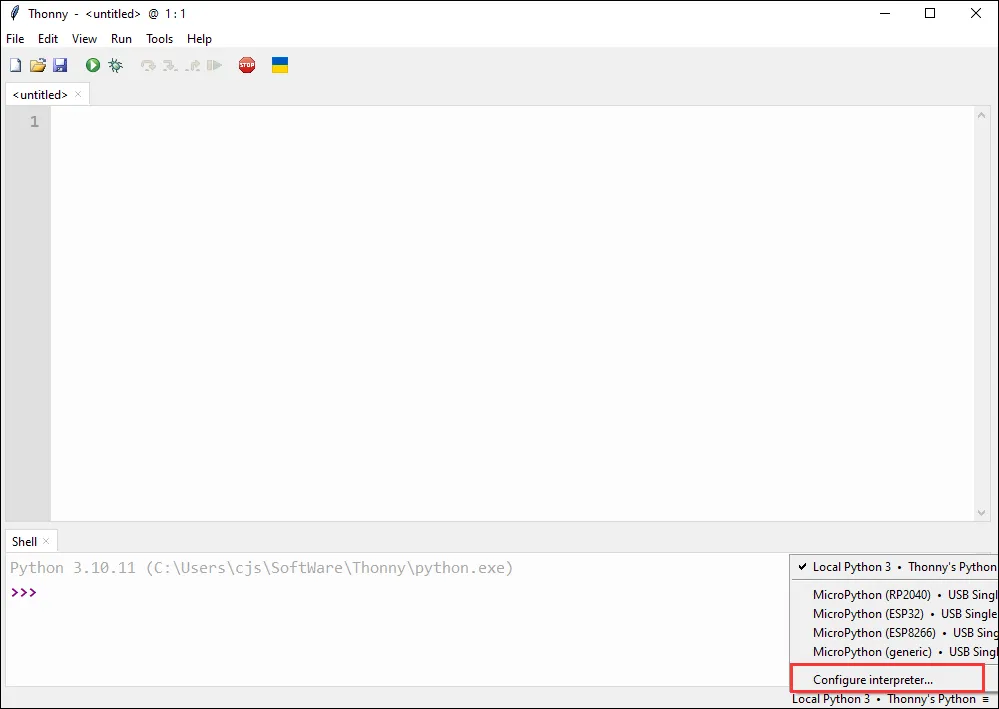
- After downloading and installing the latest Thonny IDE, open Thonny IDE -> Configure interpreter..., as shown below:
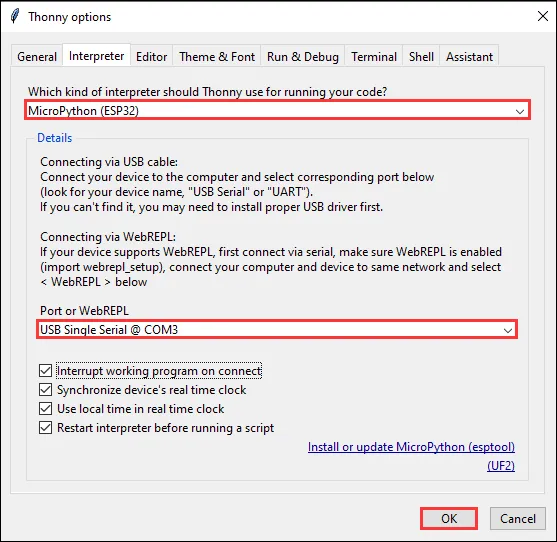
- Select ESP32 and select the corresponding COM port.
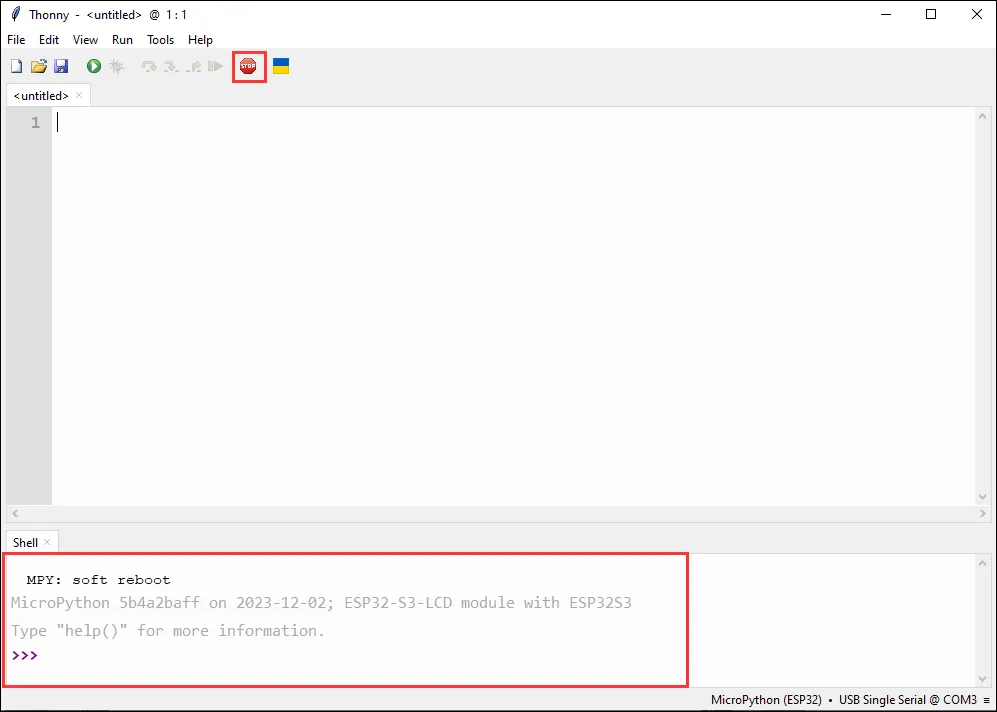
- Click this button. If you see output statements in the shell, the development board firmware is working successfully.
Uploading Examples
The following uses the "ESP32-S3-Touch_1.28" example as an example. If you use other examples, follow the same steps.
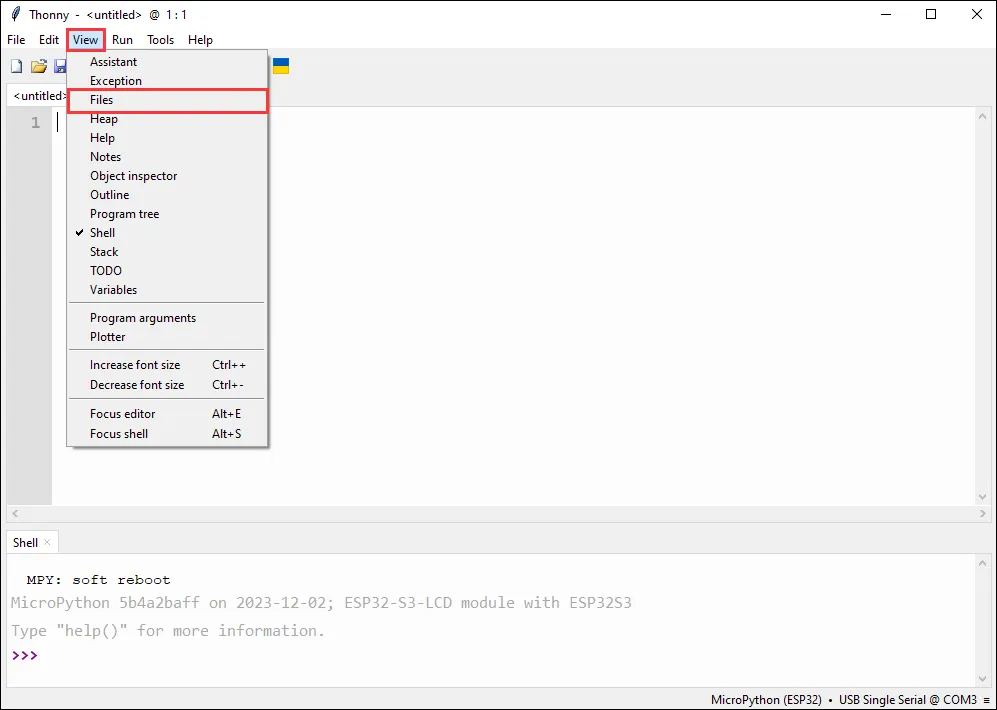
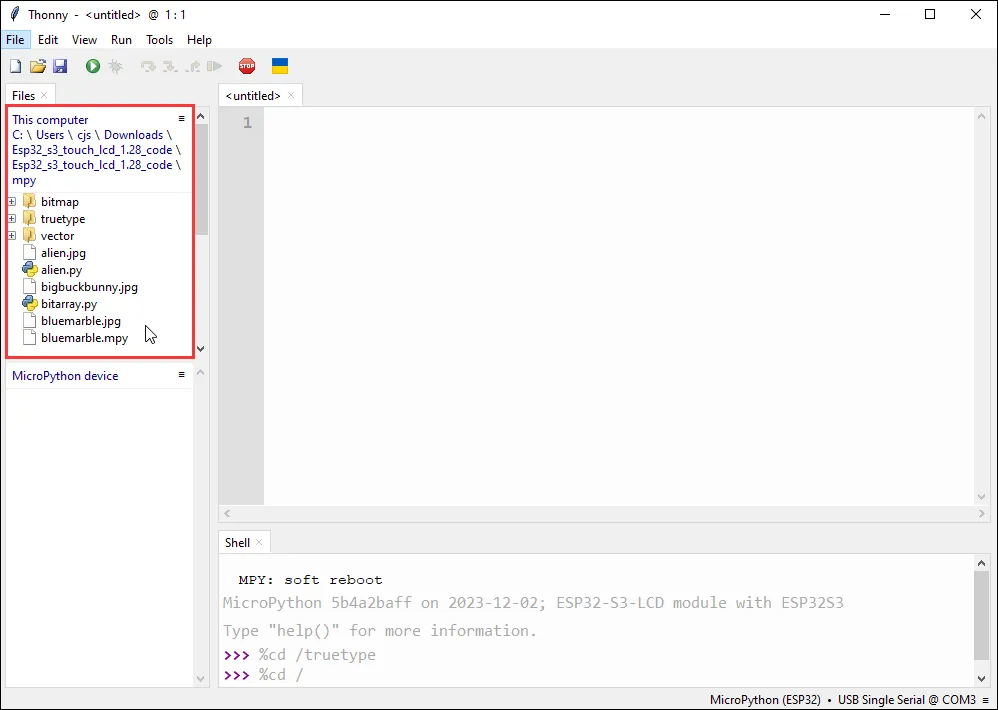
- How to find the example you want. If the files column is not initially visible, you can find it under View.
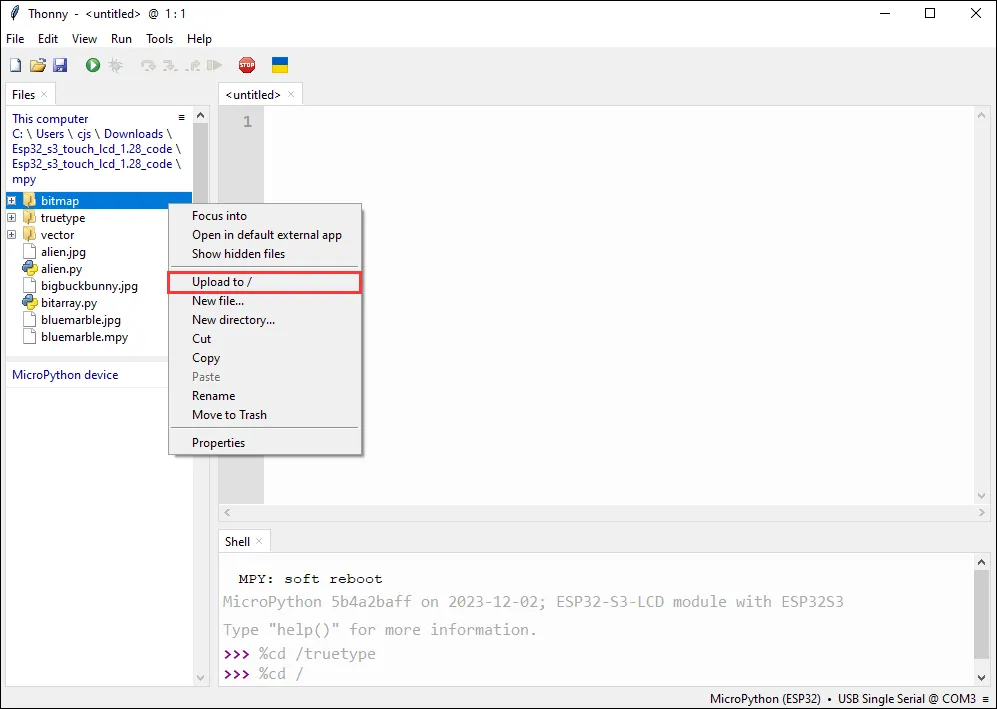
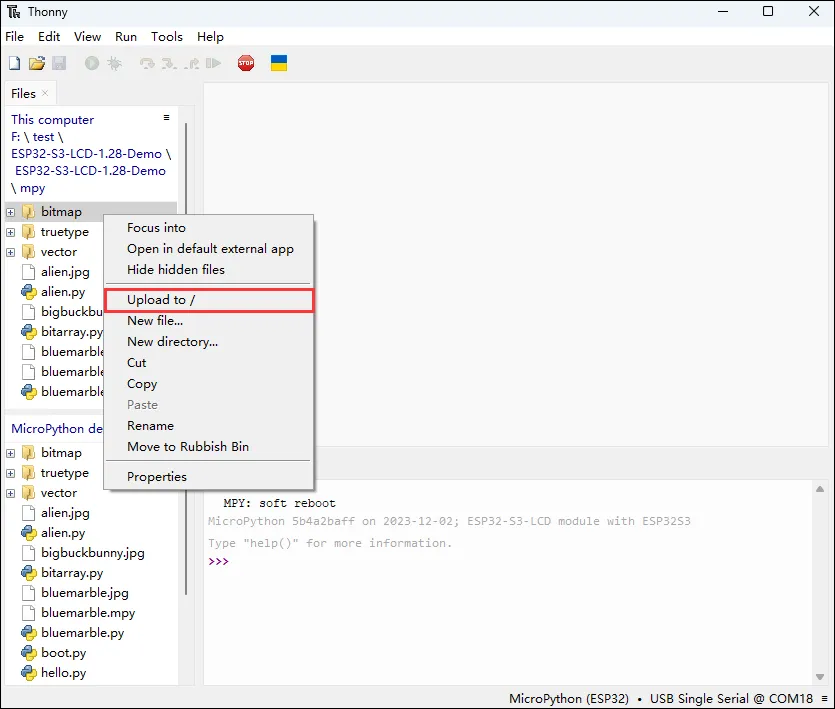
- To upload local files to the development board, select the file, right-click, and find "upload to/" to download.
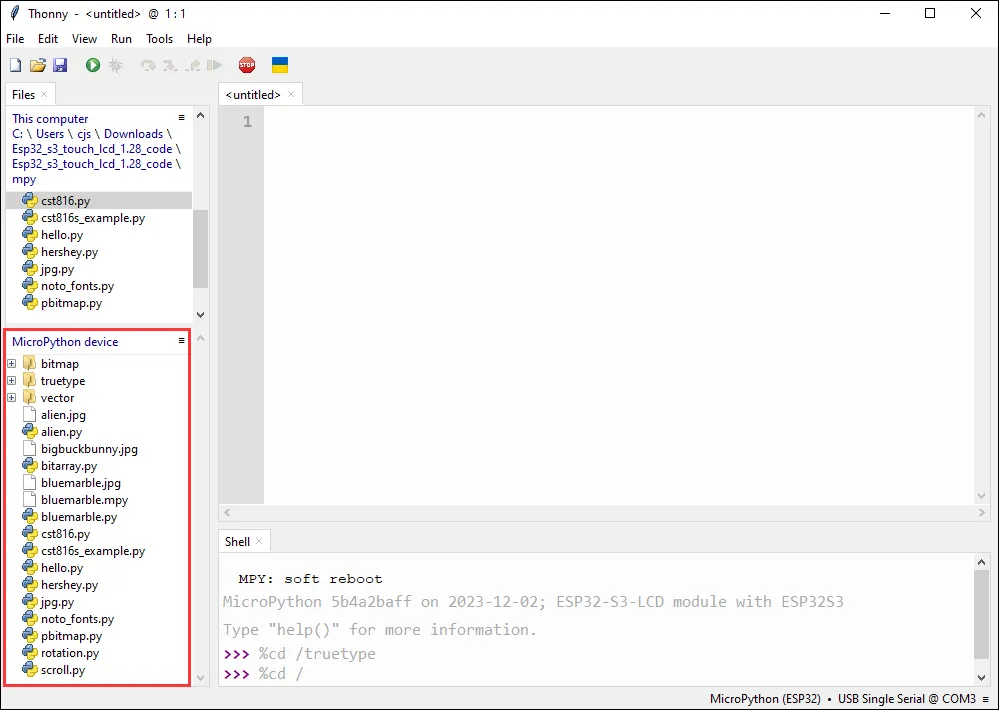
- The following is the interface after all uploads are complete. The downloaded files must match the files in the red box; otherwise, it may fail to run.
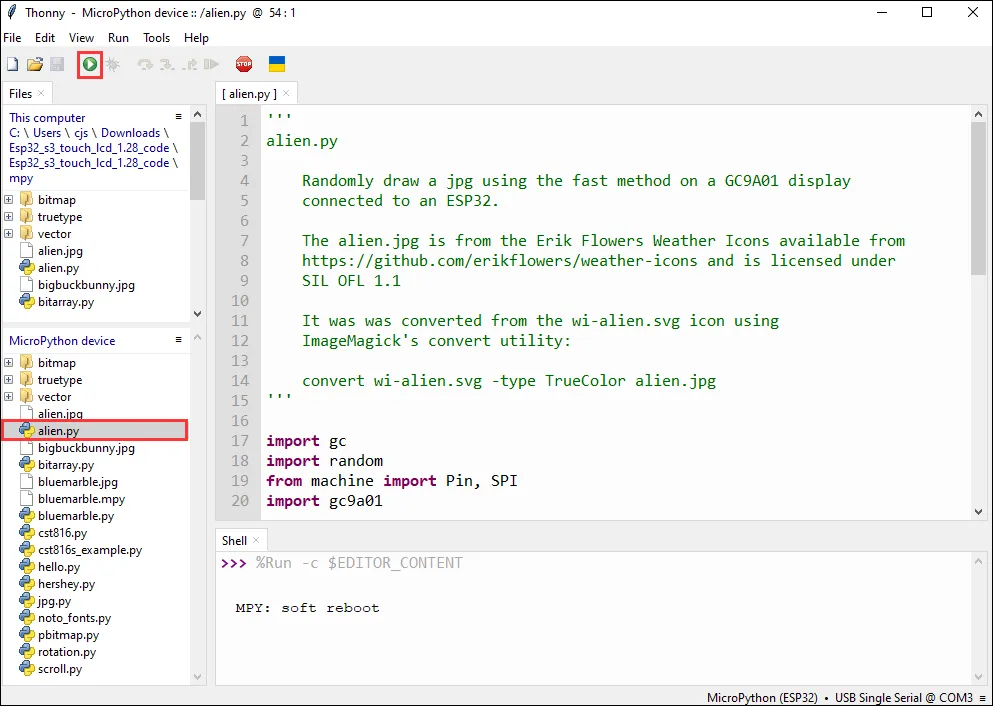
- Select the file with the .py extension and click the green button to flash and run.
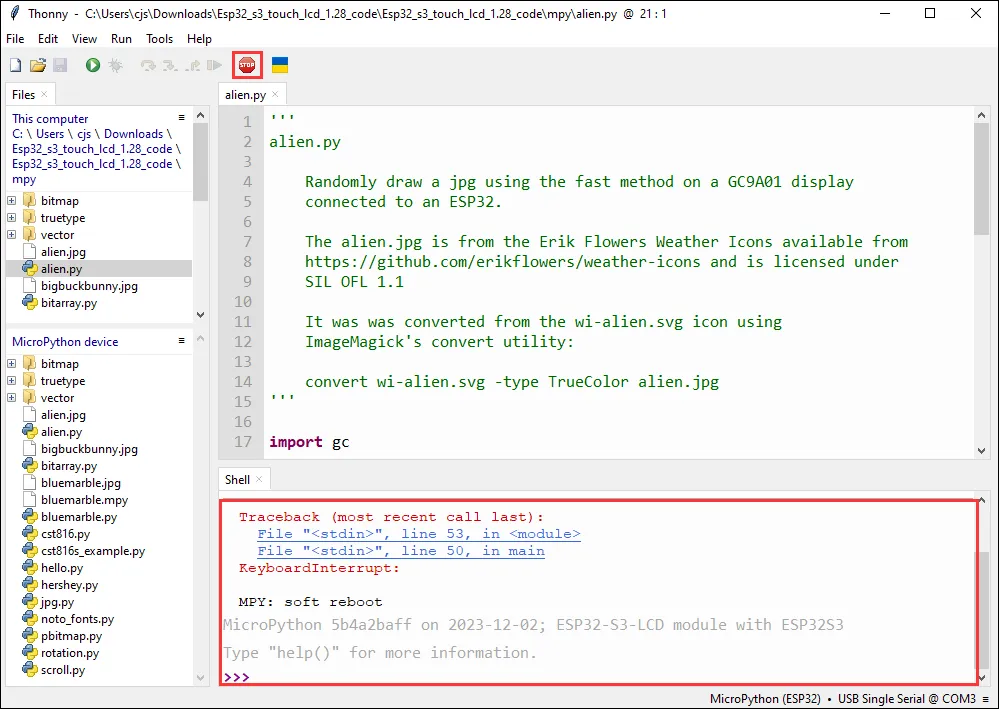
- Before running another file, click the red stop button first so that the other file can run properly.
Example

ESP32-S3-LCD-1.28 Example
| Example | Basic Description |
|---|---|
| alien.py | Randomly displays the "alien.jpg" image |
| bitarray.py | Creates and displays multiple "Pac-Man" sprite animations at random positions |
| hello.py | Randomly displays "Hello!" text in different colors and can cycle through different rotation angles |
| hershey.py | Cycles through different greetings |
| jpg.py | Alternately displays two JPEG images |
| noto_fonts.py | Displays the names of three different fonts |
| pbitmap.py | Displays a precompiled bitmap image |
| rotation.py | Cycles through text display effects at different rotation values |
| scroll.py | Implements smooth scrolling of characters on the display |
Uploading Examples and Special Examples
Uploading Examples
-
To upload local files to the development board, select the file, right-click, and find "upload to/" to download.
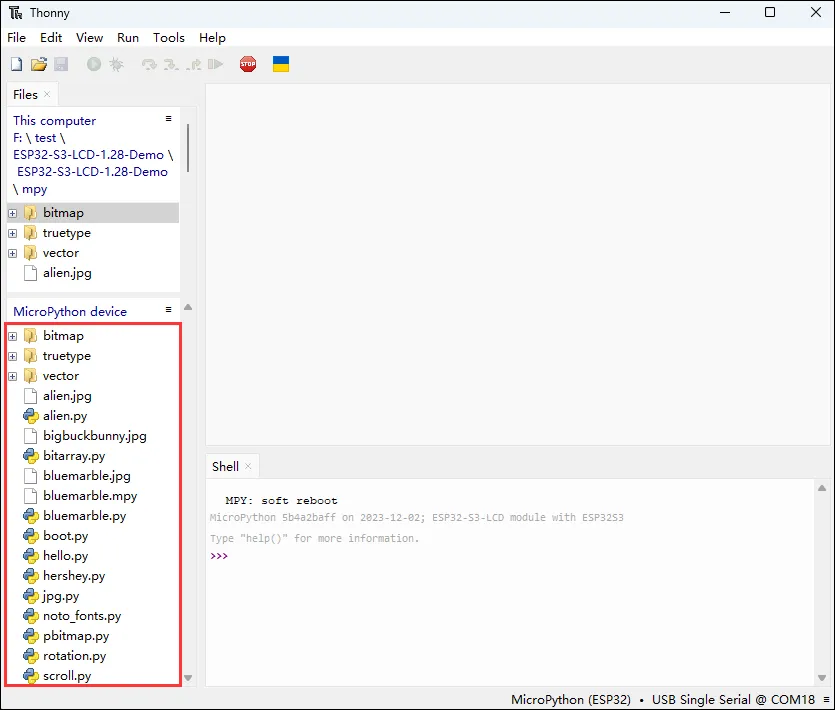
-
The following is the interface after all downloads are complete. The downloaded files must match the files in the red box; otherwise, it may fail to run.
-
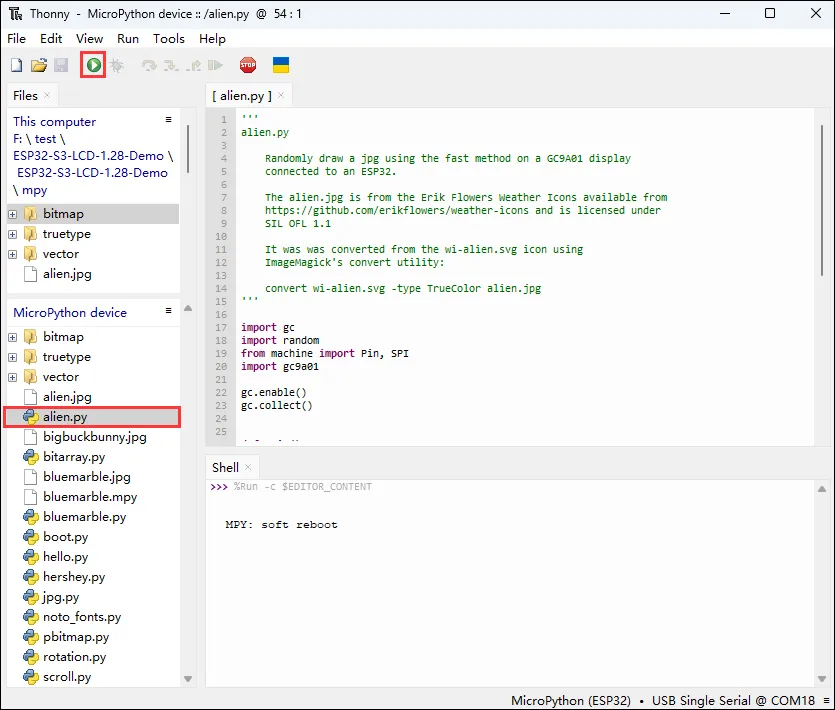
Select the file with the .py extension and click the green button to flash and run (the running image is shown later).
-
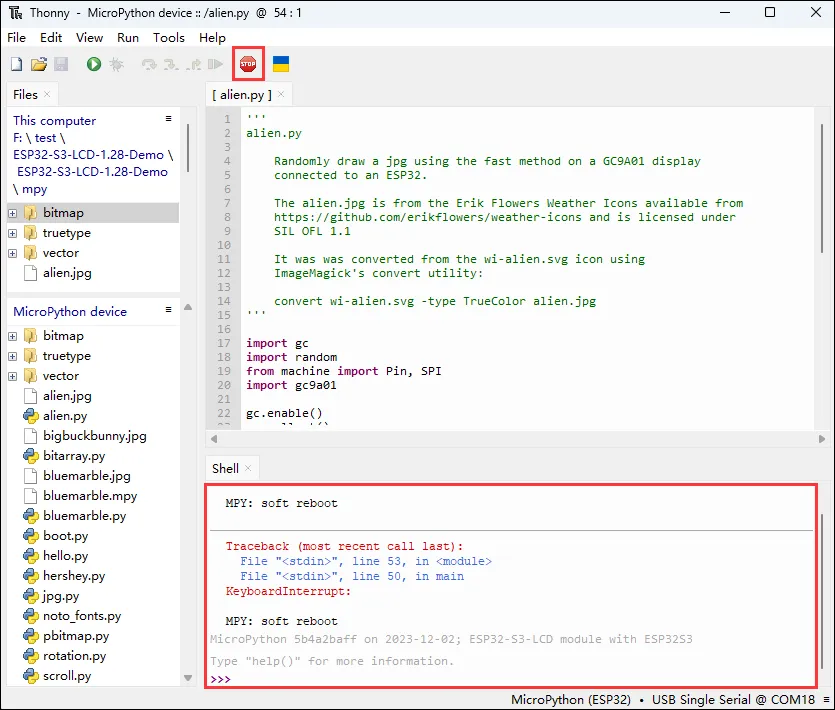
Before running another file, click the red stop button first so that the other file can run properly.
Special Examples
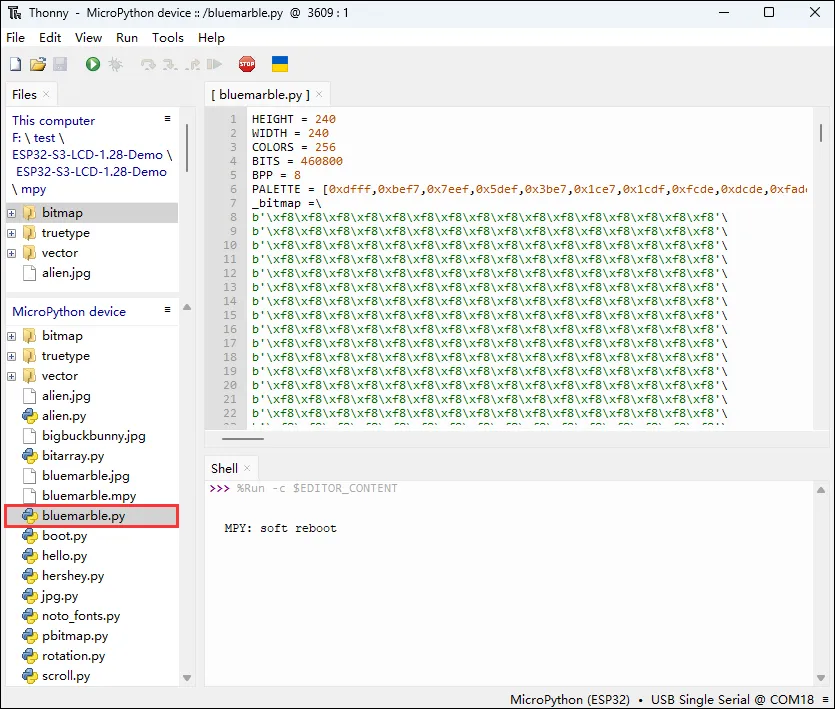
- Among the provided examples, boot.py is an automatically generated blank file, and bluenarble.py stores an image. Running them shows no visible effect.
alien.py
Example Description
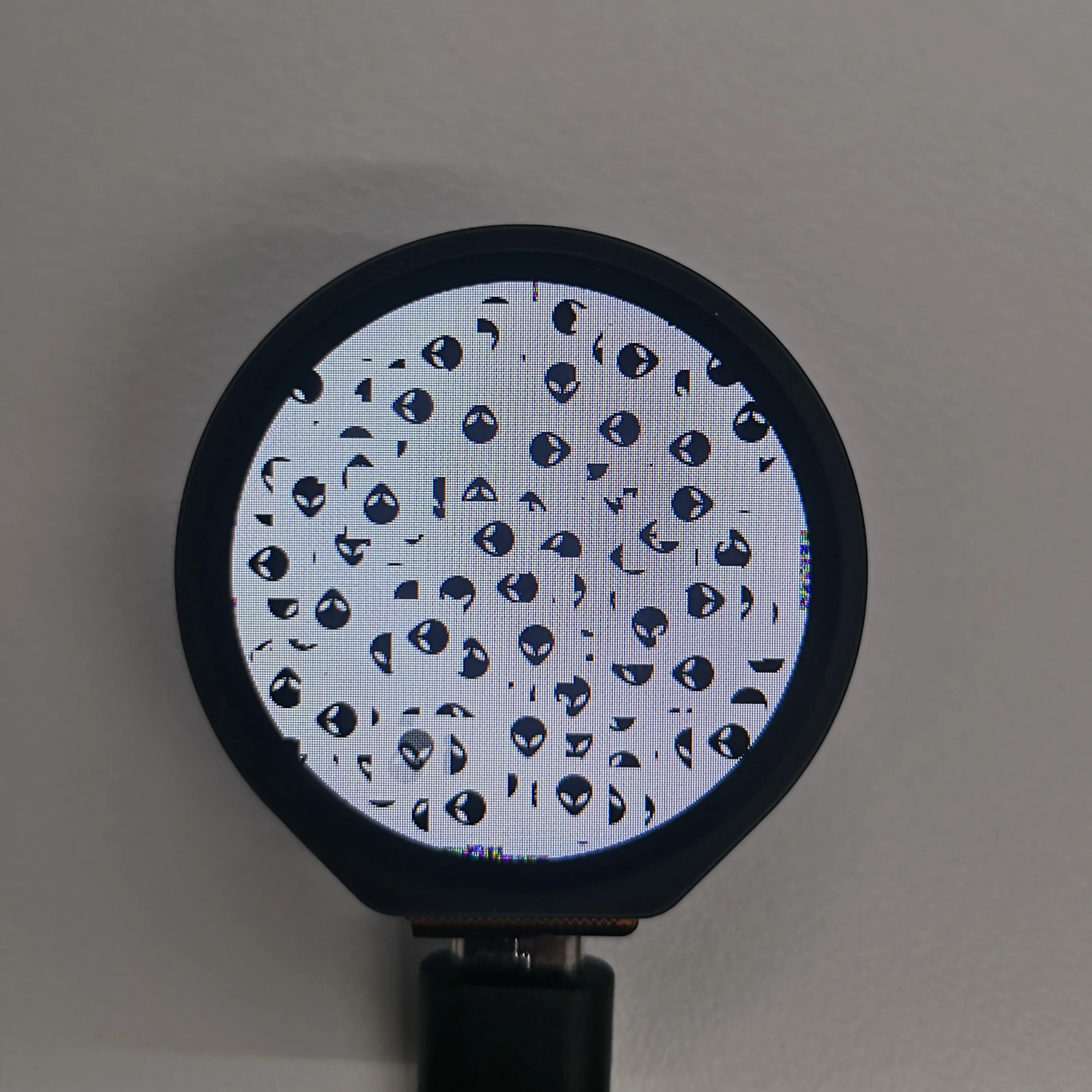
- This example randomly displays the "alien.jpg" image on a specific display.
Hardware Connection
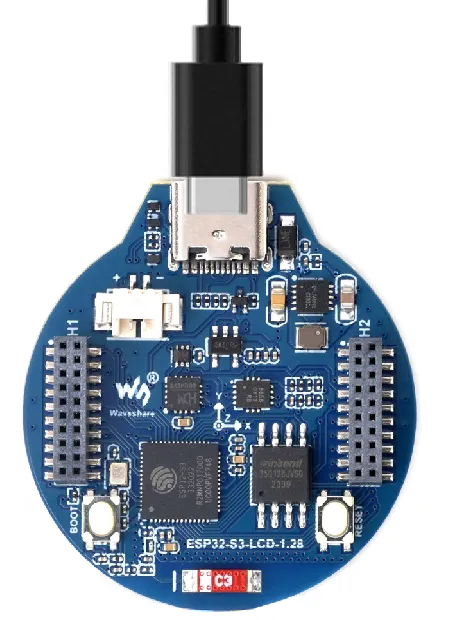
- Connect the development board to the computer.
Code Analysis
- GC9A01(): The importance of the GC9A01 constructor is that it establishes the hardware connection, sets initial parameters, and creates an operable display object, laying the foundation for subsequent display operations.
spi_interface: Establishes SPI communication with the display.widthandheight: Sets the display resolution.reset_pin: Connects the various control pins of the display.rotation: Sets the initial rotation angle.
Expected Behavior
- LCD screen display
bitarray.py
Example Description
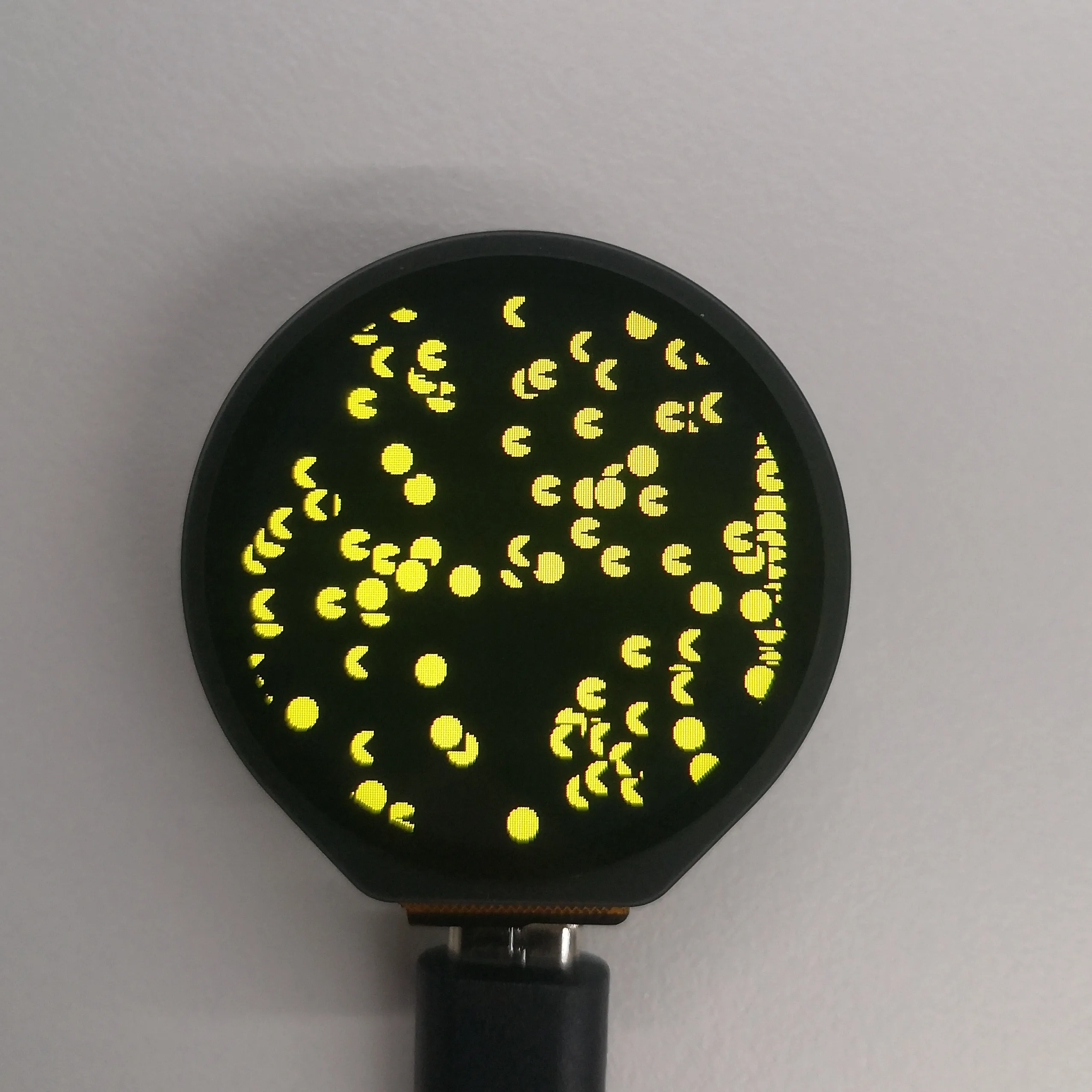
- This example creates and displays multiple "Pac-Man" sprite animations at random positions on a specific display.
Hardware Connection
- Connect the development board to the computer.
Code Analysis
-
move method of the pacman class: Responsible for updating the state of the "Pac-Man" sprite, implementing its movement and animation on the screen.
- First, it increments the sprite's current step count, then uses modulo operation to ensure the step cycles within the defined
SPRITE_STEPSrange, corresponding to different animation frames or states of the sprite. - Then it moves the sprite horizontally. When the sprite's horizontal position reaches a specific value of 302, it resets the step count to trigger a specific animation state or behavior. Finally, a modulo operation ensures the sprite's horizontal position cycles within a certain range to avoid exceeding the display area.
- First, it increments the sprite's current step count, then uses modulo operation to ensure the step cycles within the defined
-
tft.map_bitarray_to_rgb565
- The
tft.map_bitarray_to_rgb565function selects bitmap data fromSPRITE_BITMAPSbased on the sprite's current step count and converts it into an RGB565 format buffersprite. It also specifies the sprite's width, foreground color, and background color
- The
-
tft.blit_buffer
- The
tft.blit_bufferfunction draws the converted buffer onto a specific position on the display, determined by the sprite's current coordinates, and specifies the sprite's width and height.
- The
Expected Behavior
- LCD screen display
hello.py
Example Description
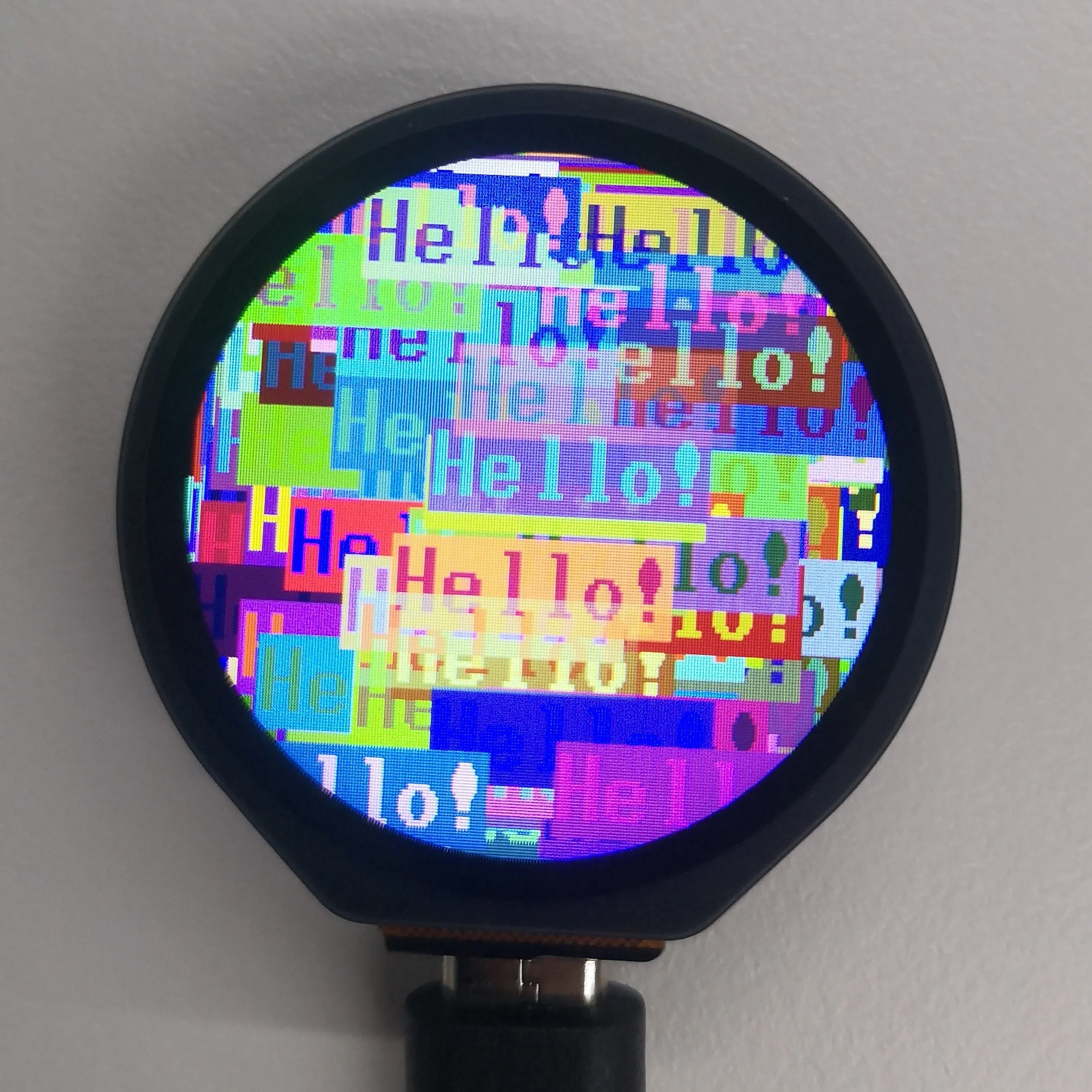
- This example randomly displays "Hello!" text in different colors on a specific display and can cycle through different rotation angles.
Hardware Connection
- Connect the development board to the computer.
Code Analysis
-
tft.text: Draws the text "Hello!" on the display.
- It uses a specified font, with the text position determined randomly within the display range, and the foreground and background colors determined by randomly generated RGB565 color values.
-
while True: Implements the dynamic effect of randomly displaying "Hello!" text at different rotation angles.
- Through an infinite loop and iterating through four rotation angles, it sets the display rotation angle, clears the screen, calculates the text display range, and repeatedly calls the
tft.textfunction to display the text at random positions with random colors.
- Through an infinite loop and iterating through four rotation angles, it sets the display rotation angle, clears the screen, calculates the text display range, and repeatedly calls the
Expected Behavior
- LCD screen display
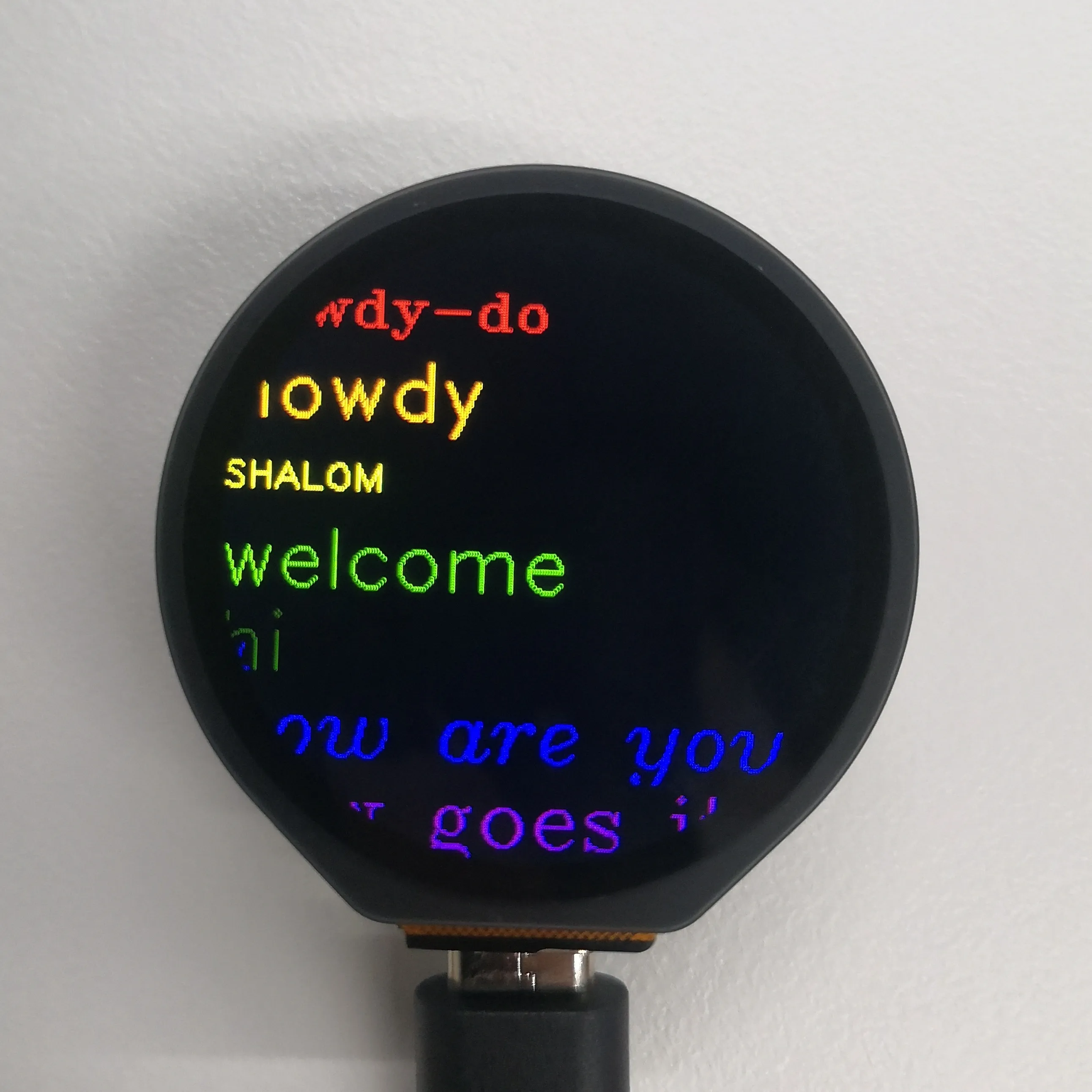
hershey.py
Example Description
- The example cycles through different greetings on a specific display.
Hardware Connection
- Connect the development board to the computer.
Code Analysis
-
main: The loop portion of the function cycles through different fonts, colors, and greetings on the display.
- It moves the display position line by line, gets the next color, font, and greeting, clears the previous line's content and draws new content, resets the line position when it exceeds a certain range, and adds a delay to control the display speed.
-
cycle: Creates an iterable object.
- It accepts parameters. If the parameter is iterable, it cycles directly; if it is a single element, it converts it to an iterable list and cycles through it. This is used to conveniently cycle through lists of colors, fonts, and greetings.
Expected Behavior
- LCD screen display
jpg.py
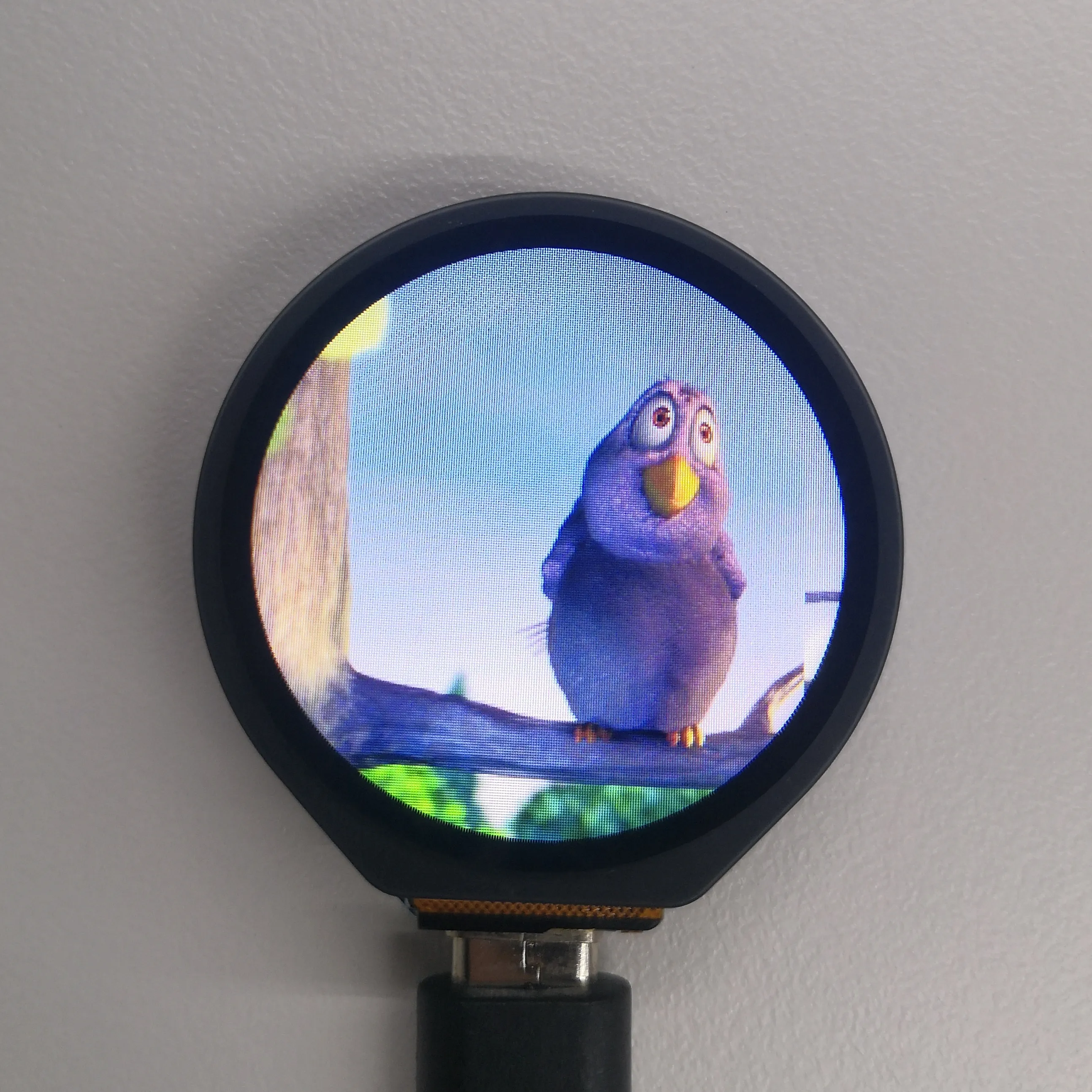
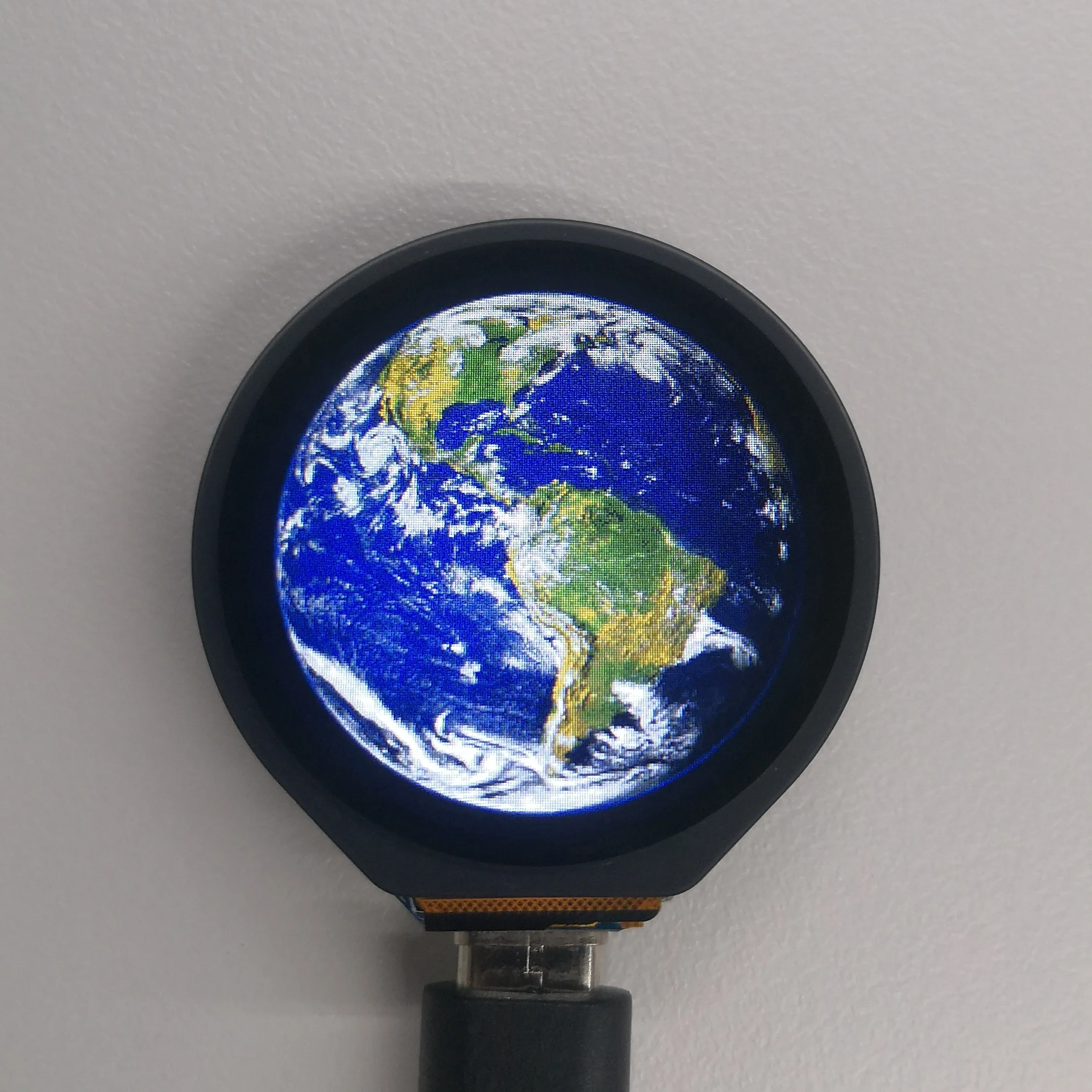
Example Description
- This example displays two JPEG images alternately on a specific display
Hardware Connection
- Connect the development board to the computer.
Code Analysis
-
main:
- It iterates through the list of image filenames, calls the
tft.jpgfunction to display the image at a specific position in a slower manner, and then waits 5 seconds.
- It iterates through the list of image filenames, calls the
-
tft.jpg: Displays the specified JPEG image on the display.
- It reads and decodes the image file and draws it to the display, determining the display position and mode based on the passed parameters.
Expected Behavior
- LCD screen display
noto_fonts.py
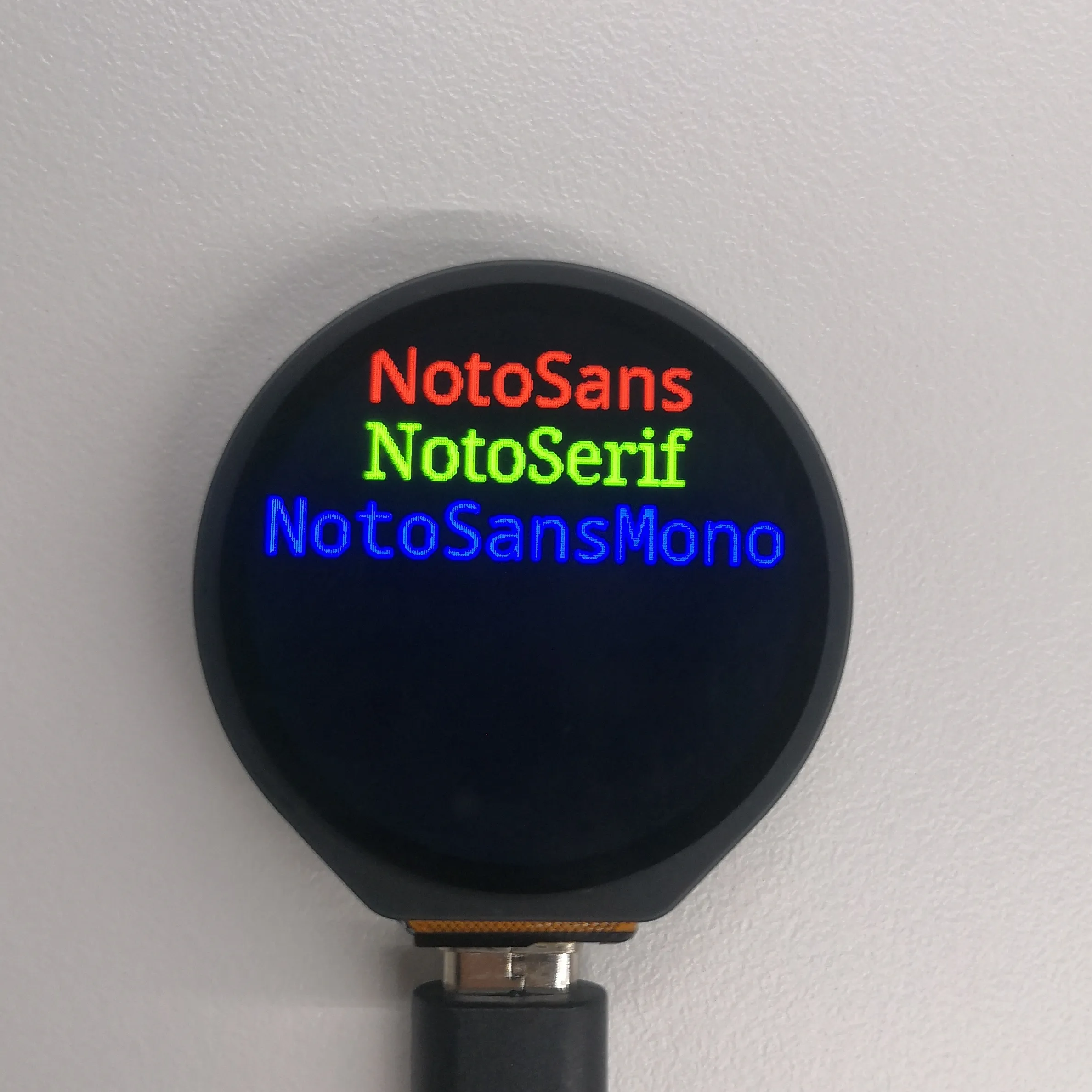
Example Description
- The example displays the names of three different fonts (NotoSans, NotoSerif, NotoSansMono) on a specific display, centering the font names on different lines.
Hardware Connection
- Connect the development board to the computer.
Code Analysis
-
main: The program entry point, initializes the display and shows three font names.
- It creates and initializes the display object, fills the background with black, and calls the center function to display the three font names in sequence.
-
center: Centers the given string on the display with the specified font.
- It gets the display width, calculates the string width. If it is less than the screen width, it calculates the coordinates for horizontal centering; otherwise, it left-aligns. Finally, it displays the string at the specified position.
Expected Behavior
- LCD screen display
pbitmap.py
Example Description
- This example displays a precompiled bitmap image on a specific display.
Hardware Connection
- Connect the development board to the computer.
Code Analysis
-
main: The program entry point, initializes the display and shows the bitmap.
- It creates the display object, fills the background with black after initialization, and calls
tft.pbitmapto display the image from the precompiled bitmap module.
- It creates the display object, fills the background with black after initialization, and calls
-
tft.pbitmap: Displays a precompiled bitmap on the display.
- It reads the bitmap data and draws it to the display, determining the display position based on the passed parameters.
Expected Behavior
- LCD screen display
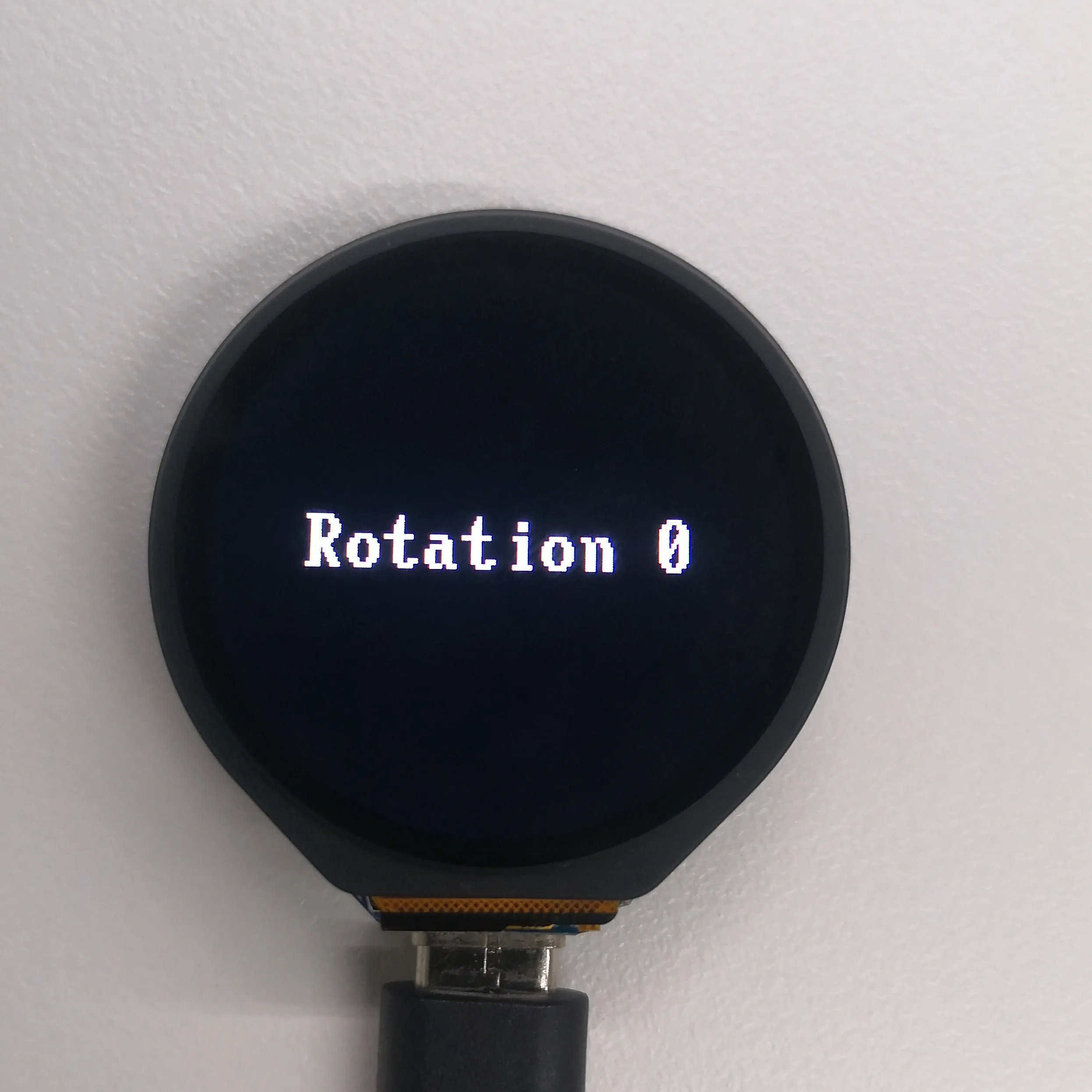
rotation.py
Example Description
- This example cycles through text display effects at different rotation values on a specific display.
Hardware Connection
- Connect the development board to the computer.
Code Analysis
-
main: The program entry point, initializes the display and cycles through text effects at different rotation values.
- It creates and initializes the display object, sets different rotation values in sequence within a loop, clears the screen, and displays text containing rotation value information for observation.
-
tft.rotation: Sets the display rotation angle.
- It adjusts the display orientation based on the passed parameters.
Expected Behavior
- LCD screen display
scroll.py
Example Description
- This example implements smooth scrolling of characters on a specific display.
Hardware Connection
- Connect the development board to the computer.
Code Analysis
-
main: The program entry point, initializes the display, sets colors, and scrolls characters.
- It creates the display object, sets up a color generator to get foreground colors, initializes the display and sets the scroll area, clears the top row in a loop, displays characters in a new row and updates the color and character values, and implements scrolling by setting the scroll address while controlling the speed.
-
cycle: Creates an iterable object.
- It accepts parameters. If the parameter is iterable, it cycles directly; if it is a single element, it converts it to an iterable list and cycles through it.
Expected Behavior
- LCD screen display