ESP32-S3-LCD-1.47B Working with Arduino
This chapter includes the following sections. Please read as needed:
Arduino Getting Started
New to Arduino ESP32 development and looking for a quick start? We have prepared a comprehensive Getting Started Tutorial for you.
- Section 0: Getting to Know ESP32
- Section 1: Installing and Configuring Arduino IDE
- Section 2: Arduino Basics
- Section 3: Digital Output/Input
- Section 4: Analog Input
- Section 5: Pulse Width Modulation (PWM)
- Section 6: Serial Communication (UART)
- Section 7: I2C Communication
- Section 8: SPI Communication
- Section 9: Wi-Fi Basics
- Section 10: Web Server
- Section 11: Bluetooth
- Section 12: LVGL GUI Development
- Section 13: Comprehensive Project
Note: This tutorial uses the ESP32-S3-Zero as a reference example, and all hardware code is based on its pinout. Before you start, we recommend checking the pinout of your development board to ensure the pin configuration is correct.
Setting Up the Development Environment
1. Install and Configure the Arduino IDE
Please refer to the tutorial Install and Configure Arduino IDE to download and install the Arduino IDE and add ESP32 support.
Board Installation Instructions for ESP32-S3-LCD-1.47B
| Board Name | Board Installation Requirement | Version Requirement |
|---|---|---|
| esp32 by Espressif Systems | "Offline Installation" / "Online Installation" | ≥3.0.2 |
Install Libraries
- When installing Arduino libraries, there are typically two options: Online Installation and Offline Installation. If the library installation requires offline installation, you must use the provided library files.
- For most libraries, users can easily search for and install them via the Arduino IDE's online Library Manager. However, some open-source or custom libraries are not synchronized to the Arduino Library Manager, so they cannot be found through online search. In this case, you can only install these libraries manually offline.
- For a library installation tutorial, see the library installation section in the Install and Configure Arduino IDE.
- The ESP32-S3-LCD-1.47B library files are stored in the example program. Click here to go to: ESP32-S3-LCD-1.47B Example.
Library installation instructions for ESP32-S3-LCD-1.47B
| Library Name | Description | Version | Library Installation Requirement |
|---|---|---|---|
| LVGL | Graphics library | v8.3.10 | Offline installation |
| PNGdec | Decodes PNG image format | v1.0.2 | Offline installation |
For more LVGL learning and usage, refer to the LVGL Official Documentation.
Example

ESP32-S3-LCD-1.47B Example Programs
| Example | Basic Description | Dependency Library |
|---|---|---|
| LVGL_Arduino | Tests onboard device functions | LVGL |
| LCD_Image | Displays PNG files in the TF card root directory at intervals | PNGdec |
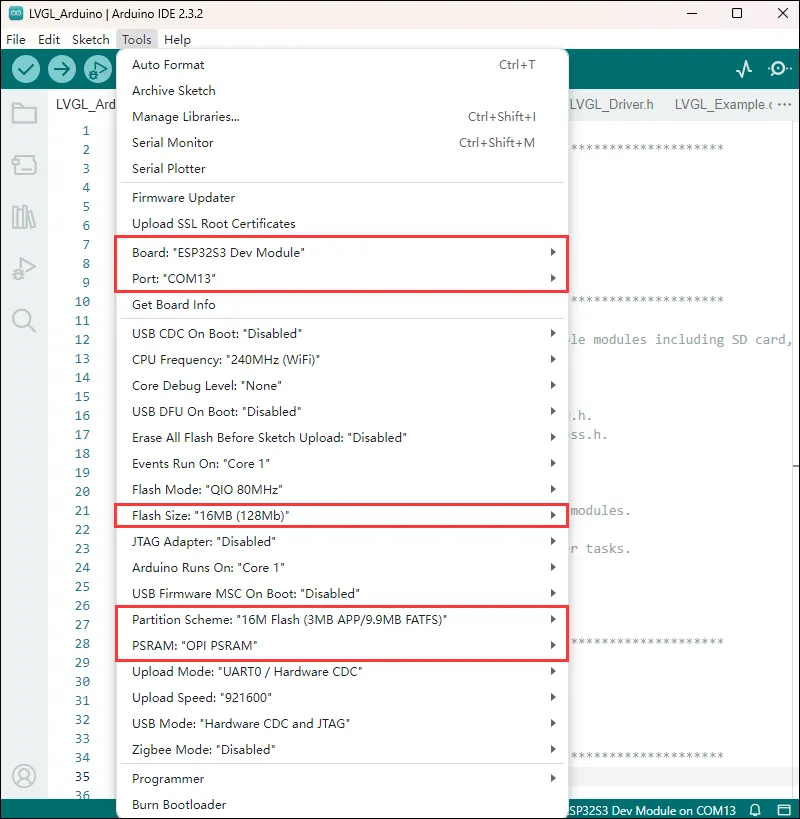
Arduino Project Settings
LVGL_Arduino
Hardware Connection
- Connect the board to the computer.
Code Analysis
- setup()
Flash_test(): Tests and prints the device's flash size information.SD_Init(): Initializes the TF card.LCD_Init(): Initializes the display.Set_Backlight(90): Sets the backlight brightness to 90.Lvgl_Init(): Initializes the LVGL graphics library.Lvgl_Example1(): Calls a specific LVGL example function.Wireless_Test2(): Calls a function for wireless communication testing.
- loop()
Timer_Loop(): Handles timer‑related tasks.RGB_Lamp_Loop(2): Updates the RGB LED color at fixed intervals.
Expected Behavior
-
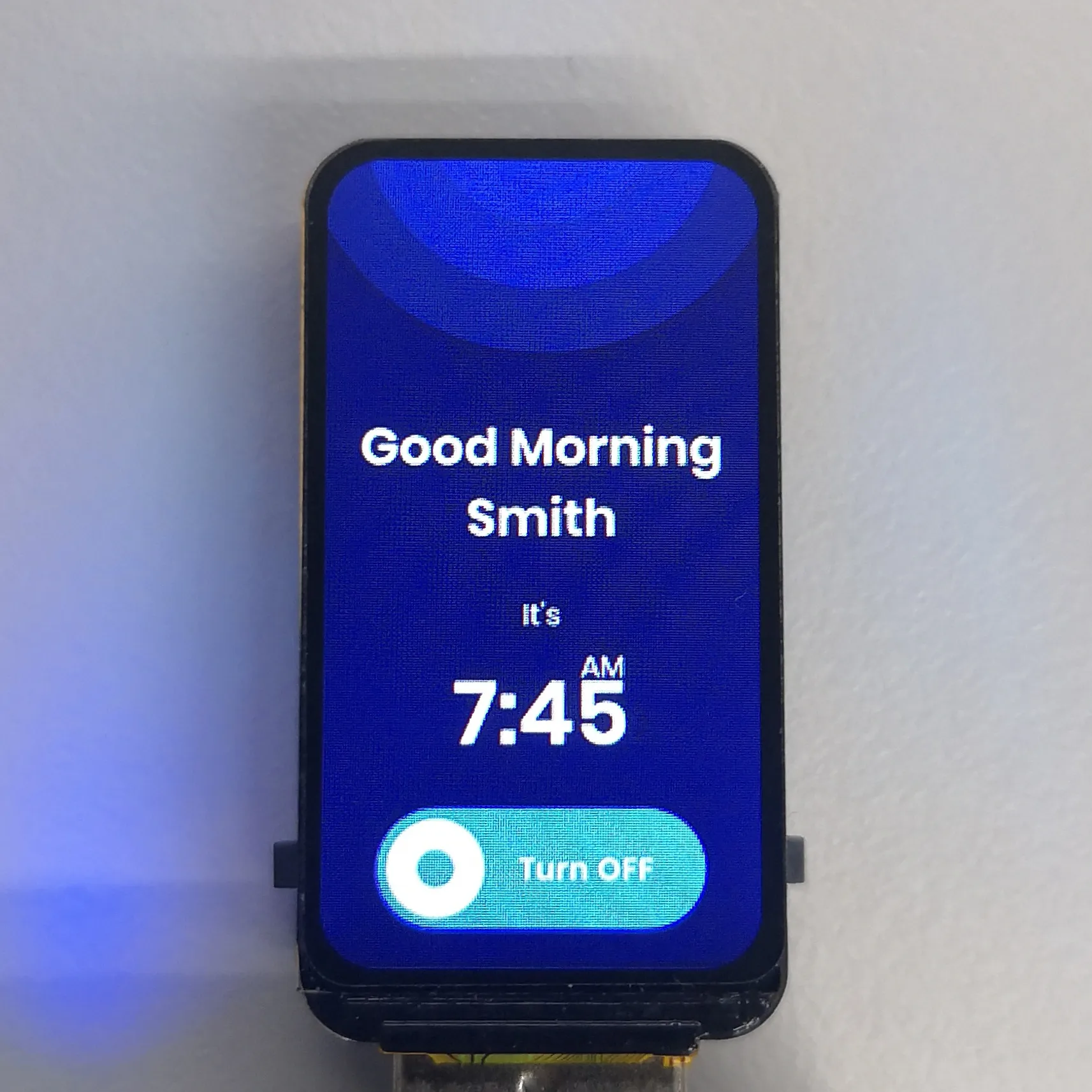
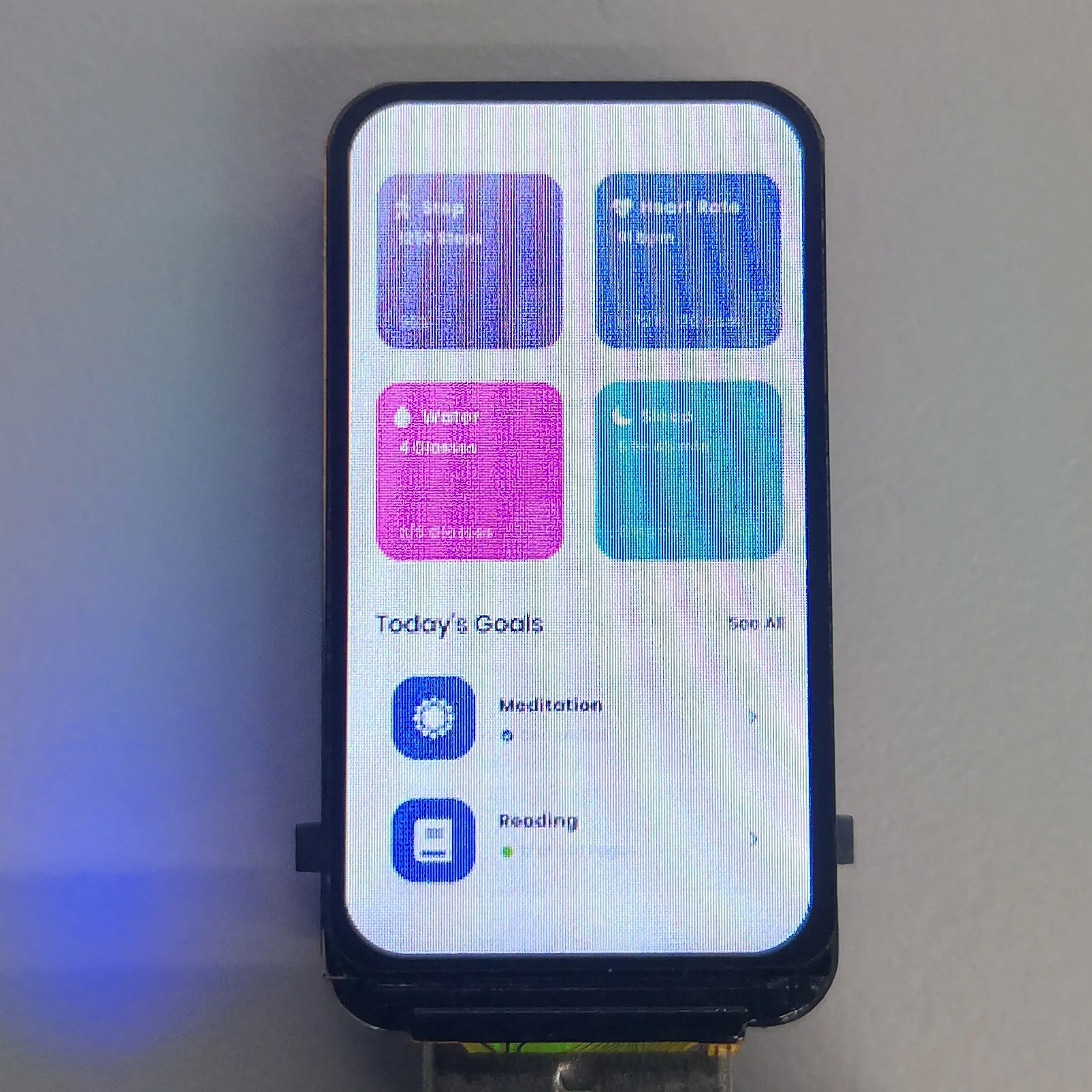
LCD screen display
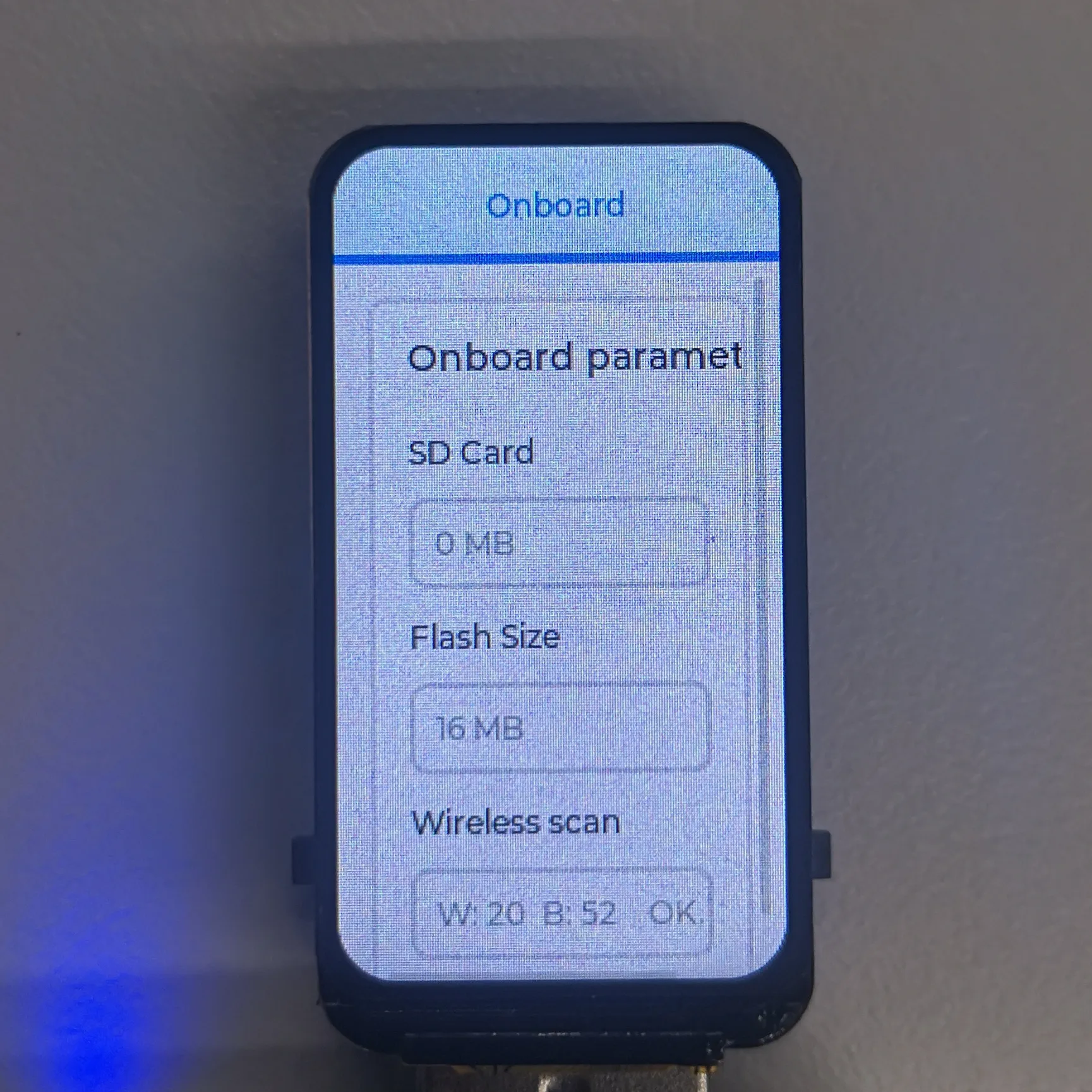
For more LVGL learning and usage, refer to the LVGL Official Documentation.
LCD_Image
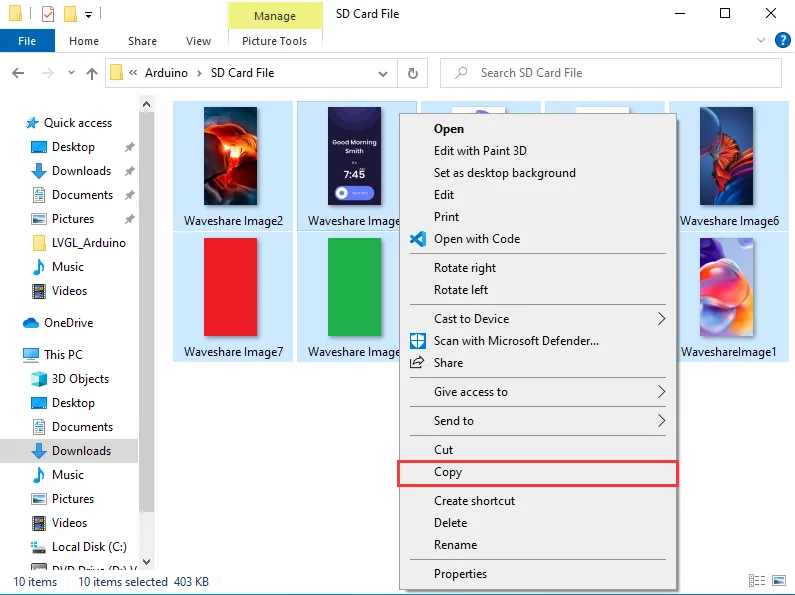
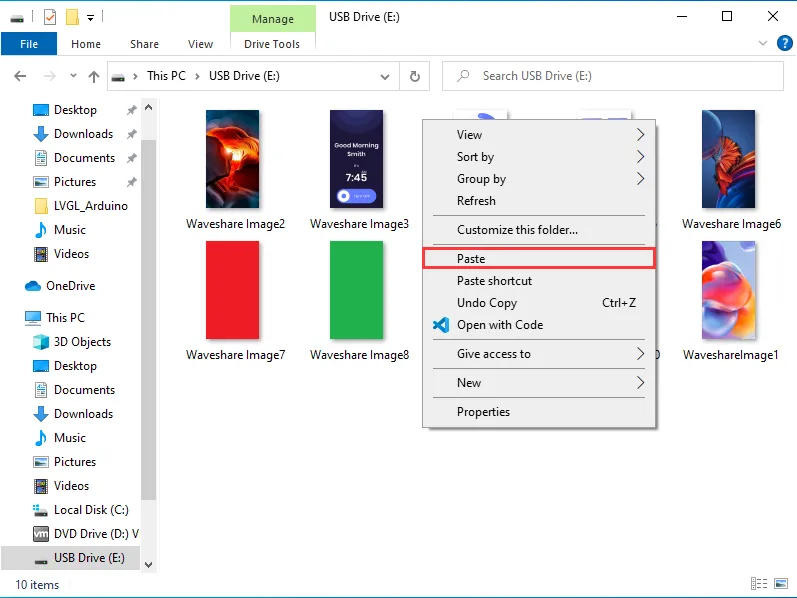
TF Card Preparation
-
Add the image examples provided by Waveshare to the TF card.
Hardware Connection
- Insert the TF card containing example images into the device.
- Connect the board to the computer.
Code Analysis
- setup()
Flash_test(): Tests and prints the device's flash size information.SD_Init(): Initializes the TF card.LCD_Init(): Initializes the display.Set_Backlight(90): Sets the backlight brightness to 90.
- loop()
Image_Next_Loop("/", ".png", 300): Displays PNG files in the TF card root directory in sequence at fixed intervals.RGB_Lamp_Loop(2): Updates the RGB LED color at fixed intervals.
Expected Behavior
-
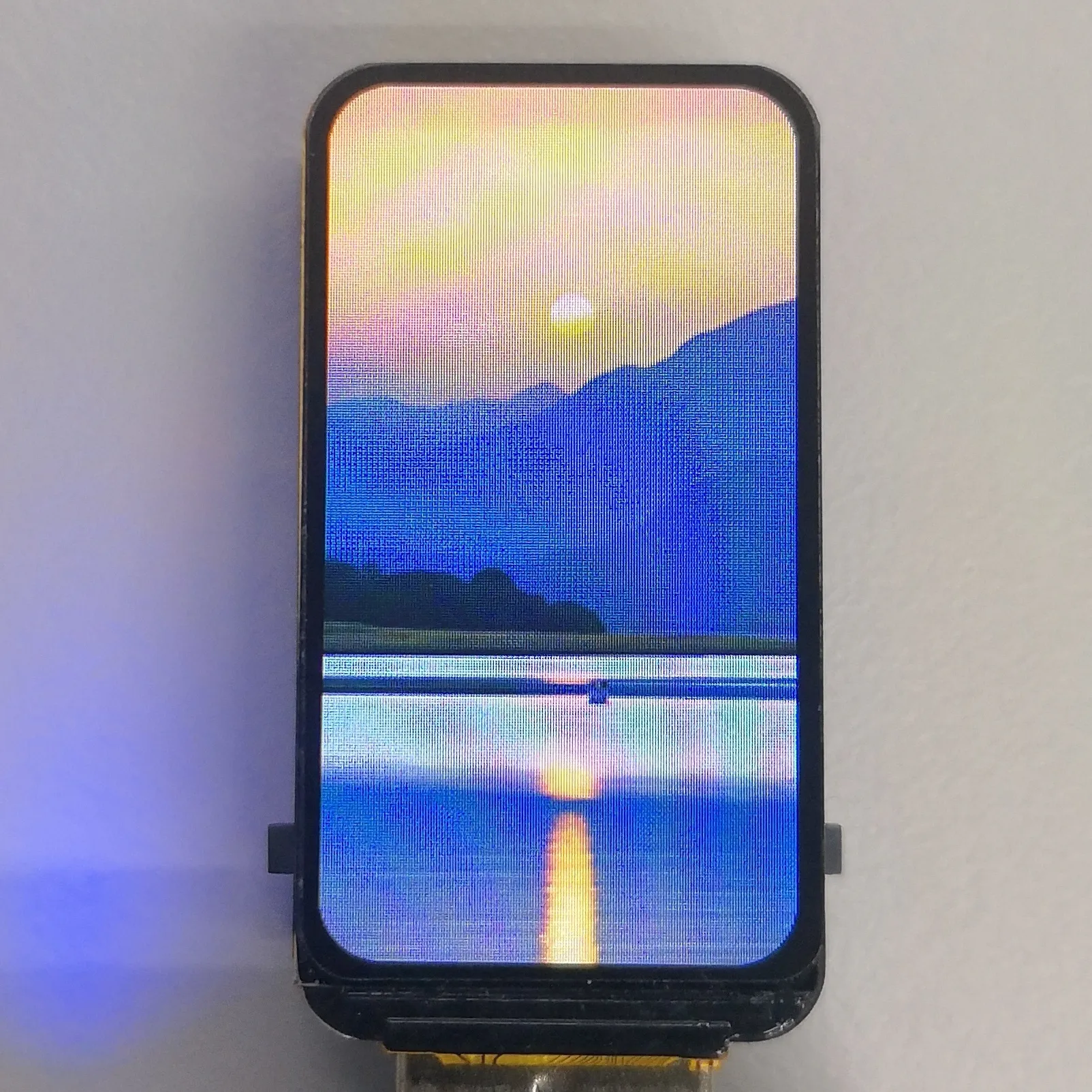
The LCD displays PNG files in the TF card root directory in sequence at fixed intervals.