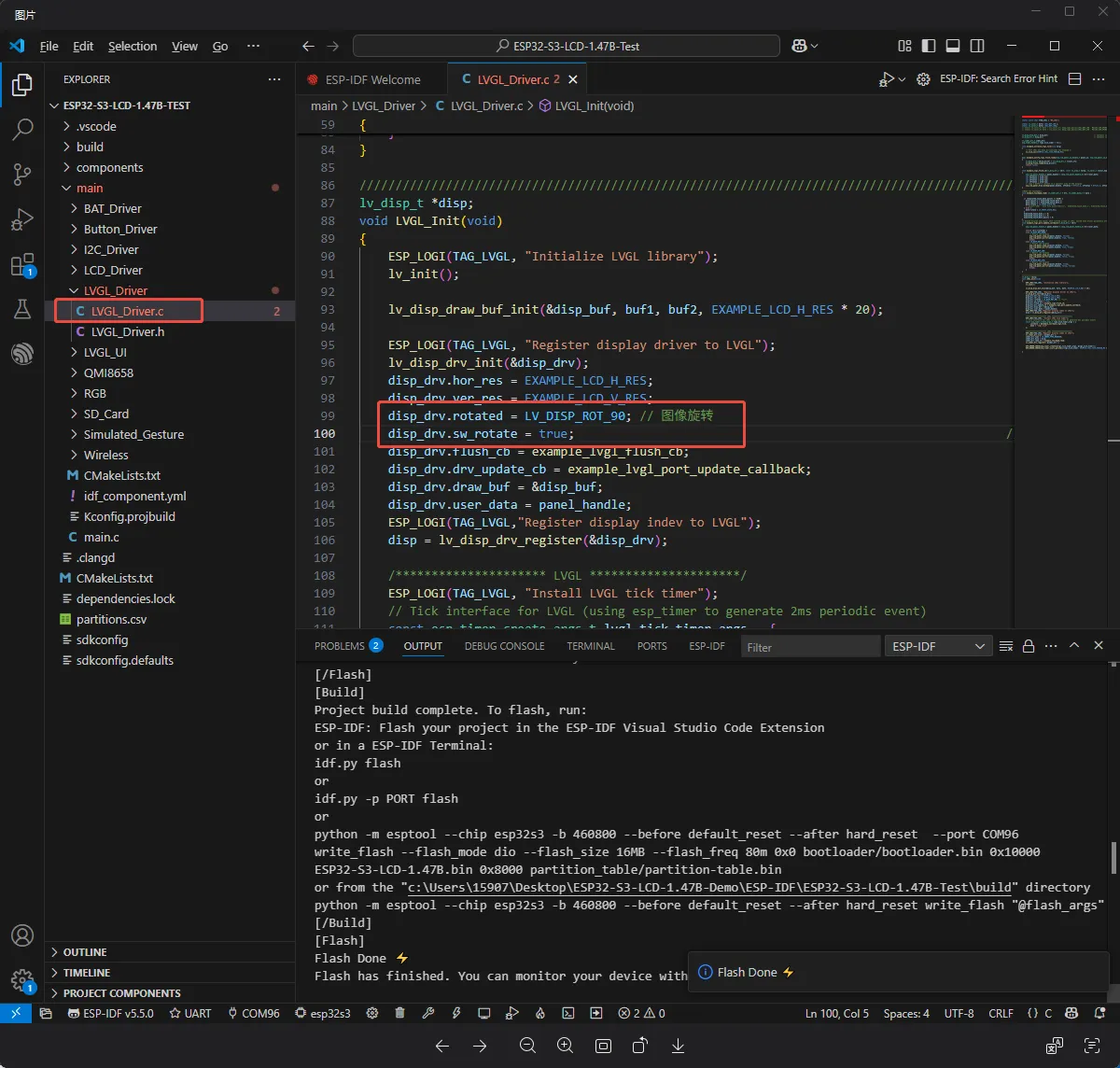
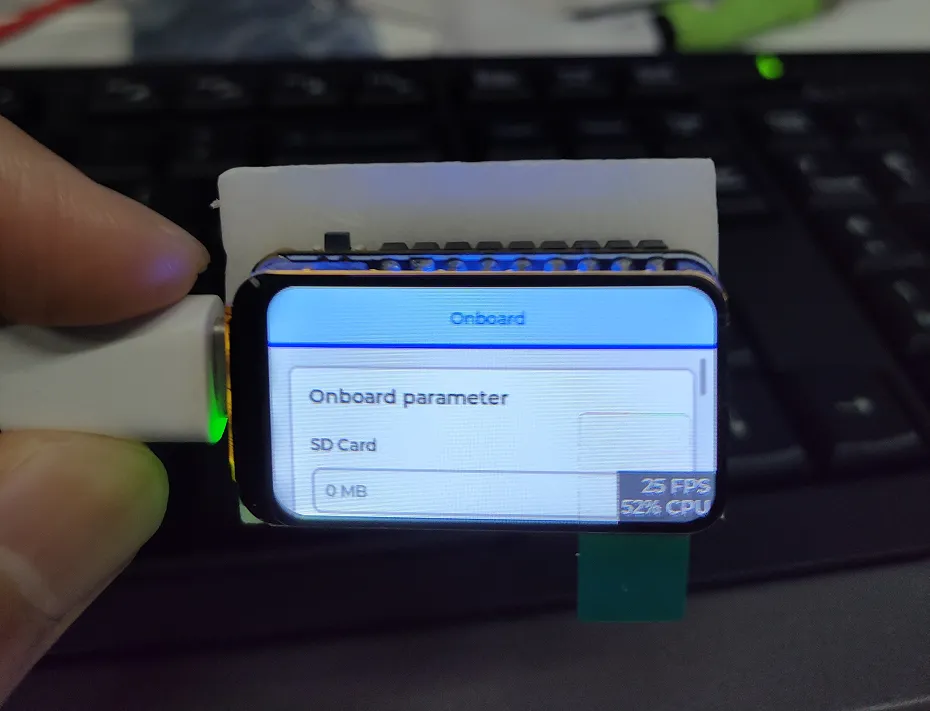
Using the ESP-IDF example ESP32-S3-LCD-1.47B-Test as an example:
Open the project in VSCode, locate the source file shown in the figure below, modify the code at the specified location, then rebuild and flash.
Q: After downloading a program to the module, sometimes when re-downloading, the serial port cannot be connected or flashing fails?
Long press the BOOT button, press RESET at the same time, then release RESET, then release the BOOT button, at this time the module can enter the download mode, which can solve most of the problems that can not be downloaded.
Q: The module keeps resetting, and when checking recognition status in Device Manager, it flashes on and off?
It may be due to Flash blank and the USB port is not stable, you can long-press the BOOT button, press RESET at the same time, and then release RESET, and then release the BOOT button, at this time the module can enter the download mode to flash the firmware (program) to solve the situation.
Q: The first compilation is extremely slow. What should I do?
It is normal for the first compilation to be slow. Just wait patiently.
Q: How to handle the situation where the serial port shows 'waiting for download...' after a successful ESP-IDF flash?
If the board has a reset button, press it; if not, power cycle the board.
Q: I cannot find the AppData folder. What should I do?
Some AppData folders are hidden by default. You can set them to be shown.
Path: Explorer->View->Check "Hidden items"
Q: How do I check the COM port I am using?
Windows system:
① Check via Device Manager: Press Windows + R to open the "Run" dialog; enter devmgmt.msc and press Enter to open Device Manager; expand the "Ports (COM & LPT)" section, where all COM ports and their current status are listed.
② Check using Command Prompt: Open Command Prompt (CMD); enter the mode command, which will display status information for all COM ports.
③ Check Hardware Connection: If an external device is already connected to a COM port, the device typically occupies a port number. You can determine which port is being used by checking the connected hardware.
Linux system:
① Check using the dmesg command: Open the terminal.
② Check using the ls command: Enter ls /dev/ttyS* or ls /dev/ttyUSB* to list all serial port devices.
③ Check using the setserial command: Enter setserial -g /dev/ttyS* to view the configuration information for all serial port devices.
Q: Program flashing fails when using a Mac device?
Q: Why is there no output after successful programming and running, even though the code is fine?
Check the schematic. For different development boards' Type-C interfaces, the corresponding code handles output differently:
For boards with direct USB output, the printf function is supported for printing. If you want to support the Serial function for printing, you need to enable the USB CDC On Boot feature or declare HWCDC.
For boards with UART-to-USB, both the printf function and the Serial function are supported for printing, and there is no need to enable USB CDC On Boot.
Q: How do I design interfaces using SquareLine Studio?