FAQ
Q: Is it normal for the camera to heat up after connecting an OV5640 camera to my development board?
A: The OV5640 camera generates a certain amount of heat during continuous image capture, and a rise in device temperature is a fairly common phenomenon. If the temperature is noticeably too high, it is recommended to stop using it, power off the development board, let it cool down, and then power it back on. For applications that require long-term operation, it is recommended to stop image capture when the camera is idle or configure it into sleep mode to reduce power consumption and operating temperature.
Q: What is the difference between V1 and V2?
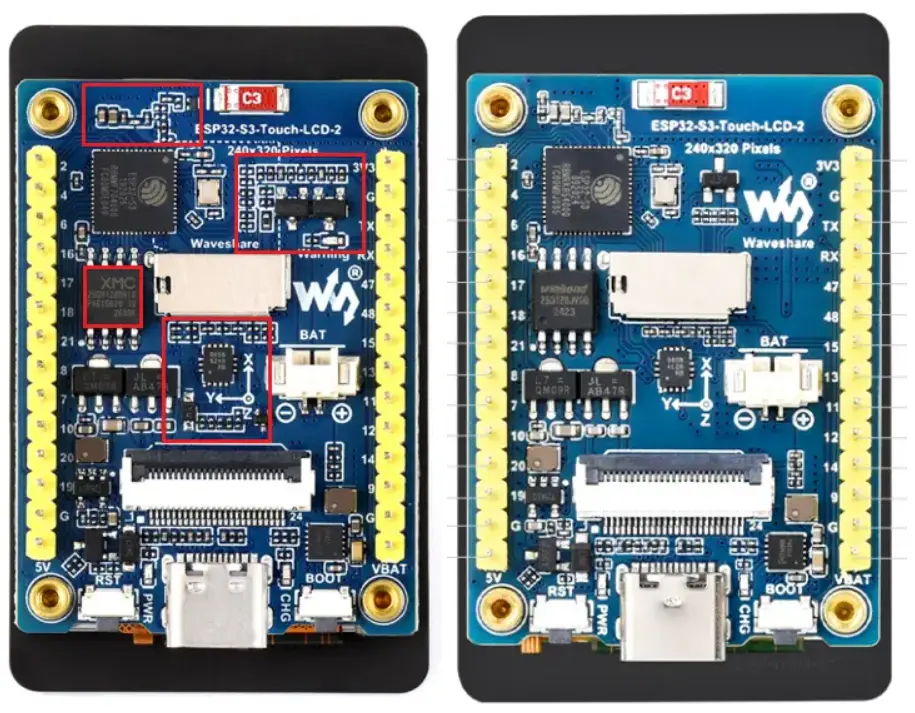
As shown in the figure below, the V2 version is on the left and the V1 version is on the right. The ESP32-S3-LCD-2 and ESP32-S3-Touch-LCD-2 share the same PCB, so the PCB silkscreen in the image may include the Touch marking.
Q: Can I develop using the tft_eSPI library?
- Yes, the driver IC is ST7789.
Q: How do I power the development board with a battery?
- The development board has an onboard BAT battery connector. It is recommended to use a 3.7V Lithium battery for power supply. The board does not have a PWR button; once the battery is connected, the board will power on directly.
Q: What should I do if the Arduino example program does not display after downloading?
Q: After programming the module, sometimes I cannot connect to the serial port or the upload fails on a subsequent attempt?
- Press and hold the
BOOTbutton, then connectUSB, and then release theBOOTbutton. The module will enter download mode, which solves most download issues.
Q: The module keeps resetting continuously, and when checking in Device Manager, the recognition status flashes?
- This may be caused by a blank
Flashthat makes the USB port unstable. Press and hold theBOOTbutton, pressRESET, releaseRESET, then release theBOOTbutton. The module will enter download mode. Flashing the firmware (program) will resolve the issue.
Q: The first program compilation is extremely slow. How to handle it?
- It's normal for the first compilation to be slow, just wait patiently.
Q: What should I do if I can't find the AppData folder?
- Some AppData folders are hidden by default and can be set to be displayed.
- File Explorer -> View -> Check "Hidden items".
Q: How can I check which COM port I am using?
Windows System:
- Through Device Manager: Press Windows + R to open the "Run" dialog box. Type
devmgmt.mscand press Enter to open Device Manager. Expand the "Ports (COM & LPT)" section. All COM ports and their current status will be listed here. - Using Command Prompt: Open the Command Prompt (CMD), type the
modecommand, which will display status information for all COM ports. - Check the hardware connection: If an external device is already connected to a COM port, the device typically occupies a port number. You can determine which port is being used by checking the connected hardware.
Linux System:
- Check using the
dmesgcommand: Open the terminal. - Check using the
lscommand: Typels /dev/ttyS*orls /dev/ttyUSB*to list all serial devices. - Use the
setserialcommand: Typesetserial -g /dev/ttyS*to view configuration information for all serial devices.
Q: Program flashing fails when using a Mac device?
- Install the MAC driver and then flash again.
Q: How do I design interfaces using `SquareLine Studio`?
- Please refer to SquareLine Studio Tutorial.