Instructions for Use
Function Introduction

- PWR button: Click this button to turn on the system power, and long press this button to turn off the system power; when the system power is on, click it to enter sleep mode.
- BOOT button: Switch images and enter download mode.
- KEY: Wake up from sleep mode, switch modes.
- ACT indicator light: Screen refresh, flashing.
- PWR indicator light: Operable indicator light; when lit, it indicates that operations can be performed.
Product Usage
- First download the program in your preferred way. After extracting it, copy all files under the sdcard directory to the sdcard
- Click the PWR button to power on. The first power-on will go through a network configuration process, and the voice will announce "Entering network configuration mode". At this point, use your phone to connect to Xiaozhi-xxx (xxx indicates a variable value)
- After successful network configuration, go to the Xiaozhi Console and add the corresponding device.

- This product has three working modes: Basic Mode (Mode 1), LAN Server Mode (Mode 2), and AI Conversation Mode (Mode 3). The following describes in detail how to use these three modes.
Mode Switching
- After powering on, long press the KEY button to enter mode selection, and a voice announcement will play.
- Click the KEY button to switch the currently selected mode.
- Long press the KEY button again to confirm the selection and enter that mode.
In the figure below, marker 1 indicates the KEY button.

Mode 1
- The default is Mode 1. Long press the KEY button to enter mode selection (the voice will announce it), then click the KEY button to select Basic Mode (Mode 1), and long press the KEY button again to enter that mode
- You can add the photos you want to display to the 06_user_Foundation_img directory on the TF card. Only 800x480 or 480x800 24-bit BMP images are accepted. The images need to be dithered; for details, see Image Preparation. If you are interested, you can also check the code we provide, which also includes a dithering algorithm and can be modified for use, as shown below:

- Click the BOOT button to display the images in the 06_user_Foundation_img directory. After the images are displayed, it automatically enters sleep mode.
- You can wake up and switch images through the BOOT button, or you can click the KEY button to wake up without switching images.
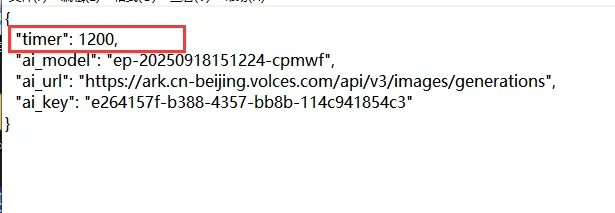
- In sleep mode, there is a timed wake-up, which can be set through the config.txt file in the 06_user_Foundation_img directory. The specific code segment and file location are as follows:

Mode 2
- If the product is in low-power mode, first click the KEY button to wake it up, then long press the KEY button to enter mode selection; click the KEY button twice, then long press the KEY again to enter that mode.
- Use a phone or computer to connect to Wi-Fi: esp_network, password: 1234567890. After the connection succeeds, go to the Image Selection Interface, as shown:
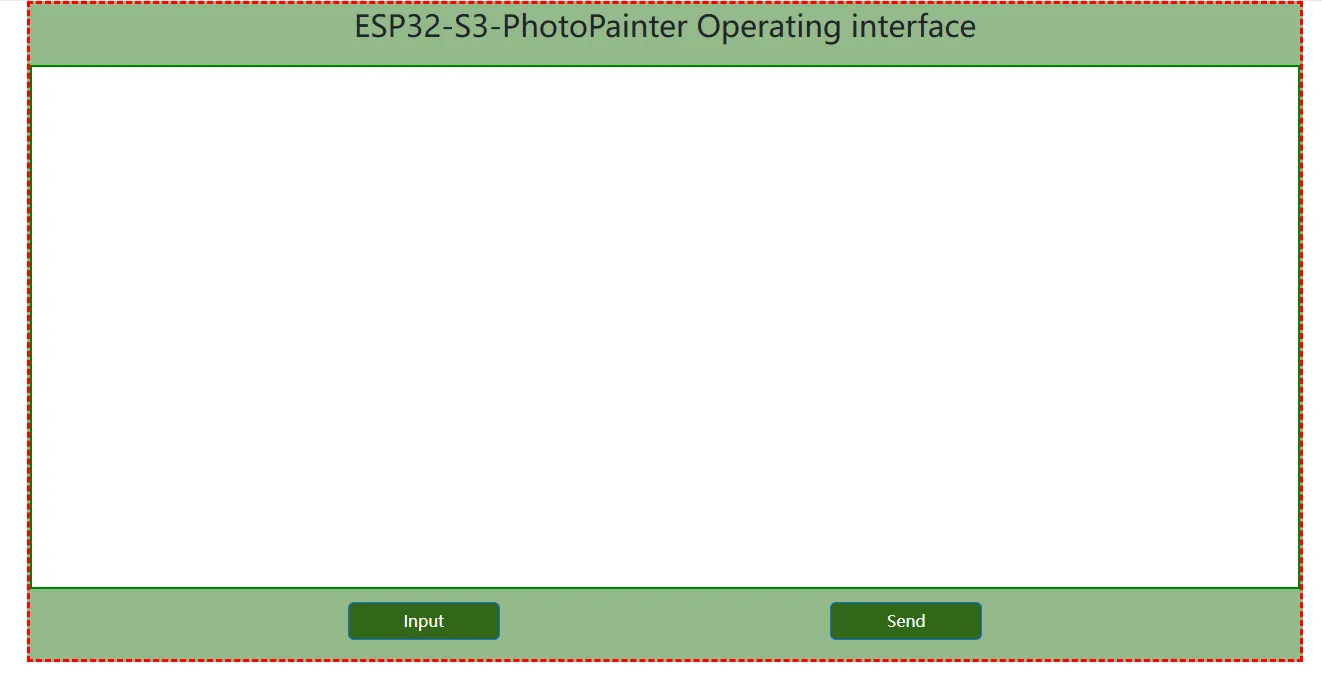
- Click Input to select the corresponding image (the image must be a 24-bit depth 800x480 or 480x800 image, and it must have been dithered). For details, see Image Preparation. Click Send to send the corresponding image to the photo frame.
- If you need to enter low power, simply disconnect the Wi-Fi connection. The product will wake up once every 30s. The specific code segment is as follows, and you can modify it yourself. Sleep is disabled after the Wi-Fi connection succeeds.

Mode 3
- Long press the KEY button to enter mode selection, click the KEY button three times, then long press the KEY button again to enter that mode.
- Wait for the screen display to complete, then you can start a conversation. The wake word is "Ni Hao Xiao Zhi".
- After waking up, you can converse normally.
- After saying the keyword "Refresh weather" during the conversation, the screen will refresh and display the automatically obtained weather forecast for the next 4 days
- Through MCP, you can display images in the 05_user_ai_img of the TF card, get the number of images in the 05_user_ai_img directory, and also rate images. The corresponding MCP service code is as follows, and you can also implement the MCP service yourself:

- Regarding the use of AI-generated images, for example, you can say "Generate an image of the moon for me". If you need to use this feature, you need to configure Volcengine. For specific configuration, refer to Volcengine Text-to-Image Configuration.
- After rating the images, they will rotate once every 30 minutes. The corresponding code is as follows, and the rating can be reset by voice

Volcengine Text-to-Image Configuration
- First, you need to obtain the key, model name, and URL. Currently, a test model is used, which will be discontinued later, so you need to configure the model yourself. The relevant code segment and the relevant configuration in the config.txt file are as follows:


-
Go to the Volcengine Console, select "Online Inference" > "Model Inference Endpoints" in sequence, and click "Create Inference Endpoint".
Call FeesPlease top up your Volcengine account yourself and bear the text-to-image call fees. The specific billing rules are subject to the Volcano Ark Model Service Pricing Description.

-
Fill in the endpoint name, for example
s3-test. For "Inference Mode", select "Specify a single model"; for "Access Model", selectDoubao-Seedream-5.0-flash; for "Access Mode", select "Billed by number of images"; then click "Create and Access".
-
On the call example page of the endpoint, click "Select API Key and Copy", and select and copy an API Key that can access this endpoint. At the same time, record the
model(your own endpoint ID, in the formep-...) and the request URL from the call example.

-
Fill the request URL, endpoint ID, and API Key into the
ai_url,ai_model, andai_keyfields insdcard/06_user_Foundation_img/config.txt, respectively (see the configuration file screenshot in step 1).
Image Preparation
- To create dithered images using tools such as PS, please refer to: Creating Dithered Images with Photoshop
- To convert images using the tool we wrote, see the application and source code: Six-Color Dithering Image Conversion Tool
- This program can convert images to the appropriate resolution and optimize them using a dithering algorithm. It supports most image formats, recognizes image orientation, and automatically stretches and crops.
- Usage: Drag and drop an image directly onto "convert.exe" to convert a single image, or put all images in a folder and then double-click "converterTo6color_all.cmd" for batch conversion.
- Note: This program is developed and open-sourced for convenience only and does not come with technical support.
Using the Tool on Windows
- Single image conversion
Drag the image onto convert.exe
- Batch image conversion
Put the images, convert.exe, and converterTo6color_all.cmd in the same folder, then double-click converterTo6color_all.cmd
Using the Tool on MAC
Put the images, convert, and converterTo6color_all in the same folder
Open a terminal and enter the corresponding folder
cd xxxx/xxx/xxx/
- Single image conversion
Enter the command to give convert execute permission
sudo chmod +x convert
Convert the images
./convert image name
- Batch image conversion
You must first perform the permission operation on the convert file
Enter the command to give converterTo6color_all.sh execute permission
sudo chmod +x converterTo6color_all.sh
Convert the images
./converterTo6color_all.sh
Development Notes
- Note: This program is open-sourced as a courtesy and does not come with technical support (bug reports are welcome).
- The program is written based on the ESP-IDF C/C++ SDK and compiled with CMAKE. It theoretically supports multiple platforms; please set up the relevant environment yourself.