FAQ
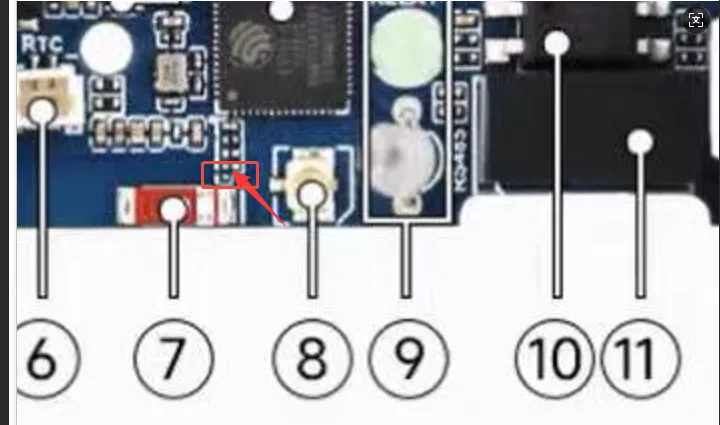
Q: How do I use the onboard external antenna?
- Change the resistor in the below image from vertical soldering (default) to horizontal soldering.
Q: What do the different states of the CAN indicator light mean?
The CAN indicator light uses a blue-green dual-color design. The states are described below:
| Indicator State | Description |
|---|---|
| Off | CAN bus is idle, no data communication at the moment |
| Blue and green lights flashing simultaneously | CAN bus has data communication |
| Continuously lit, not flashing | CAN bus may be abnormal and requires further inspection |
The CAN communication mechanism differs from RS485. When CAN data is sent, the receiving end also monitors the bus signal, so the blue and green lights may flash simultaneously. The two colors cannot simply be understood as "send" and "receive" respectively.
If the indicator light stays continuously lit and communication is abnormal, it is recommended to check the following in order:
- Whether the baud rates of both communicating parties are the same.
- Whether the CAN_H and CAN_L wiring is correct, and whether they are reversed or loose.
- Whether termination resistors are correctly configured at both ends of the bus, usually one 120 Ω resistor at each end.
- Whether the peer device is properly powered and in a normal communication state.
The indicator light is only for auxiliary judgment. Whether communication is actually normal should be confirmed based on the data transmission and reception results.
Q: What baud rates do RS485 and CAN support?
- This product uses ESP32-S3 as the main MCU, so the communication baud rates for both RS485 and CAN can be freely set via software.
- CAN (TWAI) interface: theoretical rate up to 1 Mbps.
- RS485 (UART) interface: theoretical UART rate up to 5 Mbps. However, due to the addition of isolation, level shifting, and protection circuits on the board, the actual usable rate will be slightly lower. It is generally recommended to set it within 115200 bps. The exact value should be verified based on the actual communication environment and application.
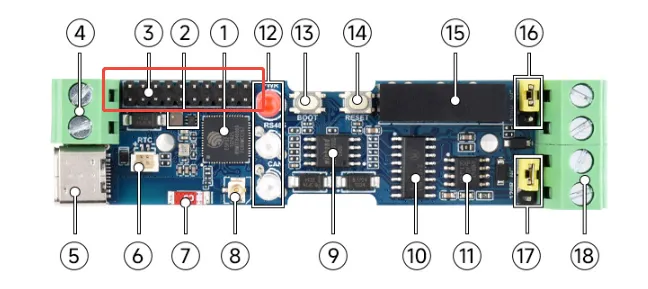
Q: What is the pitch of the onboard pin header?
- Pin header pitch: 2.0 mm
Q: After downloading a program to the module, sometimes it fails to connect to the serial port or fails to flash during subsequent downloads?
- Long press the BOOT button, press RESET at the same time, then release RESET, then release the BOOT button, at this time the module can enter the download mode, which can solve most of the problems that can not be downloaded.
Q: The module keeps resetting, and when checking in Device Manager, the connection appears to be blinking?
- It may be due to Flash blank and the USB port is not stable, you can long-press the BOOT button, press RESET at the same time, and then release RESET, and then release the BOOT button, at this time the module can enter the download mode to flash the firmware (program) to solve the situation.
Q: The first compilation is extremely slow. What should I do?
- It is normal for the first compilation to be slow. Just wait patiently.
Q: How to handle the situation where the serial port shows 'waiting for download...' after a successful ESP-IDF flash?
- If the board has a reset button, press it; if not, power cycle the board.
Q: How to handle the situation when the AppData folder cannot be found?
- Some AppData folders are hidden by default. You can set them to be shown.
- Path: Explorer->View->Check "Hidden items"
Q: How do I check which COM port I am using?
- Windows system:
① Check via Device Manager: Press Windows + R to open the "Run" dialog box; type devmgmt.msc and press Enter to open Device Manager; expand the "Ports (COM & LPT)" section, which lists all COM ports and their current status.
② Check using Command Prompt: Open Command Prompt (CMD); type the mode command, which will display status information for all COM ports.
③ Check hardware connections: If you have already connected an external device to the COM port, the device usually occupies a port number. You can determine which port is being used by checking the connected hardware.
- Linux system:
① Check using the dmesg command: Open a terminal.
② Check using the ls command: Type ls /dev/ttyS* or ls /dev/ttyUSB* to list all serial devices.
③ Check using the setserial command: Type setserial -g /dev/ttyS* to view the configuration information of all serial devices.
Q: Program fails to flash when using a MAC device?
- Install the MAC driver and then flash again.
Q: Why is there no output even though the code is correct and flashed successfully?
- Check the schematic. For different development boards' Type-C interfaces, the corresponding code handles output differently:
- For boards with direct USB output, the printf function is supported for printing. If you want to support the Serial function for printing, you need to enable the USB CDC On Boot feature or declare HWCDC.
- For boards with UART-to-USB, both the printf function and the Serial function are supported for printing, and there is no need to enable USB CDC On Boot.
Q: Please note!
- The factory program is for learning purposes only. If used in practical applications, please optimize the program logic yourself.
Q: When using RS485 to control other devices, it is unresponsive or cannot communicate?
- First check the A/B polarity, serial parameters, and cable connections. An RS485 bus usually enables termination matching only at both ends of the trunk line. If this product is located at an endpoint of the bus, you can move the jumper cap to 120R so that the 120 Ω termination resistor is connected across A/B. Intermediate nodes should keep the termination resistor disabled.
Q: Can I use the terminal block and the USB interface for power at the same time?
- No, this may risk damaging the module.