ESP32-S3-Touch-AMOLED-1.43C Factory Firmware Usage
This section describes the functions and usage of each application (APP) in the factory firmware of the ESP32-S3-Touch-AMOLED-1.43C.
The factory firmware integrates 9 APPs. Xiaozhi AI runs within the same firmware, with no need to switch firmware. Music playback has built-in example audio, and microphone recordings are temporarily saved in memory, with no TF card required.
Component Preparation
- ESP32-S3-Touch-AMOLED-1.43C ×1.
- USB data cable ×1, used for power supply and flashing.
- Included speaker ×1; connect it properly when using music playback, recording playback, and Xiaozhi AI.
- A 2.4 GHz Wi-Fi network with normal internet access, for network time synchronization, Weather, and Xiaozhi AI.
First Use
- Connect the included speaker before powering on.
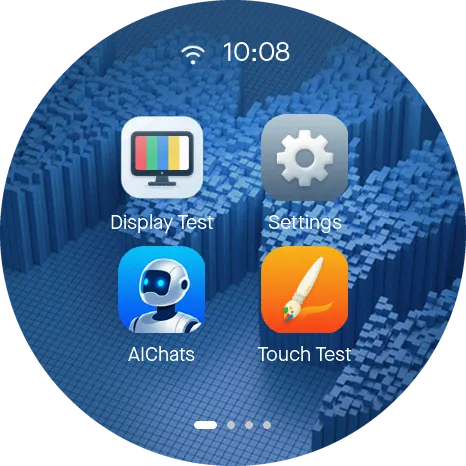
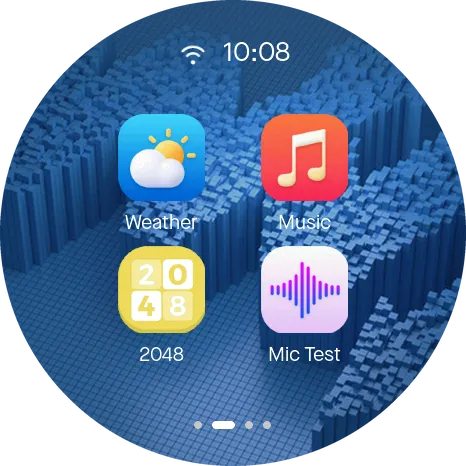
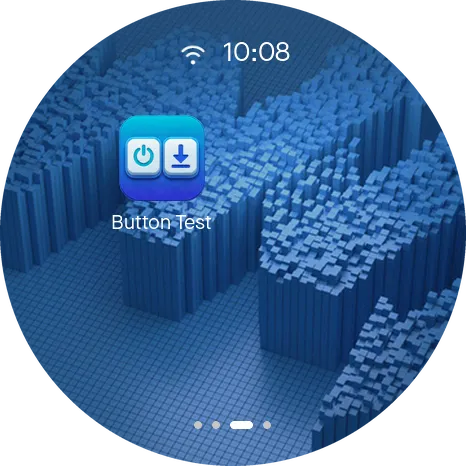
- Connect the development board to the computer with a USB data cable. After system initialization is complete, it enters the 466 × 466 circular APP desktop.
- Swipe left and right on the desktop to switch pages, with 4 APP icons displayed per page. Tap an icon to enter the application.
- Complete the network setup as described below to use desktop network time synchronization, Weather, and Xiaozhi AI.
Wi-Fi Setup
This product uses the ESP32-S3, whose hardware only supports 2.4 GHz Wi-Fi and does not support 5 GHz. You can connect to the network using either of the following two methods. A saved network takes precedence over the default hotspot.
Method 1: Connect to the Network via the Provisioning Page
- Open "Settings" > "Connect Wi-Fi" and enter the "Wi-Fi setup" page. The development board will start the network configuration hotspot.
- Use your phone to scan the QR code on the screen, or manually connect to the development board hotspot
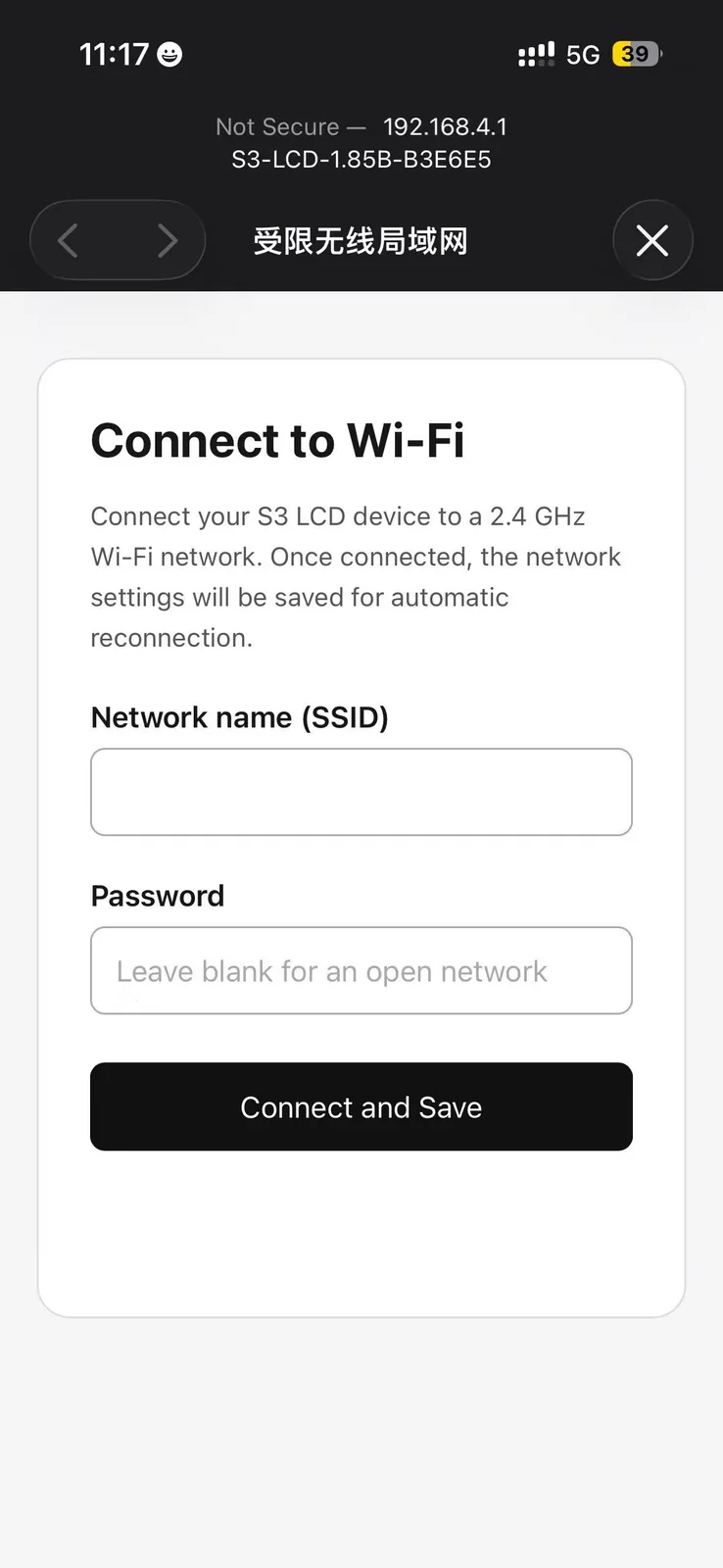
S3-AMOLED-1.43C-xxxxxx, with the hotspot password12345678. The hotspot name is subject to what is actually displayed on the screen. - After connecting, the provisioning page opens; if it does not open automatically, visit the development board provisioning page in a browser.
- Fill in your own 2.4 GHz Wi-Fi name and password and submit.
- After the connection succeeds, the development board displays "Connected! You can go back."; when the network information is saved successfully, it displays "Connected and saved." and the device will preferentially connect to that network on the next power-on.
After the network configuration succeeds, the development board automatically closes the network configuration hotspot. Exiting the "Wi-Fi setup" page also closes the hotspot.

Method 2: Connect to a Specified Hotspot
When no other network is saved, the development board tries to connect to the following hotspot. You can enable your phone's hotspot before powering on, keeping the name and password exactly the same:
| Item | Setting |
|---|---|
| Hotspot name | weather-wifi |
| Hotspot password | 12345678 |
| Band | 2.4 GHz |
After connecting to a network with normal internet access, the desktop time will synchronize to Beijing time, and the Weather APP can obtain Shenzhen weather.
Firmware Download and Flashing
For the download entry, see ESP32-S3-Touch-AMOLED-1.43C Resources and Documents. For the flashing method, see the ESP32-S3-Touch-AMOLED-1.43C Firmware Flashing Tutorial.
Use the complete merged firmware ESP32-S3-Touch-AMOLED-1.43C_FactoryOnly_20261027.bin, select ESP32-S3 for the chip, select 8 MB for the Flash capacity, and set the flash address to 0x0.
For the first installation, you need to flash the complete merged firmware containing the bootloader, partition table, application, and voice model; flashing only the application BIN cannot restore the complete factory functions.
The factory source code is located in examples/factory and uses ESP-IDF v5.5.4. In that directory, run idf.py build flash monitor, and the serial monitor uses a 2000000 baud rate.
If the port cannot be recognized during flashing, disconnect the USB, hold down BOOT, connect the development board to the computer, and then release BOOT. After downloading is complete, power on again or reset to run the program.
APP Usage Instructions
Tap a desktop icon to enter the corresponding APP. Most pages can be exited using the back button in the upper left corner. Display Test is exited by double-tapping the screen or pressing BOOT, and Touch Test can also be exited using BOOT.
Music, Mic Test, and AIChats share the audio hardware; please exit the current audio APP before opening another audio APP. Playback stops after leaving Music.
| APP | Function |
|---|---|
| Display Test | Five-color screen display test |
| Settings | Brightness, volume, Wi-Fi, and device information |
| AIChats | Xiaozhi AI activation, voice conversation, and voice control |
| Touch Test | Touch drawing test |
| Weather | Obtain Shenzhen weather |
| Music | Play built-in demonstration audio |
| 2048 | Swipe to merge number tiles |
| Mic Test | Dual-microphone level, recording, and separate playback |
| Button Test | BOOT button status and press count detection |
Display Test APP
- After opening, it cycles through red, green, blue, yellow, and white in order, with each color held for about 1 second.
- You can check for display issues such as abnormal lines, local flicker, and missing pixels. Normal color switching is not abnormal flickering; observe whether each color remains stable while displayed.
- Double-tap anywhere on the screen or briefly press BOOT to exit. After powering on, you need to manually open this APP.


Settings APP
- "Brightness": Drag the slider to adjust the screen brightness.
- "Volume": Drag the slider to adjust the speaker volume.
- "Wi-Fi scan": Scan for nearby networks and view the network name, signal strength, channel, and encryption information. Scanning is only for viewing networks, not for connecting; tap "Scan again" to rescan, and use the page buttons to view other results.
- "Connect Wi-Fi": Start the network configuration hotspot and connect to your own network according to Wi-Fi Setup.
- "Device info": Enter the "About" page to view the product model, firmware information, ESP-IDF version, resolution, Flash, PSRAM, and MAC address.
When the content exceeds the display area, you can scroll up and down within the page to view it. The back arrow in the upper-left corner returns to the Settings home page from a subpage, and returns to the desktop from the Settings home page.


AIChats APP
Connect the speaker before use, and connect to a Wi-Fi network with normal internet access. After opening AIChats, you can use Xiaozhi AI within the factory desktop, with no need to flash a separate Xiaozhi firmware.
- First activation: If the screen prompts for activation, complete device binding according to the activation code and instructions displayed on the screen.
- Voice conversation: Say "Ni Hao Xiao Zhi" to wake up, or tap "Talk" to start a conversation. The screen displays the current status, expressions, and conversation text, and the speaker plays Xiaozhi's answers.
- Wake word interruption: While Xiaozhi is speaking, saying "Ni Hao Xiao Zhi" again can interrupt the current reply and start a new round of voice input.
- Volume and brightness: You can say "ba yinliang tiao dao bashi" or "ba liangdu tiao dao wushi" to adjust the speaker volume and screen brightness by voice, or return to Settings to adjust them.
- Stop and exit: Tap "Stop" to stop the current conversation, and tap the back arrow in the upper left corner to return to the desktop.


Touch Test APP
- Slide your finger on the screen to draw, with red strokes displayed at the touch positions.
- You can focus on covering the edges of the screen to check for touch loss or obvious offset.
- Tap the trash can icon in the upper right corner to clear the canvas.
- Tap the back button in the upper left corner or briefly press BOOT to exit. This APP does not use the bottom swipe-up exit gesture, so as to test the edge touch of the screen.

Weather APP
- After connecting to the network, it obtains and displays the weather; the default city is Shenzhen.
- The interface displays the weather icon, temperature, humidity, wind speed, and wind direction; tap the refresh button to obtain the data again.
- When the network or weather service is unavailable, the interface displays a status prompt; the obtained data may continue to be displayed as a cache, so judge based on the update status.
- Tap the back arrow in the upper left corner to exit.

Music APP
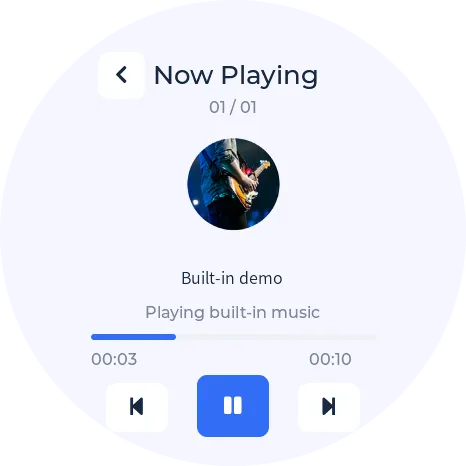
- Tap the play button to play the built-in demonstration audio stored in the onboard Flash, with no TF card required.
- You can play and pause, and the interface displays the playback time and progress.
- There is currently only one built-in track; tapping the previous or next track plays the same track from the beginning.
- The volume is adjusted in Settings. Tap the back arrow in the upper left corner to exit, and playback stops after exiting.
2048 APP
- Swipe up, down, left, and right in the board area to merge tiles with the same number.
- The interface displays the current score and the best score; tap the refresh icon in the upper right corner to restart.
- Tap the back arrow in the upper left corner to exit; swiping in the board area is used for game operations.

Mic Test APP
- Speak into the onboard microphone and observe whether the independent volume bars and values of MIC1 and MIC2 change with the sound.
- Tap "Record" to record both microphones simultaneously, tap "Stop" to end early, or wait until the full 10 seconds have been recorded and it stops automatically.
- After recording is complete, tap "MIC1" and "MIC2" respectively to play back the recording of the selected microphone, and check whether both channels have sound and there is no obvious noise or distortion.
- The recording is temporarily saved in PSRAM, with no TF card required; a new recording overwrites the previous one, and the recording is discarded after closing the APP.
- The playback volume is synchronized with Settings. The speaker is muted during recording and does not output the microphone sound in real time; tap the back arrow in the upper left corner to exit.
The dBFS value in the interface represents the digital audio level and is not calibrated for sound pressure, so it cannot be used as an ambient noise decibel value. Mic Test uses the two channels of raw microphone data and does not enable Xiaozhi's echo cancellation, noise reduction, or wake-up processing.


Button Test APP
- This APP only detects BOOT (GPIO0).
- Release BOOT first, then short-press and release it once. Pressing displays "PRESSED", and releasing displays "RELEASED".
- After each complete press and release, the "Presses" count increases by 1 and displays "PASS"; after the test passes, it displays "1 / 1 button passed".
- Tap "Test again" to reset and retest, and tap the back arrow in the upper left corner to exit.
