FAQ
Q: How is the heat dissipation of this product? Will it affect the display?
- In actual measurements at a room temperature of 20°C, with Wi‑Fi STA and AP modes enabled and the battery charging, The test lasts for half an hour, and the highest temperature read through AXP2101 temperature data is 46 ℃. During the normal discharge process, the temperature will decrease by 3-4 ℃. If Wi‑Fi/Bluetooth functions are not enabled, the temperature remains stable at around 36°C.
- The AMOLED screen is heat‑resistant; temperatures between 40‑60°C do not affect display or touch functionality. Under high‑temperature, high‑humidity conditions, some polarization may occur, which is within normal limits.
- For this product, it is recommended to utilize the ESP32-S3's low-power operating modes for certain application scenarios.
Q: How can I modify the 02_lvgl_demo_v9 example to support LVGL8?
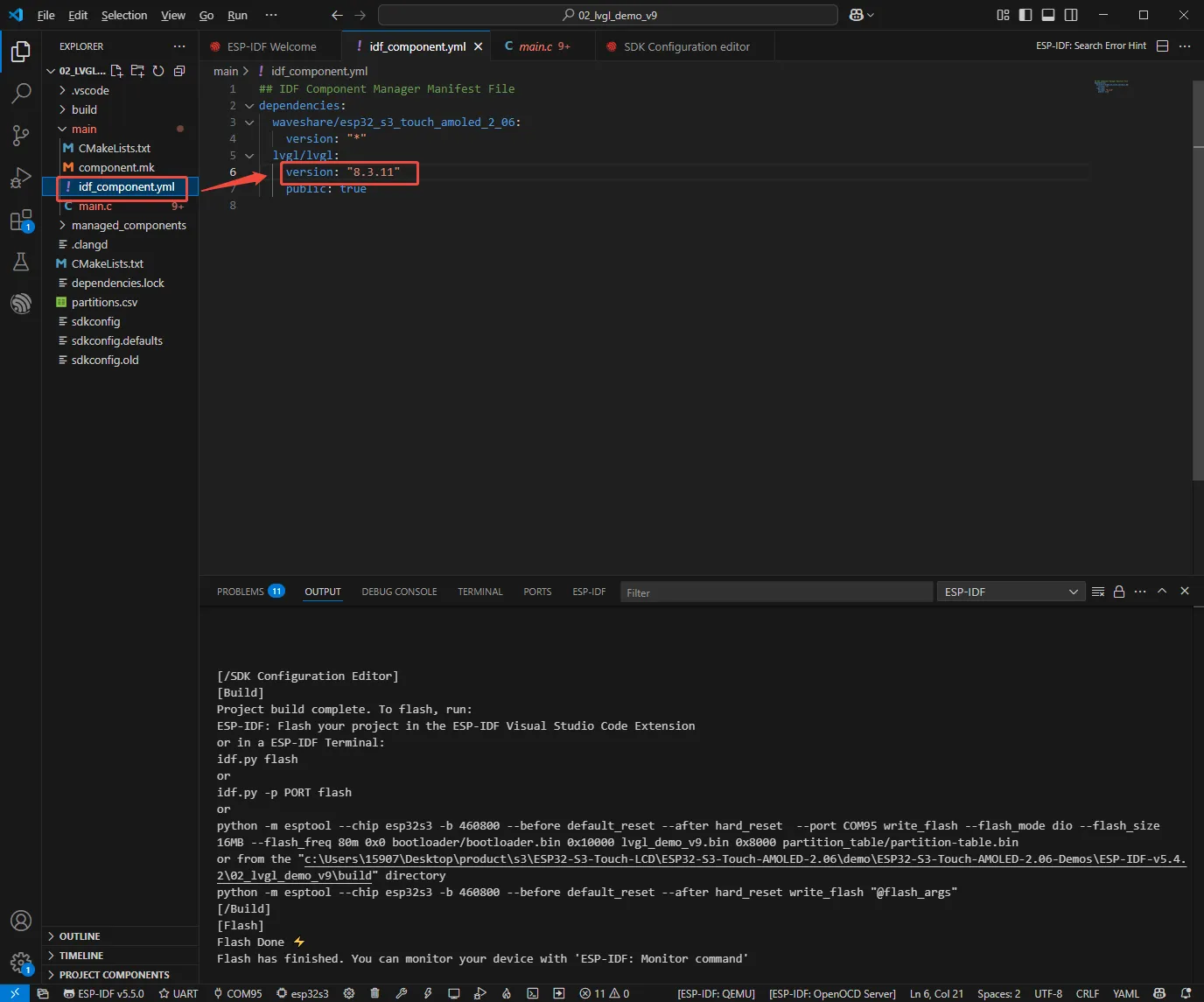
- Modify the version of the LVGL component in the yml file, change the version number from 9.2.0 to 8.3.11.
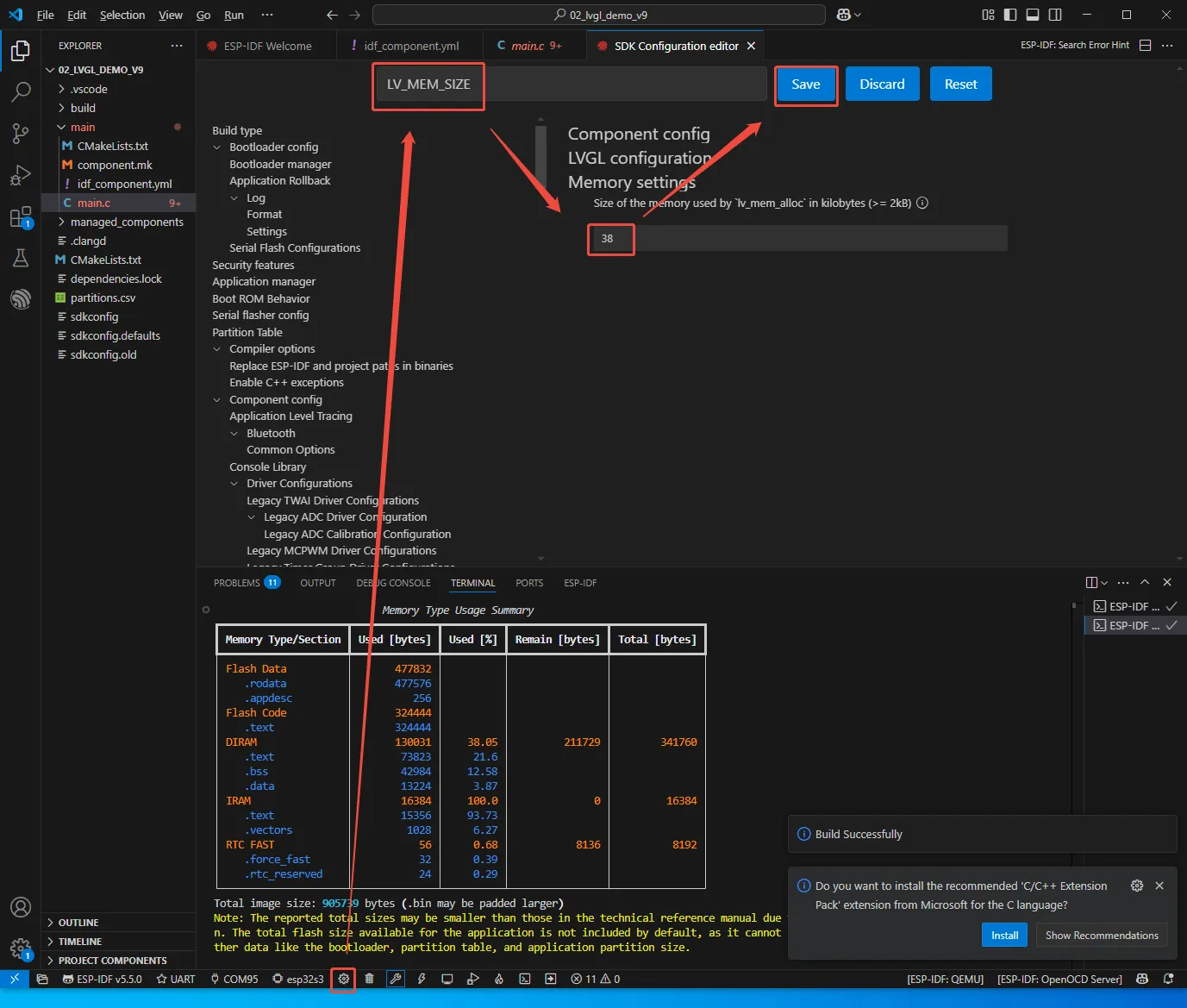
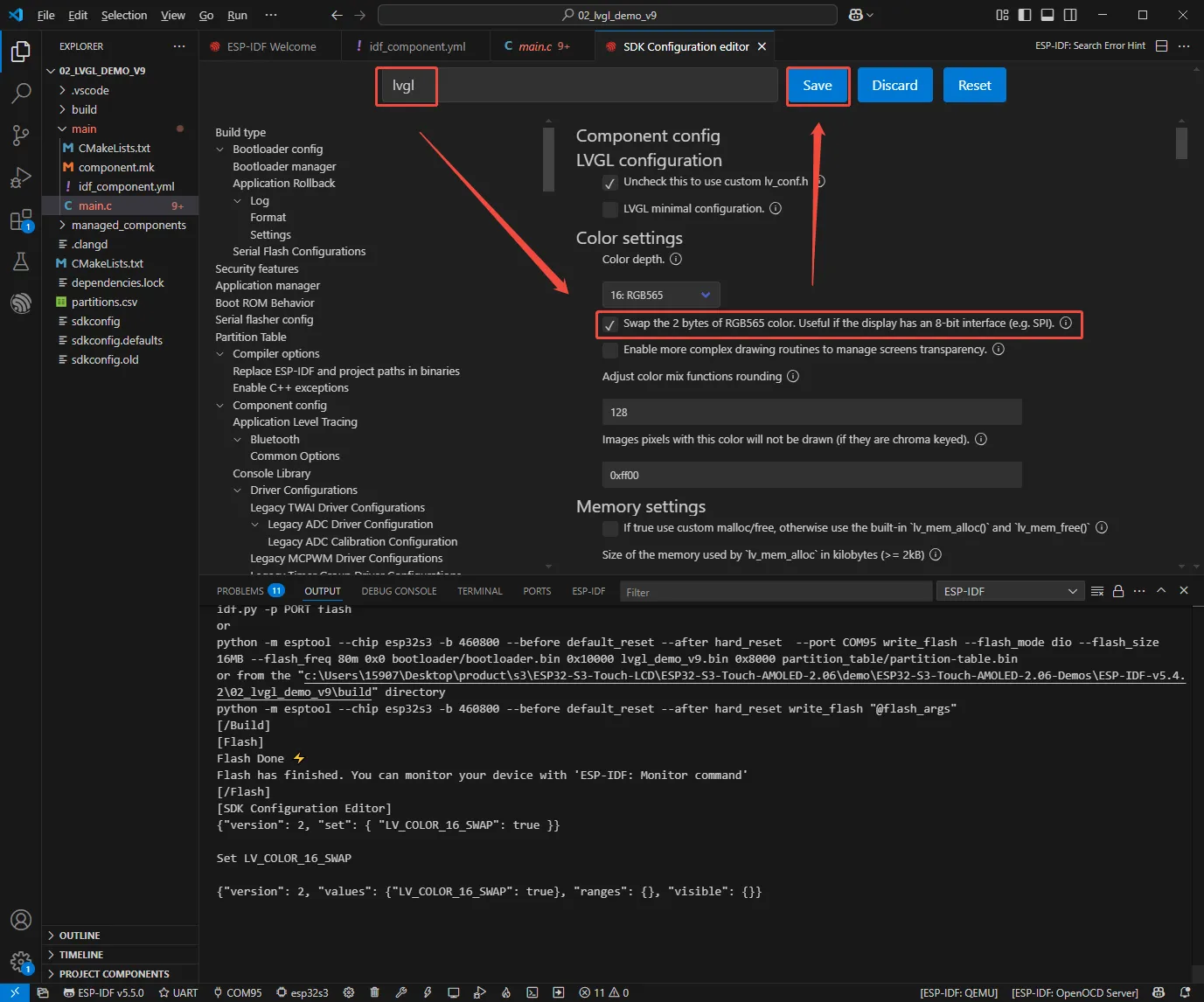
- Open the SDK, modify the following two configuration items, then recompile and flash.
Q: The module keeps resetting continuously. What should I do?
A: This is usually caused by a program crash, which prevents the USB from functioning properly. You can hold down the BOOT button and then power on the module. This will force the module into download mode, allowing you to flash the firmware (program) to resolve the issue.
Q: The first compilation of the program is extremely slow. How should I handle this?
A: In the Arduino IDE, the first compilation loads and compiles all dependency packages. Therefore, the first compilation involves many tasks and being slow is normal. Please be patient and wait.
Q: After successful flashing in ESP‑IDF, the serial port shows 'waiting for download...'. What should I do?
A: Just reboot the device.
Q: How do I measure the battery voltage with this product?
A: This product features an onboard AXP2101, which can measure various battery data, such as: chip temperature, whether it is charging, whether power is connected, charging status, battery voltage, charging voltage, battery level, etc.
Q: Why does the battery percentage reading fluctuate significantly on this product?
A: The AXP2101 battery level measurement is based on battery voltage. However, battery level is not a linear function of voltage, so the percentage may fluctuate significantly during measurement. This fluctuation is especially noticeable when plugging/unplugging the charger, during load changes, or as the battery ages. The measured percentage is only a reference; voltage should be used as the actual measure of battery level.
Q: Can you provide the 3D files for the enclosure?
A: No, they are not provided.
Q: Are both buttons on this product programmable?
A: Yes, both buttons on this product are BOOT and PWR, with the following functions:
- BOOT: Press and hold it while powering on to enter download mode (commonly used when the program crashes or USB GPIO is occupied). Under normal operating conditions, the button's high/low level can be detected via GPIO0 to determine actions. Low level indicates it is pressed, and single-click, double-click, multi-click, and long-press actions can be identified.
- PWR: When powered on, long-press for 6 seconds to power off. When powered off (charging is possible while off), single-click to power on. Under normal operating conditions, the button's high/low level can be detected via the expansion IO GPIO10 to determine actions. High level indicates it is pressed, and single-click, double-click, multi-click, and long-press actions can be identified (long-press must not exceed 6 seconds, otherwise it will power off).
Q: How to get more library support for the example?
A: You can subscribe to this repository and raise an issue to describe your requirements. The engineers will assess your request as soon as possible: ESP32-display-support
Q: Does this product support Chinese character display?
A: This product uses the ESP32-S3R8 as its core and connects to the screen via the QSPI protocol. It fully supports Chinese character display, provided the following conditions are met:
- Character encoding support: UTF-8 encoded strings are required for rendering on the screen.
- Font support.
- Display library support, LVGL or Arduino_GFX are supported
Q: What is the maximum brightness of the screen on this product? How to control the screen brightness?
- 600nit;
- Brightness is controlled by writing
0x00(darkest, backlight off) to0xFF(brightest) to address0x51via QSPI.
Q: Is this product waterproof?
No, it is not waterproof. Keep it dry during use.
Q: What battery size is recommended for this product?
The recommended battery specification is 42728 400mAh, which can be used for about 1 hour in the regular full-light state, 3 to 4 hours when the screen backlight is turned off, and about 6 hours in full low-power scenarios.
Q: Why does the flashing fail?
- When the serial port is occupied, the flashing will fail. Close the serial port monitor and try to flash again.
- When the ESP32 program crashes, the flashing will fail. In this case, you need to completely power off the development module, hold down BOOT button and power it on again to enter the forced download mode and then flash it. After flashing, the module will not automatically exit download mode, so you need to power cycle again.
Q: How much load current can the 3.3V pad on the board handle?
The entire 3.3V voltage regulation circuit can theoretically supply up to 1.5A, but the main board and screen already consume most of that. Therefore, external high‑power peripherals cannot be connected; only small‑power devices (within 50mA) can be attached.
Q: How can I check which COM port I am using?
Windows System:
- Through Device Manager: Press Windows + R to open the "Run" dialog box. Type
devmgmt.mscand press Enter to open Device Manager. Expand the "Ports (COM & LPT)" section. All COM ports and their current status will be listed here. - Using Command Prompt: Open the Command Prompt (CMD), type the
modecommand, which will display status information for all COM ports. - Check the hardware connection: If an external device is already connected to a COM port, the device typically occupies a port number. You can determine which port is being used by checking the connected hardware.
Linux System:
- Use the
dmesgcommand: Open the terminal. - Use the
lscommand: Typels /dev/ttyS*orls /dev/ttyUSB*to list all serial devices. - Use the
setserialcommand: Typesetserial -g /dev/ttyS*to view configuration information for all serial devices.
Q: Can you help me review or modify my code? Can you help me modify the code?
This product is positioned as a development board, not a finished product. The product ecosystem is based on the ESP32 core, which is very mature and the development environment is very friendly. We do not assist in modifying code. Please let the makers and geeks use their DIY skills. If you have questions, you can ask our engineers for answers.
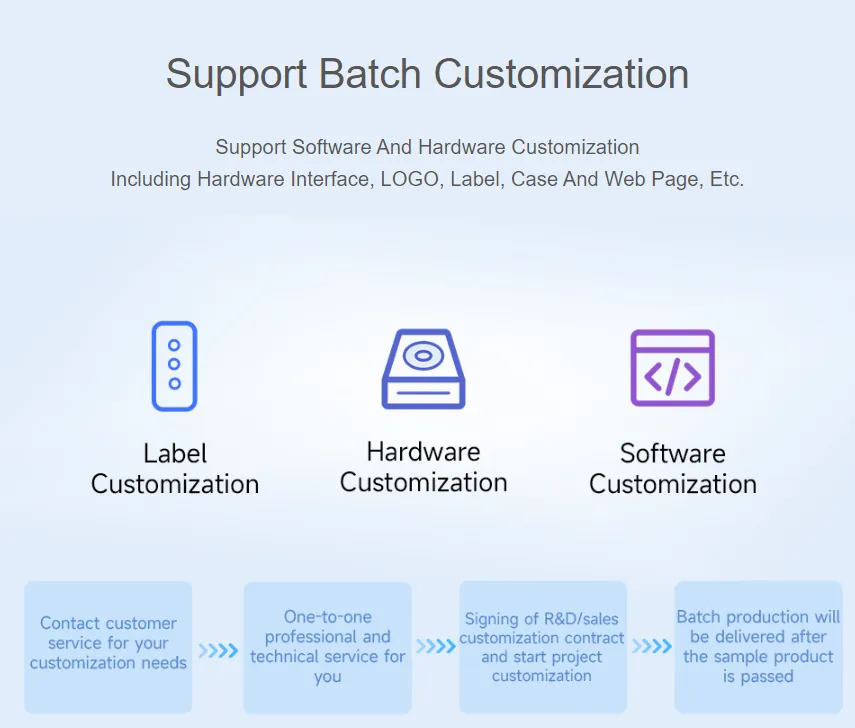
If you like our product and wish to customize hardware, casing, software, etc. in bulk, please feel free to contact our sales.
Q: How to use SquareLine Studio to design interfaces?
Please refer to SquareLine Studio Tutorial.