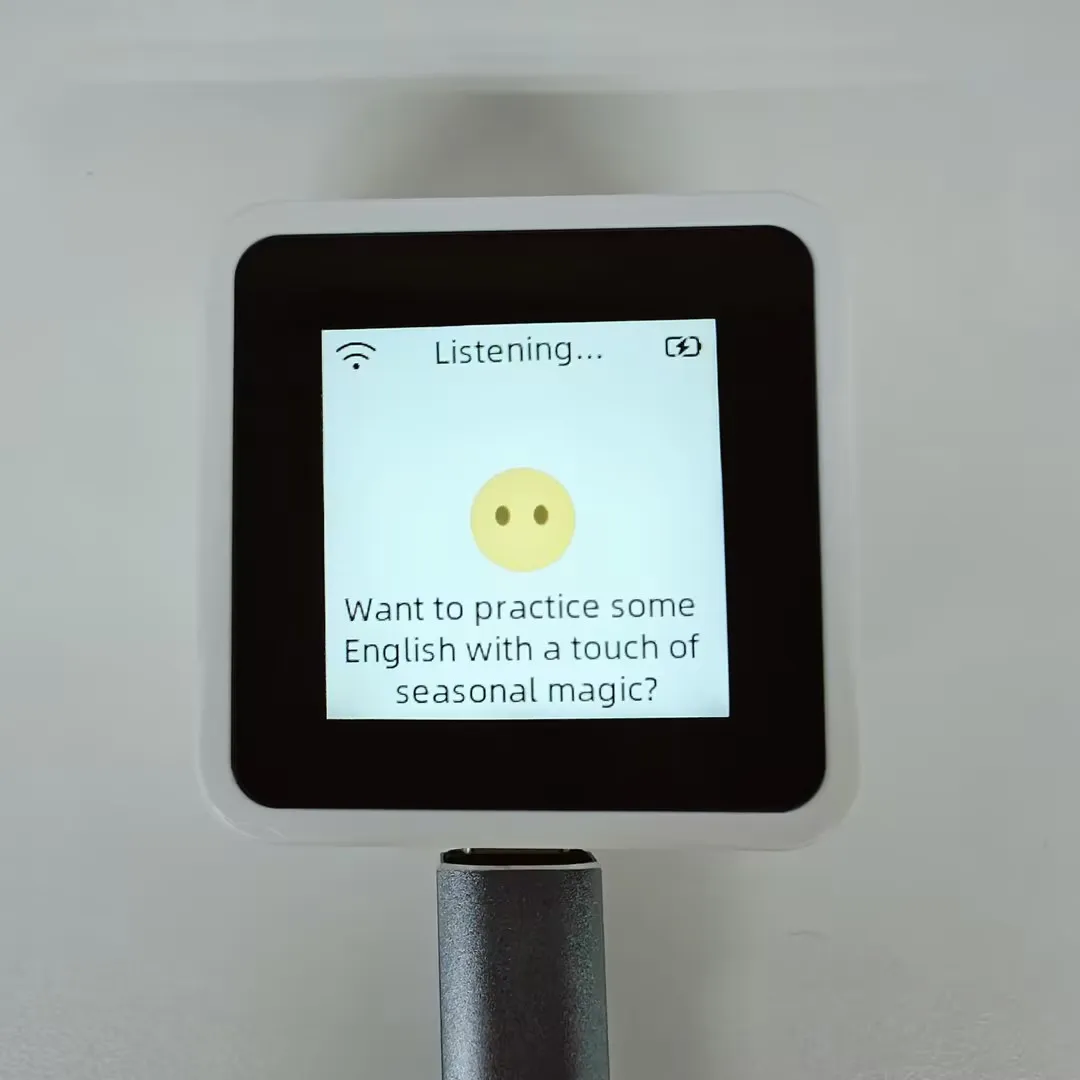
ESP32-S3-Touch-LCD-1.54 User Guide
To help users quickly understand the various functions of the product, we provide a series of test examples to familiarize customers with the use of each interface. Besides the ESP32-S3-Touch-LCD-1.54 host and its accompanying components, the following items are required to run the examples:
Required Components
- ESP32-S3-Touch-LCD-1.54 ×1
- TF card ×1 (not required, needed only for TF card examples)
Assembly Guide
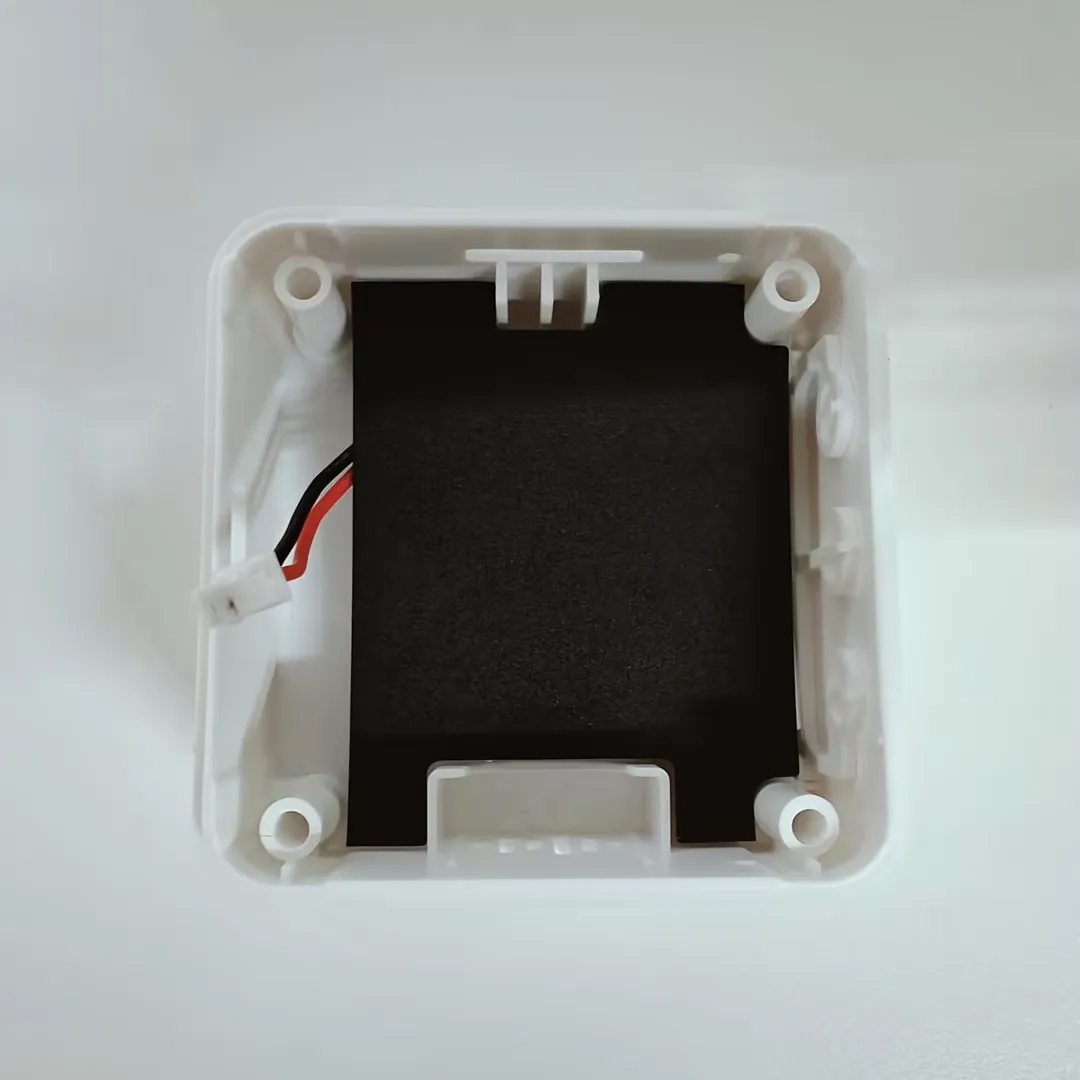
When installing the battery, assemble the PC insulating sheet. It provides insulation and flame retardancy to isolate the battery from the PCB board.
Precautions
⚠️ USB Download Precautions (Important)
If the port is not recognized, please enter Boot mode:
- Press and hold the BOOT button.
- Connect the USB cable to the computer
- Release the BOOT button.
After the download is complete, power cycle the board to run the program.
Firmware Download
- The example firmware is located in the
ESP32-S3-LCD-1.54-Demo\FirmwareorESP32-S3-Touch-LCD-1.54-Demo\Firmwaredirectory of the example package. - Flash address:
0x00
Firmware Flashing
- Firmware Flashing
- Firmware Erasing
The following steps apply to the firmware provided on this page.
-
Download and extract Espressif's official Flash Download Tool (Download)
-
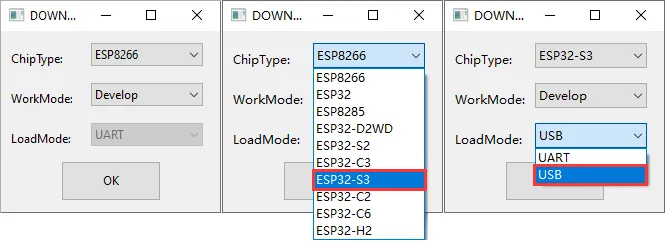
Run Flash Download Tool and select the options that match the development board's MCU and download interface. The screenshot below uses ESP32-S3 and USB as an example; use the options required by the product's hardware design.
-
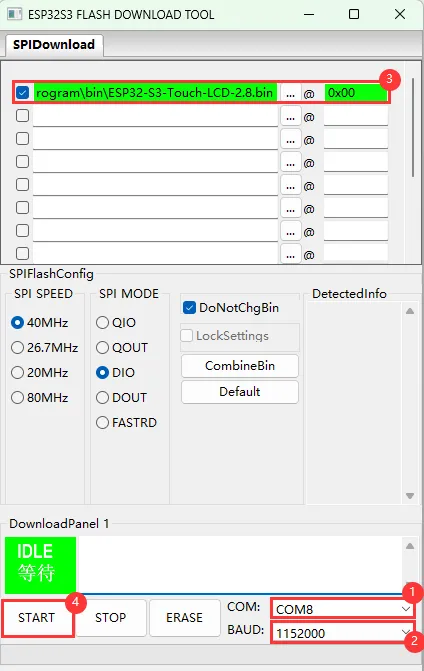
Parameter settings
- Select the COM port for the development board
- Set BAUD to the maximum value, 1152000
- Click the "..." button in the row, select the bin file provided by Waveshare, manually enter the flash address given at the top of this page in the field to its right, and select the leftmost checkbox in the row
- Click START to begin flashing
-
Wait for flashing to complete (this may take some time; please be patient)
-
Press the reset button and verify the result
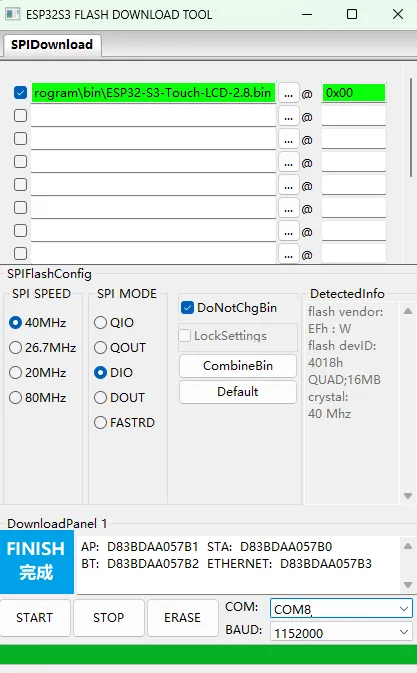
If the tool remains at "Waiting for power-on sync", hold down BOOT and power cycle the device to enter download mode.
Click ERASE to erase the entire flash. If erasing fails or the device does not respond, hold down BOOT and power cycle the device to enter download mode, then try again.
-
Download and extract Espressif's official Flash Download Tool (Download)
-
Run Flash Download Tool and select the options that match the development board's MCU and download interface. The screenshot below uses ESP32-S3 and USB as an example; use the options required by the product's hardware design.
-
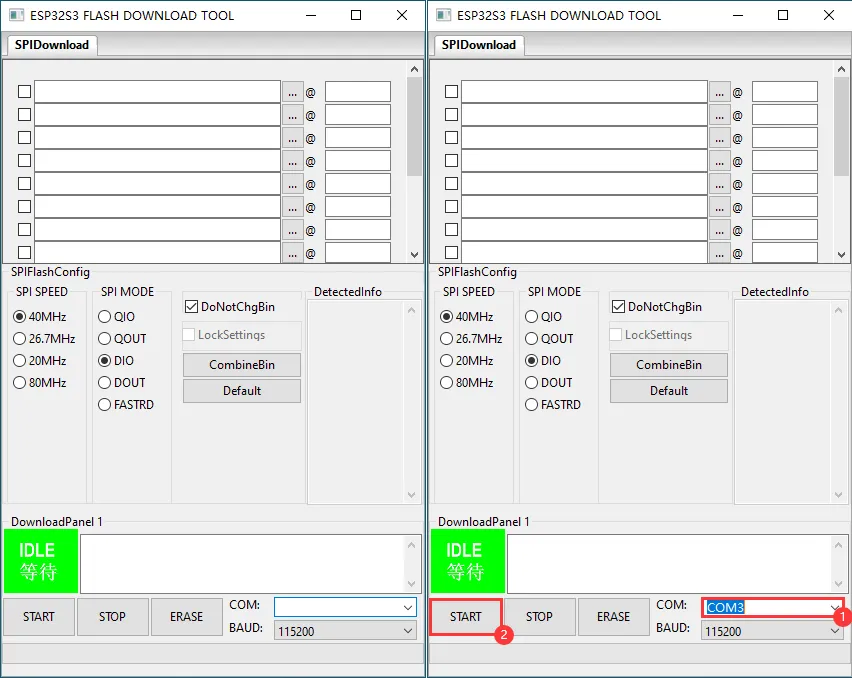
Select the COM port for the device, do not select any bin file, and click START
-
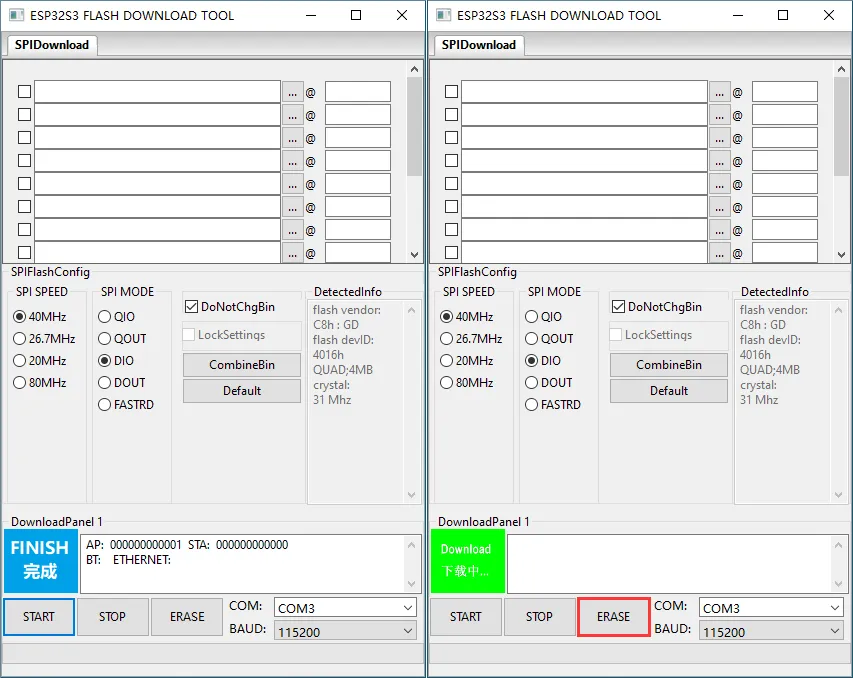
When the operation above is complete, click ERASE to erase the flash
-
Wait for erasing to complete
Example Overview
- The firmware uses the Brookesia component, showcasing various applications in an APP style, including Settings, Photo Album, Music Player, Video Player, Spec_Analyzer, Squareline, Xiaozhi AI, Gravity Ball, etc. (Supported only by the touch version).
App Example Introduction
- To exit an app, swipe up from the bottom of the screen.
- Swipe up from the bottom and pause in the middle of the screen to view recently running apps; swipe up again to close and terminate the APP process.
Settings APP
-
Features Wi-Fi scanning and network configuration. Click
WIFIon the interface, thenwifi configto scan a QR code for network configuration -
Allows adjustment of display brightness and volume
-
Displays the battery ADC voltage
-
Product about page, where you can view the MAC address
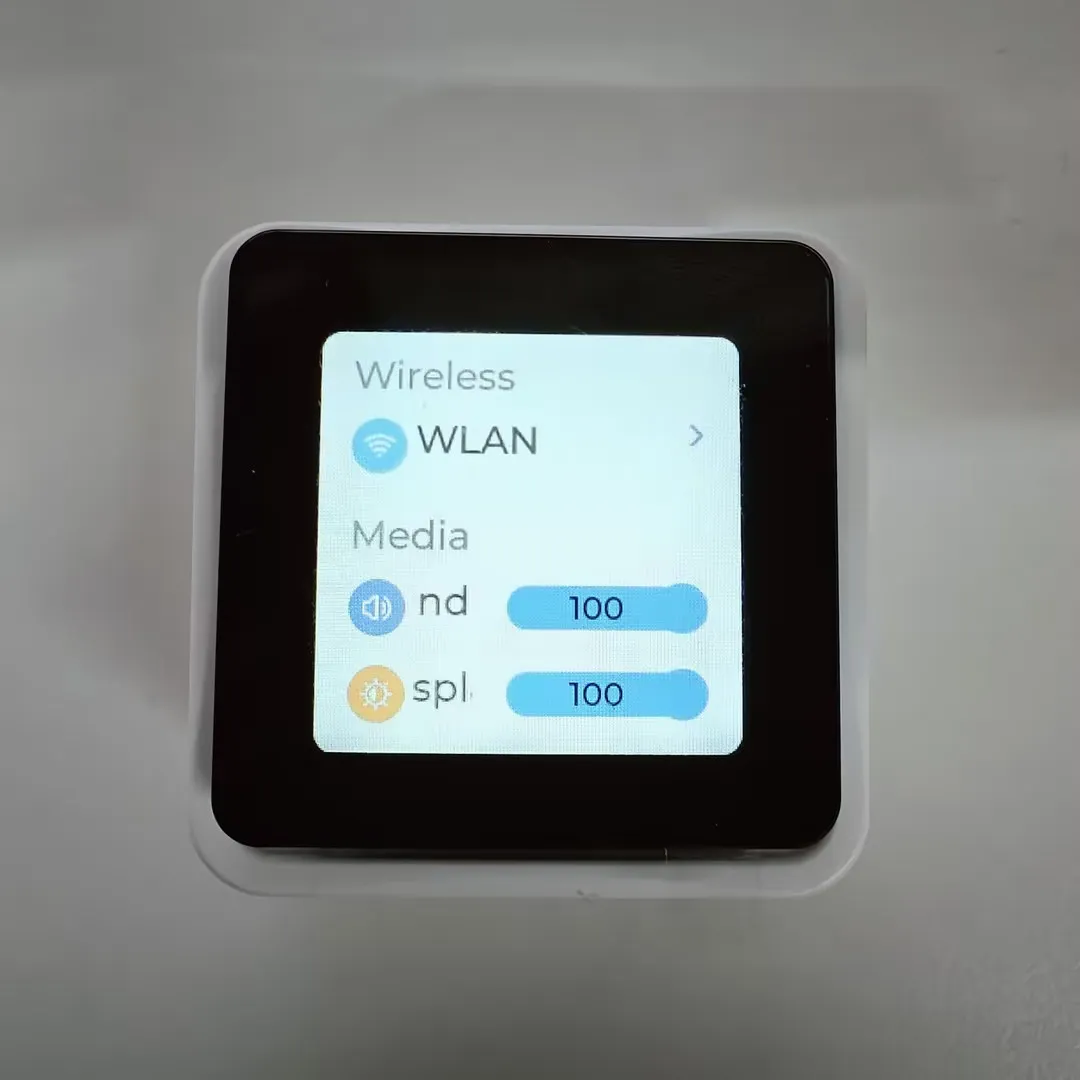
Photo Album APP
-
Supports displaying JPG images at 240×240 resolution.
-
Emulates a digital photo album interface. This APP requires a TF card. Copy the
photofolder from the example programFirmware/sdcard/directory to the root of the TF card.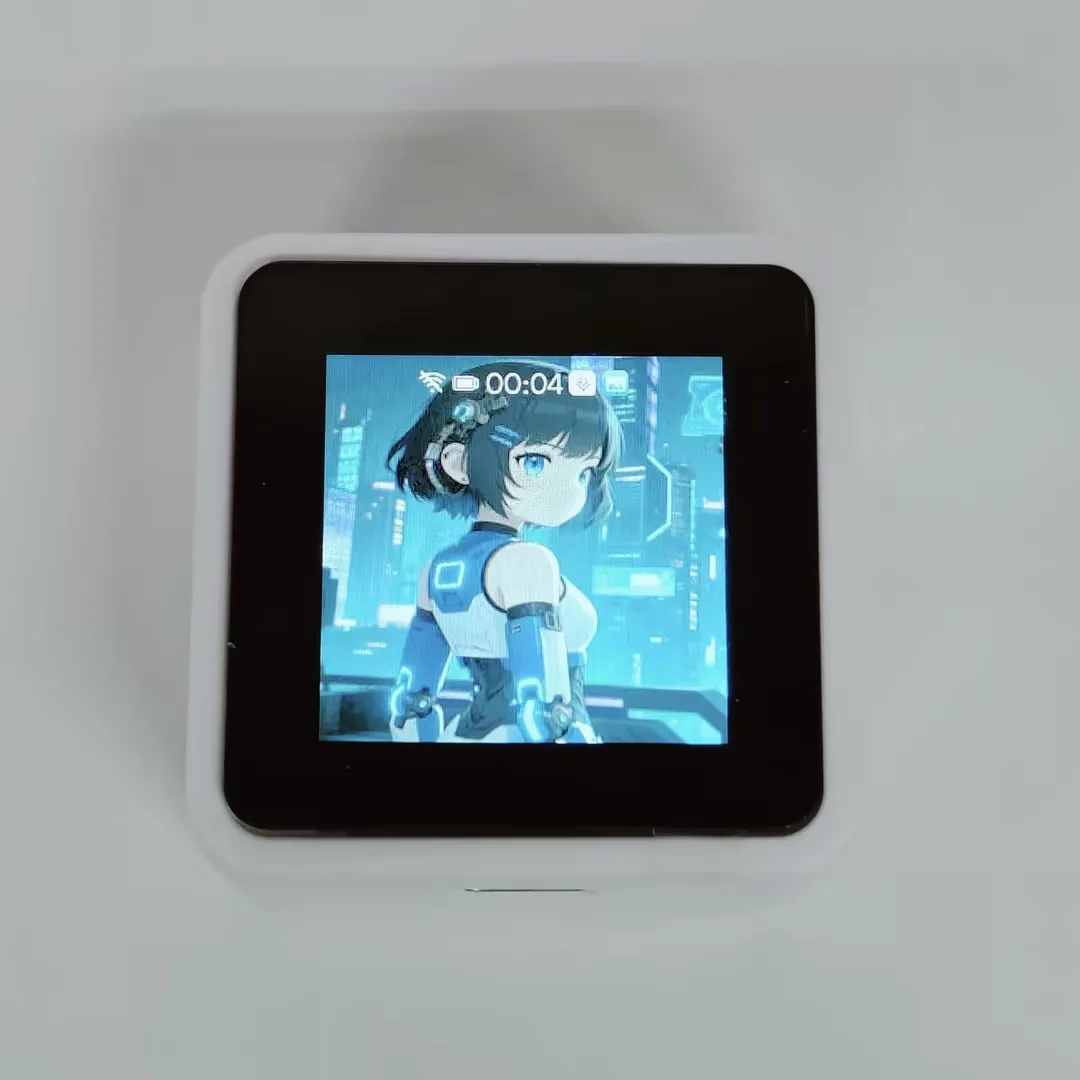
Convert Images
-
You can customize image display using the following steps (requires some programming knowledge):
-
Select the image you want to display (e.g., test.bmp).
-
Install the ffmpeg tool.
-
Convert the image file to JPG format using ffmpeg:
ffmpeg -i test.bmp -pix_fmt yuvj420p -q:v 1 -y test.jpg -
Place the converted JPG file into the
photodirectory on the TF card. -
Insert the TF card into the development board.
-
Music APP
-
Supports MP3 music playback.
-
Emulates a music player interface. This APP requires a TF card. Copy the
musicfolder from theFirmware/sdcard/directory of the example program to the root of the TF card.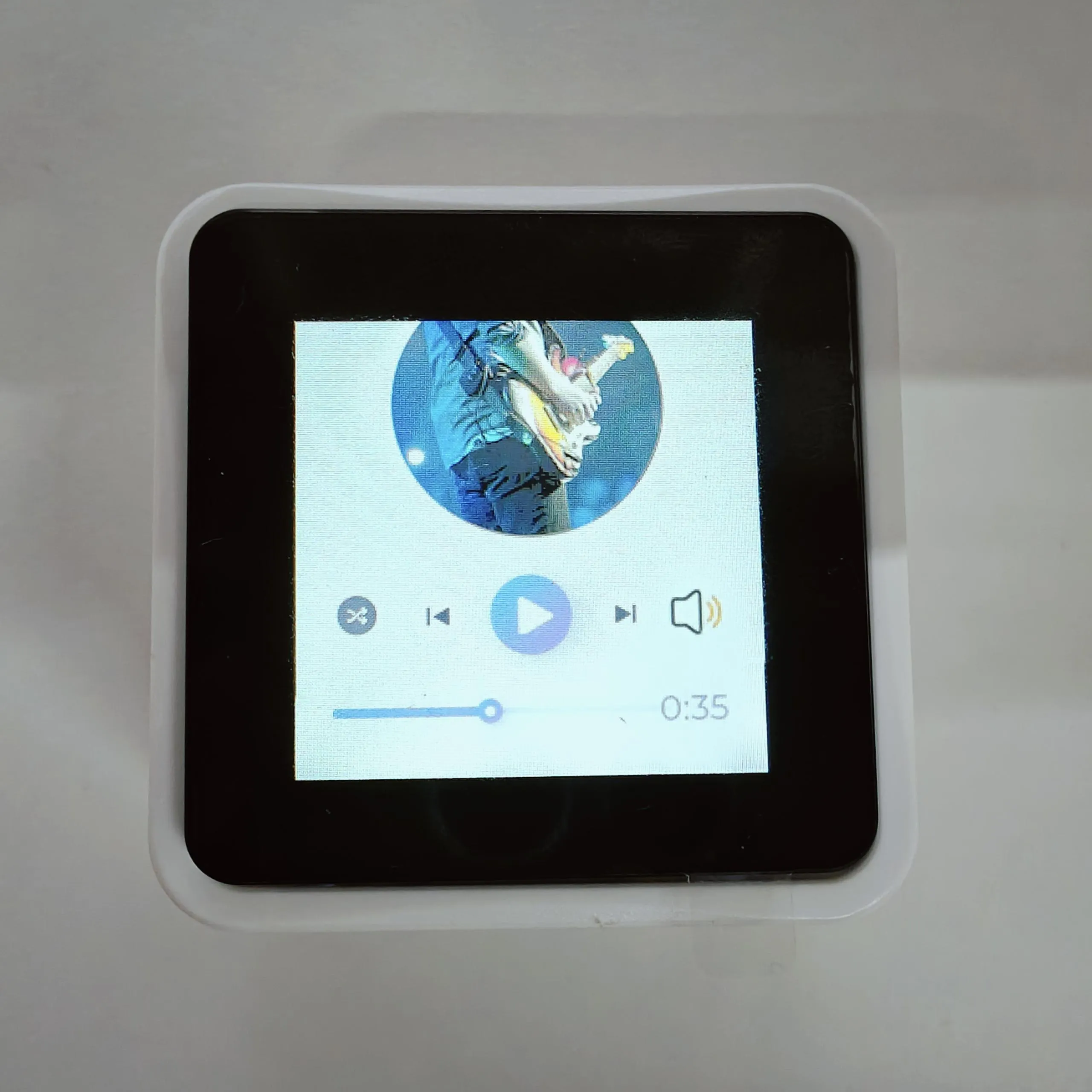
Video APP
-
Supports video playback at 240x240 resolution.
-
Emulates a video player interface. This APP requires a TF card. Copy the
videofolder from theFirmware/sdcard/directory of the example program to the root of the TF card.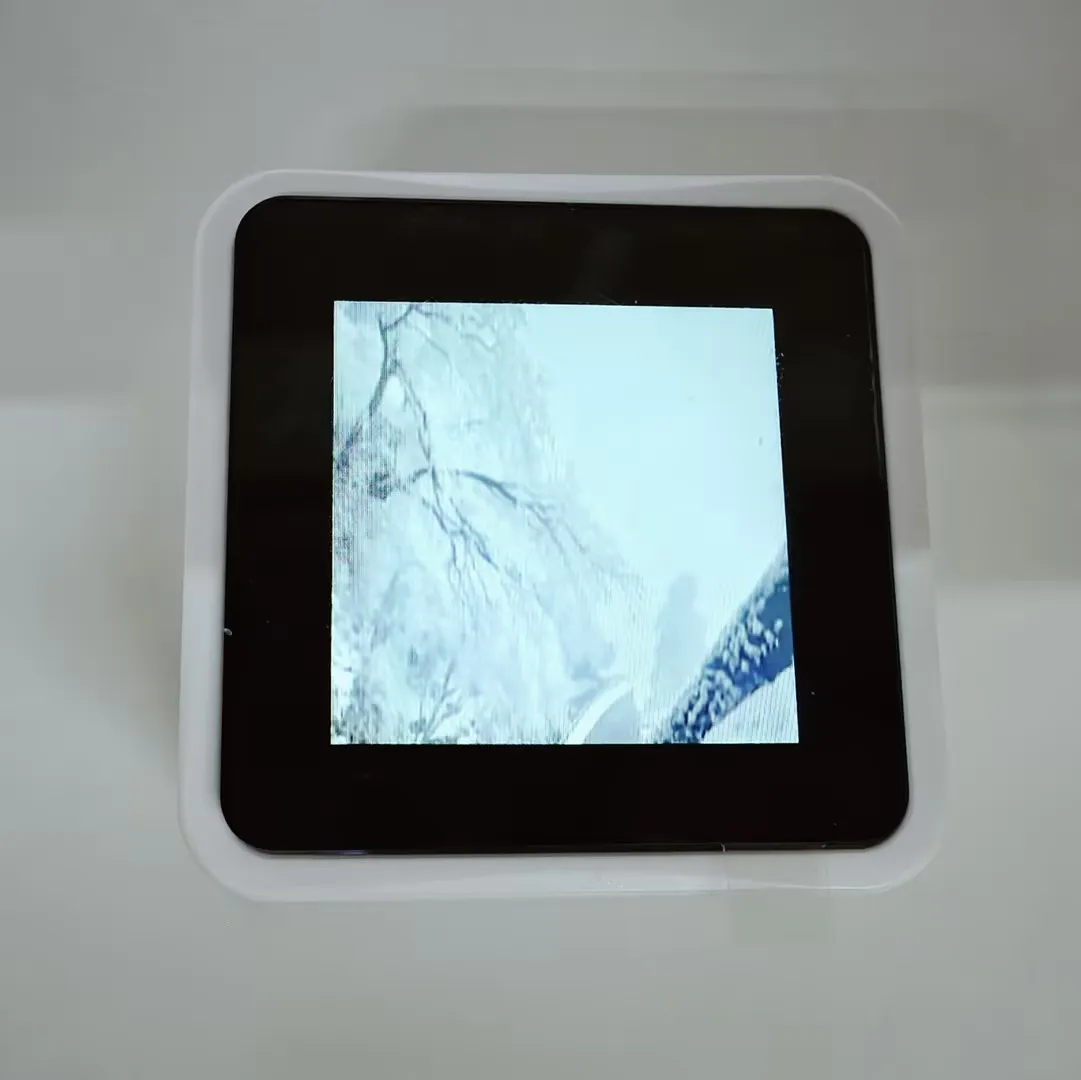
Custom Video
-
You can customize video clips using the following steps (requires some programming knowledge):
-
Select the video you want to play (e.g., a.mp4).
-
Install the ffmpeg tool.
-
Use ffmpeg to convert the video file to AVI format:
ffmpeg -i a.mp4 -vcodec mjpeg -s 240x240 -r 30 -q:v 2 -acodec pcm_s16le -ar 44100 -ac 2 a.avi -
Place the converted AVI file into the
videodirectory on the TF card. -
Insert the TF card into the development board.
-
E-Book APP
-
Emulates an e-book interface. This APP requires a TF card and a
fictiondirectory containing.txtfiles to run properly.
Spec_Analyzer
-
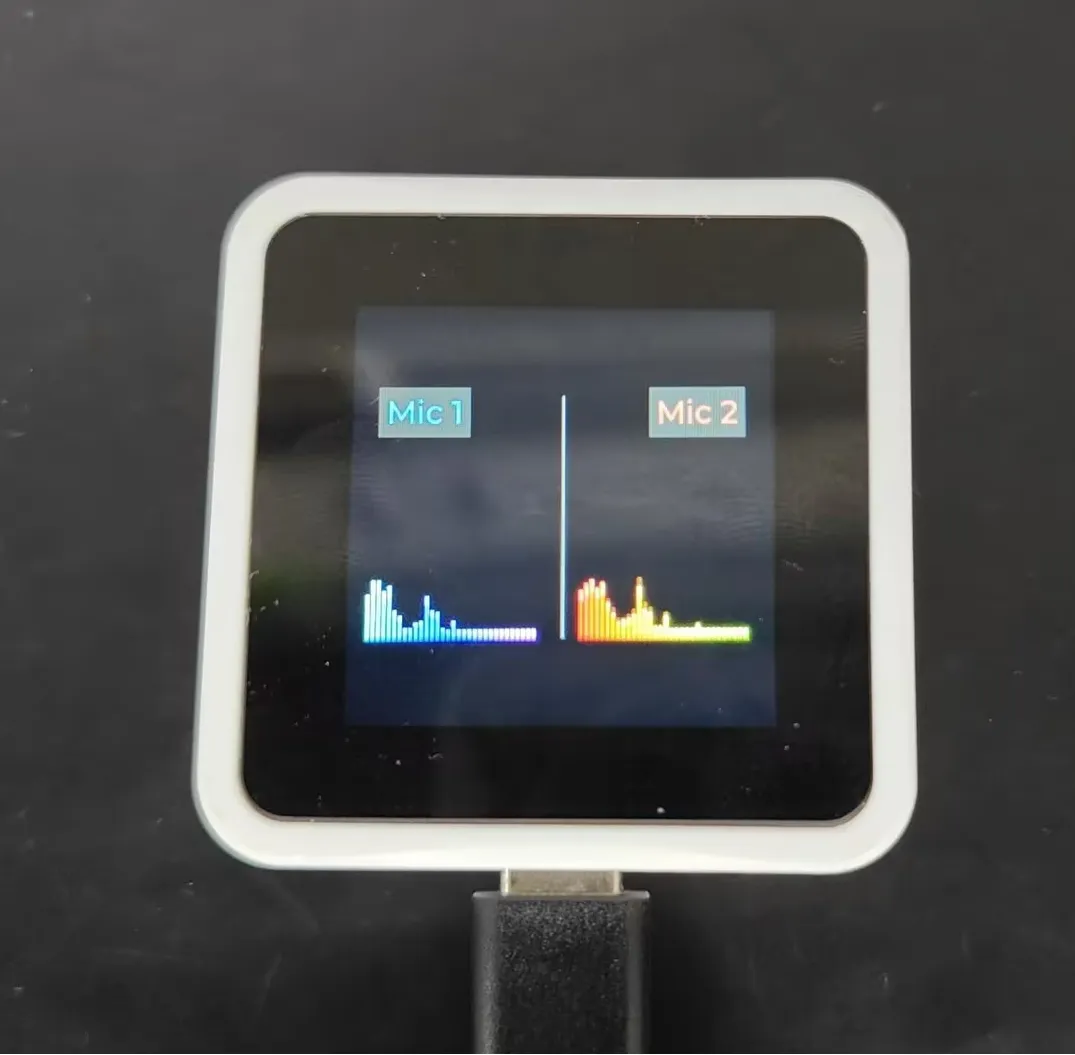
This example tests dual-microphone audio capture; the spectrum changes with the dual-microphone input.
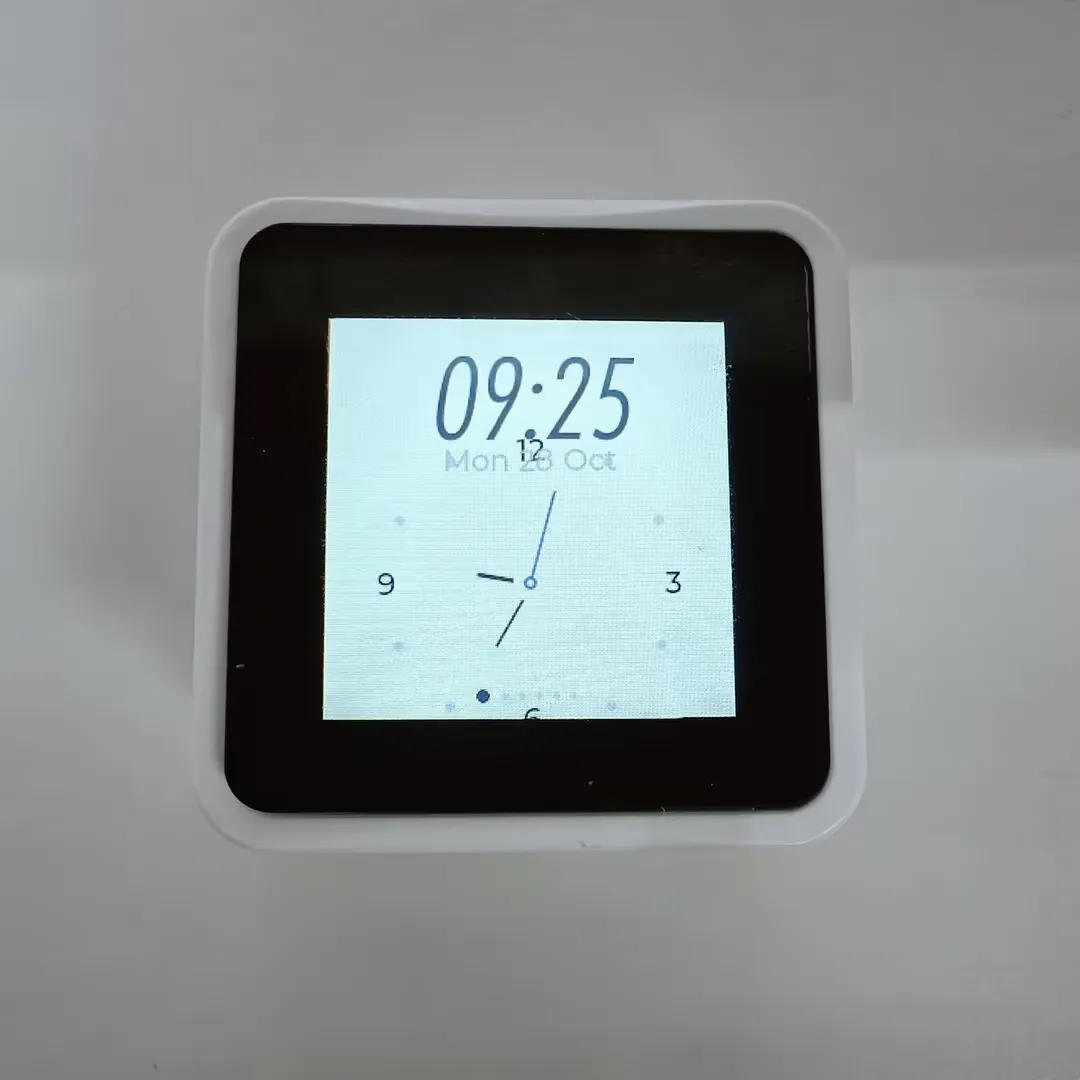
Squareline
-
This example demonstrates an LVGL example created with SquareLine Studio.
Gravity Ball
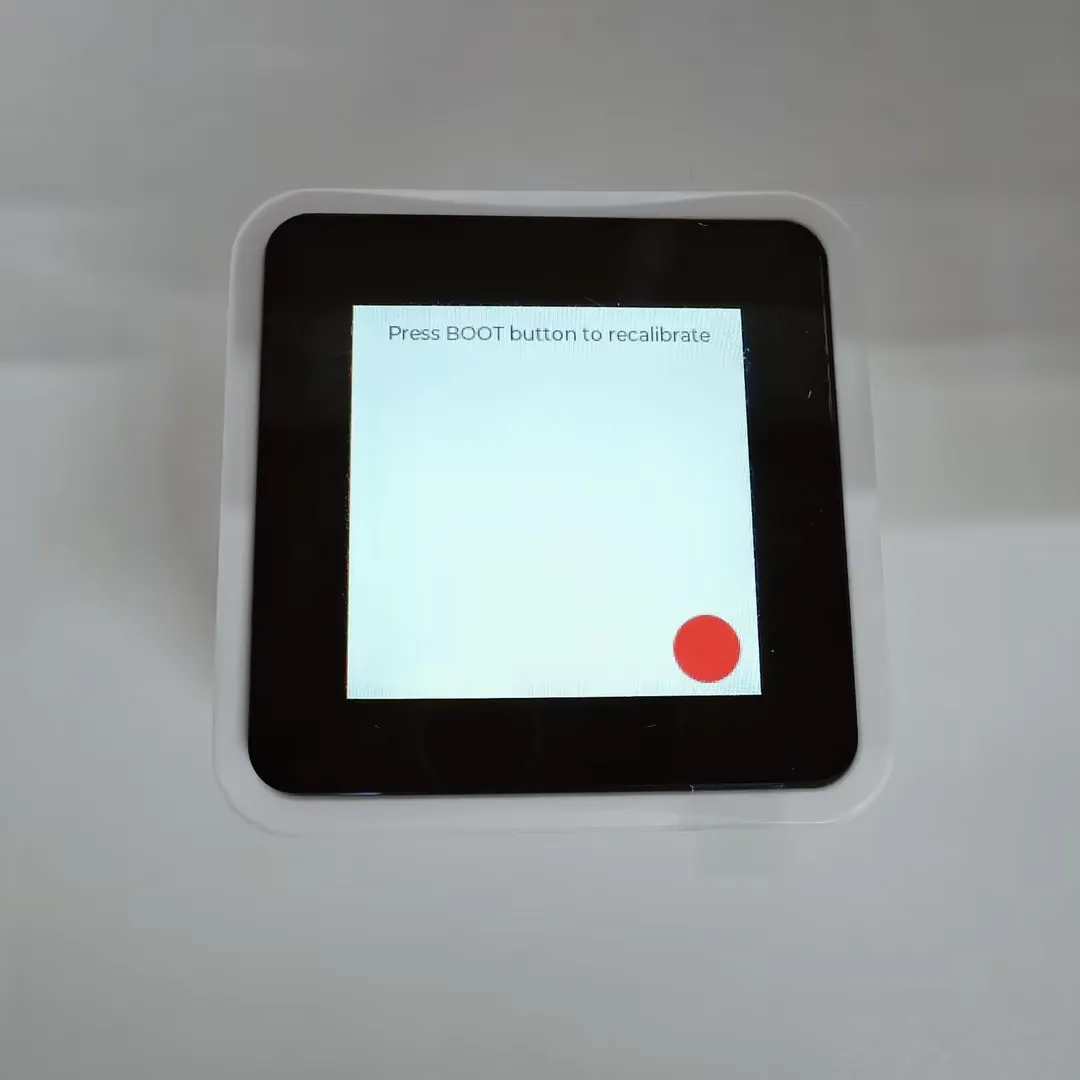
-
This example demonstrates a Gravity Ball application based on the 6-axis inertial sensor. The ball moves in real-time on the screen as the device is tilted, following its orientation
XiaoZhi AI APP
-
Tap the APP to launch the Xiaozhi AI application, which is consistent with the version adapted for the Xiaozhi official website and operates in the same way.
-
Double-tap the BOOT button to return to the brookesia interface.